鸿蒙交互体验深度实践:沉浸式光感 + 多端适配 + 智能握姿
·
完整源码:SmartGesture。
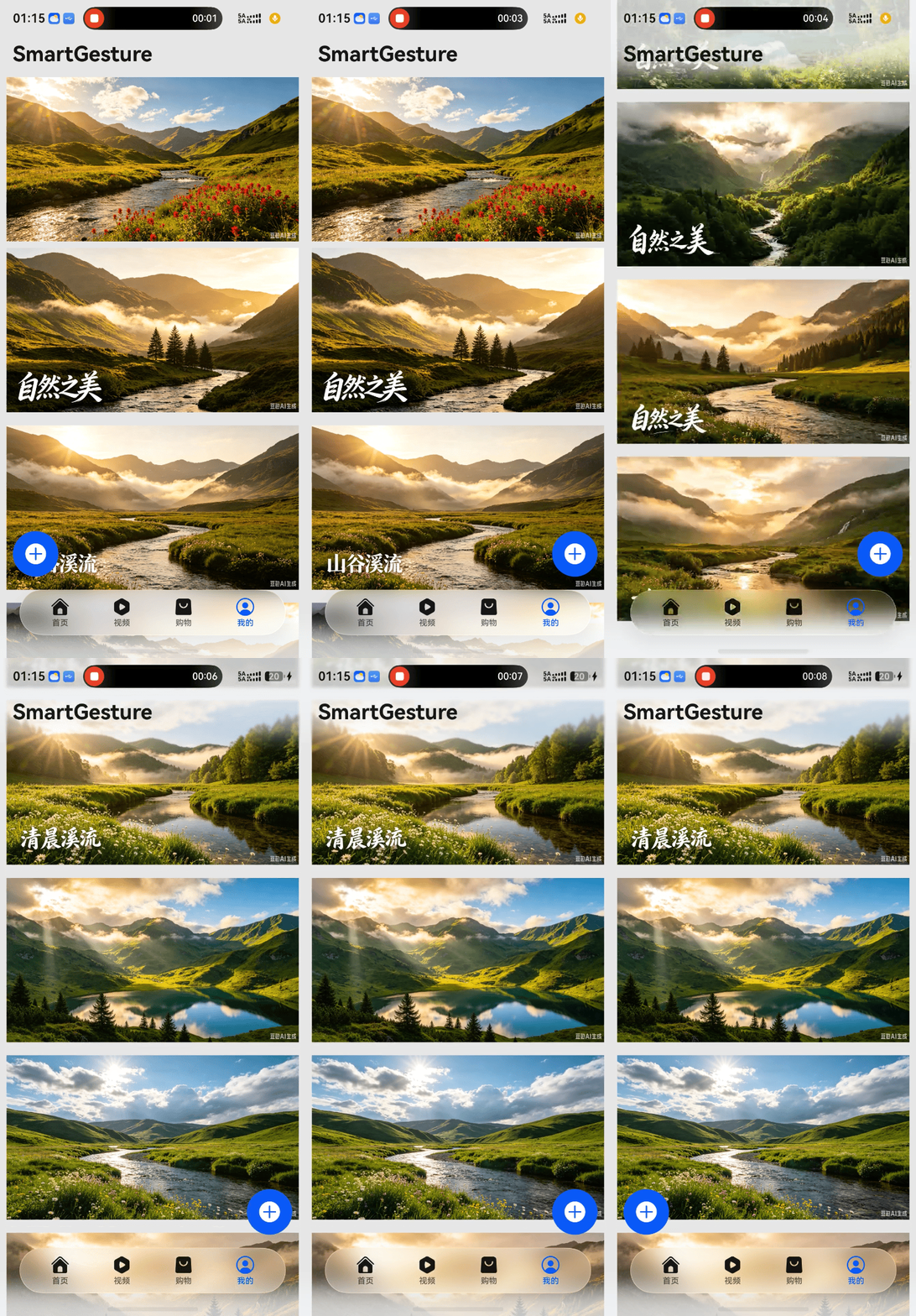
效果预览
| 手机(单列) | 折叠屏(双列) |
|---|---|
 |
 |
| 滚动导航栏渐变模糊 | 内容列数自动适配 |
观感效果:沉浸光感与多端布局的视觉差异
沉浸光感体验
- 导航栏滚动渐变模糊:向上滑动瀑布流时,标题栏从完全透明平滑过渡到深度模糊(
blurEffectiveEndOffset: 64vp),如同毛玻璃逐渐覆盖。背景内容被虚化,前景文字依然清晰,视觉上产生“层叠”感,增强了内容沉浸感。 - 系统自适应材质:导航栏和底部Tab栏采用
hdsMaterial.MaterialType.ADAPTIVE,浅色模式下呈现明亮的半透玻璃质感,深色模式下转为深色磨砂效果。材质强度会随背景内容自动调整——背景复杂时模糊增强,背景简洁时模糊减弱,避免过度遮挡文字。 - 全屏沉浸:通过
ignoreLayoutSafeArea让内容完全穿透状态栏和导航指示条区域,配合滚动时标题栏的隐藏动画(dynamicHideTitleBar),真正实现无黑边全屏沉浸。
多端布局差异(断点驱动)
| 断点 | 典型设备 | 瀑布流列数 | 左右边距(vp) | 底部Tab栏边距 | Banner段数量 |
|---|---|---|---|---|---|
| SM | 手机竖屏 | 1列 | 16 | naviIndicatorHeight 或 8 | 1个 |
| MD | 平板竖屏 | 2列 | 24 | naviIndicatorHeight 或 8 | 2个 |
| LG | 平板横屏/折叠屏展开 | 3列 | 32 | naviIndicatorHeight 或 8 | 2个 |
- 折叠屏展开/合拢时,窗口尺寸变化触发
windowSizeChange和avoidAreaChange事件,DeviceModel中的断点、安全区高度自动更新,瀑布流的列数、边距、Banner数量随之动态变化,过渡平滑无错位。 - 底部Tab栏悬浮在内容之上,
barBottomMargin动态绑定naviIndicatorHeight(导航指示条高度),不会遮挡最后一行内容。 - 浮动按钮的左右边距也随断点变化(16/24/32 vp),在大屏设备上自动放大,避免贴边过紧。
握姿反馈
- 左手握持时,浮动按钮平滑移动到左下角;右手握持时移动到右下角。
- 动画使用
curves.interpolatingSpring(0, 1, 288, 30)曲线,移动过程带有轻微回弹,手感自然。 - 底部Tab栏通过
adaptToHandedness: true也会微调位置,进一步提升大屏单手操作体验。
一、沉浸式光感:滚动模糊 + 系统材质
1.1 导航栏滚动模糊(关键代码)
父组件(Index.ets) 预先创建 Scroller 数组,并通过 bindToScrollable 绑定:
private scrollerList: Scroller[] = new Array(4).fill(null).map(() => new Scroller());

HdsNavigation() { ... }
.titleBar({
  style: {
    scrollEffectOpts: {
      enableScrollEffect: true,
      scrollEffectType: ScrollEffectType.GRADIENT_BLUR,
      blurEffectiveEndOffset: LengthMetrics.vp(64)
    },
    systemMaterialEffect: {
      materialType: hdsMaterial.MaterialType.ADAPTIVE,
      materialLevel: hdsMaterial.MaterialLevel.ADAPTIVE
    }
  }
})
.bindToScrollable(this.scrollerList)   // 关键!必须绑定
子组件(WaterfallView.ets) 接收外部传入的 scroller:
@ComponentV2
export struct WaterfallView {
  @Param @Require scroller: Scroller; // 外部传入,不能内部创建
  build() {
    WaterFlow({ scroller: this.scroller, sections: this.sections }) { ... }
  }
}
踩坑:如果
scroller在WaterfallView内部私有创建,则bindToScrollable无法感知滚动,模糊效果失效。必须由父组件创建数组,通过参数传入。
1.2 系统自适应材质(底部Tab栏)
.barFloatingStyle({
  adaptToHandedness: true,
  barBottomMargin: this.model.naviIndicatorHeight > 0 ? this.model.naviIndicatorHeight : 8,
  systemMaterialEffect: {
    materialType: hdsMaterial.MaterialType.ADAPTIVE,
    materialLevel: hdsMaterial.MaterialLevel.ADAPTIVE
  }
})
二、多端适配:断点模型 + 安全区监听
2.1 全局设备模型 DeviceModel
@ObservedV2
export class DeviceModel {
  @Trace widthBreakpoint: WidthBreakpoint = WidthBreakpoint.WIDTH_SM;
  @Trace statusBarHeight: number = 0;
  @Trace naviIndicatorHeight: number = 0;
  // ...
}
2.2 窗口管理器 WindowManager(监听尺寸 + 安全区)
export class WindowManager {
  static init(stage: window.WindowStage) { ... }
  private static register() {
    const model = AppStorageV2.connect(DeviceModel, StorageKeys.DEVICE_MODEL, () => new DeviceModel())!;
    // 初始安全区
    const sys = WindowManager.win!.getWindowAvoidArea(window.AvoidAreaType.TYPE_SYSTEM);
    model.statusBarHeight = WindowManager.ctx!.px2vp(sys.topRect?.height ?? 0);
    const navi = WindowManager.win!.getWindowAvoidArea(window.AvoidAreaType.TYPE_NAVIGATION_INDICATOR);
    model.naviIndicatorHeight = WindowManager.ctx!.px2vp(navi.bottomRect?.height ?? 0);
    // 监听窗口尺寸变化
    WindowManager.win!.on('windowSizeChange', (size) => {
      model.widthBreakpoint = WindowManager.ctx!.getWindowWidthBreakpoint();
    });
    // 监听安全区变化(折叠屏开合也会触发)
    WindowManager.win!.on('avoidAreaChange', (opt) => {
      if (opt.type === window.AvoidAreaType.TYPE_SYSTEM) {
        model.statusBarHeight = WindowManager.ctx!.px2vp(opt.area.topRect?.height ?? 0);
      } else if (opt.type === window.AvoidAreaType.TYPE_NAVIGATION_INDICATOR) {
        model.naviIndicatorHeight = WindowManager.ctx!.px2vp(opt.area.bottomRect?.height ?? 0);
      }
    });
  }
}
2.3 断点适配方法(getMarginByBreakpoint)
在 Index.ets 中,通过 getMarginByBreakpoint 根据断点返回不同数值:
private getMarginByBreakpoint(sm: number, md: number, lg: number): number {
  const bp = this.model.widthBreakpoint;
  if (bp === WidthBreakpoint.WIDTH_SM) return sm;
  if (bp === WidthBreakpoint.WIDTH_MD) return md;
  return lg;
}
// 使用示例
left: this.getMarginByBreakpoint(16, 24, 32)
2.4 瀑布流分段布局(WaterfallView 中的安全区边距)
@Computed
get sections(): WaterFlowSections {
  const side = this.getValueByBreakpoint(8, 12, 16);        // 左右边距
  const bannerCount = this.getValueByBreakpoint(1, 2, 2);   // Banner数量
  const columns = this.getValueByBreakpoint(1, 2, 3);       // 内容列数

  const sectionsObj = new WaterFlowSections();
  sectionsObj.push({
    itemsCount: bannerCount,
    crossCount: bannerCount,
    margin: { left: side, right: side, top: this.model.statusBarHeight + 56, bottom: 8 }
  });
  sectionsObj.push({
    itemsCount: this.items.length,
    crossCount: columns,
    margin: { left: side, right: side, bottom: this.model.naviIndicatorHeight + 64 }
  });
  return sectionsObj;
}
- Banner 段顶部避开状态栏和标题栏(
statusBarHeight + 56),底部留 8vp 间距。 - 内容段底部避开导航指示条(
naviIndicatorHeight + 64)。
三、智能握姿:手势感知 + 弹性动画
3.1 权限配置(module.json5)
"requestPermissions": [
  { "name": "ohos.permission.DETECT_GESTURE", "reason": "$string:gesture_reason" }
]
3.2 监听握持手势(Index.ets)
aboutToAppear() {
  if (canIUse('SystemCapability.MultimodalAwareness.Motion')) {
    motion.on('holdingHandChanged', this.handleHandChange);
  }
}

private handleHandChange = (status: motion.HoldingHandStatus) => {
  this.getUIContext().animateTo({ curve: curves.interpolatingSpring(0, 1, 288, 30) }, () => {
    if (status === motion.HoldingHandStatus.LEFT_HAND_HELD) {
      this.floatingRules = {
        left: { anchor: '__container__', align: HorizontalAlign.Start },
        bottom: { anchor: '__container__', align: VerticalAlign.Bottom }
      };
    } else if (status === motion.HoldingHandStatus.RIGHT_HAND_HELD) {
      this.floatingRules = {
        right: { anchor: '__container__', align: HorizontalAlign.End },
        bottom: { anchor: '__container__', align: VerticalAlign.Bottom }
      };
    }
  });
};
3.3 浮动按钮
Row() {
  SymbolGlyph($r('sys.symbol.plus_circle_fill'))
    .fontColor([$r('sys.color.icon_on_primary')])
    .fontSize(28)
}
.alignRules(this.floatingRules)
.margin({
  bottom: 100,
  left: this.getMarginByBreakpoint(16, 24, 32),
  right: this.getMarginByBreakpoint(16, 24, 32)
})
四、踩坑与解决方案
| 问题 | 原因 | 解决方案 |
|---|---|---|
| 滚动导航栏无模糊效果 | 瀑布流的 scroller 未与导航栏绑定 |
父组件传入 scroller 并调用 .bindToScrollable(scrollerList) |
AppStorageV2.connect 报错 |
缺少第三个参数(工厂函数) | 添加 () => new ClassName() |
| 瀑布流 Banner 与内容区紧贴 | 未设置分段间距 | Banner 段增加 margin.bottom: 8 |
| 底部 Tab 被导航条遮挡 | 未预留安全区 | barBottomMargin 绑定 naviIndicatorHeight |
| 折叠屏开合布局错位 | 硬编码列数/边距 | 使用 getValueByBreakpoint 或 getMarginByBreakpoint 动态获取 |
| 握持手势不生效 | 权限未声明或设备不支持 | 声明 DETECT_GESTURE 并用 canIUse 检测 |
五、总结
本文完整分享了三大核心能力的实现:
- 沉浸光感:
scrollEffectOpts+systemMaterialEffect+ 外部传入scroller绑定。 - 多端适配:
DeviceModel+WindowManager+ 断点工具方法 + 瀑布流动态边距。 - 智能握姿:
motionAPI + 弹性动画 + 动态alignRules。
如果你也在探索鸿蒙多模态交互,欢迎评论区留言讨论。

讨论HarmonyOS开发技术,专注于API与组件、DevEco Studio、测试、元服务和应用上架分发等。
更多推荐


 5
5 0
0- 0


 已为社区贡献113条内容

所有评论(0)