【共创季稿事节】HarmonyOS7 互动卡片开发实践:用 Canvas 做音乐卡片封面切换动画
文章目录
前言
音乐切歌动画如果只是换一张图片,会很生硬。当前项目用 Canvas 把帧图和专辑封面合成到一起,效果会自然很多。
这篇不讲高深图形学,只带小白看懂项目里 Canvas 的用法。
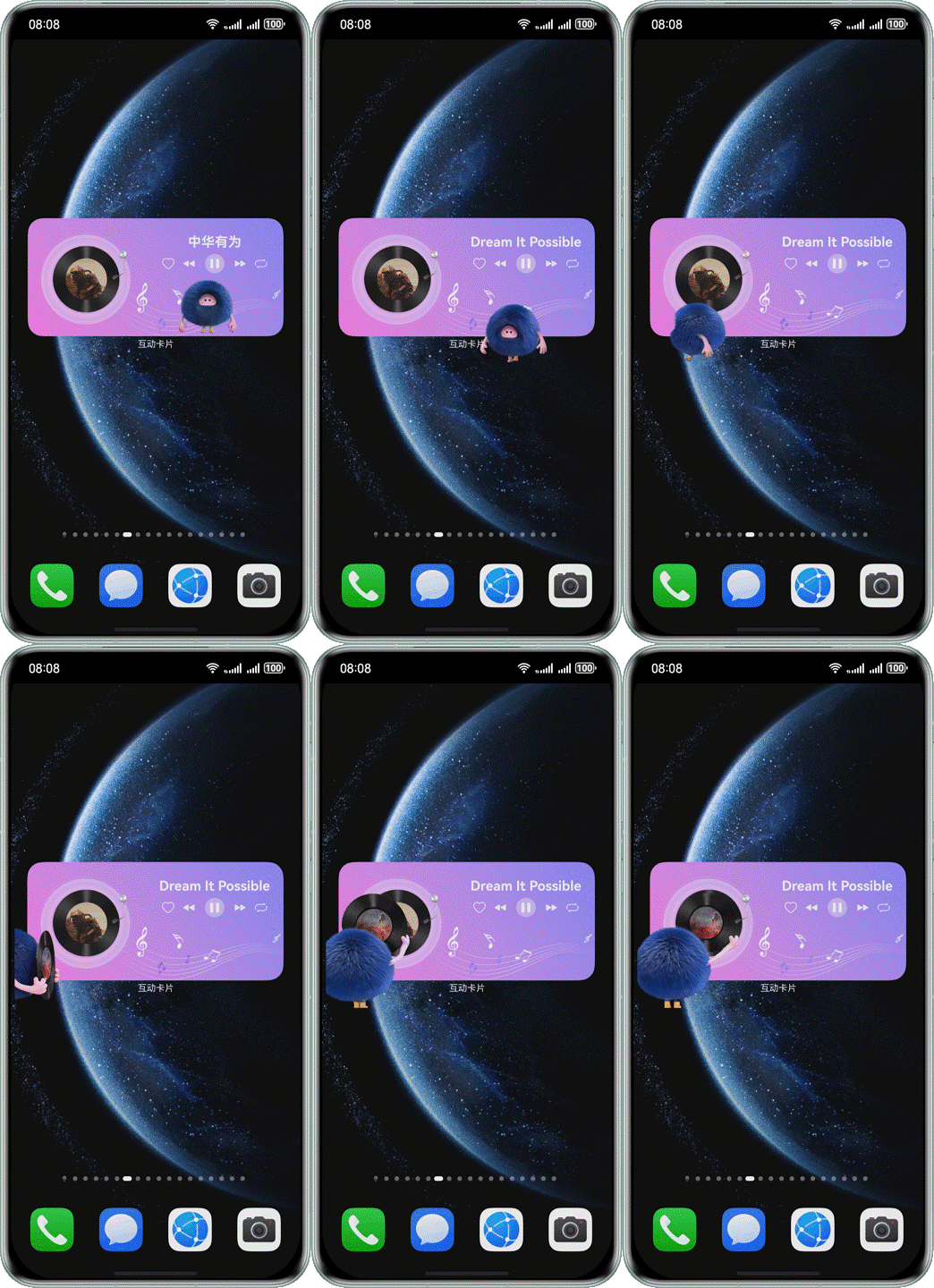
效果图
音乐封面切换如果做得自然,用户会明显感觉 LiveForm 不是简单换图,而是在认真做过渡。
先看文件
核心代码在:
entry/src/main/ets/livecardability/pages/MusicLiveCard.ets
图片工具在:
entry/src/main/ets/utils/ImageUtils.ets
动画常量在:
entry/src/main/ets/model/music/MusicLiveCardConstant.ets
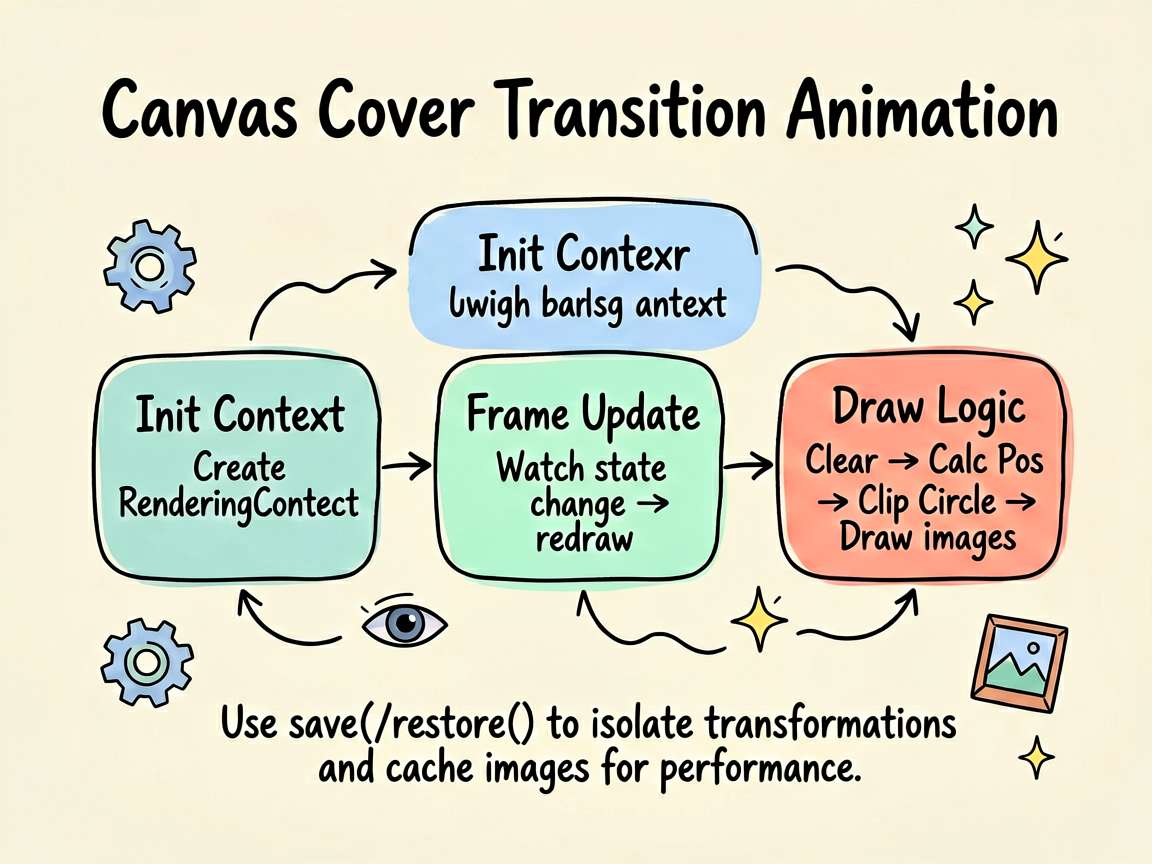
Canvas 先创建上下文
页面里有:
private canvasSettings: RenderingContextSettings = new RenderingContextSettings(true);
private canvasContext: CanvasRenderingContext2D = new CanvasRenderingContext2D(this.canvasSettings);
这两行就是创建 2D 画布上下文。
后面所有绘制,比如清空、裁剪、旋转、画图,都靠 canvasContext。
当前帧变化时重画
项目里:
@State @Watch('frameChange') currentCoverFrame: number = 0;

frameChange(): void {
  this.drawCanvasFrame();
}
每次 currentCoverFrame 变化,就调用 drawCanvasFrame() 重画画布。
这就是帧动画的基本思路:状态变一帧,Canvas 重画一次。
drawCanvasFrame 做了什么
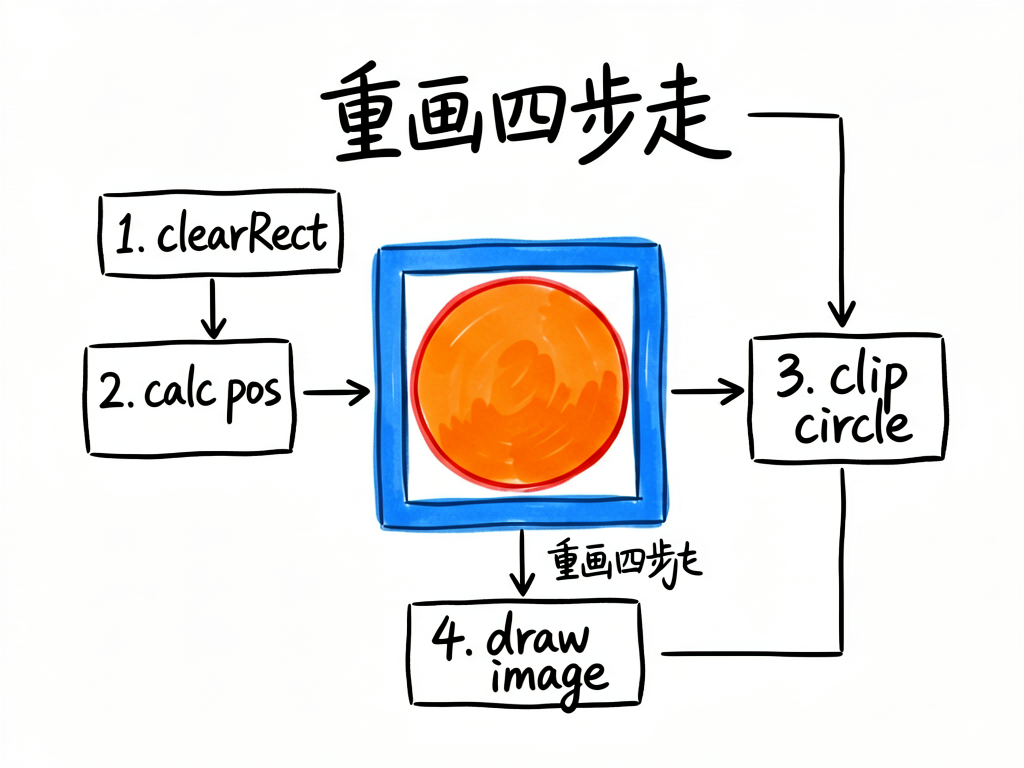
核心逻辑可以拆成四步。
第一步,清空画布:
ctx.clearRect(0, 0, canvasW, canvasH);
不清空的话,上一帧残影会留在画布上。
第二步,计算当前专辑封面位置:
const config = this.getCurrentCoverConfig();
const albumSize = this.canvasHeight * 0.3;
const albumX = this.canvasWidth * config.x / 100 - currentOffsetX;
const albumY = this.canvasHeight * config.y / 100;
config 里有 x、y、旋转、缩放等参数。每一帧用不同配置,就能做出封面飞入飞出的效果。
第三步,裁剪圆形封面:
ctx.beginPath();
ctx.arc(0, 0, albumSize / 2, 0, Math.PI * 2);
ctx.clip();
这段让后面画进去的专辑图只显示成圆形。
第四步,绘制封面和帧图:
ctx.drawImage(albumImage, -albumSize / 2, -albumSize / 2, albumSize, albumSize);
ctx.drawImage(frameImage, offsetX - currentOffsetX, offsetY, this.canvasWidth, this.canvasHeight);
一个是专辑封面,一个是动画帧图。
save 和 restore 很重要
项目里用了:
ctx.save();
// translate / rotate / clip / drawImage
ctx.restore();
小白可以这样理解:
save() 是保存当前画笔状态。
restore() 是恢复到之前状态。
如果你做了裁剪、旋转、缩放,却不恢复,后面的绘制也会被影响,画面很容易乱。
为什么要缓存图片
代码里有:
const albumImage = this.cachedAlbumImage ?? ImageUtils.getImageBitmapByMediaResource(
  this.getUIContext().getHostContext() as Context,
  this.currentSong.label
);

if (!this.cachedAlbumImage) {
  this.cachedAlbumImage = albumImage;
}
意思是:如果已经有缓存,就别重复读取图片。
动画过程中每一帧都解码图片,性能会很差。缓存起来能减少卡顿。
最小 Canvas 示例
小白可以先练这个:
@Component
struct AlbumCanvasDemo {
  private settings: RenderingContextSettings = new RenderingContextSettings(true);
  private context: CanvasRenderingContext2D = new CanvasRenderingContext2D(this.settings);
  @State angle: number = 0;
  private timer: number = -1;

  aboutToAppear(): void {
    this.timer = setInterval(() => {
      this.angle = (this.angle + 5) % 360;
      this.draw();
    }, 50);
  }

  aboutToDisappear(): void {
    if (this.timer !== -1) {
      clearInterval(this.timer);
      this.timer = -1;
    }
  }

  private draw(): void {
    const ctx = this.context;
    ctx.clearRect(0, 0, ctx.width, ctx.height);
    ctx.save();
    ctx.translate(ctx.width / 2, ctx.height / 2);
    ctx.rotate(this.angle * Math.PI / 180);
    ctx.beginPath();
    ctx.arc(0, 0, 60, 0, Math.PI * 2);
    ctx.clip();
    ctx.fillStyle = '#7C5CFF';
    ctx.fillRect(-60, -60, 120, 120);
    ctx.restore();
  }

  build() {
    Canvas(this.context)
      .width('100%')
      .height('100%')
      .onReady(() => this.draw())
  }
}
先跑通圆形旋转,再去看项目里的图片合成,会轻松很多。
常见坑
- 忘记
clearRect(),画面有残影。 - 忘记
restore(),后续绘制全被裁剪或旋转。 - 每帧都重新读取图片,动画卡顿。
- 定时器不清理,LiveForm 关闭后还在重画。
写在最后
Canvas 的好处是自由。切歌动画里,帧图、封面、旋转、裁剪都能自己控制。
小白先记住三件事:清空画布、保存恢复状态、销毁时清理定时器。

讨论HarmonyOS开发技术,专注于API与组件、DevEco Studio、测试、元服务和应用上架分发等。
更多推荐



 49
49 0
0- 0


 已为社区贡献246条内容

所有评论(0)