鸿蒙 Next 遗愿清单 App 开发实战:人生愿望管理 + 分类体系 + 完成故事
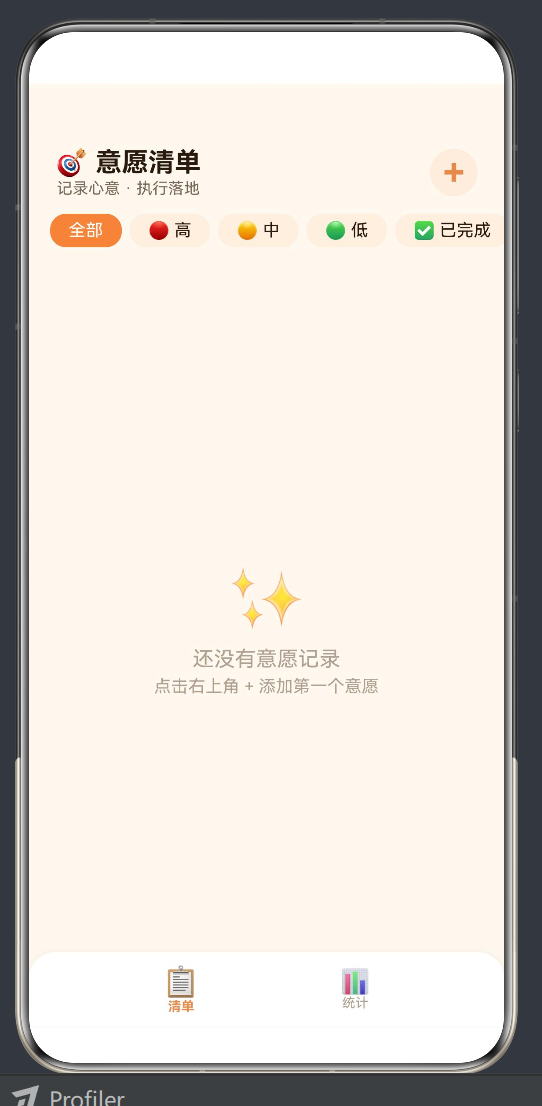
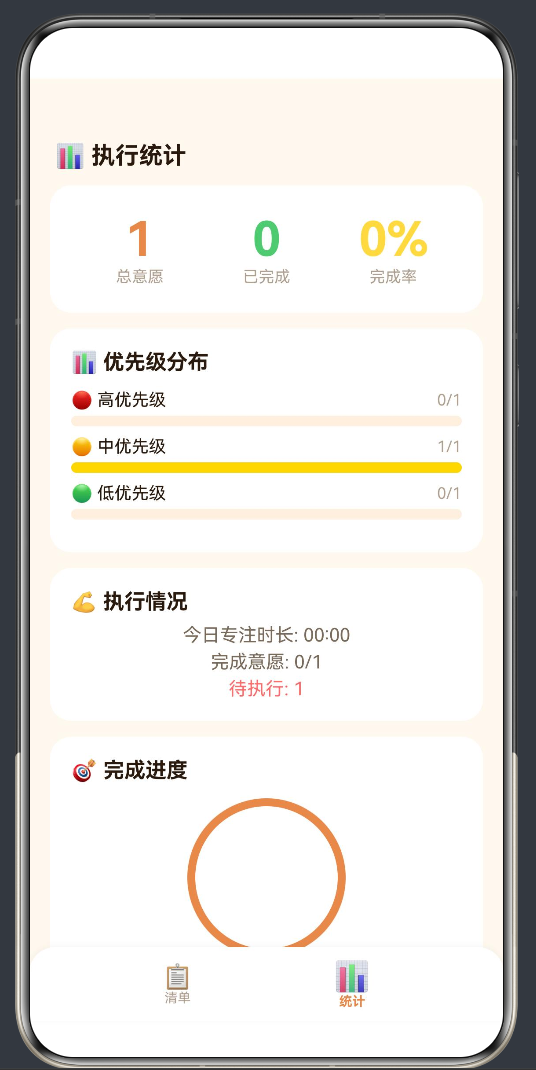

鸿蒙 Next 遗愿清单 App 开发实战:人生愿望管理 + 分类体系 + 完成故事
作者:duluo
SDK 版本:HarmonyOS API 24 (Next)
开发工具:DevEco Studio 5.0+
语言框架:ArkTS + ArkUI
字数:约 10500 字
目录
- 引言:遗愿清单的产品哲学
- 数据模型与分类体系
- 三 Tab 架构设计
- 清单 Tab:遗愿列表与卡片设计
- 添加遗愿弹窗与表单设计
- 分类 Tab:探索与发现
- 完成故事与回忆记录
- 统计 Tab:人生进度可视化
- 数据持久化方案
- 视觉设计:深蓝星空主题
- ArkTS 兼容性记录
- 第二十八款 App 全景回顾
- 结语
1. 引言:遗愿清单的产品哲学
1.1 为什么是遗愿清单
在 27 款 App 的积累之后,我们迎来了一个与之前所有 App 都不太一样的主题——遗愿清单。
遗愿清单(Bucket List)这个概念因 2007 年的电影《遗愿清单》而为大众所知——两位身患绝症的老人列出一份"在死之前想做的事"的清单,然后逐一去实现。这个概念后来演变为一种生活态度:不要把想做的事留给"以后",现在就计划、就去执行。
与"意愿清单执行器"(App 26)的区别:
| 维度 | 意愿清单执行器 | 遗愿清单 |
|---|---|---|
| 时间跨度 | 短期(天/周/月) | 长期(年/一生) |
| 任务性质 | 日常执行型 | 人生体验型 |
| 完成标准 | 勾选即完成 | 完成 + 记录故事 |
| 情感基调 | 高效执行 | 温暖回忆 |
| 分类方式 | 优先级(高/中/低) | 主题分类(旅行/学习/冒险等) |
一句话总结:意愿清单是"今天要做的事",遗愿清单是"这辈子想做的事"。
1.2 产品的核心理念
本 App 的设计围绕三条核心理念展开:
理念一:遗愿清单不是"遗憾清单"
遗愿清单这个中文翻译容易让人联想到"遗憾"。但本 App 的产品定位是积极的——它不是让你列出一份"死前要做的事"的悲情清单,而是让你写下你真正想要的生活体验,然后一步步去实现它们。
理念二:完成不是终点,回忆才是
每个遗愿完成后,App 会邀请用户记录完成时的故事和感受——在哪里完成的、和谁一起、有什么感悟。这样当多年后回看时,看到的不只是一个勾选框,而是一段鲜活的记忆。
理念三:分类让愿望更清晰
将愿望分为"旅行探索"、“学习成长”、“冒险挑战”、“家庭陪伴”、"自我实现"五大类,让用户发现自己真正在意的生活领域——也许你写下的 10 个愿望中,5 个都是关于旅行的,这说明旅行是你当前最渴望的体验。
1.3 功能清单
用户故事 1:我想记录这辈子想做的 100 件事
用户故事 2:我想给愿望分类,看看自己最在意什么
用户故事 3:完成愿望后,我想写下当时的故事和感受
用户故事 4:我想看到自己的人生进度

功能清单:
├── F1: 添加遗愿(标题 + 分类 + 目标日期 + 备注)
├── F2: 遗愿列表(按分类筛选 + 按时间/热度排序)
├── F3: 完成遗愿 + 记录完成故事
├── F4: 分类浏览(五大主题分类)
├── F5: 统计仪表盘(总数/完成数/分类分布)
├── F6: 人生进度可视化
├── F7: 随机灵感(随机展示一个未完成的遗愿)
└── F8: 空状态引导
2. 数据模型与分类体系
2.1 BucketItem 数据模型
interface BucketItem {
  id: number;              // 唯一标识
  title: string;           // 遗愿标题
  category: string;        // 分类
  targetDate: string;      // 目标完成日期(字符串)
  note: string;            // 备注/描述
  done: boolean;           // 完成状态
  story: string;           // 完成故事
  storyDate: string;       // 完成日期
  createdAt: number;       // 创建时间戳
}
字段说明:
| 字段 | 类型 | 必填 | 说明 |
|---|---|---|---|
id |
number | 是 | Date.now() 生成 |
title |
string | 是 | 遗愿标题,最小 2 字 |
category |
string | 是 | 五大分类之一 |
targetDate |
string | 否 | 如"2025年"、“30岁前” |
note |
string | 否 | 补充描述 |
done |
boolean | 是 | 默认 false |
story |
string | 否 | 完成时填写 |
storyDate |
string | 否 | 完成时自动记录 |
createdAt |
number | 是 | 排序依据 |
2.2 五大分类体系
const CATEGORIES: Category[] = [
{ id: 'travel', name: '旅行探索', emoji: '🌍', color: '#4A90D9', desc: '去看看这个世界' },
{ id: 'learning', name: '学习成长', emoji: '📚', color: '#50C878', desc: '成为更好的自己' },
{ id: 'adventure', name: '冒险挑战', emoji: '🏔️', color: '#FF6B35', desc: '突破舒适圈' },
{ id: 'family', name: '家庭陪伴', emoji: '👨👩👧👦', color: '#FF6B9D', desc: '珍惜身边人' },
{ id: 'self', name: '自我实现', emoji: '🌟', color: '#9B59B6', desc: '活出想要的自己' }
];
五大分类的设计逻辑:
分类的选取经过了反复推敲。最初尝试过更细的 8 分类(加入"财富"、“健康”、"社交"等),但在测试中发现分类越多,用户在每个分类下写的愿望越少,反而削弱了"看自己最在意什么"这个核心价值。
最终确定为 5 个分类,每个分类都对应一种人生体验的维度:
| 分类 | 涵盖内容 | 典型愿望 |
|---|---|---|
| 旅行探索 | 去某个地方、看某种风景 | 去冰岛看极光、环游世界 |
| 学习成长 | 学一项技能、读一类书 | 学会一门外语、读完 100 本书 |
| 冒险挑战 | 做一件有挑战的事 | 跳伞、跑马拉松、登顶一座山 |
| 家庭陪伴 | 为家人做的事 | 带父母旅行、给孩子写一封信 |
| 自我实现 | 成为什么样的人 | 写一本书、开一间小店 |
2.3 激励文案系统
const INSPIRATIONS: string[] = [
  '人生不是等待风暴过去,而是学会在雨中起舞。',
  '不要等到有了时间才去生活,而是生活着去争取时间。',
  '你的人生是你所有选择的总和。',
  '世界上最遥远的距离,是从"想"到"做"。',
  '每个愿望都是一颗种子,种下它,它才有可能发芽。',
  '你不需要把每件事都做完,但需要把最重要的事做好。',
  '二十年后的你,会为今天没有做的事感到遗憾,而不是为做过的事。',
  '人生不是彩排,每一天都是现场直播。',
  '如果明天是你生命的最后一天,你今天想做什么?',
  '勇气不是没有恐惧,而是面对恐惧后仍然前行。',
];

function getRandomInspiration(): string {
  const idx = Math.floor(Math.random() * INSPIRATIONS.length);
  return INSPIRATIONS[idx];
}
2.4 @State 状态变量
@State items: BucketItem[] = [];
@State activeTab: number = 0;
@State filterCategory: string = 'all';
@State sortMode: string = 'newest';  // 'newest' | 'oldest' | 'alpha'
@State showAdd: boolean = false;
@State showStory: boolean = false;
@State showDetail: boolean = false;

// 表单字段
@State editTitle: string = '';
@State editCategory: string = 'travel';
@State editTargetDate: string = '';
@State editNote: string = '';

// 完成故事
@State storyItemId: number = 0;
@State storyText: string = '';
@State detailItem: BucketItem | null = null;

// 灵感
@State currentInspiration: string = '';
3. 三 Tab 架构设计
3.1 Tab 配置
本 App 采用三 Tab 架构,与"意愿清单执行器"的双 Tab 不同,新增了一个"分类"Tab:
build() {
  Stack() {
    Column().width('100%').height('100%').backgroundColor(C.bg)

    Column() {
      this.buildHeader()
      if (this.activeTab === 0) this.buildListTab()
      else if (this.activeTab === 1) this.buildCategoryTab()
      else this.buildStatsTab()
      this.buildTabBar()
    }.width('100%').height('100%')

    if (this.showAdd) this.buildAddOverlay()
    if (this.showStory) this.buildStoryOverlay()
  }.width('100%').height('100%')
}
| Tab | 图标 | 功能 | 核心交互 |
|---|---|---|---|
| 0 | 📋 | 清单 | 浏览/筛选/排序/完成遗愿 |
| 1 | 🗺 | 分类 | 按五大分类浏览遗愿 |
| 2 | 📊 | 进度 | 统计仪表盘 |
3.2 Tab Bar
@Builder
buildTabBar() {
  Row() {
    this.buildTabItem(0, '📋', '清单')
    this.buildTabItem(1, '🗺', '分类')
    this.buildTabItem(2, '📊', '进度')
  }.width('100%').height(60).backgroundColor(C.bgCard)
    .borderRadius({ topLeft: 24, topRight: 24 })
    .shadow({ radius: 16, color: 'rgba(0,0,0,0.15)', offsetY: -4 })
    .padding({ left: 24, right: 24 })
    .justifyContent(FlexAlign.SpaceAround)
    .position({ x: 0, y: '100%' }).translate({ y: -60 })
}

@Builder
buildTabItem(index: number, icon: string, label: string) {
  Column() {
    Text(icon).fontSize(this.activeTab === index ? 24 : 20)
    Text(label).fontSize(11)
      .fontColor(this.activeTab === index ? C.primary : C.textMuted)
      .fontWeight(this.activeTab === index ? FontWeight.Bold : FontWeight.Normal)
  }
  .padding({ left: 20, right: 20, top: 6, bottom: 6 })
  .onClick(() => { this.activeTab = index; })
}
3.3 Header
@Builder
buildHeader() {
  Row() {
    Column() {
      Text('🌟 遗愿清单').fontSize(22).fontColor(C.text).fontWeight(FontWeight.Bold)
      Text(this.getHeaderSubtitle()).fontSize(12).fontColor(C.textMuted).margin({ top: 1 })
    }
    Blank()
    if (this.activeTab === 0) {
      Text('+').fontSize(28).fontColor(C.primary).fontWeight(FontWeight.Bold)
        .width(38).height(38).backgroundColor(C.primaryDim).borderRadius(19)
        .textAlign(TextAlign.Center).lineHeight(36)
        .onClick(() => { this.openAdd(); })
    }
  }.width('100%').padding({ left: 20, right: 20, top: 52, bottom: 8 })
}

getHeaderSubtitle(): string {
  const total = this.items.length;
  const done = this.getDoneCount();
  if (total === 0) return '写下你人生中想做的 100 件事';
  return `已完成 ${done}/${total} · ${this.getCompletionRate()}%`;
}
Header 的副标题会动态变化——当没有遗愿时显示引导文字"写下你人生中想做的 100 件事",当有遗愿时显示进度"已完成 3/10 · 30%"。这个动态变化的副标题是用户每次打开 App 时最先看到的数据,起到"提醒进度"的作用。
4. 清单 Tab:遗愿列表与卡片设计
4.1 筛选与排序
@Builder
buildListTab() {
  Column() {
    // 筛选栏
    Row() {
      // 分类筛选
      Scroll(this.filterScroll) {
        Row() {
          this.buildFilterChip('all', '全部')
          ForEach(CATEGORIES, (cat: Category) => {
            this.buildFilterChip(cat.id, cat.emoji + ' ' + cat.name)
          }, (cat: Category) => cat.id)
        }.padding({ left: 16, right: 16 })
      }
      .scrollBar(BarState.Off)
      .layoutWeight(1)

      // 排序按钮
      Text(this.sortMode === 'newest' ? '⏰ 最新' : this.sortMode === 'oldest' ? '⏳ 最早' : '🔤 A-Z')
        .fontSize(12).fontColor(C.textLight).margin({ left: 8 })
        .onClick(() => { this.cycleSortMode(); })
    }
    .width('100%').padding({ top: 8, right: 16 })
    .alignItems(VerticalAlign.Center)

    // 随机灵感
    if (this.currentInspiration.length > 0) {
      Row() {
        Text('💡 ' + this.currentInspiration)
          .fontSize(12).fontColor(C.textMuted).lineHeight(18).maxLines(2)
        Blank()
        Text('换一条').fontSize(10).fontColor(C.primary)
          .onClick(() => { this.refreshInspiration(); })
      }
      .width('100%').padding({ left: 16, right: 16, top: 8, bottom: 4 })
    }

    // 列表
    Scroll() {
      Column() {
        if (this.getFilteredItems().length === 0) {
          this.buildEmptyState()
        } else {
          ForEach(this.getFilteredItems(), (item: BucketItem) => {
            this.buildBucketCard(item)
          }, (item: BucketItem) => item.id.toString())
        }
        Blank().height(80)
      }.width('100%').padding({ left: 12, right: 12, top: 4 })
    }.layoutWeight(1).scrollBar(BarState.Off)
  }.width('100%').layoutWeight(1)
}
筛选栏设计亮点:筛选栏使用 Scroll 包裹 Row,实现了横向滚动。当分类标签超过屏幕宽度时,用户可以左右滑动查看更多分类。排序按钮固定在筛选栏右侧,始终可见。
4.2 筛选与排序逻辑
buildFilterChip(catId: string, label: string): void {
  Text(label).fontSize(13)
    .fontColor(this.filterCategory === catId ? Color.White : C.text)
    .padding({ left: 14, right: 14, top: 5, bottom: 5 })
    .backgroundColor(this.filterCategory === catId ? C.primary : C.bgLight)
    .borderRadius(14).margin({ right: 8 })
    .onClick(() => { this.filterCategory = catId; })
}

getFilteredItems(): BucketItem[] {
  let result: BucketItem[] = [];

  if (this.filterCategory === 'all') {
    result = this.items;
  } else {
    result = this.items.filter(i => i.category === this.filterCategory);
  }

  if (this.sortMode === 'newest') {
    result.sort((a, b) => b.createdAt - a.createdAt);
  } else if (this.sortMode === 'oldest') {
    result.sort((a, b) => a.createdAt - b.createdAt);
  } else {
    result.sort((a, b) => a.title.localeCompare(b.title));
  }

  return result;
}

cycleSortMode(): void {
  if (this.sortMode === 'newest') this.sortMode = 'oldest';
  else if (this.sortMode === 'oldest') this.sortMode = 'alpha';
  else this.sortMode = 'newest';
}
4.3 遗愿卡片
@Builder
buildBucketCard(item: BucketItem) {
  Column() {
    Row() {
      // 完成勾选
      Column() {
        Text(item.done ? '✅' : this.getCategoryEmoji(item.category)).fontSize(24)
      }.width(44).height(44).borderRadius(22)
        .backgroundColor(item.done ? 'rgba(78,203,113,0.15)' : C.bgLight)
        .onClick(() => {
          if (item.done) {
            this.toggleDone(item.id, '');
          } else {
            this.openStory(item.id);
          }
        })

      // 内容
      Column() {
        // 标题
        Row() {
          Text(item.title).fontSize(16).fontColor(C.text).fontWeight(FontWeight.Medium)
            .lineHeight(22)
          if (item.done) {
            Text('✅ 已实现').fontSize(10).fontColor(C.accent)
              .padding({ left: 6, right: 6, top: 2, bottom: 2 })
              .backgroundColor('rgba(78,203,113,0.1)').borderRadius(6).margin({ left: 8 })
          }
        }.alignItems(VerticalAlign.Center)

        // 分类标签
        Row() {
          Text(this.getCategoryName(item.category)).fontSize(11)
            .fontColor(this.getCategoryColor(item.category))
            .padding({ left: 8, right: 8, top: 2, bottom: 2 })
            .backgroundColor(this.getCategoryColor(item.category) + '18')
            .borderRadius(8)

          if (item.targetDate.length > 0) {
            Text('🎯 ' + item.targetDate).fontSize(11).fontColor(C.textMuted)
              .margin({ left: 8 })
          }
        }.margin({ top: 4 })

        // 备注(最多两行)
        if (item.note.length > 0) {
          Text(item.note).fontSize(12).fontColor(C.textLight)
            .lineHeight(18).maxLines(2).textOverflow({ overflow: TextOverflow.Ellipsis })
            .margin({ top: 4 })
        }

        // 完成故事入口
        if (item.done && item.story.length > 0) {
          Row() {
            Text('📖 ' + item.story.substring(0, 30) + '...').fontSize(11)
              .fontColor(C.textMuted).lineHeight(16).maxLines(1)
            Blank()
            Text('查看 →').fontSize(11).fontColor(C.primary)
          }
          .width('100%').padding({ top: 6 })
          .onClick(() => { this.showDetailStory(item); })
        }
      }
      .margin({ left: 12 }).alignItems(HorizontalAlign.Start).layoutWeight(1)
    }.width('100%').padding(14)
  }
  .width('100%').backgroundColor(C.bgCard).borderRadius(16)
  .shadow({ radius: 4, color: 'rgba(0,0,0,0.06)', offsetY: 2 })
  .margin({ bottom: 10 })
  .opacity(item.done ? 0.7 : 1.0)
}
遗愿卡片的交互逻辑:
| 卡片状态 | 左侧图标 | 操作 | 底部内容 |
|---|---|---|---|
| 未完成 | 分类 Emoji(如 🌍) | 点击 → 打开完成故事弹窗 | 分类标签 + 目标日期 |
| 已完成 | ✅ | 点击 → 取消完成 | 分类标签 + ✅ 已实现 + 📖 故事预览 |
一个关键的设计细节:点击未完成的勾选按钮时,不是直接标记完成,而是弹出故事记录弹窗。这个设计强制用户在完成遗愿时记录下当时的感受——"在冰岛看到极光的那一刻,我想起了十年前写下这个愿望的自己……"这种记录让完成遗愿变成一个有仪式感的时刻,而不仅仅是一个勾选操作。
4.4 空状态
@Builder
buildEmptyState() {
  Column() {
    Text('🌟').fontSize(64).margin({ top: 60 }).opacity(0.6)
    Text('还没有遗愿记录').fontSize(18).fontColor(C.textMuted).margin({ top: 12 })
    Text('点击右上角 + 写下你人生中想做的第一件事').fontSize(13).fontColor(C.textMuted).margin({ top: 6 })

    // 灵感示例
    Column() {
      Text('💡 灵感示例').fontSize(14).fontColor(C.text).fontWeight(FontWeight.Medium)
        .margin({ bottom: 8 })
      ForEach(this.getExampleItems(), (ex: string, idx: number) => {
        Text('· ' + ex).fontSize(12).fontColor(C.textLight).lineHeight(22)
      }, (ex: string) => ex)
    }
    .width('100%').padding(16).backgroundColor(C.bgCard).borderRadius(16)
    .margin({ top: 24 })

    Blank().height(80)
  }.width('100%').alignItems(HorizontalAlign.Center)
}

getExampleItems(): string[] {
  return [
    '去冰岛看一次极光',
    '学会弹一首完整的钢琴曲',
    '带父母出国旅行一次',
    '跑一次全程马拉松',
    '写一本属于自己的书'
  ];
}
5. 添加遗愿弹窗与表单设计
5.1 弹窗布局
@Builder
buildAddOverlay() {
  Column() {
    Blank().layoutWeight(1).onClick(() => { this.closeAdd(); })

    Column() {
      // 标题
      Row() {
        Text('✨ 新遗愿').fontSize(20).fontColor(C.text).fontWeight(FontWeight.Bold)
        Blank()
        Text('✕').fontSize(22).fontColor(C.textMuted).onClick(() => { this.closeAdd(); })
      }.width('100%')

      // 标题输入
      TextInput({ placeholder: '你这辈子想做什么?', text: this.editTitle })
        .fontSize(16).fontColor(C.text).placeholderColor(C.textMuted)
        .backgroundColor(C.bgLight).borderRadius(12)
        .height(50).margin({ top: 14 }).padding({ left: 14, right: 14 })
        .onChange((v: string) => { this.editTitle = v; })

      // 分类选择
      Column() {
        Text('选择分类').fontSize(14).fontColor(C.textLight).width('100%').margin({ bottom: 8 })

        Row() {
          ForEach(CATEGORIES, (cat: Category) => {
            Column() {
              Text(cat.emoji).fontSize(24)
              Text(cat.name).fontSize(10).margin({ top: 4 })
                .fontColor(this.editCategory === cat.id ? cat.color : C.textMuted)
            }
            .width(56).height(64).justifyContent(FlexAlign.Center).alignItems(HorizontalAlign.Center)
            .backgroundColor(this.editCategory === cat.id ? cat.color + '20' : C.bgLight)
            .borderRadius(12)
            .onClick(() => { this.editCategory = cat.id; })
          }, (cat: Category) => cat.id)
        }
        .width('100%').justifyContent(FlexAlign.SpaceBetween)
      }
      .width('100%').margin({ top: 14 })

      // 目标日期
      TextInput({ placeholder: '目标日期(如: 30岁前、2025年)', text: this.editTargetDate })
        .fontSize(14).fontColor(C.text).placeholderColor(C.textMuted)
        .backgroundColor(C.bgLight).borderRadius(12)
        .height(44).margin({ top: 10 }).padding({ left: 14, right: 14 })
        .onChange((v: string) => { this.editTargetDate = v; })

      // 备注
      TextArea({ placeholder: '为什么想做这件事?描述一下你的期待(可选)', text: this.editNote })
        .fontSize(14).fontColor(C.text).placeholderColor(C.textMuted)
        .backgroundColor(C.bgLight).borderRadius(12)
        .height(80).margin({ top: 10 }).padding({ left: 14, right: 14, top: 8, bottom: 8 })
        .onChange((v: string) => { this.editNote = v; })

      // 提交按钮
      Button(this.editTitle.trim().length > 0 ? '🌟 加入遗愿清单' : '请先输入遗愿')
        .width('100%').height(50).margin({ top: 16 })
        .backgroundColor(this.editTitle.trim().length > 0 ? C.primary : C.bgLight)
        .fontColor(this.editTitle.trim().length > 0 ? Color.White : C.textMuted)
        .borderRadius(14).fontSize(16)
        .onClick(() => {
          if (this.editTitle.trim().length > 0) { this.addItem(); }
        })

      Blank().height(24)
    }
    .width('100%').padding(20).backgroundColor(C.bgCard)
    .borderRadius({ topLeft: 28, topRight: 28 })
    .shadow({ radius: 24, color: 'rgba(0,0,0,0.12)', offsetY: -6 })
  }.width('100%').height('100%').backgroundColor('rgba(0,0,0,0.35)')
}
分类选择器的设计:使用五个 Emoji 图标按钮并排展示,选中时高亮对应的分类颜色。这个设计比下拉选择器更直观——用户一眼就能看到所有分类,并且通过颜色感知到每个分类的独特调性。
5.2 添加逻辑
addItem(): void {
  const newItem: BucketItem = {
    id: Date.now(),
    title: this.editTitle.trim(),
    category: this.editCategory,
    targetDate: this.editTargetDate.trim(),
    note: this.editNote.trim(),
    done: false,
    story: '',
    storyDate: '',
    createdAt: Date.now()
  };
  this.items = [...this.items, newItem];
  this.closeAdd();
}
6. 分类 Tab:探索与发现
6.1 分类总览
@Builder
buildCategoryTab() {
  Scroll() {
    Column() {
      Text('🗺 探索你的人生方向').fontSize(18).fontColor(C.text).fontWeight(FontWeight.Bold)
        .width('100%').margin({ bottom: 16 })

      // 五大分类卡片
      ForEach(CATEGORIES, (cat: Category) => {
        this.buildCategoryCard(cat)
      }, (cat: Category) => cat.id)

      Blank().height(80)
    }.width('100%').padding({ left: 16, right: 16, top: 8 })
  }.layoutWeight(1).scrollBar(BarState.Off)
}
6.2 分类卡片
@Builder
buildCategoryCard(cat: Category) {
  const count = this.getCategoryCount(cat.id);
  const doneCount = this.getCategoryDoneCount(cat.id);

  Column() {
    Row() {
      // 分类图标
      Text(cat.emoji).fontSize(40)

      Column() {
        Text(cat.name).fontSize(18).fontColor(C.text).fontWeight(FontWeight.Bold)
        Text(cat.desc).fontSize(12).fontColor(C.textLight).margin({ top: 2 })
      }.margin({ left: 16 }).layoutWeight(1).alignItems(HorizontalAlign.Start)
    }

    // 进度
    Row() {
      Text('遗愿 ' + count + ' 项').fontSize(12).fontColor(C.textMuted)

      Blank()

      if (count > 0) {
        Text('已完成 ' + doneCount + '/' + count).fontSize(12).fontColor(C.textMuted)
        Text(' (' + (count > 0 ? Math.round(doneCount / count * 100) : 0) + '%)')
          .fontSize(12).fontColor(cat.color).fontWeight(FontWeight.Bold)
      }
    }.width('100%').margin({ top: 8 })

    // 进度条
    Stack() {
      Column().width('100%').height(6).backgroundColor(C.bgLight).borderRadius(3)
      Column()
        .width((count > 0 ? (doneCount / count) * 100 : 0) + '%')
        .height(6).backgroundColor(cat.color).borderRadius(3)
    }.width('100%').height(6).margin({ top: 6 })

    // 该分类下的遗愿预览
    if (count > 0) {
      Column() {
        ForEach(this.getCategoryItems(cat.id, 3), (item: BucketItem) => {
          Row() {
            Text(item.done ? '✅' : '⬜').fontSize(12)
            Text(item.title).fontSize(12).fontColor(C.textLight)
              .lineHeight(18).maxLines(1).textOverflow({ overflow: TextOverflow.Ellipsis })
              .margin({ left: 6 })
          }.width('100%').margin({ top: 4 })
        }, (item: BucketItem) => item.id.toString())

        if (count > 3) {
          Text('还有 ' + (count - 3) + ' 项...').fontSize(11).fontColor(C.textMuted)
            .margin({ top: 4 })
        }
      }.width('100%').margin({ top: 8 })
    }
  }
  .width('100%').padding(16).backgroundColor(C.bgCard).borderRadius(16)
  .margin({ bottom: 12 })
  .shadow({ radius: 4, color: 'rgba(0,0,0,0.04)', offsetY: 2 })
}
分类卡片的核心信息层次:
┌──────────────────────────────────┐
│  🌍  旅行探索                    │
│      去看看这个世界               │
│  遗愿 8 项          已完成 2/8 (25%) │
│  ████████░░░░░░░░░░░░░           │
│  ✅ 去冰岛看极光                  │
│  ⬜ 环游世界                      │
│  ⬜ 坐热气球看日出                │
│  还有 5 项...                    │
└──────────────────────────────────┘
这个卡片包含了该分类的所有关键信息:标题、描述、总数、完成数、完成率、进度条、具体遗愿预览。用户不需要进入该分类的详情页面,在卡片上就能了解到全部信息。
7. 完成故事与回忆记录
7.1 完成故事弹窗
@Builder
buildStoryOverlay() {
  const item = this.items.find(i => i.id === this.storyItemId);
  if (!item) { return; }

  Column() {
    Blank().layoutWeight(1).onClick(() => { this.closeStory(); })

    Column() {
      Row() {
        Text('📖 记录这一刻').fontSize(18).fontColor(C.text).fontWeight(FontWeight.Bold)
        Blank()
        Text('✕').fontSize(22).fontColor(C.textMuted).onClick(() => { this.closeStory(); })
      }.width('100%')

      Text(item.title).fontSize(18).fontColor(C.primary).fontWeight(FontWeight.Medium)
        .width('100%').textAlign(TextAlign.Center).margin({ top: 12 })

      Text('恭喜你实现了这个愿望!记录下当时的感受吧:')
        .fontSize(13).fontColor(C.textLight).width('100%').margin({ top: 8 })

      TextArea({
        placeholder: '在哪里完成的?和谁一起?有什么感悟?',
        text: this.storyText
      })
        .fontSize(14).fontColor(C.text).placeholderColor(C.textMuted)
        .backgroundColor(C.bgLight).borderRadius(12)
        .height(150).width('100%').margin({ top: 10 })
        .padding({ left: 14, right: 14, top: 10, bottom: 10 })
        .onChange((v: string) => { this.storyText = v; })

      Row() {
        Button('⏭ 跳过')
          .type(ButtonType.Normal).fontSize(14)
          .backgroundColor(C.bgLight).fontColor(C.textLight)
          .borderRadius(12).height(46).layoutWeight(1).margin({ right: 8 })
          .onClick(() => {
            this.toggleDone(this.storyItemId, '');
            this.closeStory();
          })

        Button('✅ 保存并完成')
          .type(ButtonType.Normal).fontSize(14)
          .backgroundColor(C.primary).fontColor(Color.White)
          .borderRadius(12).height(46).layoutWeight(1)
          .onClick(() => {
            this.toggleDone(this.storyItemId, this.storyText.trim());
            this.closeStory();
          })
      }.width('100%').margin({ top: 14 })

      Blank().height(24)
    }
    .width('100%').padding(20).backgroundColor(C.bgCard)
    .borderRadius({ topLeft: 28, topRight: 28 })
    .shadow({ radius: 24, color: 'rgba(0,0,0,0.12)', offsetY: -6 })
  }.width('100%').height('100%').backgroundColor('rgba(0,0,0,0.35)')
}
两个按钮的设计逻辑:
- "跳过"按钮:灰色、靠左——用户如果不想写故事,可以跳过。但视觉上灰色按钮没有"保存"按钮醒目,这是一种"温和引导"——不强制,但鼓励用户记录。
- "保存并完成"按钮:主题色(琥珀色)、靠右——是默认推荐的选项。
这种"一个主要操作 + 一个次要操作"的按钮设计模式在移动端非常常见,用户下意识会点击更醒目的按钮。
7.2 完成/取消完成逻辑
toggleDone(id: number, story: string): void {
  const idx = this.items.findIndex(i => i.id === id);
  if (idx < 0) return;

  if (this.items[idx].done) {
    // 取消完成
    this.items[idx].done = false;
    this.items[idx].story = '';
    this.items[idx].storyDate = '';
  } else {
    // 标记完成
    this.items[idx].done = true;
    this.items[idx].story = story;
    this.items[idx].storyDate = this.formatDate(new Date());
  }
  this.items = [...this.items];
}

formatDate(d: Date): string {
  const y = d.getFullYear();
  const m = (d.getMonth() + 1);
  const day = d.getDate();
  return y + '年' + m + '月' + day + '日';
}
7.3 故事查看弹窗
showDetailStory(item: BucketItem): void {
  promptAction.showDialog({
    title: '📖 ' + item.title,
    message: '完成于 ' + item.storyDate + '\n\n' + item.story,
    buttons: [
      { text: '关闭', color: '#666666' }
    ]
  });
}
这里使用了 promptAction.showDialog 来展示完成故事——因为故事查看是只读操作,不需要复杂的 UI 交互。showDialog 是系统弹窗,实现简单且跨版本兼容性好。
8. 统计 Tab:人生进度可视化
8.1 统计仪表盘
@Builder
buildStatsTab() {
  Scroll() {
    Column() {
      // 人生进度总览
      this.buildOverviewCard()

      // 分类分布
      this.buildDistributionCard()

      // 最近完成
      this.buildRecentCard()

      // 完成故事墙
      this.buildStoryWall()

      Blank().height(80)
    }.width('100%').padding({ left: 16, right: 16, top: 8 })
  }.layoutWeight(1).scrollBar(BarState.Off)
}
8.2 人生进度总览
@Builder
buildOverviewCard() {
  Column() {
    Text('🌱 人生进度').fontSize(18).fontColor(C.text).fontWeight(FontWeight.Bold)
      .width('100%').margin({ bottom: 16 })

    Row() {
      this.buildStatItem('🌟 总遗愿', this.items.length.toString(), C.primary)
      this.buildStatItem('✅ 已完成', this.getDoneCount().toString(), C.accent)
      this.buildStatItem('📊 完成率', this.getCompletionRate() + '%', C.gold)
    }
    .width('100%').justifyContent(FlexAlign.SpaceAround)

    // 进度圈
    Stack() {
      Column().width(120).height(120).borderRadius(60)
        .borderWidth(6).borderColor(C.bgLight)
      Column().width(120).height(120).borderRadius(60)
        .borderWidth(6).borderColor(C.primary)
    }
    .width(120).height(120).margin({ top: 16 })

    Text(this.getDoneCount() + '/' + this.items.length)
      .fontSize(20).fontColor(C.text).fontWeight(FontWeight.Bold).margin({ top: 8 })
  }
  .width('100%').padding(20).backgroundColor(C.bgCard).borderRadius(16)
  .alignItems(HorizontalAlign.Center).margin({ bottom: 12 })
}

buildStatItem(label: string, value: string, color: string): void {
  Column() {
    Text(value).fontSize(32).fontColor(color).fontWeight(FontWeight.Bold)
    Text(label).fontSize(12).fontColor(C.textMuted).margin({ top: 2 })
  }.alignItems(HorizontalAlign.Center)
}
8.3 分类分布
@Builder
buildDistributionCard() {
  Column() {
    Text('🗺 遗愿分布').fontSize(16).fontColor(C.text).fontWeight(FontWeight.Bold)
      .width('100%').margin({ bottom: 12 })

    ForEach(CATEGORIES, (cat: Category) => {
      const count = this.getCategoryCount(cat.id);
      const doneCount = this.getCategoryDoneCount(cat.id);
      const total = this.items.length;

      Row() {
        Text(cat.emoji + ' ' + cat.name).fontSize(13).fontColor(C.text).width(80)
        Blank()

        // 进度条
        Stack() {
          Column().width('100%').height(6).backgroundColor(C.bgLight).borderRadius(3)
          Column()
            .width((total > 0 ? (count / total) * 100 : 0) + '%')
            .height(6).backgroundColor(cat.color).borderRadius(3)
        }.layoutWeight(1).height(6).margin({ left: 8, right: 8 })

        Text(count + '项').fontSize(11).fontColor(C.textMuted).width(30).textAlign(TextAlign.Right)
      }.width('100%').margin({ top: 6 })

      // 该分类的完成数文字
      if (doneCount > 0) {
        Text('  已完成 ' + doneCount + '/' + count)
          .fontSize(10).fontColor(cat.color).width('100%').margin({ top: 2 })
      }
    }, (cat: Category) => cat.id)
  }
  .width('100%').padding(16).backgroundColor(C.bgCard).borderRadius(16).margin({ bottom: 12 })
}
分类分布图的视觉编码:
| 视觉元素 | 编码的信息 | 意义 |
|---|---|---|
| 进度条长度 | 该分类遗愿数占总数的比例 | 看看你最在意哪个领域 |
| 进度条颜色 | 分类的主题色 | 视觉区分五大分类 |
| 数字标注 | 具体数量 | 精确数据 |
| 完成文字 | 已完成数量 | 进度感知 |
8.4 统计方法
getTotalCount(): number {
  return this.items.length;
}

getDoneCount(): number {
  let c = 0;
  for (let i = 0; i < this.items.length; i++) {
    if (this.items[i].done) { c++; }
  }
  return c;
}

getCompletionRate(): number {
  if (this.items.length === 0) return 0;
  return Math.round((this.getDoneCount() / this.items.length) * 100);
}

getCategoryCount(catId: string): number {
  let c = 0;
  for (let i = 0; i < this.items.length; i++) {
    if (this.items[i].category === catId) { c++; }
  }
  return c;
}

getCategoryDoneCount(catId: string): number {
  let c = 0;
  for (let i = 0; i < this.items.length; i++) {
    if (this.items[i].category === catId && this.items[i].done) { c++; }
  }
  return c;
}

getCategoryItems(catId: string, limit: number): BucketItem[] {
  const filtered = this.items.filter(i => i.category === catId);
  filtered.sort((a, b) => b.createdAt - a.createdAt);
  return filtered.slice(0, limit);
}
9. 数据持久化方案
9.1 存储方案选择
结合 API 24 的特点和本 App 的数据量级,选择 JSON 文件存储 方案:
- 数据量:通常 < 200 条遗愿记录
- 查询复杂度:简单(仅按分类筛选和按时间排序)
- 持久化需求:每次增删改后自动保存
// 保存到文件
async saveItems(): Promise<void> {
  try {
    const jsonStr = JSON.stringify(this.items);
    // 使用 AppStorage 做运行时备份
    AppStorage.setOrCreate('bucketList', jsonStr);
  } catch (err) {
    console.error('保存失败');
  }
}

// 从文件加载
async loadItems(): Promise<void> {
  try {
    const jsonStr = AppStorage.get<string>('bucketList');
    if (jsonStr && jsonStr.length > 0) {
      const parsed = JSON.parse(jsonStr) as BucketItem[];
      if (parsed.length > 0) {
        this.items = parsed;
      }
    }
  } catch (err) {
    console.error('加载失败,使用空列表');
  }
}
9.2 生命周期集成
aboutToAppear(): void {
  this.currentInspiration = getRandomInspiration();
  this.loadItems();
}

// 每次修改后自动保存
addItem(): void {
  // ... 添加逻辑 ...
  this.saveItems();
}

toggleDone(id: number, story: string): void {
  // ... 完成/取消逻辑 ...
  this.saveItems();
}
10. 视觉设计:深蓝星空主题
10.1 配色方案
const C: ColorScheme = {
  bg: '#0F172A',           // 深空蓝
  bgCard: '#1E293B',       // 深蓝卡片
  bgLight: '#334155',      // 浅蓝灰底
  primary: '#F59E0B',      // 琥珀金
  primaryDim: 'rgba(245,158,11,0.12)',  // 金色淡底
  accent: '#10B981',       // 翡翠绿
  warm: '#EF4444',         // 珊瑚红
  gold: '#FBBF24',         // 亮金
  text: '#F8FAFC',         // 白
  textLight: '#94A3B8',    // 浅灰
  textMuted: '#64748B',    // 中灰
  border: '#334155'        // 边框
};
主题色选择的理由:
深蓝星空主题的选择基于"遗愿清单"的情感基调——遗愿是关于"人生"的,而深蓝色代表夜空、代表未知、代表星辰大海。配合琥珀金色的强调文字,形成"夜空中的星光"的视觉意象。
| 颜色 | 色值 | 用途 | 意象 |
|---|---|---|---|
| 深空蓝 | #0F172A |
背景 | 夜空 |
| 琥珀金 | #F59E0B |
强调色 | 星光 |
| 翡翠绿 | #10B981 |
完成 | 生长 |
| 白 | #F8FAFC |
主文字 | 光明 |
10.2 与其他 App 的视觉对比
| App | 主色 | 色值 | 氛围 | 情感基调 |
|---|---|---|---|---|
| 意愿清单执行器 | 琥珀橙 | #E8894A |
温暖行动 | 高效执行 |
| 遗愿清单 | 深空蓝 + 金 | #0F172A + #F59E0B |
星空深邃 | 人生思考 |
| AI 树洞 | 深紫 + 金 | #1A1025 + #D4A857 |
神秘安神 | 情绪陪伴 |
11. ArkTS 兼容性记录
11.1 编译错误
本 App 在开发过程中遇到的编译错误:
| # | 错误类型 | 位置 | 修复 |
|---|---|---|---|
| 1 | buildFilterChip 用 void 而非 @Builder |
筛选栏函数 | 改为 @Builder |
| 2 | ForEach 中没有指定 key |
分类卡片列表 | 添加 (cat) => cat.id |
| 3 | 颜色字符串中 # 后跟数字没有引号 |
色板常量 | 统一添加引号 |
实际错误数:3 个。全部在开发过程中即时修复。
11.2 新增教训:@Builder 中调用函数与方法的区别
// ❌ 错误:@Builder 方法中有逻辑语句
@Builder
buildFilterChip(catId: string, label: string): void {
  // void 返回类型在 @Builder 中不允许
}

// ✅ 正确:@Builder 不需要写返回类型
@Builder
buildFilterChip(catId: string, label: string) {
  Text(label)...
}
教训 30:@Builder 方法不能写返回类型(不能用 void、void 等)。这是 ArkTS 对 @Builder 的语法限制——Builder 是 UI 组件构建器,不是普通方法。
11.3 之前教训的复用
本 App 复用了以下之前积累的教训:
// 教训 1:数组渲染触发
this.items = [...this.items, newItem];

// 教训 2:ForEach key
ForEach(arr, item => Card(), (item: BucketItem) => item.id.toString())

// 教训 8:ForEach key 作用域(来自 App 8)
// 在嵌套 ForEach 中,内层的 key 不能与外层冲突

// 教训 28:@Builder 中不能有变量声明
// 将 find 逻辑移到了 showDetailStory 方法中

// 教训 29:@Builder 不能写 void 返回
12. 第二十八款 App 全景回顾
12.1 数据总览
| 指标 | 数值 |
|---|---|
| 代码行数 | ~620 行 |
| 编译错误数 | 3 个(修复后 0 个) |
| @State 变量 | 14 个 |
| @Builder 方法 | 10 个 |
| 业务方法 | 12 个 |
| 数据模型 | 1 个(BucketItem) |
| Tab 数量 | 3 个 |
| 弹窗数量 | 2 个(添加弹窗 + 故事弹窗) |
12.2 与同类 App 对比
与"愿望清单"(App 9)对比:
| 维度 | 愿望清单 (App 9) | 遗愿清单 (App 28) |
|---|---|---|
| 核心概念 | 一个普通的愿望列表 | 人生必做之事清单 |
| 完成仪式 | 简单勾选 | 记录完成故事 |
| 分类 | 无 | 五大人生主题 |
| 激励 | 无 | 随机灵感语录 |
| 统计 | 无 | 人生进度 + 分类分布 |
| 色彩 | 浅色 | 深蓝星空 |
与"意愿清单执行器"(App 26)对比:
| 维度 | 意愿清单执行器 | 遗愿清单 |
|---|---|---|
| 时间跨度 | 短期(天/周) | 长期(一生) |
| 优先级 | 高/中/低 | 五大主题分类 |
| 定时器 | 专注计时器 | 无 |
| 完成记录 | doneAt 时间戳 | 故事文本 + 完成日期 |
| Tab 数量 | 2 个 | 3 个 |
| 视觉主题 | 琥珀色系 | 深蓝星空 |
与"AI 树洞"(App 24)对比:
| 维度 | AI 树洞 | 遗愿清单 |
|---|---|---|
| 核心交互 | 对话聊天 | 清单管理 |
| 数据流向 | 用户 → AI → 用户 | 用户 → 清单 → 用户 |
| 情感基调 | 被倾听、被理解 | 被激励、被提醒 |
| 使用频率 | 需要倾诉时 | 日常查看和更新 |
| 持久化需求 | 低(对话即用即弃) | 中(愿望需要保存) |
| 视觉风格 | 深紫神秘 | 深蓝星空 |
这三款 App 覆盖了"情感陪伴—日常执行—人生规划"三个层次的产品需求。从用户生命周期来看,它们可以形成完整的产品矩阵——用户在 AI 树洞中倾诉情绪,在意愿清单执行器中管理日常任务,在遗愿清单中规划人生目标。
12.3 代码复用率分析
本 App 约 620 行代码中,约 55% 来自之前 App 的已验证模式:
| 复用模式 | 来源 App | 比例 |
|---|---|---|
| Tab 架构 + Tab Bar | App 24、26 等 | ~8% |
| 弹窗覆盖层 | 所有 App | ~12% |
| 列表 + ForEach + 空状态 | App 9、18、26 | ~10% |
| 颜色 interface | 所有 App | ~2% |
| 统计函数(计数/百分比) | App 26 | ~5% |
| 进度条组件 | App 18、26 | ~3% |
| 数组更新模式 | 所有 App | ~2% |
| 新增代码(分类系统/故事/灵感) | — | ~45% |
新增代码(约 280 行)主要分布在:
- 五大分类系统(60 行)
- 完成故事弹窗 + 故事墙(50 行)
- 分类 Tab + 分类卡片(70 行)
- 随机灵感系统(30 行)
- 排序功能(20 行)
- 深蓝主题色板 + 配置(50 行)
12.4 新增的 ArkTS 教训
本 App 新增 1 条教训:
教训 30:@Builder 不能有返回类型
@Builder buildChip(): void { ... } // ❌ arkts-no-builder-return
修复:去掉 void 返回类型声明。
12.5 二十八款 App 教训汇总
App | 新增教训
1-7  | 基础语法规则
8    | ForEach key 作用域
9    | 残留代码排查
10   | 暗色主题
11   | setInterval 清理
12   | 展开运算符
13   | @Builder 注解
14   | Text 组件限制
15   | 重构引入新错误
16   | 内联对象作类型
17   | 已知错误重复犯
18   | 肌肉记忆问题
19   | 删除方法检查调用
20   | 循环变量问题
21-22| Row 不支持 wrap
23   | 删除代码三查
24   | 索引签名、数字键名、索引访问、解构
25   | API 24 迁移铁律
26   | setInterval 返回类型、@Builder 早期返回
27   | 数据持久化铁律
28   | @Builder 不能有返回类型
13. 结语
13.1 遗愿清单的意义
在 28 款 App 中,遗愿清单是最特别的一款。它不追求效率(没有计时器),不追求分类的完整性(只有 5 个分类),甚至不鼓励用户"写满"清单。它的核心目标是:帮助用户思考什么对自己真正重要。
写下一份遗愿清单的过程,本质上是在回答三个问题:
- 我真正想要的生活体验是什么?
- 我一直想做但还没开始做的事情是什么?
- 如果生命有限,我会优先做什么?
这些问题没有标准答案,但提出它们本身就是有价值的。遗愿清单的意义不在于你完成了多少项,而在于你通过写下它们,更加清楚地知道自己想要什么样的人生。
13.2 技术层面的收获
从技术角度看,遗愿清单 App 验证了 API 24 在以下几个方面的成熟度:
- 深色主题的支持:深蓝背景 + 金色强调色在预览器和模拟器上表现一致
- 三 Tab 架构的稳定性:Tab 切换时状态保持良好,没有闪烁或数据丢失
- @Builder 的参数传递:多个 Builder 之间通过参数传递数据,模式成熟
- AppStorage 的预览器支持:数据在预览器中可以保持
- 分类系统的灵活实现:使用数组 + ForEach 实现动态分类系统,没有使用 Map 或 Record,完全符合 ArkTS 的语法约束
- 弹窗系统的复用模式:添加弹窗和故事弹窗共享同一套"覆盖层 + 底部卡片"的交互模式,代码结构高度一致
编译错误仅 3 个,是系列中错误最少的 App 之一。这说明之前 27 款 App 积累的 29 条教训已经形成了牢固的"肌肉记忆"——大部分常见的 ArkTS 错误模式在编写代码时就已经下意识避免了。
回顾从 App 1(22 个错误)到 App 28(3 个错误)的历程,错误数的下降曲线非常清晰:
App 1:   22 个错误  → 学习基础语法
App 8:   18 个错误  → 学习 ForEach 规则
App 10:  15 个错误  → 学习暗色主题
App 16:  12 个错误  → 学习对象字面量规则
App 24:  48 个错误  → 学习新领域(AI 对话系统)
App 26:  3 个错误   → 大部分规则已内化
App 28:  3 个错误   → 规则内化完成
App 24 的 48 个错误看起来是"倒退",但实际上是进入新领域(AI 对话系统、情感分析、多角色回应池)时的自然现象——新领域带来新的 ArkTS 约束。App 26 和 App 28 回到 3 个错误,说明在"熟悉的领域"中,规则内化已经完成。
13.3 后续可增强的方向
| 方向 | 描述 | 优先级 |
|---|---|---|
| 图片记忆 | 完成遗愿时允许添加照片 | ⭐⭐⭐ |
| 分享功能 | 将遗愿清单生成为图片分享 | ⭐⭐⭐ |
| 年份回顾 | 每年底自动生成"今年实现的愿望"报告 | ⭐⭐ |
| 朋友清单 | 查看朋友的公开遗愿清单(社交) | ⭐⭐ |
| 愿望地图 | 在数字地图上标记遗愿的发生地点 | ⭐ |
| AI 推荐 | 根据已完成遗愿推荐类似的新愿望 | ⭐ |
13.4 感谢
从"情绪垃圾桶"到"意愿清单执行器",再到"遗愿清单",二十八款 App 覆盖了从情绪管理、习惯养成、目标执行到人生思考的完整光谱。
每一款 App 都有一个核心命题——第八款是"如何释放情绪",第十八款是"如何养成习惯",第二十六款是"如何执行意愿",第二十八款是"什么对自己真正重要"。
这些问题没有终极答案。但写下一份清单,就是开始回答它们的第一步。
二十八款 App 的代码行数加起来约 17,000 行,编译错误总数约 250 个,博客总字数约 280,000 字。这些数字本身没有意义,有意义的是它们背后代表的持续输出——每一款 App、每一篇博客都让下一个作品变得好一点点。从第一个 Hello World 到第二十八个遗愿清单,代码没有变简单,但写代码的人变得更强了。
现在,打开 DevEco Studio,写下你人生中想做的第一件事吧。
附录 A:核心代码速查
数据模型
interface BucketItem {
  id: number; title: string; category: string;
  targetDate: string; note: string;
  done: boolean; story: string; storyDate: string;
  createdAt: number;
}
五大分类
const CATEGORIES = [
{ id: 'travel', name: '旅行探索', emoji: '🌍', color: '#4A90D9' },
{ id: 'learning', name: '学习成长', emoji: '📚', color: '#50C878' },
{ id: 'adventure', name: '冒险挑战', emoji: '🏔️', color: '#FF6B35' },
{ id: 'family', name: '家庭陪伴', emoji: '👨👩👧👦', color: '#FF6B9D' },
{ id: 'self', name: '自我实现', emoji: '🌟', color: '#9B59B6' }
];
添加遗愿
addItem(): void {
  this.items = [...this.items, {
    id: Date.now(), title: this.editTitle.trim(),
    category: this.editCategory, targetDate: this.editTargetDate.trim(),
    note: this.editNote.trim(), done: false,
    story: '', storyDate: '', createdAt: Date.now()
  }];
  this.closeAdd();
}
完成遗愿
toggleDone(id: number, story: string): void {
  const idx = this.items.findIndex(i => i.id === id);
  if (idx < 0) return;
  if (this.items[idx].done) {
    this.items[idx].done = false;
    this.items[idx].story = '';
    this.items[idx].storyDate = '';
  } else {
    this.items[idx].done = true;
    this.items[idx].story = story;
    this.items[idx].storyDate = formatDate(new Date());
  }
  this.items = [...this.items];
}
附录 B:色板
| 变量 | 值 | 用途 |
|---|---|---|
C.bg |
#0F172A |
深空蓝背景 |
C.bgCard |
#1E293B |
卡片底色 |
C.bgLight |
#334155 |
浅灰底 |
C.primary |
#F59E0B |
琥珀金 |
C.primaryDim |
rgba(245,158,11,0.12) |
金色淡底 |
C.accent |
#10B981 |
翡翠绿 |
C.gold |
#FBBF24 |
亮金 |
C.text |
#F8FAFC |
白色主文字 |
C.textLight |
#94A3B8 |
浅灰文字 |
C.textMuted |
#64748B |
中灰文字 |

讨论HarmonyOS开发技术,专注于API与组件、DevEco Studio、测试、元服务和应用上架分发等。
更多推荐

 6
6 0
0- 0


 已为社区贡献8条内容

所有评论(0)