HarmonyOS NEXT 祝福自动生成器开发实战:从零构建 ArkTS 声明式 UI 应用
HarmonyOS NEXT 祝福自动生成器开发实战:从零构建 ArkTS 声明式 UI 应用
一、引言
1.1 背景
HarmonyOS NEXT 是华为推出的纯血鸿蒙操作系统,从底层内核到上层框架完全自研,不再兼容 Android 应用。其应用开发语言 ArkTS(Ark TypeScript)是基于 TypeScript 的声明式 UI 编程框架,借鉴了 SwiftUI 和 Jetpack Compose 的设计理念,采用组件化、状态驱动的方式构建用户界面。
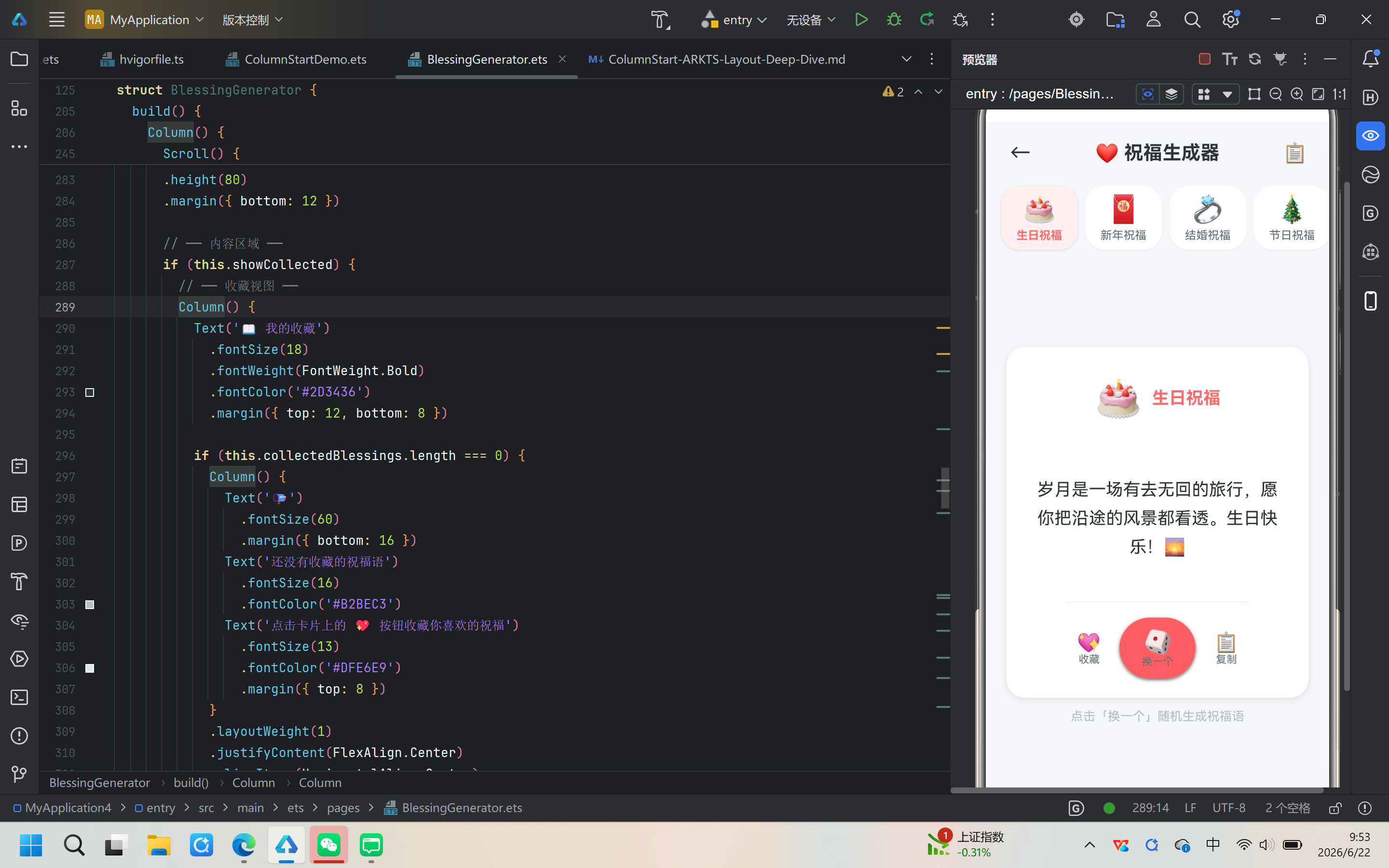
本篇文章将从一个实战项目——祝福自动生成器(Blessing Generator)的开发过程出发,详细讲解如何使用 HarmonyOS NEXT 6.1.1(API 24)和 ArkTS 语言构建一个完整的鸿蒙应用页面。该应用支持六大分类的祝福语随机生成、一键复制到剪贴板、收藏管理等功能,涵盖了 ArkTS 开发中的核心概念和技术要点。
1.2 适用读者
- 有 TypeScript / JavaScript 基础,希望学习鸿蒙开发的开发者
- 已经了解基本鸿蒙概念,想通过实战项目巩固技能的移动端开发者
- 对声明式 UI 编程感兴趣的前端 / 移动端工程师
1.3 前置知识
阅读本文需要以下基础知识:
- 了解 TypeScript 基本语法(类型注解、接口、数组等)
- 理解移动端应用的基本概念(页面路由、组件化等)
- 熟悉 JSON 数据结构
1.4 开发环境
- 操作系统:Windows 11
- IDE:DevEco Studio(基于 IntelliJ IDEA 的鸿蒙专用 IDE)
- SDK:HarmonyOS NEXT 6.1.1(API 24,Stage 模型)
- 构建工具:Hvigor(鸿蒙构建系统)
- 语言版本:ArkTS(基于 TypeScript 5.0+)
- 目标设备:Phone(手机)
二、项目结构与配置
2.1 项目概览
首先,我们通过 DevEco Studio 创建一个空的 HarmonyOS 应用项目。项目采用 Stage 模型,这是 HarmonyOS NEXT 推荐的应用开发模型。Stage 模型将应用分为多个模块(Module),每个模块有独立的 module.json5 配置文件。
创建完成后的项目根目录结构如下:
MyApplication4/
├── AppScope/                    # 应用全局配置
│   ├── app.json5               # 应用级配置(包名、版本等)
│   └── resources/              # 全局资源
├── entry/                      # 主模块
│   ├── src/main/
│   │   ├── ets/                # ArkTS 源码
│   │   │   ├── entryability/   # Ability(页面入口)
│   │   │   ├── entrybackupability/
│   │   │   └── pages/          # 页面组件
│   │   ├── module.json5        # 模块配置
│   │   └── resources/          # 模块资源
│   ├── build-profile.json5     # 构建配置
│   └── oh-package.json5        # 包管理
├── build-profile.json5         # 项目级构建配置
├── hvigorfile.ts               # 构建脚本
└── oh-package.json5            # 项目级包管理
2.2 核心配置文件解析
项目级构建配置 build-profile.json5:
{
  "app": {
    "signingConfigs": [],
    "products": [
      {
        "name": "default",
        "signingConfig": "default",
        "targetSdkVersion": "6.1.1(24)",
        "compatibleSdkVersion": "6.1.1(24)",
        "runtimeOS": "HarmonyOS"
      }
    ]
  },
  "modules": [
    {
      "name": "entry",
      "srcPath": "./entry"
    }
  ]
}
这里的关键配置项是 targetSdkVersion: "6.1.1(24)",表明我们目标 API 版本为 24,对应 HarmonyOS NEXT 6.1.1 版本。
模块配置 entry/build-profile.json5:
{
  "apiType": "stageMode",
  "buildOption": {
    "resOptions": {
      "copyCodeResource": { "enable": false }
    }
  }
}
apiType: "stageMode" 表示使用 Stage 模型,这是 HarmonyOS NEXT 的标准模型。
页面路由配置 entry/src/main/resources/base/profile/main_pages.json:
{
  "src": [
    "pages/Index",
    "pages/ColumnStartDemo",
    "pages/SimpSimulator",
    "pages/BreakupSimulator",
    "pages/BlessingGenerator"
  ]
}
每一个在 src 数组中列出的路径都对应 entry/src/main/ets/pages/ 目录下的一个 .ets 文件。新增页面时必须在此注册,否则路由系统无法找到该页面。
三、ArkTS 声明式 UI 核心概念
在进入编码之前,我们需要理解 ArkTS 的几个核心概念。
3.1 @Component 和 @Entry
在 ArkTS 中,每个 UI 页面都是一个组件(Component),用 @Component 装饰器标记,用 @Entry 标记入口页面:
@Entry
@Component
struct BlessingGenerator {
  // 组件状态和逻辑
  build() {
    // 声明式 UI 描述
  }
}
@Entry 表示该组件是页面的入口点,路由系统可以直接导航到它。@Component 声明这是一个可复用的 UI 组件。struct 是 ArkTS 的关键字,用于定义一个组件结构体,它类似于 TypeScript 的类,但专为声明式 UI 设计。
3.2 @State 装饰器
@State 是 ArkTS 中最核心的装饰器之一。被 @State 修饰的属性会成为组件的响应式状态:
@State selectedIndex: number = 0;
@State currentBlessing: string = '';
当 @State 变量的值发生变化时,框架会自动重新渲染依赖于该状态的 UI 部分。这与 React 的 useState 或 Vue 的 ref 理念一致,但实现方式是编译期处理的。
3.3 声明式 UI 构建
ArkTS 的 UI 构建采用嵌套函数调用的方式,替代 XML/JSX 模板:
build() {
  Column() {
    Text('Hello')
      .fontSize(20)
      .fontColor('#333333')

    Button('Click Me')
      .onClick(() => { /* 处理点击 */ })
  }
  .width('100%')
  .height('100%')
}
每个组件都是一个函数调用,组件的属性通过链式调用设置。这种方式的优点是不需要模板语言,纯 TypeScript 即可完成 UI 描述,编译期可以做更多优化。
3.4 容器组件
ArkTS 提供三种主要的容器组件用于布局:
- Column:垂直排列子组件(类似 FlexDirection.Column)
- Row:水平排列子组件(类似 FlexDirection.Row)
- Stack:层叠排列子组件(类似 AbsoluteLayout)
每个容器组件都可以通过链式方法设置对齐方式、尺寸、间距等布局属性。
四、祝福自动生成器——需求分析
4.1 功能需求
我们的祝福自动生成器需要实现以下功能:
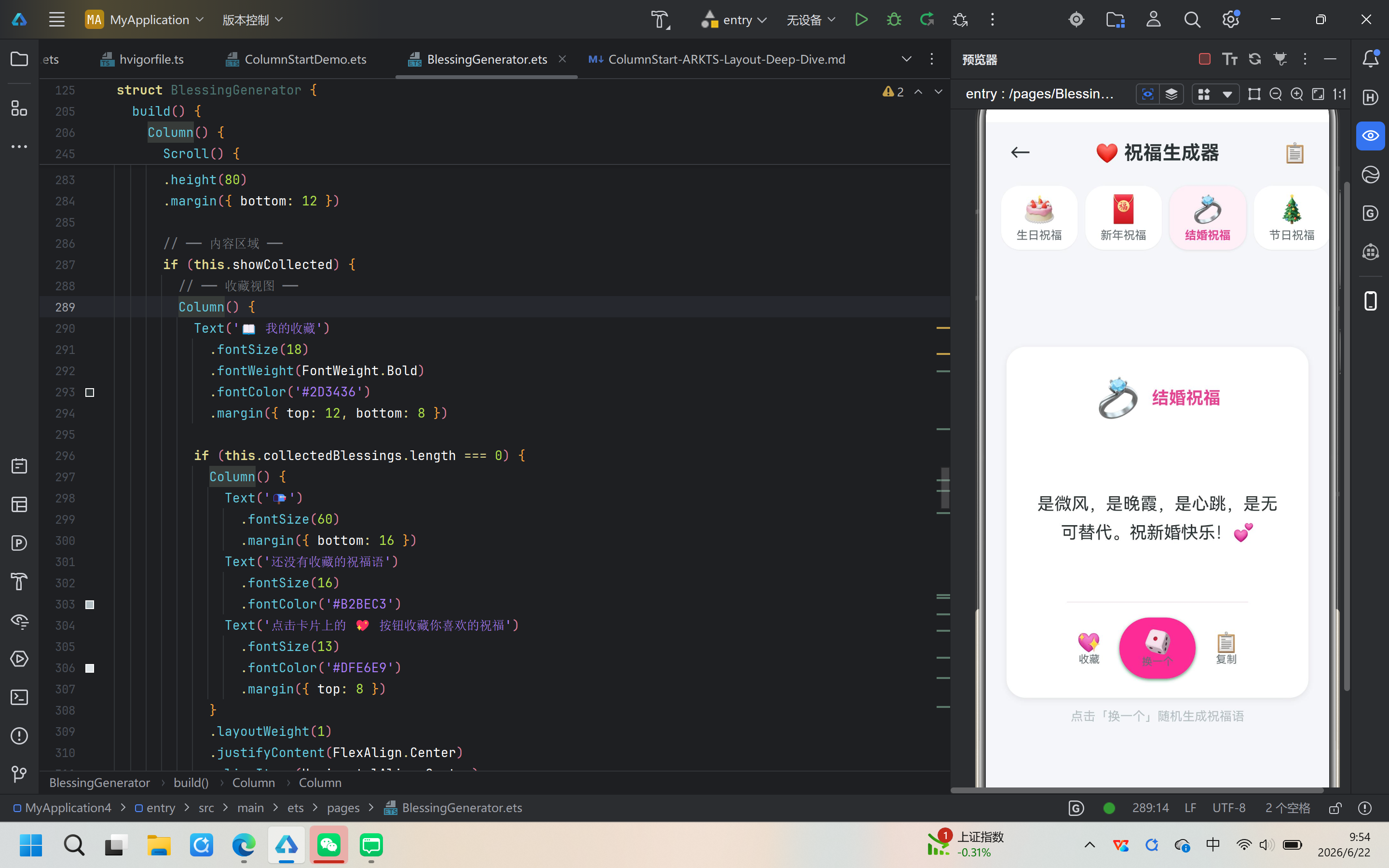
- 分类浏览:支持 6 种祝福分类(生日、新年、结婚、节日、事业、日常问候)
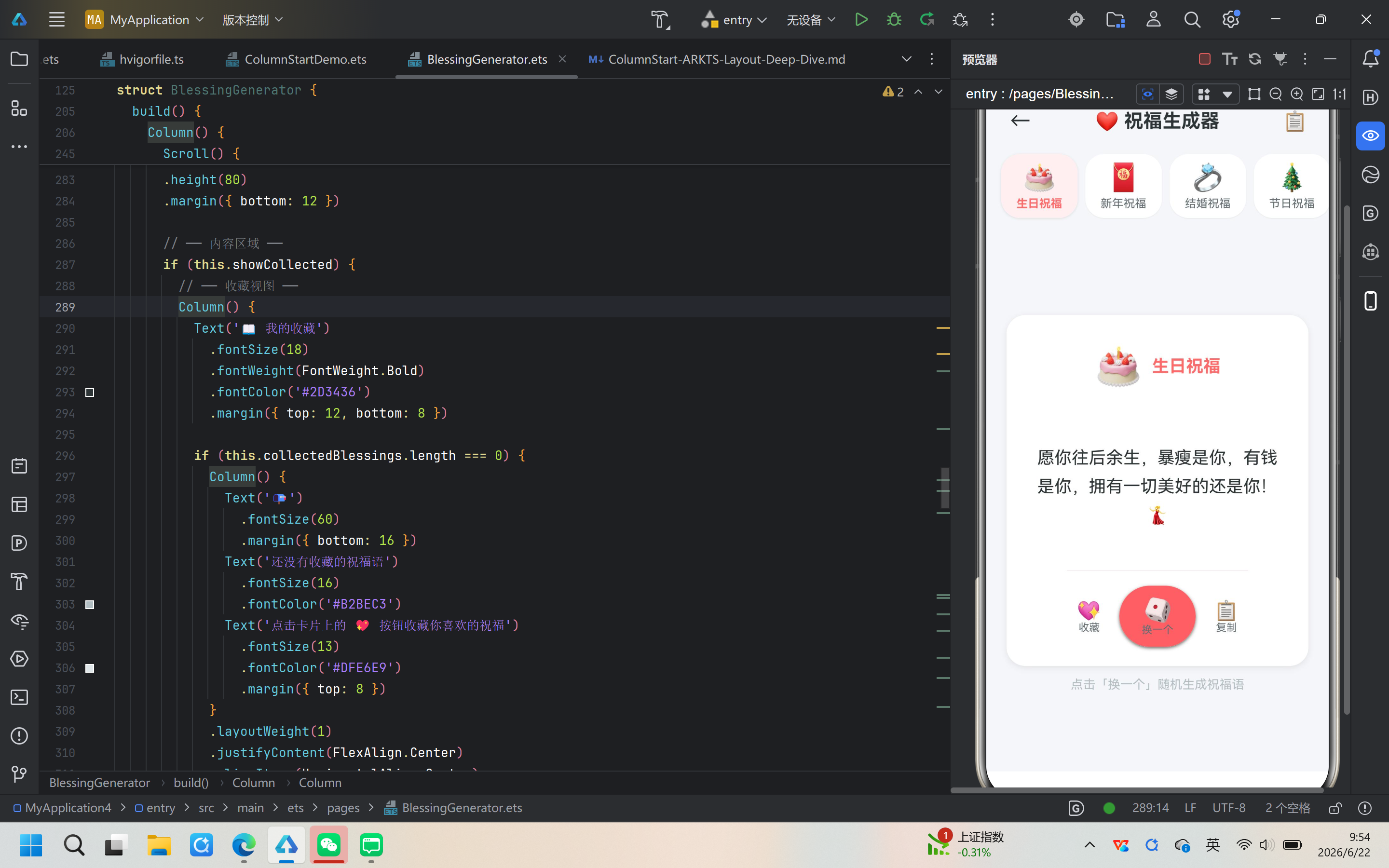
- 随机生成:在每个分类中随机展示一条祝福语
- 一键复制:将当前祝福语复制到系统剪贴板
- 收藏管理:收藏喜欢的祝福语,支持查看和删除
- 视觉反馈:Toast 提示复制成功,加载动画增强交互感
- 页面导航:从主页进入,支持返回
4.2 架构设计
我们将整个页面设计为单一组件 BlessingGenerator,内部通过状态变量控制不同的显示模式:
BlessingGenerator (单一组件)
├── 顶部工具栏 (Row)
│   ├── 返回按钮
│   ├── 标题
│   └── 收藏入口按钮
├── 分类选择栏 (Scroll > Row > ForEach)
│   └── 分类标签 (Column × N)
└── 内容区域 (if/else)
    ├── 收藏视图 (showCollected = true)
    │   ├── 空状态 (无收藏)
    │   └── 收藏列表 (有收藏)
    └── 卡片视图 (showCollected = false)
        ├── 分类信息 + 祝福内容
        ├── 操作按钮 (收藏 / 换一个 / 复制)
        └── 底部提示
五、数据结构设计
5.1 祝福分类接口
首先定义祝福分类的数据结构。使用 TypeScript 的 interface 关键字:
interface BlessingCategory {
  name: string;      // 分类名称,如"生日祝福"
  emoji: string;     // 分类表情图标,如"🎂"
  color: string;     // 主题色,用于 UI 高亮
  bgColor: string;   // 背景色,用于分类标签
  items: string[];   // 祝福语列表
}
这个接口清晰地定义了每个分类的数据结构。name 和 emoji 用于 UI 展示,color 和 bgColor 用于差异化视觉风格,items 是所有祝福语的集合。
5.2 祝福数据初始化
接下来,我们创建一个包含 6 大分类的常量数组,每个分类预置 8 条精心编写的祝福语:
const BLESSING_DATA: BlessingCategory[] = [
  {
    name: '生日祝福',
    emoji: '🎂',
    color: '#FF6B6B',
    bgColor: '#FFF0F0',
    items: [
      '愿你年年岁岁都平安,朝朝暮暮皆如意。生日快乐!🎉',
      '愿你眼里有光,心中有爱,目光所至皆是星辰大海。生日快乐!✨',
      '岁月是一场有去无回的旅行,愿你把沿途的风景都看透。生日快乐!🌅',
      '愿你三冬暖,愿你春不寒,愿你天黑有灯,下雨有伞。生日快乐!☂️',
      '愿你往后余生,暴瘦是你,有钱是你,拥有一切美好的还是你!💃',
      '愿你的快乐如星辰般闪耀,愿你的幸福如阳光般灿烂。生日快乐!🌟',
      '愿这世间所有的美好与温暖,都与你环环相扣。生日快乐!💖',
      '愿你年少有为不自卑,愿你前程似锦不彷徨。生日快乐!🚀',
    ],
  },
  {
    name: '新年祝福',
    emoji: '🧧',
    color: '#E74C3C',
    bgColor: '#FFF5F5',
    items: [
      '新年快乐!愿新的一年,万事顺遂,平安喜乐,财源广进!🧧',
      '愿你新年胜旧年,欢愉且胜意,万事皆可期!🎊',
      '爆竹声中一岁除,春风送暖入屠苏。新年快乐,万事如意!🎆',
      '愿新的一年,日子如熹光,温柔又安详。你我赤诚且勇敢,欣喜也在望!🌈',
      '新年新气象,愿你钱包鼓鼓,笑容满满,好运连连!💰',
      '愿去年所有的遗憾,都是今年惊喜的铺垫。新年快乐!🎇',
      '钟声是我的问候,雪花是我的贺卡,美酒是我的飞吻。新年快乐!🍷',
      '愿你新的一年:百事可乐,万事芬达,心情雪碧,一周七喜!🥤',
    ],
  },
  // ... 结婚祝福、节日祝福、事业祝福、日常问候 同理
];
设计要点:
- 每条祝福语都带有表情符号,提升视觉趣味性
- 覆盖多种场景:从传统古风到现代流行语,风格多样
- 每条祝福语都独立完整,可直接复制使用
5.3 为什么选择常量数据而非 API
当前版本采用本地常量数据而非服务器 API,有以下考虑:
- 零网络依赖:用户在无网络环境下也能使用
- 即开即用:无需等待数据加载
- 隐私安全:无数据传输,数据完全在本地
- 开发简单:适合快速原型验证
如果需要扩展,可以后续将 BLESSING_DATA 替换为从 API 获取的动态数据,或者从本地数据库(@ohos.data.relationalStore)读取。
六、组件状态管理
6.1 状态变量定义
在组件结构体中,我们定义了 5 个 @State 变量来驱动 UI:
@Component
struct BlessingGenerator {
  @State selectedIndex: number = 0;           // 当前选中的分类索引
  @State currentBlessing: string = '';        // 当前显示的祝福语
  @State isGenerating: boolean = false;       // 是否正在生成(加载动画)
  @State collectedBlessings: string[] = [];   // 收藏的祝福语列表
  @State showCollected: boolean = false;      // 是否显示收藏视图
}
每个变量的作用:
| 变量 | 类型 | 初始值 | 作用 |
|---|---|---|---|
selectedIndex |
number | 0 | 控制哪个分类被选中,驱动 UI 高亮效果 |
currentBlessing |
string | ‘’ | 当前展示的祝福语文本 |
isGenerating |
boolean | false | 控制加载动画的显示/隐藏 |
collectedBlessings |
string[] | [] | 存储用户收藏的祝福语 |
showCollected |
boolean | false | 切换卡片视图/收藏列表视图 |
6.2 计算属性:方法代替 getter
在 ArkTS 中,非 @State 装饰的 get 访问器会被编译器丢弃,这是开发过程中最容易踩的坑之一。
// ❌ 错误写法:getter 会被编译器丢弃
get currentCategory(): BlessingCategory {
  return BLESSING_DATA[this.selectedIndex];
}

// ✅ 正确写法:使用普通方法
private currentCategory(): BlessingCategory {
  return BLESSING_DATA[this.selectedIndex];
}
如果使用 getter,编译后 this.currentCategory 会是 undefined,运行时抛出 TypeError: Cannot read property items of undefined。
为什么 getter 会被丢弃?
ArkTS 的编译器在处理组件结构体时,会为 @State 属性自动生成 getter/setter 对(包装为 ObservedPropertySimplePU),但普通的 get 访问器不在处理范围内,编译后直接被省略。这导致运行时代码中 this.currentCategory 指向一个不存在的属性。
调用方式也有区别:
// getter 方式(不可用)
this.currentCategory.color    // ❌ TypeError

// 方法方式(正确)
this.currentCategory().color  // ✅ 正常工作
6.3 状态更新流程
一个典型的用户交互流程如下:
用户点击"换一个"按钮
  → generateBlessing() 被调用
    → isGenerating = true        → UI 显示加载动画
    → setTimeout 200ms
      → 随机选取一条祝福语
      → currentBlessing = 新值    → UI 显示祝福语
      → isGenerating = false      → 加载动画消失
整个流程完全是状态驱动的,开发者只需要更新状态变量,不需要手动操作 DOM。
七、核心业务逻辑实现
7.1 祝福生成
private generateBlessing(): void {
  this.isGenerating = true;

  // 在 setTimeout 外部获取数据,避免 this 上下文问题
  const items = this.currentCategory().items;
  setTimeout(() => {
    const randomIndex = Math.floor(Math.random() * items.length);
    this.currentBlessing = items[randomIndex];
    this.isGenerating = false;
  }, 200);
}
关键点:
- 200ms 延迟:纯视觉设计,让加载动画有时间展示,增强交互反馈
items在外部捕获:setTimeout回调中用闭包捕获的变量,避免this上下文问题Math.random()随机选择:每次从当前分类的祝福语列表中随机选取一条
7.2 分类切换
private selectCategory(index: number): void {
  if (index === this.selectedIndex) {
    // 重复点击当前分类,重新生成祝福语
    this.generateBlessing();
    return;
  }
  this.selectedIndex = index;
  this.generateBlessing();
}
交互逻辑:
- 点击不同的分类 → 切换
selectedIndex→ 触发 UI 高亮更新 → 生成该分类的祝福语 - 重复点击当前分类 → 不切换索引 → 重新生成祝福语(换一条)
这种设计符合用户直觉:切换分类肯定要展示新内容,重复点击当前分类应该是"换一条"的意思。
7.3 复制到剪贴板
这是应用中最重要的实用功能之一。HarmonyOS 提供了 @ohos.pasteboard 系统剪贴板 API:
import pasteboard from '@ohos.pasteboard';

private copyToClipboard(): void {
  if (!this.currentBlessing) return;

  try {
    const pasteboardApi = pasteboard.getSystemPasteboard();
    const pasteData = pasteboard.createData(
      pasteboard.MIMETYPE_TEXT_PLAIN,
      this.currentBlessing
    );
    pasteboardApi.setData(pasteData);
    promptAction.showToast({ message: '✅ 已复制到剪贴板', duration: 1500 });
  } catch (_) {
    promptAction.showToast({ message: '复制失败,请重试', duration: 1000 });
  }
}
API 详解:
pasteboard.getSystemPasteboard():获取系统剪贴板实例pasteboard.createData(mimeType, content):创建剪贴板数据对象- 第一个参数是 MIME 类型,
MIMETYPE_TEXT_PLAIN表示纯文本 - 第二个参数是实际的文本内容
- 第一个参数是 MIME 类型,
pasteboardApi.setData(pasteData):将数据写入系统剪贴板promptAction.showToast():显示轻提示(Toast),告知用户操作结果
错误处理:
try/catch 包裹了整个操作,因为某些预览器或模拟器可能不完全支持剪贴板 API。在出错的设备上,Toast 会提示用户复制失败。
7.4 Toast 提示
项目使用了 @ohos.promptAction 模块的 showToast API。这个 API 在其他页面(舔狗模拟器、分手模拟器)中被广泛使用,是鸿蒙开发的标准 Toast 方案:
import promptAction from '@ohos.promptAction';

// 标准用法
promptAction.showToast({
  message: '提示内容',
  duration: 1500,  // 显示时长,单位毫秒
});
showToast 比自定义 Toast 更轻量,由系统管理显示和消失,不需要开发者维护定时器。
7.5 收藏管理
收藏功能的核心是维护一个字符串数组:
// 添加收藏
private collectBlessing(): void {
  if (!this.currentBlessing) return;
  if (this.collectedBlessings.includes(this.currentBlessing)) return;
  this.collectedBlessings = [this.currentBlessing, ...this.collectedBlessings];
}

// 删除收藏
private removeCollected(index: number): void {
  this.collectedBlessings.splice(index, 1);
  this.collectedBlessings = [...this.collectedBlessings];  // 触发 UI 更新
}
关键细节:
- 去重:
includes()检查是否已收藏,避免重复添加 - 前置插入:新收藏的祝福语放在数组最前面(
[new, ...old]),展示时最新的在最上方 - 数组引用更新:
splice()修改原数组后,必须重新赋值([...array])才能触发@State的响应式更新。这是因为@State通过引用变化来检测对象/数组的变更
7.6 页面导航
页面之间通过 @ohos.router 模块进行导航:
import router from '@ohos.router';

// 跳转到祝福生成器页面(在 Index.ets 中)
router.pushUrl({ url: 'pages/BlessingGenerator' });

// 返回上一页(在 BlessingGenerator.ets 中)
router.back();
router.pushUrl 将新页面压入导航栈,router.back() 弹栈返回。URL 路径相对于 ets/ 目录,不需要后缀名。
八、UI 布局详解
8.1 整体布局结构
祝福生成器的 UI 采用三层垂直布局:
build() {
  Column() {                    // 根容器:全屏
    Row() { ... }               // 第一层:顶部工具栏
    Scroll() { ... }            // 第二层:分类选择栏
    // 第三层:内容区域(二选一)
    if (this.showCollected) {
      Column() { ... }          // 收藏视图
    } else {
      Column() { ... }          // 卡片视图
    }
  }
  .width('100%')
  .height('100%')
  .backgroundColor('#F5F6FA')
}
布局策略:
- 根
Column撑满全屏(width('100%')+height('100%')) - 工具栏和分类栏占据固定高度
- 内容区域使用
layoutWeight(1)填充剩余空间 - 背景色设置为浅灰
#F5F6FA,获得干净的 iOS 风格底色
8.2 顶部工具栏
Row() {
  // 返回按钮
  Button({ type: ButtonType.Normal, stateEffect: true }) {
    Text('←').fontSize(22).fontColor('#2D3436')
  }
  .width(40).height(40)
  .backgroundColor('#00000000')
  .onClick(() => { this.goBack(); })

  Blank()  // 弹性空间

  Text('❤️ 祝福生成器')
    .fontSize(20)
    .fontWeight(FontWeight.Bold)
    .fontColor('#2D3436')

  Blank()  // 弹性空间

  // 收藏入口按钮
  Button({ type: ButtonType.Normal, stateEffect: true }) {
    Text('📋').fontSize(20)
  }
  .width(40).height(40)
  .backgroundColor('#00000000')
  .onClick(() => { this.showCollected = !this.showCollected; })
}
.width('100%')
.padding({ left: 16, right: 16, top: 12, bottom: 8 })
设计要点:
Blank()组件:自动填充 Row 中的剩余空间,实现两端对齐(返回按钮在左,收藏按钮在右,标题居中)ButtonType.Normal:使用普通按钮类型,不加默认的边框和背景stateEffect: true:启用点击状态反馈效果(触摸高亮)backgroundColor('#00000000'):完全透明背景,aarrggbb 格式,前两位00表示完全不透明
8.3 分类选择栏
分类栏是水平滚动的标签集合,使用 Scroll + Row + ForEach 实现:
Scroll() {
  Row() {
    ForEach(
      BLESSING_DATA,  // 数据源
      (category: BlessingCategory, index: number) => {
        Column() {
          Text(category.emoji).fontSize(28).margin({ bottom: 4 })
          Text(category.name)
            .fontSize(12)
            .fontColor(this.selectedIndex === index ? category.color : '#636E72')
            .fontWeight(this.selectedIndex === index ? FontWeight.Bold : FontWeight.Normal)
        }
        .padding({ top: 8, bottom: 8, left: 16, right: 16 })
        .backgroundColor(this.selectedIndex === index ? category.bgColor : '#FFFFFF')
        .borderRadius(20)
        .margin({ left: index === 0 ? 16 : 0, right: 8 })
        .shadow({
          radius: this.selectedIndex === index ? 6 : 2,
          color: this.selectedIndex === index ? 'rgba(0,0,0,0.1)' : 'rgba(0,0,0,0.05)',
          offsetX: 0, offsetY: 2,
        })
        .onClick(() => { this.selectCategory(index); })
      },
      (category: BlessingCategory, index: number) => category.name + index
    )
  }
  .alignItems(VerticalAlign.Center)
  .height(80)
}
.scrollBar(BarState.Off)  // 隐藏滚动条
.clip(true)               // 裁剪溢出内容
.width('100%')
.height(80)
.margin({ bottom: 12 })
ForEach 详解:
ForEach 是 ArkTS 中用于列表渲染的关键 API,类似于 JavaScript 的 Array.map():
ForEach(
  arr: any[],                                    // 数据源数组
  itemGenerator: (item, index) => void,          // 子组件生成函数
  keyGenerator?: (item, index) => string         // 可选的 key 生成函数
)
- 数据源:
BLESSING_DATA常量数组 - 生成函数:接收
(category, index),返回一组 Column 组件 - key 生成函数:
category.name + index,用于优化 diff 更新性能
视觉差异化:
通过 selectedIndex === index 的条件判断实现:
| 属性 | 选中状态 | 未选中状态 |
|---|---|---|
| 文字颜色 | category.color(分类主题色) |
#636E72(灰色) |
| 文字粗细 | Bold |
Normal |
| 背景色 | category.bgColor(浅色主题色) |
#FFFFFF(白色) |
| 阴影 | 大(radius: 6) | 小(radius: 2) |
这种设计让当前选中的分类标签在视觉上"浮起来",与未被选中的标签形成鲜明对比。
8.4 祝福卡片视图
卡片视图是应用的核心展示区域,采用白色圆角卡片设计:
Column() {  // 外层容器,居中布局
  Column() {  // 内层白色卡片
    // 分类头像 + 名称
    Row() {
      Text(this.currentCategory().emoji).fontSize(40)
      Text(this.currentCategory().name)
        .fontSize(18)
        .fontColor(this.currentCategory().color)
        .fontWeight(FontWeight.Bold)
        .margin({ left: 10 })
    }
    .margin({ top: 30, bottom: 20 })

    // 祝福内容(加载态 / 正常态)
    if (this.isGenerating) {
      Column() {
        Text('✨').fontSize(48).margin({ bottom: 16 })
        Text('正在为您生成祝福...').fontSize(16).fontColor('#B2BEC3')
      }
      .height(160)
      .justifyContent(FlexAlign.Center)
      .alignItems(HorizontalAlign.Center)
    } else {
      Column() {
        Text(this.currentBlessing)
          .fontSize(18)
          .fontColor('#2D3436')
          .lineHeight(30)
          .textAlign(TextAlign.Center)
      }
      .height(160)
      .justifyContent(FlexAlign.Center)
      .alignItems(HorizontalAlign.Center)
      .padding({ left: 24, right: 24 })
    }

    // 分隔线
    Divider()
      .width('60%')
      .color(this.currentCategory().color)
      .opacity(0.3)
      .margin({ top: 10, bottom: 16 })

    // 操作按钮行
    Row() {
      Button() { /* 收藏按钮 */ }
      Button() { /* 换一个按钮 */ }
      Button() { /* 复制按钮 */ }
    }
    .justifyContent(FlexAlign.SpaceAround)
    .alignItems(VerticalAlign.Center)
    .padding({ left: 20, right: 20, bottom: 20 })
  }
  .width('88%')                    // 卡片宽度为父容器的 88%
  .backgroundColor('#FFFFFF')      // 纯白背景
  .borderRadius(20)                // 大圆角
  .shadow({                        // 底部阴影(提升层级感)
    radius: 16,
    color: 'rgba(0,0,0,0.08)',
    offsetX: 0,
    offsetY: 6,
  })

  // 底部提示
  Text('点击「换一个」随机生成祝福语')
    .fontSize(13)
    .fontColor('#B2BEC3')
    .margin({ top: 12 })
}
.layoutWeight(1)
.justifyContent(FlexAlign.Center)
.alignItems(HorizontalAlign.Center)
卡片设计理念:
- 88% 宽度:两侧留白,形成呼吸感
- 大圆角 + 阴影:模拟物理卡片的悬浮效果
- 统一的高度区域(160px):确保加载态和正常态切换时布局稳定
- 分隔线:视觉上将分类信息与操作按钮分开
if 分支组件类型一致性:
特别注意:ArkTS 要求条件渲染的 if/else 分支返回相同类型的组件。isGenerating 为 true 时返回 Column(),false 时也必须返回 Column(),不能直接返回 Text():
// ❌ 错误:分支类型不一致
if (this.isGenerating) {
  Column() { Text('✨') }        // Column 类型
} else {
  Text(this.currentBlessing)     // Text 类型 ← 类型不匹配!
}

// ✅ 正确:两个分支都返回 Column
if (this.isGenerating) {
  Column() { Text('✨') }
} else {
  Column() { Text(this.currentBlessing) }  // 包裹 Column
}
8.5 操作按钮设计
三个操作按钮采用无文字背景的图标+文字组合,中间的"换一个"按钮使用分类主题色突出显示:
Row() {
  // 收藏按钮(无背景)
  Button() {
    Column() {
      Text('💖').fontSize(20)
      Text('收藏').fontSize(11).fontColor('#636E72')
    }
    .alignItems(HorizontalAlign.Center)
  }
  .width(64).height(56)
  .backgroundColor('#00000000')  // 透明
  .onClick(() => { this.collectBlessing(); })

  // 换一个按钮(主题色背景,突出显示)
  Button() {
    Column() {
      Text('🎲').fontSize(24)
      Text('换一个').fontSize(11).fontColor('#636E72')
    }
    .alignItems(HorizontalAlign.Center)
  }
  .width(80).height(64)
  .backgroundColor(this.currentCategory().color)  // 动态主题色
  .borderRadius(32)
  .shadow({
    radius: 8,
    color: this.currentCategory().color + '66',  // 半透明阴影
    offsetX: 0, offsetY: 4,
  })
  .onClick(() => { this.generateBlessing(); })

  // 复制按钮(无背景)
  Button() {
    Column() {
      Text('📋').fontSize(20)
      Text('复制').fontSize(11).fontColor('#636E72')
    }
    .alignItems(HorizontalAlign.Center)
  }
  .width(64).height(56)
  .backgroundColor('#00000000')
  .onClick(() => { this.copyToClipboard(); })
}
.justifyContent(FlexAlign.SpaceAround)
交互层次设计:
"换一个"按钮是用户最频繁点击的操作,因此做视觉强化——使用主题色背景、更大的尺寸(80×64 vs 64×56)、半透明阴影,在视觉上成为按钮组的焦点。
8.6 收藏视图
收藏视图同样使用条件渲染,根据 collectedBlessings.length 分为空状态和非空状态:
if (this.collectedBlessings.length === 0) {
  // 空状态:居中展示提示信息
  Column() {
    Text('📭').fontSize(60).margin({ bottom: 16 })
    Text('还没有收藏的祝福语').fontSize(16).fontColor('#B2BEC3')
    Text('点击卡片上的 💖 按钮收藏你喜欢的祝福')
      .fontSize(13).fontColor('#DFE6E9').margin({ top: 8 })
  }
  .layoutWeight(1)
  .justifyContent(FlexAlign.Center)
  .alignItems(HorizontalAlign.Center)
} else {
  // 非空:可滚动的收藏列表
  Scroll() {
    Column() {
      ForEach(
        this.collectedBlessings,
        (blessing: string, index: number) => {
          Stack() {
            Text(blessing)
              .fontSize(15)
              .lineHeight(26)
              .padding(16)
              .backgroundColor('#FFFFFF')
              .borderRadius(16)
              .onClick(() => {
                this.currentBlessing = blessing;
                this.copyToClipboard();
              })

            // 删除按钮(右上角悬浮)
            Button() {
              Text('✕').fontSize(14).fontColor('#E17055')
            }
            .width(28).height(28)
            .backgroundColor('#FFFFFF')
            .borderRadius(14)
            .position({ top: -6, right: -6 })
            .onClick(() => { this.removeCollected(index); })
          }
          .width('90%')
          .margin({ bottom: 12 })
          .alignContent(Alignment.TopEnd)
        },
        (blessing: string, index: number) => blessing + index
      )
    }
    .width('100%')
    .padding({ bottom: 20 })
  }
  .scrollBar(BarState.Off)
  .layoutWeight(1)
}
Stack 组件实现悬浮删除按钮:
Stack 组件将子组件层叠排列。删除按钮使用 .position({ top: -6, right: -6 }) 定位在 Stack 的右上角,-6 的偏移让它超出卡片边界,形成"贴纸"效果:
┌────────────────────────────┐
│                        ┌──┐│
│  祝福语内容             │✕ ││
│                        └──┘│
└────────────────────────────┘
九、模块导入与系统 API
9.1 导入声明
页面顶部集中导入所需的系统模块:
import promptAction from '@ohos.promptAction';  // Toast 提示
import router from '@ohos.router';                // 页面路由导航
import pasteboard from '@ohos.pasteboard';        // 系统剪贴板
这些模块都是 HarmonyOS 标准库的一部分,不需要额外安装依赖。
9.2 @ohos.pasteboard 剪贴板 API
@ohos.pasteboard 是 HarmonyOS 的系统剪贴板模块,主要 API 如下:
| API | 说明 |
|---|---|
getSystemPasteboard() |
获取系统剪贴板单例 |
createData(mimeType, value) |
创建剪贴板数据对象 |
setData(data) |
将数据写入剪贴板 |
getData() |
从剪贴板读取数据 |
MIMETYPE_TEXT_PLAIN |
纯文本 MIME 类型常量 |
9.3 @ohos.promptAction 提示 API
@ohos.promptAction 提供了轻量级的用户提示功能:
promptAction.showToast({
  message: string,    // 提示内容
  duration: number,   // 持续时间(毫秒)
});
还有 showDialog 用于展示模态对话框,适合需要用户确认的场景。
9.4 @ohos.router 路由 API
// 跳转到新页面
router.pushUrl({
  url: 'pages/BlessingGenerator',  // 目标页面路径
  params?: { key: value }          // 可选参数
});

// 返回上一页
router.back();

// 替换当前页面(不保留在导航栈中)
router.replaceUrl({ url: 'pages/NewPage' });
十、生命周期与初始化
10.1 aboutToAppear
aboutToAppear 是 ArkTS 组件的生命周期方法,在组件即将挂载到 UI 树时调用:
aboutToAppear(): void {
  this.generateBlessing();
}
当用户从首页导航到祝福生成器页面时,系统会:
- 创建
BlessingGenerator组件实例 - 初始化所有
@State变量为默认值 - 调用
aboutToAppear()→ 执行generateBlessing() - 调用
build()→ 渲染初始 UI
generateBlessing() 在 aboutToAppear 中被调用,确保用户在进入页面时立即看到第一条祝福语,而不是空白页面。
10.2 aboutToDisappear
aboutToDisappear 在组件即将销毁时调用。虽然我们当前的实现没有使用它,但可以用来清理定时器、释放资源等:
aboutToDisappear(): void {
  // 清理资源,如 clearTimeout()
}
10.3 初始化流程总结
用户点击"🎉 祝福生成器"
  → router.pushUrl({ url: 'pages/BlessingGenerator' })
  → BlessingGenerator 组件实例化
  → @State 变量初始化(selectedIndex=0, currentBlessing=''...)
  → aboutToAppear()
    → generateBlessing()
      → isGenerating = true
      → setTimeout 200ms
        → currentBlessing = 随机祝福语
        → isGenerating = false
  → build() 首次渲染
  → 用户看到加载动画 → 200ms 后显示祝福语
十一、常见问题与调试
11.1 TypeError: Cannot read property items of undefined
错误信息:
TypeError: Cannot read property items of undefined
at generateBlessing entry (BlessingGenerator.ets:153:40)
at aboutToAppear entry (BlessingGenerator.ets:145:10)
根因:this.currentCategory 是一个 get 访问器,但 ArkTS 编译器在编译组件结构体时丢弃了非 @State 的 getter。运行时 this.currentCategory 为 undefined。
修复方法:将 getter 改为普通方法:
// 修复前
get currentCategory(): BlessingCategory {
  return BLESSING_DATA[this.selectedIndex];
}

// 修复后
private currentCategory(): BlessingCategory {
  return BLESSING_DATA[this.selectedIndex];
}

// 调用方式也从 this.currentCategory.items 改为:
this.currentCategory().items
11.2 initialRenderView 错误
错误信息:
at initialRenderView (stateMgmt.js:9004:1)
根因:在多个 ArkTS 版本中,@Builder 函数与 if/else 条件渲染组合使用会导致状态管理初始化失败。
修复方法:将 @Builder 函数内联到 build() 方法中,不使用 @Builder 装饰器:
// 修复前
build() {
  Column() {
    if (cond) {
      this.myBuilder()  // @Builder 函数
    }
  }
}

@Builder
myBuilder() { ... }

// 修复后:直接内联
build() {
  Column() {
    if (cond) {
      Column() { ... }  // 直接写在 build() 中
    }
  }
}
11.3 Text 组件不能使用 align()
错误信息:无明显报错信息,但 Text 不显示或布局异常
根因:Text 组件没有 .align() 方法(这是容器组件如 Column、Row 的方法)。对 Text 使用 .align() 会静默失败。
修复方法:文本对齐应使用 .textAlign(),外层用容器组件控制位置:
// 修复前
Text('内容').align(Alignment.Center)  // ❌ Text 没有 align()

// 修复后:外层 Column 控制居中
Column() {
  Text('内容')
    .textAlign(TextAlign.Center)      // ✅ 文本内部居中
}
.width('100%')
.justifyContent(FlexAlign.Center)      // ✅ Column 垂直居中
11.4 数组修改后 UI 不刷新
错误信息:收藏列表删除后,UI 没有更新
根因:@State 数组通过引用检测变化。splice() 在原数组上修改,引用不变,框架不会触发重新渲染。
修复方法:修改后创建新数组引用:
// ❌ splice 修改原数组,UI 不刷新
this.collectedBlessings.splice(index, 1);

// ✅ 创建新数组赋值,触发 UI 更新
this.collectedBlessings.splice(index, 1);
this.collectedBlessings = [...this.collectedBlessings];
十二、在首页添加导航入口
12.1 注册页面
在 main_pages.json 中添加新页面路径:
{
  "src": [
    "pages/Index",
    "pages/ColumnStartDemo",
    "pages/SimpSimulator",
    "pages/BreakupSimulator",
    "pages/BlessingGenerator"
  ]
}
12.2 添加导航按钮
在 Index.ets 的 build() 方法中添加按钮:
// ── 祝福生成器导航 ──
Button('🎉 祝福生成器')
  .fontSize(14)
  .fontColor('#FFFFFF')
  .backgroundColor('#FDCB6E')  // 金黄色
  .borderRadius(20)
  .height(40)
  .width(220)
  .onClick(() => {
    router.pushUrl({ url: 'pages/BlessingGenerator' });
  })
  .margin({ bottom: 30 })
十三、项目完整代码
以下是 BlessingGenerator.ets 的完整代码,包含所有功能和 UI 组件:
/**
 * BlessingGenerator.ets — 祝福自动生成器
 * 基于 HarmonyOS NEXT 6.1.1 (API 24) + ArkTS
 * ─────────────────────────────────────────────────────────────
 * 一键生成各种场景的祝福语,支持分类筛选、复制、收藏功能。
 * ─────────────────────────────────────────────────────────────
 */
import promptAction from '@ohos.promptAction';
import router from '@ohos.router';
import pasteboard from '@ohos.pasteboard';

// ── 祝福语数据 ──
interface BlessingCategory {
  name: string;
  emoji: string;
  color: string;
  bgColor: string;
  items: string[];
}

const BLESSING_DATA: BlessingCategory[] = [
  {
    name: '生日祝福',
    emoji: '🎂',
    color: '#FF6B6B',
    bgColor: '#FFF0F0',
    items: [
      '愿你年年岁岁都平安,朝朝暮暮皆如意。生日快乐!🎉',
      '愿你眼里有光,心中有爱,目光所至皆是星辰大海。生日快乐!✨',
      '岁月是一场有去无回的旅行,愿你把沿途的风景都看透。生日快乐!🌅',
      '愿你三冬暖,愿你春不寒,愿你天黑有灯,下雨有伞。生日快乐!☂️',
      '愿你往后余生,暴瘦是你,有钱是你,拥有一切美好的还是你!💃',
      '愿你的快乐如星辰般闪耀,愿你的幸福如阳光般灿烂。生日快乐!🌟',
      '愿这世间所有的美好与温暖,都与你环环相扣。生日快乐!💖',
      '愿你年少有为不自卑,愿你前程似锦不彷徨。生日快乐!🚀',
    ],
  },
  {
    name: '新年祝福',
    emoji: '🧧',
    color: '#E74C3C',
    bgColor: '#FFF5F5',
    items: [
      '新年快乐!愿新的一年,万事顺遂,平安喜乐,财源广进!🧧',
      '愿你新年胜旧年,欢愉且胜意,万事皆可期!🎊',
      '爆竹声中一岁除,春风送暖入屠苏。新年快乐,万事如意!🎆',
      '愿新的一年,日子如熹光,温柔又安详。你我赤诚且勇敢,欣喜也在望!🌈',
      '新年新气象,愿你钱包鼓鼓,笑容满满,好运连连!💰',
      '愿去年所有的遗憾,都是今年惊喜的铺垫。新年快乐!🎇',
      '钟声是我的问候,雪花是我的贺卡,美酒是我的飞吻。新年快乐!🍷',
      '愿你新的一年:百事可乐,万事芬达,心情雪碧,一周七喜!🥤',
    ],
  },
  {
    name: '结婚祝福',
    emoji: '💍',
    color: '#E84393',
    bgColor: '#FFF0F7',
    items: [
      '祝你们百年好合,永结同心,执子之手,与子偕老!💑',
      '是微风,是晚霞,是心跳,是无可替代。祝新婚快乐!💕',
      '愿你们的爱情如红酒般醇厚,如鲜花般灿烂,如阳光般温暖!🍷',
      '两情相悦,终成眷属。愿你们往后余生,冷暖有相知,喜乐有分享!🏠',
      '祝你们:海枯石烂同心永结,地阔天高比翼齐飞!🦅',
      '愿你们在未来的日子里,携手并肩,共度风雨,共享阳光!☀️',
      '今天是你们人生新的起点,愿幸福永远伴随左右!🎊',
      '愿岁月可回首,且以深情共白头。新婚快乐!👴👵',
    ],
  },
  {
    name: '节日祝福',
    emoji: '🎄',
    color: '#00B894',
    bgColor: '#F0FFF4',
    items: [
      '节日快乐!愿你平安喜乐,万事胜意,幸福安康!🎉',
      '花好月圆人团圆,愿这美好的节日带给你无尽的欢乐!🌕',
      '愿你的每一天都像节日一样充满惊喜和快乐!🎁',
      '把最美好的祝福送给你,愿你被这个世界温柔以待!💝',
      '愿你的笑容如鲜花般绽放,愿你的心情如阳光般明媚!🌸',
      '在这个特别的日子里,愿你所有的愿望都能实现!⭐',
      '愿美好与你不期而遇,愿幸福与你如影随形!💫',
      '不管距离多远,祝福的心永远不变。节日快乐!💌',
    ],
  },
  {
    name: '事业祝福',
    emoji: '💼',
    color: '#0984E3',
    bgColor: '#F0F8FF',
    items: [
      '愿你前程似锦,事业有成,一帆风顺,步步高升!🚀',
      '星光不问赶路人,时光不负有心人。愿你未来可期!🌟',
      '愿你以梦为马,不负韶华,在职场上大展宏图!🐎',
      '愿你所有的努力都不被辜负,愿你所有的梦想都能实现!💪',
      '乘风破浪会有时,直挂云帆济沧海。加油!⛵',
      '愿你的才华配得上你的野心,愿你的努力配得上你的梦想!🏆',
      '愿你身经百战依然坚毅,愿你历经千帆归来仍是少年!🎯',
      '愿你在这个领域发光发热,成为你想成为的那个人!🔥',
    ],
  },
  {
    name: '日常问候',
    emoji: '☀️',
    color: '#FDCB6E',
    bgColor: '#FFFDF0',
    items: [
      '早上好!愿你今天元气满满,心情美美哒!☀️',
      '愿你的一天从微笑开始,以幸福结束!😊',
      '不论晴天雨天,愿你心中总有阳光!🌈',
      '好好吃饭,好好睡觉,好好爱自己。照顾好自己哦!💕',
      '愿你被这个世界温柔以待,愿你今天过得开心!🌻',
      '累了就休息一下,别把自己逼太紧。记得休息哦!☕',
      '生活或许有苦,但你要甜。加油呀!🍭',
      '愿你今天遇到的每一个人,都带着善意和温暖!🤗',
    ],
  },
];

@Entry
@Component
struct BlessingGenerator {
  // ── 状态 ──
  @State selectedIndex: number = 0;
  @State currentBlessing: string = '';
  @State isGenerating: boolean = false;
  @State collectedBlessings: string[] = [];
  @State showCollected: boolean = false;

  // ── 当前分类(用方法代替 getter,避免 ArkTS 编译器丢弃) ──
  private currentCategory(): BlessingCategory {
    return BLESSING_DATA[this.selectedIndex];
  }

  // ── 生命周期 ──
  aboutToAppear(): void {
    this.generateBlessing();
  }

  // ── 祝福生成 ──
  private generateBlessing(): void {
    this.isGenerating = true;
    const items = this.currentCategory().items;
    setTimeout(() => {
      const randomIndex = Math.floor(Math.random() * items.length);
      this.currentBlessing = items[randomIndex];
      this.isGenerating = false;
    }, 200);
  }

  private selectCategory(index: number): void {
    if (index === this.selectedIndex) {
      this.generateBlessing();
      return;
    }
    this.selectedIndex = index;
    this.generateBlessing();
  }

  // ── 复制到剪贴板 ──
  private copyToClipboard(): void {
    if (!this.currentBlessing) return;
    try {
      const pasteboardApi = pasteboard.getSystemPasteboard();
      const pasteData = pasteboard.createData(
        pasteboard.MIMETYPE_TEXT_PLAIN,
        this.currentBlessing
      );
      pasteboardApi.setData(pasteData);
      promptAction.showToast({ message: '✅ 已复制到剪贴板', duration: 1500 });
    } catch (_) {
      promptAction.showToast({ message: '复制失败,请重试', duration: 1000 });
    }
  }

  // ── 收藏祝福 ──
  private collectBlessing(): void {
    if (!this.currentBlessing) return;
    if (this.collectedBlessings.includes(this.currentBlessing)) return;
    this.collectedBlessings = [this.currentBlessing, ...this.collectedBlessings];
  }

  private removeCollected(index: number): void {
    this.collectedBlessings.splice(index, 1);
    this.collectedBlessings = [...this.collectedBlessings];
  }

  // ── 导航返回 ──
  private goBack(): void {
    router.back();
  }

  // ── UI 构建 ──
  build() {
    Column() {
      // ── 顶部工具栏 ──
      Row() {
        Button({ type: ButtonType.Normal, stateEffect: true }) {
          Text('←').fontSize(22).fontColor('#2D3436')
        }
        .width(40).height(40)
        .backgroundColor('#00000000')
        .onClick(() => { this.goBack(); })

        Blank()
        Text('❤️ 祝福生成器')
          .fontSize(20).fontWeight(FontWeight.Bold).fontColor('#2D3436')
        Blank()

        Button({ type: ButtonType.Normal, stateEffect: true }) {
          Text('📋').fontSize(20)
        }
        .width(40).height(40)
        .backgroundColor('#00000000')
        .onClick(() => { this.showCollected = !this.showCollected; })
      }
      .width('100%')
      .padding({ left: 16, right: 16, top: 12, bottom: 8 })

      // ── 分类滚动条 ──
      Scroll() {
        Row() {
          ForEach(
            BLESSING_DATA,
            (category: BlessingCategory, index: number) => {
              Column() {
                Text(category.emoji).fontSize(28).margin({ bottom: 4 })
                Text(category.name)
                  .fontSize(12)
                  .fontColor(this.selectedIndex === index ? category.color : '#636E72')
                  .fontWeight(this.selectedIndex === index ? FontWeight.Bold : FontWeight.Normal)
              }
              .padding({ top: 8, bottom: 8, left: 16, right: 16 })
              .backgroundColor(this.selectedIndex === index ? category.bgColor : '#FFFFFF')
              .borderRadius(20)
              .margin({ left: index === 0 ? 16 : 0, right: 8 })
              .shadow({ radius: this.selectedIndex === index ? 6 : 2,
                color: this.selectedIndex === index ? 'rgba(0,0,0,0.1)' : 'rgba(0,0,0,0.05)',
                offsetX: 0, offsetY: 2 })
              .onClick(() => { this.selectCategory(index); })
            },
            (category: BlessingCategory, index: number) => category.name + index
          )
        }
        .alignItems(VerticalAlign.Center).height(80)
      }
      .scrollBar(BarState.Off).clip(true).width('100%').height(80)
      .margin({ bottom: 12 })

      // ── 内容区域 ──
      if (this.showCollected) {
        // 收藏视图
        Column() {
          Text('📖 我的收藏')
            .fontSize(18).fontWeight(FontWeight.Bold).fontColor('#2D3436')
            .margin({ top: 12, bottom: 8 })

          if (this.collectedBlessings.length === 0) {
            Column() {
              Text('📭').fontSize(60).margin({ bottom: 16 })
              Text('还没有收藏的祝福语').fontSize(16).fontColor('#B2BEC3')
              Text('点击卡片上的 💖 按钮收藏你喜欢的祝福')
                .fontSize(13).fontColor('#DFE6E9').margin({ top: 8 })
            }
            .layoutWeight(1).justifyContent(FlexAlign.Center)
            .alignItems(HorizontalAlign.Center)
          } else {
            Scroll() {
              Column() {
                ForEach(
                  this.collectedBlessings,
                  (blessing: string, index: number) => {
                    Stack() {
                      Text(blessing)
                        .fontSize(15).fontColor('#2D3436').lineHeight(26)
                        .padding(16).backgroundColor('#FFFFFF').borderRadius(16)
                        .shadow({ radius: 4, color: 'rgba(0,0,0,0.05)',
                          offsetX: 0, offsetY: 2 })
                        .onClick(() => {
                          this.currentBlessing = blessing;
                          this.copyToClipboard();
                        })
                      Button() {
                        Text('✕').fontSize(14).fontColor('#E17055')
                      }
                      .width(28).height(28)
                      .backgroundColor('#FFFFFF').borderRadius(14)
                      .shadow({ radius: 4, color: 'rgba(0,0,0,0.1)',
                        offsetX: 0, offsetY: 2 })
                      .position({ top: -6, right: -6 })
                      .onClick(() => { this.removeCollected(index); })
                    }
                    .width('90%').margin({ bottom: 12 })
                    .alignContent(Alignment.TopEnd)
                  },
                  (blessing: string, index: number) => blessing + index
                )
              }
              .width('100%').padding({ bottom: 20 })
            }
            .scrollBar(BarState.Off).layoutWeight(1)
          }
        }
        .layoutWeight(1).alignItems(HorizontalAlign.Center)
      } else {
        // 卡片视图
        Column() {
          // 祝福卡片
          Column() {
            Row() {
              Text(this.currentCategory().emoji).fontSize(40)
              Text(this.currentCategory().name)
                .fontSize(18).fontColor(this.currentCategory().color)
                .fontWeight(FontWeight.Bold).margin({ left: 10 })
            }
            .margin({ top: 30, bottom: 20 })

            if (this.isGenerating) {
              Column() {
                Text('✨').fontSize(48).margin({ bottom: 16 })
                Text('正在为您生成祝福...').fontSize(16).fontColor('#B2BEC3')
              }
              .height(160).justifyContent(FlexAlign.Center)
              .alignItems(HorizontalAlign.Center)
            } else {
              Column() {
                Text(this.currentBlessing)
                  .fontSize(18).fontColor('#2D3436')
                  .lineHeight(30).textAlign(TextAlign.Center)
              }
              .height(160).justifyContent(FlexAlign.Center)
              .alignItems(HorizontalAlign.Center).padding({ left: 24, right: 24 })
            }

            Divider()
              .width('60%').color(this.currentCategory().color)
              .opacity(0.3).margin({ top: 10, bottom: 16 })

            Row() {
              Button() {
                Column() {
                  Text('💖').fontSize(20)
                  Text('收藏').fontSize(11).fontColor('#636E72')
                }.alignItems(HorizontalAlign.Center)
              }
              .width(64).height(56).backgroundColor('#00000000')
              .onClick(() => { this.collectBlessing(); })

              Button() {
                Column() {
                  Text('🎲').fontSize(24)
                  Text('换一个').fontSize(11).fontColor('#636E72')
                }.alignItems(HorizontalAlign.Center)
              }
              .width(80).height(64)
              .backgroundColor(this.currentCategory().color).borderRadius(32)
              .shadow({ radius: 8,
                color: this.currentCategory().color + '66',
                offsetX: 0, offsetY: 4 })
              .onClick(() => { this.generateBlessing(); })

              Button() {
                Column() {
                  Text('📋').fontSize(20)
                  Text('复制').fontSize(11).fontColor('#636E72')
                }.alignItems(HorizontalAlign.Center)
              }
              .width(64).height(56).backgroundColor('#00000000')
              .onClick(() => { this.copyToClipboard(); })
            }
            .justifyContent(FlexAlign.SpaceAround)
            .alignItems(VerticalAlign.Center)
            .padding({ left: 20, right: 20, bottom: 20 })
          }
          .width('88%').backgroundColor('#FFFFFF').borderRadius(20)
          .shadow({ radius: 16, color: 'rgba(0,0,0,0.08)',
            offsetX: 0, offsetY: 6 })

          Text('点击「换一个」随机生成祝福语')
            .fontSize(13).fontColor('#B2BEC3').margin({ top: 12 })
        }
        .layoutWeight(1).justifyContent(FlexAlign.Center)
        .alignItems(HorizontalAlign.Center)
      }
    }
    .width('100%').height('100%').backgroundColor('#F5F6FA')
  }
}
十四、编译与运行
14.1 项目构建
在 DevEco Studio 中,构建流程由 Hvigor(鸿蒙版 Gradle)自动管理:
# 清理构建缓存
hvigorw clean

# 运行构建前检查
hvigorw PreBuildApp

# 完整构建
hvigorw assembleApp

# 构建 HAP 包
hvigorw PackageApp
14.2 预览调试
DevEco Studio 提供实时预览功能(Previewer),支持在开发过程中即时查看 UI 变化:
- 打开
BlessingGenerator.ets - 点击右上角的 Previewer 标签页
- 修改代码后自动刷新预览
如果预览不显示,检查以下几点:
- 页面是否已在
main_pages.json中注册 @Entry装饰器是否存在- 编译日志是否有错误输出
14.3 常见构建错误处理
| 错误 | 解决方法 |
|---|---|
Task 'check' was not found |
使用 hvigorw tasks 查看可用任务 |
Specification Limit Violation |
检查命令参数是否正确 |
| 预览白屏 | 查看预览器日志,通常是组件渲染错误 |
十五、总结与展望
15.1 本文内容回顾
通过构建祝福自动生成器这个实战项目,我们深入学习了 HarmonyOS NEXT 6.1.1 和 ArkTS 的以下核心知识点:
| 知识点 | 对应章节 |
|---|---|
| 项目结构与配置 | 第二章 |
@Component、@Entry、@State |
第三、六章 |
| 声明式 UI 构建(Column、Row、Stack) | 第三章 |
| 列表渲染(ForEach、key 生成) | 第八章 |
| 条件渲染(if/else) | 第八章 |
| 系统 API(剪贴板、Toast、路由) | 第九、七章 |
| 生命周期管理(aboutToAppear) | 第十章 |
| 常见错误与调试 | 第十一章 |
15.2 ArkTS vs 其他声明式框架
| 特性 | ArkTS | SwiftUI | Jetpack Compose |
|---|---|---|---|
| 语言 | TypeScript 子集 | Swift | Kotlin |
| 状态管理 | @State 装饰器 | @State property | mutableStateOf |
| 布局 | Column/Row/Stack | VStack/HStack/ZStack | Column/Row/Box |
| 列表 | ForEach | ForEach | LazyColumn |
| 条件渲染 | if/else | if/else | if/else |
可以看到,ArkTS 的设计理念与 SwiftUI 和 Jetpack Compose 高度一致,都遵循"状态驱动 UI"的声明式范式。如果你有 iOS 或 Android 开发经验,ArkTS 的学习曲线会非常平缓。
15.3 扩展方向
祝福自动生成器虽然已经完成核心功能,但还有很多可以扩展的方向:
- 在线祝福语库:通过 HTTP 请求从服务器获取更多祝福语
- 自定义祝福语:允许用户输入自己的祝福语模板
- 图片分享:将祝福语生成精美的图片,通过系统分享发送
- 定时发送:集成通知 API,在特定时间自动发送祝福
- 多语言支持:添加英文、日文等语言版本
- 数据持久化:使用
@ohos.data.preferences或@ohos.data.relationalStore持久化收藏数据 - 主题切换:支持深色模式(Dark Mode)
- 动画优化:添加祝福切换的过渡动画
15.4 写在最后
HarmonyOS NEXT 作为一个全新的操作系统生态,其应用开发框架 ArkTS 在保持 TypeScript 简洁性的同时,引入了声明式 UI 的优秀理念。虽然在一些细节(如 getter 编译、@Builder 稳定性)上仍有提升空间,但其整体开发体验已经相当成熟。
通过本文的实战项目,希望你能掌握 ArkTS 开发的核心技能,并在自己的鸿蒙应用开发中灵活运用。技术的边界在于实践,拿起键盘,开始你的第一个鸿蒙应用吧!
本文代码基于 HarmonyOS NEXT 6.1.1(API 24)Stage 模型开发,DevEco Studio 4.0+ 均可正常运行。

讨论HarmonyOS开发技术,专注于API与组件、DevEco Studio、测试、元服务和应用上架分发等。
更多推荐

 1
1 0
0- 0


 已为社区贡献5条内容

所有评论(0)