HarmonyOS NEXT ArkTS 实战:从零构建「便签 App」完整教程
HarmonyOS NEXT ArkTS 实战:从零构建「便签 App」完整教程
目录
1. 应用概览
1.1 什么是便签 App
便签 App 是一个轻量级的笔记工具,用户可以在手机上快速记录想法、待办事项、灵感片段。本教程构建的便签 App 包含以下功能:
| 功能 | 说明 |
|---|---|
| 创建便签 | 支持标题 + 正文,标题可选 |
| 编辑便签 | 点击卡片进入编辑,修改后保存 |
| 删除便签 | 编辑页顶部的 🗑️ 按钮 |
| 6 种颜色主题 | 黄色/橙色/粉色/紫色/绿色/白色,便于分类 |
| 置顶功能 | 重要便签置顶到列表最前 |
| 全文复制 | 一键复制便签内容到剪贴板 |
| 自动排序 | 置顶优先 + 按创建时间倒序 |
| 空状态引导 | 无便签时显示友好的引导提示 |
1.2 为什么选择 ArkTS 构建笔记类 App
笔记类 App 的特点是数据结构清晰(列表 → 详情/编辑)、交互直观(增删改查)、UI 以卡片列表为主。ArkTS 的声明式 UI 范式非常适合这类应用:
- 数据驱动列表:
@State notes[]→ForEach渲染 → 增删改自动刷新 - 条件渲染页面:
@State page→if判断显示列表页或编辑页 - 链式 API 简洁:卡片样式、颜色、阴影等属性通过链式调用一行完成
- 系统 API 集成:剪贴板、Toast 提示等系统能力开箱即用
2. 项目架构设计
2.1 代码结构
NotesApp.ets 仅 229 行,结构如下:
1-2      import 导入
4-11     Note 接口定义
13-14    全局常量(COLORS / NEXT_ID)
16-229   NotesApp 主结构体
  ├── 19-25   @State 状态声明
  ├── 27-32   build() 路由
  ├── 35-73   @Builder ListPage 列表页
  ├── 75-84   getFilteredNotes() 排序过滤
  ├── 86-112  @Builder NoteCard 卡片
  ├── 114-116 showNoteMenu 菜单(预留)
  ├── 119-173 @Builder EditPage 编辑页
  ├── 175-198 saveNote 保存逻辑
  ├── 200-204 deleteNote 删除逻辑
  ├── 206-209 togglePin 置顶切换
  ├── 211-221 copyContent 复制剪贴板
  └── 223-228 getNow 时间格式化
2.2 数据流
用户操作 → @State 变量变化 → build() 重渲染 UI

用户点击➕ → page = 'edit'
            → UI 切换到编辑页

用户填写内容 → editTitle / editContent 变化
            → UI 实时更新

用户点击💾 → saveNote()
            → notes 数组变化
            → page = 'list'
            → UI 切换回列表页并显示新便签
2.3 两页式架构
不同于 Tabs 多 Tab 架构,便签 App 采用「列表页 ↔ 编辑页」的两页式设计:
列表页 (list)
  └─ 点击卡片 / ➕
       └─ 编辑页 (edit)
            └─ 保存 / 返回
                 └─ 列表页 (自动刷新)
这种设计通过 @State page 变量控制,在 build() 中用 if 条件渲染:
build() {
  Stack() {
    if (this.page === 'list') { this.ListPage(); }
    if (this.page === 'edit') { this.EditPage(); }
  }.width('100%').height('100%').backgroundColor('#F5F0EB');
}
Stack() 容器确保两页重叠在同一层级,if 条件保证同时只渲染一个页面。
3. 数据模型定义
3.1 Note 接口
interface Note {
  id: number;      // 唯一标识
  title: string;   // 标题
  content: string; // 正文内容
  time: string;    // 创建/修改时间
  color: string;   // 颜色代码
  pinned: boolean; // 是否置顶
}
3.2 设计原则
每个 Note 对象包含 6 个字段,覆盖了便签的核心信息:
| 字段 | 类型 | 作用 | 示例 |
|---|---|---|---|
id | number | 唯一标识,用于查找/删除/排序 | 1, 2, 3 |
title | string | 便签标题(可选) | “购物清单” |
content | string | 正文内容 | “牛奶、面包、鸡蛋” |
time | string | 格式化为 “YYYY-MM-DD HH:mm” | “2026-06-22 22:30” |
color | string | 6 种预设颜色之一 | “#FFF9C4” |
pinned | boolean | 置顶后在列表最前 | true / false |
3.3 全局常量
const COLORS: string[] = ['#FFF9C4', '#FFE0B2', '#F8BBD0', '#C5CAE9', '#B2DFDB', '#FFFFFF'];
let NEXT_ID: number = 1;
COLORS 是 6 种预设便签颜色,从暖色到冷色再到白色:
#FFF9C4— 淡黄色(经典便签色)#FFE0B2— 淡橙色#F8BBD0— 淡粉色#C5CAE9— 淡紫色#B2DFDB— 淡绿色#FFFFFF— 白色(默认)
NEXT_ID 是一个简单的自增 ID 生成器。每次创建新便签时使用当前值,然后自增。
4. 页面路由与状态管理
4.1 @State 状态定义
@State private notes: Note[] = [];          // 所有便签数据
@State private page: string = 'list';       // 当前页面:list / edit
@State private editId: number = 0;           // 编辑中的便签 ID(0=新建)
@State private editTitle: string = '';       // 编辑中的标题
@State private editContent: string = '';     // 编辑中的内容
@State private editColor: string = '#FFFFFF'; // 编辑中的颜色
@State private filteredColor: string = '';   // 颜色筛选(预留)
7 个 @State 变量分两类:
数据状态(1 个):
notes— 整个应用的核心数据,驱动列表渲染
UI 状态(6 个):
page— 当前页面路由editId / editTitle / editContent / editColor— 编辑表单的临时状态filteredColor— 颜色筛选条件
4.2 页面路由机制
ArkTS 没有内置的路由框架,但可以通过 @State + if 条件渲染实现简单的页面切换:
build() {
  Stack() {
    if (this.page === 'list') { this.ListPage(); }
    if (this.page === 'edit') { this.EditPage(); }
  }
}
为什么不使用页面跳转(router.push)?
- 状态共享:
@State notes在同一个组件内,列表页和编辑页共享数据,无需传参 - 动画流畅:条件渲染在同一个
build()内,切换无页面转场开销 - 代码简洁:不需要配置路由表、不需要处理页面栈
4.3 @State 数组的响应式操作
ArkTS 对 @State 数组的修改做了特殊处理。以下操作会触发 UI 刷新:
// ✅ 新增(push 触发刷新)
this.notes.push({ id: NEXT_ID++, ... });

// ✅ 删除(filter 创建新数组)
this.notes = this.notes.filter(n => n.id !== id);

// ✅ 修改后重新赋值(触发深度的引用检测)
this.notes[idx].title = newTitle;
this.notes = [...this.notes];  // 关键:展开为新数组
为什么修改后要 this.notes = [...this.notes]?
ArkTS 的 @State 检测的是数组引用变化。直接修改数组元素的属性(this.notes[idx].title = v)不会触发 @State 的响应式更新。必须通过展开运算符创建一个新数组引用,框架检测到引用变化后才会重渲染 UI。
5. 列表页:便签卡片网格
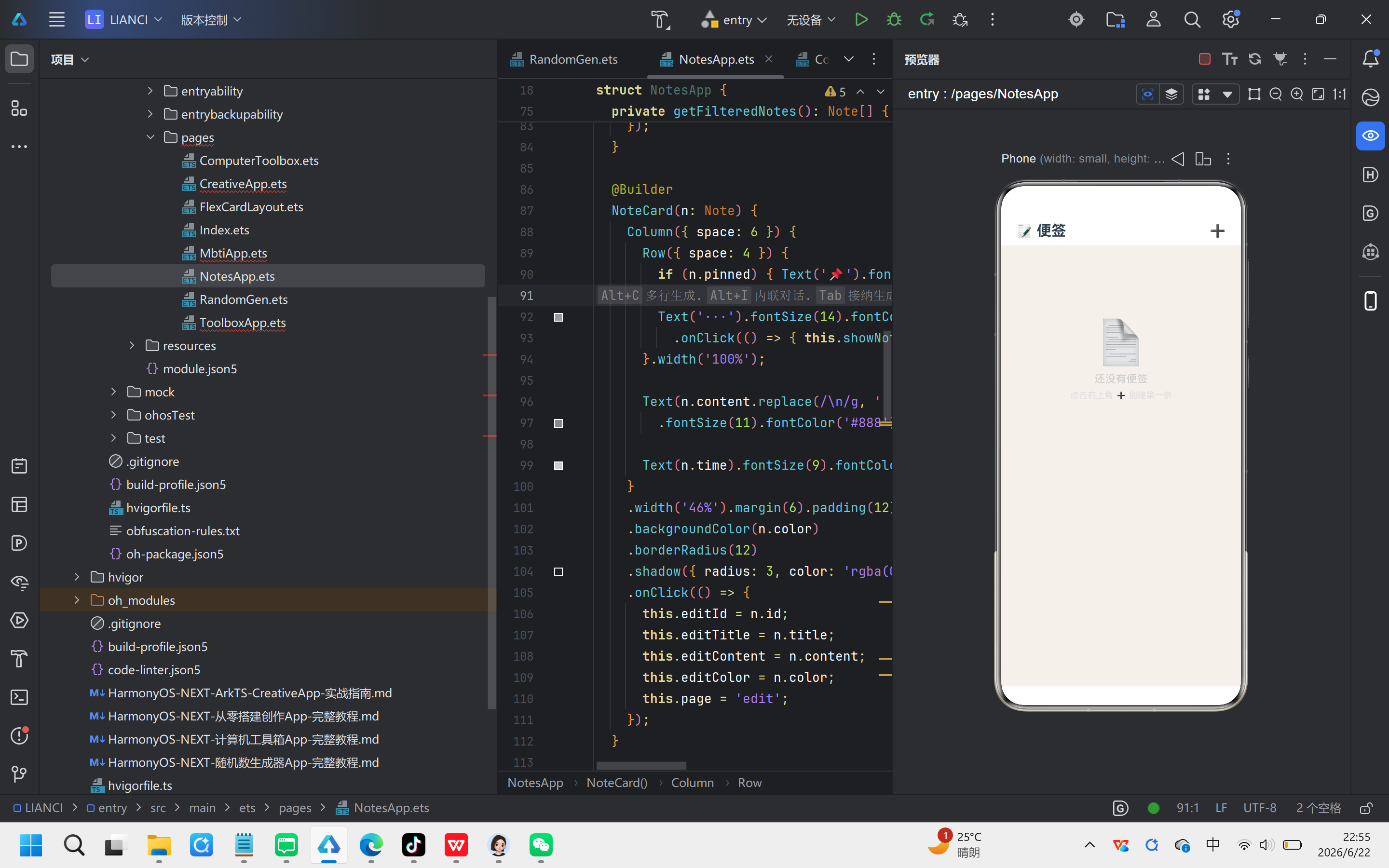
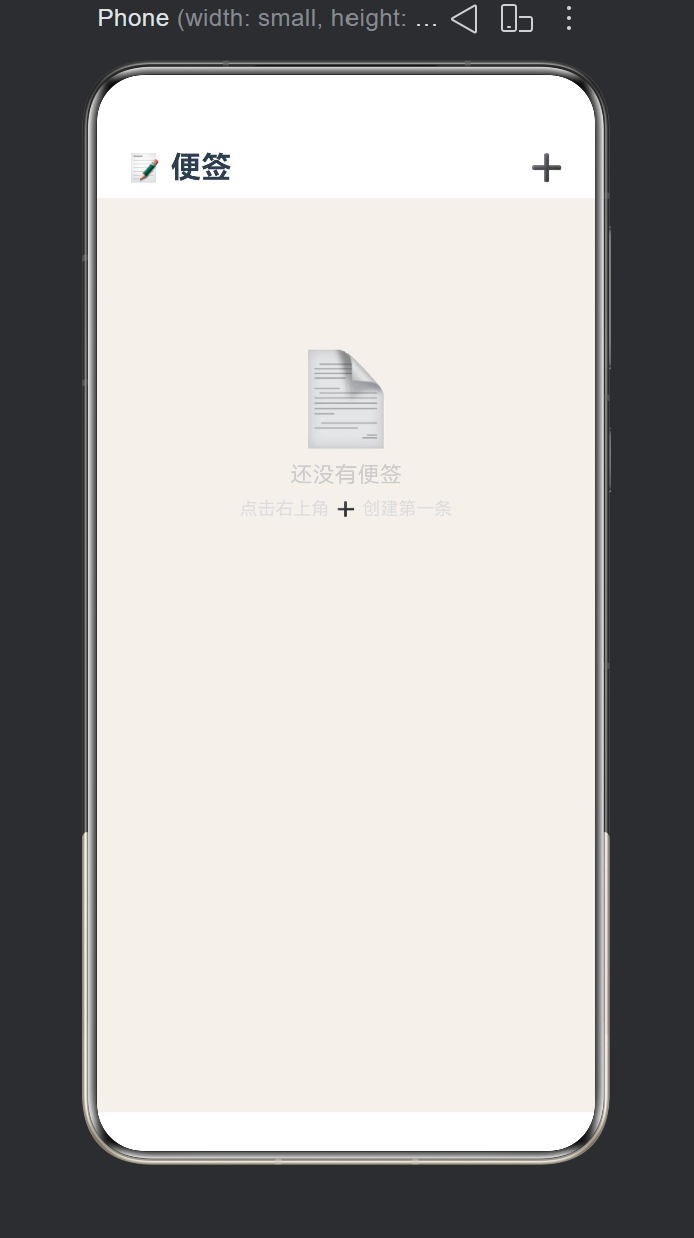
5.1 顶栏
Row() {
  Text('📝 便签').fontSize(22).fontWeight(FontWeight.Bold).fontColor('#2C3E50');
  Blank();
  if (this.filteredColor) {
    Text('✕ 清除筛选').fontSize(12).fontColor('#E74C3C')
      .onClick(() => { this.filteredColor = ''; });
  }
  Text('➕').fontSize(24).margin({ left: 12 })
    .onClick(() => {
      this.editId = 0;
      this.editTitle = '';
      this.editContent = '';
      this.editColor = '#FFFFFF';
      this.page = 'edit';
    });
}.width('100%').padding({ left: 20, right: 20, top: 14, bottom: 8 }).backgroundColor('#FFF');
顶栏包含三个元素:
- 标题「📝 便签」— 左对齐
- 清除筛选(条件显示)— 中间,仅当有筛选时出现
- ➕ 新建按钮 — 右对齐,点击重置编辑表单并跳转到编辑页
5.2 空状态
if (this.notes.length === 0) {
  Column({ space: 8 }) {
    Blank().height(100);
    Text('📄').fontSize(64);
    Text('还没有便签').fontSize(16).fontColor('#CCC');
    Text('点击右上角 ➕ 创建第一条').fontSize(13).fontColor('#DDD');
  }.width('100%').alignItems(HorizontalAlign.Center);
}
首次打开应用时,notes 数组为空,显示友好的空状态引导。Blank().height(100) 保持垂直居中。
5.3 便签卡片网格
Scroll() {
  Flex({ wrap: FlexWrap.Wrap, justifyContent: FlexAlign.Start }) {
    ForEach(this.getFilteredNotes(), (n: Note) => {
      this.NoteCard(n);
    }, (n: Note) => n.id.toString());
  }.width('100%').padding(12);
}.width('100%');
布局组合:
Scroll— 可滚动容器,适应多便签Flex({ wrap: FlexWrap.Wrap })— 流式布局,卡片自动折行ForEach— 循环渲染每张卡片
keyGenerator:(n: Note) => n.id.toString() 作为第三个参数,帮助框架追踪每个列表项,在增删操作时只重新渲染变化的项,而不是全量重渲染。
5.4 排序与过滤
private getFilteredNotes(): Note[] {
  let list = this.notes;
  if (this.filteredColor) {
    list = list.filter(n => n.color === this.filteredColor);
  }
  return list.sort((a, b) => {
    if (a.pinned !== b.pinned) { return a.pinned ? -1 : 1; }
    return b.id - a.id;
  });
}
排序规则:
- 置顶优先:
pinned === true的排在false之前 - 时间倒序:按
id(自增)降序排列,最新创建的排在最前
5.5 NoteCard 卡片组件
@Builder
NoteCard(n: Note) {
  Column({ space: 6 }) {
    Row({ space: 4 }) {
      if (n.pinned) { Text('📌').fontSize(12); }
      Text(n.title || '无标题').fontSize(14).fontWeight(FontWeight.SemiBold)
        .fontColor('#2C3E50').maxLines(1).textOverflow({ overflow: TextOverflow.Ellipsis })
        .layoutWeight(1);
      Text('···').fontSize(14).fontColor('#999')
        .onClick(() => { this.showNoteMenu(n); });
    }.width('100%');

    Text(n.content.replace(/\n/g, ' ').substring(0, 40) + (n.content.length > 40 ? '…' : ''))
      .fontSize(11).fontColor('#888').maxLines(2).lineHeight(16).width('100%');

    Text(n.time).fontSize(9).fontColor('#CCC').width('100%');
  }
  .width('46%').margin(6).padding(12)
  .backgroundColor(n.color)
  .borderRadius(12)
  .shadow({ radius: 3, color: 'rgba(0,0,0,0.04)', offsetY: 2 })
  .onClick(() => {
    this.editId = n.id;
    this.editTitle = n.title;
    this.editContent = n.content;
    this.editColor = n.color;
    this.page = 'edit';
  });
}
卡片布局:
- 宽度
46%+ 左右margin(6)= 两列布局(46% × 2 + 12 = 104%,利用 Flex 换行特性自动调整为每行两列) - 标题最多 1 行,超出省略号
- 正文预览 40 字,换行符替换为空格
- 时间在卡片底部,灰色小字
卡片点击:点击卡片时填充编辑表单的所有字段,然后切换到编辑页。editId 用于区分新建(0)和编辑(>0)。
6. 编辑页:创建与编辑便签
6.1 顶栏操作
Row({ space: 8 }) {
  Text('← 返回').fontSize(14).fontColor('#6C63FF')
    .onClick(() => { this.page = 'list'; });
  Blank();
  if (this.editId > 0) {
    Text('🗑️').fontSize(20).margin({ right: 8 })
      .onClick(() => { this.deleteNote(this.editId); });
  }
  Text('💾').fontSize(20)
    .onClick(() => { this.saveNote(); });
}.width('100%').padding({ left: 16, right: 16, top: 12, bottom: 4 }).backgroundColor('#FFF');
三个操作按从左到右排列:
- ← 返回 — 返回列表页(不保存)
- 🗑️ 删除 — 仅编辑已有便签时显示,新建时隐藏
- 💾 保存 — 保存到 notes 数组并返回列表页
6.2 颜色选择器
Row({ space: 6 }) {
  ForEach(COLORS, (c: string) => {
    Row() {
      if (c === this.editColor) { Text('✓').fontSize(12).fontColor(c === '#FFFFFF' ? '#333' : '#FFF'); }
    }.width(24).height(24).backgroundColor(c).borderRadius(12)
      .border({ width: c === this.editColor ? 2 : 1, color: c === this.editColor ? '#6C63FF' : '#E0E0E0' })
      .justifyContent(FlexAlign.Center).alignItems(VerticalAlign.Center)
      .onClick(() => { this.editColor = c; });
  });
}.width('100%').padding({ left: 16, right: 16 });
6 个颜色圆点(24x24 圆形)水平排列:
- 选中态:紫色边框
#6C63FF+ 白色✓标记 - 非选中态:灰色细边框
#E0E0E0 - 白色色块特殊处理:
✓显示为深色#333
6.3 标题与正文输入
// 标题
TextInput({ text: this.editTitle, placeholder: '标题(可选)' })
  .width('100%').fontSize(18).fontWeight(FontWeight.Bold).fontColor('#2C3E50')
  .backgroundColor(this.editColor).padding({ left: 16, right: 16 }).height(44)
  .onChange((v: string) => { this.editTitle = v; });

// 正文
TextArea({ text: this.editContent, placeholder: '写下你的想法……' })
  .width('100%').height(360).fontSize(15).fontColor('#2C3E50')
  .backgroundColor(this.editColor).padding(16).lineHeight(24)
  .placeholderFont({ size: 15, color: '#CCC' })
  .onChange((v: string) => { this.editContent = v; });
TextInput vs TextArea:
TextInput— 单行标题输入,18px 粗体TextArea— 多行正文输入,15px 常规字体,360px 高度
两者的 backgroundColor 都跟随 this.editColor,整个编辑页的背景色与便签颜色一致。
6.4 底部操作栏
Row({ space: 12 }) {
  if (this.editId > 0) {
    Text(this.notes.find(n => n.id === this.editId)?.pinned ? '📌 已置顶' : '📍 置顶')
      .fontSize(12).fontColor('#6C63FF').backgroundColor('#F0EFFF')
      .borderRadius(16).padding({ left: 14, right: 14, top: 6, bottom: 6 })
      .onClick(() => { this.togglePin(this.editId); });
  }
  Text('📋 复制全部').fontSize(12).fontColor('#6C63FF').backgroundColor('#F0EFFF')
    .borderRadius(16).padding({ left: 14, right: 14, top: 6, bottom: 6 })
    .onClick(() => { this.copyContent(); });
}.width('100%').padding({ left: 16, right: 16 });
两个胶囊按钮:
- 置顶切换:仅编辑模式显示,点击切换 pinned 状态
- 复制全部:始终显示,复制标题+正文到剪贴板
7. 核心业务逻辑
7.1 保存便签
private saveNote(): void {
  if (!this.editTitle.trim() && !this.editContent.trim()) {
    promptAction.showToast({ message: '⚠️ 内容不能为空', duration: 1000 });
    return;
  }
  const now = this.getNow();
  if (this.editId > 0) {
    // 编辑已有便签
    const idx = this.notes.findIndex(n => n.id === this.editId);
    if (idx >= 0) {
      this.notes[idx].title = this.editTitle;
      this.notes[idx].content = this.editContent;
      this.notes[idx].color = this.editColor;
      this.notes[idx].time = now;
      this.notes = [...this.notes];  // 触发响应式刷新
    }
  } else {
    // 新建便签
    this.notes.push({
      id: NEXT_ID++, title: this.editTitle, content: this.editContent,
      time: now, color: this.editColor, pinned: false,
    });
  }
  this.page = 'list';
  promptAction.showToast({ message: '✅ 已保存', duration: 1000 });
}
保存流程:
用户点击 💾
  ↓
空内容校验 → 空则提示并返回
  ↓
获取当前时间
  ↓
editId > 0 ? → 是:更新已有便签
             → 否:新建便签
  ↓
this.notes = [...this.notes] (触发 UI 刷新)
  ↓
page = 'list' (切换到列表页)
  ↓
Toast 提示「✅ 已保存」
关键细节:编辑模式下必须通过 this.notes = [...this.notes] 创建新数组引用,@State 才能检测到变化并触发刷新。
7.2 删除便签
private deleteNote(id: number): void {
  this.notes = this.notes.filter(n => n.id !== id);
  this.page = 'list';
  promptAction.showToast({ message: '🗑️ 已删除', duration: 1000 });
}
filter 返回一个新数组(不含目标 ID),赋值给 @State notes 触发 UI 刷新。
7.3 置顶切换
private togglePin(id: number): void {
  const n = this.notes.find(x => x.id === id);
  if (n) { n.pinned = !n.pinned; this.notes = [...this.notes]; }
}
修改 pinned 属性后,同样需要 this.notes = [...this.notes] 触发刷新。
7.4 复制到剪贴板
private copyContent(): void {
  const t = (this.editTitle ? this.editTitle + '\n' : '') + this.editContent;
  if (!t.trim()) { return; }
  try {
    pasteboard.getSystemPasteboard().setPasteData(
      pasteboard.createData(pasteboard.MIMETYPE_TEXT_PLAIN, t));
    promptAction.showToast({ message: '✅ 已复制', duration: 1000 });
  } catch (_) {
    promptAction.showToast({ message: '⚠️ 复制失败', duration: 1000 });
  }
}
标题(如有)和正文合并为一个字符串,换行符分隔。pasteboard 是系统剪贴板 API,try-catch 保护异常场景。
7.5 时间格式化
private getNow(): string {
  const d = new Date();
  return d.getFullYear() + '-'
    + (d.getMonth() + 1).toString().padStart(2, '0') + '-'
    + d.getDate().toString().padStart(2, '0') + ' '
    + d.getHours().toString().padStart(2, '0') + ':'
    + d.getMinutes().toString().padStart(2, '0');
}
输出格式:2026-06-22 22:30
padStart(2, '0') 确保月份、日期、时、分始终是两位数。
8. UI 细节与交互设计
8.1 颜色主题
编辑页的背景色随所选便签颜色变化:
编辑页背景色 = this.editColor
这意味着:
- 选择黄色 → 整体编辑页是暖黄色背景
- 选择白色 → 编辑页是白色背景
- 标题和正文输入框的背景色也跟随
this.editColor
这种设计让用户在编辑时就能预览便签的最终视觉效果。
8.2 卡片两列布局
.width('46%').margin(6)
46% 宽度 + 6px 外边距 = 每行容纳 2 张卡片。Flex 的 wrap 属性在屏幕宽度不足时自动折行,屏幕更宽时保持两列居中。
8.3 正文预览截断
n.content.replace(/\n/g, ' ').substring(0, 40) + (n.content.length > 40 ? '…' : '')
- 换行符替换为空格(避免卡片内出现意外换行)
- 截取前 40 个字符
- 超过 40 字时添加省略号
8.4 置顶标记
if (n.pinned) { Text('📌').fontSize(12); }
置顶便签在标题左侧显示 📌 图标,同时在排序中优先排在前面。
9. 完整源码逐段分析
9.1 导入与接口
import { promptAction } from '@kit.ArkUI';
import { pasteboard } from '@kit.BasicServicesKit';

interface Note {
  id: number;
  title: string;
  content: string;
  time: string;
  color: string;
  pinned: boolean;
}

const COLORS: string[] = ['#FFF9C4', '#FFE0B2', '#F8BBD0', '#C5CAE9', '#B2DFDB', '#FFFFFF'];
let NEXT_ID: number = 1;
promptAction 提供 Toast 提示,pasteboard 提供剪贴板能力。interface Note 定义在结构体外部,是纯粹的 TypeScript 类型声明。NEXT_ID 是一个全局变量,每次新增便签时自增。
9.2 主结构体
@Entry
@Component
struct NotesApp {
  @State private notes: Note[] = [];
  @State private page: string = 'list';
  @State private editId: number = 0;
  @State private editTitle: string = '';
  @State private editContent: string = '';
  @State private editColor: string = '#FFFFFF';
  @State private filteredColor: string = '';
  // ...
}
7 个 @State 变量是整个应用的状态中心。notes 是数据层,其余 6 个是 UI 层状态。
9.3 build() 方法
build() {
  Stack() {
    if (this.page === 'list') { this.ListPage(); }
    if (this.page === 'edit') { this.EditPage(); }
  }.width('100%').height('100%').backgroundColor('#F5F0EB');
}
Stack() 容器让两页在 Z 轴上层叠。ArkTS 的 if 条件渲染比 visibility 隐藏更高效——不满足条件的页面完全不会参与布局计算。
9.4 ListPage 与 NoteCard
ListPage 包括顶栏、空状态判断、便签网格三部分。NoteCard 是 @Builder 构建的卡片组件,接收 Note 对象渲染 UI。
9.5 EditPage
EditPage 是编辑界面,包括返回/删除/保存按钮、颜色选择器、标题输入、正文输入、底部操作栏。
9.6 业务方法
saveNote()、deleteNote()、togglePin()、copyContent()、getNow() 五个方法覆盖了便签的所有操作。
10. 构建与调试
10.1 构建命令
hvigorw assembleHap --no-daemon --mode module -p module=entry
10.2 构建输出
> CompileArkTS... after 7 s 490 ms
> PackageHap... after 783 ms
> BUILD SUCCESSFUL in 21 s 590 ms
10.3 常见错误
| 错误 | 原因 | 解决 |
|---|---|---|
@State array modification not detected | 修改数组元素属性后未创建新引用 | this.notes = [...this.notes]; |
ForEach missing keyGenerator | 未提供第三个参数 | 添加 (item) => item.id.toString() |
Cannot find name 'Note' | 接口在结构体外部但被引用 | 确保 interface Note 定义在文件顶层 |
Property 'xxx' does not exist | 拼写错误或接口定义不完整 | 检查接口字段名 |
11. 总结与扩展
11.1 技术知识点总览
| 类别 | 知识点 | 应用位置 |
|---|---|---|
| 装饰器 | @Entry | 页面入口 |
| 装饰器 | @Component | 组件定义 |
| 装饰器 | @State | 7 个响应式变量 |
| 装饰器 | @Builder | ListPage / EditPage / NoteCard |
| 组件 | TextInput | 标题输入 |
| 组件 | TextArea | 正文输入 |
| 组件 | Flex | 卡片网格布局 |
| 组件 | ForEach | 卡片循环渲染 |
| 组件 | Scroll | 列表滚动 |
| 组件 | Stack | 页面容器 |
| 系统 API | pasteboard | 剪贴板复制 |
| 系统 API | promptAction.showToast | 操作反馈 |
| 数组操作 | push / filter / findIndex | 增删改查 |
| 响应式技巧 | this.notes = [...this.notes] | 触发数组刷新 |
11.2 扩展方向
数据持久化:
- 使用
@ohos.data.preferences将便签数据保存到本地文件 - 下次打开 App 时自动恢复上次的便签
- 添加数据导出/导入功能(JSON 格式)
功能增强:
- 搜索便签(按标题或内容关键字过滤)
- 富文本编辑(加粗、列表、图片)
- 待办事项模式(勾选框 + 完成状态)
- 提醒功能(设置时间,系统通知提醒)
- 分享便签到其他应用
UI 增强:
- 暗色模式适配
- 手势操作(左滑删除、长按拖动排序)
- 动画过渡(页面切换、增删卡片动画)
- 多选批量操作
11.3 写在最后
229 行代码,一个完整的、可交互的便签 App。从空状态的引导,到两列卡片的网格布局,再到编辑页的颜色选择和置顶功能——每个细节都展示了 ArkTS 声明式 UI 在工具类应用中的高效开发方式。
与前面几篇文章中的「随机数生成器」「计算机工具箱」「MBTI 测试」相比,便签 App 是第一个涉及数据持久化操作(增删改查)的应用。数据从无到有、从有到变,@State notes 数组贯穿了整个应用的生命周期。理解「数组引用变化驱动 UI 刷新」这一核心概念,是掌握 ArkTS 开发的关键一步。
本文所有代码基于 HarmonyOS NEXT 6.1.1(API 24)编写。源码文件:entry/src/main/ets/pages/NotesApp.ets(229 行)。

讨论HarmonyOS开发技术,专注于API与组件、DevEco Studio、测试、元服务和应用上架分发等。
更多推荐



 6
6 0
0- 0


 已为社区贡献4条内容

所有评论(0)