HarmonyOS NEXT 开发手记:做一个精致的骰子模拟器
HarmonyOS NEXT 开发手记:做一个精致的骰子模拟器
今天心血来潮,想用 HarmonyOS NEXT 做个骰子模拟器。本以为很简单,没想到踩了不少坑,记录下来分享给大家。
一、为什么做这个?
前两天玩桌游,发现经常找不到骰子,就算找到了也容易丢。灵机一动:何不用鸿蒙做个骰子模拟器?既能学习技术,又实用,一石二鸟!
决定做以下功能:
- 点击投掷骰子,显示 1-6 点
- 动画效果,模拟真实翻滚
- 多种主题可选
- 记录投掷历史
二、开发环境
我用的环境:
| 工具 | 版本 |
|---|---|
| DevEco Studio | 5.0+ |
| HarmonyOS SDK | API 23 |
| 开发语言 | ArkTS |
创建项目:File → New → Create Project,选择 Empty Ability 模板,项目名填 MyApplication。
三、开干!
3.1 定义数据结构
先想清楚要什么数据:
// 投掷记录
interface DiceRecord {
  value: number;   // 点数
  time: string;    // 时间
}

// 主题配置
interface DiceTheme {
  name: string;    // 名称
  bg: string;      // 背景色
  dot: string;     // 点数色
  border: string;  // 边框色
}
3.2 状态变量
ArkTS 用 @State 管理状态,状态变了 UI 自动更新:
@Entry
@Component
struct Index {
  @State currentValue: number = 1;      // 当前点数
  @State isRolling: boolean = false;    // 是否在滚动
  @State totalRolls: number = 0;        // 总投掷次数
  @State history: DiceRecord[] = [];    // 历史记录
  @State diceColor: string = '#FFFFFF'; // 骰子颜色
  @State dotColor: string = '#1C1C1E';  // 点数颜色
}
3.3 投掷逻辑
这是核心功能。我一开始想用动画组件,后来发现用 setInterval 更简单:
rollDice(): void {
  if (this.isRolling) return;  // 防止重复点击
  this.isRolling = true;

  let frame = 0;
  const interval = setInterval(() => {
    this.currentValue = Math.floor(Math.random() * 6) + 1;
    frame++;

    if (frame >= 8) {
      clearInterval(interval);
      const finalValue = Math.floor(Math.random() * 6) + 1;
      this.currentValue = finalValue;
      this.isRolling = false;
      this.totalRolls++;

      // 记录历史
      this.addToHistory(finalValue);
    }
  }, 60);
}
每 60ms 切换一次点数,切换 8 次后停止,产生翻滚效果。
3.4 画骰子
骰子的点数布局是个坑点。我用 @Builder 定义可复用的 UI:
@Builder
buildDiceFace() {
  Column() {
    if (this.currentValue === 1) {
      Text('●').fontSize(48).fontColor(this.dotColor)
    } else if (this.currentValue === 2) {
      Row() {
        Column() { Text('●').fontSize(24).fontColor(this.dotColor) }.width('50%')
        Column() { Text('●').fontSize(24).fontColor(this.dotColor) }.width('50%')
      }.width(120).justifyContent(FlexAlign.SpaceAround)
    }
    // ... 其他点数类似
  }
}
点数布局图:
| 点数 | 布局 |
|---|---|
| 1 点 | 居中一个大点 |
| 2 点 | 对角两个点 |
| 3 点 | 对角线三个点 |
| 4 点 | 四角各一个点 |
| 5 点 | 四角 + 中心 |
| 6 点 | 两行三列 |
3.5 主题切换
定义 5 种主题:
readonly diceColors: DiceTheme[] = [
  { name: '经典白', bg: '#FFFFFF', dot: '#1C1C1E', border: '#D1D1D6' },
  { name: '复古红', bg: '#FF3B30', dot: '#FFFFFF', border: '#C41A1A' },
  { name: '深邃蓝', bg: '#007AFF', dot: '#FFFFFF', border: '#0040DD' },
  { name: '翡翠绿', bg: '#34C759', dot: '#FFFFFF', border: '#248A3D' },
  { name: '暗夜黑', bg: '#1C1C1E', dot: '#FFFFFF', border: '#000000' },
];
切换主题就两行代码:
changeTheme(theme: DiceTheme): void {
  this.diceColor = theme.bg;
  this.dotColor = theme.dot;
}
3.6 历史记录
这里踩了个坑:ArkTS 不支持 unshift() 方法!
错误写法:
this.history.unshift(newRecord); // ❌ 不支持
正确写法:
const temp = [newRecord];
for (let j = 0; j < this.history.length; j++) {
  temp.push(this.history[j]);
}
this.history = temp;

// 限制 10 条
if (this.history.length > 10) {
  this.history = this.history.slice(0, 10);
}
四、UI 布局
整体结构:
Column
├── 标题
├── 骰子主体(可点击)
├── 投掷按钮
├── 主题选择
└── 历史记录
骰子主体
Column() {
  this.buildDiceFace()
}
.width(180)
.height(180)
.backgroundColor(this.diceColor)
.borderRadius(24)
.shadow({ radius: 12, color: '#20000000', offsetY: 4 })
.opacity(this.isRolling ? 0.7 : 1.0)
.onClick(() => {
  this.rollDice();
})
加了阴影和圆角,看起来更立体。投掷时透明度降低,增加动感。
投掷按钮
Button(this.isRolling ? '🎲 投掷中...' : '🎲 掷骰子')
  .type(ButtonType.Capsule)
  .width(200)
  .height(50)
  .backgroundColor('#007AFF')
  .enabled(!this.isRolling)
  .onClick(() => {
    this.rollDice();
  })
投掷时按钮禁用,防止重复点击。
主题选择器
Row({ space: 10 }) {
  ForEach(this.diceColors, (theme: DiceTheme) => {
    Row() {
      Text(theme.name)
        .fontSize(11)
        .fontColor(theme.bg === '#1C1C1E' ? '#FFFFFF' : '#1C1C1E')
    }
    .width(60)
    .height(28)
    .backgroundColor(theme.bg)
    .borderRadius(14)
    .border({
      width: this.diceColor === theme.bg ? 2 : 1,
      color: this.diceColor === theme.bg ? '#007AFF' : theme.border
    })
    .onClick(() => {
      this.changeTheme(theme);
    })
  })
}
当前主题显示蓝色边框,一眼就知道选的是哪个。
五、遇到的坑
坑 1:数组方法不全
ArkTS 不支持 unshift、splice 等方法,只能用基础方法变通:
// 插入元素到数组开头
const temp = [newItem];
for (let i = 0; i < oldArray.length; i++) {
  temp.push(oldArray[i]);
}
this.oldArray = temp;

// 截取数组
const temp2 = [];
for (let i = 0; i < limit; i++) {
  temp2.push(oldArray[i]);
}
this.oldArray = temp2;
坑 2:时间格式化
要显示 09:05:03 这种格式,得用 padStart 补零:
const now = new Date();
const timeStr =
  `${now.getHours().toString().padStart(2, '0')}:` +
  `${now.getMinutes().toString().padStart(2, '0')}:` +
  `${now.getSeconds().toString().padStart(2, '0')}`;
坑 3:动画防抖
不加防抖,疯狂点击会出问题:
rollDice(): void {
  if (this.isRolling) return;  // 加个锁
  this.isRolling = true;
  // ... 动画逻辑
  this.isRolling = false;  // 动画结束后解锁
}
坑 4:条件渲染语法
ArkTS 必须用 if 语句,不能用 &&:
// ❌ 错误
this.history.length > 0 && Text('显示')

// ✅ 正确
if (this.history.length > 0) {
  Text('显示')
}
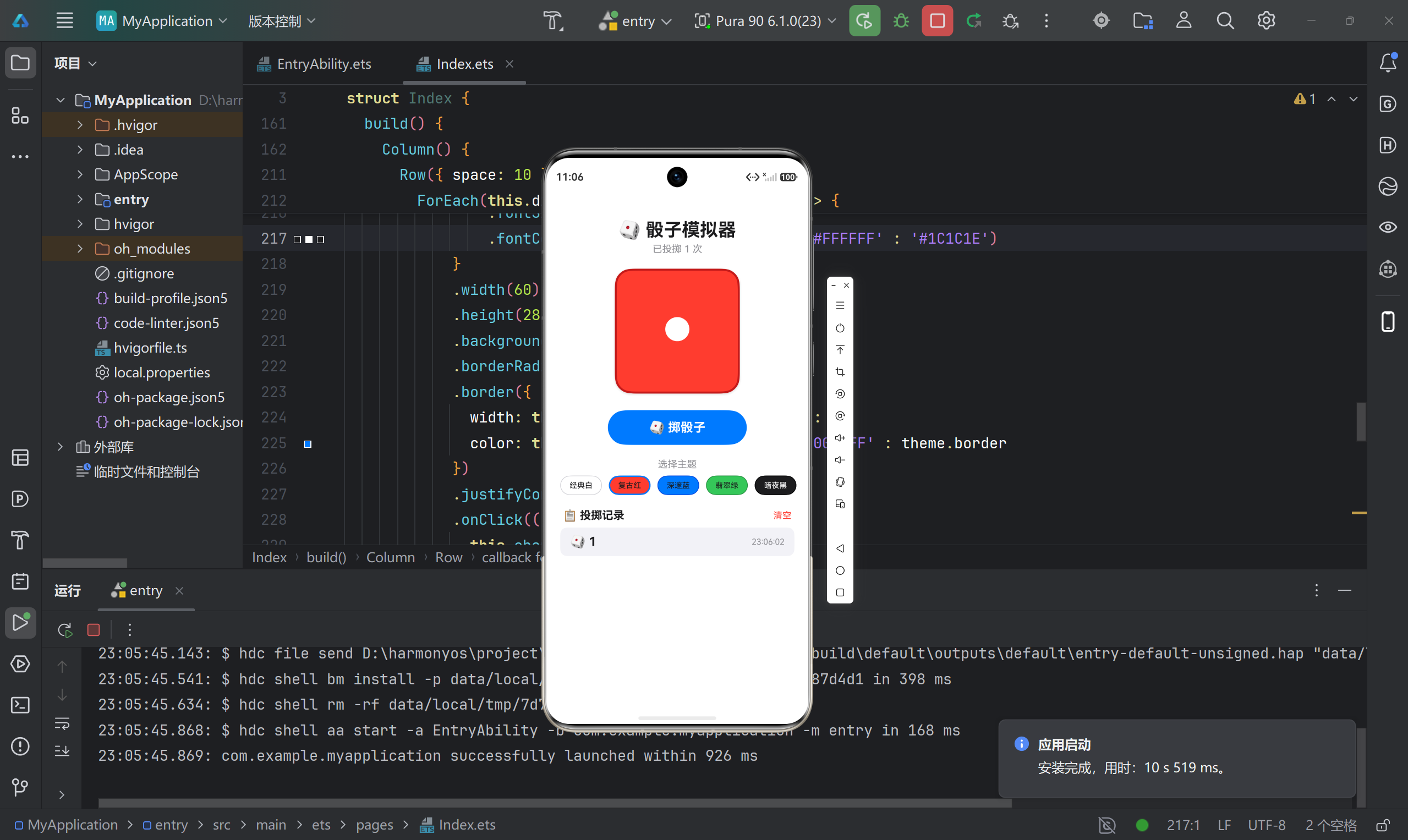
六、运行
七、总结
学到了什么
| 知识点 | 心得 |
|---|---|
| @State | 状态驱动 UI,省心 |
| @Builder | 复用 UI 片段,避免重复 |
| setInterval | 做动画的利器 |
| 防抖 | 交互必备,防止重复触发 |
可以改进的地方
- 多骰子支持:支持同时投掷 2-3 个骰子
- 震动反馈:投掷时手机震动
- 音效:骰子滚动的声音
- 统计图表:显示各点数出现频率
- 自定义骰子:D4、D8、D20 等不同面数
开发体验
ArkTS 的声明式 UI 真的很爽,写起来比传统 Android 简洁多了。状态管理也很直观,不用操心 UI 刷新的问题。
唯一的缺点是数组方法少了点,但这也能通过变通解决。总体来说,鸿蒙开发体验还是不错的!
项目信息:
- SDK:API 23
- 开发工具:DevEco Studio 5.0+

讨论HarmonyOS开发技术,专注于API与组件、DevEco Studio、测试、元服务和应用上架分发等。
更多推荐

 5
5 0
0- 0


 已为社区贡献52条内容

所有评论(0)