【鸿蒙开发实战】从零打造单词记忆卡App - 翻转动画与学习进度可视化
📖 前言
背单词是很多人的刚需,而单词卡片(Flashcard)是一种经典且高效的学习方式。今天,我将带大家使用鸿蒙ArkUI从零开发一款单词记忆卡App。这个项目虽然功能看起来简单,但涉及到了状态管理、条件渲染、进度条可视化、动态UI切换等核心知识点,非常适合初学者练手。
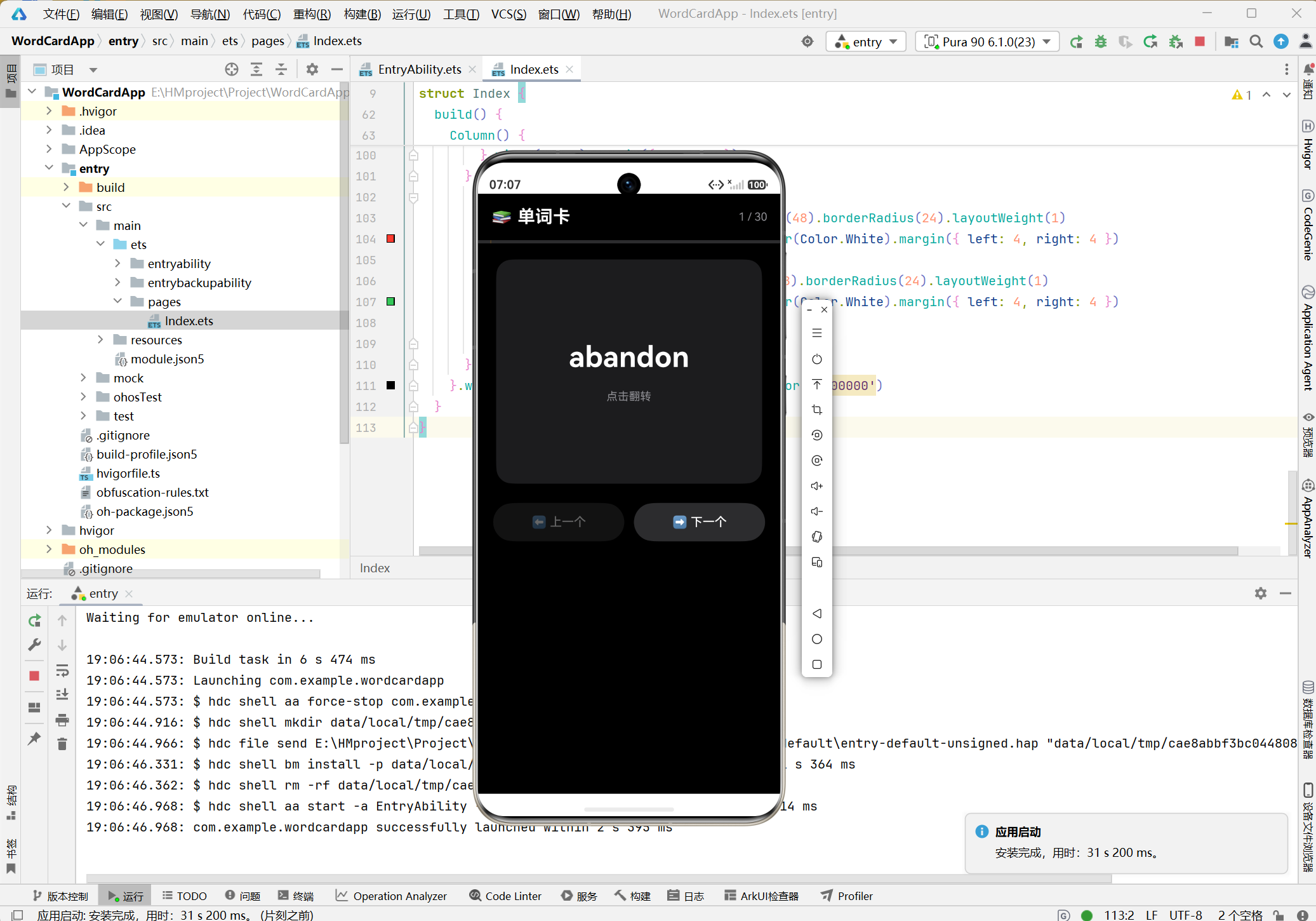
先看最终效果:
一、项目概述
1.1 功能需求
这款单词记忆卡App具备以下核心功能:
| 功能模块 | 详细说明 |
|---|---|
| 单词展示 | 显示当前单词,点击卡片翻转显示释义 |
| 卡片翻转 | 正面显示单词,背面显示释义和例句 |
| 学习进度 | 顶部进度条实时显示学习进度 |
| 上下切换 | 支持上一个/下一个单词切换 |
| 认识/不认识 | 翻转后可标记掌握情况 |
| 单词计数 | 实时显示当前进度(如 5/30) |
1.2 技术亮点
- 🔄 卡片翻转效果 - 点击卡片切换正反面内容
- 📊 进度条可视化 - 动态计算并显示学习进度
- 🎨 暗色主题设计 - 黑色背景,现代简洁风格
- 🔀 动态按钮切换 - 根据卡片状态显示不同操作按钮
- 📚 内置词库 - 30个精选英语高频词汇
1.3 技术栈
| 技术 | 说明 |
|---|---|
| 开发框架 | ArkUI(声明式UI) |
| 开发语言 | ArkTS(TypeScript扩展) |
| API版本 | 23 |
| 开发工具 | DevEco Studio |
| 项目模型 | Stage模型 |
二、项目创建与环境配置
2.1 创建新项目
- 打开 DevEco Studio,选择 Create Project
- 选择 Empty Ability 模板
- 填写项目信息:
- Project name: WordCardApp
- Bundle name: com.example.wordcardapp
- Save location: E:\HMproject\Project\WordCardApp
- Compile SDK: 选择最新的 HarmonyOS Next SDK
- Model: Stage
2.2 项目结构
WordCardApp/
├── AppScope/
│   ├── app.json5                    # 应用全局配置
│   └── resources/                   # 全局资源
├── entry/
│   ├── src/main/
│   │   ├── ets/
│   │   │   ├── entryability/
│   │   │   │   └── EntryAbility.ets    # 应用入口
│   │   │   └── pages/
│   │   │       └── Index.ets            # 主页面(核心)
│   │   └── resources/
│   │       ├── base/element/            # 字符串、颜色
│   │       ├── base/media/              # 图片资源
│   │       └── base/profile/            # 页面路由
│   ├── module.json5                  # 模块配置
│   └── build-profile.json5           # 构建配置
└── oh_modules/                       # 依赖模块
三、数据模型设计
3.1 单词数据结构
定义单词卡片的接口:
interface WordItem {
  word: string      // 单词
  meaning: string   // 释义
  example: string   // 例句
}
3.2 内置词库
本App内置30个精选英语高频词汇:
private readonly WORDS: WordItem[] = [
  { word: 'abandon', meaning: 'v. 放弃;遗弃', example: 'They had to abandon the project.' },
  { word: 'benefit', meaning: 'n. 好处 v. 受益', example: 'Exercise benefits your health.' },
  { word: 'challenge', meaning: 'n. 挑战 v. 质疑', example: 'This is a big challenge.' },
  { word: 'dedicate', meaning: 'v. 致力于;献身', example: 'She dedicated her life to science.' },
  { word: 'efficient', meaning: 'adj. 高效的', example: 'This method is very efficient.' },
  { word: 'flexible', meaning: 'adj. 灵活的', example: 'We need a flexible schedule.' },
  { word: 'generate', meaning: 'v. 产生;发电', example: 'The wind generates electricity.' },
  { word: 'highlight', meaning: 'v. 强调 n. 亮点', example: 'The report highlights key issues.' },
  { word: 'influence', meaning: 'n./v. 影响', example: 'Media influences public opinion.' },
  { word: 'maintain', meaning: 'v. 维持;保养', example: 'Exercise helps maintain health.' },
  // ... 共30个单词
]
词库设计原则:
- 高频实用 - 选取日常和考试中常见的词汇
- 信息完整 - 包含词性、释义、例句三要素
- 例句真实 - 例句简洁实用,便于理解记忆
四、状态管理设计
4.1 状态变量定义
单词卡App的状态管理相对简洁:
@Entry
@Component
struct Index {
  // 当前单词索引
  @State currentIndex: number = 0

  // 卡片翻转状态
  @State showMeaning: boolean = false
}
4.2 状态变量说明
| 状态变量 | 类型 | 初始值 | 作用 |
|---|---|---|---|
currentIndex | number | 0 | 当前显示的单词索引 |
showMeaning | boolean | false | 是否显示释义(卡片翻转状态) |
4.3 计算属性:进度百分比
get progress(): number {
  return Math.floor(((this.currentIndex + 1) / this.WORDS.length) * 100)
}
这个计算属性会根据当前索引自动计算学习进度百分比。
五、核心功能实现
5.1 卡片翻转逻辑
点击卡片切换正反面:
private toggleCard(): void {
  this.showMeaning = !this.showMeaning
}
5.2 下一个单词
private nextCard(): void {
  if (this.currentIndex + 1 < this.WORDS.length) {
    this.currentIndex++
    this.showMeaning = false  // 重置为正面
  }
}
注意: 切换单词时要重置 showMeaning 为 false,确保新单词从正面开始显示。
5.3 上一个单词
private prevCard(): void {
  if (this.currentIndex > 0) {
    this.currentIndex--
    this.showMeaning = false
  }
}
5.4 边界检查
在切换时进行边界检查,防止数组越界:
nextCard():检查currentIndex + 1 < WORDS.lengthprevCard():检查currentIndex > 0
六、UI布局实现
6.1 整体结构
build() {
  Column() {
    // 1. 顶部标题栏 + 进度计数
    Row() { /* ... */ }

    // 2. 进度条
    Row() { /* ... */ }

    // 3. 单词卡片
    Column() {
      if (!this.showMeaning) {
        // 正面:单词
      } else {
        // 背面:释义 + 例句
      }
    }
    .onClick(() => this.toggleCard())

    // 4. 操作按钮
    if (!this.showMeaning) {
      // 上一个/下一个
    } else {
      // 不认识/认识
    }
  }
}
6.2 顶部标题栏
Row() {
  Text('📚 单词卡')
    .fontSize(22)
    .fontWeight(FontWeight.Bold)
    .fontColor(Color.White)
  Blank()
  Text(String(this.currentIndex + 1) + ' / ' + String(this.WORDS.length))
    .fontSize(14)
    .fontColor('#8E8E93')
}
.width('100%')
.padding(16)
效果说明:
- 左侧:应用标题 + emoji图标
- 右侧:当前进度(如 “5 / 30”)
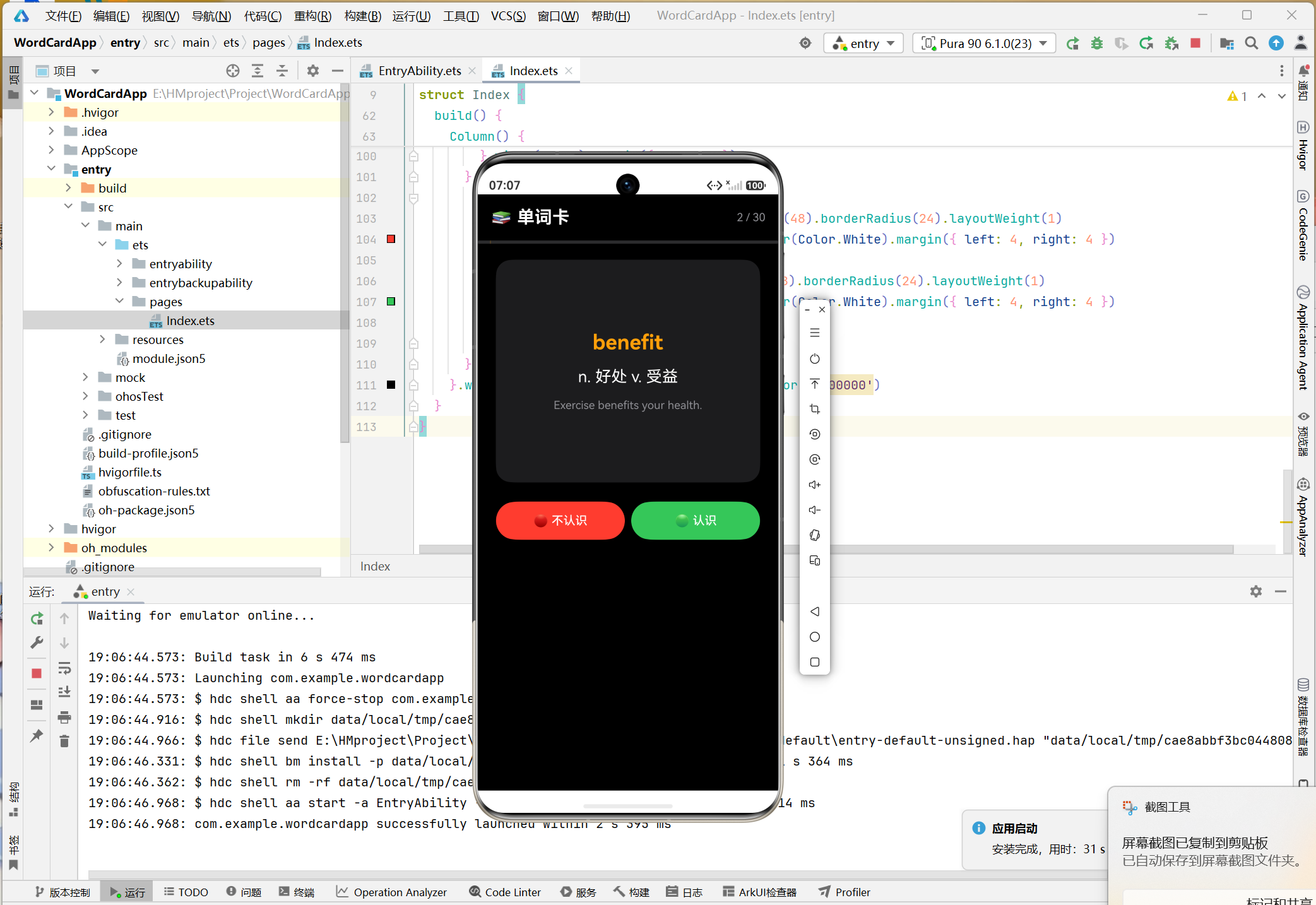
6.3 进度条实现
Row() {
  Column()
    .width(String(this.progress) + '%')  // 动态宽度
    .height(4)
    .borderRadius(2)
    .backgroundColor('#FF9F0A')  // 橙色进度
}
.width('100%')
.height(4)
.backgroundColor('#2C2C2E')  // 灰色背景
.padding({ left: 16, right: 16 })
进度条原理:
- 外层
Row作为进度条背景(灰色) - 内层
Column作为已学习部分(橙色) - 宽度通过
progress计算属性动态设置
视觉效果:
- 未学习:灰色背景条
- 已学习:橙色进度条
- 随单词切换实时更新
6.4 单词卡片
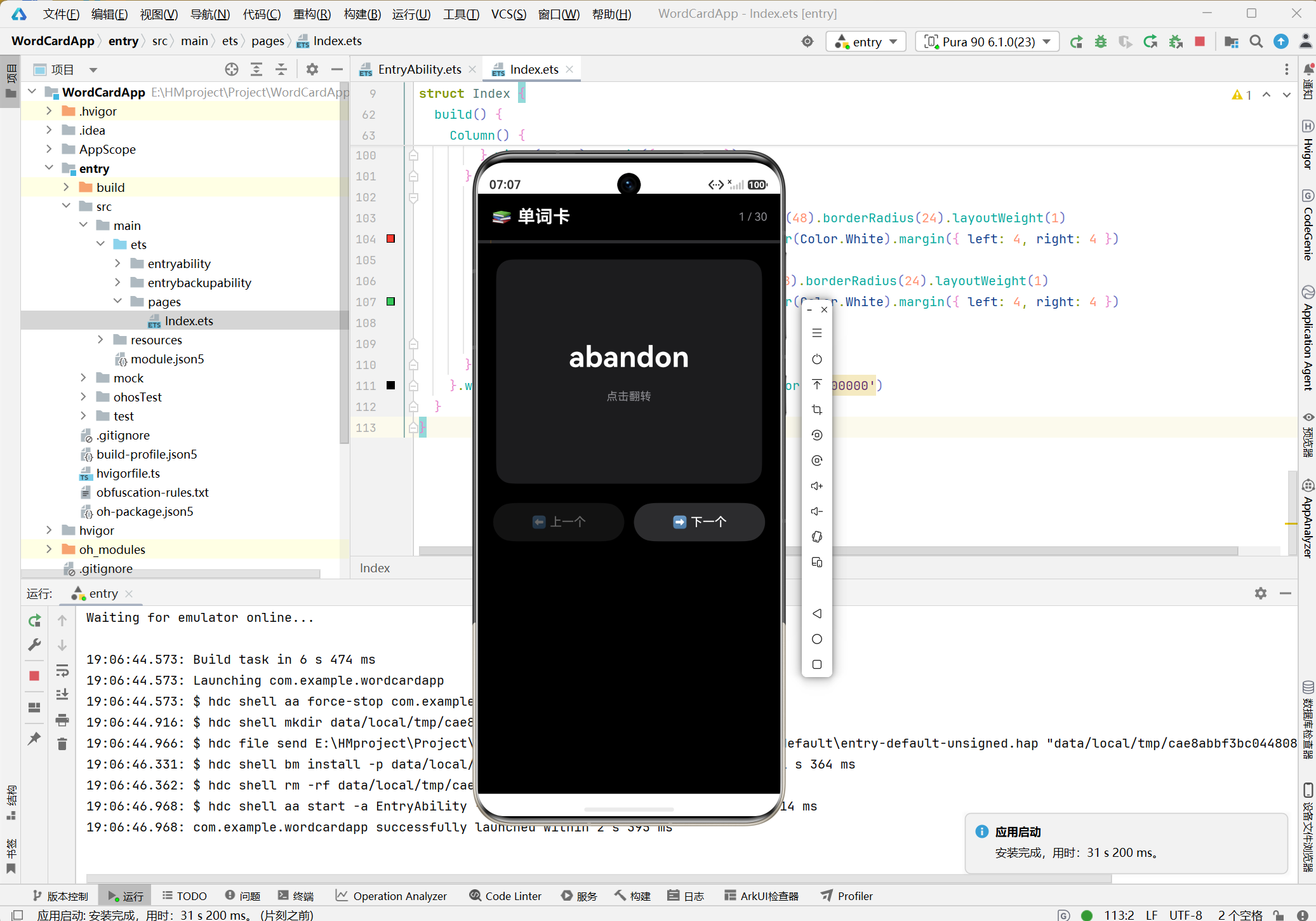
卡片正面(显示单词)
if (!this.showMeaning) {
  Column() {
    Text(this.WORDS[this.currentIndex].word)
      .fontSize(36)
      .fontWeight(FontWeight.Bold)
      .fontColor(Color.White)
    Text('点击翻转')
      .fontSize(14)
      .fontColor('#8E8E93')
      .margin({ top: 20 })
  }
  .width('100%')
  .height('100%')
  .justifyContent(FlexAlign.Center)
  .alignItems(HorizontalAlign.Center)
}
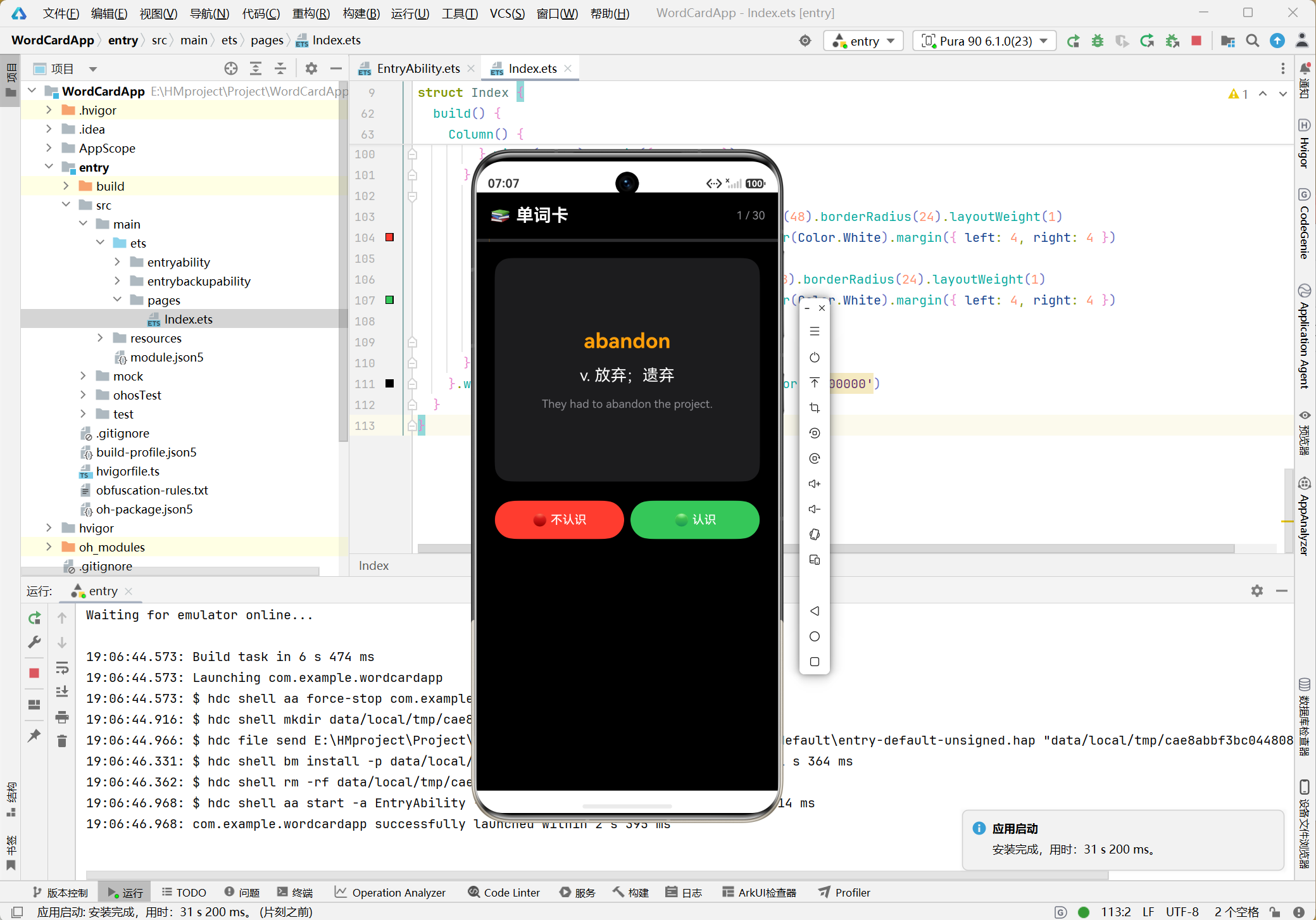
卡片背面(显示释义)
if (this.showMeaning) {
  Column() {
    // 单词(小一号)
    Text(this.WORDS[this.currentIndex].word)
      .fontSize(26)
      .fontWeight(FontWeight.Bold)
      .fontColor('#FF9F0A')

    // 释义
    Text(this.WORDS[this.currentIndex].meaning)
      .fontSize(20)
      .fontColor(Color.White)
      .margin({ top: 16 })

    // 例句
    Text(this.WORDS[this.currentIndex].example)
      .fontSize(14)
      .fontColor('#8E8E93')
      .margin({ top: 16 })
      .textAlign(TextAlign.Center)
      .padding({ left: 16, right: 16 })
  }
  .width('100%')
  .height('100%')
  .justifyContent(FlexAlign.Center)
  .alignItems(HorizontalAlign.Center)
}
卡片容器
Column() {
  // 正面或背面内容...
}
.width('88%')
.height(280)
.backgroundColor('#1C1C1E')  // 深灰色背景
.borderRadius(20)
.margin({ top: 20 })
.onClick(() => this.toggleCard())  // 点击翻转
设计细节:
- 宽度88%:两侧留有边距
- 高度280:固定高度,内容居中
- 圆角20:现代卡片设计
- 深灰背景:与黑色主体形成层次
6.5 动态按钮切换
这是本App的一大亮点:根据卡片状态显示不同的按钮组。
正面状态:上/下一个按钮
if (!this.showMeaning) {
  Row() {
    Button('⬅️ 上一个')
      .fontSize(15)
      .height(48)
      .borderRadius(24)
      .layoutWeight(1)
      .backgroundColor('#2C2C2E')
      .fontColor(Color.White)
      .margin({ right: 6 })
      .enabled(this.currentIndex > 0)  // 第一张禁用
      .onClick(() => this.prevCard())

    Button('➡️ 下一个')
      .fontSize(15)
      .height(48)
      .borderRadius(24)
      .layoutWeight(1)
      .backgroundColor('#2C2C2E')
      .fontColor(Color.White)
      .margin({ left: 6 })
      .enabled(this.currentIndex < this.WORDS.length - 1)  // 最后一张禁用
      .onClick(() => this.nextCard())
  }
  .width('90%')
  .margin({ top: 24 })
}
背面状态:认识/不认识按钮
if (this.showMeaning) {
  Row() {
    Button('🔴 不认识')
      .fontSize(15)
      .height(48)
      .borderRadius(24)
      .layoutWeight(1)
      .backgroundColor('#FF3B30')  // 红色
      .fontColor(Color.White)
      .margin({ left: 4, right: 4 })
      .onClick(() => this.nextCard())

    Button('🟢 认识')
      .fontSize(15)
      .height(48)
      .borderRadius(24)
      .layoutWeight(1)
      .backgroundColor('#34C759')  // 绿色
      .fontColor(Color.White)
      .margin({ left: 4, right: 4 })
      .onClick(() => this.nextCard())
  }
  .width('90%')
  .margin({ top: 24 })
}
设计理念:
| 状态 | 按钮 | 颜色 | 用途 |
|---|---|---|---|
| 正面 | 上一个/下一个 | 灰色 | 浏止单词 |
| 背面 | 不认识/认识 | 红色/绿色 | 自我测评 |
七、完整代码实现
7.1 主页面完整代码(Index.ets)
// 数据接口定义
interface WordItem {
  word: string
  meaning: string
  example: string
}

@Entry
@Component
struct Index {
  // 内置词库
  private readonly WORDS: WordItem[] = [
    { word: 'abandon', meaning: 'v. 放弃;遗弃', example: 'They had to abandon the project.' },
    { word: 'benefit', meaning: 'n. 好处 v. 受益', example: 'Exercise benefits your health.' },
    { word: 'challenge', meaning: 'n. 挑战 v. 质疑', example: 'This is a big challenge.' },
    { word: 'dedicate', meaning: 'v. 致力于;献身', example: 'She dedicated her life to science.' },
    { word: 'efficient', meaning: 'adj. 高效的', example: 'This method is very efficient.' },
    { word: 'flexible', meaning: 'adj. 灵活的', example: 'We need a flexible schedule.' },
    { word: 'generate', meaning: 'v. 产生;发电', example: 'The wind generates electricity.' },
    { word: 'highlight', meaning: 'v. 强调 n. 亮点', example: 'The report highlights key issues.' },
    { word: 'influence', meaning: 'n./v. 影响', example: 'Media influences public opinion.' },
    { word: 'maintain', meaning: 'v. 维持;保养', example: 'Exercise helps maintain health.' },
    { word: 'negotiate', meaning: 'v. 谈判;协商', example: 'They negotiated a new contract.' },
    { word: 'obvious', meaning: 'adj. 明显的', example: 'It is obvious that he is right.' },
    { word: 'potential', meaning: 'n. 潜力 adj. 潜在的', example: 'She has great potential.' },
    { word: 'recognize', meaning: 'v. 认出;承认', example: 'I recognized her immediately.' },
    { word: 'significant', meaning: 'adj. 重要的;显著的', example: 'This is a significant discovery.' },
    { word: 'temporary', meaning: 'adj. 暂时的', example: 'This is only temporary.' },
    { word: 'ultimate', meaning: 'adj. 最终的 n. 终极', example: 'The ultimate goal is peace.' },
    { word: 'volunteer', meaning: 'n. 志愿者 v. 自愿', example: 'He volunteered to help.' },
    { word: 'withdraw', meaning: 'v. 撤回;取款', example: 'She withdrew money from the bank.' },
    { word: 'adapt', meaning: 'v. 适应;改编', example: 'You need to adapt to changes.' },
    { word: 'contribute', meaning: 'v. 贡献;捐献', example: 'Everyone should contribute.' },
    { word: 'demonstrate', meaning: 'v. 演示;证明', example: 'The experiment demonstrates the theory.' },
    { word: 'establish', meaning: 'v. 建立;设立', example: 'They established a new company.' },
    { word: 'frequent', meaning: 'adj. 频繁的', example: 'She makes frequent trips abroad.' },
    { word: 'guarantee', meaning: 'v./n. 保证;担保', example: 'We guarantee your satisfaction.' },
    { word: 'identify', meaning: 'v. 识别;确认', example: 'Can you identify the problem?' },
    { word: 'justify', meaning: 'v. 证明…正当', example: 'How can you justify this decision?' },
    { word: 'launch', meaning: 'v. 发射;发起', example: 'The company launched a new product.' },
    { word: 'motivate', meaning: 'v. 激励;激发', example: 'Good teachers motivate students.' },
    { word: 'obtain', meaning: 'v. 获得;得到', example: 'She obtained a degree in law.' }
  ]

  // 状态变量
  @State currentIndex: number = 0
  @State showMeaning: boolean = false

  // 计算属性:进度百分比
  get progress(): number {
    return Math.floor(((this.currentIndex + 1) / this.WORDS.length) * 100)
  }

  // 翻转卡片
  private toggleCard(): void {
    this.showMeaning = !this.showMeaning
  }

  // 下一个单词
  private nextCard(): void {
    if (this.currentIndex + 1 < this.WORDS.length) {
      this.currentIndex++
      this.showMeaning = false
    }
  }

  // 上一个单词
  private prevCard(): void {
    if (this.currentIndex > 0) {
      this.currentIndex--
      this.showMeaning = false
    }
  }

  build() {
    Column() {
      // 顶部标题栏
      Row() {
        Text('📚 单词卡')
          .fontSize(22)
          .fontWeight(FontWeight.Bold)
          .fontColor(Color.White)
        Blank()
        Text(String(this.currentIndex + 1) + ' / ' + String(this.WORDS.length))
          .fontSize(14)
          .fontColor('#8E8E93')
      }
      .width('100%')
      .padding(16)

      // 进度条
      Row() {
        Column()
          .width(String(this.progress) + '%')
          .height(4)
          .borderRadius(2)
          .backgroundColor('#FF9F0A')
      }
      .width('100%')
      .height(4)
      .backgroundColor('#2C2C2E')
      .padding({ left: 16, right: 16 })

      // 单词卡片
      Column() {
        if (!this.showMeaning) {
          // 正面:显示单词
          Column() {
            Text(this.WORDS[this.currentIndex].word)
              .fontSize(36)
              .fontWeight(FontWeight.Bold)
              .fontColor(Color.White)
            Text('点击翻转')
              .fontSize(14)
              .fontColor('#8E8E93')
              .margin({ top: 20 })
          }
          .width('100%')
          .height('100%')
          .justifyContent(FlexAlign.Center)
          .alignItems(HorizontalAlign.Center)
        } else {
          // 背面:显示释义和例句
          Column() {
            Text(this.WORDS[this.currentIndex].word)
              .fontSize(26)
              .fontWeight(FontWeight.Bold)
              .fontColor('#FF9F0A')
            Text(this.WORDS[this.currentIndex].meaning)
              .fontSize(20)
              .fontColor(Color.White)
              .margin({ top: 16 })
            Text(this.WORDS[this.currentIndex].example)
              .fontSize(14)
              .fontColor('#8E8E93')
              .margin({ top: 16 })
              .textAlign(TextAlign.Center)
              .padding({ left: 16, right: 16 })
          }
          .width('100%')
          .height('100%')
          .justifyContent(FlexAlign.Center)
          .alignItems(HorizontalAlign.Center)
        }
      }
      .width('88%')
      .height(280)
      .backgroundColor('#1C1C1E')
      .borderRadius(20)
      .margin({ top: 20 })
      .onClick(() => this.toggleCard())

      // 操作按钮
      if (!this.showMeaning) {
        // 正面:上一个/下一个
        Row() {
          Button('⬅️ 上一个')
            .fontSize(15)
            .height(48)
            .borderRadius(24)
            .layoutWeight(1)
            .backgroundColor('#2C2C2E')
            .fontColor(Color.White)
            .margin({ right: 6 })
            .enabled(this.currentIndex > 0)
            .onClick(() => this.prevCard())

          Button('➡️ 下一个')
            .fontSize(15)
            .height(48)
            .borderRadius(24)
            .layoutWeight(1)
            .backgroundColor('#2C2C2E')
            .fontColor(Color.White)
            .margin({ left: 6 })
            .enabled(this.currentIndex < this.WORDS.length - 1)
            .onClick(() => this.nextCard())
        }
        .width('90%')
        .margin({ top: 24 })
      } else {
        // 背面:不认识/认识
        Row() {
          Button('🔴 不认识')
            .fontSize(15)
            .height(48)
            .borderRadius(24)
            .layoutWeight(1)
            .backgroundColor('#FF3B30')
            .fontColor(Color.White)
            .margin({ left: 4, right: 4 })
            .onClick(() => this.nextCard())

          Button('🟢 认识')
            .fontSize(15)
            .height(48)
            .borderRadius(24)
            .layoutWeight(1)
            .backgroundColor('#34C759')
            .fontColor(Color.White)
            .margin({ left: 4, right: 4 })
            .onClick(() => this.nextCard())
        }
        .width('90%')
        .margin({ top: 24 })
      }
    }
    .width('100%')
    .height('100%')
    .backgroundColor('#000000')
  }
}
八、运行效果展示
8.1 构建项目
在 DevEco Studio 中:
- 点击菜单 Build > Build Hap(s)/APP(s) > Build Hap(s)
- 等待构建完成
8.2 运行应用
点击运行按钮,选择模拟器或真机运行。
8.3 界面效果
卡片正面(单词显示):
卡片背面(释义显示):
进度条效果:
九、核心知识点总结
9.1 ArkUI核心概念
| 概念 | 说明 | 本项目应用 |
|---|---|---|
@Entry | 页面入口装饰器 | Index页面 |
@Component | 组件装饰器 | struct Index |
@State | 状态变量装饰器 | currentIndex, showMeaning |
get | 计算属性 | progress |
9.2 布局组件
| 组件 | 用途 | 本项目应用 |
|---|---|---|
Column | 垂直布局 | 卡片容器、整体布局 |
Row | 水平布局 | 标题栏、按钮组、进度条 |
Blank | 占位空白 | 标题栏分隔 |
Text | 文本显示 | 单词、释义、例句 |
Button | 按钮 | 上一个/下一个/认识/不认识 |
9.3 样式系统
// 链式调用设置样式
Text('单词')
  .fontSize(36)
  .fontWeight(FontWeight.Bold)
  .fontColor(Color.White)
  .margin({ top: 20 })

// 条件样式
Button('上一个')
  .enabled(this.currentIndex > 0)  // 条件启用/禁用
  .backgroundColor('#2C2C2E')
9.4 条件渲染
if (!this.showMeaning) {
  // 显示正面内容
} else {
  // 显示背面内容
}
十、扩展思路
这个单词卡App还可以继续完善:
10.1 功能扩展
| 扩展项 | 实现方案 |
|---|---|
| 真实翻转动画 | 使用 animateTo 实现卡片翻转动画效果 |
| 单词分类 | 按难度、词性、主题分类 |
| 学习统计 | 记录认识/不认识的单词,生成学习报告 |
| 复习提醒 | 基于艾宾浩斯遗忘曲线的复习提醒 |
| 发音功能 | 集成TTS实现单词发音 |
| 收藏功能 | 收藏难词,重点复习 |
| 自定义词库 | 支持用户导入自己的单词表 |
10.2 技术优化
| 优化项 | 说明 |
|---|---|
| 数据持久化 | 使用 @ohos.data.preferences 保存学习进度 |
| 翻页动画 | 添加 animateTo 实现平滑切换 |
| 手势支持 | 左右滑动切换单词 |
| 搜索功能 | 快速查找特定单词 |
十一、动画效果扩展(进阶)
如果想让卡片翻转更炫酷,可以添加动画效果:
11.1 基础翻转动画
@State rotateAngle: number = 0

private toggleCard(): void {
  animateTo({
    duration: 300,
    curve: Curve.EaseInOut
  }, () => {
    this.showMeaning = !this.showMeaning
    this.rotateAngle = this.showMeaning ? 180 : 0
  })
}

// 在卡片上添加旋转
Column() {
  // ...
}
.rotate({ angle: this.rotateAngle })
11.2 滑动手势
Column() {
  // ...
}
.gesture(
  PanGesture()
    .onActionEnd((event) => {
      if (event.offsetX < -50) {
        this.nextCard()  // 左滑下一个
      } else if (event.offsetX > 50) {
        this.prevCard()  // 右滑上一个
      }
    })
)
十二、常见问题
Q1: 进度条宽度不更新?
确保 progress 是计算属性(使用 get 关键字),这样每次状态变化都会重新计算。
Q2: 按钮禁用状态不生效?
检查 enabled() 方法的条件表达式是否正确返回布尔值。
Q3: 卡片切换时没有重置状态?
在 nextCard() 和 prevCard() 方法中要重置 showMeaning = false。
Q4: 如何添加更多单词?
在 WORDS 数组中继续添加 WordItem 对象即可。
十三、总结
通过这个单词记忆卡App的开发,我们学习了:
✅ ArkUI声明式UI开发模式
✅ 接口定义和数据结构设计
✅ 状态管理与计算属性
✅ 条件渲染实现动态UI
✅ 进度条可视化实现
✅ 按钮状态动态切换
✅ 边界检查与异常处理
这个项目虽然功能相对简单,但涵盖了鸿蒙开发的核心概念,非常适合作为入门练手项目。后续可以扩展翻转动画、学习统计、发音功能等,打造成一款完整的学习工具。
参考资料
如果这篇文章对你有帮助,欢迎点赞、收藏、评论!你的支持是我创作的动力! 📚

讨论HarmonyOS开发技术,专注于API与组件、DevEco Studio、测试、元服务和应用上架分发等。
更多推荐
 4
4 0
0- 0


 已为社区贡献17条内容

所有评论(0)