【鸿蒙实战】30分钟手把手教你开发石头剪刀布小游戏
·
【鸿蒙实战】30分钟手把手教你开发石头剪刀布小游戏
保姆级教程!从零开始,带你一步步用 HarmonyOS NEXT 和 ArkTS 实现一个完整的石头剪刀布游戏。
前言
最近鸿蒙开发很火,很多小伙伴问我怎么入门。今天就用一个经典的石头剪刀布游戏,带大家快速上手 HarmonyOS NEXT 开发!
一、准备工作
1.1 开发环境
确保你已经安装好以下工具:
| 工具 | 版本要求 |
|---|---|
| DevEco Studio | 5.0 或更高 |
| HarmonyOS SDK | API 23+ |
| Node.js | 14.19.1+ |
1.2 创建项目
- 打开 DevEco Studio
- 点击
File → New → Create Project - 选择
Empty Ability模板 - 填写项目名称(比如:MyApplication)
- 点击 Finish,等待项目初始化完成
创建完成后,项目结构如下:
MyApplication/
├── AppScope/              # 应用全局资源
├── entry/                 # 主模块
│   ├── src/main/
│   │   ├── ets/           # ArkTS 代码
│   │   │   ├── entryability/
│   │   │   │   └── EntryAbility.ets
│   │   │   └── pages/
│   │   │       └── Index.ets      # 主页面 ⭐
│   │   └── resources/     # 资源文件
│   └── build-profile.json5
└── build-profile.json5
我们主要编辑的文件就是 Index.ets。
二、功能设计
2.1 游戏规则
石头剪刀布的规则大家都很熟悉:
| 出拳 | 克制 |
|---|---|
| ✊ 石头 | ✌️ 剪刀 |
| ✌️ 剪刀 | ✋ 布 |
| ✋ 布 | ✊ 石头 |
2.2 功能清单
我们要实现的功能:
- ✅ 玩家点击按钮选择出拳
- ✅ 电脑随机出拳
- ✅ 判定胜负并显示结果
- ✅ 记录双方得分
- ✅ 显示总局数和平局次数
- ✅ 重置游戏功能
三、代码实现
3.1 定义数据结构
首先,我们需要定义一个接口来描述出拳选项:
interface Choice {
  emoji: string;   // 表情符号
  label: string;   // 中文名称
  value: string;   // 英文值
}
3.2 创建组件并定义状态
@Entry
@Component
struct Index {
  // ========== 状态变量 ==========
  @State playerChoice: string = '❔';
  @State computerChoice: string = '❔';
  @State result: string = '选择你的出拳';
  @State resultColor: string = '#8E8E93';

  @State playerScore: number = 0;
  @State computerScore: number = 0;
  @State draws: number = 0;
  @State roundCount: number = 0;

  // ========== 常量数据 ==========
  readonly choices: Choice[] = [
    { emoji: '✊', label: '石头', value: 'rock' },
    { emoji: '✋', label: '布', value: 'paper' },
    { emoji: '✌️', label: '剪刀', value: 'scissors' }
  ];

  // ========== 方法区域 ==========
  // (后续实现)

  // ========== UI 构建 ==========
  build() {
    // (后续实现)
  }
}
要点解析:
| 装饰器 | 作用 |
|---|---|
@Entry |
标记为页面入口 |
@Component |
声明为 UI 组件 |
@State |
响应式状态变量 |
3.3 实现游戏逻辑
步骤 1:电脑随机出拳
getComputerChoice(): string {
  const randomIndex = Math.floor(Math.random() * 3);
  return this.choices[randomIndex].value;
}
步骤 2:判定胜负
play(playerValue: string): void {
  // 1. 获取电脑选择
  const computerValue: string = this.getComputerChoice();

  // 2. 更新显示
  this.playerChoice = this.choices.find(c => c.value === playerValue)?.emoji ?? '❔';
  this.computerChoice = this.choices.find(c => c.value === computerValue)?.emoji ?? '❔';
  this.roundCount++;

  // 3. 判定结果
  if (playerValue === computerValue) {
    // 平局
    this.result = '🤝 平局!';
    this.resultColor = '#8E8E93';  // 灰色
    this.draws++;
  } else if (
    (playerValue === 'rock' && computerValue === 'scissors') ||
    (playerValue === 'scissors' && computerValue === 'paper') ||
    (playerValue === 'paper' && computerValue === 'rock')
  ) {
    // 玩家获胜
    this.result = '🎉 你赢了!';
    this.resultColor = '#34C759';  // 绿色
    this.playerScore++;
  } else {
    // 电脑获胜
    this.result = '😅 电脑赢了!';
    this.resultColor = '#FF3B30';  // 红色
    this.computerScore++;
  }
}
步骤 3:重置游戏
resetGame(): void {
  this.playerChoice = '❔';
  this.computerChoice = '❔';
  this.result = '选择你的出拳';
  this.resultColor = '#8E8E93';
  this.playerScore = 0;
  this.computerScore = 0;
  this.draws = 0;
  this.roundCount = 0;
}
3.4 构建界面
布局结构图
Column (主容器)
├── Text (标题:石头剪刀布)
├── Text (副标题:和电脑对战!)
├── Row (对战区域)
│   ├── Column (玩家)
│   │   ├── Text (🧑 你)
│   │   ├── Text (玩家选择 emoji)
│   │   └── Text (玩家得分)
│   ├── Column (VS)
│   └── Column (电脑)
│       ├── Text (🤖 电脑)
│       ├── Text (电脑选择 emoji)
│       └── Text (电脑得分)
├── Text (结果文字)
├── Row (出拳按钮组)
│   ├── Column (石头按钮)
│   ├── Column (布按钮)
│   └── Column (剪刀按钮)
├── Row (统计信息)
└── Button (重置按钮)
完整代码
build() {
  Column() {
    // ===== 标题区域 =====
    Text('✂️ 石头剪刀布')
      .fontSize(26)
      .fontWeight(FontWeight.Bold)
      .fontColor('#1C1C1E')
      .margin({ top: 30, bottom: 8 })

    Text('和电脑对战!')
      .fontSize(14)
      .fontColor('#8E8E93')
      .margin({ bottom: 24 })

    // ===== 对战区域 =====
    Row() {
      // 玩家
      Column() {
        Text('🧑 你')
          .fontSize(14)
          .fontColor('#8E8E93')
          .margin({ bottom: 8 })
        Text(this.playerChoice)
          .fontSize(64)
          .animation({ duration: 300 })
        Text(`${this.playerScore} 胜`)
          .fontSize(16)
          .fontWeight(FontWeight.Bold)
          .fontColor('#34C759')
          .margin({ top: 6 })
      }
      .layoutWeight(1)
      .alignItems(HorizontalAlign.Center)

      // VS
      Column() {
        Text('VS')
          .fontSize(20)
          .fontWeight(FontWeight.Bold)
          .fontColor('#FF3B30')
      }
      .layoutWeight(0.5)
      .alignItems(HorizontalAlign.Center)

      // 电脑
      Column() {
        Text('🤖 电脑')
          .fontSize(14)
          .fontColor('#8E8E93')
          .margin({ bottom: 8 })
        Text(this.computerChoice)
          .fontSize(64)
          .animation({ duration: 300 })
        Text(`${this.computerScore} 胜`)
          .fontSize(16)
          .fontWeight(FontWeight.Bold)
          .fontColor('#FF3B30')
          .margin({ top: 6 })
      }
      .layoutWeight(1)
      .alignItems(HorizontalAlign.Center)
    }
    .width('100%')
    .padding(20)
    .backgroundColor('#F2F2F7')
    .borderRadius(16)
    .margin({ bottom: 16 })

    // ===== 结果显示 =====
    Text(this.result)
      .fontSize(22)
      .fontWeight(FontWeight.Bold)
      .fontColor(this.resultColor)
      .margin({ top: 4, bottom: 24 })

    // ===== 出拳按钮 =====
    Row() {
      ForEach(this.choices, (choice: Choice) => {
        Column() {
          Text(choice.emoji)
            .fontSize(44)
          Text(choice.label)
            .fontSize(14)
            .fontColor('#1C1C1E')
            .margin({ top: 4 })
        }
        .width(96)
        .height(110)
        .backgroundColor('#F2F2F7')
        .borderRadius(16)
        .justifyContent(FlexAlign.Center)
        .alignItems(HorizontalAlign.Center)
        .onClick(() => {
          this.play(choice.value);
        })
      })
    }
    .width('100%')
    .justifyContent(FlexAlign.SpaceEvenly)
    .margin({ bottom: 24 })

    // ===== 统计信息 =====
    if (this.roundCount > 0) {
      Row() {
        Text(`共 ${this.roundCount} 局`)
          .fontSize(14)
          .fontColor('#8E8E93')
        Blank()
        Text(`平局 ${this.draws} 次`)
          .fontSize(14)
          .fontColor('#8E8E93')
      }
      .width('100%')
      .padding({ left: 20, right: 20 })
      .margin({ bottom: 16 })
    }

    // ===== 重置按钮 =====
    Button('🔄 重新开始')
      .type(ButtonType.Capsule)
      .width(180)
      .height(44)
      .backgroundColor('#8E8E93')
      .fontSize(16)
      .fontWeight(FontWeight.Medium)
      .onClick(() => {
        this.resetGame();
      })
  }
  .width('100%')
  .height('100%')
  .backgroundColor('#FFFFFF')
  .padding(20)
  .alignItems(HorizontalAlign.Center)
}
四、配置文件说明
4.1 页面路由配置
文件位置:entry/src/main/resources/base/profile/main_pages.json
{
  "src": [
    "pages/Index"
  ]
}
注意: 所有页面都必须在这里注册,否则无法跳转。
4.2 模块配置
文件位置:entry/src/main/module.json5
{
  "module": {
    "name": "entry",
    "type": "entry",
    "deviceTypes": ["phone"],
    "abilities": [{
      "name": "EntryAbility",
      "label": "$string:EntryAbility_label",
      "icon": "$media:layered_image"
    }]
  }
}
4.3 构建配置
文件位置:build-profile.json5
{
  "app": {
    "products": [{
      "name": "default",
      "targetSdkVersion": "6.1.1(24)",
      "compatibleSdkVersion": "6.1.0(23)"
    }]
  }
}
五、运行测试
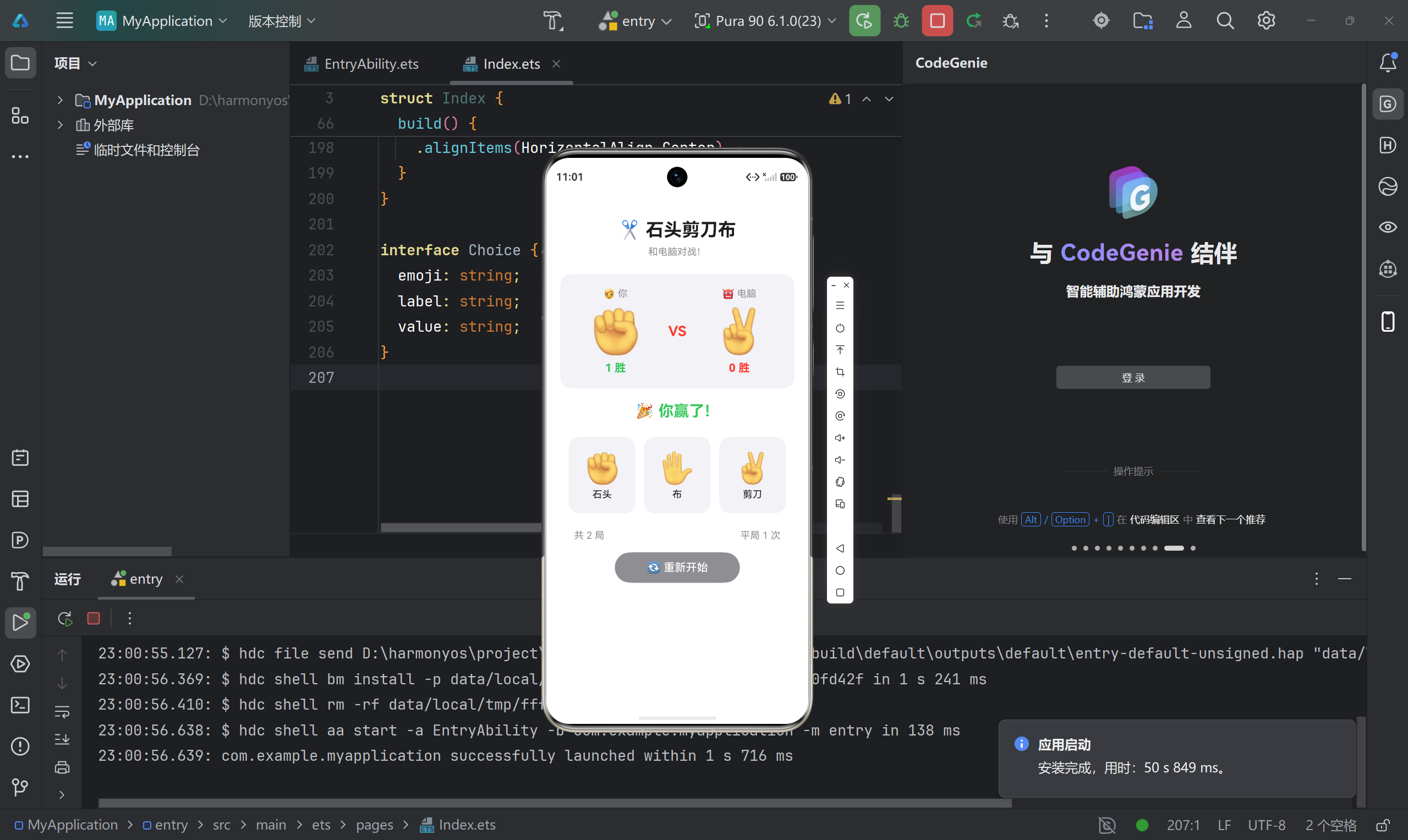
六、常见问题
Q1: Previewer 显示空白?
A: 检查 main_pages.json 是否正确配置了页面路径。
Q2: 编译报错 “SDK not found”?
A: 打开 File → Settings → SDK,下载 HarmonyOS SDK(API 23+)。
Q3: 点击按钮没有反应?
A: 检查事件绑定,确保使用箭头函数:
// ❌ 错误
.onClick(this.play(choice.value))

// ✅ 正确
.onClick(() => { this.play(choice.value); })
Q4: 条件渲染不生效?
A: ArkTS 必须使用 if 语句,不能用 && 运算符:
// ❌ 错误
this.roundCount > 0 && Text('显示')

// ✅ 正确
if (this.roundCount > 0) {
  Text('显示')
}
Q5: 如何修改应用图标?
A: 替换 entry/src/main/resources/base/media/ 目录下的图片文件。
七、项目总结
7.1 核心知识点
| 知识点 | 说明 |
|---|---|
| @State | 状态变量,变化时自动更新 UI |
| Column/Row | 垂直/水平布局容器 |
| layoutWeight | 按权重分配剩余空间 |
| ForEach | 循环渲染列表项 |
| if | 条件渲染 |
| .onClick() | 点击事件绑定 |
7.2 开发流程
设计功能 → 定义状态 → 实现逻辑 → 构建界面 → 配置文件 → 运行测试
7.3 扩展思路
- 添加游戏历史记录(Preferences)
- 添加动画效果(animateTo)
- 添加音效(AVPlayer)
- 支持多人对战
- 添加排行榜
项目信息:
- SDK:API 23 (最低) / API 24 (目标)
- 开发工具:DevEco Studio 5.0+

讨论HarmonyOS开发技术,专注于API与组件、DevEco Studio、测试、元服务和应用上架分发等。
更多推荐
 8
8 0
0- 0


 已为社区贡献52条内容

所有评论(0)