从零到一:我的鸿蒙涂鸦板开发之旅
从零到一:我的鸿蒙涂鸦板开发之旅
这是一个关于成长的故事。
如果你和我一样,刚开始接触鸿蒙开发,面对一堆陌生概念手足无措——别担心,我完全理解那种感受。三个月前的我,站在同样的起跑线上,看着 DevEco Studio 的界面发呆。
今天,我想把这个过程完整地记录下来,分享给每一个正在入门路上的你。
起点:为什么是涂鸦板?
选择第一个练手项目,我纠结了很久。
计算器?太简单。天气应用?API 搞不懂。购物清单?总觉得差点意思。
直到某天午休,随手在手机备忘录上画画,突然想到:涂鸦板不就挺好?
- 涉及 Canvas 画布(必学)
- 触摸事件处理(必学)
- 状态管理(必学)
- 还有撤销重做,数据结构都能用上
就这么定了。
第一章:初识 DevEco Studio
第一次打开 DevEco Studio,坦白说,有点懵。
界面倒是挺干净,但项目结构怎么看都和 Android 不太一样:
MyApplication/
├── AppScope/
│   └── app.json5      # 这个是干嘛的?
├── entry/              # 为啥叫 entry?
│   └── src/main/
│       ├── ets/       # 代码写在这?
│       └── resources/  # 资源文件
硬着头皮查文档,慢慢理清:
AppScope管应用级别的配置(包名、版本、图标)entry是主模块,一个应用可以有多个模块ets目录放 ArkTS 代码,鸿蒙的新语言resources存资源,和 Android 类似
app.json5 长这样:
{
  "app": {
    "bundleName": "com.example.myapplication",
    "versionCode": 1000000,
    "versionName": "1.0.0"
  }
}
有点像 AndroidManifest.xml 的简化版。
第二章:第一次运行
项目建好后,我迫不及待点了个运行按钮。
模拟器启动,屏幕亮起,显示 “Hello World”。
那种看着自己创建的第一个应用跑起来的感觉,真的很难形容。明明什么都没做,但就是有种莫名其妙的成就感。
第三章:涂鸦板的诞生
3.1 思考:涂鸦板是什么?
开始写代码前,我先问自己:涂鸦板的核心是什么?
想了想,就两件事:
- 用户手指在屏幕上滑,画出线条
- 能保存这些线条,支持撤销重做
所以,我需要:
- 一个画布(Canvas)
- 记录所有线条的数据结构
- 处理触摸事件的逻辑
3.2 第一次尝试:失败了
直接上手写 Canvas,结果报错。
原来鸿蒙的 Canvas 和我想的不一样,得配合 CanvasRenderingContext2D 使用:
private context: CanvasRenderingContext2D = new CanvasRenderingContext2D()

Canvas(this.context)
  .width('100%')
  .height(400)
这个 context 就像画笔,所有绑定操作都通过它完成。
3.3 触摸事件的三步曲
这是最难啃的部分。
触摸事件分三种:按下、移动、抬起。对应的,我需要处理三种状态:
Canvas(this.context)
  .onTouch((event: TouchEvent) => {
    if (event.type === TouchType.Down) {
      // 按下:记录起点
    } else if (event.type === TouchType.Move) {
      // 移动:一边记录一边画
    } else if (event.type === TouchType.Up) {
      // 抬起:保存这条线
    }
  })
写了删,删了写,调试了无数次。
最难的是 Move 事件——触发频率太高,如果每次都重绘所有线条,卡得要命。
后来想通一件事:既然只是在画当前这条线,为什么每次都要重绘之前的?
只要画最新的一段不就行了?
// 只画最新两个点之间的线段
const last = points[points.length - 1]
const prev = points[points.length - 2]
ctx.moveTo(prev.x, prev.y)
ctx.lineTo(last.x, last.y)
ctx.stroke()
瞬间流畅了。
第四章:颜色的魔法
功能差不多后,开始搞 UI。
我想让用户能选颜色,找了 Material Design 的色板:
private readonly colors: string[] = [
  '#333333',  // 黑
  '#E53935',  // 红
  '#FB8C00',  // 橙
  '#FDD835',  // 黄
  '#43A047',  // 绿
  '#1E88E5',  // 蓝
  '#8E24AA',  // 紫
  '#FFFFFF'   // 白
]
用 ForEach 循环渲染:
Row() {
  ForEach(this.colors, (color: string) => {
    Circle()
      .width(32)
      .height(32)
      .fill(color)
      .onClick(() => { this.currentColor = color })
  })
}
一开始忘了加 key 函数,结果点击一个颜色,所有圆点都闪烁一下——原来是组件被重复创建了。
加上就好了:
ForEach(this.colors, (color) => {...}, (color) => color)
//                                     ↑ 这个是 key
第五章:撤销与重做
撤销重做,经典面试题。
用两个栈:
lines:当前所有线条undoStack:被撤销的线条
handleUndo(): void {
  // 把最后一条线从 lines 移到 undoStack
  const last = this.lines[this.lines.length - 1]
  this.undoStack = [...this.undoStack, last]
  this.lines = this.lines.slice(0, -1)
  this.redrawAll()
}

handleRedo(): void {
  // 把最后一条线从 undoStack 移回 lines
  const last = this.undoStack[this.undoStack.length - 1]
  this.lines = [...this.lines, last]
  this.undoStack = this.undoStack.slice(0, -1)
  this.redrawAll()
}
这里又踩了个坑:直接 push 数组,界面不动。
查了文档才知道,ArkTS 的 @State 要求给新引用:
// ❌ 错误
this.lines.push(action)

// ✅ 正确
this.lines = [...this.lines, action]
理解了这一点,后面就顺多了。
第六章:深色模式
最后加个小功能:切换背景色。
toggleBg(): void {
  this.bgWhite = !this.bgWhite
  this.redrawAll()
}
画布背景和线条都要重绘。
深色模式下的白色线条在深色背景下还挺有感觉的。
第七章:最终成品
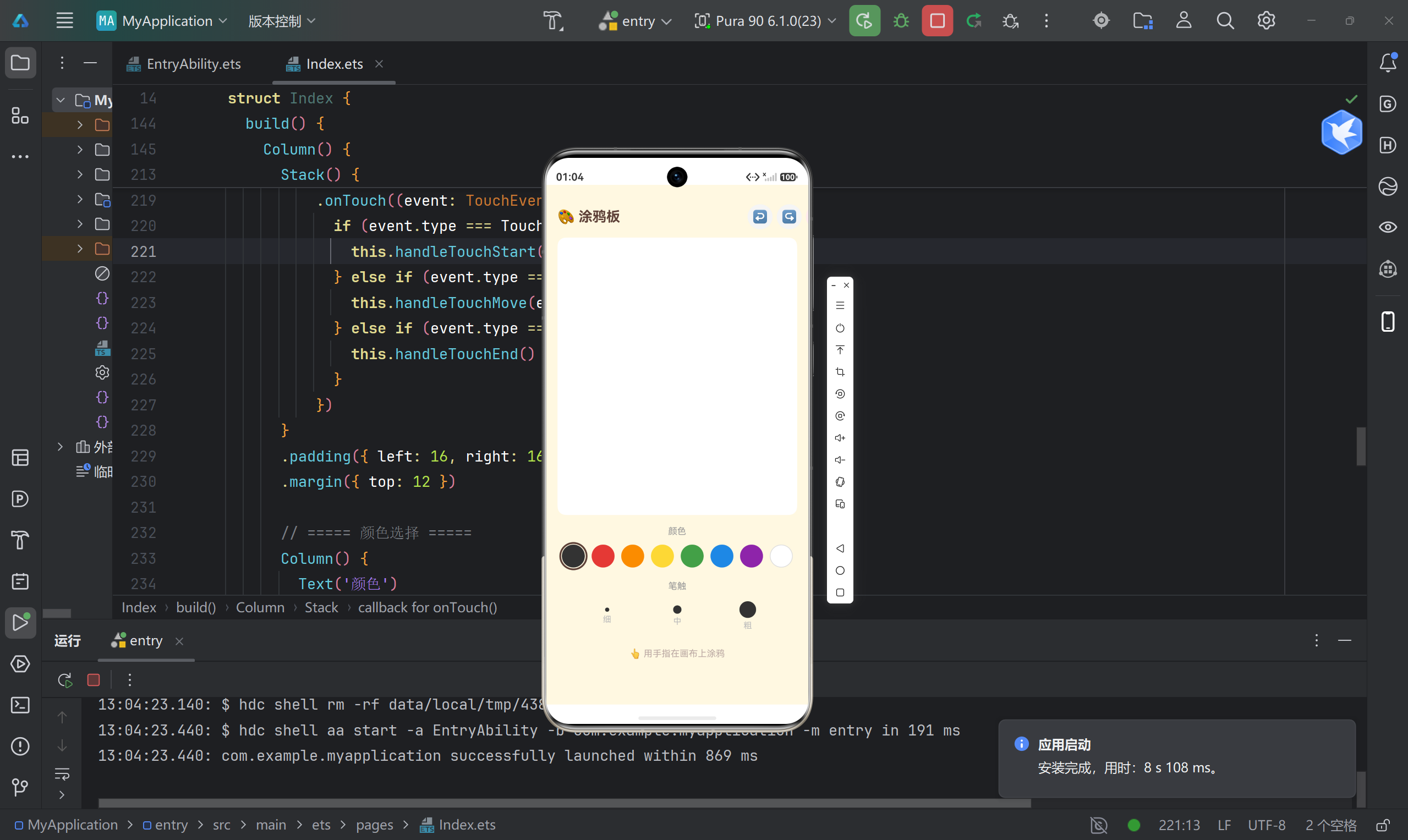
功能都做完了,整理一下界面:
- 顶部:标题 + 工具栏(撤销、重做、清空、切换背景)
- 中间:画布
- 下方:颜色选择 + 粗细选择
- 底部:提示文字
build() {
  Column() {
    // 工具栏
    Column() { ... }

    // 画布
    Stack() {
      Canvas(this.context)...
    }

    // 颜色选择
    Column() { ... }

    // 粗细选择
    Column() { ... }

    // 提示
    Text('👆 用手指在画布上涂鸦')
  }
  .backgroundColor('#FFF8E1')
}
米黄色背景,暖暖的色调,自己还挺满意。
第八章:那些踩过的坑
回头看,这几个坑印象最深:
坑一:状态更新不触发
// 这样不生效
this.lines.push(action)

// 要这样
this.lines = [...this.lines, action]
ArkTS 的响应式原理和 React 有点像,要换引用。
坑二:白色按钮看不清
白色圆形在浅色背景上几乎看不见。
加个边框:
.stroke(color === '#FFFFFF' ? '#DDD' : color)
坑三:撤销后重做丢失
这其实是正确行为。新操作清空撤销栈,否则重做会乱。
一开始以为 bug,后来理解了,这是合理的交互设计。
尾声:下一个项目
涂鸦板做完了,但我知道这只是开始。
未来还想加:
- 保存为图片
- 更多画笔效果
- 图层管理
- 云端同步
但那是后话了。
如果你也在学鸿蒙,希望这篇记录能给你一点帮助。
哪怕只是一点点,我也很开心。
写在最后:
入门路上,跌跌撞撞是常态。
但每次跑通一个小功能,那种快乐是真的。
加油,陌生人。
完整代码
interface Point {
  x: number
  y: number
}

interface DrawAction {
  points: Point[]
  color: string
  width: number
}

@Entry
@Component
struct Index {
  private context: CanvasRenderingContext2D = new CanvasRenderingContext2D()
  @State lines: DrawAction[] = []
  @State undoStack: DrawAction[] = []
  @State currentColor: string = '#333333'
  @State currentWidth: number = 4
  @State isDrawing: boolean = false
  @State bgWhite: boolean = true

  private readonly colors: string[] = [
    '#333333', '#E53935', '#FB8C00', '#FDD835',
    '#43A047', '#1E88E5', '#8E24AA', '#FFFFFF'
  ]
  private readonly widths: number[] = [3, 6, 12]
  private readonly widthLabels: string[] = ['细', '中', '粗']
  private currentLine: Point[] = []

  aboutToAppear(): void {
    this.drawBg()
  }

  drawBg(): void {
    const ctx = this.context
    ctx.fillStyle = this.bgWhite ? '#FFFFFF' : '#212121'
    ctx.fillRect(0, 0, 360, 600)
    for (const line of this.lines) {
      this.drawLine(line)
    }
  }

  drawLine(action: DrawAction): void {
    const ctx = this.context
    if (action.points.length < 2) return
    ctx.beginPath()
    ctx.lineCap = 'round'
    ctx.lineJoin = 'round'
    ctx.strokeStyle = action.color
    ctx.lineWidth = action.width
    ctx.moveTo(action.points[0].x, action.points[0].y)
    for (let i = 1; i < action.points.length; i++) {
      ctx.lineTo(action.points[i].x, action.points[i].y)
    }
    ctx.stroke()
  }

  redrawAll(): void {
    const ctx = this.context
    ctx.fillStyle = this.bgWhite ? '#FFFFFF' : '#212121'
    ctx.fillRect(0, 0, 360, 700)
    for (const line of this.lines) {
      this.drawLine(line)
    }
  }

  handleTouchStart(event: TouchEvent): void {
    const touch = event.touches[0]
    this.isDrawing = true
    this.currentLine = [{ x: touch.x, y: touch.y }]
  }

  handleTouchMove(event: TouchEvent): void {
    if (!this.isDrawing) return
    const touch = event.touches[0]
    this.currentLine.push({ x: touch.x, y: touch.y })
    const ctx = this.context
    const points = this.currentLine
    if (points.length < 2) return
    const last = points[points.length - 1]
    const prev = points[points.length - 2]
    ctx.beginPath()
    ctx.strokeStyle = this.currentColor
    ctx.lineWidth = this.currentWidth
    ctx.lineCap = 'round'
    ctx.lineJoin = 'round'
    ctx.moveTo(prev.x, prev.y)
    ctx.lineTo(last.x, last.y)
    ctx.stroke()
  }

  handleTouchEnd(): void {
    if (!this.isDrawing || this.currentLine.length < 2) {
      this.isDrawing = false
      this.currentLine = []
      return
    }
    const action: DrawAction = {
      points: [...this.currentLine],
      color: this.currentColor,
      width: this.currentWidth
    }
    this.lines = [...this.lines, action]
    this.undoStack = []
    this.isDrawing = false
    this.currentLine = []
  }

  handleUndo(): void {
    if (this.lines.length === 0) return
    const last = this.lines[this.lines.length - 1]
    this.undoStack = [...this.undoStack, last]
    this.lines = this.lines.slice(0, -1)
    this.redrawAll()
  }

  handleRedo(): void {
    if (this.undoStack.length === 0) return
    const last = this.undoStack[this.undoStack.length - 1]
    this.lines = [...this.lines, last]
    this.undoStack = this.undoStack.slice(0, -1)
    this.redrawAll()
  }

  handleClear(): void {
    this.undoStack = [...this.undoStack, ...this.lines]
    this.lines = []
    this.redrawAll()
  }

  toggleBg(): void {
    this.bgWhite = !this.bgWhite
    this.redrawAll()
  }

  build() {
    Column() {
      Column() {
        Row() {
          Text('🎨 涂鸦板')
            .fontSize(20)
            .fontWeight(FontWeight.Bold)
            .fontColor('#5D4037')
          Flex({ justifyContent: FlexAlign.End }) {
            Button() { Text('↩').fontSize(18).fontColor('#666') }
              .width(36).height(36).backgroundColor('#F5F5F5').borderRadius(18)
              .margin({ left: 4 }).onClick(() => this.handleUndo())
            Button() { Text('↪').fontSize(18).fontColor('#666') }
              .width(36).height(36).backgroundColor('#F5F5F5').borderRadius(18)
              .margin({ left: 6 }).onClick(() => this.handleRedo())
            Button() { Text('🗑').fontSize(16).fontColor('#E53935') }
              .width(36).height(36).backgroundColor('#FFEBEE').borderRadius(18)
              .margin({ left: 6 }).onClick(() => this.handleClear())
            Button() { Text(this.bgWhite ? '🌙' : '☀️').fontSize(16) }
              .width(36).height(36).backgroundColor('#F5F5F5').borderRadius(18)
              .margin({ left: 6 }).onClick(() => this.toggleBg())
          }
        }
        .width('100%')
        .padding({ left: 16, right: 16, top: 8 })
      }
      .padding({ top: 20 })
      .width('100%')

      Stack() {
        Canvas(this.context)
          .width('100%')
          .height(400)
          .backgroundColor(this.bgWhite ? '#FFFFFF' : '#212121')
          .borderRadius(12)
          .onTouch((event: TouchEvent) => {
            if (event.type === TouchType.Down) this.handleTouchStart(event)
            else if (event.type === TouchType.Move) this.handleTouchMove(event)
            else if (event.type === TouchType.Up) this.handleTouchEnd()
          })
      }
      .padding({ left: 16, right: 16 })
      .margin({ top: 12 })

      Column() {
        Text('颜色').fontSize(13).fontColor('#999').margin({ bottom: 8 })
        Row() {
          ForEach(this.colors, (color: string) => {
            Stack() {
              Circle().width(32).height(32).fill(color)
                .stroke(color === '#FFFFFF' ? '#DDD' : color).strokeWidth(1)
              if (color === this.currentColor) {
                Circle().width(38).height(38).fill('none')
                  .stroke('#5D4037').strokeWidth(2.5)
              }
            }
            .width(40).height(40)
            .onClick(() => { this.currentColor = color })
          }, (color: string) => color)
        }
        .justifyContent(FlexAlign.SpaceEvenly).width('100%')
      }
      .width('100%').padding({ left: 16, right: 16, top: 16 })

      Column() {
        Text('笔触').fontSize(13).fontColor('#999').margin({ bottom: 8 })
        Row() {
          ForEach(this.widths, (width: number, index: number) => {
            Column() {
              Circle().width(width * 2).height(width * 2).fill(this.currentColor)
              Text(this.widthLabels[index]).fontSize(12)
                .fontColor(this.currentWidth === width ? '#5D4037' : '#BBB')
                .margin({ top: 4 })
            }
            .width(60).padding({ top: 6, bottom: 6 })
            .backgroundColor(this.currentWidth === width ? '#EFEBE9' : 'transparent')
            .borderRadius(8)
            .onClick(() => { this.currentWidth = width })
          }, (width: number) => width.toString())
        }
        .justifyContent(FlexAlign.SpaceEvenly).width('100%')
      }
      .width('100%').padding({ left: 16, right: 16, top: 16 })

      Text('👆 用手指在画布上涂鸦')
        .fontSize(13).fontColor('#BCAAA4')
        .margin({ top: 20, bottom: 20 })
    }
    .width('100%').height('100%')
    .backgroundColor('#FFF8E1')
  }
}

讨论HarmonyOS开发技术,专注于API与组件、DevEco Studio、测试、元服务和应用上架分发等。
更多推荐


 6
6 0
0- 0


 已为社区贡献52条内容

所有评论(0)