HarmonyOS启动页(SplashPage)实现详解:从设计到代码的完整指南
·
文章目录
前言
移动应用开发中,启动页(SplashPage)是用户首次打开应用时看到的第一个界面。它不仅承担着品牌展示的重要作用,还能在应用初始化过程中提供良好的用户体验。本文将详细介绍如何在HarmonyOS中实现一个功能完整、设计精美的启动页。
一、 功能需求分析
我们的启动页需要实现以下功能:
- 3秒倒计时自动跳转:用户无需等待,应用自动进入主界面
- 右上角状态提示:显示倒计时和跳转状态,让用户了解当前进度
- 美观的UI设计:渐变背景、Logo展示、品牌信息
- 理的页面跳转:使用
router.replaceUrl避免返回键回到启动页
二、 核心代码实现
2.1 页面结构定义
@Entry
@Component
struct SplashPage {
  @State countdown: number = 3
  @State isCounting: boolean = true
  private timer: number = -1
}
关键点解析:
@Entry:标识这是应用的入口页面@Component:声明这是一个自定义组件@State:响应式状态管理,倒计时变化时UI自动更新private timer:私有定时器变量,用于管理倒计时
2.2 生命周期管理
aboutToAppear() {
  this.startCountdown()
}

aboutToDisappear() {
  if (this.timer !== -1) {
    clearInterval(this.timer)
  }
}
生命周期说明:
aboutToAppear:组件即将出现时启动倒计时aboutToDisappear:组件即将消失时清理定时器,避免内存泄漏
2.3 倒计时逻辑实现
startCountdown() {
  this.timer = setInterval(() => {
    if (this.countdown > 0) {
      this.countdown--
    } else {
      this.isCounting = false
      clearInterval(this.timer)
      this.navigateToLogin()
    }
  }, 1000)
}
技术要点:
- 使用setInterval实现每秒倒计时
- 倒计时结束后自动跳转
- 及时清理定时器资源
2.4 页面跳转策略
navigateToLogin() {
  router.replaceUrl({
    url: 'pages/LoginPage'
  })
}
为什么使用replaceUrl?
pushUrl:将新页面推入页面栈,返回键会回到启动页replaceUrl:用新页面替换当前页面,返回键直接退出应用- 启动页是一次性页面,不应该出现在页面栈中
三、UI设计实现
3.1 渐变背景设计
Column()
  .width('100%')
  .height('100%')
  .linearGradient({
    direction: GradientDirection.Bottom,
    colors: [
      [0x667eea, 0.0],    // 淡蓝色
      [0x764ba2, 0.5],    // 淡紫色
      [0xf093fb, 1.0]     // 淡粉色
    ]
  })
  .expandSafeArea()
设计理念:
- 使用柔和的渐变色彩,避免过于浓重
- 从淡蓝到淡紫再到淡粉,营造温馨舒适的视觉体验
expandSafeArea()确保内容适配不同设备的刘海屏
3.2 右上角状态提示
Row() {
  Text(`${this.countdown}s | 跳转`)
    .fontSize(14)
    .fontColor('#ffffff')
    .fontWeight(FontWeight.Medium)
    .backgroundColor('#20ffffff')
    .padding({ left: 14, right: 14, top: 8, bottom: 8 })
    .borderRadius(20)
    .shadow({
      radius: 8,
      color: '#00000020',
      offsetX: 0,
      offsetY: 2
    })
}
.position({ x: '73%', y: '5%' })
UI细节:
- 半透明背景
#20ffffff,与整体设计协调 - 圆角设计
borderRadius(20),现代感十足 - 阴影效果增加层次感
- 精确定位到右上角
3.3 中央Logo区域
Column() {
  Image($r('app.media.startIcon'))
    .width(120)
    .height(120)
    .margin({ bottom: 20 })

  Text('HarmonyOS')
    .fontSize(32)
    .fontWeight(FontWeight.Bold)
    .fontColor('#ffffff')
    .margin({ bottom: 8 })

  Text('你好   世界')
    .fontSize(18)
    .fontColor('#ffffff')
    .opacity(0.9)
}
.alignItems(HorizontalAlign.Center)
.margin({ top: 200 })
布局技巧:
- 使用
Column垂直排列Logo和文字 alignItems(HorizontalAlign.Center)实现水平居中- 合理的margin设置,确保视觉平衡
四、 技术难点与解决方案
4.1 定时器管理
- 问题:组件销毁时定时器未清理可能导致内存泄漏
- 解决:在
aboutToDisappear中及时清理定时器
4.2 页面跳转策略
- 问题:使用pushUrl会导致返回键回到启动页
- 解决:使用replaceUrl替换当前页面,避免页面栈堆积
4.3 响应式状态管理
- 问题:倒计时变化需要实时更新UI
- 解决:使用@State装饰器,状态变化时UI自动刷新
五、适配与优化
5.1 安全区域适配
expandSafeArea([SafeAreaType.SYSTEM], [SafeAreaEdge.TOP, SafeAreaEdge.BOTTOM])
官方文档:开发应用沉浸式效果
六、完整代码
6.1 代码实现全过程
import { router } from '@kit.ArkUI'

@Entry
@Component
struct SplashPage {
  @State countdown: number = 3
  @State isCounting: boolean = true
  private timer: number = -1

  aboutToAppear() {
    this.startCountdown()
  }

  aboutToDisappear() {
    if (this.timer !== -1) {
      clearInterval(this.timer)
    }
  }

  startCountdown() {
    this.timer = setInterval(() => {
      if (this.countdown > 0) {
        this.countdown--
      } else {
        this.isCounting = false
        clearInterval(this.timer)
        this.navigateToLogin()
      }
    }, 1000)
  }

  navigateToLogin() {
    router.replaceUrl({
      url: 'pages/LoginPage'
    })
  }

  build() {
    Stack() {
      // 背景渐变 - 使用更柔和的配色
      Column()
        .width('100%')
        .height('100%')
        .linearGradient({
          direction: GradientDirection.Bottom,
          colors: [
            [0x667eea, 0.0], // 淡蓝色
            [0x764ba2, 0.5], // 淡紫色
            [0xf093fb, 1.0]// 淡粉色
          ]
        })
        .expandSafeArea()

      // 右上角倒计时和跳转文字
      Row() {
        Text(`${this.countdown}s | 跳转`)
          .fontSize(14)
          .fontColor('#ffffff')        // 深色文字
          .fontWeight(FontWeight.Medium)
          .backgroundColor('#20ffffff')   // 纯白色背景
          .padding({
            left: 14,
            right: 14,
            top: 8,
            bottom: 8
          })
          .borderRadius(20)
          .shadow({
            radius: 8,
            color: '#00000020',
            offsetX: 0,
            offsetY: 2
          })
      }
      .position({ x: '73%', y: '5%' })

      // 主要内容
      Column() {
        // Logo区域
        Column() {
          Image($r('app.media.startIcon'))
            .width(120)
            .height(120)
            .margin({ bottom: 20 })

          Text('HarmonyOS')
            .fontSize(32)
            .fontWeight(FontWeight.Bold)
            .fontColor('#ffffff')      // 白色文字
            .margin({ bottom: 8 })

          Text('你好   世界')
            .fontSize(18)
            .fontColor('#ffffff')      // 白色文字
            .opacity(0.9)
        }
        .alignItems(HorizontalAlign.Center)
        .margin({ top: 200 })
      }
      .width('100%')
      .alignItems(HorizontalAlign.Center)
    }
    .width('100%')
    .height('100%')
  }
}
6.2 运行效果图
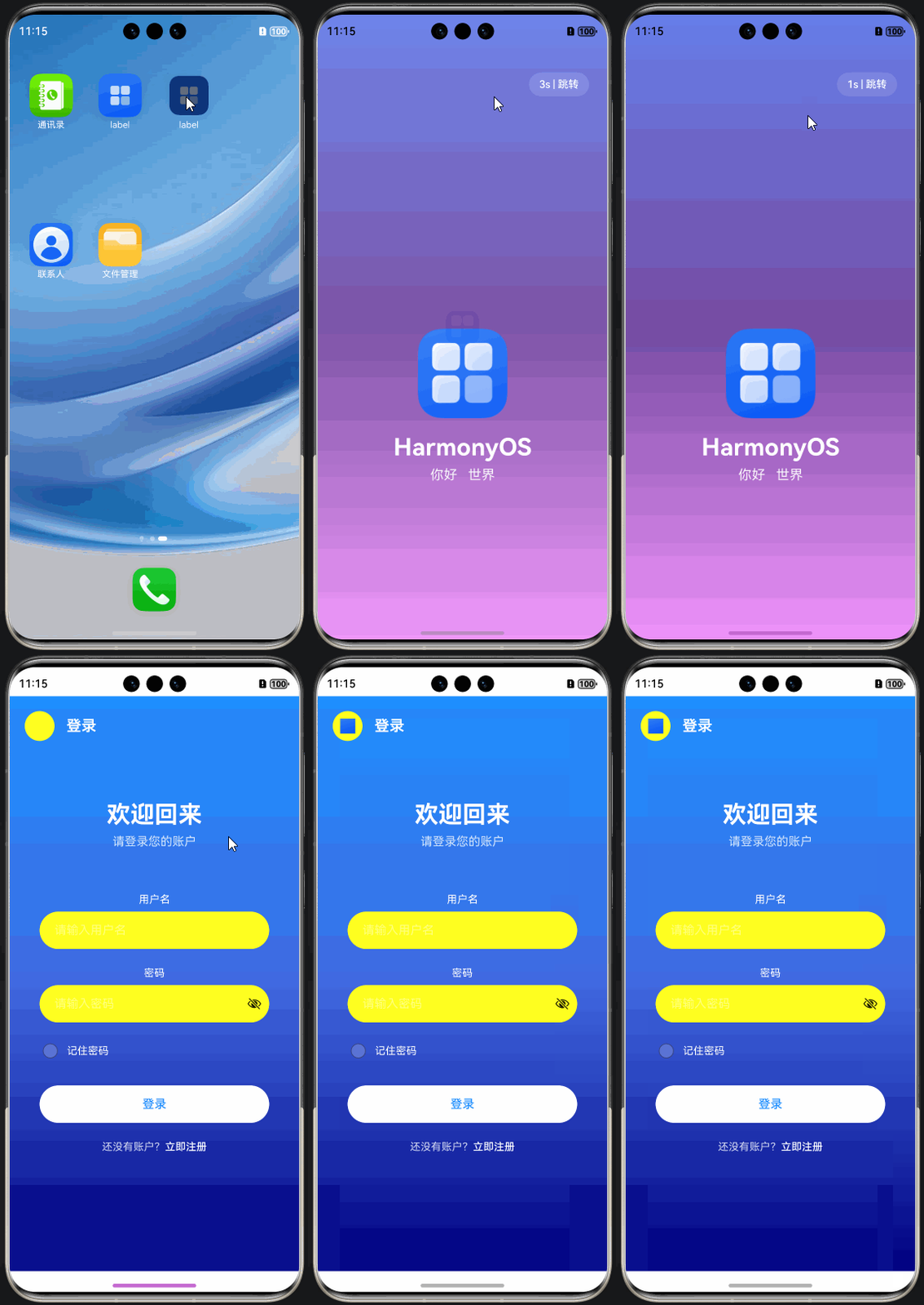

讨论HarmonyOS开发技术,专注于API与组件、DevEco Studio、测试、元服务和应用上架分发等。
更多推荐

 20
20 0
0- 0


 已为社区贡献44条内容

所有评论(0)