《星际练字板》二、CanvasRenderingContext2D使用指南
鸿蒙智多星
·
HarmonyOS CanvasRenderingContext2D 完全指南:从基础到高级绘图实战
适用版本:HarmonyOS 6.1+(API 23+)
开发语言:ArkTS
关键词:CanvasRenderingContext2D、2D绑定、路径绘制、渐变填充、阴影效果、图像绘制
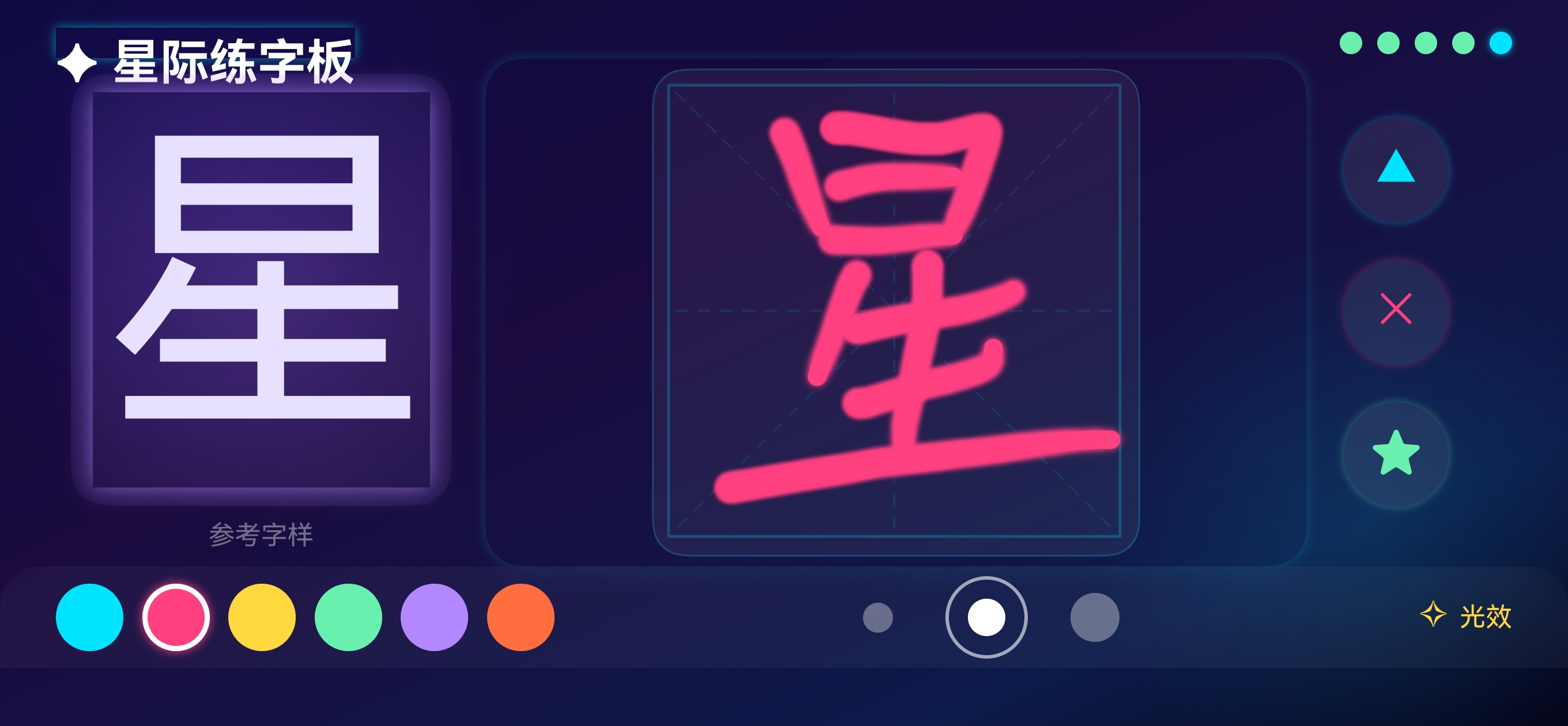
效果
一、前言
CanvasRenderingContext2D 是 HarmonyOS Canvas 组件的核心绑定上下文,提供了丰富的 2D 绘图 API。它就像一支"万能画笔",能够绘制图形、文本、图像,还支持渐变、阴影、变换等高级效果。
本文将从基础到高级,系统讲解 CanvasRenderingContext2D 的全部使用方法,并配合实战示例帮助读者快速上手。
二、创建与初始化
2.1 实例化上下文
// 方式一:默认构造
private ctx: CanvasRenderingContext2D = new CanvasRenderingContext2D()

// 方式二:指定初始设置
private settings: RenderingContextSettings = new RenderingContextSettings(true) // 开启抗锯齿
private ctx: CanvasRenderingContext2D = new CanvasRenderingContext2D(settings)
2.2 绑定 Canvas 组件
build() {
  Canvas(this.ctx)
    .width(400)
    .height(400)
    .onReady(() => {
      // 上下文已就绪,可以开始绑定
      this.drawSomething()
    })
}
2.3 上下文属性
| 属性 | 说明 |
|---|---|
width |
画布宽度(只读,由 Canvas 组件决定) |
height |
画布高度(只读,由 Canvas 组件决定) |
三、基础绘图操作
3.1 绘制矩形
// 填充矩形
this.ctx.fillStyle = '#4CAF50'
this.ctx.fillRect(20, 20, 150, 100)

// 描边矩形
this.ctx.strokeStyle = '#FF5722'
this.ctx.lineWidth = 3
this.ctx.strokeRect(20, 140, 150, 100)

// 清除矩形区域
this.ctx.clearRect(50, 50, 60, 40)
3.2 绘制路径
路径是 Canvas 绘图的基础,所有复杂图形都由路径构成:
// 绘制三角形
this.ctx.beginPath()          // 开始新路径
this.ctx.moveTo(100, 20)      // 移动画笔到起点
this.ctx.lineTo(180, 150)     // 画线到第二个点
this.ctx.lineTo(20, 150)      // 画线到第三个点
this.ctx.closePath()          // 闭合路径(自动连线到起点)
this.ctx.fillStyle = '#2196F3'
this.ctx.fill()               // 填充
this.ctx.strokeStyle = '#1565C0'
this.ctx.lineWidth = 2
this.ctx.stroke()             // 描边
3.3 绘制圆弧与圆形
// 绘制圆形
this.ctx.beginPath()
this.ctx.arc(150, 150, 60, 0, Math.PI * 2)  // (圆心x, 圆心y, 半径, 起始角度, 结束角度)
this.ctx.fillStyle = '#FF9800'
this.ctx.fill()

// 绘制弧线
this.ctx.beginPath()
this.ctx.arc(300, 150, 60, 0, Math.PI)       // 半圆弧
this.ctx.strokeStyle = '#E91E63'
this.ctx.lineWidth = 3
this.ctx.stroke()

// 绘制圆弧(切线方式)
this.ctx.beginPath()
this.ctx.moveTo(50, 50)
this.ctx.arcTo(150, 50, 150, 150, 30)        // (控制点1x, 控制点1y, 控制点2x, 控制点2y, 半径)
this.ctx.stroke()
3.4 绘制贝塞尔曲线
// 二次贝塞尔曲线
this.ctx.beginPath()
this.ctx.moveTo(20, 200)
this.ctx.quadraticCurveTo(150, 50, 280, 200)  // (控制点x, 控制点y, 终点x, 终点y)
this.ctx.strokeStyle = '#9C27B0'
this.ctx.lineWidth = 3
this.ctx.stroke()

// 三次贝塞尔曲线
this.ctx.beginPath()
this.ctx.moveTo(20, 280)
this.ctx.bezierCurveTo(80, 200, 220, 360, 280, 280)
this.ctx.strokeStyle = '#00BCD4'
this.ctx.stroke()
四、文本绘制
4.1 基本文本绑定
// 填充文本
this.ctx.font = 'bold 28px sans-serif'
this.ctx.fillStyle = '#333333'
this.ctx.fillText('Hello Canvas!', 50, 50)

// 描边文本
this.ctx.strokeStyle = '#FF0000'
this.ctx.lineWidth = 1
this.ctx.strokeText('描边文字', 50, 100)
4.2 文本对齐与基线
// 水平对齐:left | center | right
this.ctx.textAlign = 'center'

// 垂直基线:top | middle | bottom | alphabetic
this.ctx.textBaseline = 'middle'

// 居中文本示例
this.ctx.font = '36px sans-serif'
this.ctx.textAlign = 'center'
this.ctx.textBaseline = 'middle'
this.ctx.fillText('居中文本', this.ctx.width / 2, this.ctx.height / 2)
4.3 文本度量
const metrics = this.ctx.measureText('Hello')
const textWidth = metrics.width  // 获取文本渲染后的宽度
五、样式与效果
5.1 颜色与透明度
// 支持多种颜色格式
this.ctx.fillStyle = '#FF0000'                  // HEX
this.ctx.fillStyle = 'rgb(255, 0, 0)'           // RGB
this.ctx.fillStyle = 'rgba(255, 0, 0, 0.5)'     // RGBA(半透明)

// 全局透明度
this.ctx.globalAlpha = 0.6
this.ctx.fillRect(100, 100, 80, 80)
this.ctx.globalAlpha = 1.0  // 恢复
5.2 线条样式
this.ctx.lineWidth = 5                // 线宽
this.ctx.lineCap = 'round'           // 线帽:butt | round | square
this.ctx.lineJoin = 'round'          // 连接处:miter | round | bevel
this.ctx.setLineDash([10, 5])        // 虚线模式
this.ctx.lineDashOffset = 0          // 虚线偏移
5.3 渐变填充
线性渐变
const linearGradient = this.ctx.createLinearGradient(0, 0, 300, 0)
linearGradient.addColorStop(0, '#FF0000')     // 起始色
linearGradient.addColorStop(0.5, '#FFFF00')   // 中间色
linearGradient.addColorStop(1, '#00FF00')     // 结束色

this.ctx.fillStyle = linearGradient
this.ctx.fillRect(20, 20, 300, 80)
径向渐变
const radialGradient = this.ctx.createRadialGradient(150, 150, 10, 150, 150, 80)
radialGradient.addColorStop(0, '#FFFFFF')
radialGradient.addColorStop(1, '#0066FF')

this.ctx.fillStyle = radialGradient
this.ctx.beginPath()
this.ctx.arc(150, 150, 80, 0, Math.PI * 2)
this.ctx.fill()
5.4 阴影效果
this.ctx.shadowColor = 'rgba(0, 0, 0, 0.5)'
this.ctx.shadowBlur = 15          // 模糊半径
this.ctx.shadowOffsetX = 5        // X 偏移
this.ctx.shadowOffsetY = 5        // Y 偏移

this.ctx.fillStyle = '#FFFFFF'
this.ctx.fillRect(50, 50, 200, 100)
六、图像绘制
6.1 绘制 PixelMap
import { image } from '@kit.ImageKit'

// 从资源加载图片
const pixelMap = await image.createPixelMapFromSurfaceId(resourceManager.getMediaContent($rawfile('photo.jpg')))

// 绑定图像
this.ctx.drawImage(pixelMap, 0, 0)                         // 原始大小
this.ctx.drawImage(pixelMap, 0, 0, 200, 150)               // 指定绘制大小
this.ctx.drawImage(pixelMap, 10, 10, 100, 80, 50, 50, 200, 160)  // 裁剪 + 缩放
6.2 图像合成模式
// 设置合成模式
this.ctx.globalCompositeOperation = 'source-over'    // 默认:新图在旧图上方
this.ctx.globalCompositeOperation = 'destination-over'  // 新图在旧图下方
this.ctx.globalCompositeOperation = 'lighter'           // 颜色相加
this.ctx.globalCompositeOperation = 'multiply'          // 颜色相乘
七、变换操作
7.1 平移、旋转、缩放
// 保存当前状态
this.ctx.save()

// 平移坐标系
this.ctx.translate(150, 150)

// 旋转坐标系(弧度)
this.ctx.rotate(Math.PI / 6)  // 旋转30度

// 缩放
this.ctx.scale(1.5, 1.5)

// 在变换后的坐标系中绘制
this.ctx.fillStyle = '#FF5722'
this.ctx.fillRect(-40, -40, 80, 80)

// 恢复之前的状态
this.ctx.restore()
7.2 变换矩阵
// 设置变换矩阵:setTransform(a, b, c, d, e, f)
this.ctx.setTransform(1, 0.2, 0.2, 1, 0, 0)  // 轻微倾斜效果
this.ctx.fillRect(50, 50, 100, 100)

// 重置变换
this.ctx.resetTransform()
八、状态管理
Canvas 上下文支持通过 save() 和 restore() 管理绘制状态栈:
// 保存当前状态(颜色、线宽、变换等)
this.ctx.save()

this.ctx.fillStyle = '#FF0000'
this.ctx.translate(100, 100)
this.ctx.fillRect(0, 0, 50, 50)

// 恢复到上次 save 时的状态
this.ctx.restore()
// 此时 fillStyle 和 translate 都恢复为 save 之前的值
最佳实践:在进行临时变换或修改样式时,务必使用
save/restore配对,避免污染后续绑定。
九、完整实战示例:多彩图形绘制器
以下示例综合运用上述 API,实现一个多彩图形绑定器:
@Entry
@Component
struct CanvasDrawingDemo {
  private ctx: CanvasRenderingContext2D = new CanvasRenderingContext2D(
    new RenderingContextSettings(true)
  )

  drawScene() {
    const w = this.ctx.width
    const h = this.ctx.height

    // 1. 绘制渐变背景
    const bgGradient = this.ctx.createLinearGradient(0, 0, w, h)
    bgGradient.addColorStop(0, '#1a1a2e')
    bgGradient.addColorStop(1, '#16213e')
    this.ctx.fillStyle = bgGradient
    this.ctx.fillRect(0, 0, w, h)

    // 2. 绘制发光圆形
    this.ctx.save()
    this.ctx.shadowColor = '#00D4FF'
    this.ctx.shadowBlur = 30
    const radial = this.ctx.createRadialGradient(w / 2, h / 2, 10, w / 2, h / 2, 80)
    radial.addColorStop(0, '#00D4FF')
    radial.addColorStop(1, 'rgba(0, 212, 255, 0.1)')
    this.ctx.fillStyle = radial
    this.ctx.beginPath()
    this.ctx.arc(w / 2, h / 2, 80, 0, Math.PI * 2)
    this.ctx.fill()
    this.ctx.restore()

    // 3. 绘制环绕星星
    this.ctx.save()
    this.ctx.translate(w / 2, h / 2)
    this.ctx.fillStyle = '#FFD700'
    this.ctx.shadowColor = '#FFD700'
    this.ctx.shadowBlur = 10
    for (let i = 0; i < 8; i++) {
      this.ctx.save()
      this.ctx.rotate((Math.PI * 2 / 8) * i)
      this.ctx.translate(0, -120)
      this.drawStar(0, 0, 12)
      this.ctx.restore()
    }
    this.ctx.restore()

    // 4. 绘制居中文本
    this.ctx.font = 'bold 24px sans-serif'
    this.ctx.textAlign = 'center'
    this.ctx.textBaseline = 'middle'
    this.ctx.fillStyle = '#FFFFFF'
    this.ctx.shadowColor = 'rgba(255, 255, 255, 0.5)'
    this.ctx.shadowBlur = 8
    this.ctx.fillText('Canvas 绘图演示', w / 2, h - 50)
  }

  drawStar(x: number, y: number, r: number) {
    this.ctx.beginPath()
    for (let i = 0; i < 5; i++) {
      const angle = (Math.PI * 2 / 5) * i - Math.PI / 2
      const px = x + r * Math.cos(angle)
      const py = y + r * Math.sin(angle)
      if (i === 0) {
        this.ctx.moveTo(px, py)
      } else {
        this.ctx.lineTo(px, py)
      }
      // 内圈点
      const innerAngle = angle + Math.PI / 5
      const ix = x + (r / 2) * Math.cos(innerAngle)
      const iy = y + (r / 2) * Math.sin(innerAngle)
      this.ctx.lineTo(ix, iy)
    }
    this.ctx.closePath()
    this.ctx.fill()
  }

  build() {
    Column() {
      Canvas(this.ctx)
        .width('100%')
        .height('100%')
        .onReady(() => {
          this.drawScene()
        })
    }
    .width('100%')
    .height('100%')
  }
}
运行效果说明
| 元素 | 效果 |
|---|---|
| 渐变背景 | 深蓝色线性渐变铺满画布 |
| 发光圆形 | 中心亮青色,向外逐渐透明,带光晕阴影 |
| 环绕星星 | 8 颗金色五角星围绕中心均匀分布,带发光效果 |
| 底部文本 | 白色粗体文本,带柔和发光阴影 |
十、API 速查表
| 分类 | 方法 | 说明 |
|---|---|---|
| 矩形 | fillRect(x, y, w, h) |
填充矩形 |
strokeRect(x, y, w, h) |
描边矩形 | |
clearRect(x, y, w, h) |
清除矩形区域 | |
| 路径 | beginPath() |
开始新路径 |
closePath() |
闭合路径 | |
moveTo(x, y) |
移动到指定点 | |
lineTo(x, y) |
画线到指定点 | |
arc(x, y, r, start, end) |
绘制圆弧 | |
arcTo(x1, y1, x2, y2, r) |
切线圆弧 | |
quadraticCurveTo(cp, x, y) |
二次贝塞尔曲线 | |
bezierCurveTo(cp1x, cp1y, cp2x, cp2y, x, y) |
三次贝塞尔曲线 | |
| 文本 | fillText(text, x, y) |
填充文本 |
strokeText(text, x, y) |
描边文本 | |
measureText(text) |
测量文本宽度 | |
| 样式 | fillStyle |
填充样式 |
strokeStyle |
描边样式 | |
lineWidth |
线宽 | |
globalAlpha |
全局透明度 | |
createLinearGradient(...) |
线性渐变 | |
createRadialGradient(...) |
径向渐变 | |
| 变换 | translate(x, y) |
平移 |
rotate(angle) |
旋转 | |
scale(x, y) |
缩放 | |
save() / restore() |
状态保存/恢复 | |
| 图像 | drawImage(...) |
绘制图像 |
| 导出 | toDataURL() |
导出为 Base64 |
十、实际开发避坑指南
在 ArkTS 项目中使用 CanvasRenderingContext2D 时,除了 API 本身的用法,还需注意以下 ArkTS 编译规则:
| 常见错误 | 原因 | 解决方案 |
|---|---|---|
Stack 上报 justifyContent 不存在 |
Stack 容器不支持该方法 |
改用 alignContent(Alignment.Center) |
import 语句报错 arkts-no-misplaced-imports |
import 未置于文件最顶部 | 所有 import 必须在文件第一行开始 |
@Provide 报错 “can only be used in @Component” |
在 @ComponentV2 中使用了 V1 装饰器 |
改用 @Component(V1),或使用 V2 的 @Provider |
NavPathStack 上报 popToRoot 不存在 |
该方法不存在于 NavPathStack API | 使用 pop() 返回上一页 |
pathInfo.param 报 unknown 类型错误 |
路由参数默认为 unknown |
使用 as Object 显式类型断言 |
十一、总结
CanvasRenderingContext2D 是 HarmonyOS 2D 绘图的核心 API。通过本文的学习,你应该掌握了:
- 基础绑定:矩形、路径、圆弧、贝塞尔曲线的绘制
- 文本绘制:字体设置、对齐方式、度量
- 高级效果:渐变、阴影、透明度、合成模式
- 变换操作:平移、旋转、缩放、状态管理
- 图像处理:绘制 PixelMap、图像合成
核心建议:
- 始终使用
save()/restore()管理状态 - 在
onReady回调中进行初始绑定 - 善用渐变和阴影打造视觉效果
- 合理使用
globalCompositeOperation实现特殊混合效果
参考链接

讨论HarmonyOS开发技术,专注于API与组件、DevEco Studio、测试、元服务和应用上架分发等。
更多推荐
 2
2 0
0- 0


 已为社区贡献46条内容

所有评论(0)