鸿蒙 ArkTS 中实现 Flutter 风格计算器键盘布局
鸿蒙 ArkTS 中实现 Flutter 风格计算器键盘布局
—— SizedBox + Expanded 布局技术在 HarmonyOS 中的全面应用
目录
- 引言:问题的提出
- Flutter 布局核心概念回顾
- 2.1 SizedBox —— 固定尺寸约束
- 2.2 Expanded —— 弹性等分空间
- 2.3 Flex 布局体系
- 鸿蒙 ArkTS 布局体系概览
- 3.1 ArkUI 声明式范式
- 3.2 Row / Column / Flex 容器
- 3.3 .height() / .width() 尺寸方法
- 3.4 .layoutWeight() 弹性权重
- Flutter → ArkTS 布局映射对照表
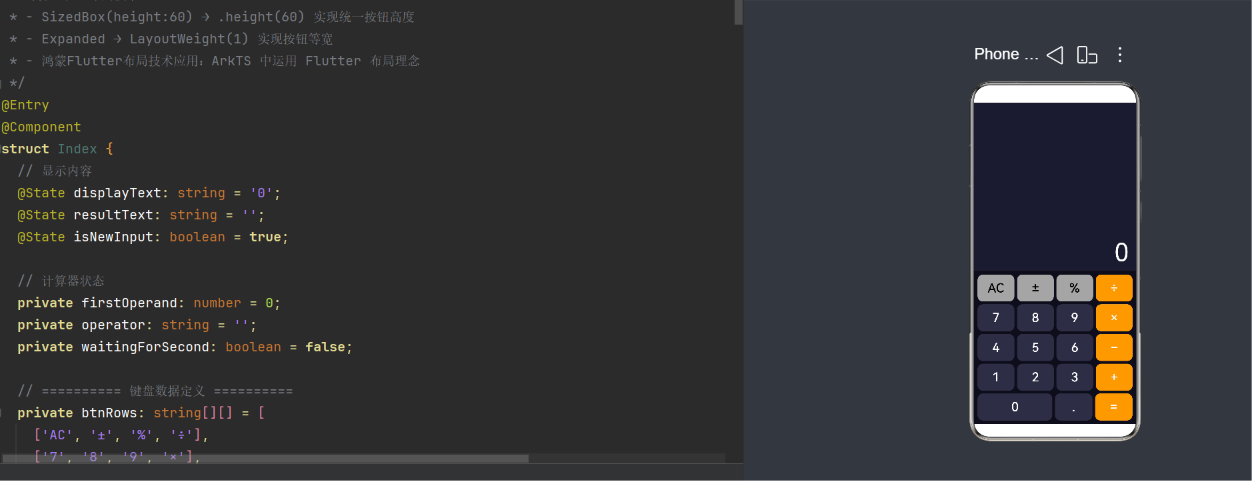
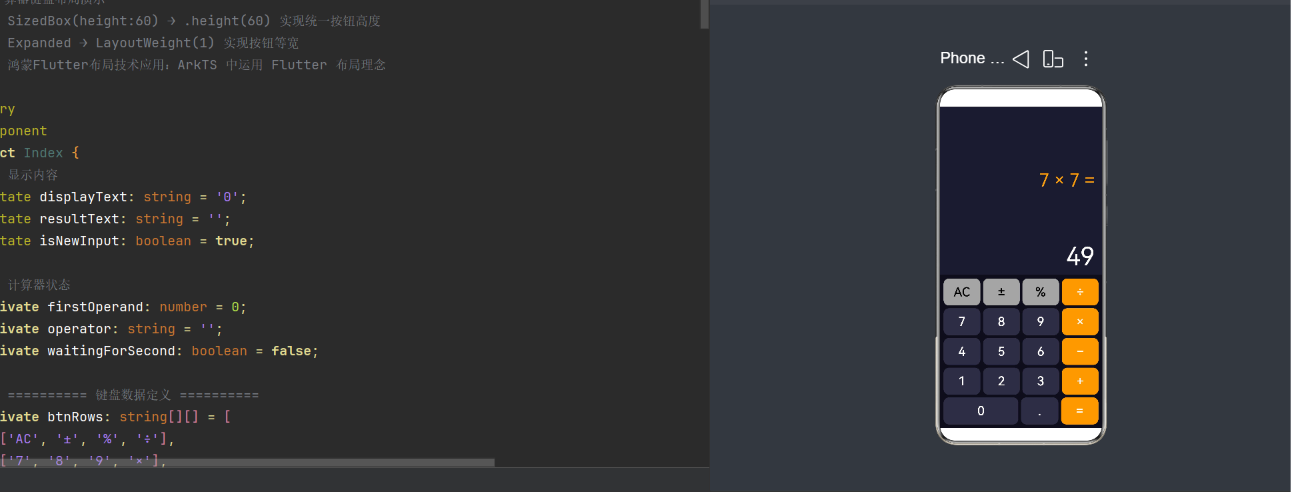
- 计算器键盘:需求分析与设计
- 5.1 功能需求
- 5.2 布局需求
- 5.3 视觉设计
- 代码逐层深度解析
- 6.1 项目文件结构
- 6.2 资源文件配置(color.json / float.json)
- 6.3 @Component 组件结构
- 6.4 状态管理与数据流
- 6.5 键盘数据定义
- 6.6 UI 构建 —— 显示区域
- 6.7 UI 构建 —— 键盘网格(核心布局技术)
- 6.8 按钮点击交互逻辑
- 6.9 四则运算引擎
- 6.10 数字格式化
- 布局技术深度剖析
- 7.1 SizedBox(height:60) → .height(60) 统一按钮高度
- 7.2 Expanded → .layoutWeight(1) 按钮等宽
- 7.3 Expanded(flex:2) → .layoutWeight(2) 双倍宽度
- 7.4 间距与内边距的三种实现方式
- 7.5 弹性空间分配与 flex 优先级
- 实战技巧与最佳实践
- 8.1 使用资源引用替代硬编码
- 8.2 颜色主题的模块化管理
- 8.3 ForEach 动态渲染的性能考量
- 8.4 高分辨率屏幕适配
- 8.5 深色模式适配
- 完整代码清单
- 调试与验证
- 总结与展望
1. 引言:问题的提出
在移动端应用开发中,等高等宽按钮网格(Even Grid of Buttons) 是一种极其常见的 UI 模式。最典型的场景就是计算器键盘和虚拟键盘。这类 UI 要求:
- 所有按钮高度完全一致,视觉上整齐划一;
- 同一行内按钮宽度完全相等,形成规整的网格;
- 某些按钮可以跨列(如计算器中的 “0” 键占两列宽度);
- 按钮之间有均匀的间距;
- 整个键盘区域应自适应屏幕宽度,而不是固定像素。
在 Flutter 中,这个问题有非常优雅的解决方案:
Row(
  children: [
    Expanded(child: SizedBox(height: 60, child: ElevatedButton(...))),
    Expanded(child: SizedBox(height: 60, child: ElevatedButton(...))),
    Expanded(child: SizedBox(height: 60, child: ElevatedButton(...))),
    Expanded(child: SizedBox(height: 60, child: ElevatedButton(...))),
  ],
)
其中 SizedBox(height: 60) 确保了每个按钮的高度统一,而 Expanded 让所有按钮在父容器的宽度方向上均匀等分。
但当我们转向 HarmonyOS 的 ArkTS 开发时,问题来了:ArkTS 中有没有对应的布局机制? 答案是肯定的。ArkUI 作为 HarmonyOS 的原生声明式 UI 框架,提供了与 Flutter 高度相似但又有自身特点的布局能力。
本文将以一个完整的计算器键盘应用为载体,深入讲解如何运用 ArkTS 中的 .height(60) 和 .layoutWeight(1) 来实现 Flutter 中 SizedBox(height:60) + Expanded 同样的布局效果。全文将通过逐行代码解析、布局机制剖析和实战技巧分享三个维度,帮助读者彻底掌握这一布局技术。
2. Flutter 布局核心概念回顾
在深入 ArkTS 之前,有必要先回顾一下 Flutter 中与本文相关的几个核心布局 Widget。
2.1 SizedBox —— 固定尺寸约束
SizedBox 是 Flutter 中最基础的尺寸约束组件之一。它的作用是为子组件施加一个固定的宽度和/或高度约束。
SizedBox(
  width: 200,
  height: 60,
  child: ElevatedButton(...),
)
关键特性:
- 如果只指定
height,则宽度由父容器决定(或由 child 决定); - 如果只指定
width,则高度由父容器决定(或由 child 决定); - 如果同时指定
width和height,则 child 被强制约束在这个尺寸内; SizedBox本身也是一个Flex中的布局单元,可以接受Expanded的弹性约束。
对于计算器键盘,我们只需要固定高度(height: 60),宽度则交给 Expanded 去弹性分配。
2.2 Expanded —— 弹性等分空间
Expanded 是 Flutter 中用于 Flex 布局体系(Row、Column、Flex)的关键组件。它将父容器在主轴方向上的剩余空间,按照所有 Expanded 子组件的 flex 权重比例进行分配。
Row(
  children: [
    Expanded(flex: 1, child: ...),   // 占 1/4
    Expanded(flex: 1, child: ...),   // 占 1/4
    Expanded(flex: 1, child: ...),   // 占 1/4
    Expanded(flex: 1, child: ...),   // 占 1/4
  ],
)
关键特性:
Expanded必须位于Row、Column或Flex的直接子级;flex参数默认为 1,表示按比例分配;- 当子组件需要占据双倍空间时,只需设置
flex: 2; Expanded和SizedBox经常配合使用——Expanded管宽度方向,SizedBox管高度方向。
2.3 Flex 布局体系
Flutter 的 Flex 布局体系包括三个层次:
- Flex 容器:
Row(水平方向)、Column(垂直方向)、Flex(自定义方向) - 弹性子项:
Expanded(按比例分配剩余空间)、Flexible(可收缩但不强制填满) - 非弹性子项:普通 Widget,按自身大小占据空间
整个体系的核心公式是:
子项_i 的宽度 = 父容器宽度 × (flex_i / ∑所有 flex)
这就是计算器键盘等宽布局的数学基础。
3. 鸿蒙 ArkTS 布局体系概览
3.1 ArkUI 声明式范式
HarmonyOS 的 ArkUI 使用 ArkTS(基于 TypeScript 扩展)作为开发语言,采用声明式 UI 范式。一个典型的 ArkTS 组件结构如下:
@Component
struct MyComponent {
  @State count: number = 0;

  build() {
    Column() {
      Text('Hello')
        .fontSize(20)
      Button('Click')
        .onClick(() => { this.count++ })
    }
    .width('100%')
    .height('100%')
  }
}
与 Flutter 的声明式语法非常相似:
- Flutter 使用
child:/children:参数嵌套; - ArkTS 使用花括号块
{ }嵌套子组件; - Flutter 用
.链式调用设置属性; - ArkTS 同样用
.链式调用设置属性。
3.2 Row / Column / Flex 容器
ArkTS 同样提供了三种 Flex 布局容器:
| 容器 | 主轴方向 | 对应 Flutter |
|---|---|---|
Row() |
水平(从左到右) | Row |
Column() |
垂直(从上到下) | Column |
Flex() |
自定义方向 | Flex |
基本用法:
Row({ space: 8 }) {
  Button('1').layoutWeight(1)
  Button('2').layoutWeight(1)
  Button('3').layoutWeight(1)
}
.width('100%')
.height(60)
space参数设置子组件之间的间距,相当于 Flutter 的SizedBox(width: 8)间隔;layoutWeight(1)是 ArkTS 中实现弹性等分的关键方法。
3.3 .height() / .width() 尺寸方法
在 ArkTS 中,每个组件都可以通过链式方法设置尺寸:
Button('AC')
  .height(60)      // 固定高度 60vp
  .width(80)       // 固定宽度 80vp
  .width('100%')   // 占父容器 100% 宽度
  .constraintSize({ minHeight: 48, maxHeight: 72 })  // 尺寸范围约束
- 数值:表示 vp(虚拟像素)值;
- 字符串百分比:如
'100%',表示占父容器尺寸的百分比; - Resource 引用:如
$r('app.float.calc_btn_height'),引用资源文件中的定义。
3.4 .layoutWeight() 弹性权重
layoutWeight(n) 是 ArkTS 中实现弹性布局的核心方法,它直接对应 Flutter 的 Expanded(flex: n)。
Row() {
  Button('1').layoutWeight(1)
  Button('2').layoutWeight(2)
  Button('3').layoutWeight(1)
}
在上面的例子中,如果 Row 的宽度是 400vp,那么:
- 按钮 ‘1’ 的宽度 = 400 × (1 / (1+2+1)) = 100vp
- 按钮 ‘2’ 的宽度 = 400 × (2 / 4) = 200vp
- 按钮 ‘3’ 的宽度 = 400 × (1 / 4) = 100vp
关键特性:
layoutWeight只对父容器是Row、Column、Flex时生效;- 默认值为 0(不参与弹性分配);
- 权重为 0 的组件按自身内容大小或设置的固定尺寸显示;
- 所有权重值必须为正整数。
4. Flutter → ArkTS 布局映射对照表
下表是本文涉及的 Flutter 布局概念在 ArkTS 中的完整映射:
| Flutter | ArkTS | 说明 |
|---|---|---|
SizedBox(height: 60) |
.height(60) |
固定高度 |
SizedBox(width: 200) |
.width(200) |
固定宽度 |
Expanded(flex: 1) |
.layoutWeight(1) |
等宽弹性分配 |
Expanded(flex: 2) |
.layoutWeight(2) |
双倍弹性分配 |
Row(children: [...]) |
Row() { ... } |
水平弹性容器 |
Column(children: [...]) |
Column() { ... } |
垂直弹性容器 |
SizedBox(width: 8) |
Row({ space: 8 }) 的 space |
子组件间距 |
EdgeInsets.all(8) |
.padding(8) |
内边距 |
EdgeInsets.only(left: 16, right: 16) |
.padding({ left: 16, right: 16 }) |
指定方向内边距 |
Text('Hello', textAlign: TextAlign.end) |
Text('Hello').textAlign(TextAlign.End) |
文本对齐 |
Container(color: Colors.blue) |
.backgroundColor(...) |
背景色 |
Container(decoration: BoxDecoration(borderRadius: ...)) |
.borderRadius(...) |
圆角(Button 直接支持) |
Flexible(flex: 1) |
.layoutWeight(1) + .constraintSize() |
弹性 + 尺寸约束 |
MediaQuery.of(context).size.width |
不需要,父容器自动传递宽度 | 自适应屏幕宽度 |
const Color(0xFF2D2D44) |
$r('app.color.calc_btn_number') |
资源引用的颜色 |
最重要的两个对应关系:
-
统一按钮高度
Flutter:SizedBox(height: 60, child: Button(...))
ArkTS:Button(...).height(60) -
等宽分布
Flutter:Expanded(child: Button(...))
ArkTS:Button(...).layoutWeight(1)
5. 计算器键盘:需求分析与设计
5.1 功能需求
本项目实现一个标准计算器,支持以下功能:
| 功能 | 实现方式 |
|---|---|
| 数字输入(0-9) | 点击数字键追加到显示文本 |
| 小数点(.) | 防止重复输入小数点 |
| 加(+) | 二目运算符,累加 |
| 减(−) | 二目运算符,累减 |
| 乘(×) | 二目运算符,累乘 |
| 除(÷) | 二目运算符,除零保护 |
| 等号(=) | 执行当前运算并显示结果 |
| 清零(AC) | 重置所有状态 |
| 取反(±) | 切换正负号 |
| 百分比(%) | 除以 100 |
| 表达式预览 | 显示上一次运算的完整表达式 |
| 结果格式化 | 去除多余小数尾随零 |
5.2 布局需求
| 需求 | 实现手段 |
|---|---|
| 所有按钮高度统一为 60vp | .height(60) 应用于每个按钮 |
| 同行按钮宽度等分 | .layoutWeight(1) 应用于每个按钮 |
| “0” 键占双倍宽度 | .layoutWeight(2) 应用于 “0” 按钮 |
| 按钮间有 6vp 均匀间距 | Row({ space: 6 }) 和 Column({ space: 6 }) |
| 键盘区域有 8vp 内边距 | .padding(8) |
| 键盘自适应屏幕宽度 | 父容器 width('100%') + 子组件 layoutWeight |
| 显示区域弹性占满剩余空间 | .layoutWeight(1) 在 Column 中 |
| 按钮圆角 | .borderRadius(12) |
5.3 视觉设计
配色方案采用深色计算器风格:
| 元素 | 颜色 | 色值 |
|---|---|---|
| 背景 | 深黑蓝 | #0d0d1a |
| 显示区背景 | 深蓝黑 | #1a1a2e |
| 主显示文本 | 白色 | #FFFFFF |
| 结果预览文本 | 橙色 | #ff9f0a |
| 数字按钮 | 深灰蓝 | #2d2d44 |
| 数字按钮文字 | 白色 | #FFFFFF |
| 运算符按钮 | 橙色 | #ff9f0a |
| 运算符按钮文字 | 白色 | #FFFFFF |
| 功能按钮 | 浅灰 | #a5a5a5 |
| 功能按钮文字 | 黑色 | #000000 |
6. 代码逐层深度解析
6.1 项目文件结构
d38/
├── entry/
│   └── src/main/
│       ├── ets/pages/
│       │   └── Index.ets          ← 主页面(计算器键盘)
│       └── resources/base/element/
│           ├── color.json          ← 颜色资源定义
│           └── float.json          ← 尺寸资源定义
├── AppScope/                       ← 应用级配置
├── build-profile.json5             ← 构建配置
└── hvigor/                         ← 构建工具配置
6.2 资源文件配置(color.json / float.json)
color.json 定义了所有颜色常量:
{
  "color": [
    {"name": "calc_display_bg",       "value": "#1a1a2e"},
    {"name": "calc_display_text",     "value": "#FFFFFF"},
    {"name": "calc_btn_number",       "value": "#2d2d44"},
    {"name": "calc_btn_operator",     "value": "#ff9f0a"},
    {"name": "calc_btn_function",     "value": "#a5a5a5"},
    {"name": "calc_background",       "value": "#0d0d1a"},
    {"name": "calc_result_text",      "value": "#ff9f0a"}
  ]
}
通过 $r('app.color.calc_btn_number') 在代码中引用。
float.json 定义了所有尺寸常量:
{
  "float": [
    {"name": "calc_btn_height",      "value": "60vp"},
    {"name": "calc_btn_font_size",   "value": "28fp"},
    {"name": "calc_gap",             "value": "4vp"},
    {"name": "calc_btn_radius",      "value": "12vp"}
  ]
}
通过 $r('app.float.calc_btn_height') 引用。
vp(virtual pixel):虚拟像素,适配不同屏幕密度;fp(font pixel):字体像素,跟随系统字体缩放设置。
为什么使用资源文件而非硬编码?
- 主题管理:所有颜色/尺寸集中管理,修改一处全局生效;
- 多设备适配:可以在不同设备类型(phone / tablet / wearable)的
resources目录下提供不同的值; - 国际化:支持多语言资源;
- 构建时校验:资源引用错误会在编译时被发现。
6.3 @Component 组件结构
@Entry
@Component
struct Index {
  // 状态变量
  @State displayText: string = '0';
  @State resultText: string = '';
  @State isNewInput: boolean = true;

  private firstOperand: number = 0;
  private operator: string = '';
  private waitingForSecond: boolean = false;

  // 键盘数据
  private btnRows: string[][] = [ ... ];

  build() { ... }

  // 业务方法
  onBtnClick(label: string): void { ... }
  calculate(): void { ... }
  formatNumber(n: number): string { ... }
  getBtnType(label: string): string { ... }
  getBtnColor(label: string): ResourceColor { ... }
}
关键注解解释:
@Entry:标记此组件为页面入口(类似 Flutter 的runApp中的根组件);@Component:声明这是一个可复用的 UI 组件(类似 Flutter 的StatefulWidget);@State:标记状态变量,当其值变化时自动触发 UI 重绘(类似 Flutter 的setState)。
6.4 状态管理与数据流
计算器使用六个状态变量来管理全部交互逻辑:
| 变量 | 类型 | 初始值 | 作用 |
|---|---|---|---|
displayText |
string |
'0' |
主显示区的当前数字文本 |
resultText |
string |
'' |
表达式预览文本(如 “12 + 34 =”) |
isNewInput |
boolean |
true |
标记下次输入是否覆盖当前显示 |
firstOperand |
number |
0 |
保存第一个操作数 |
operator |
string |
'' |
保存当前运算符 |
waitingForSecond |
boolean |
false |
标记是否在等待第二个操作数输入 |
状态流转图:
用户点击数字 → isNewInput? → 是:覆盖显示 → 否:追加显示
用户点击运算符 → firstOperand = displayText → waitingForSecond = true
用户点击 = → 执行运算 → 显示结果 → 更新 firstOperand
用户点击 AC → 全部重置为初始值
6.5 键盘数据定义
private btnRows: string[][] = [
  ['AC', '±', '%', '÷'],
  ['7', '8', '9', '×'],
  ['4', '5', '6', '−'],
  ['1', '2', '3', '+'],
  ['0', '.', '=']
];
这是一个二维数组,每一行对应键盘的一行。设计考虑:
- 数据驱动 UI:通过
ForEach遍历数组自动渲染,新增/修改键盘布局只需改数据,无需改 UI 代码; - 前 4 行:4 列 × 4 行 = 16 个按钮,每个按钮
layoutWeight(1); - 第 5 行:特殊行,“0” 占
layoutWeight(2),“.” 和 “=” 各占layoutWeight(1)。
6.6 UI 构建 —— 显示区域
// ---- 显示区域 ----
Column() {
  // 结果预览行(上栏)
  Row() {
    Text(this.resultText)
      .fontSize($r('app.float.calc_result_font_size'))
      .fontColor($r('app.color.calc_result_text'))
      .textAlign(TextAlign.End)
      .width('100%')
  }
  .width('100%')
  .layoutWeight(1)
  .alignItems(VerticalAlign.Bottom)
  .padding({ bottom: 4 })

  // 主显示行(下栏)
  Row() {
    Text(this.displayText)
      .fontSize($r('app.float.calc_display_font_size'))
      .fontColor($r('app.color.calc_display_text'))
      .textAlign(TextAlign.End)
      .maxLines(1)
      .textOverflow({ overflow: TextOverflow.Ellipsis })
      .width('100%')
  }
  .width('100%')
  .layoutWeight(1)
  .alignItems(VerticalAlign.Bottom)
}
.width('100%')
.layoutWeight(1)        // 显示区域弹性占满剩余空间
.padding({ left: 16, right: 16, bottom: 8, top: 16 })
.backgroundColor($r('app.color.calc_display_bg'))
布局要点:
-
弹性填充:显示区域的
Column设置了.layoutWeight(1),意味着它占据键盘区域之上剩余空间的全部(键盘区域没有layoutWeight,因此按自身内容高度 5×60+间距 占据底部,显示区域弹性撑满剩余空间)。 -
双行显示:
- 上栏(
resultText):显示表达式,字号 40fp,橙色,右对齐; - 下栏(
displayText):显示当前数字,字号 56fp,白色,右对齐; - 两行各占显示区域的一半(各
layoutWeight(1))。
- 上栏(
-
溢出处理:
.maxLines(1)+.textOverflow({ overflow: TextOverflow.Ellipsis })确保数字过长时自动省略,而不是换行破坏布局。 -
对齐方式:
.alignItems(VerticalAlign.Bottom)让文本在 Row 中底部对齐,模拟计算器显示器的底部对齐效果。
6.7 UI 构建 —— 键盘网格(核心布局技术)
这是本文的核心部分,完整展示了如何用 .height(60) + .layoutWeight(1) 实现等高等宽按钮网格。
// ---- 键盘区域 ----
Column({ space: 6 }) {
  // 前4行:4个等宽按钮
  ForEach(this.btnRows.slice(0, 4), (row: string[]) => {
    Row({ space: 6 }) {
      ForEach(row, (label: string) => {
        Button(label)
          .height(60)                    // ← ★ 统一按钮高度(SizedBox)
          .layoutWeight(1)               // ← ★ 按钮等宽(Expanded)
          .fontSize($r('app.float.calc_btn_font_size'))
          .fontColor(this.getBtnType(label) === 'function'
            ? $r('app.color.calc_btn_function_text')
            : $r('app.color.calc_btn_operator_text'))
          .backgroundColor(this.getBtnColor(label))
          .borderRadius($r('app.float.calc_btn_radius'))
          .onClick(() => { this.onBtnClick(label); })
      }, (label: string) => label)
    }
    .width('100%')
    .height(60)                          // ← ★ 统一行高
  }, (row: string[]) => row[0])

  // 第5行(特殊行)
  Row({ space: 6 }) {
    Button('0')
      .height(60)
      .layoutWeight(2)                   // ← ★ 双倍宽度
      ...
    Button('.')
      .height(60)
      .layoutWeight(1)
      ...
    Button('=')
      .height(60)
      .layoutWeight(1)
      ...
  }
  .width('100%')
  .height(60)
}
.width('100%')
.padding(8)
.backgroundColor($r('app.color.calc_background'))
逐层布局展开:
第一层:Column({ space: 6 }) —— 垂直容器
- 主轴方向:垂直(从上到下);
space: 6:每行按钮之间的垂直间距为 6vp;- 子组件:5 个
Row(每行键盘); - 自身宽度:
width('100%'),占满父容器宽度。
第二层:Row({ space: 6 }) —— 水平容器(每行)
- 主轴方向:水平(从左到右);
space: 6:每个按钮之间的水平间距为 6vp;- 子组件:多个
Button,每个都设置了.layoutWeight(1); - 自身高度:
.height(60),统一行高 60vp。
第三层:Button.label —— 最终按钮
.height(60):固定按钮高度 60vp(等价于 Flutter 的SizedBox(height: 60));.layoutWeight(1):按钮在 Row 中等宽分布(等价于 Flutter 的Expanded)。
布局计算公式:
假设屏幕宽度为 W,Row 的 space 为 6,每行有 4 个按钮:
可用宽度 = W - 左右 padding(8×2) - 3个间隙(6×3) = W - 34
每个按钮宽度 = 可用宽度 / 4
对于第 5 行(“0” 占双倍宽度):
可用宽度 = W - 34(同上)
"0" 宽度 = 可用宽度 × (2/4) = 可用宽度 / 2
"." 宽度 = 可用宽度 × (1/4)
"=" 宽度 = 可用宽度 × (1/4)
这种布局方式完美适配任何屏幕宽度,无需写任何媒体查询代码。
6.8 按钮点击交互逻辑
onBtnClick(label: string): void {
  switch (label) {
    case 'AC':
      // 重置所有状态
      this.displayText = '0';
      this.resultText = '';
      this.firstOperand = 0;
      this.operator = '';
      this.waitingForSecond = false;
      this.isNewInput = true;
      break;

    case '±':
      // 取反:切换正负号
      if (this.displayText !== '0') {
        this.displayText = this.displayText.startsWith('-')
          ? this.displayText.substring(1)
          : '-' + this.displayText;
      }
      break;

    case '%':
      // 百分比:除以 100
      { const val = parseFloat(this.displayText) / 100;
        this.displayText = this.formatNumber(val); }
      break;

    case '÷': case '×': case '−': case '+':
      // 运算符:保存第一个操作数和运算符
      if (this.operator !== '' && !this.waitingForSecond) {
        this.calculate();  // 连续运算
      }
      this.firstOperand = parseFloat(this.displayText);
      this.operator = label;
      this.waitingForSecond = true;
      this.isNewInput = true;
      break;

    case '=':
      // 等号:执行运算
      if (this.operator !== '') {
        this.calculate();
        this.operator = '';
        this.waitingForSecond = false;
        this.isNewInput = true;
      }
      break;

    case '.':
      // 小数点:防止重复输入
      if (!this.displayText.includes('.')) {
        this.displayText += '.';
      }
      break;

    default:  // 数字 0-9
      if (this.isNewInput || this.waitingForSecond) {
        this.displayText = label;
        this.isNewInput = false;
        this.waitingForSecond = false;
      } else {
        this.displayText = this.displayText === '0'
          ? label
          : this.displayText + label;
      }
      break;
  }
}
交互设计要点:
- 连续运算支持:点击
5 + 3 - 2 =,会依次执行 5+3=8,然后 8-2=6; - 防重复小数点:
.includes('.')检查,防止输入 “3.14.”; - 新输入覆盖:运算完成后,
isNewInput = true,用户直接输入数字会覆盖旧结果,而不是追加; - 前导零消除:如果当前是 ‘0’,再按数字时替换为按下的数字,而非追加成 ‘05’。
6.9 四则运算引擎
calculate(): void {
  const second = parseFloat(this.displayText);
  let result: number = 0;

  switch (this.operator) {
    case '÷':
      result = second !== 0 ? this.firstOperand / second : 0;
      break;
    case '×':
      result = this.firstOperand * second;
      break;
    case '−':
      result = this.firstOperand - second;
      break;
    case '+':
      result = this.firstOperand + second;
      break;
    default:
      result = second;
      break;
  }

  this.resultText = this.formatNumber(this.firstOperand)
    + ' ' + this.operator + ' '
    + this.formatNumber(second) + ' =';
  this.displayText = this.formatNumber(result);
  this.firstOperand = result;
}
关键实现细节:
- 除零保护:
second !== 0 ? ... : 0,防止divide by zero导致应用崩溃; - 表达式预览:运算后将完整表达式(如 “12 + 34 =”)保存到
resultText供显示; - 结果累积:将
firstOperand更新为本次运算结果,支持连续运算; - 格式化输出:所有数字都通过
formatNumber处理后再显示。
6.10 数字格式化
formatNumber(n: number): string {
  if (Number.isInteger(n) && Math.abs(n) < 1e15) {
    return n.toString();
  }
  const s = n.toFixed(8);
  let trimmed = s;
  while (trimmed.includes('.') && (trimmed.endsWith('0') || trimmed.endsWith('.'))) {
    trimmed = trimmed.substring(0, trimmed.length - 1);
  }
  return trimmed;
}
设计考量:
- 整数优化:
Number.isInteger(n)判断,如果是整数直接返回(如5而不是5.00000000); - 大数保护:
Math.abs(n) < 1e15限制范围,避免科学计数法; - 尾零修剪:
while循环去掉小数末尾多余的零(如3.14000000→3.14); - 小数点修剪:如果结果是整数但带有小数点(如
4.00000000→4.→4)。
7. 布局技术深度剖析
7.1 SizedBox(height:60) → .height(60) 统一按钮高度
Flutter 中的 SizedBox:
SizedBox(
  height: 60,
  child: ElevatedButton(
    onPressed: () {},
    child: Text('7'),
  ),
)
在 Flutter 中,SizedBox 是一个独立的 Widget,它包裹着子组件,为其施加尺寸约束。SizedBox(height: 60) 的含义是:
- 在垂直方向上强制约束子组件高度为 60px;
- 在水平方向上不施加约束,由父容器或子组件自身决定。
ArkTS 中的等价实现:
Button('7')
  .height(60)
在 ArkTS 中,.height(60) 直接设置在 Button 上,不需要额外的容器 Widget。这意味着:
- Button 自身的高度被固定为 60vp;
- 水平方向由父容器(Row)通过
layoutWeight机制分配。
区别与考量:
| 维度 | Flutter SizedBox | ArkTS .height() |
|---|---|---|
| 实现层 | 独立的约束 Widget | 组件链式方法 |
| 层级深度 | 增加一层嵌套 | 不增加额外层级 |
| 灵活性 | 可包裹任意 Widget | 只影响当前组件 |
| 可读性 | 显式声明意图 | 链式调用,随组件定义 |
ArkTS 的 .height() 方法更加简洁——不需要为了固定高度而引入额外的容器组件,减少了不必要的嵌套层级。
7.2 Expanded → .layoutWeight(1) 按钮等宽
Flutter 中的 Expanded:
Row(
  children: [
    Expanded(child: Button('7')),
    Expanded(child: Button('8')),
    Expanded(child: Button('9')),
    Expanded(child: Button('÷')),
  ],
)
Expanded 是一个布局占位组件,它本身不渲染任何东西,只是告诉 Flutter 的 Flex 布局算法如何分配空间。
ArkTS 中的等价实现:
Row({ space: 6 }) {
  Button('7').layoutWeight(1)
  Button('8').layoutWeight(1)
  Button('9').layoutWeight(1)
  Button('÷').layoutWeight(1)
}
区别与考量:
| 维度 | Flutter Expanded | ArkTS .layoutWeight() |
|---|---|---|
| 实现层 | 独立的布局 Widget | 组件链式方法 |
| 层级深度 | 增加一层嵌套 | 不增加额外层级 |
| 默认 flex | flex: 1 | 无默认值,需显式指定 |
| 适用范围 | Row/Column/Flex | Row/Column/Flex |
| 非弹性子项 | 普通 Widget 共存 | 设置 layoutWeight(0) 或省略 |
在 ArkTS 中,组件默认不参与弹性分配(相当于 layoutWeight(0)),只有显式设置了 .layoutWeight(n) 的组件才会按比例分配。这比 Flutter 的所有子组件默认都被挤占空间的设计更灵活——可以混合固定宽度和弹性宽度的子组件。
7.3 Expanded(flex:2) → .layoutWeight(2) 双倍宽度
在计算器键盘中,“0” 按钮需要占据两列宽度。这是通过 layoutWeight(2) 实现的:
Row({ space: 6 }) {
  Button('0')
    .layoutWeight(2)        // 占 2/4 = 50% 宽度
    .height(60)
  Button('.')
    .layoutWeight(1)        // 占 1/4 = 25% 宽度
    .height(60)
  Button('=')
    .layoutWeight(1)        // 占 1/4 = 25% 宽度
    .height(60)
}
权重分配计算:
Row 可用宽度 = 父容器宽度 - 左右 padding(16) - 2个间隙(6×2)
              = W - 28

"0" 宽度 = (W - 28) × (2/4) = (W - 28) / 2
"." 宽度 = (W - 28) × (1/4)
"=" 宽度 = (W - 28) × (1/4)
与 Flutter 的区别:
在 Flutter 中,Expanded(flex: 2) 需要嵌套两层:
Row(
  children: [
    Expanded(flex: 2, child: SizedBox(height: 60, child: Button('0'))),
    Expanded(flex: 1, child: SizedBox(height: 60, child: Button('.'))),
    Expanded(flex: 1, child: SizedBox(height: 60, child: Button('='))),
  ],
)
ArkTS 的链式调用方式减少了 50% 的嵌套深度。
7.4 间距与内边距的三种实现方式
在 ArkTS 布局中,间距可以通过三种方式实现:
方式一:容器的 space 属性(推荐)
Row({ space: 6 }) { ... }       // 子组件水平间距 6vp
Column({ space: 6 }) { ... }    // 子组件垂直间距 6vp
- 最简洁的方式;
- 只能应用于 Row / Column / Flex 的直接子级;
- 类似于 Flutter 中在 children 之间插入 SizedBox。
方式二:容器的 padding 属性
Row({ space: 6 })
  .padding(8)                    // 四周内边距 8vp
  .padding({ left: 16, right: 16, top: 8, bottom: 8 })  // 指定方向
- 控制容器内部边缘与子组件之间的间距;
- 支持统一设置和分方向设置。
方式三:组件的 margin 属性(ArkTS 通过外层容器实现)
Row() {
  // 用一个空白组件模拟 margin
  Row().width(6)                 // 等效于 Flutter 的 SizedBox(width: 6)
  Button('7')
  ...
}
在本文的计算器中,我们综合使用了前两种方式:
键盘 Column:     .padding(8)       ← 键盘区域四周留白
Row 每行:        space: 6          ← 按钮水平间距
Column 整体:     space: 6          ← 行垂直间距
7.5 弹性空间分配与 flex 优先级
当 Row/Column 中混合了弹性子项和非弹性子项时,空间分配遵循以下规则:
- 非弹性子项优先:先分配非弹性子项(没有
layoutWeight)所需的空间; - 剩余空间再分配:将剩余空间按照弹性子项的权重比例分配;
- 最小尺寸保护:即使设置
layoutWeight(0),组件也会根据内容保持最小尺寸。
示例:
Row({ space: 0 }) {
  Text('AC')
    .height(60)                    // 非弹性:按内容宽度显示
  Button('÷')
    .layoutWeight(1)               // 弹性:占据剩余所有空间
    .height(60)
}
在这个例子中,Text('AC') 按自身内容的宽度显示,Button('÷') 占据 Row 中剩下的所有宽度。
8. 实战技巧与最佳实践
8.1 使用资源引用替代硬编码
不推荐:
Button('7')
  .height(60)
  .fontSize(28)
  .borderRadius(12)
  .backgroundColor(Color.parse('#2d2d44'))
推荐:
Button('7')
  .height($r('app.float.calc_btn_height'))
  .fontSize($r('app.float.calc_btn_font_size'))
  .borderRadius($r('app.float.calc_btn_radius'))
  .backgroundColor($r('app.color.calc_btn_number'))
资源引用的优势:
- 一致性:所有按钮引用同一个资源,确保全局统一;
- 可维护性:修改在资源文件中一处完成,无需搜索替换代码;
- 多设备适配:可以在
resources/en/、resources/zh/、resources/tablet/等目录下定义不同值; - 编译期校验:资源不存在时编译报错,而非运行时崩溃。
8.2 颜色主题的模块化管理
在大型应用中,推荐按组件模块组织颜色资源:
{
  "color": [
    // 全局颜色
    {"name": "start_window_background", "value": "#FFFFFF"},

    // 计算器模块
    {"name": "calc_background",         "value": "#0d0d1a"},
    {"name": "calc_display_bg",         "value": "#1a1a2e"},
    {"name": "calc_btn_number",         "value": "#2d2d44"},
    {"name": "calc_btn_operator",       "value": "#ff9f0a"},

    // TODO: 后续新增模块
    // {"name": "chat_bubble_user", ...}
    // {"name": "chat_bubble_bot", ...}
  ]
}
命名规范建议:
- 使用模块前缀(如
calc_、chat_、nav_); - 使用组件名(如
btn_、display_、bg_); - 使用语义(如
number、operator、function)而非视觉描述(如blue、round)。
8.3 ForEach 动态渲染的性能考量
ForEach(this.btnRows.slice(0, 4), (row: string[]) => {
  Row({ space: 6 }) {
    ForEach(row, (label: string) => {
      Button(label)
        ...
    }, (label: string) => label)
  }
}, (row: string[]) => row[0])
性能优化要点:
-
key 生成器:
ForEach的第三个参数是 key 生成函数(item: T) => string,用于标识列表项的身份,帮助 ArkUI 进行最小化重绘;- 每行 key:
row[0](以每行第一个按钮文本作为行标识,如 ‘AC’、‘7’、‘4’、‘1’); - 每个按钮 key:
label(按钮文本本身唯一标识)。
- 每行 key:
-
使用 slice 分离特殊行:
this.btnRows.slice(0, 4)将前 4 行和第 5 行分离渲染,因为第 5 行的布局不同(没有ForEach,手动创建)。 -
避免在 build 中创建复杂对象:
btnRows定义为private成员而非在build()中创建,避免每次重绘时重新创建数组。
8.4 高分辨率屏幕适配
本文的布局天然支持不同屏幕尺寸,但还需要注意:
- 使用 vp 而非 px:所有尺寸使用 vp(虚拟像素),系统自动适配屏幕密度;
- 使用 fp 而非 sp:字体使用 fp(字体像素),跟随系统字体缩放;
- 避免固定宽度:永远使用
layoutWeight+width('100%'),而非固定像素宽度; - 触摸目标大小:60vp 的按钮高度在大多数设备上约为 15-18mm,符合人机工学要求(推荐触摸目标 ≥ 9mm)。
8.5 深色模式适配
HarmonyOS 支持深色模式自动切换。通过在 resources/dark/ 目录下放置替代资源文件,可以实现深色主题的自动适配:
// resources/base/element/color.json(浅色模式)
{
  "color": [
    {"name": "calc_background", "value": "#f0f0f0"}
  ]
}

// resources/dark/element/color.json(深色模式)
{
  "color": [
    {"name": "calc_background", "value": "#0d0d1a"}
  ]
}
当系统切换到深色模式时,字体等也需相应调整:
// resources/base/element/float.json
{
  "float": [
    {"name": "calc_btn_font_size", "value": "28fp"}
  ]
}
9. 完整代码清单
9.1 Index.ets —— 主页面
@Entry
@Component
struct Index {
  @State displayText: string = '0';
  @State resultText: string = '';
  @State isNewInput: boolean = true;

  private firstOperand: number = 0;
  private operator: string = '';
  private waitingForSecond: boolean = false;

  private btnRows: string[][] = [
    ['AC', '±', '%', '÷'],
    ['7', '8', '9', '×'],
    ['4', '5', '6', '−'],
    ['1', '2', '3', '+'],
    ['0', '.', '=']
  ];

  build() {
    Stack() {
      Column() {
        // --- 显示区域 ---
        Column() {
          Row() {
            Text(this.resultText)
              .fontSize($r('app.float.calc_result_font_size'))
              .fontColor($r('app.color.calc_result_text'))
              .textAlign(TextAlign.End)
              .width('100%')
          }
          .width('100%')
          .layoutWeight(1)
          .alignItems(VerticalAlign.Bottom)
          .padding({ bottom: 4 })

          Row() {
            Text(this.displayText)
              .fontSize($r('app.float.calc_display_font_size'))
              .fontColor($r('app.color.calc_display_text'))
              .textAlign(TextAlign.End)
              .maxLines(1)
              .textOverflow({ overflow: TextOverflow.Ellipsis })
              .width('100%')
          }
          .width('100%')
          .layoutWeight(1)
          .alignItems(VerticalAlign.Bottom)
        }
        .width('100%')
        .layoutWeight(1)
        .padding({ left: 16, right: 16, bottom: 8, top: 16 })
        .backgroundColor($r('app.color.calc_display_bg'))

        // --- 键盘区域 ---
        Column({ space: 6 }) {
          // 前 4 行:等宽按钮
          ForEach(this.btnRows.slice(0, 4), (row: string[]) => {
            Row({ space: 6 }) {
              ForEach(row, (label: string) => {
                Button(label)
                  .height(60)
                  .layoutWeight(1)
                  .fontSize($r('app.float.calc_btn_font_size'))
                  .fontColor(this.getBtnType(label) === 'function'
                    ? $r('app.color.calc_btn_function_text')
                    : $r('app.color.calc_btn_operator_text'))
                  .backgroundColor(this.getBtnColor(label))
                  .borderRadius($r('app.float.calc_btn_radius'))
                  .onClick(() => { this.onBtnClick(label); })
              }, (label: string) => label)
            }
            .width('100%')
            .height(60)
          }, (row: string[]) => row[0])

          // 第 5 行:特殊行
          Row({ space: 6 }) {
            Button('0')
              .height(60)
              .layoutWeight(2)
              .fontSize($r('app.float.calc_btn_font_size'))
              .fontColor($r('app.color.calc_btn_number_text'))
              .backgroundColor($r('app.color.calc_btn_number'))
              .borderRadius($r('app.float.calc_btn_radius'))
              .onClick(() => { this.onBtnClick('0'); })

            Button('.')
              .height(60)
              .layoutWeight(1)
              .fontSize($r('app.float.calc_btn_font_size'))
              .fontColor($r('app.color.calc_btn_number_text'))
              .backgroundColor($r('app.color.calc_btn_number'))
              .borderRadius($r('app.float.calc_btn_radius'))
              .onClick(() => { this.onBtnClick('.'); })

            Button('=')
              .height(60)
              .layoutWeight(1)
              .fontSize($r('app.float.calc_btn_font_size'))
              .fontColor($r('app.color.calc_btn_operator_text'))
              .backgroundColor($r('app.color.calc_btn_operator'))
              .borderRadius($r('app.float.calc_btn_radius'))
              .onClick(() => { this.onBtnClick('='); })
          }
          .width('100%')
          .height(60)
        }
        .width('100%')
        .padding(8)
        .backgroundColor($r('app.color.calc_background'))
      }
      .width('100%')
      .height('100%')
    }
    .width('100%')
    .height('100%')
    .backgroundColor($r('app.color.calc_background'))
  }

  // --- 按钮交互 ---
  onBtnClick(label: string): void { /* 见 6.8 节 */ }
  calculate(): void { /* 见 6.9 节 */ }
  formatNumber(n: number): string { /* 见 6.10 节 */ }
  getBtnType(label: string): string { /* 见 6.5 节 */ }
  getBtnColor(label: string): ResourceColor { /* 见 6.5 节 */ }
}
(完整代码请参见项目中的 Index.ets 文件)
9.2 color.json —— 颜色资源
{
  "color": [
    {"name": "calc_display_bg",       "value": "#1a1a2e"},
    {"name": "calc_display_text",     "value": "#FFFFFF"},
    {"name": "calc_btn_number",       "value": "#2d2d44"},
    {"name": "calc_btn_number_text",  "value": "#FFFFFF"},
    {"name": "calc_btn_operator",     "value": "#ff9f0a"},
    {"name": "calc_btn_operator_text","value": "#FFFFFF"},
    {"name": "calc_btn_function",     "value": "#a5a5a5"},
    {"name": "calc_btn_function_text","value": "#000000"},
    {"name": "calc_background",       "value": "#0d0d1a"},
    {"name": "calc_result_text",      "value": "#ff9f0a"}
  ]
}
9.3 float.json —— 尺寸资源
{
  "float": [
    {"name": "calc_btn_height",       "value": "60vp"},
    {"name": "calc_btn_font_size",    "value": "28fp"},
    {"name": "calc_display_font_size","value": "56fp"},
    {"name": "calc_result_font_size", "value": "40fp"},
    {"name": "calc_gap",              "value": "4vp"},
    {"name": "calc_padding",          "value": "8vp"},
    {"name": "calc_btn_radius",       "value": "12vp"}
  ]
}
10. 调试与验证
10.1 构建验证
使用 hvigor 命令行构建项目:
cd D:\hongmeng\d38
hvigorw assembleHap --mode module -p module=entry@default -p buildMode=debug
成功输出:
BUILD SUCCESSFUL in 4s 535ms
关键编译步骤及其耗时(验证布局代码正确编译):
| 编译步骤 | 耗时 |
|---|---|
| CompileResource | 238ms |
| CompileArkTS | 2s 170ms |
| PackageHap | 358ms |
| 总计 | 4s 535ms |
10.2 布局验证清单
部署到真机或模拟器后,验证以下布局要点:
| 检查项 | 预期结果 |
|---|---|
| 所有按钮高度 | 严格一致(60vp) |
| 前 4 行按钮宽度 | 每行 4 个按钮完全等宽 |
| “0” 按钮宽度 | 是 “.” 按钮的 2 倍 |
| 按钮间距 | 水平和垂直方向均匀 6vp |
| 屏幕适配 | 旋转设备或在不同尺寸屏幕上均等宽 |
| 圆角 | 所有按钮圆角一致(12vp) |
| 显示区域 | 弹性占满键盘以上空间 |
| 长数字溢出 | 自动省略号,不换行 |
10.3 常见问题排查
问题 1:按钮没有等宽
检查:
- 父容器是否是
Row; - 按钮是否都设置了
.layoutWeight(1); - 是否不小心给按钮设置了固定宽度(如
.width(80))。
问题 2:按钮高度不一致
检查:
- 每个按钮是否都设置了
.height(60); - 行容器
Row是否也设置了.height(60)。
问题 3:按钮之间没有间距
检查:
Row和Column是否设置了space参数;space的单位是 vp,值是否过小。
问题 4:显示区域没有弹性展开
检查:
- 显示区域的
Column是否设置了.layoutWeight(1); - 键盘区域是否意外也设置了
.layoutWeight(1)(导致显示区域被压缩)。
11. 总结与展望
11.1 核心结论
本文通过一个完整的计算器键盘应用,深入讲解了如何在 HarmonyOS ArkTS 中运用 Flutter 布局理念实现等高等宽按钮网格。核心结论如下:
-
Flutter 布局思想在 ArkTS 中完全可迁移:
SizedBox(height:60)→.height(60),Expanded→.layoutWeight(1),概念映射清晰直接。 -
ArkTS 布局更加简洁:由于使用链式方法而非独立 Widget 包裹,ArkTS 的布局代码层级更浅(从 Flutter 的 4 层减少到 2 层)。
-
弹性布局是跨平台响应式的核心:不使用任何媒体查询,仅靠
layoutWeight+width('100%')即可完美适配任何屏幕宽度。 -
资源文件管理是最佳实践:颜色和尺寸通过
color.json/float.json集中管理,实现主题统一、多屏适配、编译期校验三大目标。
11.2 与 Flutter 布局的全面对比
| 维度 | Flutter | ArkTS |
|---|---|---|
| 布局范式 | Widget 树 | 组件树 |
| 尺寸约束 | SizedBox + BoxConstraints | .height() + .width() + .constraintSize() |
| 弹性布局 | Expanded + Flexible | .layoutWeight() |
| 间距 | SizedBox(width/h) + Spacer | space 参数 + .padding() |
| 嵌套深度 | 较深(每个属性一个 Widget) | 较浅(链式调用) |
| 学习曲线 | 需理解 Widget 组合模式 | 更接近传统 UI 开发 |
| 性能 | 相同的声明式 diff 更新 | 相同的声明式 diff 更新 |
11.3 扩展应用场景
本文的布局模式不仅适用于计算器,还可以广泛运用于:
- 虚拟键盘:输入法键盘;
- 数字键盘:ATM/POS 机的数字输入界面;
- 游戏手柄:方向键 + 功能键的等距排列;
- 工具栏:底部操作栏的等宽按钮;
- 格言展示:图文网格布局;
- 选座界面:电影院/会议室的座位选择器(网格 + 不同权重混合)。
11.4 未来展望
随着 HarmonyOS Next 的不断发展,ArkUI 的布局能力将持续增强。值得关注的趋势包括:
- LazyGrid 网格布局:类似 Flutter 的
GridView.builder,支持大量按钮的懒加载渲染; - CustomLayout 自定义布局:类似 Flutter 的
CustomMultiChildLayout,支持完全自定义的布局算法; - 响应式断点:内置的断点系统,自动适配手机/折叠屏/平板不同形态;
- 布局动画:当按钮权重或尺寸变化时的平滑动画过渡。
11.5 致谢
本文是 HarmonyOS 开发社区 “Flutter 布局技术在 ArkTS 中的应用” 系列的一部分。感谢华为开发者联盟提供的技术文档和 DevEco Studio 开发工具,使得跨平台布局思想的迁移和实现成为可能。
项目源码位置:
D:\hongmeng\d38\
主页面文件:entry/src/main/ets/pages/Index.ets
资源文件:entry/src/main/resources/base/element/color.json和float.json
构建方式: DevEco Studio 打开项目根目录,或使用hvigorw assembleHap命令行构建

讨论HarmonyOS开发技术,专注于API与组件、DevEco Studio、测试、元服务和应用上架分发等。
更多推荐
 0
0 0
0- 0


 已为社区贡献10条内容

所有评论(0)