Harmonyos应用实例231:几何变换演示仪 (图形与几何)
·
3. 几何变换演示仪 (图形与几何)
功能介绍:
动态演示图形的平移、旋转和轴对称变换。用户选中一个基础图形,通过按钮控制其进行 90 度旋转或水平翻转,并显示变换前后的坐标变化。动画效果流畅,帮助学生建立空间几何观念,理解变换不改变图形形状和大小,只改变位置的数学性质。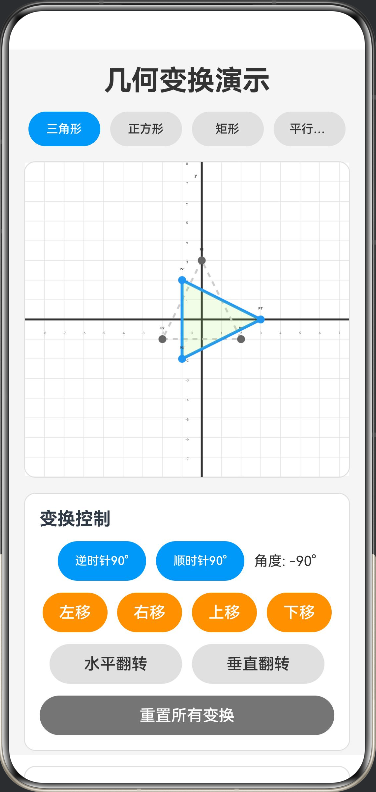
// 坐标点接口
interface Point {
  x: number
  y: number
}

// 屏幕坐标点接口
interface ScreenPoint {
  x: number
  y: number
}

// 图形类型
type ShapeType = 'triangle' | 'square' | 'rectangle' | 'parallelogram'

// 颜色接口定义
interface ColorPalette {
  white: string
  background: string
  primary: string
  secondary: string
  accent: string
  textPrimary: string
  textSecondary: string
  grid: string
  axis: string
  originalShape: string
  transformedShape: string
  infoBackground: string
}

@Entry
@Component
struct GeometryTransform {
  // 颜色常量
  private readonly COLORS: ColorPalette = {
    white: '#FFFFFF',
    background: '#F5F5F5',
    primary: '#2196F3',
    secondary: '#FF9800',
    accent: '#E91E63',
    textPrimary: '#333333',
    textSecondary: '#666666',
    grid: '#E0E0E0',
    axis: '#333333',
    originalShape: '#CCCCCC',
    transformedShape: '#2196F3',
    infoBackground: '#E3F2FD'
  }

  // 图形类型
  @State currentShape: ShapeType = 'triangle'

  // 变换参数
  @State rotation: number = 0
  @State translateX: number = 0
  @State translateY: number = 0
  @State flipH: boolean = false
  @State flipV: boolean = false

  // Canvas 上下文
  private settings: RenderingContextSettings = new RenderingContextSettings(true)
  private context: CanvasRenderingContext2D = new CanvasRenderingContext2D(this.settings)

  // 画布尺寸
  private canvasWidth: number = 360
  private canvasHeight: number = 320

  // 坐标系中心
  private centerX: number = 180
  private centerY: number = 160

  // 缩放比例
  private scaleFactor: number = 20

  build() {
    Column({ space: 15 }) {
      // 标题
      Text('几何变换演示')
        .fontSize(28)
        .fontWeight(FontWeight.Bold)
        .fontColor(this.COLORS.textPrimary)

      // 图形选择
      Row({ space: 10 }) {
        this.ShapeButton('三角形', 'triangle')
        this.ShapeButton('正方形', 'square')
        this.ShapeButton('矩形', 'rectangle')
        this.ShapeButton('平行四边形', 'parallelogram')
      }
      .width('100%')
      .justifyContent(FlexAlign.Center)

      // Canvas 绘图区域
      Canvas(this.context)
        .width('100%')
        .height(this.canvasHeight)
        .backgroundColor(this.COLORS.white)
        .borderRadius(12)
        .borderWidth(1)
        .borderColor(this.COLORS.grid)
        .onReady(() => {
          this.drawScene()
        })

      // 变换控制按钮
      Column({ space: 12 }) {
        Text('变换控制')
          .fontSize(18)
          .fontWeight(FontWeight.Bold)
          .width('100%')
          .textAlign(TextAlign.Start)

        // 旋转控制
        Row({ space: 10 }) {
          Button('逆时针90°')
            .width('30%')
            .height(40)
            .backgroundColor(this.COLORS.primary)
            .fontColor(this.COLORS.white)
            .onClick(() => {
              this.rotation -= 90
              this.drawScene()
            })

          Button('顺时针90°')
            .width('30%')
            .height(40)
            .backgroundColor(this.COLORS.primary)
            .fontColor(this.COLORS.white)
            .onClick(() => {
              this.rotation += 90
              this.drawScene()
            })

          Text(`角度: ${this.rotation}°`)
            .fontSize(14)
            .fontColor(this.COLORS.textPrimary)
        }
        .width('100%')
        .justifyContent(FlexAlign.Center)

        // 平移控制
        Row({ space: 10 }) {
          Button('左移')
            .width('22%')
            .height(40)
            .backgroundColor(this.COLORS.secondary)
            .fontColor(this.COLORS.white)
            .onClick(() => {
              this.translateX -= 1
              this.drawScene()
            })

          Button('右移')
            .width('22%')
            .height(40)
            .backgroundColor(this.COLORS.secondary)
            .fontColor(this.COLORS.white)
            .onClick(() => {
              this.translateX += 1
              this.drawScene()
            })

          Button('上移')
            .width('22%')
            .height(40)
            .backgroundColor(this.COLORS.secondary)
            .fontColor(this.COLORS.white)
            .onClick(() => {
              this.translateY += 1
              this.drawScene()
            })

          Button('下移')
            .width('22%')
            .height(40)
            .backgroundColor(this.COLORS.secondary)
            .fontColor(this.COLORS.white)
            .onClick(() => {
              this.translateY -= 1
              this.drawScene()
            })
        }
        .width('100%')
        .justifyContent(FlexAlign.Center)

        // 翻转控制
        Row({ space: 10 }) {
          Button(this.flipH ? '水平翻转 ✓' : '水平翻转')
            .width('45%')
            .height(40)
            .backgroundColor(this.flipH ? this.COLORS.accent : this.COLORS.grid)
            .fontColor(this.flipH ? this.COLORS.white : this.COLORS.textPrimary)
            .onClick(() => {
              this.flipH = !this.flipH
              this.drawScene()
            })

          Button(this.flipV ? '垂直翻转 ✓' : '垂直翻转')
            .width('45%')
            .height(40)
            .backgroundColor(this.flipV ? this.COLORS.accent : this.COLORS.grid)
            .fontColor(this.flipV ? this.COLORS.white : this.COLORS.textPrimary)
            .onClick(() => {
              this.flipV = !this.flipV
              this.drawScene()
            })
        }
        .width('100%')
        .justifyContent(FlexAlign.Center)

        // 重置按钮
        Button('重置所有变换')
          .width('100%')
          .height(40)
          .backgroundColor('#757575')
          .fontColor(this.COLORS.white)
          .onClick(() => {
            this.rotation = 0
            this.translateX = 0
            this.translateY = 0
            this.flipH = false
            this.flipV = false
            this.drawScene()
          })
      }
      .width('100%')
      .padding(15)
      .backgroundColor(this.COLORS.white)
      .borderRadius(12)
      .borderWidth(1)
      .borderColor(this.COLORS.grid)

      // 坐标信息显示
      this.CoordinatesCard()

      // 教学说明
      this.TeachingPoints()
    }
    .width('100%')
    .height('100%')
    .padding(15)
    .backgroundColor(this.COLORS.background)
  }

  // 图形选择按钮
  @Builder
  ShapeButton(label: string, shape: ShapeType) {
    Button(label)
      .width('22%')
      .height(35)
      .fontSize(12)
      .backgroundColor(this.currentShape === shape ? this.COLORS.primary : this.COLORS.grid)
      .fontColor(this.currentShape === shape ? this.COLORS.white : this.COLORS.textPrimary)
      .onClick(() => {
        this.currentShape = shape
        this.drawScene()
      })
  }

  // 坐标信息卡片
  @Builder
  CoordinatesCard() {
    Column({ space: 8 }) {
      Text('坐标信息')
        .fontSize(16)
        .fontWeight(FontWeight.Bold)
        .width('100%')
        .textAlign(TextAlign.Start)

      Text('原始坐标:')
        .fontSize(14)
        .fontWeight(FontWeight.Bold)
        .fontColor(this.COLORS.textSecondary)
        .width('100%')

      ForEach(this.getOriginalPoints(), (point: Point, index: number) => {
        Text(`  P${index + 1}: (${point.x.toFixed(1)}, ${point.y.toFixed(1)})`)
          .fontSize(13)
          .fontColor(this.COLORS.textPrimary)
          .width('100%')
      })

      Text('变换后坐标:')
        .fontSize(14)
        .fontWeight(FontWeight.Bold)
        .fontColor(this.COLORS.textSecondary)
        .width('100%')
        .margin({ top: 8 })

      ForEach(this.getTransformedPoints(), (point: Point, index: number) => {
        Text(`  P${index + 1}': (${point.x.toFixed(1)}, ${point.y.toFixed(1)})`)
          .fontSize(13)
          .fontColor(this.COLORS.primary)
          .width('100%')
      })
    }
    .width('100%')
    .padding(15)
    .backgroundColor(this.COLORS.white)
    .borderRadius(12)
    .borderWidth(1)
    .borderColor(this.COLORS.grid)
  }

  // 教学说明
  @Builder
  TeachingPoints() {
    Column({ space: 8 }) {
      Text('💡 教学要点')
        .fontSize(16)
        .fontWeight(FontWeight.Bold)
        .width('100%')
        .textAlign(TextAlign.Start)

      Text('几何变换的性质:')
        .fontSize(14)
        .fontWeight(FontWeight.Bold)
        .width('100%')

      Text('• 平移:图形沿某方向移动,形状大小不变')
        .fontSize(13)
        .width('100%')
        .margin({ left: 10 })

      Text('• 旋转:图形绕某点转动,形状大小不变')
        .fontSize(13)
        .width('100%')
        .margin({ left: 10 })

      Text('• 轴对称:图形关于某直线对称,形状大小不变')
        .fontSize(13)
        .width('100%')
        .margin({ left: 10 })

      Text('• 变换不改变图形的形状和大小,只改变位置')
        .fontSize(13)
        .width('100%')
        .margin({ left: 10 })

      Text('• 坐标变化规律:')
        .fontSize(14)
        .fontWeight(FontWeight.Bold)
        .width('100%')
        .margin({ top: 8 })

      Text('  - 平移:(x, y) → (x+a, y+b)')
        .fontSize(13)
        .width('100%')

      Text('  - 旋转90°:(x, y) → (-y, x)')
        .fontSize(13)
        .width('100%')

      Text('  - 水平翻转:(x, y) → (-x, y)')
        .fontSize(13)
        .width('100%')

      Text('  - 垂直翻转:(x, y) → (x, -y)')
        .fontSize(13)
        .width('100%')
    }
    .width('100%')
    .padding(15)
    .backgroundColor(this.COLORS.infoBackground)
    .borderRadius(12)
  }

  // 获取原始图形的顶点坐标
  private getOriginalPoints(): Point[] {
    switch (this.currentShape) {
      case 'triangle':
        return [
          { x: 0, y: 3 },
          { x: -2, y: -1 },
          { x: 2, y: -1 }
        ]
      case 'square':
        return [
          { x: -2, y: 2 },
          { x: 2, y: 2 },
          { x: 2, y: -2 },
          { x: -2, y: -2 }
        ]
      case 'rectangle':
        return [
          { x: -3, y: 1.5 },
          { x: 3, y: 1.5 },
          { x: 3, y: -1.5 },
          { x: -3, y: -1.5 }
        ]
      case 'parallelogram':
        return [
          { x: -2, y: 2 },
          { x: 3, y: 2 },
          { x: 2, y: -2 },
          { x: -3, y: -2 }
        ]
      default:
        return []
    }
  }

  // 获取变换后的顶点坐标
  private getTransformedPoints(): Point[] {
    const originalPoints = this.getOriginalPoints()
    return originalPoints.map(point => this.transformPoint(point))
  }

  // 对单个点应用变换
  private transformPoint(point: Point): Point {
    let x = point.x
    let y = point.y

    // 1. 翻转
    if (this.flipH) {
      x = -x
    }
    if (this.flipV) {
      y = -y
    }

    // 2. 旋转
    const angle = this.rotation * Math.PI / 180
    const cos = Math.cos(angle)
    const sin = Math.sin(angle)
    const rotatedX = x * cos - y * sin
    const rotatedY = x * sin + y * cos
    x = rotatedX
    y = rotatedY

    // 3. 平移
    x += this.translateX
    y += this.translateY

    return { x, y }
  }

  // 绘制场景
  private drawScene() {
    const ctx = this.context
    const w = this.canvasWidth
    const h = this.canvasHeight

    // 清空画布
    ctx.fillStyle = this.COLORS.white
    ctx.fillRect(0, 0, w, h)

    // 绘制网格
    ctx.strokeStyle = this.COLORS.grid
    ctx.lineWidth = 0.5
    for (let i = -10; i <= 10; i++) {
      // 垂直线
      ctx.beginPath()
      ctx.moveTo(this.centerX + i * this.scaleFactor, 0)
      ctx.lineTo(this.centerX + i * this.scaleFactor, h)
      ctx.stroke()

      // 水平线
      ctx.beginPath()
      ctx.moveTo(0, this.centerY + i * this.scaleFactor)
      ctx.lineTo(w, this.centerY + i * this.scaleFactor)
      ctx.stroke()
    }

    // 绘制坐标轴
    ctx.strokeStyle = this.COLORS.axis
    ctx.lineWidth = 2
    ctx.beginPath()
    // Y轴
    ctx.moveTo(this.centerX, 0)
    ctx.lineTo(this.centerX, h)
    // X轴
    ctx.moveTo(0, this.centerY)
    ctx.lineTo(w, this.centerY)
    ctx.stroke()

    // 绘制刻度标记
    ctx.fillStyle = this.COLORS.textSecondary
    ctx.font = '10px sans-serif'
    ctx.textAlign = 'center'

    for (let i = -8; i <= 8; i++) {
      if (i !== 0) {
        // X轴刻度
        ctx.fillText(`${i}`, this.centerX + i * this.scaleFactor, this.centerY + 15)
        // Y轴刻度
        ctx.fillText(`${-i}`, this.centerX - 15, this.centerY + i * this.scaleFactor + 3)
      }
    }

    // 绘制原点标记
    ctx.fillText('O', this.centerX - 10, this.centerY + 15)

    // 绘制原始图形(虚线)
    this.drawShape(ctx, this.getOriginalPoints(), this.COLORS.originalShape, true)

    // 绘制变换后的图形(实线)
    this.drawShape(ctx, this.getTransformedPoints(), this.COLORS.transformedShape, false)

    // 绘制坐标轴标签
    ctx.fillStyle = this.COLORS.textPrimary
    ctx.font = 'bold 12px sans-serif'
    ctx.textAlign = 'right'
    ctx.fillText('y', this.centerX - 5, 15)
    ctx.textAlign = 'left'
    ctx.fillText('x', w - 15, this.centerY - 5)
  }

  // 绘制图形
  private drawShape(ctx: CanvasRenderingContext2D, points: Point[], color: string, isDashed: boolean) {
    if (points.length === 0) return

    ctx.strokeStyle = color
    ctx.lineWidth = isDashed ? 2 : 3

    if (isDashed) {
      ctx.setLineDash([5, 5])
    } else {
      ctx.setLineDash([])
    }

    ctx.beginPath()

    // 转换坐标并绘制
    const screenPoints: ScreenPoint[] = points.map((p: Point): ScreenPoint => {
      return {
        x: this.centerX + p.x * this.scaleFactor,
        y: this.centerY - p.y * this.scaleFactor
      }
    })

    ctx.moveTo(screenPoints[0].x, screenPoints[0].y)
    for (let i = 1; i < screenPoints.length; i++) {
      ctx.lineTo(screenPoints[i].x, screenPoints[i].y)
    }
    ctx.closePath()
    ctx.stroke()

    // 填充变换后的图形
    if (!isDashed) {
      ctx.fillStyle = color + '40' // 添加透明度
      ctx.fill()
    }

    // 绘制顶点标记
    screenPoints.forEach((p, index) => {
      ctx.fillStyle = isDashed ? this.COLORS.textSecondary : color
      ctx.beginPath()
      ctx.arc(p.x, p.y, 4, 0, Math.PI * 2)
      ctx.fill()

      // 标注顶点编号
      ctx.fillStyle = this.COLORS.textPrimary
      ctx.font = 'bold 10px sans-serif'
      ctx.textAlign = 'center'
      const label = isDashed ? `P${index + 1}` : `P${index + 1}'`
      ctx.fillText(label, p.x, p.y - 10)
    })

    ctx.setLineDash([])
  }
}

讨论HarmonyOS开发技术,专注于API与组件、DevEco Studio、测试、元服务和应用上架分发等。
更多推荐



 0
0 0
0- 0


 已为社区贡献400条内容

所有评论(0)