鸿蒙6.0应用开发——AI多事物识别
·
适用场景
可同时检测出给定图片中的各种物体,包括风景、动物、植物、建筑、人脸、表格、文本等位置,并框选出物体。
效果如下图所示:
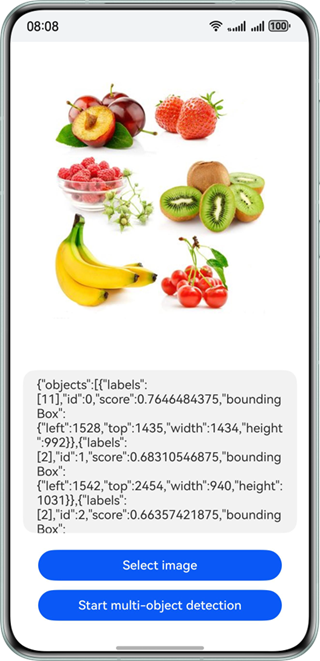
约束与限制
该能力当前不支持模拟器。
| AI能力 | 约束 |
|---|---|
| 多目标识别 | 输入图像具有合适成像的质量(建议720p以上),100px<高度<10000px,100px<宽度<10000px,高宽比例建议5:1以下(高度小于宽度的5倍),接近手机屏幕高宽比例为宜。图片中的物体占比需要大于0.1%。 |
开发步骤
-
在使用多目标识别时,将实现多目标识别相关的类添加至工程。
import { image } from '@kit.ImageKit'; import { hilog } from '@kit.PerformanceAnalysisKit'; import { BusinessError } from '@kit.BasicServicesKit'; import { fileIo } from '@kit.CoreFileKit'; import { objectDetection, visionBase } from '@kit.CoreVisionKit'; import { photoAccessHelper } from '@kit.MediaLibraryKit'; -
简单配置页面的布局,并在Button组件添加点击事件,拉起图库,选择图片。
Button('选择图片') .type(ButtonType.Capsule) .fontColor(Color.White) .alignSelf(ItemAlign.Center) .width('80%') .margin(10) .onClick(() => { // 拉起图库,获取图片资源 void this.selectImage(); }) -
通过图库获取图片资源,将图片转换为PixelMap。
private async selectImage() { let uri = await this.openPhoto() if (uri === undefined) { hilog.error(0x0000, 'objectDetectSample', "Failed to define uri."); } this.loadImage(uri) } private async openPhoto(): Promise<string> { return new Promise<string>((resolve, reject) => { let photoPicker: photoAccessHelper.PhotoViewPicker = new photoAccessHelper.PhotoViewPicker(); photoPicker.select({ MIMEType: photoAccessHelper.PhotoViewMIMETypes.IMAGE_TYPE, maxSelectNumber: 1 }).then(res => { resolve(res.photoUris[0]) }).catch((err: BusinessError) => { hilog.error(0x0000, 'objectDetectSample', `Failed to get photo image uri. code: ${err.code}, message: ${err.message}`); reject('') }) }) } private loadImage(name: string) { setTimeout(async () => { let fileSource = await fileIo.open(name, fileIo.OpenMode.READ_ONLY); this.imageSource = image.createImageSource(fileSource.fd); this.chooseImage = await this.imageSource.createPixelMap(); }, 100) } -
实例化Request对象,并传入待检测图片的PixelMap,调用多目标识别的实现多目标识别功能。
// 调用多目标检测接口 let request: visionBase.Request = { inputData: { pixelMap: this.chooseImage } }; let data: objectDetection.ObjectDetectionResponse = await (await objectDetection.ObjectDetector.create()).process(request); -
(可选)如果需要将结果展示在界面上,可以使用下列代码。
let objectJson = JSON.stringify(data);
hilog.info(0x0000, 'objectDetectSample', `Succeeded in object detection: ${objectJson}`);
this.dataValues = objectJson;
开发实例
Index.ets
import { image } from '@kit.ImageKit';
import { hilog } from '@kit.PerformanceAnalysisKit';
import { BusinessError } from '@kit.BasicServicesKit';
import { fileIo } from '@kit.CoreFileKit';
import { objectDetection, visionBase } from '@kit.CoreVisionKit';
import { photoAccessHelper } from '@kit.MediaLibraryKit';

@Entry
@Component
struct Index {
  private imageSource: image.ImageSource | undefined = undefined;
  @State chooseImage: PixelMap | undefined = undefined
  @State dataValues: string = ''

  build() {
    Column() {
      Image(this.chooseImage)
        .objectFit(ImageFit.Fill)
        .height('60%')

      Text(this.dataValues)
        .copyOption(CopyOptions.LocalDevice)
        .height('15%')
        .margin(10)
        .width('60%')

      Button('选择图片')
        .type(ButtonType.Capsule)
        .fontColor(Color.White)
        .alignSelf(ItemAlign.Center)
        .width('80%')
        .margin(10)
        .onClick(() => {
          // 拉起图库
          void this.selectImage()
        })

      Button('开始多目标识别')
        .type(ButtonType.Capsule)
        .fontColor(Color.White)
        .alignSelf(ItemAlign.Center)
        .width('80%')
        .margin(10)
        .onClick(() => {
          // 调用封装的异步识别函数
          void this.handleMultiObjectDetection();
        })
    }
    .width('100%')
    .height('100%')
    .justifyContent(FlexAlign.Center)
  }

  // 封装多目标识别的异步逻辑
  private async handleMultiObjectDetection() {
    if(!this.chooseImage) {
      hilog.error(0x0000, 'objectDetectSample', `Failed to choose image.`);
      return;
    }
    let request: visionBase.Request = {
      inputData: { pixelMap: this.chooseImage }
    };
    try {
      let data: objectDetection.ObjectDetectionResponse =
        await (await objectDetection.ObjectDetector.create()).process(request);
      let objectJson = JSON.stringify(data);
      hilog.info(0x0000, 'objectDetectSample', `Succeeded in object detection: ${objectJson}`);
      this.dataValues = objectJson;
    } catch (error) {
      hilog.error(0x0000, 'objectDetectSample', `Failed to get result. Error: ${error}`);
    }
  }

  private async selectImage() {
    try {
      let uri = await this.openPhoto();
      if (uri === undefined) {
        hilog.error(0x0000, 'objectDetectSample', "Failed to define uri.");
        return;
      }
      this.loadImage(uri);
    } catch (err) {
      hilog.error(0x0000, 'objectDetectSample', `Failed to get photo image uri. code: ${err.code}, message: ${err.message}`);
    }
  }

  private async openPhoto(): Promise<string> {
    return new Promise<string>((resolve, reject) => {
      let photoPicker: photoAccessHelper.PhotoViewPicker = new photoAccessHelper.PhotoViewPicker();
      photoPicker.select({
        MIMEType: photoAccessHelper.PhotoViewMIMETypes.IMAGE_TYPE, maxSelectNumber: 1
      }).then(res => {
        resolve(res.photoUris[0]);
      }).catch((err: BusinessError) => {
        hilog.error(0x0000, 'objectDetectSample', `Failed to get photo image uri. code: ${err.code}, message: ${err.message}`);
        reject(err);
      })
    })
  }

  private loadImage(name: string) {
    setTimeout(async () => {
      try {
        let fileSource = await fileIo.open(name, fileIo.OpenMode.READ_ONLY);
        this.imageSource = image.createImageSource(fileSource.fd);
        this.chooseImage = await this.imageSource.createPixelMap();
        await fileIo.close(fileSource);
      } catch (error) {
        hilog.error(0x0000, 'objectDetectSample', `Failed to open file. Error: ${error}`);
      }
    }, 100)
  }
}
代码逻辑走读:
- 导入模块:
- 导入了图像处理、日志记录、错误处理、文件操作和视觉处理相关的模块。
- 组件定义:
- 使用
@Entry和@Component装饰器定义了一个名为Index的组件。
- 使用
- 状态变量:
- 定义了
imageSource、chooseImage和dataValues三个状态变量,分别用于存储图像源、选择的图像和识别结果。
- 定义了
- 界面构建:
- 使用
Column布局,包含一个显示图像的Image组件、一个显示识别结果的Text组件和两个按钮。
- 使用
- 按钮功能:
- 第一个按钮“选择图片”用于拉起图库选择图片。
- 第二个按钮“开始多目标识别”用于启动图像识别流程。
- 图像选择逻辑:
selectImage方法负责打开图库并选择图片,openPhoto方法通过PhotoViewPicker拉取图片URI。
- 图像加载与识别:
loadImage方法通过文件描述符加载图像,handleMultiObjectDetection方法调用视觉处理模块进行图像识别,并将识别结果存储在dataValues中。
- 错误处理:
- 使用
hilog记录错误信息,确保在识别过程中出现异常时能够捕获并记录错误。
- 使用

讨论HarmonyOS开发技术,专注于API与组件、DevEco Studio、测试、元服务和应用上架分发等。
更多推荐



 66
66 0
0- 0


 已为社区贡献107条内容

所有评论(0)