Flutter鸿蒙开发:手势密码详解
·
Flutter鸿蒙开发:手势密码详解
欢迎加入开源鸿蒙跨平台社区! https://openharmonycrossplatform.csdn.net
一、前言
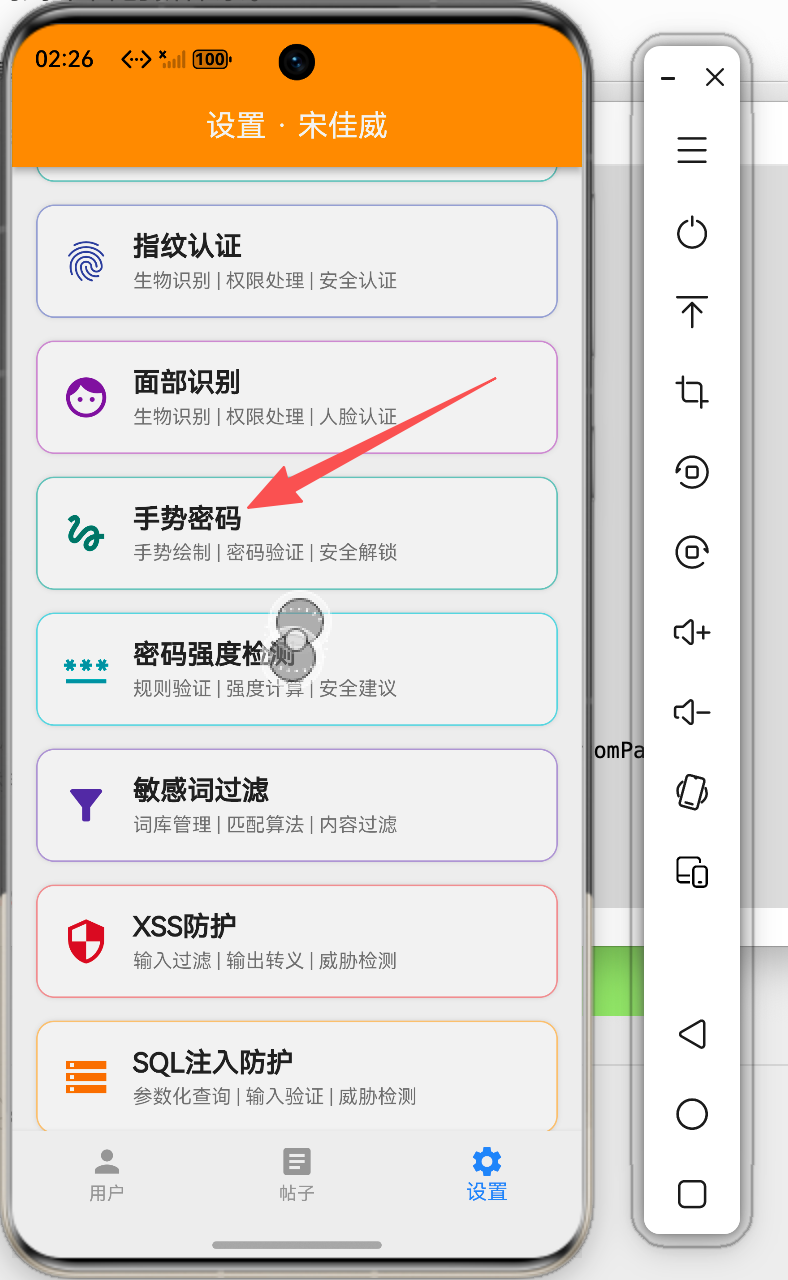
手势密码是一种直观且安全的解锁方式,广泛应用于移动应用的隐私保护场景。本文将详细介绍如何在Flutter鸿蒙应用中实现手势密码功能,包括手势绘制、密码验证和安全解锁等内容。
二、效果展示
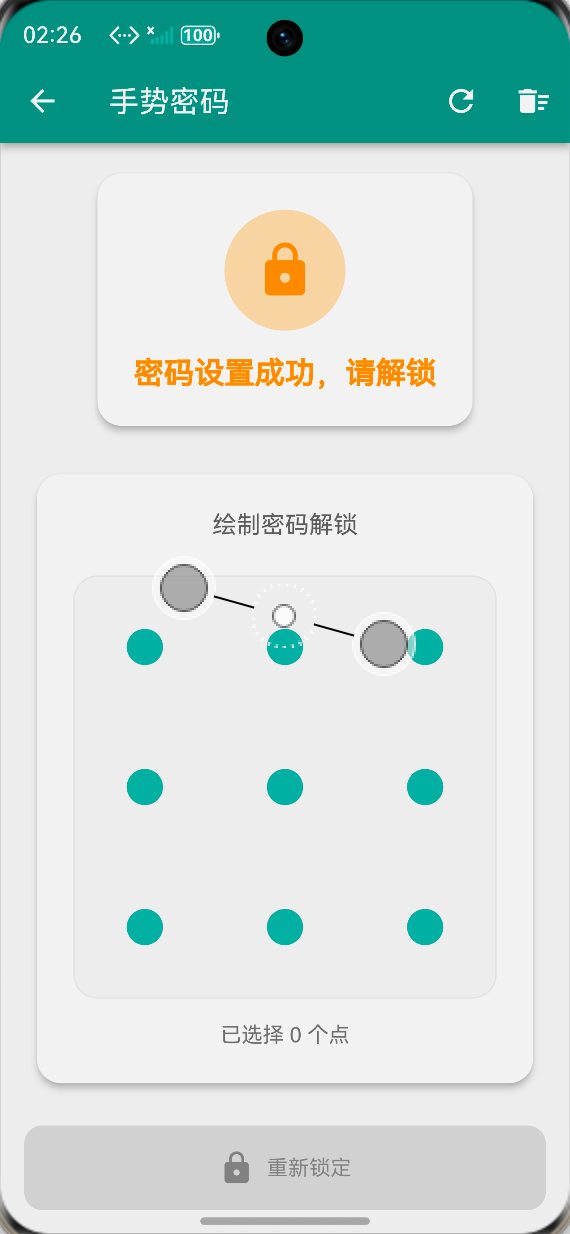
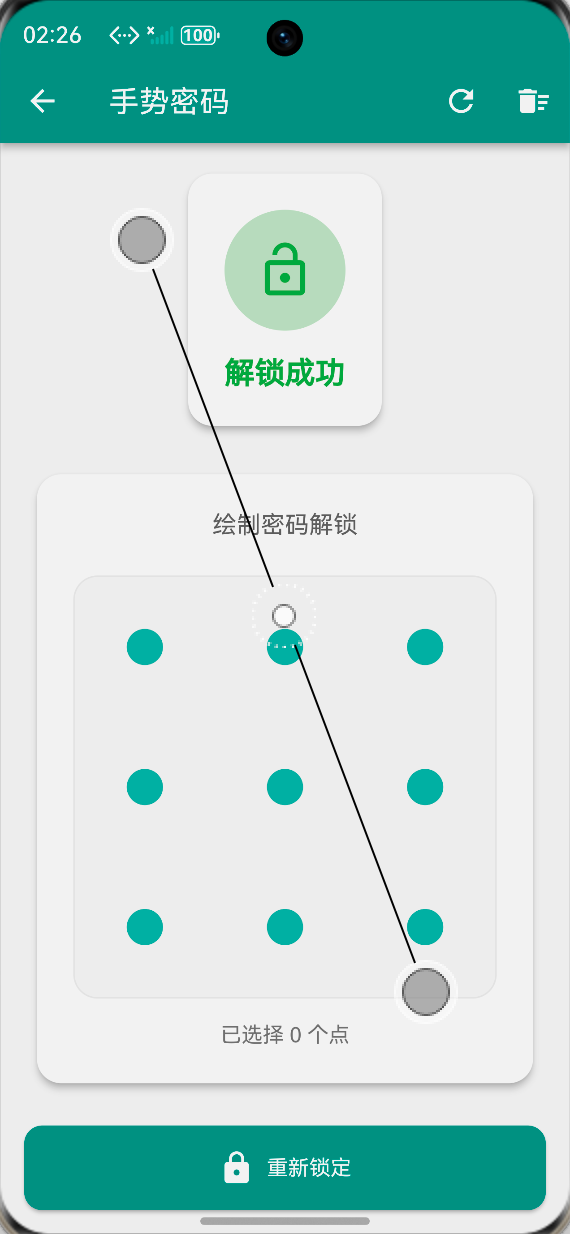
本组件实现了以下功能:
- 手势密码设置
- 密码确认验证
- 手势解锁功能
- 解锁历史记录
- 密码重置功能
三、技术要点
3.1 核心概念
手势密码基于3x3的点阵网格,用户通过滑动连接至少4个点来创建密码图案。
3.2 状态管理
class _GesturePasswordDemoPageState extends State<GesturePasswordDemoPage> {
  List<int> _currentPattern = [];
  List<int> _savedPattern = [];
  bool _isSettingMode = true;
  bool _isConfirming = false;
  bool _isUnlocked = false;
  String _statusText = '请设置手势密码';

  final int _gridSize = 3;
  final List<GestureRecord> _unlockHistory = [];
}
四、完整实现
4.1 手势记录模型
class GestureRecord {
  final DateTime time;
  final bool success;

  GestureRecord({
    required this.time,
    required this.success,
  });
}
4.2 手势绘制组件
class GesturePatternPainter extends CustomPainter {
final List<int> pattern;
final int gridSize;
final bool showPattern;
GesturePatternPainter({
required this.pattern,
required this.gridSize,
required this.showPattern,
});
void paint(Canvas canvas, Size size) {
final dotPaint = Paint()
..color = Colors.teal.shade300
..style = PaintingStyle.fill;
final selectedPaint = Paint()
..color = Colors.teal
..style = PaintingStyle.fill;
final linePaint = Paint()
..color = Colors.teal
..strokeWidth = 4
..style = PaintingStyle.stroke;
final dotSize = size.width / gridSize;
final points = <Offset>[];
// 绘制点
for (int i = 0; i < gridSize * gridSize; i++) {
final row = i ~/ gridSize;
final col = i % gridSize;
final x = col * dotSize + dotSize / 2;
final y = row * dotSize + dotSize / 2;
points.add(Offset(x, y));
canvas.drawCircle(
Offset(x, y),
pattern.contains(i) ? 15 : 12,
pattern.contains(i) ? selectedPaint : dotPaint,
);
if (pattern.contains(i)) {
canvas.drawCircle(
Offset(x, y),
6,
Paint()..color = Colors.white,
);
}
}
// 绘制连接线
if (showPattern && pattern.length > 1) {
final path = Path();
final firstIndex = pattern.first;
path.moveTo(points[firstIndex].dx, points[firstIndex].dy);
for (int i = 1; i < pattern.length; i++) {
final index = pattern[i];
path.lineTo(points[index].dx, points[index].dy);
}
canvas.drawPath(path, linePaint);
}
}
bool shouldRepaint(covariant GesturePatternPainter oldDelegate) {
return pattern != oldDelegate.pattern || showPattern != oldDelegate.showPattern;
}
}
4.3 手势处理逻辑
void _onDotSelected(int index) {
  if (_currentPattern.contains(index)) return;

  setState(() {
    _currentPattern.add(index);
  });
}

void _onGestureEnd() {
  if (_currentPattern.length < 4) {
    setState(() {
      _statusText = '至少需要连接4个点';
      _currentPattern.clear();
    });
    return;
  }

  if (_isSettingMode) {
    if (!_isConfirming) {
      setState(() {
        _savedPattern = List.from(_currentPattern);
        _isConfirming = true;
        _statusText = '请再次绘制确认';
        _currentPattern.clear();
      });
    } else {
      if (_listEquals(_currentPattern, _savedPattern)) {
        setState(() {
          _isSettingMode = false;
          _isConfirming = false;
          _statusText = '密码设置成功,请解锁';
          _currentPattern.clear();
        });
      } else {
        setState(() {
          _statusText = '两次密码不一致,请重新设置';
          _savedPattern.clear();
          _isConfirming = false;
          _currentPattern.clear();
        });
      }
    }
  } else {
    if (_listEquals(_currentPattern, _savedPattern)) {
      setState(() {
        _isUnlocked = true;
        _statusText = '解锁成功';
        _currentPattern.clear();
      });
    } else {
      setState(() {
        _statusText = '密码错误,请重试';
        _currentPattern.clear();
      });
    }
  }
}
4.4 手势网格UI
Widget _buildGestureGrid() {
  return Card(
    elevation: 4,
    shape: RoundedRectangleBorder(borderRadius: BorderRadius.circular(16)),
    child: Padding(
      padding: const EdgeInsets.all(24),
      child: Column(
        children: [
          Text(
            _isSettingMode ? '设置手势密码' : '绘制密码解锁',
            style: TextStyle(fontSize: 16),
          ),
          const SizedBox(height: 24),
          GestureDetector(
            onPanStart: (details) {
              _handlePanStart(details.localPosition);
            },
            onPanUpdate: (details) {
              _handlePanUpdate(details.localPosition);
            },
            onPanEnd: (details) {
              _onGestureEnd();
            },
            child: Container(
              width: 280,
              height: 280,
              decoration: BoxDecoration(
                color: Colors.grey.shade50,
                borderRadius: BorderRadius.circular(16),
                border: Border.all(color: Colors.grey.shade200),
              ),
              child: CustomPaint(
                painter: GesturePatternPainter(
                  pattern: _currentPattern,
                  gridSize: _gridSize,
                  showPattern: _showPattern,
                ),
              ),
            ),
          ),
          const SizedBox(height: 16),
          Text('已选择 ${_currentPattern.length} 个点'),
        ],
      ),
    ),
  );
}
4.5 坐标转换
void _handlePanStart(Offset localPosition) {
  final dotSize = 280 / _gridSize;
  final col = (localPosition.dx / dotSize).floor();
  final row = (localPosition.dy / dotSize).floor();

  if (col >= 0 && col < _gridSize && row >= 0 && row < _gridSize) {
    final index = row * _gridSize + col;
    _onDotSelected(index);
  }
}

void _handlePanUpdate(Offset localPosition) {
  final dotSize = 280 / _gridSize;
  final col = (localPosition.dx / dotSize).floor();
  final row = (localPosition.dy / dotSize).floor();

  if (col >= 0 && col < _gridSize && row >= 0 && row < _gridSize) {
    final index = row * _gridSize + col;
    _onDotSelected(index);
  }
}
五、最佳实践
5.1 安全性考虑
- 密码本地加密存储
- 限制尝试次数
- 支持备用解锁方式
5.2 用户体验
- 清晰的状态提示
- 流畅的绘制动画
- 震动反馈
5.3 密码规则
- 最少连接4个点
- 不能重复选择同一点
- 支持重置密码
六、总结
本文详细介绍了Flutter鸿蒙应用中手势密码的实现方法,包括手势绘制、密码验证和解锁功能。通过CustomPaint和GestureDetector的组合使用,实现了流畅的手势交互体验。
欢迎加入开源鸿蒙跨平台社区! https://openharmonycrossplatform.csdn.net

讨论HarmonyOS开发技术,专注于API与组件、DevEco Studio、测试、元服务和应用上架分发等。
更多推荐



 0
0 0
0- 0


 已为社区贡献20条内容

所有评论(0)