鸿蒙开发日记:撸了个 BMI 计算器,终于知道自己是偏瘦还是超重了
鸿蒙开发日记:撸了个 BMI 计算器,终于知道自己是偏瘦还是超重了
缘起
周末体检,看到体检报告上写着 BMI = 24.5,问我这算正常还是超重?我居然答不上来。
回家一查,24.5 刚好在正常范围(18.5~24.9)里。心想:这玩意儿我也能做个 App 啊,以后体检完自己就能判断了。
说干就干,一个下午撸了个 BMI 健康计算器。虽然功能不复杂,但该有的技术点都有,挺适合练手的。
第一天:先搞清楚 BMI 是啥
BMI 计算公式
BMI(Body Mass Index)就是身体质量指数,计算公式:
BMI = 体重(kg) ÷ 身高(m)²
举个例子:身高 175cm,体重 70kg
BMI = 70 ÷ (1.75)² = 70 ÷ 3.0625 = 22.86
分类标准
查了 WHO 的标准:
| 分类 | BMI 范围 |
|---|---|
| 偏瘦 | < 18.5 |
| 正常 | 18.5 ~ 24.9 |
| 超重 | 25 ~ 29.9 |
| 肥胖 | ≥ 30 |
原来 18.5 到 24.9 都是正常的,那我这 24.5 还算正常,松了口气。
第二天:数据结构,用数组存分类
定义分类接口
每个分类需要:名字、范围、颜色、阈值。
interface BmiCategory {
  label: string      // "正常"
  range: string      // "18.5~24.9"
  color: Color       // 显示颜色
  min: number        // 最小值
  max: number        // 最大值
}
初始化数据
private readonly categories: BmiCategory[] = [
  { label: '偏瘦', range: '<18.5', color: Color.Orange, min: 0, max: 18.5 },
  { label: '正常', range: '18.5~24.9', color: Color.Green, min: 18.5, max: 25 },
  { label: '超重', range: '25~29.9', color: Color.Orange, min: 25, max: 30 },
  { label: '肥胖', range: '≥30', color: Color.Red, min: 30, max: 999 }
]
为什么用 min 和 max?
这样判断分类时只需要遍历数组,找到 BMI 在哪个区间就行:
for (const cat of this.categories) {
  if (bmi >= cat.min && bmi < cat.max) {
    this.category = cat.label
    this.categoryColor = cat.color
    break
  }
}
简单清晰。
第三天:UI 布局,卡片式设计
整体思路
我参考了几个健康类 App,发现大家都用类似的布局:
- 顶部标题
- 输入卡片(身高 + 体重)
- 计算按钮
- 结果区域
干脆也这么干。
标题区域
绿色主题,突出健康:
Column() {
  Text('BMI 健康计算器')
    .fontSize(26)
    .fontWeight(FontWeight.Bold)
    .fontColor('#2E7D32')

  Text('Body Mass Index')
    .fontSize(14)
    .fontColor('#81C784')
}
输入卡片
这里踩了第一个坑。
问题:想让输入框在右侧,但怎么都对不齐。
解决:用 Flex 把输入框推到右边:
Row() {
  Text('👤').fontSize(24)
  Text('身高').margin({ left: 10 })

  Flex({ justifyContent: FlexAlign.End }) {
    TextInput({ placeholder: '请输入身高' })
      .type(InputType.Number)
      .textAlign(TextAlign.End)  // 数字右对齐
  }

  Text('cm').fontColor('#666')
}
效果:👤 身高 [___] cm
计算按钮
胶囊形状,Material 绿色:
Button('计算 BMI')
  .width(200)
  .height(48)
  .backgroundColor('#4CAF50')
  .borderRadius(24)  // 高度的一半,形成胶囊
第四天:计算逻辑,校验是重点
计算函数
handleCalculate(): void {
  const height = parseFloat(this.heightValue)
  const weight = parseFloat(this.weightValue)

  // 输入校验
  if (this.heightValue === '' || this.weightValue === '') {
    this.errorMsg = '⚠️ 请完整填写身高和体重'
    return
  }
  if (isNaN(height) || isNaN(weight) || height <= 0 || weight <= 0) {
    this.errorMsg = '⚠️ 请输入有效的正数数值'
    return
  }
  if (height > 300 || weight > 500) {
    this.errorMsg = '⚠️ 数值超出合理范围'
    return
  }

  // BMI 计算
  const heightM = height / 100  // cm 转 m
  const bmi = weight / (heightM * heightM)
  this.bmiResult = Math.round(bmi * 10) / 10

  // 判断分类
  for (const cat of this.categories) {
    if (bmi >= cat.min && bmi < cat.max) {
      this.category = cat.label
      this.categoryColor = cat.color
      break
    }
  }

  this.showResult = true
}
校验的三层防护
| 层次 | 检查内容 |
|---|---|
| 第一层 | 是否为空 |
| 第二层 | 是否为有效数字 |
| 第三层 | 是否在合理范围 |
范围设定的依据:
- 身高上限 300cm:世界最高的人约 272cm
- 体重上限 500kg:人类极限体重
第二个坑:精度问题
测试时输入身高 175、体重 70,BMI 显示 22.857142857142858。
原因:浮点数除法精度问题。
解决:四舍五入保留一位小数:
this.bmiResult = Math.round(bmi * 10) / 10
或者显示时用 toFixed(1):
Text(`${this.bmiResult.toFixed(1)}`)
第五天:结果显示,颜色要动态变化
BMI 数值
大字号显示,颜色根据分类变化:
Text(`${this.bmiResult.toFixed(1)}`)
  .fontSize(52)
  .fontWeight(FontWeight.Bold)
  .fontColor(this.categoryColor)
效果:
- 正常:绿色
- 偏瘦/超重:橙色
- 肥胖:红色
分类标签
圆角矩形背景,颜色与数值一致:
Text(this.category)
  .fontSize(20)
  .fontColor(Color.White)
  .backgroundColor(this.categoryColor)
  .borderRadius(20)
  .padding({ left: 28, right: 28, top: 6, bottom: 6 })
参考范围条
可视化展示各分类区间:
Row() {
  Text('偏瘦\n<18.5')
    .backgroundColor('#FFF3E0')  // 浅橙
    .borderRadius({ topLeft: 8, bottomLeft: 8 })

  Text('正常\n18.5~24.9')
    .backgroundColor('#E8F5E9')  // 浅绿

  Text('超重\n25~29.9')
    .backgroundColor('#FFF3E0')  // 浅橙

  Text('肥胖\n≥30')
    .backgroundColor('#FFEBEE')  // 浅红
    .borderRadius({ topRight: 8, bottomRight: 8 })
}
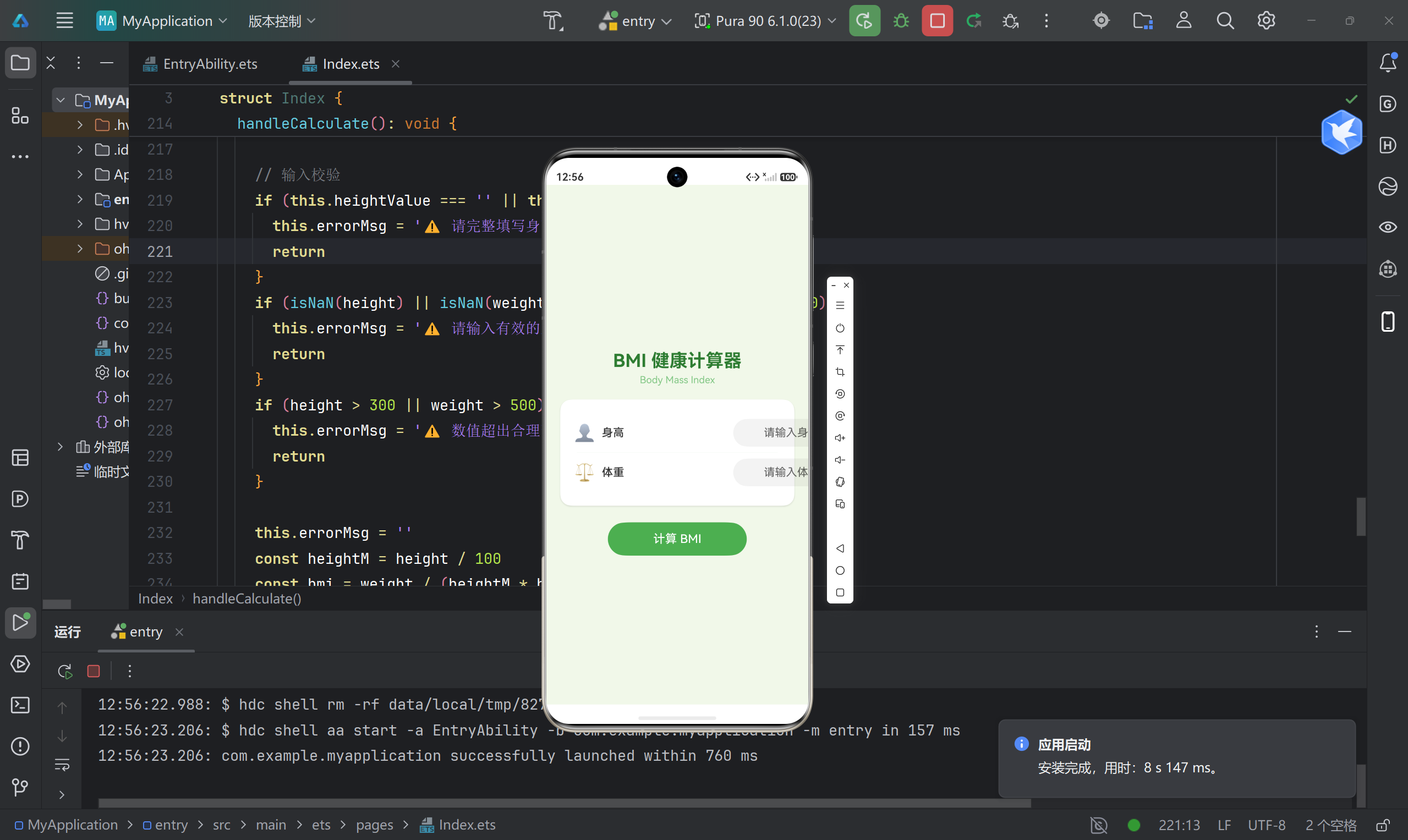
第六天:测试各种情况
总结
踩坑记录
| 坑 | 表现 | 解决 |
|---|---|---|
| 输入对不齐 | 右侧有空隙 | Flex 推到右边 |
| 数字键盘不弹 | 弹的是全键盘 | type(InputType.Number) |
| 结果不更新 | 改了输入结果还在 | onChange 里隐藏结果 |
| 精度太长 | 小数位一大串 | Math.round 或 toFixed |
学到了什么
- 输入校验很重要:不做校验,用户体验会很差
- 状态联动:输入改变时,要及时更新相关状态
- 颜色动态变化:通过状态变量控制颜色,效果更直观
代码量
主文件 Index.ets 约 180 行。对于这种功能完整的应用,这量级刚刚好。
开发时间:一个下午
代码行数:~180 行
做完这个,终于知道体检报告上的 BMI 是啥意思了。有问题欢迎评论区交流!

讨论HarmonyOS开发技术,专注于API与组件、DevEco Studio、测试、元服务和应用上架分发等。
更多推荐
 12
12 0
0- 0


 已为社区贡献58条内容

所有评论(0)