ArkUI 轮播图,选项卡,视频,图片组件全解 1
·
一、Swiper(轮播图)
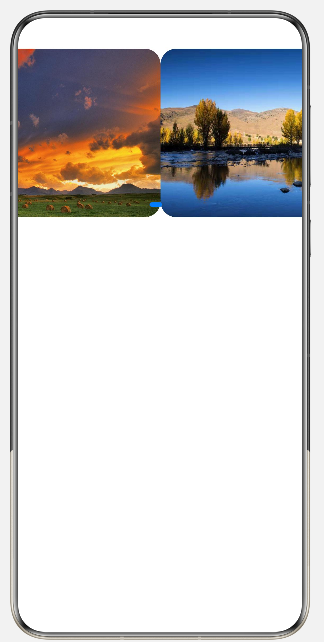
轮播组件,专门实现图片 / 页面自动轮播、左右滑动切换
核心属性
index:默认显示第几个页面loop:是否循环轮播autoPlay:是否自动播放interval:自动播放间隔时间(毫秒)
案例:
@Entry
@Component
struct SwiperDemo2{
  private bannerList:Resource[] = [
    $r('app.media.forth'),
    $r('app.media.fifth'),
    $r('app.media.sixth'),


  ]
  build() {
    Column(){
      Swiper(){
        ForEach(this.bannerList,(item:Resource)=>{
          Image(item)
            .width('98%')
            .height('100%')
            .objectFit(ImageFit.Cover)
            .borderRadius(20)
        })
      }
      .width('100%')
      .height('30%')
      .autoPlay(true) //自动播放
      .interval(2000) //自动播放间隔
      .loop(true) //是否循环播放

    }
  }
}
展示:
二、Tabs(选项卡)
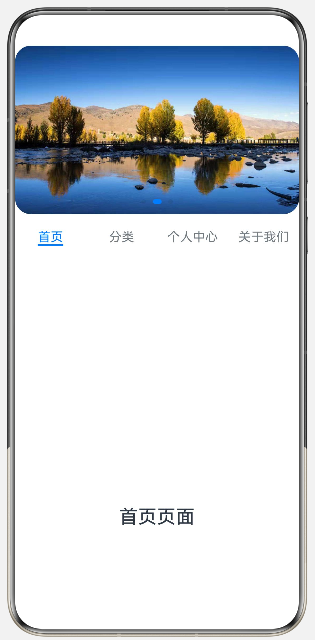
实现顶部 / 底部标签栏 + 对应内容切换,点击标签切换不同页面
核心属性
barPosition:标签栏位置(顶部 / 底部)
案例:
@Entry
@Component
struct TabsBase1{
  private bannerList:Resource[] = [
    $r('app.media.forth'),
    $r('app.media.fifth'),
    $r('app.media.sixth'),


  ]

  build() {
    Column() {
      Swiper() {
        ForEach(this.bannerList, (item: Resource) => {
          Image(item)
            .width('98%')
            .height('100%')
            .objectFit(ImageFit.Cover)
            .borderRadius(20)
        })
      }
      .width('100%')
      .height('30%')
      .autoPlay(true) //自动播放
      .interval(1000) //自动播放间隔
      .loop(true) //是否循环播放

      Tabs() {
        TabContent() {
          Text('首页页面')
            .fontSize(24)
        }
        .tabBar('首页')

        TabContent() {
          Text('分类页面')
            .fontSize(24)
        }
        .tabBar('分类')


        TabContent() {
          Text('个人中心页面')
            .fontSize(24)
        }
        .tabBar('个人中心')

        TabContent() {
          Text('关于我们页面')
            .fontSize(24)
        }
        .tabBar('关于我们')

      }
      .barPosition(BarPosition.Start)
    }
  }
}
展示:
三、Video(视频)
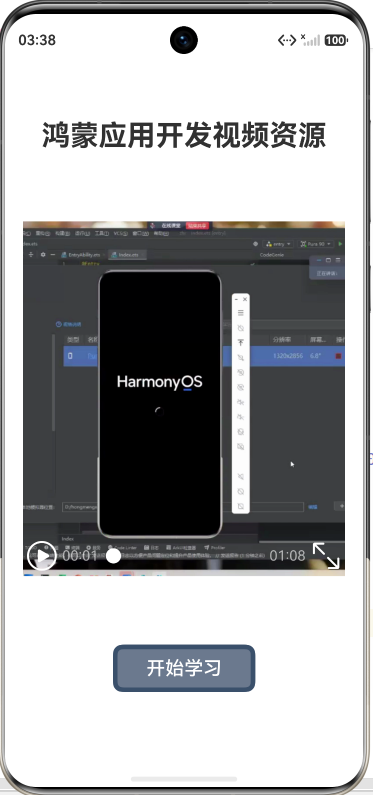
课程教学视频、商品介绍短视频、首页宣传视频、本地视频预览等页面。
核心属性
- width:播放器宽度,支持固定数值 / 百分比
- height:播放器高度,必须设置,否则视频无法渲染
- muted:是否静音播放,true 静音,false 正常出声
- loop:是否循环播放,true 播放完成自动重播
- autoPlay:页面加载后是否自动播放视频
- controls:是否显示系统自带播放控制条(进度、暂停、音量)
案例:
import UIExtensionContentSession from '@ohos.app.ability.UIExtensionContentSession';

@Entry
@Component
struct Index {
  private videoSrc:Resource = $rawfile('first.mp4')
  private pict:Resource = $r('app.media.fifth')
  private controller:VideoController = new VideoController()
  // private videoStr:string='http://www.w3school.com.cn/example/html5/mov_bbb.mp4';
  build() {
    Column(){

      Text('鸿蒙应用开发视频资源')
        .fontSize(30)
        .fontWeight(FontWeight.Bold)

      Video({
        src:this.videoSrc, //设置视频本地资源
        previewUri:this.pict, //视频封面
        controller:this.controller //控制器,控制前进后退的按钮
      })
        .height('50%')
        .width('90%')
        .muted(true) //是否静音
        .loop(true) // 循环播放
        .autoPlay(false) //自动播放
        .controls(true) //是否显示默认控制条

      /* Video({
        src:this.videoStr
      })
        .height('50%') */

      Button('开始学习')
        .width(150)
        .height(50)
        .fontSize(20)
        .backgroundColor(0xFF6B798E)
        .border({width:5, radius:10,color:0xFF3A506B})
    }
    .width('100%')
    .height('100%')
    .justifyContent(FlexAlign.SpaceEvenly)
  }
}
展示:
四、Image(图片)
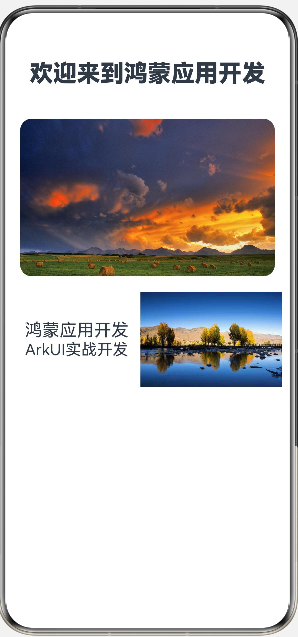
渲染展示本地 / 网络图片资源,支持设置圆角、填充适配、尺寸、对齐等样式,用于页面图文内容展示。
核心属性
- borderRadius:设置图片圆角,圆形头像宽高相等时设置一半数值即可
- objectFit:图片填充适配模式,常用 ImageFit.Cover 等 5 种填充规则
案例:
@Entry
@Component
struct ImageDemo1{
  build() {
    Column({space:20}){
      Text('欢迎来到鸿蒙应用开发')
        .fontSize(30)
        .fontWeight(FontWeight.Bolder)
        .width('100%')
        .textAlign(TextAlign.Center)
        .padding(20)

      Image($r('app.media.forth'))
        .width('90%')
        .height(200)
        .borderRadius(15)
        .objectFit(ImageFit.Cover)
      //cover是等比例缩放,铺满页面,多余部分裁掉


      Row(){
        Column(){
          Text("鸿蒙应用开发")
            .fontSize(22)
            .width('45%')
            .textAlign(TextAlign.Center)
          Text("ArkUI实战开发")
            .fontSize(20)
            .width('45%')
            .textAlign(TextAlign.Center)

        }

        Image($r('app.media.fifth'))
          .width('50%')
      }
    }
    .width('100%')
    .height('100%')
  }
}
展示:

讨论HarmonyOS开发技术,专注于API与组件、DevEco Studio、测试、元服务和应用上架分发等。
更多推荐

 8
8 0
0- 0


 已为社区贡献8条内容

所有评论(0)