鸿蒙开发-this指向+样式复用+代码调试

🌈个人主页:前端青山
🔥系列专栏:鸿蒙开发篇
🔖人终将被年少不可得之物困其一生
依旧青山,本期给大家带来鸿蒙开发篇专栏内容:鸿蒙开发-this指向+样式复用+代码调试
目录
一、this指向
1.原生
简单概括: 调用当前方法的对象 也就是谁调用的打印的就是谁
固定公式
普通函数 window
对象函数 对象本身
事件函数 事件源
定时器函数 window
箭头函数 父function中的this 父没有function就是window
自定义 call/apply/bind
构造函数 this === 实例化对象 === 公共空间/原型对象上方法中的this
<button>+1</button>
<script>
const fn1 = function() {
console.log('普通函数 window: ', this)
}
fn1()
const obj1 = {
a:1,
b:2,
c: function() {},
d() {
console.log('对象函数 对象本身:', this)
}
}
obj1.d()
document.querySelector('button').onclick = function() {
console.log('事件函数:事件源', this)
}
setTimeout(function() { // TODO: 切记别写箭头 写了就是父级this指向
console.log('定时器函数 window: ', this)
}, 0)
class Animal {
a = 1
b = 2
eat() {
console.log('构造函数/类中的 自身', this)
}
}
const dog = new Animal() // {a:1,b:2}
dog.eat()
</script>鸿蒙
this 自身/组件实例
新建 页面 LearnThis
@Entry
@Component
struct LearnThis {
// 需求:验证鸿蒙中的this是谁,首先第一点确保自己的项目不出问题
// 明确1:鸿蒙声明响应式数据参考了js中es6中的class语法
// 明确2:加 装饰器 @State 修饰符才有影响 ===》 @State 当前数据改变会同步到视图更新
// 1.如何定义数据 组件的大括号内声明 ==》 装饰器 数据名:数据类型 = 数值
// 2.如何获取数据 this.数据名
// 3.如何修改数据 this.数据名 = 数值
// 设置响应式数据 num
@State num: number = 1
aaa = 1111
bbb = 222
ccc = 333
ddd = function () {}
eee () {
console.log('555', this)
return '666'
}
build() {
Column() {
// Text组件内部要求参数必须为string|Resouce
// 如何将number类型数据转化为string类型
Text(String(this.num)) // 1
Text(this.num + '') // 2
Text(this.num.toString()) // 3
Text(`${this.num}`) // 4
Button('测试响应式效果')
.onClick(() => {
console.log('hello')
this.num++
console.log('数据', this.num)
})
Button('打印this')
.onClick(() => {
// 注意: 对象看不到具体数据,可以将其转化为字符串
console.log('this1:', this)
console.log('this2:', JSON.stringify(this))
console.log('this3:', this.eee())
})
Button('访问this')
.onClick(this.eee) // 555 undefined
}
}
}this使用细节 - 箭头函数
@Entry
@Component
struct Index {
// es6 类class语法 属性名 = 数据 只不过赋值是一个函数
// onTest1 = () => {
//
// }
// es6 类class语法 原型的写法
// onTest2() {
onTest2 = () => { // 父级环境中的this 因为父级是组件实例
console.log('hello', this)
}
build() {
Column() {
// 调用数据 this.状态名
// 调用函数 this.函数名() this.函数名
// - 区别1:有小括号执行了
// - 去背2:如果打印他们两 有小括号因为执行了所以打印的结果 没写return undefined、 没有小括号打印的是函数本身
// Button('this调用函数的细节').onClick(() => {
// console.log('【不加】小括号调用:', this.onTest2) // 函数本身
// console.log('【 加】小括号调用:', this.onTest2()) // 执行打印返回结果
// })
// Button('this调用函数的细节').onClick(this.onTest2())
Button('this调用函数的细节').onClick(this.onTest2) // 发现undefined
// Button('this调用函数的细节').onClick(() => {
// this.onTest2()
// })
}
}
}小总结
1、原生js 在各种场景的下的this指向
2、鸿蒙中的this =》 组件自身 (因为是组件自身所以可以使用组件中的状态或者方法)
3、this使用细节 (使用的不好会出现undefined情况)
二、样式复用
1.@Styles
如果每个组件的样式都需要单独设置,在开发过程中会出现大量代码在进行重复样式设置,虽然可以复制粘贴,但为了代码简洁性和后续方便维护,我们推出了可以提炼公共样式进行复用的装饰器@Styles。
@Styles装饰器可以将多条样式设置提炼成一个方法,直接在组件声明的位置调用。通过@Styles装饰器可以快速定义并复用自定义样式。用于快速定义并复用自定义样式
-
局部定义
// 全局
@Styles function functionNameStyle() {
.width(150)
.height(100)
.backgroundColor(Color.Red)
}
@Entry
@Component
sturt Index {
// 组件内
@Styles functionNameStyle() { ... }
build() {
Text('Text')
.functionNameStyle()
}
}
demo - 新建页面 LearnStyles
// 全局公共样式
@Styles function myIptStyle () {
.height(60)
.backgroundColor('#fff')
.borderRadius(0)
.border({
width: { bottom: 2 },
color: '#dadada'
})
}
@Component
struct OtherCom { // 全局样式 在其他组件中也可以使用
build() {}
}
@Entry
@Component
struct LearnStyles {
// 局部公共样式
@Styles iptStyle () {
.height(60)
.backgroundColor('#fff')
.borderRadius(0)
.border({
width: { bottom: 2 },
color: '#dadada'
})
}
build() {
Column() {
TextInput({ placeholder: '手机号'})
.height(60)
.backgroundColor('#fff')
.fontSize(26)
.borderRadius(0)
.border({
width: { bottom: 2 },
color: '#dadada'
})
.placeholderColor('#acacac')
.placeholderFont({ size: 26 })
TextInput({ placeholder: '密码'})
.iptStyle() // 调用局部
.placeholderColor('#acacac')
.placeholderFont({ size: 26 })
.fontSize(26)
TextInput({ placeholder: '确认密码'})
.myIptStyle() // 调用全局
.placeholderColor('#acacac')
.placeholderFont({ size: 26 })
.fontSize(26)
// .height(60)
// .backgroundColor('#fff')
// .borderRadius(0)
// .border({
// width: { bottom: 2 },
// color: '#dadada'
// })
}
}
}2.@Extend
@Extend 用于扩展原生组件样式,通过传参提供更灵活的样式复用
-
仅支持全局
-
支持传参,传递状态自动同步,也可以传递回调函数
// 全局  原生组件                     参数
//  ↓     ↓                          ↓
@Extend(Text) function 属性名字(data: number) {
  .width(data)
}-
demo1 新建 页面 LearnExtend
@Extend(TextInput) function iptExtendStyle () {
.height(60)
.backgroundColor('#fff')
.fontSize(26)
.borderRadius(0)
.border({
width: { bottom: 2 },
color: '#dadada'
})
.placeholderColor('#acacac')
.placeholderFont({ size: 26 })
}
// cb: (data: string) => void
// cb 作为函数的参数
// (data: string) => void 代表的是cb参数的数据类型
// (data: string) => void 同时是一个函数,该函数没有返回值void,参数为data,data的数据类型为string
@Extend(TextInput) function iptExtendStyleCallback (cb: (data: string) => void) {
.height(60)
.backgroundColor('#fff')
.fontSize(26)
.borderRadius(0)
.border({
width: { bottom: 2 },
color: '#dadada'
})
.placeholderColor('#acacac')
.placeholderFont({ size: 26 })
.onChange(cb)
}
@Entry
@Component
struct LearnExtend {
build() {
Column() {
TextInput({ placeholder: '手机号'})
.height(60)
.backgroundColor('#fff')
.fontSize(26)
.borderRadius(0)
.border({
width: { bottom: 2 },
color: '#dadada'
})
.placeholderColor('#acacac')
.placeholderFont({ size: 26 })
.onChange(val => {
console.log('手机号:' + val)
})
TextInput({ placeholder: '密码'})
.iptExtendStyle() // 属性调用
.onChange(val => {
console.log('密码:' + val)
})
TextInput({ placeholder: '确认密码'}) // 还可以传递事件
.iptExtendStyleCallback((data: string) => {
console.log('确认密码:' + data)
})
}
}
}3.多态
stateStyles() 可以依据组件的内部状态的不同,快速设置不同样式。
-
normal:正常态。
-
pressed:按压态。
-
focused:获焦态。
-
disabled:不可用态。
新建页面 LearnsStateStyles
@Extend(TextInput) function iptExtendStyle () {
.height(60)
.backgroundColor('#fff')
.fontSize(26)
.borderRadius(0)
.border({
width: { bottom: 2 },
color: '#dadada'
})
.placeholderColor('#acacac')
.placeholderFont({ size: 26 })
}
// cb: (data: string) => void
// cb 作为函数的参数
// (data: string) => void 代表的是cb参数的数据类型
// (data: string) => void 同时是一个函数,该函数没有返回值void,参数为data,data的数据类型为string
@Extend(TextInput) function iptExtendStyleCallback (cb: (data: string) => void) {
.height(60)
.backgroundColor('#fff')
.fontSize(26)
.borderRadius(0)
.border({
width: { bottom: 2 },
color: '#dadada'
})
.placeholderColor('#acacac')
.placeholderFont({ size: 26 })
.onChange(cb)
}
@Entry
@Component
struct LearnExtend {
build() {
Column() {
TextInput({ placeholder: '手机号'})
.height(60)
.backgroundColor('#fff')
.fontSize(26)
.borderRadius(0)
.border({
width: { bottom: 2 },
color: '#dadada'
})
.placeholderColor('#acacac')
.placeholderFont({ size: 26 })
.onChange(val => {
console.log('手机号:' + val)
})
TextInput({ placeholder: '密码'})
.iptExtendStyle() // 属性调用
.onChange(val => {
console.log('密码:' + val)
})
TextInput({ placeholder: '确认密码'}) // 还可以传递事件
.iptExtendStyleCallback((data: string) => {
console.log('确认密码:' + data)
})
}
}
}三、代码调试
预览+日志的方式debug
这种方式只能进行基本数据类型的打印,适合简单调试
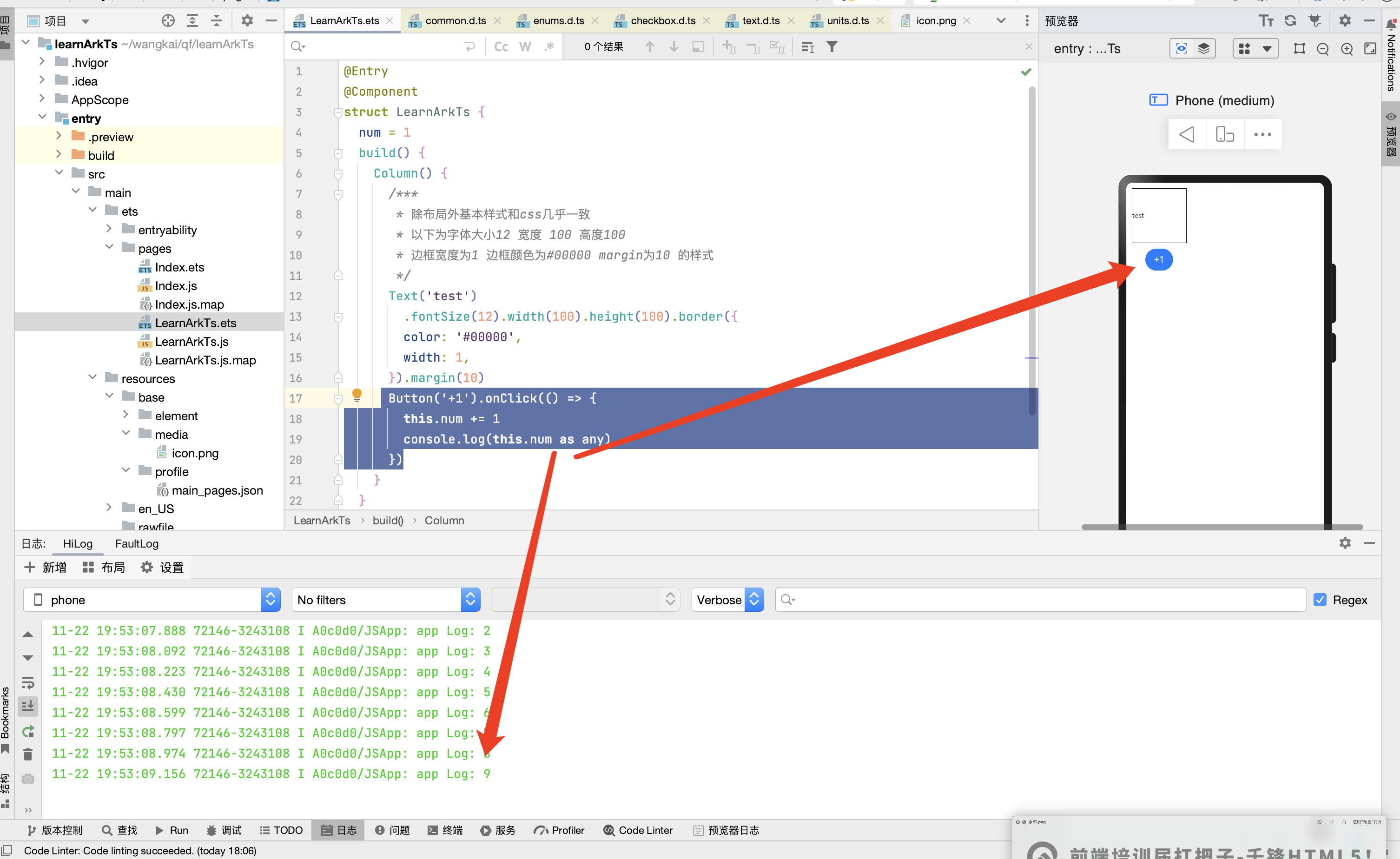
@Entry
@Component
struct Index {
@State num:number = 111
@State animal:{name: string,age:number}[] = [
{name:'狗', age: 10},
{name:'猫', age: 11},
]
build() {
Button('打印调试').onClick(() => {
// 细节1:仅支持打印字符串
// 细节2:所以遇到数值型就得转换 String()、toString() 模板字符串 字符串拼接
// 细节3:所有遇到对象也的转换为字符串打印 或者 json数据格式
// 细节4:预览器-没事,模拟器-打印必须加前缀 否则找不到
// 致命一击:看的是预览器的打印, 测试的是模拟器
// console.log(this.num)
console.log('deepcode ', String(this.num))
console.log('deepcode ', (this.num).toString())
// console.log(this.animal)
console.log('deepcode ', JSON.stringify(this.animal))
})
}
}断点调试
以模拟器为例
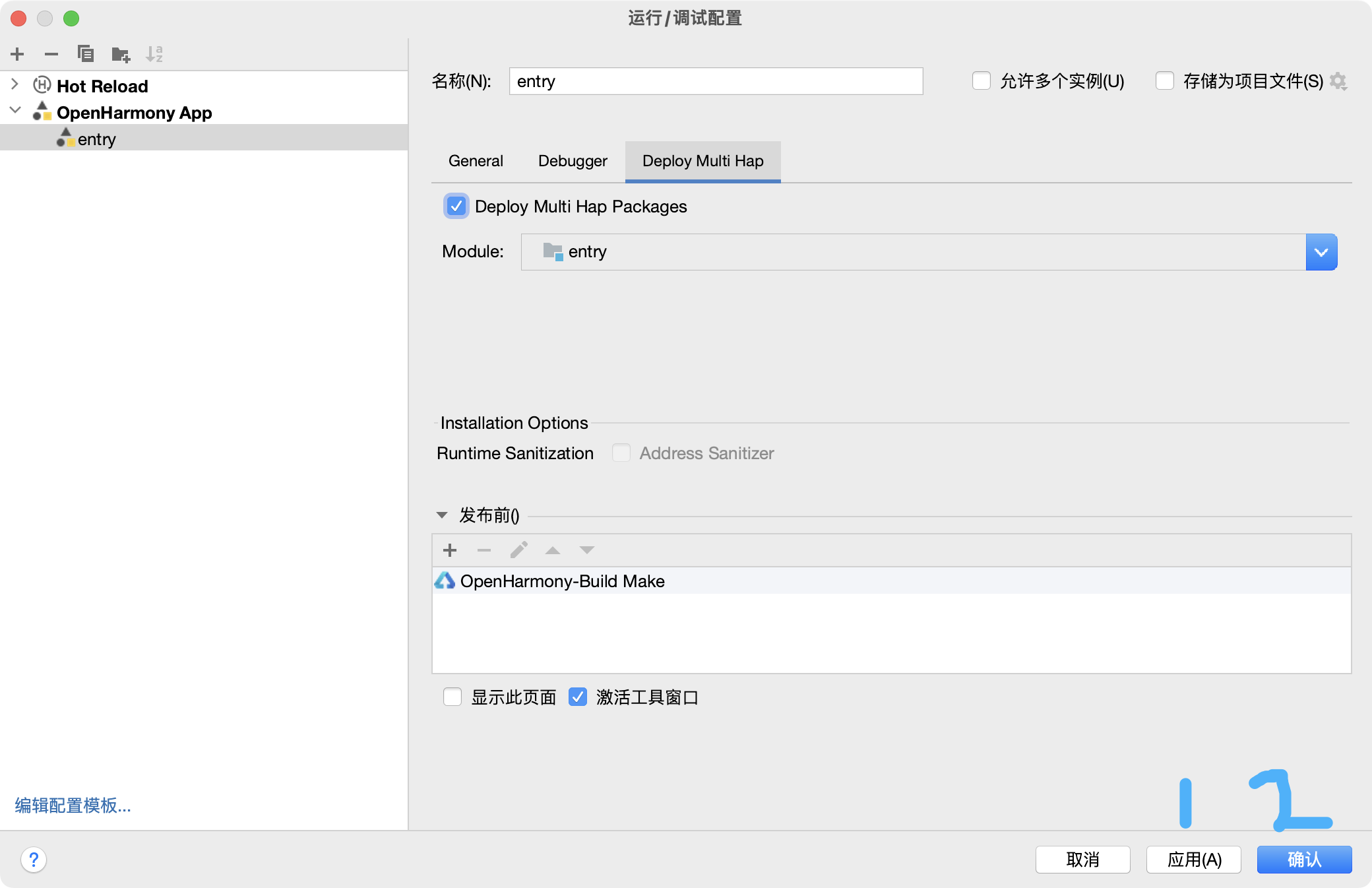
1. 点击编辑配置
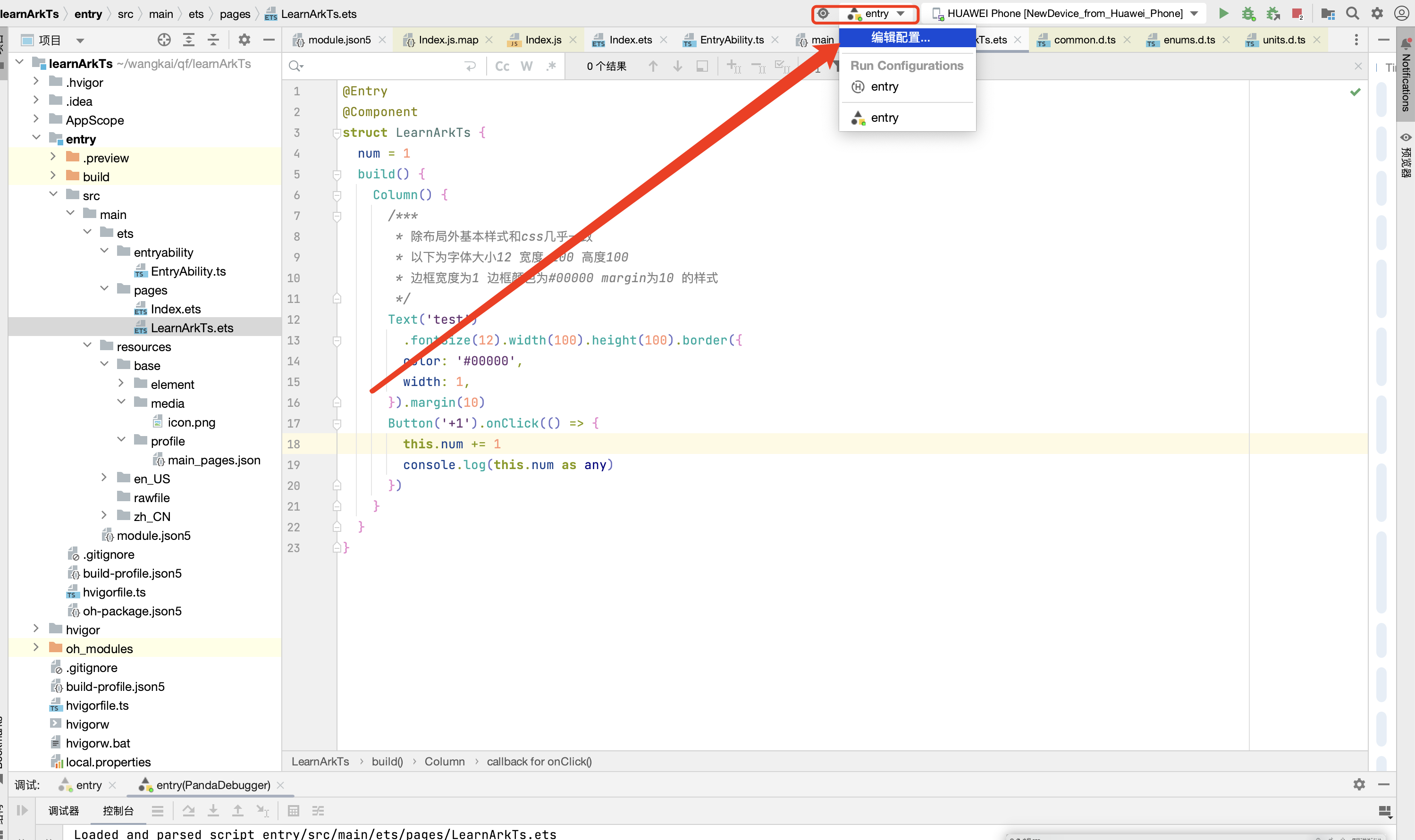
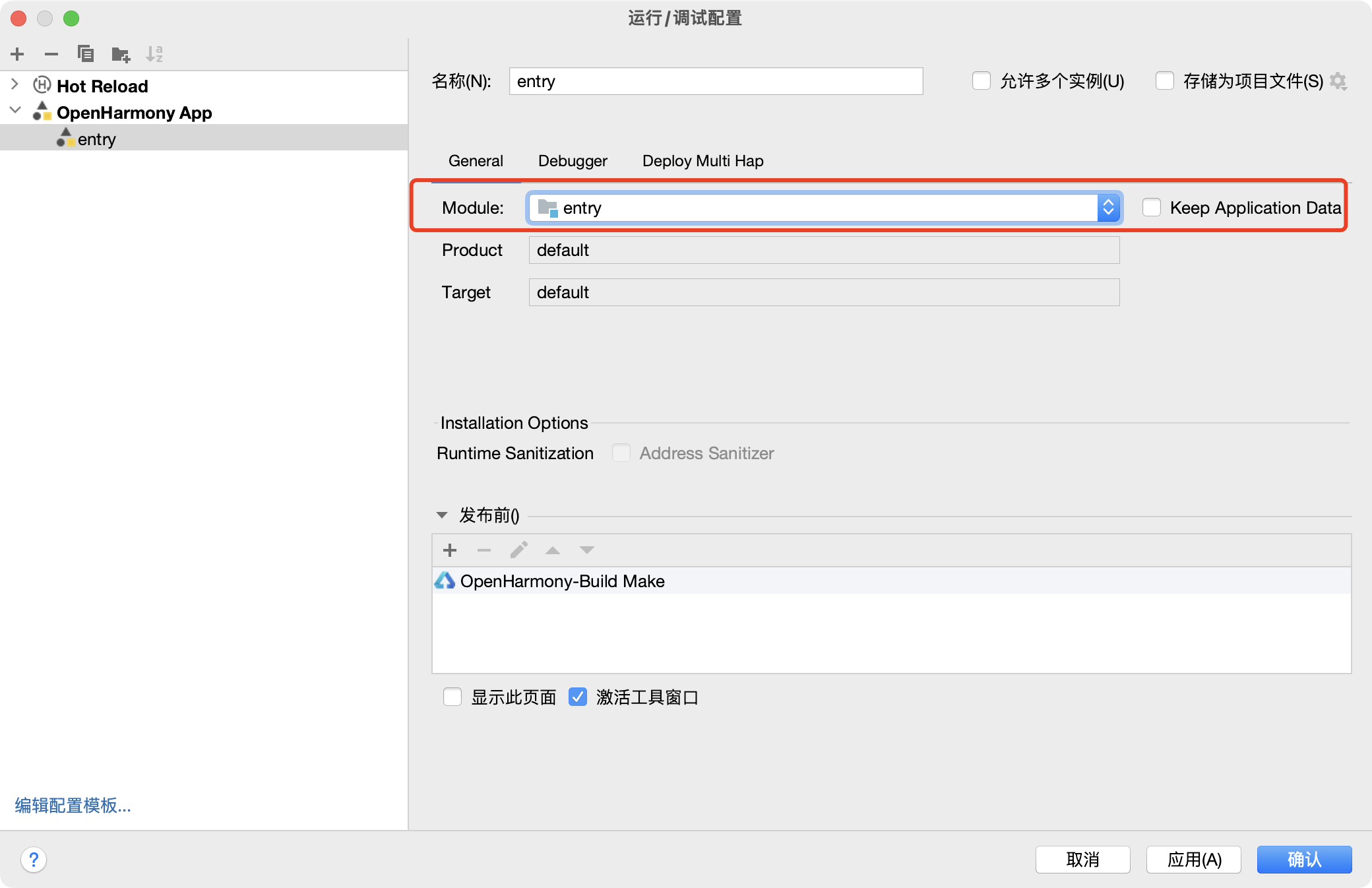
2. 选择对应的entry
-
安装方式一:先卸载应用/服务后,再重新安装,该方式会清除设备上的所有应用/服务缓存数据(默认安装方式)。
-
安装方式二:采用覆盖安装方式,不卸载应用/服务,该方式会保留应用/服务的缓存数据
-
采用默认安装即可
3. 多模块调试支持
如果一个工程中同一个设备存在多个模块(如Phone设备,存在entry和feature模块),且存在模块间的调用时,在调试阶段需要同时安装多个模块的hap包到设备中。此时,需要在Deploy Multi Hap中选择多个模块,启动调试时,DevEco Studio会将所有的模块都安装到设备上。DevEco Studio V3.1 Release开始支持
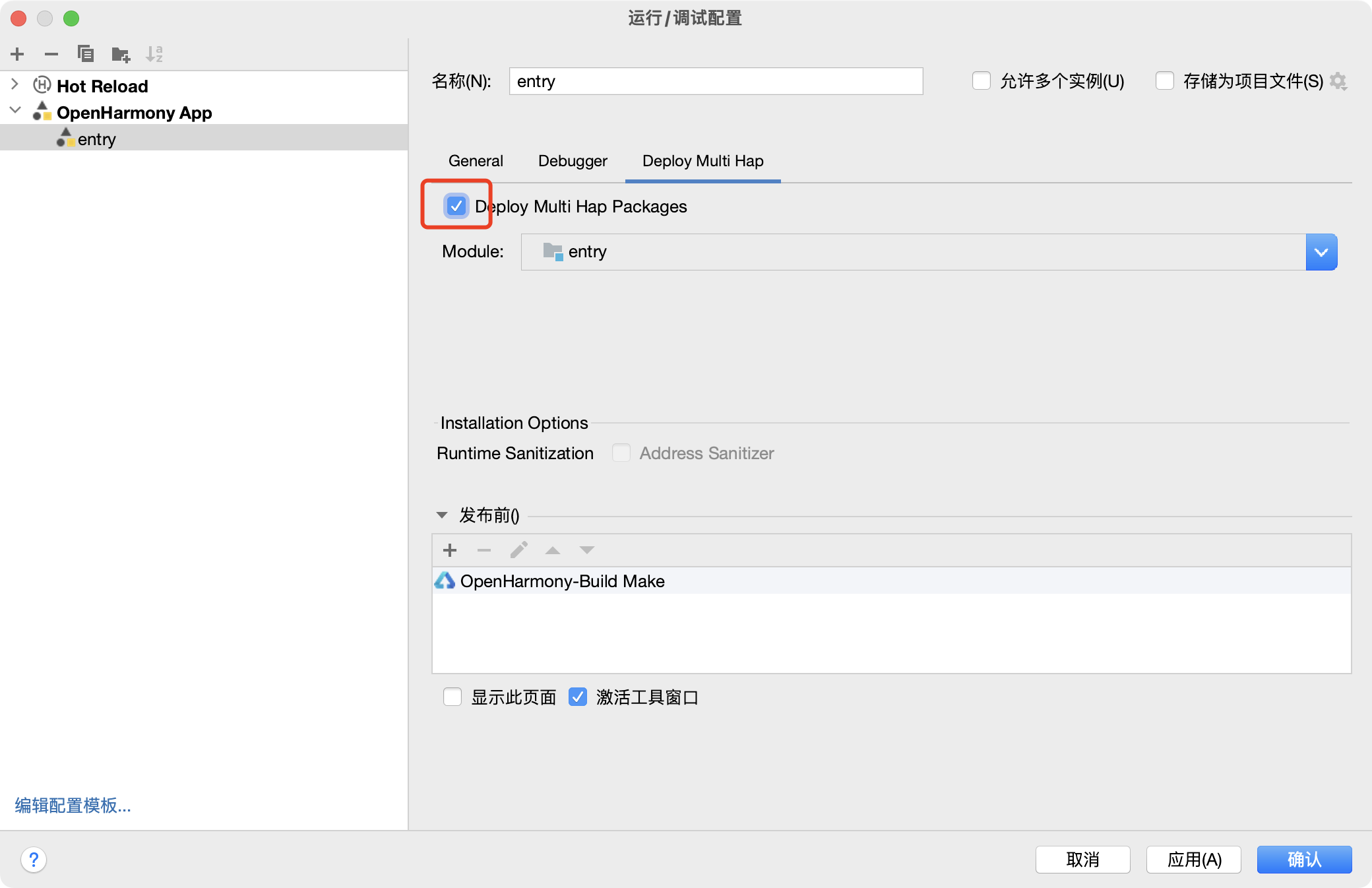
4. 点击应用后再点击确定完成配置
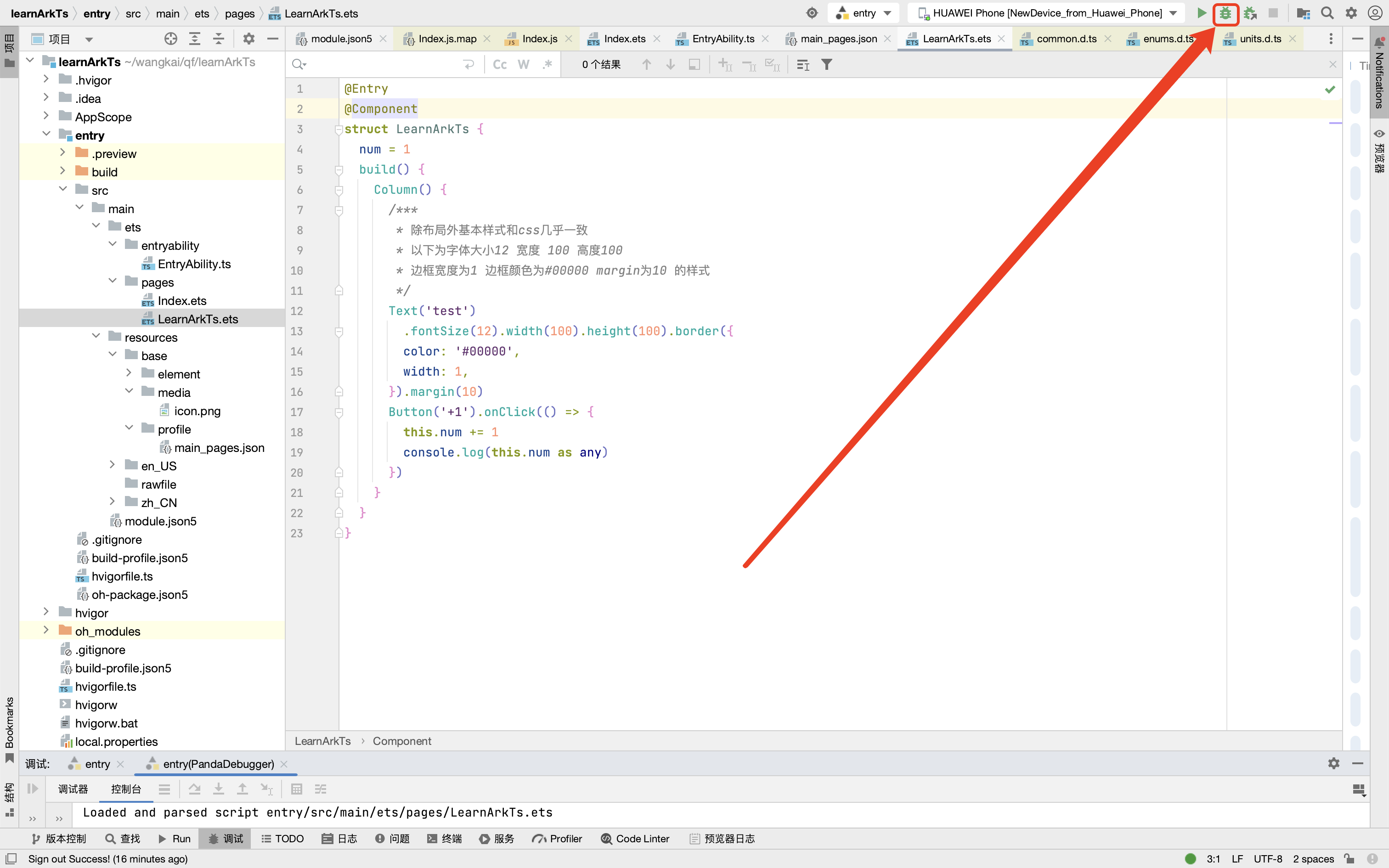
5. 开始调试
注意:提前打开模拟器,代码修改后需要重新点击进行调试
点击小绿logo进行断电调试
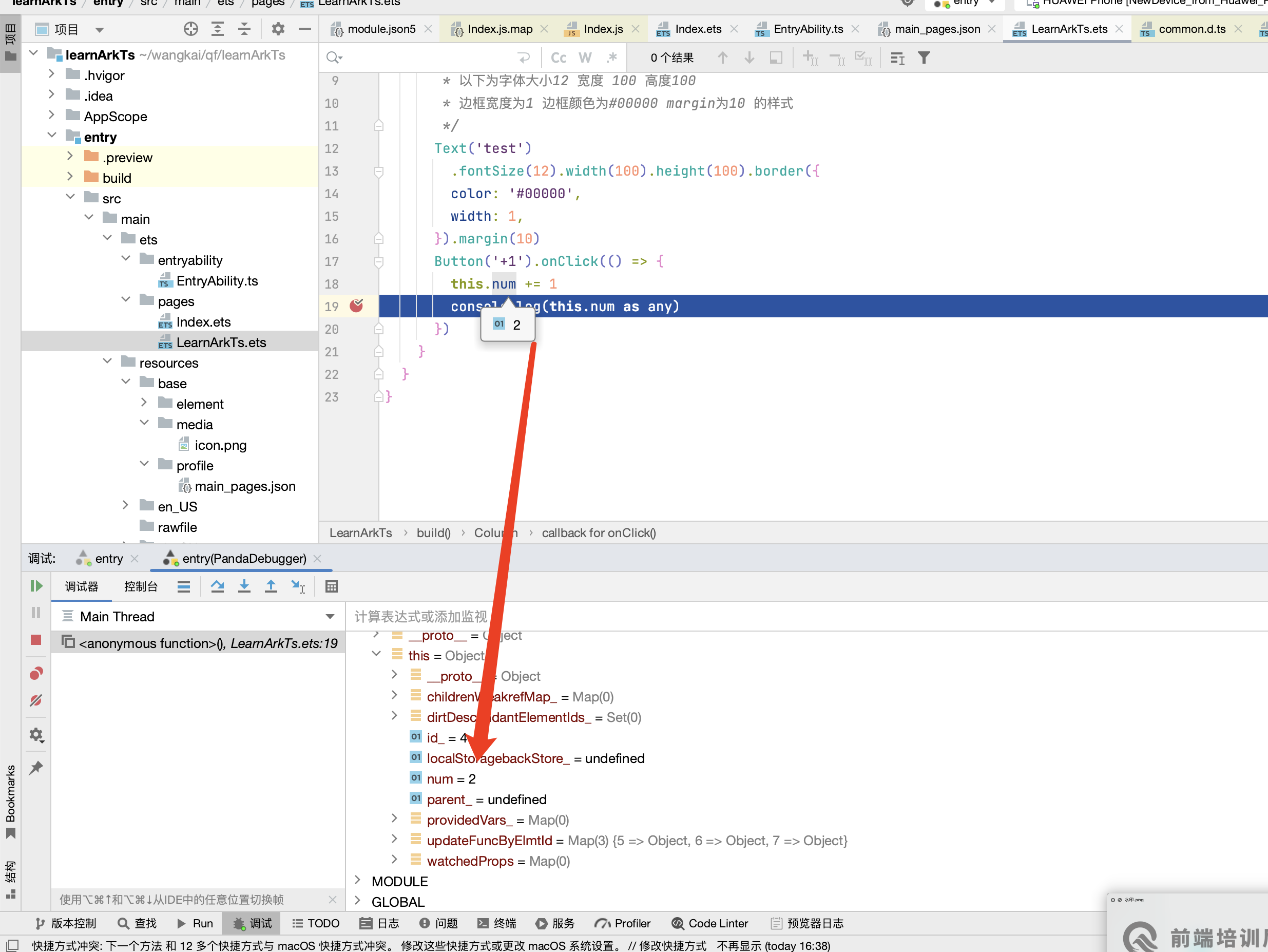
6. 相关功能键使用
| 按钮 | 名称 | 功能 | 快捷键 |
|---|---|---|---|
|
| Resume Program | 当程序执行到断点时停止执行,单击此按钮程序继续执行。 | F9(macOS为Option+Command+R) |
|
| Step Over | 在单步调试时,直接前进到下一行(如果在函数中存在子函数时,不会进入子函数内单步执行,而是将整个子函数当作一步执行)。 | F8(macOS为F8) |
|
| Step Into | 在单步调试时,遇到子函数后,进入子函数并继续单步执行。 | F7(macOS为F7) |
|
| Force Step Into | 在单步调试时,强制进入方法。 | Alt+Shift+F7(macOS为Option+Shift+F7) |
|
| Step Out | 在单步调试执行到子函数内时,单击Step Out会执行完子函数剩余部分,并跳出返回到上一层函数。 | Shift+F8(macOS为Shift+F8) |
|
| Stop | 停止调试任务。 | Ctrl+F2(macOS为Command+F2) |
|
| Run To Cursor | 断点执行到鼠标停留处。 | Alt+F9(macOS为Option+F9) |



讨论HarmonyOS开发技术,专注于API与组件、DevEco Studio、测试、元服务和应用上架分发等。
更多推荐



 49
49 0
0- 0



 已为社区贡献5条内容

所有评论(0)