鸿蒙ArkTS开发实训:实现登录页面路由跳转功能
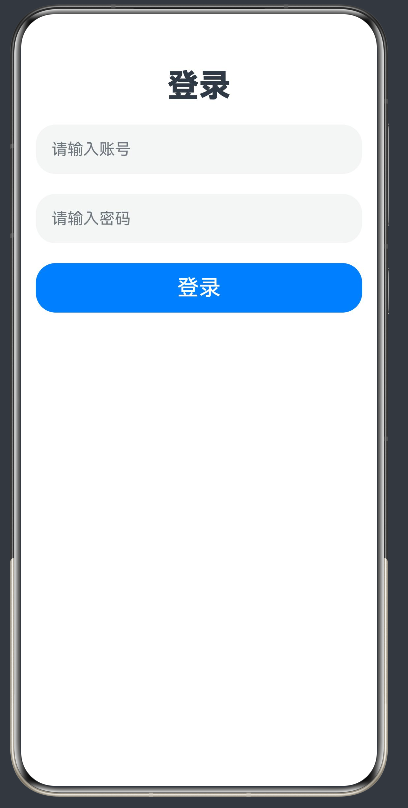
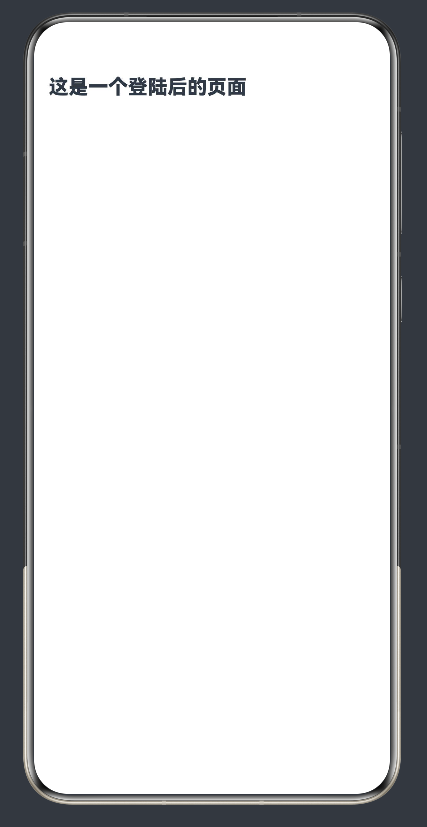
本次项目由两个页面组成,分别是用户登录页面和登录成功主页。整体实现效果为:打开应用展示登录界面,用户点击登录按钮后,系统自动跳转至新的页面,完成一次完整的页面路由切换流程。
页面功能设计
1. 登录页面功能
登录页面是应用的首页面,页面整体采用垂直居中布局,界面包含页面标题、账号输入框、密码输入框以及登录按钮。界面布局整洁,组件间距合理,适配手机全屏展示效果。
账号与密码输入框支持用户内容输入,为后续账号密码校验功能预留了拓展空间。登录按钮是本页面的核心交互控件,主要负责触发页面跳转逻辑。
 间距
间距
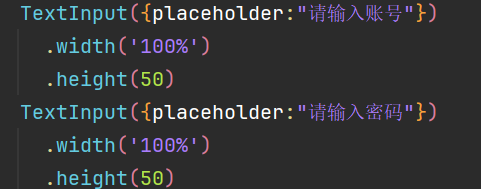 输入框
输入框
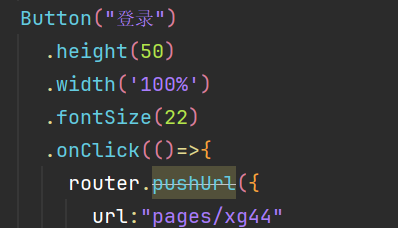 登录按钮
登录按钮
核心技术原理(路由机制)
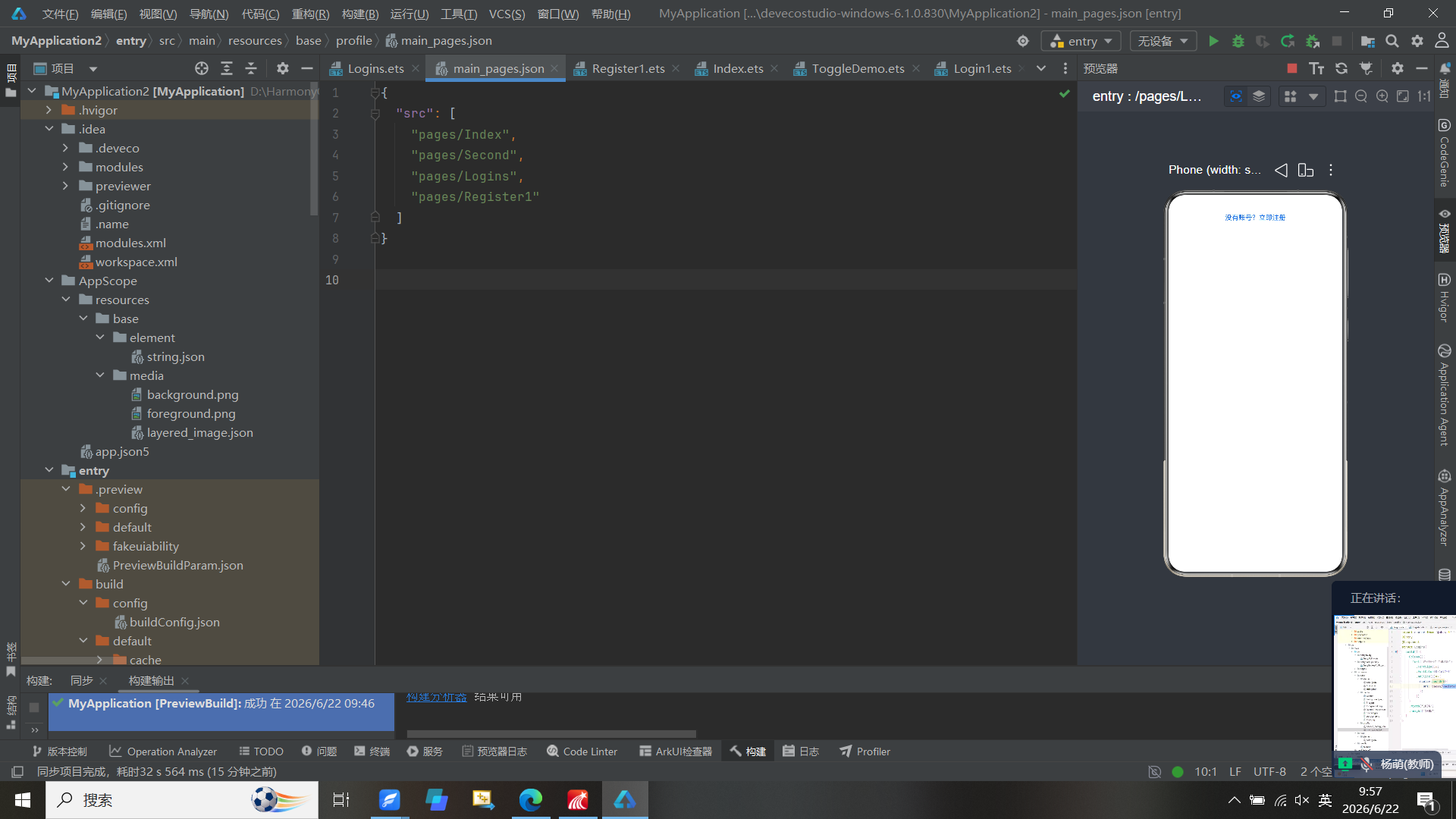
首先需要在 对话框中将两个文件名写入并同步,其次在登录页面完成基础配置,随后在首行加入
 意思是系统内置路由模块,无需额外安装依赖,
 所有页面跳转操作都依赖该模块 API,然后在按钮代码下写入onclick
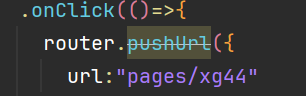 页面跳转的方法router.pushUrl({url:"pages/xg44"}),作用是往路由栈新增页面,从 xg43 跳转到 xg44 后,系统保留登录页,随后完成剩余基础配置即可
核心代码如下:
import router from '@ohos.router';
@Entry
@Component
struct lo{
build() {
Column({space:40}){
Text('用户注册')
.fontSize(32).fontWeight(FontWeight.Bolder).margin({top:20,bottom:10})
TextInput({placeholder:'请输入手机号或邮箱:'})
.width(320)
.height(52)
.borderRadius(12)
.fontSize(16)
TextInput({placeholder:'请输入密码:'})
.type(InputType.Password)
.width(320)
.height(52)
.borderRadius(12)
.fontSize(16)
TextInput({placeholder:'请再次输入密码:'})
.type(InputType.Password)
.width(320)
.height(52)
.borderRadius(12)
.fontSize(16)
Button('立即注册')
.width(320)
.height(52)
.backgroundColor(0x007dff)
.fontSize(16)
.borderRadius(12)
Text("已有账号,返回登录")
.fontSize(14)
.fontColor(0x1677ff)
.onClick(()=>{
router.pushUrl({
url:'pages/Logins'
})
})
}
.backgroundColor(0xf8f8f8)
.height('100%')
.width('100%')
.justifyContent(FlexAlign.Center)
}
}
只需复制一下Logins的代码,把加红部分修改一下
然后创建连接,在main_pages.json
只需添加最后两行代码即可
"pages/Logins",
"pages/Register1"
最后即可实现两个页面的跳转
点击没有账号?立即注册,即可完成跳转
如何制作用户登录表?
1.先判断是横向布局还是垂直布局
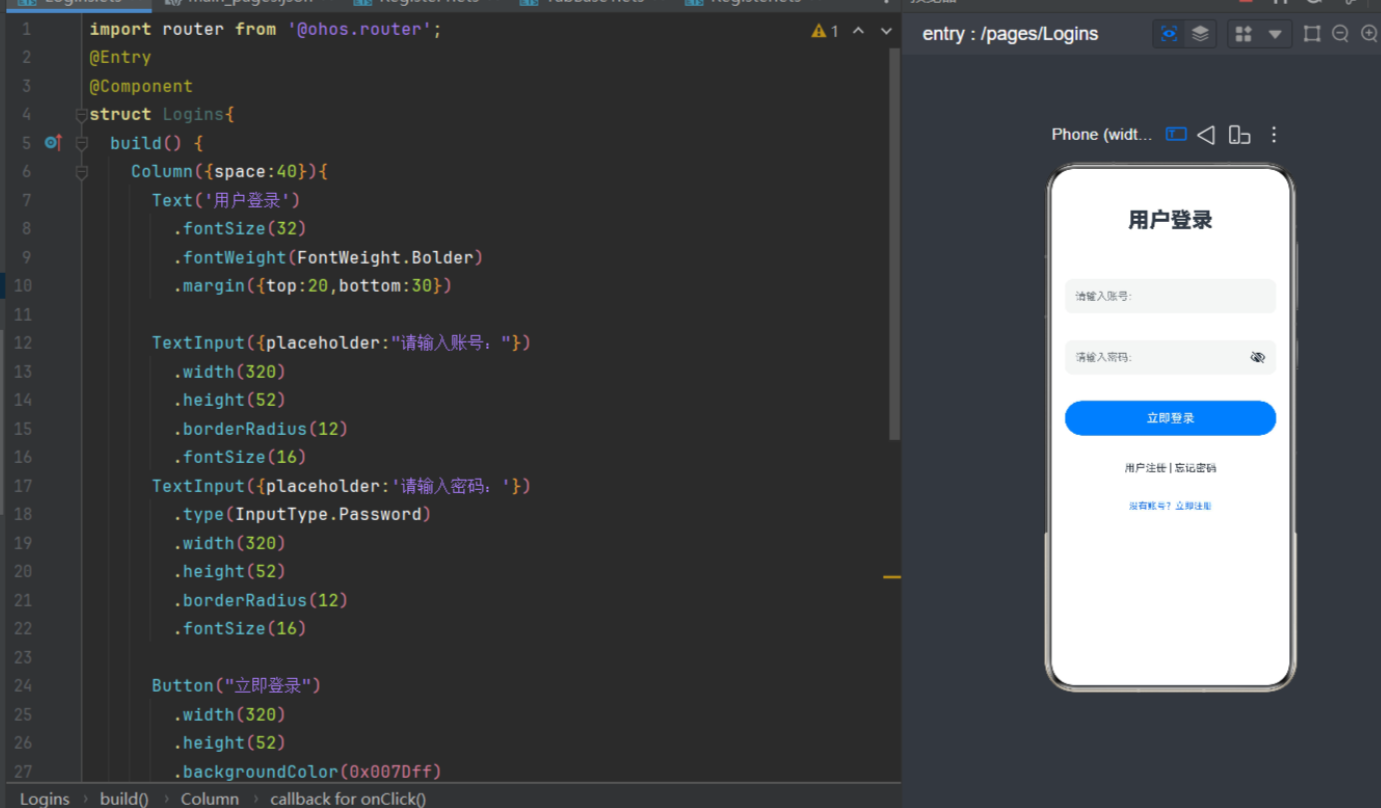
根据图片判断是垂直布局
2.写出基本框架
@Entry
@Component
struct Login1{
build() {
Column(){
}
}
}
3.从上往下依次罗列
引用Text()文本,在里面呈现“用户登录”四个字
Text('用户登录')
.fontSize(32)
.fontWeight(FontWeight.Bolder)
.margin({top:20,bottom:30})
然后引入文本框 TextInput({placeholder:""}),写出我们所需的账号及密码
TextInput({placeholder:"请输入账号:"})
.width(320)
.height(52)
.borderRadius(12)
.fontSize(16)
TextInput({placeholder:'请输入密码:'})
.type(InputType.Password)
.width(320)
.height(52)
.borderRadius(12)
.fontSize(16)
然后“登录”这里我们需要用到按钮Button组件
Button("立即登录")
.width(320)
.height(52)
.backgroundColor(0x007Dff)
.fontSize(18)
.borderRadius(12)
引入文本Text()
Text('用户注册 | 忘记密码')
最后设置一个版权信息的书写
Text("鸿蒙应用开发实训系统@2026")
.fontSize(14)
.fontColor(Color.Gray)
.margin({top:40})
4.最终代码及效果图如图所示
@Entry
@Component
struct Login{
@State isOn: boolean = false
build() {
Column({space:30}){
Text('用户登录')
.fontSize(32)
.fontWeight(FontWeight.Bolder)
.margin({top:20,bottom:30})
TextInput({placeholder:"请输入账号:"})
.width(320)
.height(52)
.borderRadius(12)
.fontSize(16)
TextInput({placeholder:'请输入密码:'})
.type(InputType.Password)
.width(320)
.height(52)
.borderRadius(12)
.fontSize(16)
Button("立即登录")
.width(320)
.height(52)
.backgroundColor(0x007Dff)
.fontSize(18)
.borderRadius(12)
Text('用户注册 | 忘记密码')
Text("鸿蒙应用开发实训系统@2026")
.fontSize(14)
.fontColor(Color.Gray)
.margin({top:40})
}
.backgroundColor(Color.White)
.width('100%')
.height('100%')
.justifyContent(FlexAlign.Center)
}
}

讨论HarmonyOS开发技术,专注于API与组件、DevEco Studio、测试、元服务和应用上架分发等。
更多推荐


 3
3 0
0- 0


 已为社区贡献3条内容

所有评论(0)