深度解析 HarmonyOS 智能家居方案管控应用开发
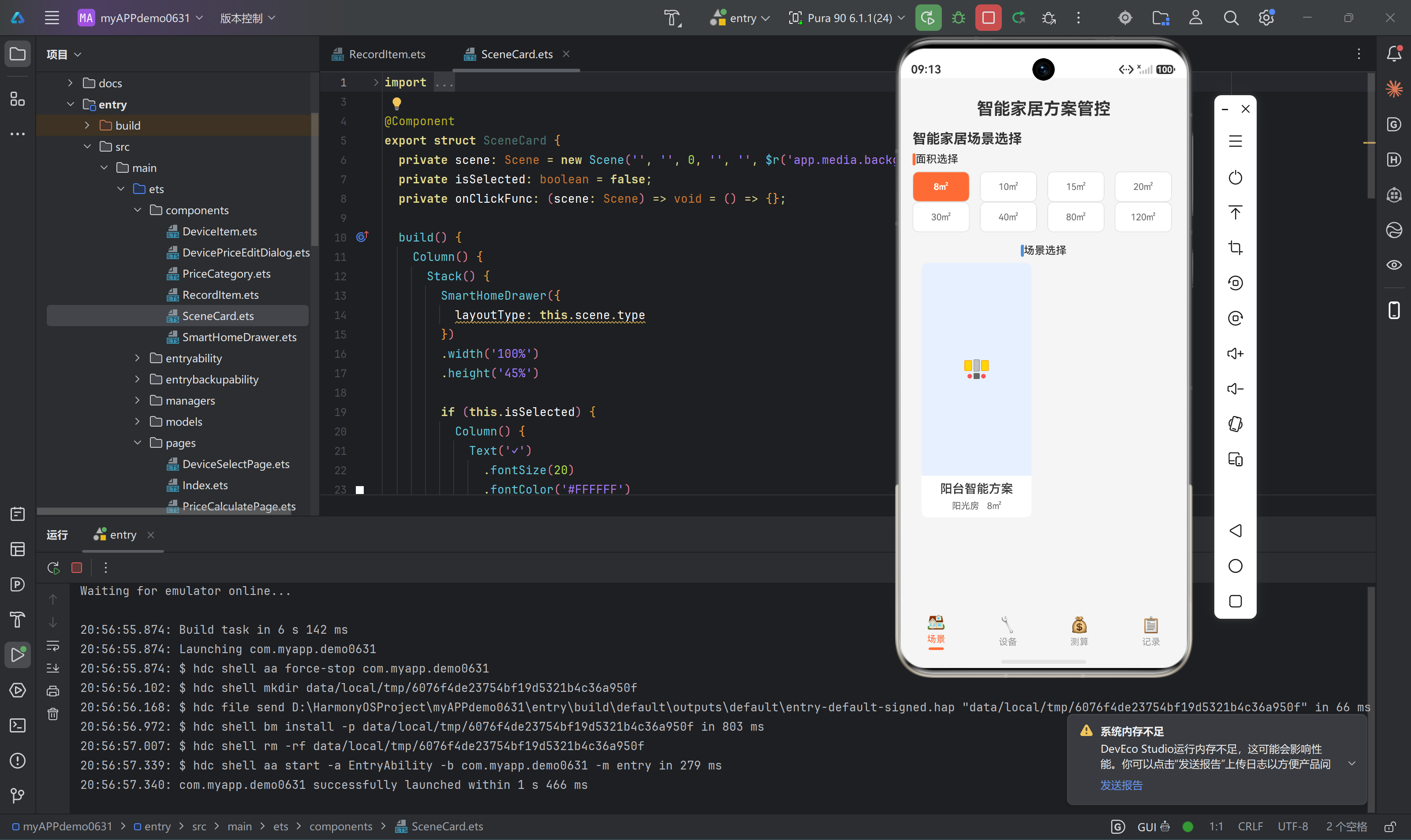
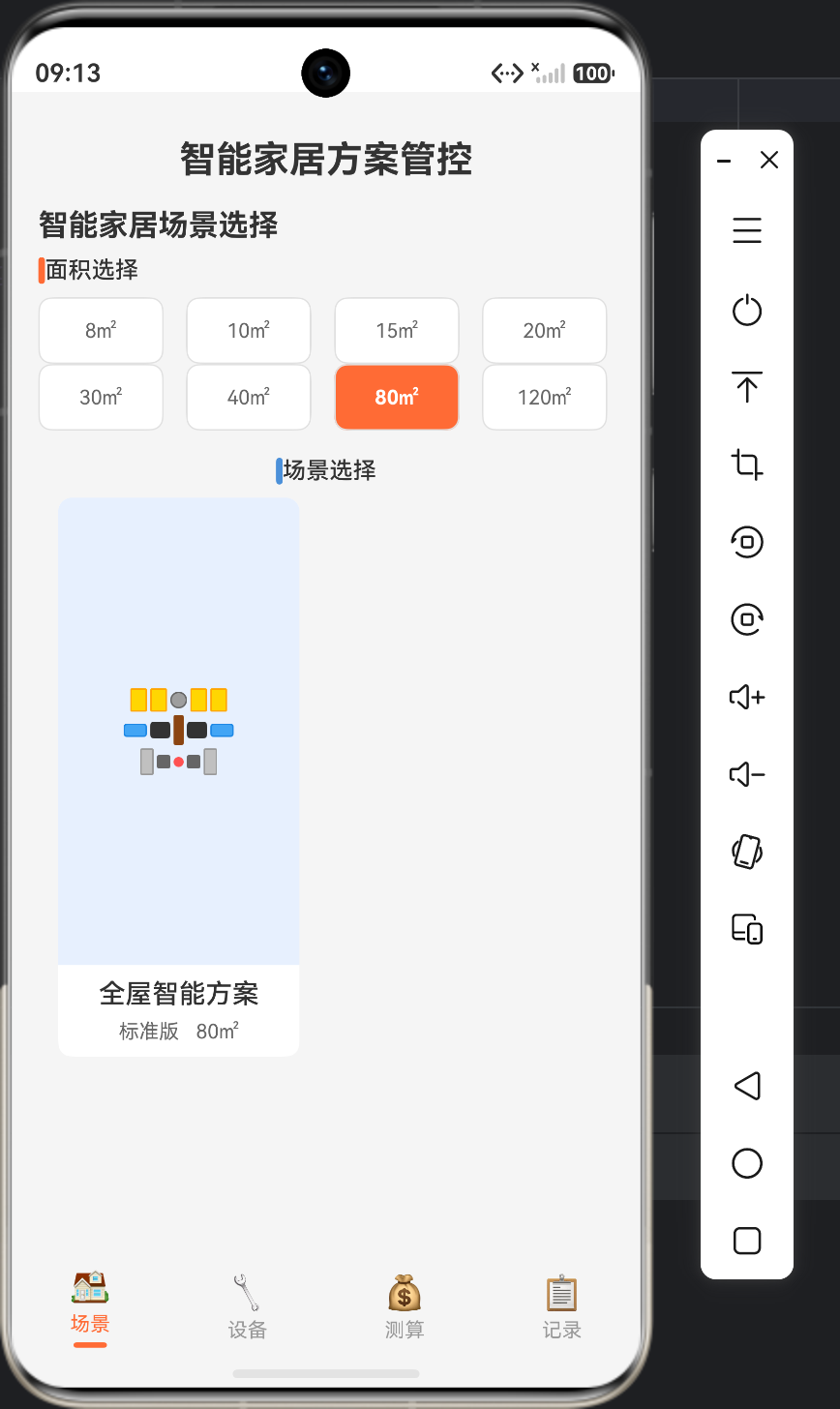
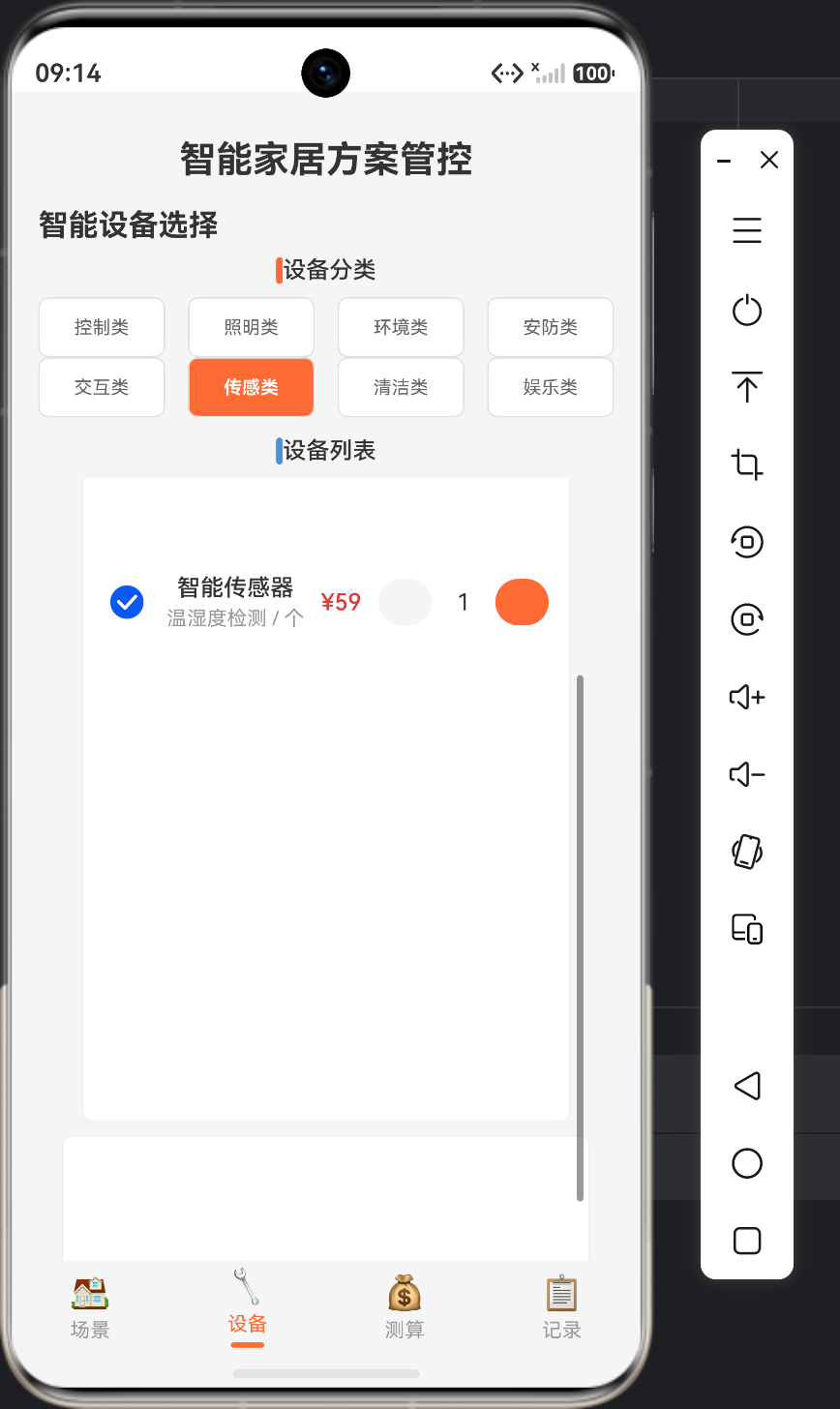
一、项目背景与需求分析
1.1 智能家居市场现状
随着物联网技术的快速发展,智能家居已成为家庭生活的新趋势。据市场研究机构预测,2026年全球智能家居市场规模将突破1500亿美元,中国市场占比超过30%。然而,智能家居方案的规划和实施面临诸多挑战:
- 信息碎片化:市场上智能设备种类繁多,品牌林立,消费者难以全面了解
- 方案选型困难:不同空间、不同面积需要不同的设备配置方案
- 预算难以控制:缺少直观的价格测算工具,容易超支
- 方案管理混乱:配置方案缺乏统一的记录和管理手段
1.2 应用定位
基于以上痛点,我们开发了智能家居方案管控应用,旨在为用户提供一站式的智能家居方案规划服务:
| 核心功能 | 说明 |
|---|---|
| 场景选择 | 根据空间类型和面积选择适合的智能场景方案 |
| 设备配置 | 从8大类16种智能设备中选择所需设备 |
| 价格测算 | 实时计算方案总价,支持自定义设备价格 |
| 历史记录 | 保存和管理已规划的方案,便于对比和复用 |
1.3 技术选型
| 技术 | 选型 | 理由 |
|---|---|---|
| 开发框架 | HarmonyOS ArkTS | 原生性能,声明式UI,类型安全 |
| UI组件库 | ArkUI | 提供丰富的原生组件和动画能力 |
| 数据持久化 | Preferences | 轻量级本地存储,适合小数据量场景 |
| 状态管理 | 单例模式 + @State | 简单高效,适合小型应用 |
二、架构设计与模块划分
2.1 分层架构设计
应用采用经典的三层架构模式:
┌─────────────────────────────────────────────┐
│                  UI层 (Pages)               │
│  Index.ets │ SceneSelectPage.ets           │
│  DeviceSelectPage.ets │ PriceCalculatePage │
│  RecordHistoryPage.ets                     │
├─────────────────────────────────────────────┤
│               业务逻辑层 (Managers)          │
│  SceneManager │ DeviceManager              │
│  RecordManager                             │
├─────────────────────────────────────────────┤
│                   数据层 (Models/Services)   │
│  Scene.ets │ Device.ets │ Record.ets       │
│  Selection.ets │ StorageService.ets        │
└─────────────────────────────────────────────┘
2.2 模块职责说明
| 模块 | 职责 | 文件 |
|---|---|---|
| UI层 | 用户交互界面 | pages/ 目录下所有文件 |
| 业务逻辑层 | 数据管理和业务处理 | managers/ 目录下所有文件 |
| 数据模型 | 数据结构定义 | models/ 目录下所有文件 |
| 数据持久化 | 本地存储操作 | services/StorageService.ets |
| 复用组件 | 可复用UI组件 | components/ 目录下所有文件 |
2.3 设计原则
- 单一职责原则:每个类只负责一个功能
- 依赖倒置原则:高层模块不依赖底层模块,都依赖抽象
- 状态管理:使用单例模式管理全局状态,@State管理组件状态
- 组件复用:提取通用组件,提高代码复用率
- 数据持久化:使用Preferences实现数据本地存储
三、数据模型设计
3.1 Scene(场景模型)
场景模型定义了智能家居方案的基础信息:
export class Scene {
  id: string = '';
  name: string = '';
  area: number = 0;
  type: string = '';
  description: string = '';
  image: Resource = $r('app.media.background');
  width: number = 0;
  height: number = 0;

  constructor(id: string, name: string, area: number, type: string,
              description: string, image: Resource, width: number, height: number) {
    this.id = id;
    this.name = name;
    this.area = area;
    this.type = type;
    this.description = description;
    this.image = image;
    this.width = width;
    this.height = height;
  }

  get sceneArea(): number {
    return this.area;
  }
}
字段说明:
| 字段 | 类型 | 说明 |
|---|---|---|
id | string | 场景唯一标识 |
name | string | 场景名称(如"客厅智能方案") |
area | number | 场景面积(㎡) |
type | string | 场景类型(如"简约现代") |
description | string | 场景描述 |
image | Resource | 场景示意图资源 |
width | number | 场景宽度(米) |
height | number | 场景高度(米) |
3.2 Device(设备模型)
设备模型定义了智能设备的详细信息:
export class Device {
  id: string = '';
  name: string = '';
  category: string = '';
  specification: string = '';
  unit: string = '';
  marketPrice: number = 0;
  customPrice: number = 0;
  selected: boolean = false;
  quantity: number = 1;

  constructor(id: string, name: string, category: string,
              specification: string, unit: string, marketPrice: number) {
    this.id = id;
    this.name = name;
    this.category = category;
    this.specification = specification;
    this.unit = unit;
    this.marketPrice = marketPrice;
    this.customPrice = marketPrice;
    this.selected = false;
    this.quantity = 1;
  }
}
字段说明:
| 字段 | 类型 | 说明 |
|---|---|---|
id | string | 设备唯一标识 |
name | string | 设备名称 |
category | string | 设备分类 |
specification | string | 设备规格 |
unit | string | 计量单位 |
marketPrice | number | 市场价格 |
customPrice | number | 用户自定义价格 |
selected | boolean | 是否选中 |
quantity | number | 数量 |
3.3 Record(记录模型)
记录模型保存了用户已规划的方案信息:
import { Device } from './Device';

export class Record {
  id: string = '';
  name: string = '';
  sceneId: string = '';
  sceneName: string = '';
  sceneArea: number = 0;
  sceneType: string = '';
  devices: Array<Device> = [];
  totalPrice: number = 0;
  createTime: string = '';

  constructor(id: string, name: string, sceneId: string, sceneName: string,
              sceneArea: number, sceneType: string, devices: Array<Device>,
              totalPrice: number, createTime: string) {
    this.id = id;
    this.name = name;
    this.sceneId = sceneId;
    this.sceneName = sceneName;
    this.sceneArea = sceneArea;
    this.sceneType = sceneType;
    this.devices = devices;
    this.totalPrice = totalPrice;
    this.createTime = createTime;
  }
}
字段说明:
| 字段 | 类型 | 说明 |
|---|---|---|
id | string | 记录唯一标识(时间戳) |
name | string | 方案名称 |
sceneId | string | 关联场景ID |
sceneName | string | 关联场景名称 |
sceneArea | number | 场景面积 |
sceneType | string | 场景类型 |
devices | Array<Device> | 选中的设备列表 |
totalPrice | number | 方案总价 |
createTime | string | 创建时间 |
3.4 Selection(选择状态模型)
选择状态模型用于保存用户的选择状态:
class QuantityPair {
  deviceId: string = '';
  quantity: number = 0;
}

export class Selection {
  sceneId: string = '';
  sceneName: string = '';
  deviceIds: Array<string> = [];
  deviceQuantityPairs: Array<QuantityPair> = [];

  constructor() {
    this.sceneId = '';
    this.sceneName = '';
    this.deviceIds = [];
    this.deviceQuantityPairs = [];
  }

  setQuantity(deviceId: string, quantity: number): void {
    for (let i = 0; i < this.deviceQuantityPairs.length; i++) {
      if (this.deviceQuantityPairs[i].deviceId === deviceId) {
        this.deviceQuantityPairs[i].quantity = quantity;
        return;
      }
    }
    let pair = new QuantityPair();
    pair.deviceId = deviceId;
    pair.quantity = quantity;
    this.deviceQuantityPairs.push(pair);
  }

  getQuantity(deviceId: string): number {
    for (let i = 0; i < this.deviceQuantityPairs.length; i++) {
      if (this.deviceQuantityPairs[i].deviceId === deviceId) {
        return this.deviceQuantityPairs[i].quantity;
      }
    }
    return 1;
  }
}
四、核心管理类实现
4.1 SceneManager(场景管理类)
场景管理类负责管理所有场景数据和选择状态:
import { Scene } from '../models/Scene';

export class SceneManager {
  private scenes: Array<Scene> = [];
  private selectedScene: Scene | null = null;

  constructor() {
    this.initScenes();
  }

  private initScenes(): void {
    this.scenes = [
      new Scene('s1', '客厅智能方案', 30, '简约现代', '适合小户型,基础智能设备配置',
                 $r('app.media.background'), 5.0, 6.0),
      new Scene('s2', '客厅智能方案', 40, '豪华智能', '适合中大户型,全套智能设备',
                 $r('app.media.background'), 6.0, 7.0),
      new Scene('s3', '卧室智能方案', 15, '舒适睡眠', '专注睡眠环境,智能调光控温',
                 $r('app.media.background'), 3.5, 4.5),
      new Scene('s4', '卧室智能方案', 20, '轻奢智能', '舒适与科技结合,智能窗帘照明',
                 $r('app.media.background'), 4.0, 5.0),
      new Scene('s5', '书房智能方案', 10, '高效办公', '专注工作环境,智能降噪照明',
                 $r('app.media.background'), 3.0, 3.5),
      new Scene('s6', '书房智能方案', 15, '多功能室', '办公休闲一体,智能切换场景',
                 $r('app.media.background'), 3.5, 4.5),
      new Scene('s7', '阳台智能方案', 8, '阳光房', '智能遮阳灌溉,绿植养护',
                 $r('app.media.background'), 2.5, 3.2),
      new Scene('s8', '阳台智能方案', 12, '休闲区', '智能照明音响,户外休闲体验',
                 $r('app.media.background'), 3.0, 4.0),
      new Scene('s9', '全屋智能方案', 80, '标准版', '基础全屋智能,覆盖主要空间',
                 $r('app.media.background'), 8.0, 10.0),
      new Scene('s10', '全屋智能方案', 120, '旗舰版', '顶级全屋智能,AI深度融合',
                 $r('app.media.background'), 10.0, 12.0),
    ];
  }

  getScenesByArea(area: number): Array<Scene> {
    let result: Array<Scene> = [];
    for (let i = 0; i < this.scenes.length; i++) {
      if (this.scenes[i].area === area) {
        result.push(this.scenes[i]);
      }
    }
    return result;
  }

  getAllAreas(): Array<number> {
    return [8, 10, 15, 20, 30, 40, 80, 120];
  }

  selectScene(scene: Scene): void {
    this.selectedScene = scene;
  }

  getSelectedScene(): Scene | null {
    return this.selectedScene;
  }
}

export const sceneManager: SceneManager = new SceneManager();
核心方法说明:
| 方法 | 说明 |
|---|---|
initScenes() | 初始化10种预设场景方案 |
getScenesByArea(area) | 根据面积筛选场景 |
getAllAreas() | 获取所有可选面积 |
selectScene(scene) | 设置选中场景 |
getSelectedScene() | 获取选中场景 |
4.2 DeviceManager(设备管理类)
设备管理类负责管理所有智能设备数据:
import { Device } from '../models/Device';

export class DeviceManager {
  private devices: Array<Device> = [];

  constructor() {
    this.initDevices();
  }

  private initDevices(): void {
    this.devices = [
      new Device('d1', '智能开关', '控制类', 'WiFi远程控制', '个', 129),
      new Device('d2', '智能插座', '控制类', '定时开关电量统计', '个', 79),
      new Device('d3', '智能灯带', '照明类', 'RGB调光', '米', 99),
      new Device('d4', '智能吸顶灯', '照明类', '色温调节', '盏', 299),
      new Device('d5', '智能窗帘电机', '环境类', '语音控制', '套', 599),
      new Device('d6', '智能空调伴侣', '环境类', '远程控温', '个', 149),
      new Device('d7', '智能门锁', '安防类', '指纹密码NFC', '套', 1299),
      new Device('d8', '智能摄像头', '安防类', '2K夜视', '台', 399),
      new Device('d9', '智能音箱', '交互类', '语音助手', '台', 299),
      new Device('d10', '智能网关', '交互类', '蓝牙Mesh', '个', 199),
      new Device('d11', '智能传感器', '传感类', '温湿度检测', '个', 59),
      new Device('d12', '智能烟雾报警器', '传感类', '远程报警', '个', 129),
      new Device('d13', '智能扫地机器人', '清洁类', '自动清扫', '台', 1599),
      new Device('d14', '智能空气净化器', '清洁类', 'PM2.5监测', '台', 899),
      new Device('d15', '智能投影仪', '娱乐类', '4K高清', '台', 2999),
      new Device('d16', '智能电视盒子', '娱乐类', '语音点播', '台', 399),
    ];
  }
  // ... 其他方法
}

export const deviceManager: DeviceManager = new DeviceManager();
设备分类说明:
| 分类 | 设备 | 价格范围 |
|---|---|---|
| 控制类 | 智能开关、智能插座 | ¥79-¥129 |
| 照明类 | 智能灯带、智能吸顶灯 | ¥99-¥299 |
| 环境类 | 智能窗帘电机、智能空调伴侣 | ¥149-¥599 |
| 安防类 | 智能门锁、智能摄像头 | ¥399-¥1299 |
| 交互类 | 智能音箱、智能网关 | ¥199-¥299 |
| 传感类 | 智能传感器、智能烟雾报警器 | ¥59-¥129 |
| 清洁类 | 智能扫地机器人、智能空气净化器 | ¥899-¥1599 |
| 娱乐类 | 智能投影仪、智能电视盒子 | ¥399-¥2999 |
核心方法说明:
| 方法 | 说明 |
|---|---|
getDevicesByCategory(category) | 根据分类筛选设备 |
getAllCategories() | 获取所有设备分类 |
toggleDeviceSelection(id) | 切换设备选中状态 |
updateDevicePrice(id, price) | 更新设备自定义价格 |
updateDeviceQuantity(id, quantity) | 更新设备数量 |
getSelectedDevices() | 获取所有选中设备 |
getTotalPrice() | 计算选中设备总价 |
4.3 RecordManager(记录管理类)
记录管理类负责保存和管理用户的方案记录:
import { Record } from '../models/Record';
import { Scene } from '../models/Scene';
import { Device } from '../models/Device';
import { storageService } from '../services/StorageService';
import { sceneManager } from './SceneManager';
import { deviceManager } from './DeviceManager';

export class RecordManager {
  private records: Array<Record> = [];

  constructor() {
    this.loadRecords();
  }

  saveRecord(name: string): boolean {
    let scene = sceneManager.getSelectedScene();
    if (scene === null) {
      return false;
    }

    let devices = deviceManager.getSelectedDevices();
    let deviceCopy: Array<Device> = [];
    for (let i = 0; i < devices.length; i++) {
      let dev = devices[i];
      let newDev = new Device(dev.id, dev.name, dev.category, dev.specification, dev.unit, dev.marketPrice);
      newDev.customPrice = dev.customPrice;
      newDev.selected = dev.selected;
      newDev.quantity = dev.quantity;
      deviceCopy.push(newDev);
    }

    let totalPrice: number = 0;
    for (let i = 0; i < deviceCopy.length; i++) {
      totalPrice += deviceCopy[i].customPrice * deviceCopy[i].quantity;
    }

    let timestamp: string = new Date().toISOString();
    let record = new Record(
      timestamp,
      name,
      scene.id,
      scene.name,
      scene.area,
      scene.type,
      deviceCopy,
      totalPrice,
      timestamp
    );

    this.records.unshift(record);
    this.saveRecordsAsync();
    return true;
  }
  // ... 其他方法
}

export const recordManager: RecordManager = new RecordManager();
核心方法说明:
| 方法 | 说明 |
|---|---|
saveRecord(name) | 保存方案记录(深拷贝设备数据) |
getAllRecords() | 获取所有记录 |
getRecordById(id) | 根据ID获取记录 |
deleteRecord(id) | 删除记录 |
loadRecords() | 从本地存储加载记录 |
五、核心UI组件实现
5.1 SmartHomeDrawer(智能家居场景绘制组件)
这是应用中最具特色的组件之一,使用纯代码绘制智能家居场景示意图:
@Component
export struct SmartHomeDrawer {
  private layoutType: string = '';
  private color: string = '#4A90D9';
  private bgColor: string = '#E8F0FE';

  build() {
    Column() {
      if (this.layoutType === '简约现代') {
        this.drawModernLayout();
      } else if (this.layoutType === '豪华智能') {
        this.drawLuxuryLayout();
      } else if (this.layoutType === '舒适睡眠') {
        this.drawSleepLayout();
      }
      // ... 其他布局类型
    }
    .width('100%')
    .height('100%')
    .backgroundColor(this.bgColor)
    .borderRadius({ topLeft: 8, topRight: 8 })
    .padding(4)
    .justifyContent(FlexAlign.Center)
    .alignItems(HorizontalAlign.Center)
  }

  @Builder
  drawLight() {
    Column() {}
      .width(10)
      .height(14)
      .backgroundColor('#FFD700')
      .borderRadius(1)
      .borderWidth(1)
      .borderColor('#FFA500')
  }

  @Builder
  drawSwitch() {
    Column() {}
      .width(8)
      .height(8)
      .backgroundColor('#666666')
      .borderRadius(1)
  }

  @Builder
  drawCamera() {
    Column() {}
      .width(10)
      .height(10)
      .backgroundColor('#9E9E9E')
      .borderRadius(5)
      .borderWidth(1)
      .borderColor('#666666')
  }

  // ... 其他绘制方法
}
绘制元素说明:
| 元素 | 颜色 | 尺寸 | 说明 |
|---|---|---|---|
drawLight() | #FFD700 金色 | 10×14 | 智能照明 |
drawSwitch() | #666666 灰色 | 8×8 | 智能开关 |
drawCamera() | #9E9E9E 银色 | 10×10 | 安防摄像头 |
drawSpeaker() | #333333 黑色 | 12×10 | 智能音箱 |
drawCurtain() | #C0C0C0 银色 | 8×16 | 智能窗帘 |
drawAC() | #42A5F5 蓝色 | 14×8 | 智能空调 |
drawDoor() | #8B4513 棕色 | 6×18 | 智能门锁 |
drawSensor() | #FF5252 红色 | 6×6 | 传感器 |
drawRobot() | #4DB6AC 青色 | 10×8 | 扫地机器人 |
drawTV() | #1A1A1A 黑色 | 18×10 | 智能电视 |
场景绘制示例:
以"豪华智能"场景为例,绘制了一个完整的客厅智能布局:
@Builder
drawLuxuryLayout() {
  Column({ space: 2 }) {
    Row({ space: 2 }) {
      this.drawLight();
      this.drawLight();
      this.drawTV();
      this.drawLight();
      this.drawLight();
    }
    .width('100%')
    .justifyContent(FlexAlign.Center)

    Row({ space: 2 }) {
      this.drawCamera();
      this.drawSpeaker();
      this.drawAC();
      this.drawSpeaker();
      this.drawCamera();
    }
    .width('100%')
    .justifyContent(FlexAlign.Center)

    Row({ space: 2 }) {
      this.drawCurtain();
      this.drawSwitch();
      this.drawRobot();
      this.drawSwitch();
      this.drawCurtain();
    }
    .width('100%')
    .justifyContent(FlexAlign.Center)
  }
  .width('100%')
  .height('100%')
  .justifyContent(FlexAlign.Center)
}
5.2 DeviceItem(设备列表项组件)
设备列表项组件展示单个设备的详细信息和操作按钮:
import { Device } from '../models/Device';

@Component
export struct DeviceItem {
  @State device: Device = new Device('', '', '', '', '', 0);
  private onToggleFunc: (id: string) => void = () => {};
  private onPriceEditFunc: (device: Device) => void = () => {};
  private onQuantityChangeFunc: (id: string, quantity: number) => void = () => {};

  build() {
    Row({ space: 0 }) {
      Column() {}
        .width(this.device.selected ? 3 : 0)
        .height('100%')
        .backgroundColor('#FF6B35')
        .borderRadius({ topLeft: 6, bottomLeft: 6 })

      Row({ space: 10 }) {
        Checkbox()
          .select(this.device.selected)
          .onChange((value: boolean) => {
            this.onToggleFunc(this.device.id);
          })

        Column({ space: 3 }) {
          Text(this.device.name)
            .fontSize(14)
            .fontWeight(FontWeight.Medium)
          Text(`${this.device.specification} / ${this.device.unit}`)
            .fontSize(12)
            .fontColor('#999999')
        }
        .flexGrow(1)

        Text(`¥${this.device.customPrice}`)
          .fontSize(14)
          .fontColor('#E53935')
          .fontWeight(FontWeight.Medium)
          .onClick(() => {
            this.onPriceEditFunc(this.device);
          })

        Row({ space: 6 }) {
          Button('-')
            .width(28)
            .height(28)
            .fontSize(14)
            .backgroundColor('#F5F5F5')
            .fontColor('#333333')
            .borderRadius(14)
            .onClick(() => {
              if (this.device.quantity > 1) {
                this.onQuantityChangeFunc(this.device.id, this.device.quantity - 1);
              }
            })

          Text(`${this.device.quantity}`)
            .fontSize(14)
            .width(26)
            .textAlign(TextAlign.Center)

          Button('+')
            .width(28)
            .height(28)
            .fontSize(14)
            .backgroundColor('#FF6B35')
            .fontColor('#FFFFFF')
            .borderRadius(14)
            .onClick(() => {
              this.onQuantityChangeFunc(this.device.id, this.device.quantity + 1);
            })
        }
      }
      .padding({ left: 12, right: 12, top: 10, bottom: 10 })
    }
    .backgroundColor(this.device.selected ? '#FFF8F5' : '#FFFFFF')
    .borderRadius(6)
    .borderWidth(1)
    .borderColor('#F0F0F0')
  }
}
组件特性:
- 选中状态指示:左侧红色竖条表示选中状态
- 复选框交互:点击复选框切换选中状态
- 价格可编辑:点击价格文字弹出编辑对话框
- 数量增减:支持增减按钮调整设备数量
5.3 DevicePriceEditDialog(设备价格编辑对话框)
自定义对话框组件,用于修改设备价格:
import { Device } from '../models/Device';

@CustomDialog
export struct DevicePriceEditDialog {
  controller: CustomDialogController;
  device: Device = new Device('', '', '', '', '', 0);
  onConfirm: (id: string, price: number) => void = () => {};
  onCancel: () => void = () => {};

  @State inputPrice: string = '';

  build() {
    Column({ space: 12 }) {
      Text('修改价格')
        .fontSize(18)
        .fontWeight(FontWeight.Bold)
        .fontColor('#333333')

      Text(`当前价格:¥${this.device.customPrice}`)
        .fontSize(14)
        .fontColor('#666666')

      TextInput({ placeholder: '请输入新价格' })
        .width('100%')
        .height(44)
        .fontSize(14)
        .backgroundColor('#F5F5F5')
        .borderRadius(6)
        .type(InputType.Number)
        .onChange((value: string) => {
          this.inputPrice = value;
        })
        .onFocus(() => {
          this.inputPrice = `${this.device.customPrice}`;
        })

      Row({ space: 12 }) {
        Button('取消')
          .flexGrow(1)
          .height(44)
          .fontSize(14)
          .backgroundColor('#F5F5F5')
          .fontColor('#666666')
          .borderRadius(22)
          .onClick(() => {
            this.onCancel();
            this.controller.close();
          })

        Button('确认')
          .flexGrow(1)
          .height(44)
          .fontSize(14)
          .backgroundColor('#FF6B35')
          .fontColor('#FFFFFF')
          .borderRadius(22)
          .onClick(() => {
            let price = parseFloat(this.inputPrice);
            if (!isNaN(price) && price >= 0) {
              this.onConfirm(this.device.id, price);
              this.controller.close();
            }
          })
      }
    }
    .padding(20)
    .width(260)
    .backgroundColor('#FFFFFF')
    .borderRadius(10)
  }
}
对话框特性:
- 输入聚焦时自动填充当前价格
- 仅接受数字输入(
InputType.Number) - 价格验证:确保输入有效且非负
5.4 PriceCategory(价格分类组件)
价格分类组件按分类展示选中设备的价格明细:
import { Device } from '../models/Device';

@Component
export struct PriceCategory {
  @State categoryName: string = '';
  @State devices: Array<Device> = [];
  @State subtotal: number = 0;

  aboutToAppear(): void {
    this.calculateSubtotal();
  }

  aboutToReappear(): void {
    this.calculateSubtotal();
  }

  private calculateSubtotal(): void {
    this.subtotal = 0;
    for (let i = 0; i < this.devices.length; i++) {
      this.subtotal += this.devices[i].customPrice * this.devices[i].quantity;
    }
  }

  build() {
    Column({ space: 6 }) {
      if (this.devices.length === 0) {
        Column() {}
          .height(0)
      } else {
        Text(`${this.categoryName}`)
          .fontSize(16)
          .fontWeight(FontWeight.Bold)
          .fontColor('#333333')
          .padding({ left: 12, top: 6 })

        Column() {
          ForEach(this.devices, (device: Device) => {
            Row({ space: 10 }) {
              Column({ space: 3 }) {
                Text(device.name)
                  .fontSize(14)
                  .fontColor('#333333')
                Text(`${device.specification} / ${device.unit}`)
                  .fontSize(12)
                  .fontColor('#999999')
              }
              .flexGrow(1)

              Text(`¥${device.customPrice}`)
                .fontSize(14)
                .fontColor('#666666')

              Text(`×${device.quantity}`)
                .fontSize(14)
                .fontColor('#666666')

              Text(`¥${(device.customPrice * device.quantity).toFixed(2)}`)
                .fontSize(14)
                .fontColor('#E53935')
                .fontWeight(FontWeight.Medium)
            }
            .padding({ left: 12, right: 12, top: 6, bottom: 6 })
          })
        }
        .backgroundColor('#FFFFFF')
        .borderRadius(6)

        Row() {
          Text('小计:')
            .fontSize(14)
            .fontColor('#666666')
          Text(`¥${this.subtotal.toFixed(2)}`)
            .fontSize(14)
            .fontColor('#E53935')
            .fontWeight(FontWeight.Medium)
        }
        .justifyContent(FlexAlign.End)
        .padding({ right: 12, bottom: 6 })
      }
    }
  }
}
组件特性:
- 动态显示:无选中设备时隐藏该分类
- 小计计算:自动计算该分类下设备的总价
- 格式化显示:价格保留两位小数
六、页面实现
6.1 Index(主页面)
主页面是应用的入口,使用Tabs组件实现四个功能模块的导航:
import { SceneSelectPage } from './SceneSelectPage';
import { DeviceSelectPage } from './DeviceSelectPage';
import { PriceCalculatePage } from './PriceCalculatePage';
import { RecordHistoryPage } from './RecordHistoryPage';

@Entry
@Component
struct Index {
  @State currentIndex: number = 0;
  @State tabTitles: Array<string> = ['场景', '设备', '测算', '记录'];
  @State tabIcons: Array<string> = ['🏠', '🔧', '💰', '📋'];

  build() {
    Column() {
      Text('智能家居方案管控')
        .fontSize(22)
        .fontWeight(FontWeight.Bold)
        .fontColor('#333333')
        .padding({ top: 28, bottom: 8 })
        .width('100%')
        .textAlign(TextAlign.Center)

      Tabs({ barPosition: BarPosition.End }) {
        TabContent() {
          SceneSelectPage()
        }
        .tabBar(this.buildTabBar(0))

        TabContent() {
          DeviceSelectPage()
        }
        .tabBar(this.buildTabBar(1))

        TabContent() {
          PriceCalculatePage()
        }
        .tabBar(this.buildTabBar(2))

        TabContent() {
          RecordHistoryPage()
        }
        .tabBar(this.buildTabBar(3))
      }
      .flexGrow(1)
      .backgroundColor('#F5F5F5')
      .onChange((index: number) => {
        this.currentIndex = index;
      })
    }
    .height('100%')
    .backgroundColor('#F5F5F5')
    .padding({ bottom: 54 })
  }

  @Builder
  buildTabBar(index: number) {
    Column({ space: 4 }) {
      Text(this.tabIcons[index])
        .fontSize(20)
        .fontColor(this.currentIndex === index ? '#FF6B35' : '#999999')

      Text(this.tabTitles[index])
        .fontSize(12)
        .fontColor(this.currentIndex === index ? '#FF6B35' : '#999999')

      if (this.currentIndex === index) {
        Column() {}
          .width(20)
          .height(3)
          .backgroundColor('#FF6B35')
          .borderRadius(2)
      }
    }
    .width('100%')
    .height('100%')
    .alignItems(HorizontalAlign.Center)
    .justifyContent(FlexAlign.Center)
  }
}
Tab导航设计:
| Tab | 图标 | 页面 | 功能 |
|---|---|---|---|
| 场景 | 🏠 | SceneSelectPage | 选择智能场景方案 |
| 设备 | 🔧 | DeviceSelectPage | 选择智能设备 |
| 测算 | 💰 | PriceCalculatePage | 价格测算与方案保存 |
| 记录 | 📋 | RecordHistoryPage | 查看历史方案记录 |
6.2 SceneSelectPage(场景选择页面)
场景选择页面允许用户按面积筛选并选择场景:
import { SceneCard } from '../components/SceneCard';
import { Scene } from '../models/Scene';
import { sceneManager } from '../managers/SceneManager';

@Component
export struct SceneSelectPage {
  @State selectedArea: number = 0;
  @State selectedScene: Scene | null = null;
  @State scenes: Array<Scene> = [];
  @State areas: Array<number> = [];

  build() {
    Column({ space: 16 }) {
      Column({ space: 8 }) {
        Text('智能家居场景选择')
          .fontSize(18)
          .fontWeight(FontWeight.Bold)
          .fontColor('#333333')
          .width('100%')

        Row({ space: 8 }) {
          Row() {
            Column() {}.width(4).height(16).backgroundColor('#FF6B35').borderRadius(2)
            Text('面积选择')
              .fontSize(14)
              .fontWeight(FontWeight.Medium)
              .fontColor('#333333')
          }
          .width('100%')
        }

        Flex({ wrap: FlexWrap.Wrap, justifyContent: FlexAlign.SpaceBetween }) {
          ForEach(this.areas, (area: number) => {
            Button(`${area}㎡`)
              .width('22%')
              .height(40)
              .fontSize(12)
              .fontWeight(this.selectedArea === area ? FontWeight.Bold : FontWeight.Normal)
              .backgroundColor(this.selectedArea === area ? '#FF6B35' : '#FFFFFF')
              .fontColor(this.selectedArea === area ? '#FFFFFF' : '#666666')
              .borderRadius(8)
              .borderWidth(1)
              .borderColor('#E0E0E0')
              .onClick(() => {
                this.selectedArea = area;
                this.scenes = sceneManager.getScenesByArea(area);
                this.selectedScene = null;
              })
          })
        }
        .padding({ right: 4 })
      }

      Column({ space: 8 }) {
        Row() {
          Column() {}.width(4).height(16).backgroundColor('#4A90D9').borderRadius(2)
          Text('场景选择')
            .fontSize(14)
            .fontWeight(FontWeight.Medium)
            .fontColor('#333333')
        }

        Scroll() {
          Flex({ wrap: FlexWrap.Wrap, justifyContent: FlexAlign.SpaceBetween }) {
            ForEach(this.scenes, (scene: Scene) => {
              SceneCard({
                scene: scene,
                isSelected: this.selectedScene !== null && this.selectedScene.id === scene.id,
                onClickFunc: (s: Scene) => {
                  this.selectedScene = s;
                  sceneManager.selectScene(s);
                }
              })
            })
          }
          .padding({ left: 12, right: 12, bottom: 8 })
        }
        .flexGrow(1)
      }
    }
    .width('100%')
    .height('100%')
    .padding({ left: 16, right: 16, top: 8 })
    .backgroundColor('#F5F5F5')
    .justifyContent(FlexAlign.Start)
    .onAppear(() => {
      this.areas = sceneManager.getAllAreas();
      if (this.areas.length > 0) {
        this.selectedArea = this.areas[0];
        this.scenes = sceneManager.getScenesByArea(this.selectedArea);
      }
    })
  }
}
页面特性:
- 面积筛选:点击面积按钮筛选对应面积的场景
- 场景卡片:双列布局展示场景卡片
- 选中状态:选中场景后卡片显示橙色边框和勾选标记
6.3 DeviceSelectPage(设备选择页面)
设备选择页面允许用户按分类浏览和选择设备:
import { DeviceItem } from '../components/DeviceItem';
import { DevicePriceEditDialog } from '../components/DevicePriceEditDialog';
import { Device } from '../models/Device';
import { deviceManager } from '../managers/DeviceManager';

@Component
export struct DeviceSelectPage {
  @State selectedCategory: string = '';
  @State categories: Array<string> = [];
  @State devices: Array<Device> = [];

  build() {
    Column({ space: 12 }) {
      Column({ space: 8 }) {
        Text('智能设备选择')
          .fontSize(18)
          .fontWeight(FontWeight.Bold)
          .fontColor('#333333')
          .width('100%')

        Row() {
          Column() {}.width(4).height(16).backgroundColor('#FF6B35').borderRadius(2)
          Text('设备分类')
            .fontSize(14)
            .fontWeight(FontWeight.Medium)
            .fontColor('#333333')
        }

        Flex({ wrap: FlexWrap.Wrap, justifyContent: FlexAlign.SpaceBetween }) {
          ForEach(this.categories, (category: string) => {
            Button(category)
              .width('22%')
              .height(36)
              .fontSize(11)
              .fontWeight(this.selectedCategory === category ? FontWeight.Bold : FontWeight.Normal)
              .backgroundColor(this.selectedCategory === category ? '#FF6B35' : '#FFFFFF')
              .fontColor(this.selectedCategory === category ? '#FFFFFF' : '#666666')
              .borderRadius(6)
              .borderWidth(1)
              .borderColor('#E0E0E0')
              .onClick(() => {
                this.selectedCategory = category;
                this.devices = deviceManager.getDevicesByCategory(category);
              })
          })
        }
      }

      Column({ space: 8 }) {
        Row() {
          Column() {}.width(4).height(16).backgroundColor('#4A90D9').borderRadius(2)
          Text('设备列表')
            .fontSize(14)
            .fontWeight(FontWeight.Medium)
            .fontColor('#333333')
        }

        Scroll() {
          Column({ space: 8 }) {
            ForEach(this.devices, (device: Device) => {
              DeviceItem({
                device: device,
                onToggleFunc: (id: string) => {
                  deviceManager.toggleDeviceSelection(id);
                },
                onQuantityChangeFunc: (id: string, quantity: number) => {
                  deviceManager.updateDeviceQuantity(id, quantity);
                },
                onPriceEditFunc: (d: Device) => {
                  this.openEditDialog(d);
                }
              })
            })
          }
          .padding({ bottom: 8 })
        }
        .flexGrow(1)
      }
    }
    .width('100%')
    .height('100%')
    .padding({ left: 16, right: 16, top: 8 })
    .backgroundColor('#F5F5F5')
    .justifyContent(FlexAlign.Start)
    .onAppear(() => {
      this.categories = deviceManager.getAllCategories();
      if (this.categories.length > 0) {
        this.selectedCategory = this.categories[0];
        this.devices = deviceManager.getDevicesByCategory(this.selectedCategory);
      }
    })
  }

  openEditDialog(device: Device): void {
    let onConfirm = (id: string, price: number) => {
      deviceManager.updateDevicePrice(id, price);
      this.devices = deviceManager.getDevicesByCategory(this.selectedCategory);
    };
    let onCancel = () => {};

    let controller = new CustomDialogController({
      builder: DevicePriceEditDialog({
        device: device,
        onConfirm: onConfirm,
        onCancel: onCancel
      }),
      alignment: DialogAlignment.Center,
      autoCancel: true
    });
    controller.open();
  }
}
页面特性:
- 分类筛选:8个设备分类按钮,点击切换显示
- 设备列表:展示当前分类下的所有设备
- 交互操作:支持选中、修改价格、调整数量
6.4 PriceCalculatePage(价格测算页面)
价格测算页面展示已选场景和设备的价格明细:
import { Scene } from '../models/Scene';
import { sceneManager } from '../managers/SceneManager';
import { deviceManager } from '../managers/DeviceManager';
import { recordManager } from '../managers/RecordManager';
import { PriceCategory } from '../components/PriceCategory';

@Component
export struct PriceCalculatePage {
  @State selectedScene: Scene | null = null;
  @State categories: Array<string> = deviceManager.getAllCategories();
  @State totalPrice: number = 0;
  @State recordName: string = '';

  aboutToAppear(): void {
    this.selectedScene = sceneManager.getSelectedScene();
    this.totalPrice = deviceManager.getTotalPrice();
  }

  aboutToReappear(): void {
    this.selectedScene = sceneManager.getSelectedScene();
    this.totalPrice = deviceManager.getTotalPrice();
  }

  build() {
    Column({ space: 12 }) {
      Text('价格测算')
        .fontSize(18)
        .fontWeight(FontWeight.Bold)
        .fontColor('#333333')
        .padding({ left: 12, top: 12 })

      if (this.selectedScene !== null) {
        Column({ space: 6 }) {
          Text(`已选场景:${this.selectedScene.name}`)
            .fontSize(14)
            .fontColor('#333333')
            .fontWeight(FontWeight.Medium)
          Text(`${this.selectedScene.type} | ${this.selectedScene.area}㎡`)
            .fontSize(12)
            .fontColor('#666666')
        }
        .backgroundColor('#FFFFFF')
        .padding({ left: 12, right: 12, top: 10, bottom: 10 })
        .borderRadius(6)
        .margin({ left: 12, right: 12 })
      } else {
        Text('请先选择智能场景')
          .fontSize(14)
          .fontColor('#999999')
          .backgroundColor('#FFFFFF')
          .padding({ left: 12, right: 12, top: 10, bottom: 10 })
          .borderRadius(6)
          .margin({ left: 12, right: 12 })
      }

      Row({ space: 6 }) {
        Column() {}
          .width(3)
          .height(16)
          .backgroundColor('#FF6B35')
          .borderRadius(2)
        Text('设备明细')
          .fontSize(14)
          .fontColor('#666666')
      }
      .padding({ left: 12 })

      Scroll() {
        Column({ space: 12 }) {
          ForEach(this.categories, (category: string) => {
            PriceCategory({
              categoryName: category,
              devices: deviceManager.getSelectedDevices()
            })
          })
        }
        .padding({ left: 12, right: 12, bottom: 12 })
      }
      .flexGrow(1)

      Column({ space: 12 }) {
        Column({ space: 6 }) {
          Text('方案总价')
            .fontSize(14)
            .fontColor('#666666')
          Text(`¥${this.totalPrice.toFixed(2)}`)
            .fontSize(28)
            .fontColor('#E53935')
            .fontWeight(FontWeight.Bold)
        }
        .width('100%')
        .alignItems(HorizontalAlign.Center)
        .padding({ top: 12 })

        TextInput({ placeholder: '请输入方案名称' })
          .width('90%')
          .height(40)
          .fontSize(14)
          .backgroundColor('#F5F5F5')
          .borderRadius(6)
          .onChange((value: string) => {
            this.recordName = value;
          })

        Button('保存方案')
          .width('90%')
          .height(44)
          .fontSize(16)
          .backgroundColor('#FF6B35')
          .fontColor('#FFFFFF')
          .borderRadius(22)
          .onClick(() => {
            this.handleSaveRecord();
          })
      }
      .padding({ bottom: 12 })
      .backgroundColor('#FFFFFF')
      .shadow({ radius: 8, color: '#00000015', offsetY: -4 })
    }
    .height('100%')
    .backgroundColor('#F5F5F5')
  }

  private handleSaveRecord(): void {
    if (this.recordName.trim() === '') {
      this.showToast('请输入方案名称');
      return;
    }
    if (this.selectedScene === null) {
      this.showToast('请先选择智能场景');
      return;
    }
    recordManager.saveRecord(this.recordName);
    this.showToast('方案保存成功');
    this.recordName = '';
  }

  private showToast(message: string): void {
    AlertDialog.show({
      message: message,
      autoCancel: true
    });
  }
}
页面特性:
- 场景信息展示:显示已选场景的名称、类型和面积
- 设备明细:按分类展示选中设备的价格明细
- 总价计算:实时计算并显示方案总价
- 方案保存:输入名称后保存方案到本地
6.5 RecordHistoryPage(历史记录页面)
历史记录页面展示用户保存的所有方案:
import { Record } from '../models/Record';
import { recordManager } from '../managers/RecordManager';
import { RecordItem } from '../components/RecordItem';

@Component
export struct RecordHistoryPage {
  @State records: Array<Record> = recordManager.loadRecords();

  aboutToAppear(): void {
    this.records = recordManager.loadRecords();
  }

  build() {
    Column({ space: 12 }) {
      Text('历史记录')
        .fontSize(18)
        .fontWeight(FontWeight.Bold)
        .fontColor('#333333')
        .padding({ left: 12, top: 12 })

      if (this.records.length === 0) {
        Column({ space: 12 }) {
          Image($r('app.media.background'))
            .width(120)
            .height(120)
            .opacity(0.5)
          Text('暂无历史记录')
            .fontSize(16)
            .fontColor('#999999')
          Text('完成价格测算后可保存方案')
            .fontSize(14)
            .fontColor('#CCCCCC')
        }
        .flexGrow(1)
        .width('100%')
        .alignItems(HorizontalAlign.Center)
        .justifyContent(FlexAlign.Center)
      } else {
        Scroll() {
          Column() {
            ForEach(this.records, (record: Record) => {
              this.buildRecordItem(record)
            })
          }
          .padding({ left: 12, right: 12, bottom: 12 })
        }
        .flexGrow(1)
      }
    }
    .height('100%')
    .backgroundColor('#F5F5F5')
  }

  @Builder
  buildRecordItem(record: Record) {
    RecordItem({
      record: record,
      onViewDetailFunc: (rec: Record) => {
        this.showDetailDialog(rec);
      },
      onDeleteFunc: (id: string) => {
        recordManager.deleteRecord(id);
        this.records = recordManager.loadRecords();
        this.showToast('记录已删除');
      }
    })
  }

  private showDetailDialog(record: Record): void {
    let detailText: string = `名称:${record.name}\n场景:${record.sceneName}\n类型:${record.sceneType}\n面积:${record.sceneArea}㎡\n总价:¥${record.totalPrice.toFixed(2)}\n时间:${record.createTime}`;
    AlertDialog.show({
      title: '方案详情',
      message: detailText,
      autoCancel: true
    });
  }

  private showToast(message: string): void {
    AlertDialog.show({
      message: message,
      autoCancel: true
    });
  }
}
页面特性:
- 空状态处理:无记录时显示提示信息
- 记录列表:展示所有保存的方案记录
- 详情查看:点击查看方案详细信息
- 记录删除:支持删除不需要的方案
七、数据持久化实现
7.1 StorageService(存储服务)
存储服务使用Preferences实现数据的本地持久化:
import preferences from '@ohos.data.preferences';
import { Record } from '../models/Record';
import { Selection } from '../models/Selection';
import { Device } from '../models/Device';

class ParseRecord {
  id: string = '';
  name: string = '';
  sceneId: string = '';
  sceneName: string = '';
  sceneArea: number = 0;
  sceneType: string = '';
  devices: Array<ParseDevice> = [];
  totalPrice: number = 0;
  createTime: string = '';
}

class ParseDevice {
  id: string = '';
  name: string = '';
  category: string = '';
  specification: string = '';
  unit: string = '';
  marketPrice: number = 0;
  customPrice: number = 0;
  selected: boolean = false;
  quantity: number = 0;
}

class ParseSelection {
  sceneId: string = '';
  sceneName: string = '';
  deviceIds: Array<string> = [];
  deviceQuantityPairs: Array<ParseQuantityPair> = [];
}

class ParseQuantityPair {
  deviceId: string = '';
  quantity: number = 0;
}

export class StorageService {
  private static RECORDS_KEY: string = 'smarthome_records';
  private static SELECTION_KEY: string = 'smarthome_selection';

  async saveRecords(records: Array<Record>): Promise<void> {
    let recordsJson: string = JSON.stringify(records);
    let context = getContext(this) as Context;
    try {
      let pref = await preferences.getPreferences(context, 'smarthome_storage');
      await pref.put(StorageService.RECORDS_KEY, recordsJson);
      await pref.flush();
    } catch (err) {
      console.error('saveRecords error:', err);
    }
  }

  async loadRecords(): Promise<Array<Record>> {
    let context = getContext(this) as Context;
    try {
      let pref = await preferences.getPreferences(context, 'smarthome_storage');
      let recordsJson: string = await pref.get(StorageService.RECORDS_KEY, '') as string;

      if (recordsJson !== '') {
        return this.parseRecords(recordsJson);
      }
    } catch (err) {
      console.error('loadRecords error:', err);
    }
    return [];
  }

  private parseRecords(jsonStr: string): Array<Record> {
    let records: Array<Record> = [];
    let data: Array<ParseRecord> = JSON.parse(jsonStr) as Array<ParseRecord>;
    for (let i = 0; i < data.length; i++) {
      let recordData = data[i];
      let deviceArray: Array<Device> = [];
      for (let j = 0; j < recordData.devices.length; j++) {
        let devData = recordData.devices[j];
        let device = new Device(
          devData.id,
          devData.name,
          devData.category,
          devData.specification,
          devData.unit,
          devData.marketPrice
        );
        device.customPrice = devData.customPrice;
        device.selected = devData.selected;
        device.quantity = devData.quantity;
        deviceArray.push(device);
      }
      records.push(new Record(
        recordData.id,
        recordData.name,
        recordData.sceneId,
        recordData.sceneName,
        recordData.sceneArea,
        recordData.sceneType,
        deviceArray,
        recordData.totalPrice,
        recordData.createTime
      ));
    }
    return records;
  }
}

export const storageService: StorageService = new StorageService();
存储设计要点:
- Parse类设计:创建ParseRecord、ParseDevice等类用于JSON反序列化,避免直接使用any类型
- 异步操作:保存和加载操作使用async/await异步执行
- 错误处理:所有异步操作都有try-catch错误处理
- 数据恢复:加载时重新创建Device对象,确保类型正确
八、开发过程中的挑战与解决方案
8.1 Tab切换闪退问题
问题:使用TabsController时出现TypeError
解决方案:移除TabsController,使用Tabs的onChange回调同步currentIndex
// 修复前
Tabs({ barPosition: BarPosition.End, controller: this.tabsController }) { ... }
.onClick(() => { this.tabsController.changeIndex(index); })

// 修复后
Tabs({ barPosition: BarPosition.End }) { ... }
.onChange((index: number) => { this.currentIndex = index; })
8.2 自定义对话框初始化错误
问题:@CustomDialog组件使用new初始化导致崩溃
解决方案:使用@CustomDialog装饰器,通过CustomDialogController的builder属性初始化
// 修复前
@Component
export struct PriceEditDialog {
  private controller: CustomDialogController = new CustomDialogController({ ... })
}

// 修复后
@CustomDialog
export struct DevicePriceEditDialog {
  controller: CustomDialogController;
  device: Device = new Device('', '', '', '', '', 0);
}
8.3 布局适配问题
问题:Tab导航栏被系统底部手势导航栏遮挡
解决方案:在根Column添加底部padding适配安全区域
Column() {
  // ...
}
.height('100%')
.padding({ bottom: 54 })  // 适配系统底部导航栏
8.4 类型转换问题
问题:JSON反序列化后类型丢失
解决方案:创建Parse类用于中间转换,手动重建对象实例
private parseRecords(jsonStr: string): Array<Record> {
  let records: Array<Record> = [];
  let data: Array<ParseRecord> = JSON.parse(jsonStr) as Array<ParseRecord>;
  // 手动重建Record和Device对象
  for (let i = 0; i < data.length; i++) {
    // ... 创建新对象并赋值
  }
  return records;
}
九、项目总结与展望
9.1 项目成果
本应用成功实现了智能家居方案管控的核心功能:
- 场景选择:10种预设场景方案,支持按面积筛选
- 设备配置:8大类16种智能设备,支持选中、价格修改、数量调整
- 价格测算:实时计算方案总价,支持自定义价格
- 历史记录:本地保存方案记录,支持查看和删除
9.2 技术收获
通过开发本应用,深入掌握了以下技术:
- ArkTS语法:类型安全、装饰器使用、@State状态管理
- HarmonyOS组件:Tabs、Scroll、Flex、ForEach、CustomDialog等
- 数据持久化:Preferences的使用和JSON序列化
- 组件化开发:可复用组件的设计和封装
9.3 改进方向
未来可以从以下方面进行改进:
- 性能优化:使用@Observed/@ObjectLink优化状态管理,减少不必要的渲染
- 功能扩展:添加设备对比、方案分享、智能推荐等功能
- 用户体验:添加动画效果、手势操作、深色模式支持
- 数据安全:添加数据加密、备份恢复功能

讨论HarmonyOS开发技术,专注于API与组件、DevEco Studio、测试、元服务和应用上架分发等。
更多推荐

 6
6 0
0- 0


 已为社区贡献539条内容

所有评论(0)