九宫数独-HarmonyOS ArkTS 动画效果与交互优化
开源仓库地址:https://gitcode.com/feng8403000/math_app_study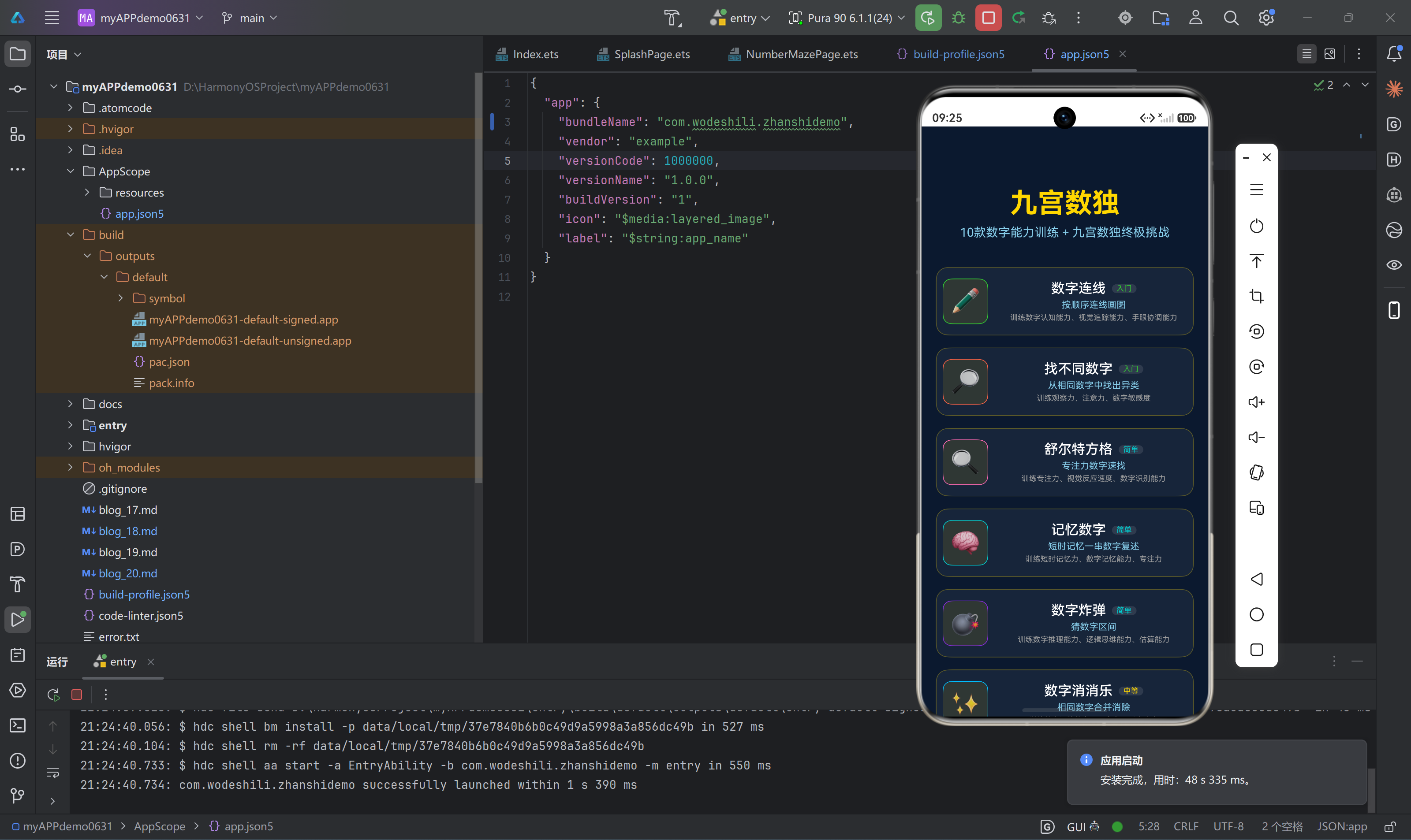
一、概述
在HarmonyOS应用开发中,动画效果和交互体验是提升用户满意度的关键因素。本项目基于ArkTS技术栈,通过精心设计的动画效果和交互优化,为用户提供流畅、直观的游戏体验。
本文将深入探讨项目中使用的动画效果与交互优化技巧,包括状态驱动动画、属性动画、手势交互、触摸反馈、性能优化等方面的实践经验。
1.1 动画与交互设计原则
本项目的动画与交互设计遵循以下核心原则:
- 流畅性:动画过渡平滑,帧率稳定
- 响应性:触摸操作即时反馈,延迟不超过100ms
- 一致性:同类操作使用相同的动画效果
- 目的性:动画服务于功能,不做无意义的装饰
- 可感知:重要操作有明显的视觉反馈
- 性能优先:动画不影响游戏性能
1.2 技术栈
- 框架:HarmonyOS ArkUI(声明式UI)
- 语言:ArkTS(TypeScript方言)
- 动画API:animateTo、属性动画
- 手势识别:TapGesture、PanGesture等
- 状态管理:@State、@Prop、@Link等状态装饰器
二、状态驱动动画
2.1 @State驱动的UI更新
在ArkTS中,@State装饰的状态变量变化会自动触发UI重渲染,这是实现状态驱动动画的基础:
@State score: number = 0;
@State isGameWon: boolean = false;
@State selectedCell: number = -1;
状态变化触发动画:
// 分数增加时触发动画
this.score += 100;

// 通关状态变化时触发动画
this.isGameWon = true;

// 选中格子变化时触发动画
this.selectedCell = index;
2.2 条件渲染动画
通过状态变化控制组件的显示/隐藏,实现条件渲染动画:
if (!this.isPlaying && !this.isGameWon) {
  Button('开始游戏')
    .onClick(() => this.startGame())
} else if (this.isGameWon) {
  Column() {
    Text('🎉 恭喜通关!')
      .fontSize(24)
      .fontColor('#FFD700')
    Button('下一关')
      .onClick(() => router.back())
  }
} else {
  Column() {
    // 游戏内容
  }
}
条件渲染动画要点:
- 状态互斥:确保状态之间互斥,避免同时显示多个状态的UI
- 过渡平滑:使用animateTo实现状态切换时的平滑过渡
- 性能优化:条件渲染避免不必要的组件渲染
2.3 列表动画
使用ForEach渲染列表时,通过状态变化实现列表动画:
@State items: Array<number> = [];

// 添加新元素时触发动画
this.items.push(newItem);
this.items = this.items.slice();

// 删除元素时触发动画
this.items.splice(index, 1);
this.items = this.items.slice();
列表动画要点:
- 数组更新:必须创建新数组引用触发响应式更新
- 过渡动画:使用animateTo包裹数组更新操作
- 性能优化:避免频繁更新列表
三、animateTo动画
3.1 animateTo基本用法
animateTo是ArkTS中最常用的动画API,用于实现属性变化的过渡动画:
animateTo({ duration: 300, curve: Curve.EaseOut }, () => {
  this.opacity = 1;
  this.scale = 1;
});
参数说明:
| 参数 | 类型 | 说明 | 默认值 |
|---|---|---|---|
duration |
number | 动画持续时间(毫秒) | 400 |
curve |
Curve | 动画曲线 | Curve.Ease |
delay |
number | 动画延迟时间(毫秒) | 0 |
iterations |
number | 动画重复次数 | 1 |
playMode |
PlayMode | 播放模式 | PlayMode.Normal |
3.2 动画曲线
ArkTS提供了多种动画曲线,用于控制动画的缓动效果:
// 线性曲线(匀速)
curve: Curve.Linear

// 缓入曲线(开始慢,后面快)
curve: Curve.EaseIn

// 缓出曲线(开始快,后面慢)
curve: Curve.EaseOut

// 缓入缓出曲线(中间快,两端慢)
curve: Curve.Ease

// 弹性曲线(有回弹效果)
curve: Curve.Bounce

// 振荡曲线(有振荡效果)
curve: Curve.Oscillating
动画曲线选择:
| 场景 | 推荐曲线 | 说明 |
|---|---|---|
| 按钮点击 | Curve.EaseOut | 快速响应,自然结束 |
| 页面切换 | Curve.Ease | 平滑过渡 |
| 弹性效果 | Curve.Bounce | 有弹性的动画 |
| 数字跳动 | Curve.Oscillating | 振荡效果 |
3.3 数字滚动动画
在游戏中,分数变化时可以使用animateTo实现数字滚动动画:
@State score: number = 0;
@State displayScore: number = 0;

private updateScore(newScore: number): void {
  this.score = newScore;

  animateTo({ duration: 500, curve: Curve.EaseOut }, () => {
    this.displayScore = newScore;
  });
}
数字滚动动画原理:
- 使用两个变量:
score存储实际分数,displayScore存储显示分数 - 当分数变化时,使用animateTo驱动
displayScore逐渐接近score - 显示
displayScore,实现平滑的数字滚动效果
3.4 页面过渡动画
页面切换时可以使用animateTo实现过渡动画:
@State isVisible: boolean = false;

aboutToAppear() {
  animateTo({ duration: 300, curve: Curve.EaseOut }, () => {
    this.isVisible = true;
  });
}

build() {
  Column() {
    // 页面内容
  }
  .opacity(this.isVisible ? 1 : 0)
  .translate({ y: this.isVisible ? 0 : 50 })
}
页面过渡动画原理:
- 使用
isVisible状态控制页面的可见性 - 在
aboutToAppear生命周期中触发动画 - 通过
opacity和translate实现淡入和上移效果
3.5 通关庆祝动画
通关时可以使用animateTo实现庆祝动画:
@State isGameWon: boolean = false;
@State scale: number = 1;

private handleWin(): void {
  this.isGameWon = true;

  animateTo({ duration: 500, curve: Curve.Bounce }, () => {
    this.scale = 1.2;
  });

  setTimeout(() => {
    animateTo({ duration: 300, curve: Curve.EaseOut }, () => {
      this.scale = 1;
    });
  }, 500);
}

build() {
  if (this.isGameWon) {
    Text('🎉 恭喜通关!')
      .fontSize(24)
      .fontColor('#FFD700')
      .scale(this.scale)
  }
}
通关庆祝动画原理:
- 通关时设置
isGameWon为true - 使用弹性曲线实现文字放大效果
- 延迟后恢复原始大小
四、属性动画
4.1 透明度动画
透明度动画用于实现淡入淡出效果:
@State opacity: number = 0;

// 淡入
animateTo({ duration: 300 }, () => {
  this.opacity = 1;
});

// 淡出
animateTo({ duration: 300 }, () => {
  this.opacity = 0;
});

// 在组件中使用
Text('文字')
  .opacity(this.opacity)
透明度动画应用场景:
- 页面加载:组件淡入显示
- 页面退出:组件淡出消失
- 提示信息:临时提示的显示和隐藏
- 选中状态:选中元素的高亮效果
4.2 缩放动画
缩放动画用于实现元素的放大缩小效果:
@State scale: number = 1;

// 放大
animateTo({ duration: 300, curve: Curve.EaseOut }, () => {
  this.scale = 1.2;
});

// 缩小
animateTo({ duration: 300, curve: Curve.EaseOut }, () => {
  this.scale = 0.8;
});

// 在组件中使用
Button('按钮')
  .scale({ x: this.scale, y: this.scale })
缩放动画应用场景:
- 按钮点击:按下时缩小,松开时恢复
- 选中效果:选中元素放大显示
- 通关庆祝:文字放大庆祝
- 卡片翻转:卡片缩放翻转效果
4.3 位移动画
位移动画用于实现元素的位置变化:
@State translateX: number = 0;
@State translateY: number = 0;

// 向右移动
animateTo({ duration: 300 }, () => {
  this.translateX = 100;
});

// 向上移动
animateTo({ duration: 300 }, () => {
  this.translateY = -50;
});

// 在组件中使用
Text('文字')
  .translate({ x: this.translateX, y: this.translateY })
位移动画应用场景:
- 页面切换:页面滑入滑出
- 列表滚动:列表项的滑动效果
- 游戏元素:游戏角色的移动
- 弹窗动画:弹窗从底部弹出
4.4 旋转动画
旋转动画用于实现元素的旋转效果:
@State rotateAngle: number = 0;

// 旋转90度
animateTo({ duration: 500, curve: Curve.Ease }, () => {
  this.rotateAngle = 90;
});

// 旋转180度
animateTo({ duration: 500, curve: Curve.Ease }, () => {
  this.rotateAngle = 180;
});

// 在组件中使用
Image('icon.png')
  .rotate({ angle: this.rotateAngle })
旋转动画应用场景:
- 加载指示器:旋转加载动画
- 按钮状态:旋转按钮切换状态
- 卡片翻转:卡片3D翻转效果
- 游戏元素:游戏道具的旋转
4.5 组合动画
将多个属性动画组合使用,实现复杂的动画效果:
@State opacity: number = 0;
@State scale: number = 0.8;
@State translateY: number = 50;

private showPopup(): void {
  animateTo({ duration: 300, curve: Curve.EaseOut }, () => {
    this.opacity = 1;
    this.scale = 1;
    this.translateY = 0;
  });
}

build() {
  Column() {
    // 弹窗内容
  }
  .opacity(this.opacity)
  .scale(this.scale)
  .translate({ y: this.translateY })
}
组合动画要点:
- 同时变化:多个属性同时在animateTo回调中变化
- 统一曲线:使用相同的动画曲线和持续时间
- 协调效果:确保动画效果协调统一
五、手势交互
5.1 TapGesture点击手势
TapGesture是最常用的手势,用于处理点击操作:
Button('点击')
  .gesture(
    TapGesture({ count: 1 })
      .onAction(() => {
        console.log('点击事件');
      })
  )
TapGesture参数:
| 参数 | 类型 | 说明 | 默认值 |
|---|---|---|---|
count |
number | 点击次数 | 1 |
fingerList |
FingerList | 手指列表 | FingerList.All |
5.2 长按手势
LongPressGesture用于处理长按操作:
Button('长按')
  .gesture(
    LongPressGesture({ repeat: true, duration: 500 })
      .onAction((event: GestureEvent) => {
        console.log('长按开始');
      })
      .onActionEnd(() => {
        console.log('长按结束');
      })
  )
LongPressGesture参数:
| 参数 | 类型 | 说明 | 默认值 |
|---|---|---|---|
repeat |
boolean | 是否重复触发 | false |
duration |
number | 长按持续时间(毫秒) | 500 |
5.3 滑动手势
PanGesture用于处理滑动操作:
@State offsetX: number = 0;
@State offsetY: number = 0;

Column() {
  // 可滑动内容
}
.gesture(
  PanGesture({ direction: PanDirection.All })
    .onActionStart(() => {
      console.log('滑动开始');
    })
    .onActionUpdate((event: GestureEvent) => {
      this.offsetX = event.offsetX;
      this.offsetY = event.offsetY;
    })
    .onActionEnd(() => {
      console.log('滑动结束');
      this.offsetX = 0;
      this.offsetY = 0;
    })
)
.translate({ x: this.offsetX, y: this.offsetY })
PanGesture参数:
| 参数 | 类型 | 说明 | 默认值 |
|---|---|---|---|
direction |
PanDirection | 滑动方向 | PanDirection.All |
distance |
number | 最小滑动距离(像素) | 5 |
5.4 捏合手势
PinchGesture用于处理双指捏合操作,实现缩放效果:
@State scale: number = 1;

Column() {
  // 可缩放内容
}
.gesture(
  PinchGesture()
    .onActionUpdate((event: GestureEvent) => {
      this.scale = event.scale;
    })
    .onActionEnd(() => {
      this.scale = 1;
    })
)
.scale(this.scale)
PinchGesture事件参数:
| 参数 | 类型 | 说明 |
|---|---|---|
scale |
number | 缩放比例 |
centerX |
number | 缩放中心X坐标 |
centerY |
number | 缩放中心Y坐标 |
5.5 旋转手势
RotationGesture用于处理双指旋转操作:
@State rotateAngle: number = 0;

Column() {
  // 可旋转内容
}
.gesture(
  RotationGesture()
    .onActionUpdate((event: GestureEvent) => {
      this.rotateAngle = event.angle;
    })
    .onActionEnd(() => {
      this.rotateAngle = 0;
    })
)
.rotate({ angle: this.rotateAngle })
RotationGesture事件参数:
| 参数 | 类型 | 说明 |
|---|---|---|
angle |
number | 旋转角度(度) |
centerX |
number | 旋转中心X坐标 |
centerY |
number | 旋转中心Y坐标 |
5.6 手势组合
可以组合多个手势,实现复杂的交互效果:
Button('多手势按钮')
  .gesture(
    GestureGroup(GestureMode.Exclusive, [
      TapGesture({ count: 1 })
        .onAction(() => {
          console.log('单击');
        }),
      TapGesture({ count: 2 })
        .onAction(() => {
          console.log('双击');
        }),
      LongPressGesture({ duration: 500 })
        .onAction(() => {
          console.log('长按');
        })
    ])
  )
手势组合模式:
| 模式 | 说明 |
|---|---|
GestureMode.Exclusive |
互斥模式,只有一个手势生效 |
GestureMode.Sequence |
顺序模式,手势按顺序触发 |
GestureMode.Parallel |
并行模式,多个手势同时生效 |
六、触摸反馈
6.1 按钮点击反馈
按钮点击时提供视觉反馈,增强交互体验:
@State isPressed: boolean = false;

Button('点击按钮')
  .backgroundColor(this.isPressed ? '#E6C800' : '#FFD700')
  .scale(this.isPressed ? 0.95 : 1)
  .gesture(
    TapGesture()
      .onActionStart(() => {
        this.isPressed = true;
      })
      .onActionEnd(() => {
        this.isPressed = false;
      })
  )
按钮点击反馈要点:
- 按下状态:按钮颜色变深,稍微缩小
- 松开状态:恢复原始状态
- 即时响应:状态变化立即生效,无需动画
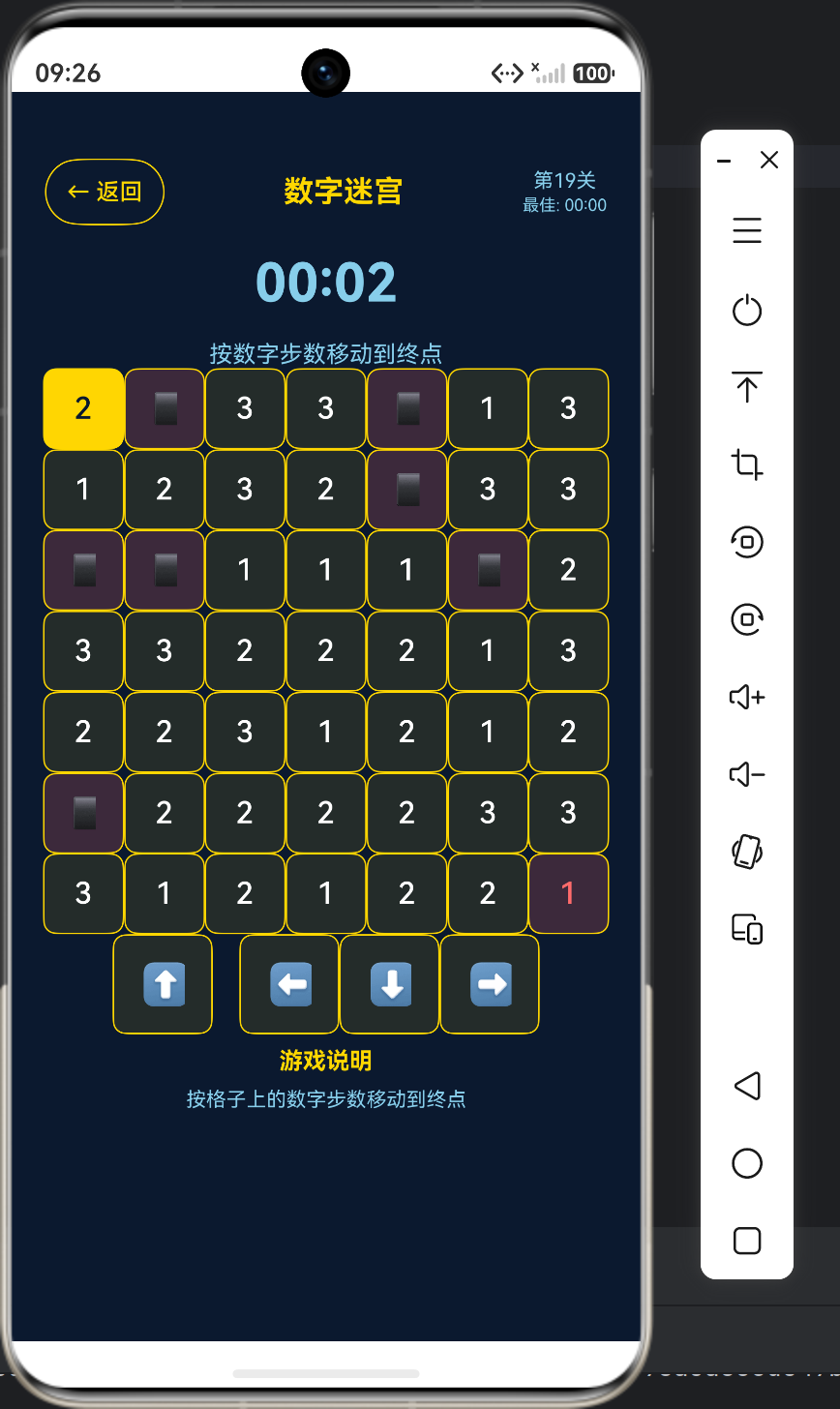
6.2 选中状态反馈
选中元素时提供明显的视觉反馈:
@State selectedIndex: number = -1;

Grid() {
  ForEach(this.items, (item: number, index: number) => {
    GridItem() {
      Text(item.toString())
        .fontColor(this.selectedIndex === index ? '#FFD700' : '#FFFFFF')
    }
    .backgroundColor(this.selectedIndex === index ? 'rgba(255, 215, 0, 0.25)' : 'rgba(255, 255, 255, 0.05)')
    .borderColor(this.selectedIndex === index ? '#FFD700' : '#2D4A6F')
    .onClick(() => {
      this.selectedIndex = index;
    })
  })
}
选中状态反馈要点:
- 背景色变化:选中元素显示金色半透明背景
- 文字色变化:选中元素文字变为金色
- 边框色变化:选中元素边框变为金色
- 高亮效果:同行、同列、同值元素高亮
6.3 错误状态反馈
输入错误时提供视觉反馈:
@State cellIsError: Array<boolean> = [];

Grid() {
  ForEach(this.cellValues, (value: number, index: number) => {
    GridItem() {
      Text(value.toString())
        .fontColor(this.cellIsError[index] ? '#FF6B6B' : '#FFFFFF')
    }
    .backgroundColor(this.cellIsError[index] ? 'rgba(255, 107, 107, 0.2)' : 'rgba(255, 255, 255, 0.05)')
    .borderColor(this.cellIsError[index] ? '#FF6B6B' : '#2D4A6F')
  })
}
错误状态反馈要点:
- 红色主题:错误元素显示红色背景和文字
- 即时提示:输入时立即检查并显示错误
- 清晰区分:错误状态与正常状态有明显区别
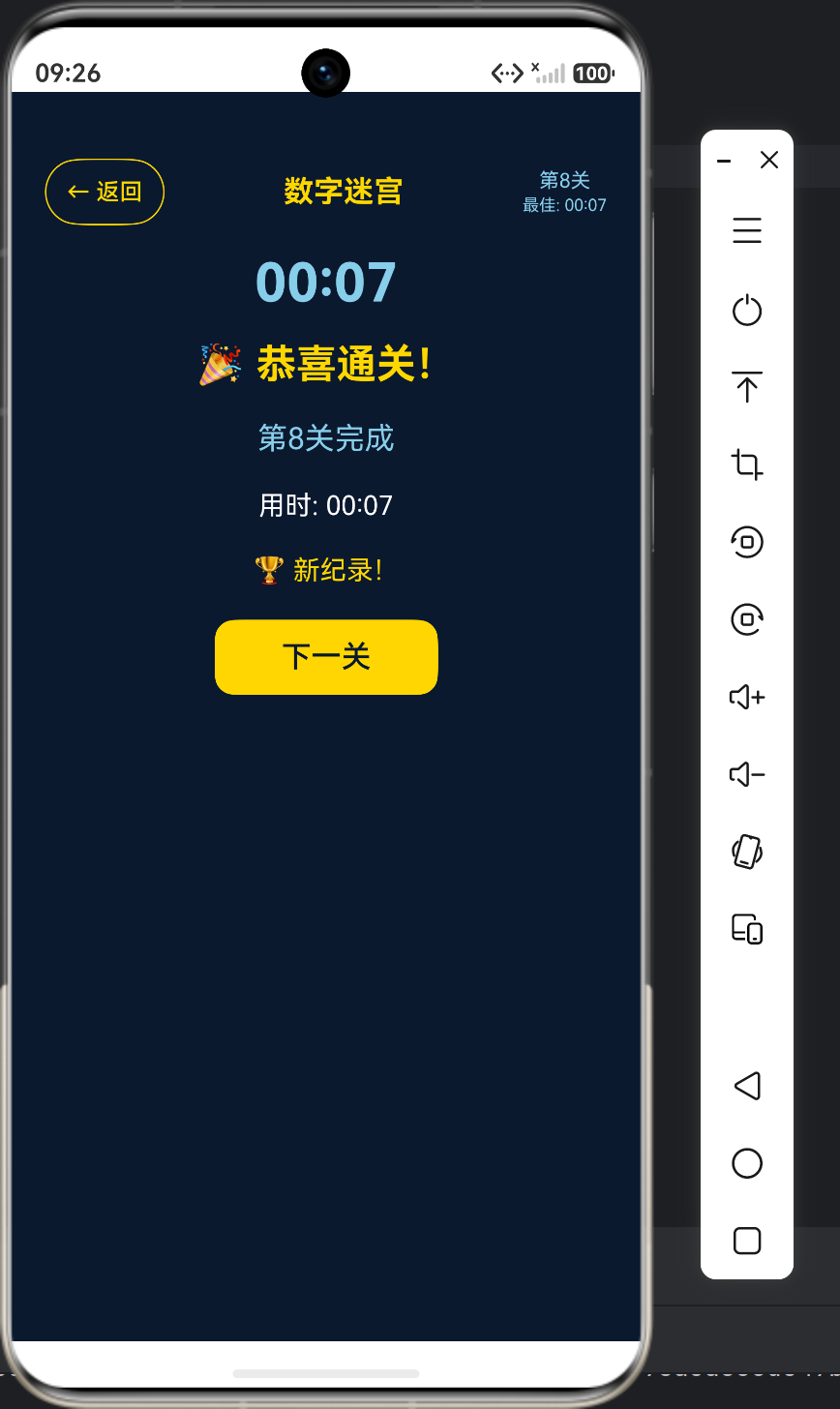
6.4 通关反馈
通关时提供庆祝反馈:
@State isGameWon: boolean = false;

if (this.isGameWon) {
  Column() {
    Text('🎉 恭喜通关!')
      .fontSize(24)
      .fontWeight(FontWeight.Bold)
      .fontColor('#FFD700')
      .margin({ bottom: 16 })

    Text('第' + this.currentLevel + '关完成')
      .fontSize(18)
      .fontColor('#87CEEB')
      .margin({ bottom: 8 })

    Text('用时: ' + this.formatTime(this.timerSeconds))
      .fontSize(16)
      .fontColor('#FFFFFF')
      .margin({ bottom: 8 })

    if (this.timerSeconds === this.bestTime) {
      Text('🏆 新纪录!')
        .fontSize(16)
        .fontColor('#FFD700')
        .margin({ bottom: 16 })
    }

    Button('下一关')
      .fontSize(18)
      .fontColor('#0A192F')
      .backgroundColor('#FFD700')
      .borderRadius(12)
      .padding({ left: 40, right: 40, top: 12, bottom: 12 })
      .onClick(() => router.back())
  }
}
通关反馈要点:
- 大号金色标题:吸引用户注意力
- 详细信息:显示关卡、用时、新纪录
- 明确操作:提供"下一关"按钮
- 庆祝效果:使用emoji和动画增强庆祝氛围
七、交互优化技巧
7.1 减少点击延迟
移动端点击事件存在300ms延迟,需要通过以下方式优化:
// 使用TapGesture代替onClick
Button('按钮')
  .gesture(
    TapGesture()
      .onAction(() => {
        // 处理点击事件
      })
  )

// 设置touch-action优化
Button('按钮')
  .touchAction({ touchAction: TouchAction.None })
减少点击延迟要点:
- 使用手势API:TapGesture响应更快
- 禁用默认行为:设置touch-action避免默认处理
- 优化事件处理:减少事件处理中的耗时操作
7.2 优化触摸区域
确保按钮有足够的触摸区域:
Button('按钮')
  .width(80)
  .height(40)  // 最小40px高度

// 使用padding增加触摸区域
Button('小图标')
  .padding({ left: 16, right: 16, top: 12, bottom: 12 })
触摸区域优化要点:
- 最小尺寸:按钮至少40px高度
- padding扩展:使用padding增加触摸区域
- 避免过小元素:避免使用过小的可点击元素
7.3 响应式布局
确保在不同屏幕尺寸下交互体验一致:
Button('按钮')
  .fontSize(this.screenWidth < 360 ? 14 : 18)
  .height(this.screenWidth < 360 ? 36 : 44)

Grid() {
  // 网格内容
}
.width('90%')
.aspectRatio(1)
响应式布局要点:
- 动态字体大小:根据屏幕宽度调整字体
- 动态按钮尺寸:根据屏幕宽度调整按钮高度
- 比例布局:使用aspectRatio保持比例
7.4 避免过度交互
避免在短时间内触发过多交互:
@State isProcessing: boolean = false;

private handleClick(): void {
  if (this.isProcessing) {
    return;
  }

  this.isProcessing = true;

  // 处理点击事件

  setTimeout(() => {
    this.isProcessing = false;
  }, 300);
}
避免过度交互要点:
- 状态锁:使用isProcessing状态防止重复点击
- 延迟解锁:处理完成后延迟解锁
- 用户反馈:处理中显示加载状态
7.5 优化列表滚动
列表滚动时需要优化性能:
Scroll() {
  Column() {
    ForEach(this.items, (item: any) => {
      // 使用轻量级组件
      ListItemComponent({ data: item })
    })
  }
  .padding({ bottom: 200 })
}
.width('100%')
.flexGrow(1)
.scrollBar(BarState.Auto)
列表滚动优化要点:
- 组件拆分:将列表项提取为独立组件
- 避免复杂渲染:列表项避免嵌套过深
- 懒加载:大量数据使用懒加载
- 滚动条设置:合理设置滚动条状态
八、性能优化
8.1 动画性能优化
动画性能直接影响用户体验,需要注意以下几点:
// 避免:在动画中修改布局属性
animateTo({ duration: 300 }, () => {
  this.width = 200;  // 会触发布局重计算
});

// 优化:使用transform属性
animateTo({ duration: 300 }, () => {
  this.scale = 1.5;  // 不会触发布局重计算
});
动画性能优化要点:
- 使用transform:缩放、旋转使用transform属性
- 避免布局属性:动画中避免修改width、height、padding等
- 硬件加速:transform属性会自动开启硬件加速
- 降低复杂度:避免复杂的动画组合
8.2 避免布局抖动
布局抖动是指频繁的布局计算导致的性能问题:
// 避免:频繁修改多个布局属性
for (let i = 0; i < 100; i++) {
  this.width = i;
  this.height = i;
}

// 优化:合并修改
let newWidth = 100;
let newHeight = 100;
animateTo({ duration: 300 }, () => {
  this.width = newWidth;
  this.height = newHeight;
});
布局抖动优化要点:
- 批量更新:合并多个布局属性的修改
- 使用动画:通过animateTo批量应用修改
- 减少触发:避免在循环中修改布局属性
8.3 优化状态更新
状态更新会触发UI重渲染,需要优化更新频率:
// 避免:频繁更新状态
setInterval(() => {
  this.counter++;
}, 100);

// 优化:降低更新频率
setInterval(() => {
  this.counter++;
}, 1000);
状态更新优化要点:
- 降低频率:不必要的状态更新降低频率
- 合并更新:多个相关状态一次性更新
- 使用防抖:输入等场景使用防抖
8.4 优化组件渲染
组件渲染是性能瓶颈之一,需要注意以下几点:
// 避免:在循环中创建复杂组件
ForEach(items, (item) => {
  Column() {
    // 复杂嵌套组件
  }
})

// 优化:提取为独立组件
ForEach(items, (item) => {
  SimpleItemComponent({ data: item })
})
组件渲染优化要点:
- 组件拆分:复杂列表项提取为独立组件
- 条件渲染:只渲染当前需要的内容
- 避免冗余:移除不必要的组件和计算
8.5 使用渲染分组
对于包含复杂子组件的动画,可以使用renderGroup优化:
Column() {
  // 复杂动画内容
}
.renderGroup(true)
renderGroup优化要点:
- 减少渲染批次:renderGroup(true)将子组件合并为一个渲染批次
- 动画优化:复杂动画使用renderGroup提升性能
- 适度使用:不是所有组件都需要使用renderGroup
九、实战案例:数独游戏交互
9.1 格子选中交互
数独游戏中,选中格子时需要提供丰富的视觉反馈:
private selectCell(index: number): void {
  let totalCells: number = this.boardSize * this.boardSize;
  for (let i = 0; i < totalCells; i++) {
    this.cellIsSelected[i] = false;
    this.cellIsHighlighted[i] = false;
  }

  this.cellIsSelected[index] = true;
  this.selectedRow = Math.floor(index / this.boardSize);
  this.selectedCol = index % this.boardSize;

  let selectedValue: number = this.cellValues[index];
  for (let i = 0; i < totalCells; i++) {
    let row: number = Math.floor(i / this.boardSize);
    let col: number = i % this.boardSize;
    if (row === this.selectedRow || col === this.selectedCol) {
      this.cellIsHighlighted[i] = true;
    }
    if (selectedValue !== 0 && this.cellValues[i] === selectedValue) {
      this.cellIsHighlighted[i] = true;
    }
  }
}
选中交互要点:
- 清除之前状态:清除之前的选中和高亮状态
- 标记选中:标记当前选中的格子
- 高亮同行同列:高亮同行、同列的所有格子
- 高亮同值:高亮所有与选中格子数值相同的格子
9.2 数字输入交互
数字输入时需要提供即时反馈:
private inputNumber(num: number): void {
  if (this.selectedRow === -1 || this.selectedCol === -1) {
    return;
  }

  let index: number = this.selectedRow * this.boardSize + this.selectedCol;
  if (this.cellIsOriginal[index]) {
    return;
  }

  this.saveHistory();
  this.cellValues[index] = num;
  this.checkErrors();

  if (this.checkWin()) {
    this.handleWin();
  }
}
数字输入交互要点:
- 验证选中状态:检查是否选中了格子
- 验证原始数字:原始数字不可修改
- 保存历史:保存当前状态支持撤销
- 检查错误:输入后立即检查错误
- 检查通关:输入后检查是否通关
9.3 撤销/重做交互
撤销/重做功能需要提供流畅的交互体验:
private undo(): void {
  if (this.historyIndex > 0) {
    this.historyIndex--;
    let record: SudokuHistoryRecord = this.history[this.historyIndex];
    this.cellValues = this.copyArray(record.cellValues);
    this.cellIsError = this.copyArray(record.cellIsError);
  }
}

private redo(): void {
  if (this.historyIndex < this.history.length - 1) {
    this.historyIndex++;
    let record: SudokuHistoryRecord = this.history[this.historyIndex];
    this.cellValues = this.copyArray(record.cellValues);
    this.cellIsError = this.copyArray(record.cellIsError);
  }
}
撤销/重做交互要点:
- 历史记录:保存每次操作的状态
- 数组拷贝:深拷贝确保历史记录不被修改
- 状态恢复:恢复时使用新数组引用触发UI更新
- 边界检查:检查是否有可撤销/重做的记录
9.4 提示功能交互
提示功能需要提供清晰的交互反馈:
private showHint(): void {
  let totalCells: number = this.boardSize * this.boardSize;
  for (let i = 0; i < totalCells; i++) {
    if (!this.cellIsOriginal[i] && this.cellValues[i] === 0) {
      this.saveHistory();
      this.cellValues[i] = this.solution[i];
      this.checkErrors();

      let row: number = Math.floor(i / this.boardSize);
      let col: number = i % this.boardSize;
      this.selectCell(i);

      if (this.checkWin()) {
        this.handleWin();
      }
      return;
    }
  }
}
提示功能交互要点:
- 查找空白格:查找第一个空白的非原始格子
- 保存历史:允许撤销提示操作
- 填入正确答案:从solution中获取正确答案
- 选中提示格:自动选中填入的格子
- 检查通关:检查是否因此通关
十、动画效果实践
10.1 数字连线游戏动画
数字连线游戏需要实现连线动画效果:
@State paths: Array<PathData> = [];
@State currentPath: PathData = new PathData();

private drawLine(startIndex: number, endIndex: number): void {
  let startX = (startIndex % this.gridSize) * this.cellSize + this.cellSize / 2;
  let startY = Math.floor(startIndex / this.gridSize) * this.cellSize + this.cellSize / 2;
  let endX = (endIndex % this.gridSize) * this.cellSize + this.cellSize / 2;
  let endY = Math.floor(endIndex / this.gridSize) * this.cellSize + this.cellSize / 2;

  let path: string = `M ${startX} ${startY} L ${endX} ${endY}`;
  this.currentPath = new PathData(path);

  animateTo({ duration: 200, curve: Curve.EaseOut }, () => {
    this.paths.push(this.currentPath);
    this.paths = this.paths.slice();
  });
}
连线动画要点:
- 计算坐标:根据格子索引计算坐标
- 构建路径:使用SVG路径语法构建连线
- 动画添加:使用animateTo添加路径到列表
- 状态更新:创建新数组引用触发UI更新
10.2 合成大西瓜游戏动画
合成大西瓜游戏需要实现数字合并动画:
@State grid: Array<number> = [];
@State selectedIndex: number = -1;

private clickCell(index: number): void {
  if (this.grid[index] === 0) return;

  if (this.selectedIndex === -1) {
    this.selectedIndex = index;
  } else if (this.selectedIndex === index) {
    this.selectedIndex = -1;
  } else {
    if (this.grid[this.selectedIndex] === this.grid[index]) {
      animateTo({ duration: 300, curve: Curve.EaseOut }, () => {
        this.grid[index] = this.grid[index] * 2;
        this.grid[this.selectedIndex] = 0;
        this.grid = this.grid.slice();
      });

      this.score += this.grid[index];
      this.fillEmptyCell();

      if (this.score >= this.targetScore) {
        this.stopTimer();
        this.isPlaying = false;
        this.isGameWon = true;
      }
    }
    this.selectedIndex = -1;
  }
}
合并动画要点:
- 选中状态:点击格子时设置选中状态
- 匹配检查:检查两个选中格子是否相同
- 合并动画:使用animateTo实现合并效果
- 分数更新:合并后更新分数
- 通关检查:检查是否达到目标分数
10.3 找不同数字游戏动画
找不同数字游戏需要实现点击反馈动画:
@State foundIndex: number = -1;

private handleCellClick(index: number): void {
  if (this.grid[index] === this.differentNumber) {
    animateTo({ duration: 300, curve: Curve.EaseOut }, () => {
      this.foundIndex = index;
      this.grid[index] = 0;
      this.grid = this.grid.slice();
    });

    this.score += 100;
    this.checkWin();
  }
}
找不同动画要点:
- 正确点击:点击不同数字时触发动画
- 消除效果:使用animateTo实现消除动画
- 分数更新:找到后更新分数
- 通关检查:检查是否所有不同数字都被找到
10.4 数字炸弹游戏动画
数字炸弹游戏需要实现范围缩小动画:
@State minNum: number = 1;
@State maxNum: number = 100;
@State targetNum: number = 0;

private handleGuess(): void {
  let guess: number = parseInt(this.inputNumber);

  if (guess === this.targetNum) {
    // 找到目标
    this.handleWin();
  } else if (guess < this.targetNum) {
    animateTo({ duration: 300, curve: Curve.EaseOut }, () => {
      this.minNum = guess + 1;
    });
  } else {
    animateTo({ duration: 300, curve: Curve.EaseOut }, () => {
      this.maxNum = guess - 1;
    });
  }

  this.inputNumber = '';
}
范围缩小动画要点:
- 猜测验证:验证用户猜测的数字
- 范围更新:根据猜测结果更新范围
- 动画过渡:使用animateTo实现范围变化的平滑过渡
- 输入清空:清空输入框准备下一次猜测
十一、无障碍交互
11.1 焦点管理
确保键盘导航和屏幕阅读器可以正确访问所有元素:
Button('开始游戏')
  .focusable(true)
  .tabIndex(1)

Button('设置')
  .focusable(true)
  .tabIndex(2)
焦点管理要点:
- focusable:设置为true使元素可聚焦
- tabIndex:设置Tab键导航顺序
- 焦点样式:为聚焦状态设置明显的视觉反馈
11.2 屏幕阅读器支持
为重要元素添加屏幕阅读器标签:
Button('开始游戏')
  .accessibilityLabel('开始游戏按钮')
  .accessibilityHint('点击开始新游戏')
屏幕阅读器支持要点:
- accessibilityLabel:元素的简短描述
- accessibilityHint:元素的操作提示
- 语义化结构:使用语义化的组件结构
11.3 键盘导航
确保所有操作都可以通过键盘完成:
// 使用方向键导航
.gesture(
  KeyGesture({ keys: [KeyCode.DirectionUp] })
    .onAction(() => {
      // 向上移动
    })
)
键盘导航要点:
- 方向键:支持方向键导航
- 回车键:支持回车键确认
- Esc键:支持Esc键取消
十二、常见问题与解决方案
12.1 动画不流畅
问题:动画播放时出现卡顿
解决方案:
// 避免:动画中修改布局属性
animateTo({ duration: 300 }, () => {
  this.width = 200;
});

// 优化:使用transform属性
animateTo({ duration: 300 }, () => {
  this.scale = 1.5;
});
12.2 触摸事件不响应
问题:触摸操作没有触发事件
解决方案:
// 检查点1:确保组件可点击
Button('按钮')
  .enabled(true)

// 检查点2:确保没有被其他组件覆盖
Column() {
  Button('按钮')
    .zIndex(1)  // 设置层级
}

// 检查点3:确保手势正确绑定
Button('按钮')
  .gesture(
    TapGesture()
      .onAction(() => {
        // 处理事件
      })
  )
12.3 状态更新不触发UI刷新
问题:修改状态后UI没有更新
解决方案:
// 错误:直接修改数组元素
this.grid[index] = value;

// 正确:创建新数组引用
this.grid[index] = value;
this.grid = this.grid.slice();
12.4 动画冲突
问题:多个动画同时执行导致冲突
解决方案:
// 使用GestureGroup管理手势
.gesture(
  GestureGroup(GestureMode.Exclusive, [
    TapGesture()
      .onAction(() => { /* ... */ }),
    PanGesture()
      .onActionUpdate(() => { /* ... */ })
  ])
)
12.5 性能问题
问题:动画导致页面卡顿
解决方案:
// 使用renderGroup优化渲染
Column() {
  // 复杂动画内容
}
.renderGroup(true)

// 降低动画复杂度
animateTo({ duration: 300 }, () => {
  this.opacity = 1;  // 单一属性动画
});
十三、总结
动画效果与交互优化是HarmonyOS应用开发的重要环节,本项目通过以下实践提升了用户体验:
- 状态驱动动画:使用@State装饰器实现响应式更新
- animateTo动画:实现属性变化的平滑过渡
- 手势交互:支持点击、长按、滑动、捏合、旋转等手势
- 触摸反馈:提供按钮点击、选中状态、错误状态、通关反馈
- 交互优化:减少点击延迟、优化触摸区域、响应式布局
- 性能优化:避免布局抖动、优化状态更新、使用渲染分组
通过本项目的实践,可以深入理解ArkUI的动画系统、手势识别机制和交互设计技巧。这些技术要点不仅适用于游戏应用,也可以应用于其他类型的HarmonyOS应用开发中。
在实际开发中,需要注意以下几点:
- 性能优先:动画效果不能影响游戏性能
- 响应即时:触摸操作需要即时反馈
- 一致性:同类操作使用相同的交互模式
- 可访问性:确保所有用户都能正常使用
希望本文的内容能够帮助开发者更好地掌握HarmonyOS ArkTS的动画效果与交互优化技巧,打造出更加优秀的应用体验。

讨论HarmonyOS开发技术,专注于API与组件、DevEco Studio、测试、元服务和应用上架分发等。
更多推荐
 0
0 0
0- 0


 已为社区贡献419条内容

所有评论(0)