基于HarmonyOS的情侣美食管理应用开发实战(三)- 美食相册与设置功能
·
基于HarmonyOS的情侣美食管理应用开发实战(三)- 美食相册与设置功能
📖 系列文章目录
- (一)项目设计与角色管理
- (二)菜谱管理与订单系统
- (三)美食相册与设置功能(本文)
- (四)数据库优化与问题解决
一、美食相册功能实现
1.1 功能概述
美食相册用于记录情侣一起品尝美食的美好时光:
- 上传美食照片
- 添加照片描述
- 浏览相册
- 删除照片
1.2 相册页面
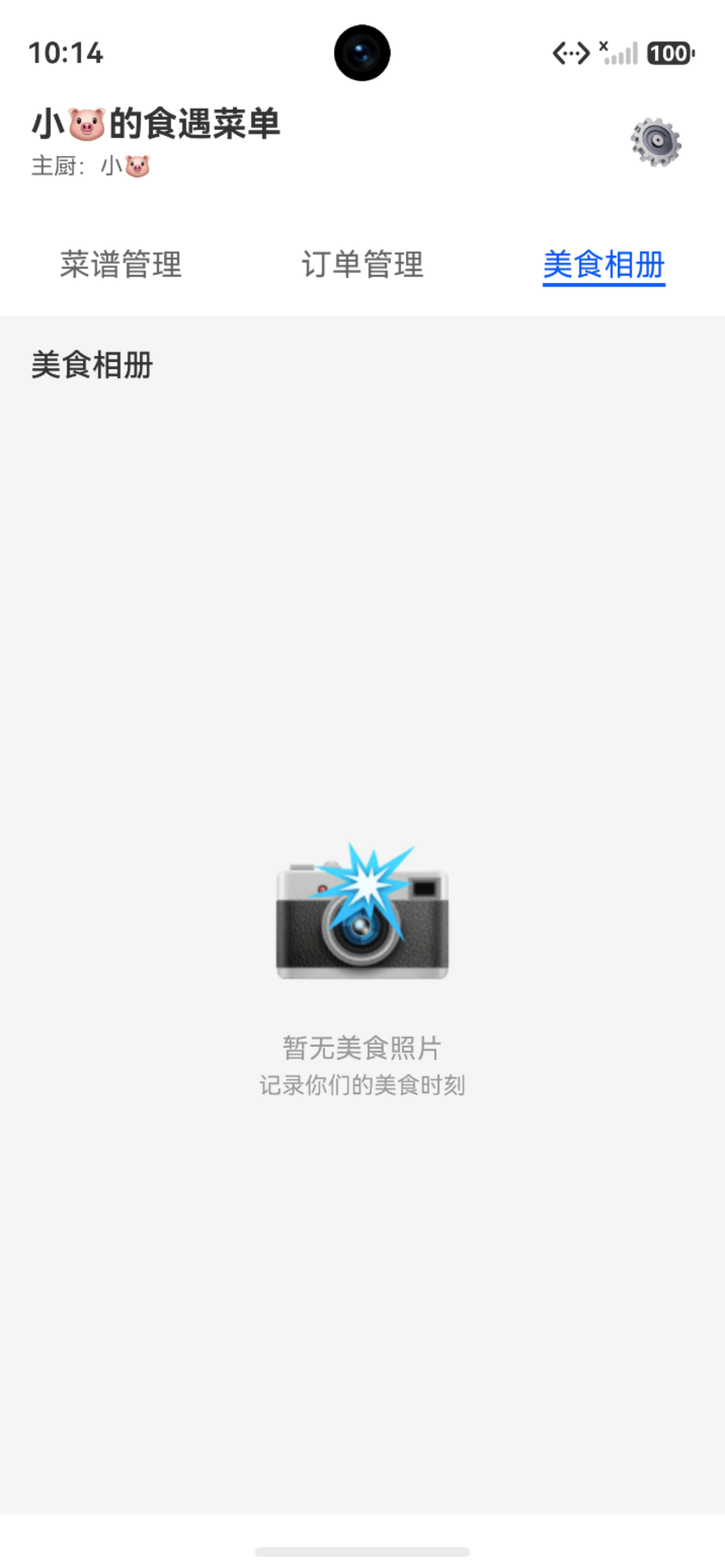
1.2.1 页面结构
@Entry
@Component
struct GalleryPage {
  @State imageList: GalleryImage[] = []
  @State isRefreshing: boolean = false
  @State gridView: boolean = true  // true-网格视图 false-列表视图

  aboutToAppear() {
    this.loadImages()
  }

  async loadImages() {
    const predicates = new relationalStore.RdbPredicates('gallery_img')
    predicates.orderByDesc('create_time')

    const resultSet = await RdbUtil.query(predicates)
    this.imageList = []

    while (resultSet.goToNextRow()) {
      const image: GalleryImage = {
        id: resultSet.getLong(resultSet.getColumnIndex('id')),
        image: resultSet.getString(resultSet.getColumnIndex('image')),
        description: resultSet.getString(resultSet.getColumnIndex('description')),
        create_time: resultSet.getLong(resultSet.getColumnIndex('create_time'))
      }
      this.imageList.push(image)
    }
    resultSet.close()
  }

  build() {
    Column() {
      // 顶部工具栏
      Row() {
        Text('美食相册')
          .fontSize(20)
          .fontWeight(FontWeight.Bold)

        Blank()

        // 视图切换
        Toggle({ type: ToggleType.Switch, isOn: $$this.gridView })

        // 上传按钮
        Button('+')
          .onClick(() => {
            router.pushUrl({ url: 'pages/GalleryAddPage' })
          })
      }
      .width('100%')
      .padding(16)

      // 图片展示
      if (this.gridView) {
        this.GridView()
      } else {
        this.ListView()
      }
    }
  }
}
1.2.2 网格视图与列表视图
@Builder
GridView() {
  Grid() {
    ForEach(this.imageList, (item: GalleryImage) => {
      GridItem() {
        Image(item.image)
          .width('100%')
          .height('100%')
          .objectFit(ImageFit.Cover)
          .onClick(() => {
            router.pushUrl({
              url: 'pages/GalleryDetailPage',
              params: { imageId: item.id }
            })
          })
      }
    })
  }
  .columnsTemplate('1fr 1fr 1fr')
  .rowsGap(4)
  .columnsGap(4)
}

@Builder
ListView() {
  List() {
    ForEach(this.imageList, (item: GalleryImage) => {
      ListItem() {
        Column() {
          Image(item.image)
            .width('100%')
            .height(200)
            .objectFit(ImageFit.Cover)

          if (item.description) {
            Text(item.description)
              .fontSize(14)
              .margin({ top: 8 })
          }

          Text(this.formatTime(item.create_time))
            .fontSize(12)
            .fontColor('#999999')
        }
        .backgroundColor('#FFFFFF')
        .borderRadius(8)
        .margin({ bottom: 12 })
      }
    })
  }
}
二、设置功能实现
2.1 功能概述
设置页面提供:
- 查看个人信息
- 修改昵称
- 切换角色
- 清除数据
2.2 设置页面
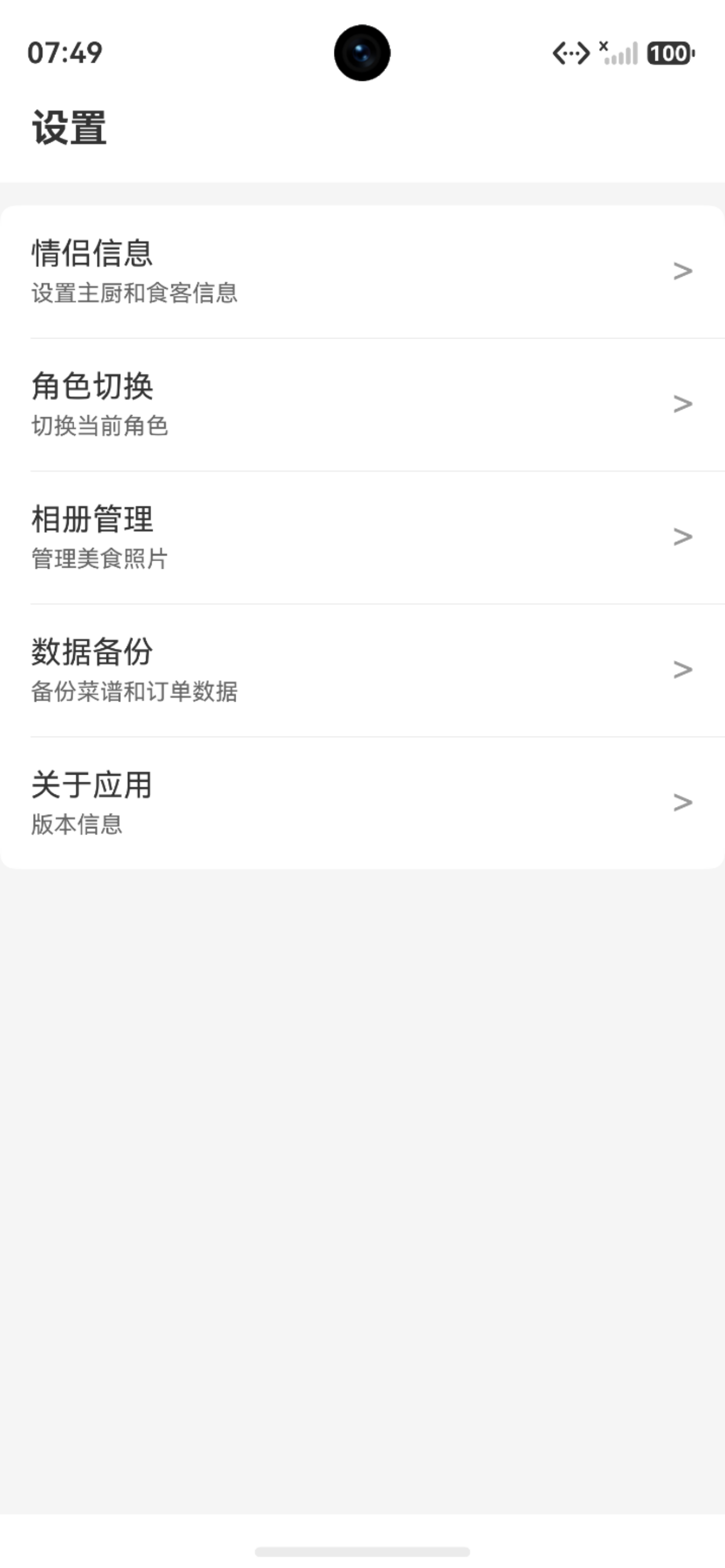
2.2.1 页面结构
@Entry
@Component
struct SettingsPage {
  @State coupleConfig: CoupleConfig | null = null
  @State currentRole: string = ''

  async aboutToAppear() {
    await this.loadConfig()
    this.currentRole = await PreferencesUtil.get('current_role', '')
  }

  // 修改昵称
  async updateName(role: 'chef' | 'diner', newName: string) {
    const values: relationalStore.ValuesBucket = {}
    if (role === 'chef') {
      values.chef_name = newName.trim()
    } else {
      values.diner_name = newName.trim()
    }

    const predicates = new relationalStore.RdbPredicates('couple_config')
    predicates.equalTo('id', this.coupleConfig.id)

    await RdbUtil.update('couple_config', values, predicates)
    prompt.showToast({ message: '修改成功' })
  }

  // 切换角色
  async switchRole() {
    const newRole = this.currentRole === 'chef' ? 'diner' : 'chef'
    await PreferencesUtil.put('current_role', newRole)

    const targetPage = newRole === 'chef' ? 'pages/ChefHomePage' : 'pages/DinerHomePage'
    router.replaceUrl({ url: targetPage })
  }

  // 清除所有数据
  async clearAllData() {
    AlertDialog.show({
      title: '确认清除',
      message: '清除后所有数据将无法恢复',
      primaryButton: {
        value: '取消',
        action: () => {}
      },
      secondaryButton: {
        value: '清除',
        fontColor: Color.Red,
        action: async () => {
          await RdbUtil.executeSql('DELETE FROM recipe')
          await RdbUtil.executeSql('DELETE FROM order_record')
          await RdbUtil.executeSql('DELETE FROM gallery_img')
          await RdbUtil.executeSql('DELETE FROM couple_config')
          await PreferencesUtil.clear()

          router.replaceUrl({ url: 'pages/RoleSelectPage' })
        }
      }
    })
  }
}
三、关键技术点
3.1 图片展示优化
使用 Grid 组件实现相册网格布局:
Grid() {
  ForEach(this.imageList, (item: GalleryImage) => {
    GridItem() {
      Image(item.image)
        .objectFit(ImageFit.Cover)
    }
  })
}
.columnsTemplate('1fr 1fr 1fr')  // 三列布局
3.2 对话框交互
确认对话框:
AlertDialog.show({
  title: '确认操作',
  message: '确定要执行此操作吗?',
  primaryButton: {
    value: '取消',
    action: () => {}
  },
  secondaryButton: {
    value: '确定',
    fontColor: Color.Red,
    action: () => {
      // 执行操作
    }
  }
})
3.3 时间格式化
formatTime(timestamp: number): string {
  const diff = Date.now() - timestamp

  if (diff < 60000) {
    return '刚刚'
  } else if (diff < 3600000) {
    return `${Math.floor(diff / 60000)}分钟前`
  } else if (diff < 86400000) {
    return `${Math.floor(diff / 3600000)}小时前`
  } else {
    const date = new Date(timestamp)
    return `${date.getMonth() + 1}月${date.getDate()}日`
  }
}
四、总结
本篇文章介绍了美食相册和设置功能的实现,包括:
- 美食相册:照片上传、网格/列表切换、大图查看
- 设置功能:信息修改、角色切换、数据清除
- 技术要点:Grid布局、对话框交互、时间格式化
下一篇文章将总结开发过程中遇到的问题和解决方案。

讨论HarmonyOS开发技术,专注于API与组件、DevEco Studio、测试、元服务和应用上架分发等。
更多推荐


 11
11 0
0- 0


 已为社区贡献76条内容

所有评论(0)