HarmonyOS7 ArkUI 图标展示墙 - 图标分类浏览、搜索与复制实战:把案例真正写懂
文章目录
前言
图标展示墙这种页面,乍一看像是个偏视觉的案例,真写起来其实更考验数据组织。因为它不是单纯把一堆图标排出来就结束了,分类切换、关键字搜索、复制反馈、详情预览,这些小交互一多,页面马上就会从“展示页”变成“工具页”。
我觉得这个案例挺适合刚开始写 ArkUI 业务页面的人。代码量不夸张,但已经把筛选、局部状态和网格布局揉到一起了,练完之后再去写后台类页面或者资源库页面,会顺不少。
这个页面到底在练什么
IconGalleryWallPage 对应的是一个很典型的资源浏览场景:顶部有搜索,中间有分类,主体区域负责网格或列表展示,点一下还能给出复制反馈。这个结构在图标库、素材库、组件市场、文件中心里都很常见,所以它的参考价值不低。
| 观察点 | 在这个案例里的表现 |
|---|---|
| 页面主题 | 图标展示墙 |
| 主要文案 | 全部, 界面, 导航, 社交, 媒体, 商业 |
| 常用组件 | Column, Divider, ForEach, Grid, GridItem, Row, Scroll, Stack, Text, TextInput |
| 最值得看的地方 | 搜索过滤、分类联动、复制反馈、两种展示模式切换 |
这个案例怎么用
如果你只是想把页面跑起来,其实很简单:把完整代码放进 ArkTS 页面文件,直接预览就能看到效果。跑起来之后别急着看代码,我建议先自己操作一遍,尤其是这几步:
- 在搜索框里输入关键词,看看结果是只匹配名称,还是连关键词数组也一起匹配。
- 点不同分类,观察分类筛选和搜索是不是同时生效。
- 试一下复制动作,看看提示状态是怎么出现、又怎么自动消失的。
- 切换展示模式,留意页面结构有没有跟着变化。
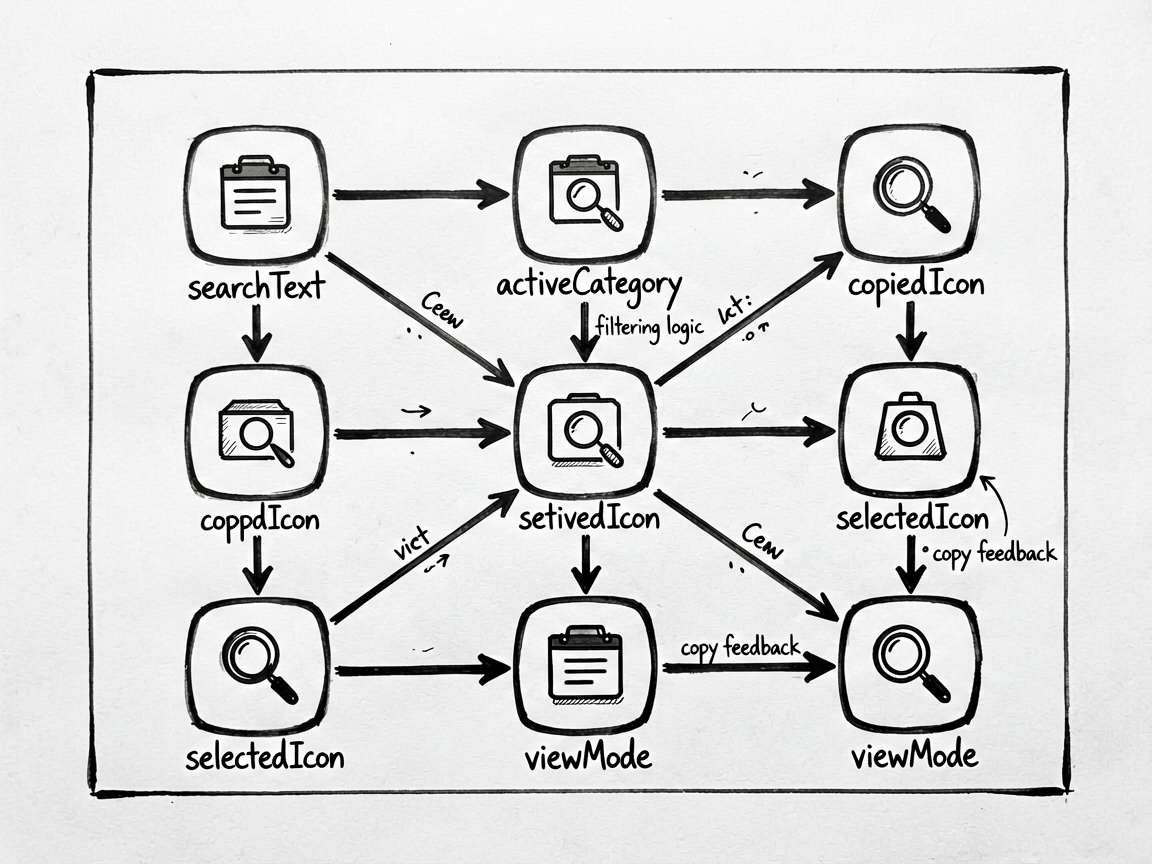
等这些交互都走完,再回头看代码,你会更容易明白为什么这个页面需要拆出 filteredIcons 和 copyIcon 这样的逻辑函数。
如果想把它改成自己的项目版本,我建议先别急着换布局,先做三件小事:把 icons 数组换成你的业务数据、增加一个新的分类、再给搜索加一个空结果提示。这样改动小,但最能看出页面结构是不是合理。
状态是这个页面的骨架
这个案例最容易写乱的地方,不是网格,而是状态。因为页面上有输入框、有分类标签、有复制反馈,还有选中详情,这些内容如果全都直接塞进布局判断里,后面会很难维护。
| 状态字段 | 类型 | 在这个页面里负责什么 |
|---|---|---|
searchText |
string |
保存用户输入的搜索词,驱动筛选结果实时变化 |
activeCategory |
string |
记录当前选中的分类,决定显示哪一组图标 |
copiedIcon |
string |
短暂保存刚复制的图标名称,用来做操作反馈 |
selectedIcon |
IconItem | null |
记录当前点开的图标对象,适合配合详情面板或弹层 |
viewMode |
string |
决定当前是网格展示还是列表展示 |
这里有个很实用的阅读顺序:先看 @State,再看 getter,最后再看 build()。因为这个页面的布局本身不复杂,真正决定页面“像不像工具页”的,其实就是这些状态之间的配合关系。
关键代码为什么值得单独看
片段 1:get filteredIcons(): IconItem[] {
这段 getter 是整个页面最核心的地方之一。它把“分类筛选”和“关键字搜索”合并成一条结果链,最后返回的是可以直接渲染的图标列表。这样一来,布局层不需要再关心筛选逻辑,只负责把结果展示出来。
  get filteredIcons(): IconItem[] {
    return this.icons.filter((icon: IconItem) => {
      const matchCat = this.activeCategory === '全部' || icon.category === this.activeCategory
      const matchSearch = this.searchText === '' ||
        icon.name.includes(this.searchText) ||
        icon.keywords.some((k: string) => k.includes(this.searchText))
      return matchCat && matchSearch
    })
  }
这里最值得抄的思路,不是 filter() 本身,而是把多个筛选条件统一收口。等你以后给页面加“排序”、“收藏优先”或者“最近使用”时,也还是沿着这个位置继续扩展,不用去翻布局代码。
片段 2:copyIcon(icon: IconItem) {
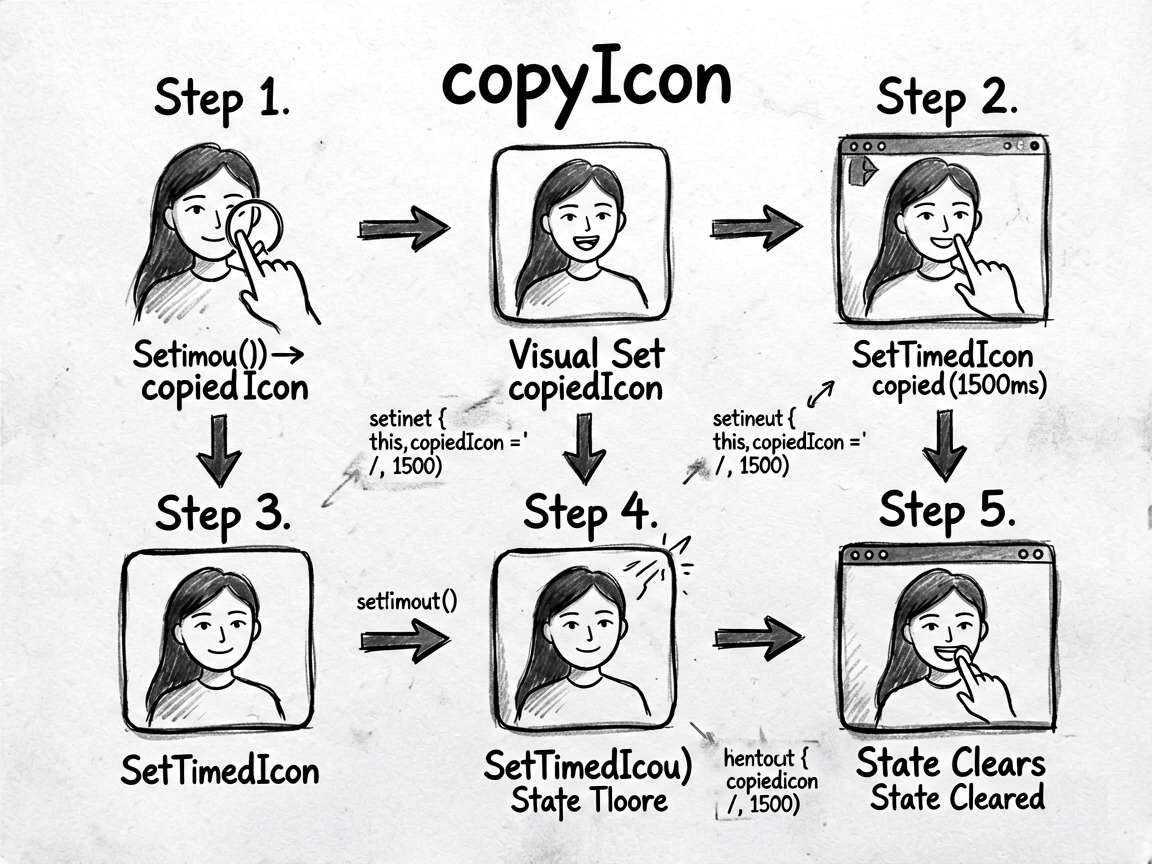
复制逻辑本身很短,但这个短函数特别像真实项目里的处理方式:先更新一个即时状态,再用延时把反馈清掉。比起直接弹一个死板提示,这种写法更轻,也更适合页面内反馈。
  copyIcon(icon: IconItem) {
    this.copiedIcon = icon.name
    setTimeout(() => { this.copiedIcon = '' }, 1500)
  }
如果你后面打算把这个页面接到系统剪贴板,最自然的扩展点也在这里。把复制动作、埋点统计、成功提示都收进这个函数,页面主结构仍然可以保持干净。
读这份代码时我会盯哪些点
这个案例不难,难的是别把它写成一页“能跑但难改”的代码。
先看状态定义,再看筛选逻辑,最后再看网格布局,阅读体验会好很多。
如果要继续扩展,优先补空状态、复制提示样式和详情面板,而不是先换皮肤。
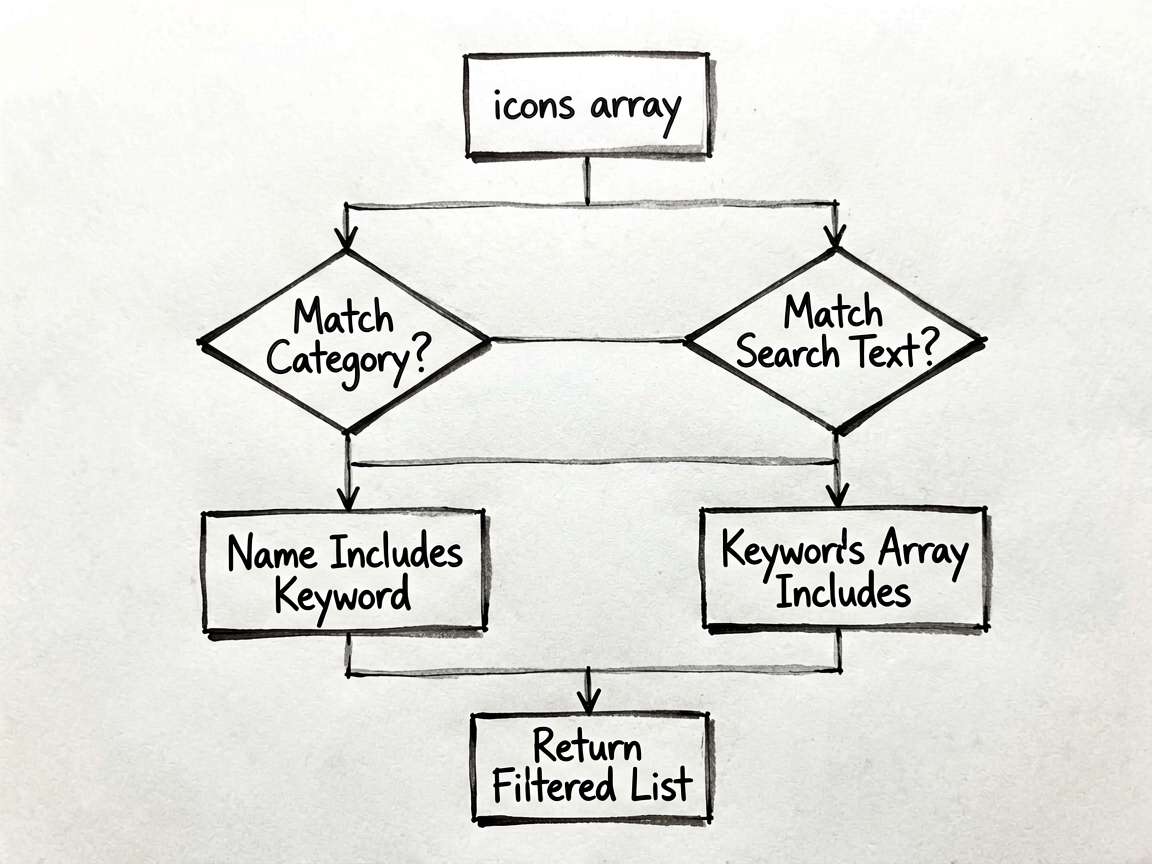
- 搜索和分类是否同时生效,而不是互相覆盖
- 复制反馈有没有在合适的时机自动消失
- 网格和列表两种模式是不是共用同一份数据源
- 图标项结构是否足够支撑后续扩展,比如收藏、分组、最近使用
- 页面里有没有把业务判断直接写死在布局链式调用里
完整代码
// IconGalleryWallPage - 图标展示墙 - 图标分类浏览、搜索与复制

interface IconItem {
  name: string
  emoji: string
  category: string
  keywords: string[]
}

@Entry
@Component
struct IconGalleryWallPage {
  @State searchText: string = ''
  @State activeCategory: string = '全部'
  @State copiedIcon: string = ''
  @State selectedIcon: IconItem | null = null
  @State viewMode: string = 'grid'

  private categories: string[] = ['全部', '界面', '导航', '社交', '媒体', '商业', '自然', '食物']

  private icons: IconItem[] = [
    { name: '主页', emoji: '🏠', category: '界面', keywords: ['home', '首页'] },
    { name: '设置', emoji: '⚙️', category: '界面', keywords: ['setting', '配置'] },
    { name: '搜索', emoji: '🔍', category: '界面', keywords: ['search', '查找'] },
    { name: '通知', emoji: '🔔', category: '界面', keywords: ['notification', '消息'] },
    { name: '用户', emoji: '👤', category: '界面', keywords: ['user', '人员'] },
    { name: '收藏', emoji: '⭐', category: '界面', keywords: ['star', '星标'] },
    { name: '分享', emoji: '📤', category: '界面', keywords: ['share', '发送'] },
    { name: '删除', emoji: '🗑️', category: '界面', keywords: ['delete', '清除'] },
    { name: '返回', emoji: '⬅️', category: '导航', keywords: ['back', '后退'] },
    { name: '前进', emoji: '➡️', category: '导航', keywords: ['forward', '下一步'] },
    { name: '地图', emoji: '🗺️', category: '导航', keywords: ['map', '地图'] },
    { name: '定位', emoji: '📍', category: '导航', keywords: ['location', '位置'] },
    { name: '路线', emoji: '🧭', category: '导航', keywords: ['direction', '方向'] },
    { name: '聊天', emoji: '💬', category: '社交', keywords: ['chat', '消息'] },
    { name: '点赞', emoji: '👍', category: '社交', keywords: ['like', '赞'] },
    { name: '关注', emoji: '➕', category: '社交', keywords: ['follow', '添加'] },
    { name: '相机', emoji: '📷', category: '媒体', keywords: ['camera', '拍照'] },
    { name: '视频', emoji: '🎬', category: '媒体', keywords: ['video', '录像'] },
    { name: '音乐', emoji: '🎵', category: '媒体', keywords: ['music', '播放'] },
    { name: '照片', emoji: '🖼️', category: '媒体', keywords: ['photo', '图片'] },
    { name: '购物车', emoji: '🛒', category: '商业', keywords: ['cart', '购物'] },
    { name: '钱包', emoji: '👛', category: '商业', keywords: ['wallet', '支付'] },
    { name: '礼品', emoji: '🎁', category: '商业', keywords: ['gift', '礼物'] },
    { name: '太阳', emoji: '☀️', category: '自然', keywords: ['sun', '晴'] },
    { name: '月亮', emoji: '🌙', category: '自然', keywords: ['moon', '夜晚'] },
    { name: '花', emoji: '🌸', category: '自然', keywords: ['flower', '春天'] },
    { name: '汉堡', emoji: '🍔', category: '食物', keywords: ['burger', '快餐'] },
    { name: '披萨', emoji: '🍕', category: '食物', keywords: ['pizza', '美食'] },
    { name: '咖啡', emoji: '☕', category: '食物', keywords: ['coffee', '饮料'] },
    { name: '水果', emoji: '🍎', category: '食物', keywords: ['apple', '水果'] },
  ]

  get filteredIcons(): IconItem[] {
    return this.icons.filter((icon: IconItem) => {
      const matchCat = this.activeCategory === '全部' || icon.category === this.activeCategory
      const matchSearch = this.searchText === '' ||
        icon.name.includes(this.searchText) ||
        icon.keywords.some((k: string) => k.includes(this.searchText))
      return matchCat && matchSearch
    })
  }

  copyIcon(icon: IconItem) {
    this.copiedIcon = icon.name
    setTimeout(() => { this.copiedIcon = '' }, 1500)
  }

  build() {
    Column({ space: 0 }) {
      // 顶部
      Column({ space: 12 }) {
        Row() {
          Text('图标库')
            .fontSize(22)
            .fontWeight(FontWeight.Bold)
            .fontColor('#1a1a1a')
          Blank()
          Row({ space: 12 }) {
            Text(this.viewMode === 'grid' ? '☰' : '⊞')
              .fontSize(20)
              .fontColor('#666666')
              .onClick(() => { this.viewMode = this.viewMode === 'grid' ? 'list' : 'grid' })
          }
        }
        .width('100%')

        // 搜索
        Row({ space: 10 }) {
          Text('🔍').fontSize(16).fontColor('#aaaaaa')
          TextInput({ placeholder: '搜索图标名称或关键词...', text: this.searchText })
            .layoutWeight(1)
            .height(36)
            .fontSize(14)
            .backgroundColor('transparent')
            .onChange((v: string) => { this.searchText = v })
        }
        .width('100%')
        .padding({ left: 12, right: 12 })
        .backgroundColor('#f5f5f5')
        .borderRadius(20)
        .height(44)
      }
      .padding({ left: 16, right: 16, top: 16, bottom: 12 })
      .backgroundColor('#ffffff')

      // 分类
      Scroll() {
        Row({ space: 10 }) {
          ForEach(this.categories, (cat: string) => {
            Text(cat)
              .fontSize(13)
              .fontColor(this.activeCategory === cat ? '#ffffff' : '#666666')
              .backgroundColor(this.activeCategory === cat ? '#1890ff' : '#f0f0f0')
              .padding({ left: 16, right: 16, top: 7, bottom: 7 })
              .borderRadius(16)
              .onClick(() => { this.activeCategory = cat })
          })
        }
        .padding({ left: 16, right: 16, bottom: 12 })
      }
      .scrollable(ScrollDirection.Horizontal)
      .scrollBar(BarState.Off)
      .backgroundColor('#ffffff')

      Divider().strokeWidth(0.5).color('#f0f0f0')

      // 数量提示
      Text(`共 ${this.filteredIcons.length} 个图标`)
        .fontSize(12)
        .fontColor('#aaaaaa')
        .padding({ left: 16, top: 10, bottom: 10 })
        .width('100%')
        .backgroundColor('#f5f7fa')

      // 图标展示
      if (this.viewMode === 'grid') {
        Scroll() {
          Column() {
            Grid() {
              ForEach(this.filteredIcons, (icon: IconItem) => {
                GridItem() {
                  Column({ space: 6 }) {
                    Stack() {
                      Circle()
                        .width(52)
                        .height(52)
                        .fill(this.copiedIcon === icon.name ? '#e8f4ff' : '#f8f8f8')
                      Text(icon.emoji).fontSize(26)
                    }
                    Text(icon.name)
                      .fontSize(11)
                      .fontColor(this.copiedIcon === icon.name ? '#1890ff' : '#555555')
                      .maxLines(1)
                  }
                  .alignItems(HorizontalAlign.Center)
                  .padding({ top: 12, bottom: 12 })
                  .onClick(() => { this.copyIcon(icon); this.selectedIcon = icon })
                }
              })
            }
            .columnsTemplate('1fr 1fr 1fr 1fr')
            .columnsGap(8)
            .rowsGap(8)
            .padding({ left: 12, right: 12 })
            Column().height(32)
          }
        }
        .layoutWeight(1)
        .backgroundColor('#f5f7fa')
      } else {
        Scroll() {
          Column({ space: 0 }) {
            ForEach(this.filteredIcons, (icon: IconItem, idx: number) => {
              Column() {
                Row({ space: 16 }) {
                  Stack() {
                    Circle().width(44).height(44).fill('#f0f0f0')
                    Text(icon.emoji).fontSize(22)
                  }
                  Column({ space: 4 }) {
                    Text(icon.name).fontSize(15).fontColor('#1a1a1a').fontWeight(FontWeight.Medium)
                    Text(icon.keywords.join('、')).fontSize(12).fontColor('#aaaaaa')
                  }
                  .layoutWeight(1)
                  .alignItems(HorizontalAlign.Start)
                  Text(icon.category)
                    .fontSize(11)
                    .fontColor('#1890ff')
                    .backgroundColor('#e8f4ff')
                    .padding({ left: 8, right: 8, top: 3, bottom: 3 })
                    .borderRadius(10)
                  Text(this.copiedIcon === icon.name ? '✓' : '复制')
                    .fontSize(12)
                    .fontColor(this.copiedIcon === icon.name ? '#52c41a' : '#999999')
                    .onClick(() => this.copyIcon(icon))
                }
                .padding({ left: 16, right: 16, top: 12, bottom: 12 })
                if (idx < this.filteredIcons.length - 1) {
                  Divider().strokeWidth(0.5).color('#f5f5f5').margin({ left: 76 })
                }
              }
              .backgroundColor('#ffffff')
            })
            Column().height(32)
          }
          .backgroundColor('#f5f7fa')
        }
        .layoutWeight(1)
        .backgroundColor('#f5f7fa')
      }

      // 复制提示
      if (this.copiedIcon !== '') {
        Row({ space: 6 }) {
          Text('✓').fontSize(14).fontColor('#ffffff')
          Text(`"${this.copiedIcon}" 已复制`).fontSize(13).fontColor('#ffffff')
        }
        .padding({ left: 20, right: 20, top: 10, bottom: 10 })
        .backgroundColor('#333333cc')
        .borderRadius(20)
        .position({ x: '50%', y: '88%' })
        .translate({ x: '-50%' })
      }
    }
    .width('100%')
    .height('100%')
    .backgroundColor('#f5f7fa')
  }
}
写在最后
这类案例最值得学的,其实不是某一个控件怎么写,而是页面组织方式。把状态放对、把交互函数收好、把布局压简单,后面你接正式项目时会轻松很多。

讨论HarmonyOS开发技术,专注于API与组件、DevEco Studio、测试、元服务和应用上架分发等。
更多推荐


 5
5 0
0- 0


 已为社区贡献2条内容

所有评论(0)