HarmonyOS7通讯录详情页实战:详情展示与备注编辑交互
文章目录
前言
详情页经常被低估。很多人觉得它不过是把头像、姓名、电话、邮箱这些字段排出来,但真正写起来才会发现,详情页最难的地方不是信息展示,而是“展示态”和“操作态”怎么共存在一页里还不显得混乱。
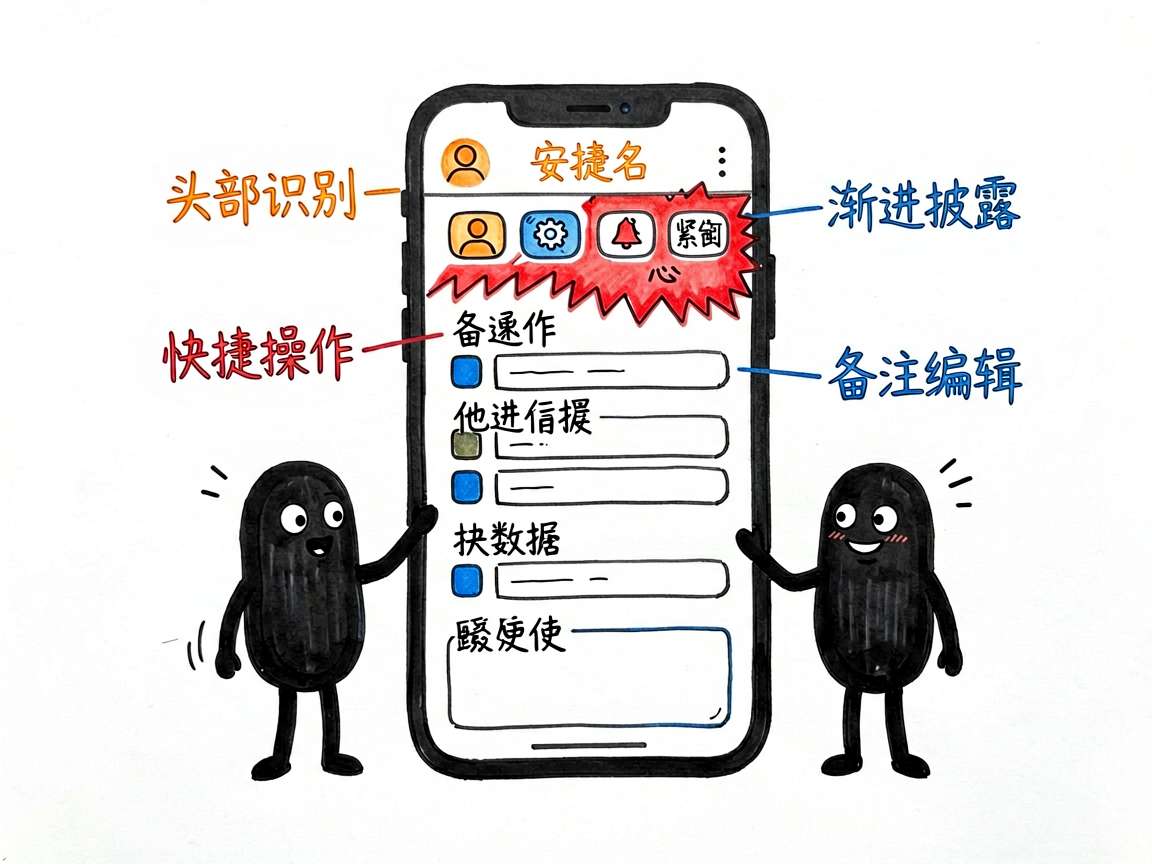
这个 HarmonyOS 示例做得比较完整:它不是单纯的联系人名片,而是把收藏、快捷操作、更多信息展开、备注编辑和危险操作都塞进了一页。这样的页面结构,已经很接近真实通讯录、CRM 客户详情页或者社交资料页的工作方式。
这类详情页最重要的,不是字段多,而是层次要清楚
打开联系人详情页,用户通常不是只想“看信息”。他可能还想马上拨号、发消息、发邮件、补充备注,或者展开看看更完整的资料。这意味着详情页天然是一个“读”和“改”并存的页面。
这份源码的组织顺序很成熟:
- 头部先建立人物识别,包括头像、姓名、公司和收藏状态。
- 标签和快捷操作紧跟在后,把高频动作放在最前面。
- 电话、邮箱这些结构化信息单独分组,方便快速查找。
- 其他信息默认收起,减少首屏信息密度。
- 备注区单独支持编辑和保存,是页面里最重要的局部可修改区域。
- 危险操作放在最下方,和日常操作明显分开。
这套排法说明作者在按使用优先级组织内容,而不是把字段机械地一个个堆上去。详情页能不能显得专业,很多时候就取决于这种信息顺序。
状态设计里的关键,是把“联系人数据”和“当前编辑上下文”分开
这页的状态量不大,但分层很清楚:
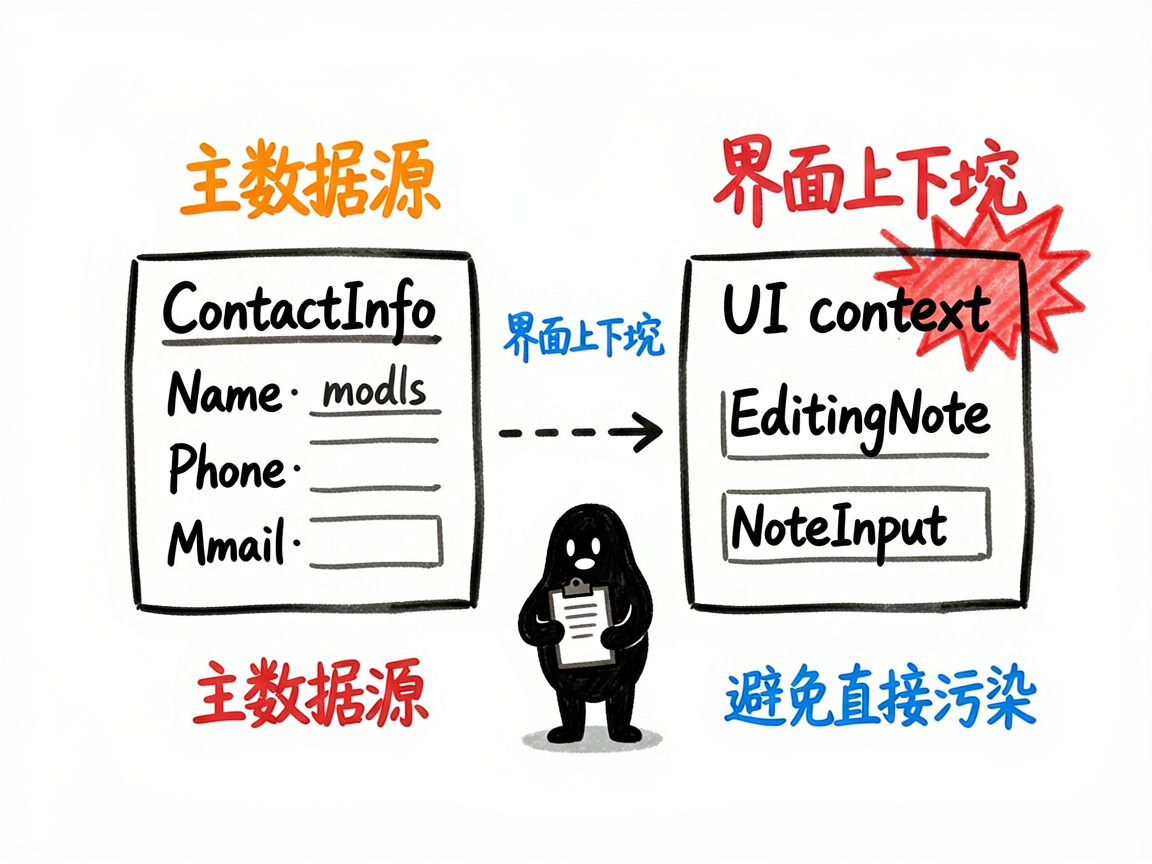
@State contact: ContactInfo_xuu6 = { ... }
@State editingNote: boolean = false
@State noteInput: string = ''
@State showMore: boolean = false
contact 是主数据源,代表这个联系人本身的信息,包括电话、邮箱、地址、生日、标签、备注和收藏状态。页面里大部分显示内容都来自它。
editingNote、noteInput、showMore 则属于界面上下文状态:
editingNote决定备注区现在是查看态还是编辑态。noteInput保存编辑过程中的临时输入。showMore决定“其他信息”这一组是不是展开。
这种拆法非常值得学,因为它避免了一个常见问题:把正在编辑的临时值直接写回主数据。当前实现里,备注编辑先写到 noteInput,点击保存后才回写 contact.note,这就给“取消编辑”“输入校验”“脏数据判断”留出了空间。
contact 这份数据模型,本身就在决定详情页能不能写顺
看这页时不要只盯着布局,ContactInfo_xuu6 的结构本身也值得分析。它把联系人信息分成了几类:
- 基础身份信息:姓名、头像、公司、部门。
- 结构化联系方式:
phones、emails。 - 扩展资料:地址、生日、标签、备注。
- 状态位:
isFavorite。
这说明详情页不是把所有字段都当成“平的字符串”处理,而是开始根据内容类型做分组。比如电话和邮箱都用了数组,而不是只留一个字段,这样天然支持一人多号码、一人多邮箱的真实场景。
对于教程来说,这一点非常重要。很多示例页面之所以一到真实项目就不够用,问题不是 UI,而是数据模型从一开始就过于扁平。
收藏切换是最小但很典型的一段即时状态更新
头部右上角的收藏星标,虽然只有一行点击逻辑,但很适合拿来说明“主数据上的即时修改”:
.onClick(() => {
  this.contact.isFavorite = !this.contact.isFavorite
})
这个交互的特点是简单、直接、反馈立即可见。点击后,星标符号和颜色会马上变化。它和备注编辑不同,不需要中间缓冲状态,因为这是一个原子操作,用户的意图也很明确。
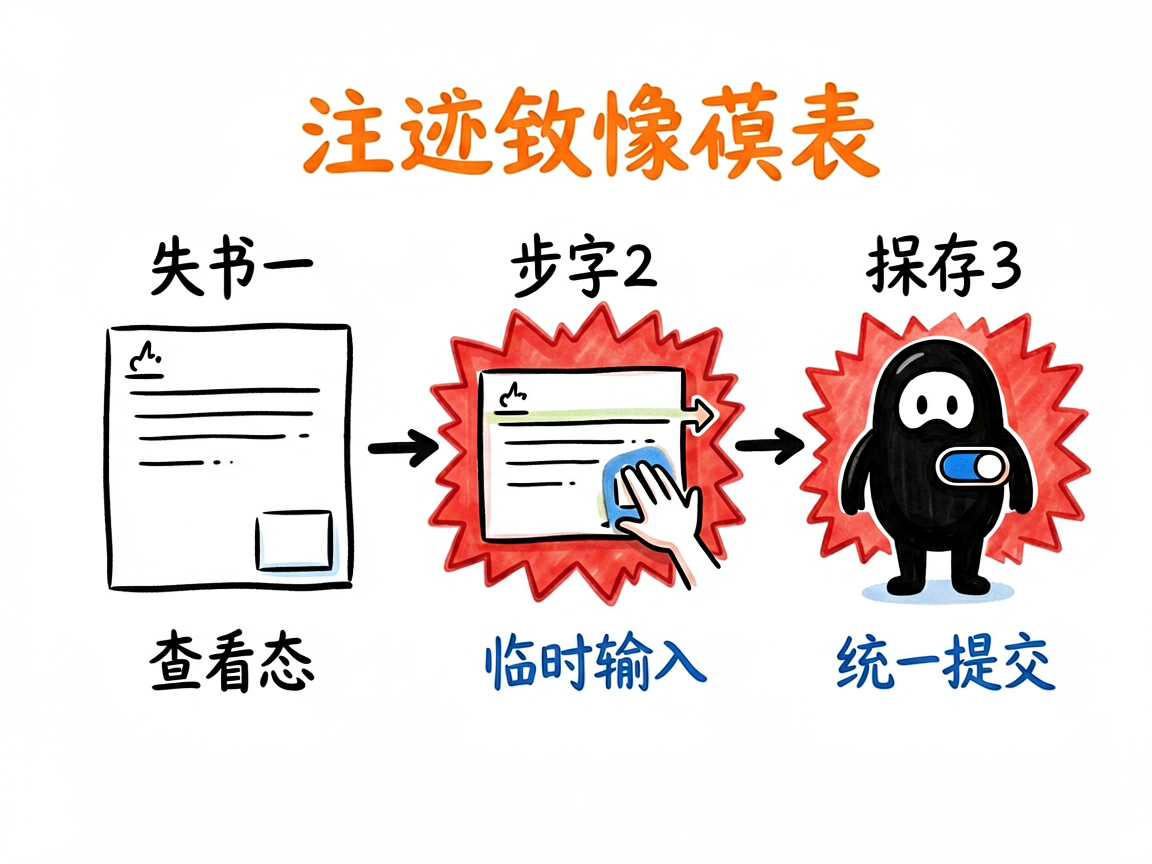
所以这页里其实同时存在两种更新模式:
- 像收藏这种简单开关,直接改主状态。
- 像备注这种需要编辑过程的内容,先走临时输入,再统一提交。
如果教程能把这两种模式区分清楚,读者会更容易理解什么时候该直接改 @State,什么时候需要额外的过渡变量。
showMore 体现的是详情页里的“渐进披露”
联系方式是高频信息,所以默认展开。地址和生日相对低频,就被放进“其他信息”区域,通过 showMore 控制展开和收起。
这种设计在真实项目里很常见,本质上是在做渐进披露:先把最重要的信息露出来,把次重要信息放到第二层,避免页面首屏过长或者信息拥挤。
源码里这段逻辑虽然简单,但很适合讲产品思路。因为它不是为了炫技,而是在处理密度问题。详情页越接近真实业务,这种“不是所有字段都该默认出现”的意识就越重要。
备注区是整页最有教学价值的部分
这篇案例最值得细讲的,其实是备注编辑区。它同时具备展示态和编辑态,并且两种状态之间可以切换:
Text(this.editingNote ? '保存' : '编辑').fontSize(12).fontColor('#007AFF')
  .onClick(() => {
    if (this.editingNote) {
      this.contact.note = this.noteInput
    } else {
      this.noteInput = this.contact.note
    }
    this.editingNote = !this.editingNote
  })
这段逻辑里有两个很关键的时机:
- 从查看态切到编辑态时,先把当前备注拷贝到
noteInput。 - 从编辑态切回查看态时,再把
noteInput写回contact.note。
这意味着备注区不是一边输入一边直接污染主数据,而是先在草稿区编辑,确认后再提交。虽然现在没有“取消”按钮,但这个结构已经天然支持后续扩展:
- 可以加长度限制和敏感词校验。
- 可以在退出编辑前判断内容是否有变化。
- 可以支持撤销修改或放弃编辑。
- 可以接远程保存接口,在成功后再落回主状态。
这类逻辑非常像真实业务页面,而不仅仅是演示 TextArea 怎么用。所以它值得作为整篇文章的核心来讲。
快捷操作区说明这页不是静态资料卡,而是可行动的详情页
页头下面那排“拨号、消息、邮件、视频”按钮也很有代表性。它们虽然暂时只保留了占位点击,但已经把这页的角色定出来了:这不是一张只读名片,而是一个操作入口集合。
很多详情页写到最后会显得很“死”,就是因为所有内容都只是展示,没有任何就地动作。这个案例至少在结构上已经把动作区独立出来,后面无论接系统拨号、发短信还是跳转会话页,扩展都很顺。
如果继续扩展成正式项目,这几个点会很关键
当前版本已经能支撑一个不错的教学示例,但如果往正式项目做,下面几件事值得优先补上:
- 备注编辑区增加“取消”按钮和输入校验。
- 电话、邮箱、地址这些字段接入真实点击行为,而不是仅做展示。
- 收藏状态和备注保存接到数据层,避免只停留在本地页面状态。
- 为空字段增加兜底展示,比如没有邮箱、没有生日时的处理。
- 把头部信息卡、联系方式分组、备注区抽成独立子组件,降低页面体积。
尤其是空字段处理,这在 CRM 或联系人系统里非常常见。示例数据通常很完整,但真实数据往往不会这么整齐。
完整代码
下面保留案例完整代码,方便你直接对照学习、复制和重构。
// 通讯录详情页: 通讯录详情页 - 联系人信息展示、快捷操作、备注编辑

interface PhoneItem {
  label: string
  number: string
}

interface EmailItem {
  label: string
  address: string
}

interface ContactInfo_xuu6 {
  id: number
  name: string
  avatar: string
  company: string
  department: string
  phones: PhoneItem[]
  emails: EmailItem[]
  address: string
  birthday: string
  note: string
  isFavorite: boolean
  tags: string[]
}

interface QuickAction_sctr {
  icon: string
  label: string
  color: string
}

@Entry
@Component
struct ContactDetailProfile {
  @State contact: ContactInfo_xuu6 = {
    id: 1,
    name: '张伟',
    avatar: '张',
    company: '腾讯科技有限公司',
    department: '产品研发部',
    phones: [
      { label: '手机', number: '138-0013-8000' },
      { label: '公司', number: '0755-8600-8000' },
    ],
    emails: [
      { label: '工作', address: 'zhangwei@tencent.com' },
      { label: '个人', address: 'zhangwei@gmail.com' },
    ],
    address: '广东省深圳市南山区科技中一路腾讯大厦',
    birthday: '1992年3月15日',
    note: '产品部门负责人,主要负责用户增长相关产品。开会提前告知。',
    isFavorite: true,
    tags: ['同事', '重要', 'VIP'],
  }
  @State editingNote: boolean = false
  @State noteInput: string = ''
  @State showMore: boolean = false

  private quickActions: QuickAction_sctr[] = [
    { icon: '📞', label: '拨号', color: '#34C759' },
    { icon: '💬', label: '消息', color: '#007AFF' },
    { icon: '📧', label: '邮件', color: '#FF9500' },
    { icon: '📹', label: '视频', color: '#5856D6' },
  ]

  build() {
    Scroll() {
      Column() {
        // 头部背景
        Stack() {
          Column()
            .width('100%').height(200)
            .linearGradient({ angle: 160, colors: [['#007AFF', 0], ['#5856D6', 1]] })

          Column() {
            Row() {
              Text('< 返回').fontSize(15).fontColor('#FFFFFF').margin({ left: 16 })
              Blank()
              Text(this.contact.isFavorite ? '★' : '☆')
                .fontSize(22).fontColor(this.contact.isFavorite ? '#FFD700' : '#FFFFFF')
                .margin({ right: 16 })
                .onClick(() => {
                  this.contact.isFavorite = !this.contact.isFavorite
                })
            }
            .width('100%')
            .margin({ top: 50 })

            // 头像
            Text(this.contact.avatar)
              .fontSize(40).fontColor('#FFFFFF')
              .width(80).height(80)
              .backgroundColor('#FFFFFF30')
              .borderRadius(40)
              .textAlign(TextAlign.Center)
              .lineHeight(80)
              .border({ width: 3, color: '#FFFFFF' })
              .margin({ top: 12 })

            Text(this.contact.name)
              .fontSize(22).fontWeight(FontWeight.Bold).fontColor('#FFFFFF').margin({ top: 8 })
            Text(`${this.contact.company} · ${this.contact.department}`)
              .fontSize(12).fontColor('#FFFFFF80').margin({ top: 2 })
          }
          .width('100%')
          .alignItems(HorizontalAlign.Center)
        }
        .height(200)
        .width('100%')

        // 标签
        Row({ space: 8 }) {
          ForEach(this.contact.tags, (tag: string) => {
            Text(tag)
              .fontSize(11).fontColor('#007AFF')
              .backgroundColor('#EEF6FF').borderRadius(10)
              .padding({ left: 10, right: 10, top: 4, bottom: 4 })
          })
        }
        .padding({ top: 12, bottom: 8, left: 20, right: 20 })

        // 快捷操作
        Row() {
          ForEach(this.quickActions, (action: QuickAction_sctr) => {
            Column({ space: 6 }) {
              Text(action.icon)
                .fontSize(24)
                .width(52).height(52)
                .backgroundColor(`${action.color}15`)
                .borderRadius(26)
                .textAlign(TextAlign.Center)
                .lineHeight(52)
              Text(action.label).fontSize(12).fontColor('#555555')
            }
            .layoutWeight(1)
            .onClick(() => {})
          })
        }
        .width('100%')
        .padding({ left: 20, right: 20, bottom: 16 })
        .backgroundColor('#FFFFFF')

        // 电话
        Column() {
          Text('电话').fontSize(12).fontColor('#888888').alignSelf(ItemAlign.Start).padding({ bottom: 4 })
          ForEach(this.contact.phones, (phone: PhoneItem, idx: number) => {
            Row() {
              Column() {
                Text(phone.number).fontSize(15).fontColor('#1A1A1A')
                Text(phone.label).fontSize(11).fontColor('#888888').margin({ top: 2 })
              }
              .alignItems(HorizontalAlign.Start)
              .layoutWeight(1)
              Row({ space: 16 }) {
                Text('📞').fontSize(20)
                Text('💬').fontSize(20)
              }
            }
            .width('100%')
            .padding({ top: 10, bottom: 10 })
            .border({
              width: { bottom: idx < this.contact.phones.length - 1 ? 0.5 : 0 },
              color: { bottom: '#F0F0F0' }
            })
          })
        }
        .width('100%')
        .padding(16)
        .backgroundColor('#FFFFFF')
        .borderRadius(12)
        .margin({ left: 16, right: 16, bottom: 10 })

        // 邮箱
        Column() {
          Text('邮箱').fontSize(12).fontColor('#888888').alignSelf(ItemAlign.Start).padding({ bottom: 4 })
          ForEach(this.contact.emails, (email: EmailItem, idx: number) => {
            Row() {
              Column() {
                Text(email.address).fontSize(14).fontColor('#007AFF')
                Text(email.label).fontSize(11).fontColor('#888888').margin({ top: 2 })
              }
              .alignItems(HorizontalAlign.Start)
              .layoutWeight(1)
              Text('📧').fontSize(20)
            }
            .width('100%')
            .padding({ top: 10, bottom: 10 })
            .border({
              width: { bottom: idx < this.contact.emails.length - 1 ? 0.5 : 0 },
              color: { bottom: '#F0F0F0' }
            })
          })
        }
        .width('100%')
        .padding(16)
        .backgroundColor('#FFFFFF')
        .borderRadius(12)
        .margin({ left: 16, right: 16, bottom: 10 })

        // 更多信息
        Column({ space: 12 }) {
          Row() {
            Text('其他信息').fontSize(13).fontWeight(FontWeight.Bold).fontColor('#1A1A1A')
            Blank()
            Text(this.showMore ? '收起 ▲' : '展开 ▼').fontSize(12).fontColor('#007AFF')
              .onClick(() => { this.showMore = !this.showMore })
          }
          .width('100%')

          if (this.showMore) {
            Column({ space: 8 }) {
              Row() {
                Text('📍 地址').fontSize(12).fontColor('#888888').width(70)
                Text(this.contact.address).fontSize(13).fontColor('#333333').layoutWeight(1)
              }
              Row() {
                Text('🎂 生日').fontSize(12).fontColor('#888888').width(70)
                Text(this.contact.birthday).fontSize(13).fontColor('#333333')
              }
            }
            .width('100%')
          }
        }
        .width('100%')
        .padding(16)
        .backgroundColor('#FFFFFF')
        .borderRadius(12)
        .margin({ left: 16, right: 16, bottom: 10 })

        // 备注
        Column({ space: 8 }) {
          Row() {
            Text('备注').fontSize(13).fontWeight(FontWeight.Bold).fontColor('#1A1A1A')
            Blank()
            Text(this.editingNote ? '保存' : '编辑').fontSize(12).fontColor('#007AFF')
              .onClick(() => {
                if (this.editingNote) {
                  this.contact.note = this.noteInput
                } else {
                  this.noteInput = this.contact.note
                }
                this.editingNote = !this.editingNote
              })
          }
          .width('100%')

          if (this.editingNote) {
            TextArea({ text: this.noteInput, placeholder: '添加备注...' })
              .height(100).borderRadius(8).backgroundColor('#F5F5F5').fontSize(13)
              .onChange((v: string) => { this.noteInput = v })
          } else {
            Text(this.contact.note || '暂无备注')
              .fontSize(13).fontColor(this.contact.note ? '#555555' : '#CCCCCC')
              .width('100%')
          }
        }
        .width('100%')
        .padding(16)
        .backgroundColor('#FFFFFF')
        .borderRadius(12)
        .margin({ left: 16, right: 16, bottom: 10 })

        // 危险操作
        Column({ space: 10 }) {
          Text('删除联系人').fontSize(14).fontColor('#FF3B30')
            .width('100%').textAlign(TextAlign.Center).padding(14)
            .backgroundColor('#FFFFFF').borderRadius(12)
          Text('拉黑').fontSize(14).fontColor('#FF9500')
            .width('100%').textAlign(TextAlign.Center).padding(14)
            .backgroundColor('#FFFFFF').borderRadius(12)
        }
        .margin({ left: 16, right: 16, bottom: 32 })
      }
    }
    .width('100%').height('100%')
    .backgroundColor('#F2F2F7')
    .scrollBar(BarState.Off)
  }
}
最后总结
这篇详情页案例最值得借鉴的,是它把展示内容、快捷动作、渐进展开和局部编辑放进了一页统一的状态结构里。你把“主数据”和“编辑上下文”这两层关系看明白之后,再写联系人页、客户页、成员资料页,很多交互设计都会顺手很多。

讨论HarmonyOS开发技术,专注于API与组件、DevEco Studio、测试、元服务和应用上架分发等。
更多推荐

 0
0 0
0- 0


 已为社区贡献213条内容

所有评论(0)