【私房菜集 HarmonyOS ArkTS 实战系列 13】分享截图与桌面卡片实战
【私房菜集 HarmonyOS ArkTS 实战系列 13】分享截图与桌面卡片实战
第 12 篇讲了设置与主题,应用级偏好已经能影响窗口和资源。第 13 篇继续看应用外能力:菜谱内容不只停留在详情页,也可以生成分享卡片保存到图库,还可以通过桌面卡片展示每日推荐,并从卡片跳回菜谱详情。本篇重点拆ShareRecipePage、ShareService、EntryFormAbility、WidgetCard、form_config.json和EntryAbility的跳转处理。
一、分享和卡片解决的是应用外触点
菜谱应用的核心浏览链路已经在前几篇完成:列表、搜索、详情、收藏、计时器、偏好和设置。到了分享和桌面卡片,关注点发生变化:
- 分享页把当前菜谱组织成一张可保存图片。
- 桌面卡片把推荐菜谱放到 App 外部入口。
- 点击桌面卡片时,需要重新回到应用内详情页。
这三件事看似独立,但都围绕同一个问题:菜谱内容如何离开当前页面,同时仍然能保持数据和跳转闭环。
二、源码对象总览
| 源码对象 | 作用 |
|---|---|
pages/ShareRecipePage.ets | 分享预览页,展示菜谱卡片并保存到图库。 |
services/ShareService.ets | 构建分享文案。 |
entryformability/EntryFormAbility.ets | 桌面卡片扩展能力,提供推荐数据并处理卡片刷新事件。 |
widget/pages/WidgetCard.ets | 桌面卡片 UI,使用 LocalStorageProp 接收数据并触发跳转。 |
resources/base/profile/form_config.json | 声明卡片名称、尺寸、动态更新周期和入口页面。 |
entryability/EntryAbility.ets | 处理卡片传入的 want 参数,并跳转到菜谱详情页。 |
分享页是 App 内页面,桌面卡片是扩展能力;两者都围绕菜谱内容,但技术边界完全不同。
三、可复现工程上下文
这一篇涉及 App 页面、系统保存控件、图库访问、FormExtensionAbility 和 Widget 页面,文件分布比前几篇更分散:
| 能力 | 文件路径 |
|---|---|
| 分享预览页 | entry/src/main/ets/pages/ShareRecipePage.ets |
| 分享文案服务 | entry/src/main/ets/services/ShareService.ets |
| 桌面卡片扩展 | entry/src/main/ets/entryformability/EntryFormAbility.ets |
| 卡片 ArkTS 页面 | entry/src/main/ets/widget/pages/WidgetCard.ets |
| 卡片配置 | entry/src/main/resources/base/profile/form_config.json |
| 卡片回跳处理 | entry/src/main/ets/entryability/EntryAbility.ets |
本次实测环境如下:
| 项目 | 实测值 |
|---|---|
| 运行设备 | 本地 HarmonyOS 模拟器 |
| 应用包名 | com.lesson.myapplicationsfcj |
| 包配置版本 | AppScope/app.json5 -> versionName: 1.0.1, versionCode: 1000000 |
| SDK 版本 | targetSdkVersion: 6.1.0(23), compatibleSdkVersion: 6.0.2(22) |
| 工程模型 | modelVersion: 6.1.0, apiType: stageMode |
| 卡片尺寸 | 2*2 |
| 卡片更新策略 | 08:00 定时更新,updateDuration 为 48 |
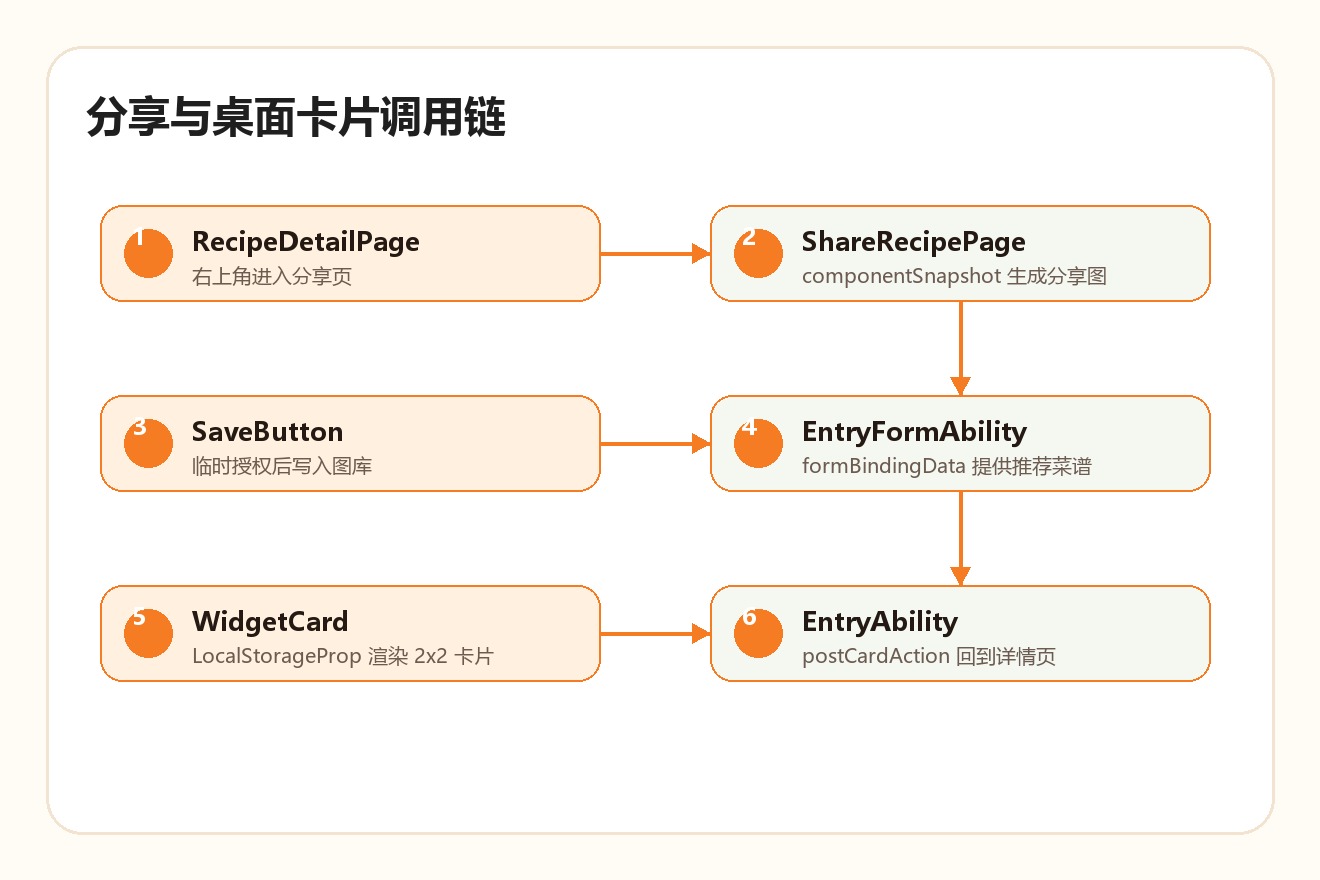
从调用链看,它分成两条路径:
详情页 -> 分享页 -> componentSnapshot -> ImagePacker -> PhotoAccessHelper -> 图库
EntryFormAbility -> formBindingData -> WidgetCard -> postCardAction -> EntryAbility -> 详情页
下面这张图把两条路径放到同一张工程图里,便于定位代码边界:
四、分享页入口:详情页右上角跳转
详情页通过 AppPageHeader 的右侧按钮进入分享页:
AppPageHeader({
  title: '菜谱详情',
  onBack: () => this.handleBack(),
  onRight: () => {
    if (this.data.recipe.id.length > 0) {
      router.pushUrl({
        url: AppRoutes.SHARE,
        params: { recipeId: this.data.recipe.id }
      });
    }
  }
})
分享页只需要一个参数:recipeId。这样分享页不依赖详情页传入完整菜谱对象,而是自己通过服务层重新读取详情数据。
五、ShareRecipePage:读取当前菜谱详情
分享页的状态和详情页类似,使用 RecipeDetailData:
@State data: RecipeDetailData = {
  recipe: {
    id: '',
    title: '',
    description: '',
    categoryId: '',
    categoryName: '',
    coverImages: [],
    durationMinutes: 0,
    difficulty: 'simple',
    difficultyText: '',
    serving: '',
    ingredients: [],
    steps: [],
    tips: [],
    viewCount: 0,
    source: 'builtIn',
    tags: [],
    createdAt: 0,
    updatedAt: 0
  },
  isFavorite: false,
  isInTodoList: false,
  note: '',
  avoidedIngredients: []
};
页面出现时读取路由参数:
async aboutToAppear() {
  recipeService.init(getContext(this) as common.UIAbilityContext);
  const params = router.getParams() as ShareParams;
  this.recipeId = params.recipeId ?? '';
  const detail = await recipeService.getRecipeDetail(this.recipeId);
  if (detail === null) {
    promptAction.showToast({ message: 'Recipe not found' });
    router.back();
    return;
  }
  this.data = detail;
}
这段逻辑和详情页保持一致:找不到菜谱就 toast 并返回,避免分享页显示空卡片。
六、分享卡片 UI:可截图区域要有稳定 id
分享页中用于截图保存的区域有一个固定 id:
private readonly shareCardId: string = 'share-card';
渲染时把这个 id 绑定到卡片容器:
Column({ space: 12 }) {
  RecipeImage({
    src: this.data.recipe.coverImages[0] ?? '',
    title: this.data.recipe.title,
    heightValue: 220,
    radius: 14
  })
  Text(this.data.recipe.title)
    .fontSize(24)
    .fontWeight(FontWeight.Bold)
  Text(this.data.recipe.description)
    .fontSize(14)
    .maxLines(3)
  Text(`Ingredients: ${this.data.recipe.ingredients
    .slice(0, 4)
    .map(item => item.name)
    .join(' / ')}`)
  Text('From Private Menu')
}
.id(this.shareCardId)
.width('100%')
.padding(16)
.backgroundColor($r('app.color.card_bg'))
.borderRadius(16)
这个 id 是 componentSnapshot.get() 的抓取目标。如果没有稳定 id,就只能截整页或依赖布局层级,后续 UI 调整时很容易失效。
七、保存到图库:组件截图 + ImagePacker + PhotoAccessHelper
保存逻辑在 saveCardToAlbum() 中:
private async saveCardToAlbum() {
  let pixelMap: image.PixelMap | undefined = undefined;
  let packer: image.ImagePacker | undefined = undefined;
  let file: fs.File | undefined = undefined;
  try {
    pixelMap = await componentSnapshot.get(this.shareCardId);
    packer = image.createImagePacker();
    const imageBuffer = await packer.packToData(pixelMap, {
      format: 'image/jpeg',
      quality: 95
    });
    const context = getContext(this) as common.UIAbilityContext;
    const helper = photoAccessHelper.getPhotoAccessHelper(context);
    const uri = await helper.createAssetWithShortTermPermission({
      title: `sfcj_share_${Date.now()}`,
      fileNameExtension: 'jpg',
      photoType: photoAccessHelper.PhotoType.IMAGE
    });
    file = fs.openSync(uri, fs.OpenMode.READ_WRITE);
    fs.writeSync(file.fd, imageBuffer);
    fs.fsyncSync(file.fd);
    promptAction.showToast({ message: 'Saved to gallery' });
  } catch (_) {
    promptAction.showToast({ message: 'Save failed' });
  } finally {
    ...
  }
}
这条链路可以拆成四步:
componentSnapshot.get()把指定组件转成PixelMap。ImagePacker.packToData()把PixelMap编码为 JPEG。PhotoAccessHelper.createAssetWithShortTermPermission()创建图库资源。fs.writeSync()写入图片数据。
最后的 finally 负责关闭文件并释放 packer 和 pixelMap:
if (file !== undefined) {
  fs.closeSync(file);
}
if (packer !== undefined) {
  await packer.release();
}
if (pixelMap !== undefined) {
  await pixelMap.release();
}
图片处理对象不释放,连续保存多次时就可能造成内存压力。
八、SaveButton:把权限入口交给系统组件
页面底部使用系统 SaveButton:
SaveButton({
  icon: SaveIconStyle.LINES,
  text: SaveDescription.SAVE_TO_GALLERY,
  buttonType: ButtonType.Capsule
})
  .width('100%')
  .height(46)
  .fontColor($r('app.color.primary_orange'))
  .backgroundColor($r('app.color.primary_orange_light'))
  .onClick((_event: ClickEvent, result: SaveButtonOnClickResult) => {
    if (result === SaveButtonOnClickResult.SUCCESS) {
      this.saveCardToAlbum();
    } else if (result === SaveButtonOnClickResult.TEMPORARY_AUTHORIZATION_FAILED) {
      promptAction.showToast({ message: 'Permission required' });
    }
  })
这里没有手写普通按钮去申请权限,而是使用保存场景专用按钮。用户点击成功后才执行保存动作,临时授权失败时给出提示。
九、ShareService:分享文案保持最小可用
服务层还有一个简单的分享文案构建:
export class ShareService {
  buildShareText(recipeId: string): string {
    const recipe = recipeService.getAllRecipes()
      .find((item: Recipe) => item.id === recipeId);
    if (!recipe) {
      return '来自 私房菜集 的一道家常菜。';
    }
    return `${recipe.title}\\n${recipe.description}\\n来自 私房菜集`;
  }
}
当前分享页主要走“保存图片”路径,ShareService 提供的是文本分享基础能力。后续如果接入系统分享面板,可以直接复用这个方法生成文案。
十、桌面卡片配置:form_config 声明边界
桌面卡片从 form_config.json 开始:
{
  "forms": [
    {
      "name": "widget",
      "displayName": "$string:widget_recipe_daily_name",
      "description": "$string:widget_recipe_daily_desc",
      "src": "./ets/widget/pages/WidgetCard.ets",
      "uiSyntax": "arkts",
      "colorMode": "auto",
      "isDynamic": true,
      "isDefault": true,
      "updateEnabled": true,
      "scheduledUpdateTime": "08:00",
      "updateDuration": 48,
      "defaultDimension": "2*2",
      "supportDimensions": [
        "2*2"
      ]
    }
  ]
}
几个字段值得关注:
src指向WidgetCard.ets,卡片 UI 和主应用页面分开。colorMode: auto让卡片跟随系统明暗模式。isDynamic: true表示卡片数据可动态更新。scheduledUpdateTime和updateDuration声明定时更新策略。- 当前只支持
2*2,避免多个尺寸带来额外适配成本。
十一、EntryFormAbility:给卡片提供推荐数据
EntryFormAbility 维护了一组推荐候选:
private readonly candidates: RecipeWidgetData[] = [
  {
    recipeId: 'tomato_scrambled_eggs',
    sectionTitle: '今日推荐',
    dishName: '番茄炒蛋',
    meta: '18分钟 · 简单 · 2人份',
    description: '酸甜开胃、简单快手的家常菜。',
    coverImage: 'resource://RAWFILE/dishes/images/tomato_scrambled_eggs-1.jpg'
  },
  ...
];
新增卡片时返回初始数据:
onAddForm(want: Want): formBindingData.FormBindingData {
  hilog.info(DOMAIN, TAG, 'onAddForm: %{public}s', JSON.stringify(want.parameters ?? {}));
  return formBindingData.createFormBindingData(this.getInitialWidgetData());
}
卡片更新时重新写入数据:
onUpdateForm(formId: string): void {
  hilog.info(DOMAIN, TAG, 'onUpdateForm: %{public}s', formId);
  this.updateForm(formId, this.getInitialWidgetData());
}
卡片事件中随机换一道推荐:
onFormEvent(formId: string, message: string): void {
  hilog.info(DOMAIN, TAG, 'onFormEvent: %{public}s %{public}s', formId, message);
  this.updateForm(formId, this.pickRandomWidgetData());
}
更新实现如下:
private updateForm(formId: string, data: RecipeWidgetData): void {
  const formData = formBindingData.createFormBindingData(data);
  formProvider.updateForm(formId, formData).catch((error: BusinessError) => {
    hilog.error(DOMAIN, TAG, 'updateForm failed: %{public}s', JSON.stringify(error));
  });
}
这说明卡片不直接访问页面状态,而是通过 FormExtensionAbility 提供的 binding data 渲染。
十二、WidgetCard:LocalStorageProp 接收卡片数据
卡片页面使用独立的 LocalStorage:
let widgetStorage = new LocalStorage();

@Entry(widgetStorage)
@Component
struct WidgetCard {
  @LocalStorageProp('recipeId') recipeId: string = 'tomato_scrambled_eggs';
  @LocalStorageProp('sectionTitle') sectionTitle: string = '今日推荐';
  @LocalStorageProp('dishName') dishName: string = '番茄炒蛋';
  @LocalStorageProp('meta') meta: string = '18分钟 · 简单 · 2人份';
  @LocalStorageProp('description') description: string = '酸甜开胃、简单快手的家常菜。';
  @LocalStorageProp('coverImage') coverImage: string = '';
}
这些字段和 RecipeWidgetData 对齐。EntryFormAbility 更新绑定数据后,WidgetCard 就能用 LocalStorageProp 读取并渲染。
图片区域也有兜底:
if (this.coverImage.length > 0) {
  Image(this.coverImage)
    .width('64%')
    .height('100%')
    .objectFit(ImageFit.Cover)
} else {
  Column() {
    Text('菜')
      .fontSize(24)
      .fontWeight(FontWeight.Bold)
      .fontColor('#F57C22')
  }
}
桌面卡片最怕数据不完整时显示空白,这里至少保证没有图片时还能显示一个占位区域。
十三、从桌面卡片跳回详情页
卡片点击调用 postCardAction():
private openDetail(): void {
  postCardAction(this, {
    action: 'router',
    abilityName: 'EntryAbility',
    params: {
      targetPage: 'recipeDetail',
      recipeId: this.recipeId,
      source: 'widget'
    }
  });
}
主应用的 EntryAbility 接收 want 参数后解析:
private handleCardRouterWant(want: Want): void {
  const rawParams = want.parameters?.params;
  if (!rawParams) {
    return;
  }
  try {
    const params = JSON.parse(String(rawParams)) as CardRouterParams;
    if (params.source === 'widget' &&
      params.targetPage === 'recipeDetail' &&
      params.recipeId &&
      params.recipeId.length > 0) {
      this.pendingRecipeId = params.recipeId;
    }
  } catch (err) {
    hilog.error(DOMAIN, 'testTag',
      'Failed to parse card params. Cause: %{public}s',
      JSON.stringify(err));
  }
}
真正跳转在内容加载完成后执行:
private openPendingRecipeDetail(): void {
  if (!this.isContentLoaded || this.pendingRecipeId.length === 0) {
    return;
  }
  const recipeId = this.pendingRecipeId;
  this.pendingRecipeId = '';
  router.pushUrl({
    url: 'pages/RecipeDetailPage',
    params: {
      recipeId,
      source: 'widget'
    }
  });
}
这里用 pendingRecipeId 缓存目标,是为了处理启动时机:卡片可能在应用未加载内容时被点击,必须等 loadContent('pages/Index') 完成后再路由到详情页。
十四、发布前验证清单
分享和桌面卡片属于系统能力,验证时要同时覆盖页面展示、系统授权、文件写入、卡片配置和 Ability 回跳。本篇按下面清单完成交付前检查:
| 检查项 | 操作 | 预期结果 |
|---|---|---|
| 分享页数据 | 从任意详情页进入分享页 | 标题、描述、封面和食材来自当前 recipeId。 |
| 截图区域 | 检查 .id(this.shareCardId) | componentSnapshot.get() 能截到分享卡片,而不是整页。 |
| 图库保存 | 点击 SaveButton | 授权成功后生成 JPEG 并写入图库。 |
| 资源释放 | 连续保存多次 | PixelMap、ImagePacker 和文件句柄能释放。 |
| 卡片配置 | 检查 form_config.json | src 指向 WidgetCard.ets,尺寸为 2*2。 |
| 卡片刷新 | 触发 onFormEvent() | 推荐菜谱更新为随机候选。 |
| 卡片回跳 | 点击 WidgetCard | EntryAbility 解析参数并跳转详情页。 |
这张清单能把“能展示”提升到“能交付”。尤其是保存到图库和桌面卡片跳转,涉及系统授权和 Ability 生命周期,必须独立验证。
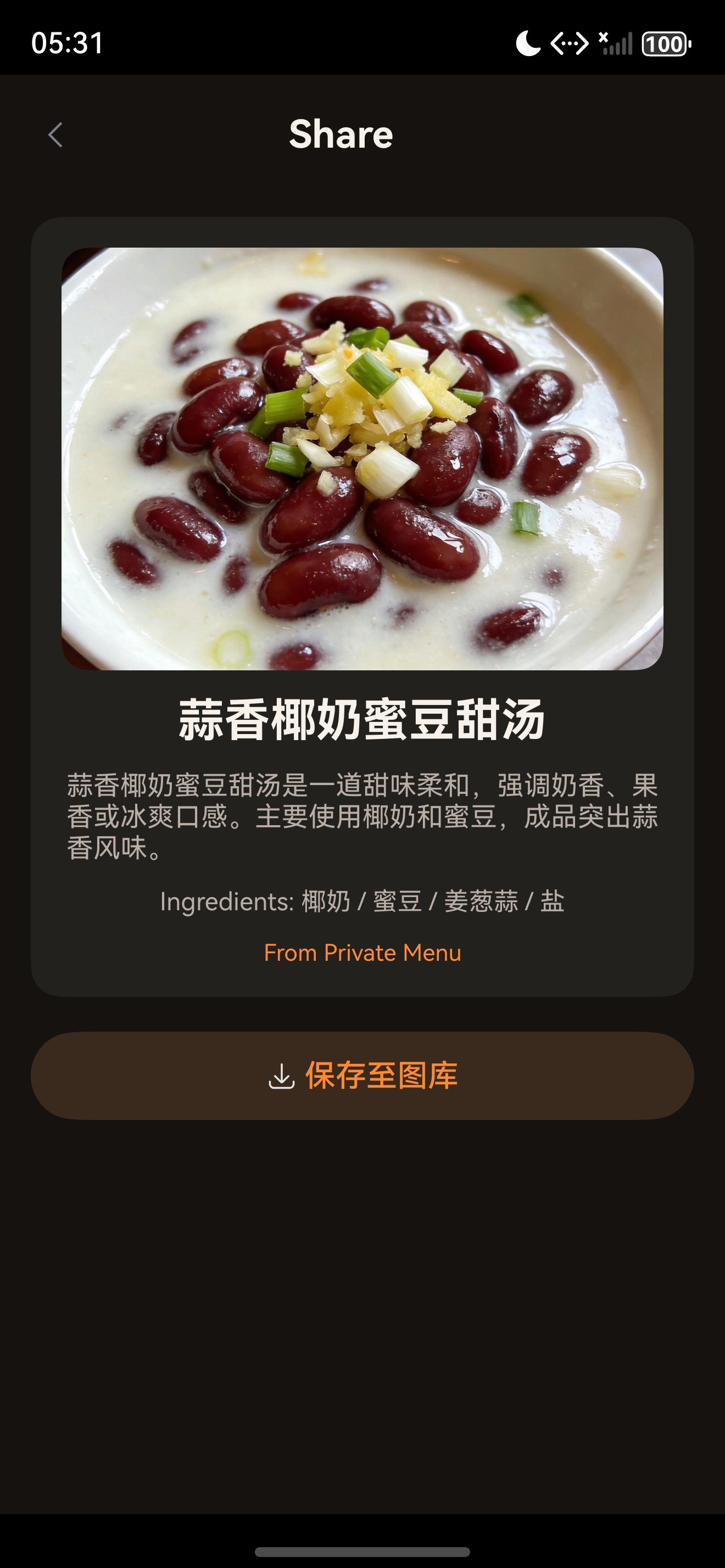
本次 App 内分享链路的模拟器验证记录如下:
| 验证点 | 真实运行结果 |
|---|---|
| 当前页面 | pages/ShareRecipePage |
| 页面标题 | Share |
| 菜谱标题 | 蒜香椰奶蜜豆甜汤 |
| 食材摘要 | Ingredients: 椰奶 / 蜜豆 / 姜葱蒜 / 盐 |
| 保存入口 | 保存至图库 |
| 截图文件 | SFCJ/screenshots/13_share_page_raw.jpeg |
| UI 树文件 | SFCJ/screenshots/13_share_page_layout.json |
本次桌面卡片链路的配置侧验证记录如下:
| 验证点 | 真实配置 |
|---|---|
| 扩展能力 | EntryFormAbility |
| 卡片页面 | ./ets/widget/pages/WidgetCard.ets |
| UI 语法 | arkts |
| 默认尺寸 | 2*2 |
| 支持尺寸 | 2*2 |
| 数据绑定 | RecipeWidgetData -> LocalStorageProp |
| 点击回跳 | postCardAction() -> EntryAbility |
对应命令如下:
hdc shell bm dump -n com.lesson.myapplicationsfcj
hdc shell uitest dumpLayout
hdc shell snapshot_display -f /data/local/tmp/13_share_page.jpeg
十五、运行验证
本次运行截图来自本地 HarmonyOS 模拟器,验证路径为“详情页右上角分享入口 -> 分享页”。
验证结果如下:
- 分享页能读取当前菜谱标题、描述、封面图和前四个食材。
- 分享卡片区域有稳定
share-cardid。 - 页面使用
SaveButton展示保存到图库入口。 - 保存逻辑包含截图、编码、图库资源创建、文件写入和资源释放。
form_config.json已声明 2*2 动态桌面卡片。EntryFormAbility能提供初始推荐、定时更新和事件更新数据。WidgetCard使用LocalStorageProp渲染卡片数据。EntryAbility保留从卡片跳回详情页的 pending 路由逻辑。
十六、问题复盘
当前分享和桌面卡片链路已经具备完整工程骨架,下面三个点用于后续版本的产品化演进。
第一,分享页标题和按钮可以统一进入资源文件管理,例如 Share、From Private Menu 放入 string.json,中文包和英文包分别维护,方便多语言切换。
第二,ShareService.buildShareText() 适合承接“复制文案”或“系统分享”入口,让文本分享和图片分享并存,形成更完整的分享矩阵。
第三,桌面卡片候选数据可以从 RecipeDataSource 统一筛选,让卡片推荐和 App 内列表使用同一份菜谱资产,降低维护成本。
十七、小结
这一篇可以把 App 外能力总结成两条线:
详情页 -> ShareRecipePage -> componentSnapshot -> SaveButton -> 图库图片
EntryFormAbility -> formBindingData -> WidgetCard -> postCardAction -> EntryAbility -> 详情页
下一篇进入系列收官,复盘资源、备份、构建、质量检查和 CSDN 文章交付标准。

讨论HarmonyOS开发技术,专注于API与组件、DevEco Studio、测试、元服务和应用上架分发等。
更多推荐
 10
10 0
0- 0


 已为社区贡献28条内容

所有评论(0)