HarmonyOS7 ArkUI BMI计算器 - 身高体重输入、BMI分级与健康建议实战:从状态到页面反馈
·
文章目录
前言
我看这份代码时,最先关注的不是配色,而是状态怎么推动页面变化。只要这条线顺了,后面的 UI 调整都不难。
它的主线是 BMI计算器,细节落在 身高体重输入、BMI分级与健康建议。这些细节刚好能把页面状态、用户操作和组件刷新串起来。
这个案例练的是什么
BmiCalculatorPage 不是一个只展示静态内容的页面。它会根据用户点击、输入、切换或计时来改变界面,所以阅读代码时可以先抓三条线:
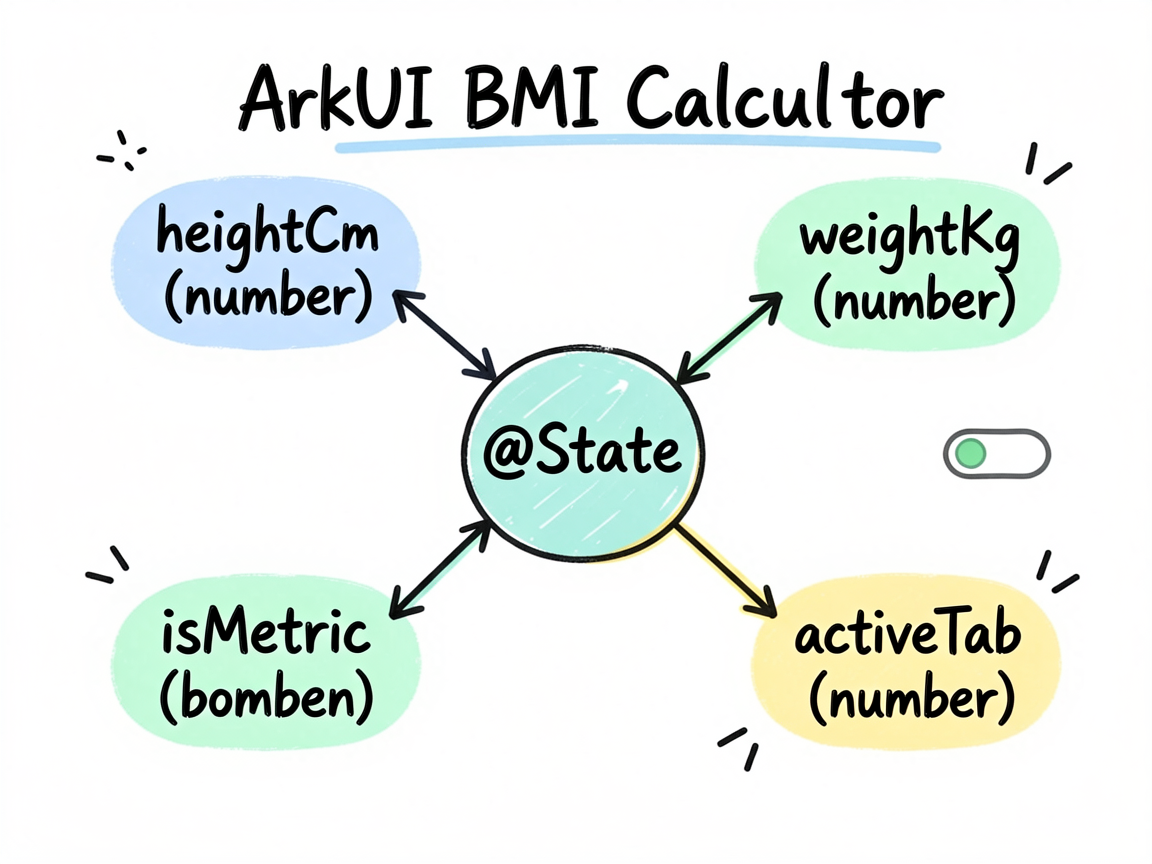
| 观察点 | 在这个案例里的表现 |
|---|---|
| 页面主题 | BMI计算器 |
| 主要文案 | 偏瘦, 正常, 超重, 肥胖, 公制 (cm/kg), 英制 (in/lb) |
| 常用组件 | Column, ForEach, Row, Scroll, Slider, Stack, Text |
| 适合练习 | 状态驱动 UI、条件样式、列表渲染、事件回调 |
数据流别写散
ArkUI 的页面刷新依赖状态变化。下面这些 @State 字段就是页面的“开关”和“数据源”,不用手动找 DOM,也不用自己通知某个控件刷新。
| 状态字段 | 类型 | 我会怎么理解它 |
|---|---|---|
heightCm |
number |
用户输入值,参与计算或提交 |
weightKg |
number |
用户输入值,参与计算或提交 |
isMetric |
boolean |
布尔开关,控制显示隐藏或模式切换 |
activeTab |
number |
当前选中项,决定高亮和内容切换 |
records |
BodyRecord[] |
列表数据源,通常会被 ForEach 消费 |
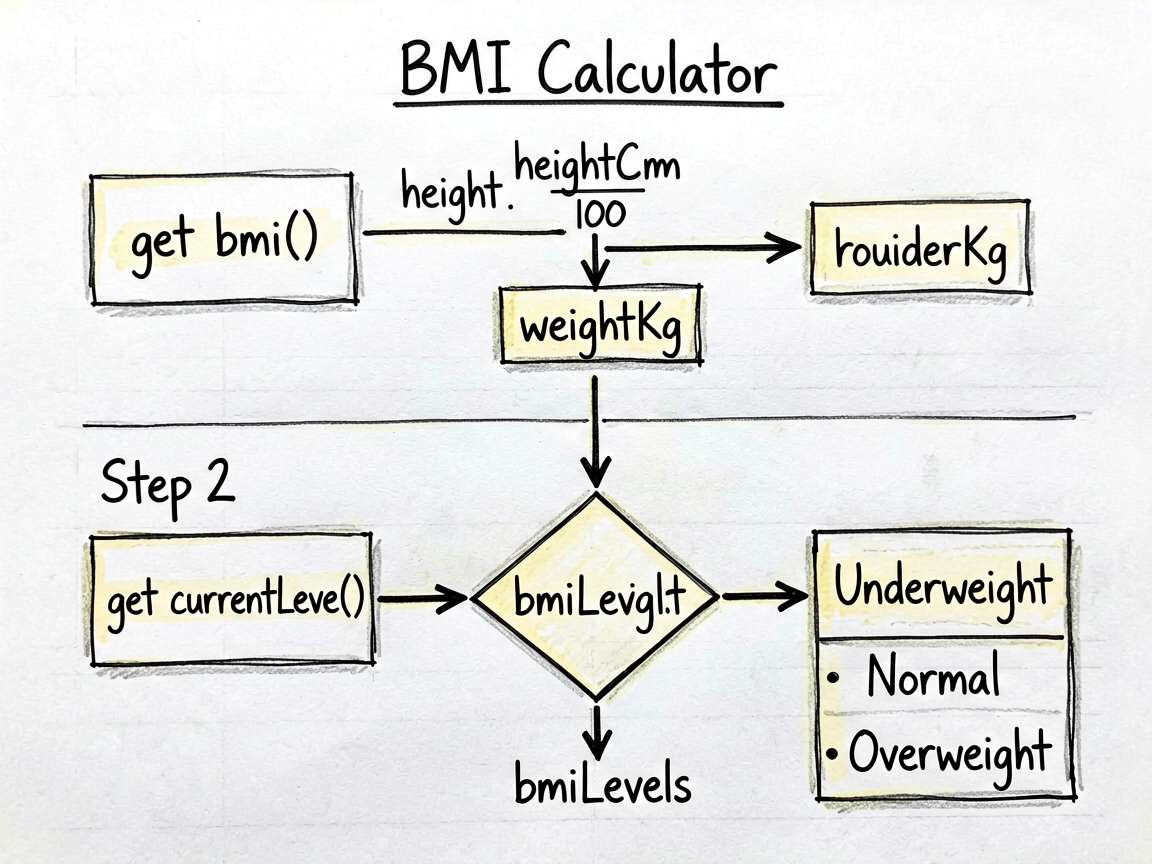
一个经验:先把
@State看完,再看build(),页面逻辑会清楚很多。否则很容易被一长串布局代码带偏。
单独看这几段
片段 1:get bmi(): number {
这段代码承担的是页面里的“判断”或“动作”,把它从布局里抽出来后,build() 会清爽很多。后面要加新条件,也不会到处翻 UI 代码。
  get bmi(): number {
    const h = this.heightCm / 100
    return parseFloat((this.weightKg / (h * h)).toFixed(1))
  }
片段 2:get currentLevel(): BmiLevel {
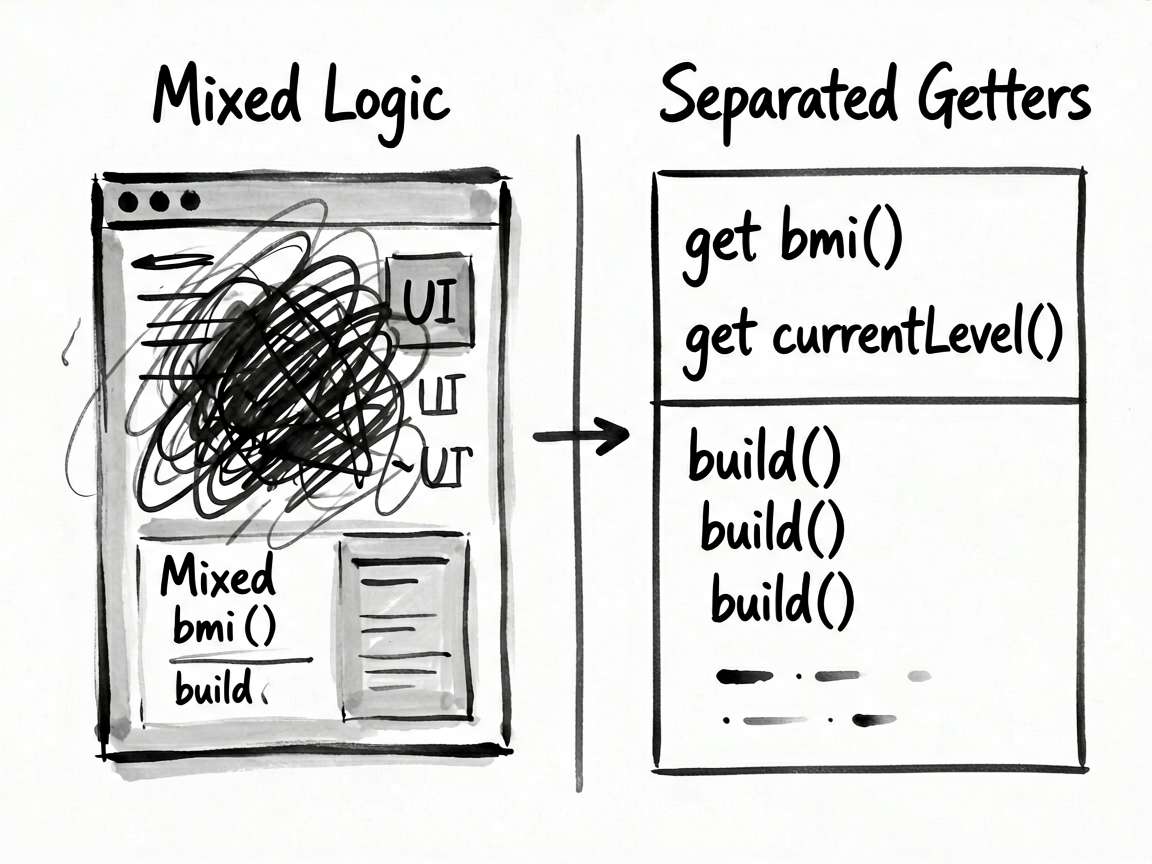
这段代码承担的是页面里的“判断”或“动作”,把它从布局里抽出来后,build() 会清爽很多。后面要加新条件,也不会到处翻 UI 代码。
  get currentLevel(): BmiLevel {
    return this.bmiLevels.find((l: BmiLevel) => this.bmi >= l.min && this.bmi < l.max) ?? this.bmiLevels[1]
  }
使用方式
把下面代码放进 ArkTS 页面文件中即可运行。用于正式项目时,我会继续把数据模型、卡片 Builder 和页面事件拆出去,页面文件只负责组合。
建议练习顺序:先改状态字段 -> 再改交互事件 -> 最后调整 UI 样式
检查重点:点击是否刷新、列表 key 是否稳定、条件样式是否集中管理
- 把模拟数据替换成接口数据
- 抽出复用卡片组件
- 增加空状态和异常状态
- 补充深色模式或主题色适配
- 对输入类场景增加校验提示
完整实现
// BmiCalculatorPage - BMI计算器 - 身高体重输入、BMI分级与健康建议

interface BmiLevel {
  label: string
  range: string
  color: string
  min: number
  max: number
  advice: string
}

interface BodyRecord {
  date: string
  bmi: number
  weight: number
}

@Entry
@Component
struct BmiCalculatorPage {
  @State heightCm: number = 170
  @State weightKg: number = 65
  @State isMetric: boolean = true
  @State activeTab: number = 0
  @State records: BodyRecord[] = [
    { date: '06-01', bmi: 22.8, weight: 66 },
    { date: '06-02', bmi: 22.5, weight: 65.2 },
    { date: '06-03', bmi: 22.3, weight: 64.8 },
    { date: '06-04', bmi: 22.5, weight: 65.1 },
    { date: '06-05', bmi: 22.5, weight: 65.0 },
  ]

  private bmiLevels: BmiLevel[] = [
    { label: '偏瘦', range: '< 18.5', color: '#74b9ff', min: 0, max: 18.5, advice: '建议增加营养摄入,进行适量增肌训练,咨询营养师制定健康增重计划。' },
    { label: '正常', range: '18.5 - 24', color: '#00b894', min: 18.5, max: 24, advice: '保持当前健康生活方式,均衡饮食,规律运动,定期体检。' },
    { label: '超重', range: '24 - 28', color: '#fdcb6e', min: 24, max: 28, advice: '适当减少热量摄入,增加有氧运动频率,避免高糖高脂食物。' },
    { label: '肥胖', range: '≥ 28', color: '#e17055', min: 28, max: 999, advice: '建议及时就医咨询,制定专业减重方案,控制饮食并坚持运动。' },
  ]

  get bmi(): number {
    const h = this.heightCm / 100
    return parseFloat((this.weightKg / (h * h)).toFixed(1))
  }

  get currentLevel(): BmiLevel {
    return this.bmiLevels.find((l: BmiLevel) => this.bmi >= l.min && this.bmi < l.max) ?? this.bmiLevels[1]
  }

  get idealWeightRange(): string {
    const h = this.heightCm / 100
    const low = parseFloat((18.5 * h * h).toFixed(1))
    const high = parseFloat((24 * h * h).toFixed(1))
    return `${low} ~ ${high} kg`
  }

  get weightDiff(): number {
    const h = this.heightCm / 100
    const idealMid = 21.25 * h * h
    return parseFloat((this.weightKg - idealMid).toFixed(1))
  }

  get gaugeAngle(): number {
    const clampedBmi = Math.max(10, Math.min(40, this.bmi))
    return ((clampedBmi - 10) / 30) * 180 - 90
  }

  @Builder
  BmiGauge() {
    Stack() {
      // 背景弧形(模拟仪表盘)
      Column({ space: 0 }) {
        Row({ space: 4 }) {
          ForEach(this.bmiLevels, (l: BmiLevel) => {
            Column()
              .layoutWeight(1)
              .height(12)
              .backgroundColor(l.color)
              .borderRadius(6)
          })
        }
        .width('80%')
        .margin({ top: 40 })
      }
      .width('100%')
      .alignItems(HorizontalAlign.Center)

      // BMI 数值
      Column({ space: 4 }) {
        Text(this.bmi.toString())
          .fontSize(48)
          .fontWeight(FontWeight.Bold)
          .fontColor(this.currentLevel.color)
        Text(this.currentLevel.label)
          .fontSize(18)
          .fontColor(this.currentLevel.color)
          .fontWeight(FontWeight.Medium)
          .backgroundColor(this.currentLevel.color + '20')
          .padding({ left: 16, right: 16, top: 4, bottom: 4 })
          .borderRadius(12)
      }
    }
    .width('100%')
    .height(120)
    .padding({ left: 20, right: 20 })
  }

  @Builder
  InputPanel() {
    Column({ space: 20 }) {
      // 单位切换
      Row({ space: 0 }) {
        Text('公制 (cm/kg)')
          .fontSize(14)
          .fontColor(this.isMetric ? '#ffffff' : '#666666')
          .backgroundColor(this.isMetric ? '#1890ff' : 'transparent')
          .padding({ left: 20, right: 20, top: 8, bottom: 8 })
          .borderRadius(20)
          .onClick(() => { this.isMetric = true })
        Text('英制 (in/lb)')
          .fontSize(14)
          .fontColor(!this.isMetric ? '#ffffff' : '#666666')
          .backgroundColor(!this.isMetric ? '#1890ff' : 'transparent')
          .padding({ left: 20, right: 20, top: 8, bottom: 8 })
          .borderRadius(20)
          .onClick(() => { this.isMetric = false })
      }
      .backgroundColor('#f0f0f0')
      .borderRadius(24)
      .padding(4)

      // 身高输入
      Column({ space: 10 }) {
        Row() {
          Text('身高')
            .fontSize(15)
            .fontColor('#444444')
            .fontWeight(FontWeight.Medium)
          Blank()
          Text(`${this.heightCm} cm`)
            .fontSize(15)
            .fontColor('#1890ff')
            .fontWeight(FontWeight.Bold)
        }
        .width('100%')

        Slider({
          value: this.heightCm,
          min: 140,
          max: 220,
          step: 1,
          style: SliderStyle.OutSet
        })
          .width('100%')
          .trackColor('#e8e8e8')
          .selectedColor('#1890ff')
          .onChange((value: number) => {
            this.heightCm = Math.round(value)
          })

        Row() {
          Text('140 cm').fontSize(12).fontColor('#aaaaaa')
          Blank()
          Text('220 cm').fontSize(12).fontColor('#aaaaaa')
        }
        .width('100%')
      }
      .padding(16)
      .backgroundColor('#f8fbff')
      .borderRadius(12)

      // 体重输入
      Column({ space: 10 }) {
        Row() {
          Text('体重')
            .fontSize(15)
            .fontColor('#444444')
            .fontWeight(FontWeight.Medium)
          Blank()
          Text(`${this.weightKg} kg`)
            .fontSize(15)
            .fontColor('#1890ff')
            .fontWeight(FontWeight.Bold)
        }
        .width('100%')

        Slider({
          value: this.weightKg,
          min: 30,
          max: 150,
          step: 0.5,
          style: SliderStyle.OutSet
        })
          .width('100%')
          .trackColor('#e8e8e8')
          .selectedColor('#1890ff')
          .onChange((value: number) => {
            this.weightKg = parseFloat(value.toFixed(1))
          })

        Row() {
          Text('30 kg').fontSize(12).fontColor('#aaaaaa')
          Blank()
          Text('150 kg').fontSize(12).fontColor('#aaaaaa')
        }
        .width('100%')
      }
      .padding(16)
      .backgroundColor('#f8fbff')
      .borderRadius(12)
    }
  }

  @Builder
  ResultPanel() {
    Column({ space: 16 }) {
      // 数据卡片组
      Row({ space: 12 }) {
        Column({ space: 6 }) {
          Text('理想体重').fontSize(12).fontColor('#999999')
          Text(this.idealWeightRange).fontSize(13).fontColor('#1a1a1a').fontWeight(FontWeight.Medium)
        }
        .layoutWeight(1)
        .padding(14)
        .backgroundColor('#f8fbff')
        .borderRadius(10)
        .alignItems(HorizontalAlign.Center)

        Column({ space: 6 }) {
          Text('与理想差距').fontSize(12).fontColor('#999999')
          Text(`${this.weightDiff > 0 ? '+' : ''}${this.weightDiff} kg`)
            .fontSize(13)
            .fontColor(Math.abs(this.weightDiff) < 3 ? '#52c41a' : '#fa8c16')
            .fontWeight(FontWeight.Medium)
        }
        .layoutWeight(1)
        .padding(14)
        .backgroundColor('#f8fbff')
        .borderRadius(10)
        .alignItems(HorizontalAlign.Center)
      }
      .width('100%')

      // BMI 等级说明
      Column({ space: 0 }) {
        Text('BMI 分级说明').fontSize(14).fontWeight(FontWeight.Medium).fontColor('#1a1a1a').padding({ bottom: 12 }).width('100%')
        ForEach(this.bmiLevels, (level: BmiLevel) => {
          Row({ space: 12 }) {
            Column()
              .width(4)
              .height(40)
              .backgroundColor(level.color)
              .borderRadius(2)
            Column({ space: 2 }) {
              Row({ space: 8 }) {
                Text(level.label)
                  .fontSize(14)
                  .fontWeight(FontWeight.Medium)
                  .fontColor(this.currentLevel.label === level.label ? level.color : '#1a1a1a')
                Text(level.range)
                  .fontSize(12)
                  .fontColor('#999999')
              }
            }
            .layoutWeight(1)
            .alignItems(HorizontalAlign.Start)
            if (this.currentLevel.label === level.label) {
              Text('当前')
                .fontSize(11)
                .fontColor(level.color)
                .backgroundColor(level.color + '20')
                .padding({ left: 8, right: 8, top: 2, bottom: 2 })
                .borderRadius(8)
            }
          }
          .padding({ top: 10, bottom: 10 })
          .width('100%')
        })
      }
      .padding(16)
      .backgroundColor('#ffffff')
      .borderRadius(12)

      // 健康建议
      Column({ space: 8 }) {
        Row({ space: 8 }) {
          Text('💡').fontSize(16)
          Text('健康建议').fontSize(14).fontWeight(FontWeight.Bold).fontColor('#1a1a1a')
        }
        .width('100%')

        Text(this.currentLevel.advice)
          .fontSize(14)
          .fontColor('#555555')
          .lineHeight(22)
          .width('100%')
      }
      .padding(16)
      .backgroundColor(this.currentLevel.color + '15')
      .borderRadius(12)
      .border({ width: 1, color: this.currentLevel.color + '40' })

      // 历史趋势
      Column({ space: 12 }) {
        Text('历史记录').fontSize(14).fontWeight(FontWeight.Medium).fontColor('#1a1a1a').width('100%')
        Row({ space: 4 }) {
          ForEach(this.records, (rec: BodyRecord) => {
            Column({ space: 4 }) {
              Column()
                .width(32)
                .height(Math.max(8, (rec.bmi - 18) * 12))
                .backgroundColor(rec.bmi < 18.5 ? '#74b9ff' : rec.bmi < 24 ? '#00b894' : '#fdcb6e')
                .borderRadius({ topLeft: 4, topRight: 4 })
              Text(rec.bmi.toString())
                .fontSize(10)
                .fontColor('#888888')
              Text(rec.date)
                .fontSize(10)
                .fontColor('#aaaaaa')
            }
            .layoutWeight(1)
            .alignItems(HorizontalAlign.Center)
            .justifyContent(FlexAlign.End)
            .height(90)
          })
        }
        .width('100%')
        .alignItems(VerticalAlign.Bottom)
      }
      .padding(16)
      .backgroundColor('#ffffff')
      .borderRadius(12)
    }
  }

  build() {
    Column({ space: 0 }) {
      Row() {
        Text('BMI 计算器')
          .fontSize(20)
          .fontWeight(FontWeight.Bold)
          .fontColor('#1a1a1a')
      }
      .width('100%')
      .padding({ left: 20, right: 20, top: 16, bottom: 8 })
      .backgroundColor('#ffffff')

      Scroll() {
        Column({ space: 20 }) {
          // 仪表盘
          Column({ space: 8 }) {
            this.BmiGauge()
          }
          .width('100%')
          .padding({ top: 20, bottom: 20 })
          .backgroundColor('#ffffff')
          .borderRadius(16)

          // 输入面板
          this.InputPanel()

          // 结果面板
          this.ResultPanel()
        }
        .padding({ left: 16, right: 16, top: 16, bottom: 32 })
      }
      .layoutWeight(1)
      .backgroundColor('#f5f7fa')
    }
    .width('100%')
    .height('100%')
    .backgroundColor('#f5f7fa')
  }
}
写到项目里要注意
这个案例可以当成一个小模板:先把页面会变的东西放进状态,再用函数或 Builder 处理重复逻辑,最后让布局只关心展示。写 HarmonyOS7 页面时,这个顺序通常比一上来堆 UI 更稳。

讨论HarmonyOS开发技术,专注于API与组件、DevEco Studio、测试、元服务和应用上架分发等。
更多推荐


 11
11 0
0- 0


 已为社区贡献59条内容

所有评论(0)