及时做APP开发实战(五)-番茄钟计时器UI实现
·
及时做APP开发实战(五)-番茄钟计时器UI实现
本文将详细介绍如何在HarmonyOS NEXT中实现番茄钟计时器UI,包括倒计时界面、控制按钮和休息提醒等功能。
一、番茄钟状态设计
1.1 状态变量
番茄钟页面需要管理多种状态:
@Entry
@Component
struct PomodoroPage {
  // 计时状态
  @State timeLeft: number = 25 * 60;        // 剩余时间(秒)
  @State isRunning: boolean = false;        // 是否运行中
  @State isPaused: boolean = false;         // 是否暂停
  @State isBreak: boolean = false;          // 是否休息时间
  @State pomodoroCount: number = 0;         // 今日完成数

  // 待办选择
  @State currentTodo: TodoItem | null = null;
  @State todoList: TodoItem[] = [];
  @State showTodoPicker: boolean = false;

  // 定时器
  private timerId: number = -1;
}
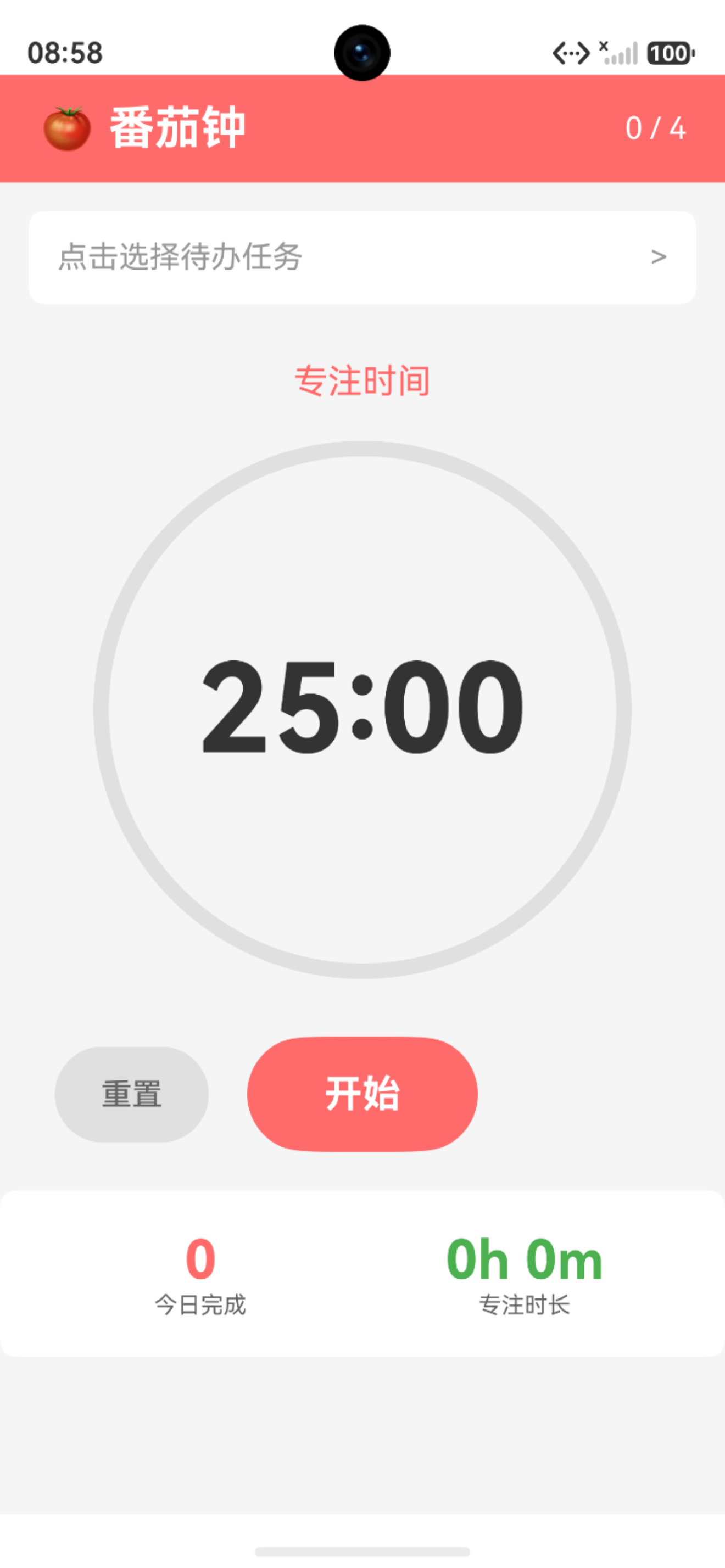
1.2 页面结构
┌────────────────────────────┐
│  标题栏(🍅 番茄钟 + 计数)  │
├────────────────────────────┤
│  当前待办选择              │
├────────────────────────────┤
│  圆形进度条 + 时间显示      │
├────────────────────────────┤
│  控制按钮(重置/开始/跳过) │
├────────────────────────────┤
│  今日统计(完成数/时长)    │
└────────────────────────────┘
二、待办选择功能
2.1 当前待办显示
点击待办区域弹出选择器:
@Builder
CurrentTodoSection() {
  Column() {
    if (this.currentTodo) {
      Row() {
        Text('当前任务:')
          .fontSize(14)
          .fontColor('#666666')
        Text(this.currentTodo.text)
          .fontSize(16)
          .fontWeight(FontWeight.Bold)
          .fontColor('#333333')
          .maxLines(1)
          .textOverflow({ overflow: TextOverflow.Ellipsis })
          .layoutWeight(1)
      }
      .width('100%')
      .padding(15)
      .backgroundColor('#FFFFFF')
      .borderRadius(8)
      .onClick(() => {
        this.showTodoPicker = true;
      })
    } else {
      Row() {
        Text('点击选择待办任务')
          .fontSize(16)
          .fontColor('#999999')
        Blank()
        Text('>')
          .fontSize(16)
          .fontColor('#999999')
      }
      .width('100%')
      .padding(15)
      .backgroundColor('#FFFFFF')
      .borderRadius(8)
      .onClick(() => {
        this.showTodoPicker = true;
      })
    }
  }
  .width('100%')
  .padding({ left: 15, right: 15, top: 15 })
}
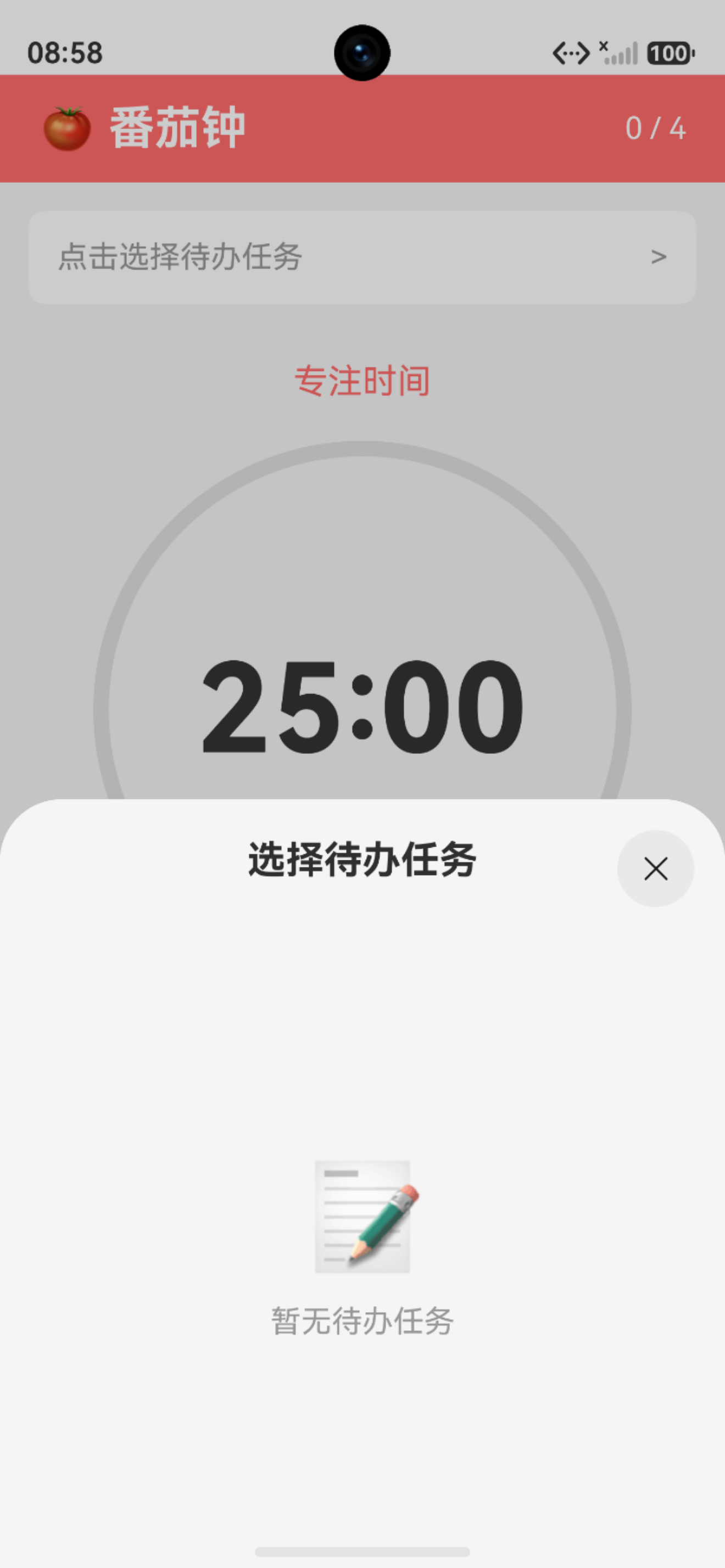
2.2 待办选择器弹窗
使用bindSheet绑定半模态弹窗:
@Builder
TodoPickerSheet() {
  Column() {
    Text('选择待办任务')
      .fontSize(20)
      .fontWeight(FontWeight.Bold)
      .margin({ top: 20, bottom: 20 })

    List() {
      ForEach(this.todoList, (todo: TodoItem) => {
        ListItem() {
          Row() {
            Text(todo.text)
              .fontSize(16)
              .fontColor('#333333')
              .layoutWeight(1)

            if (todo.pomodoroCount > 0) {
              Text(`🍅 × ${todo.pomodoroCount}`)
                .fontSize(14)
                .fontColor('#FF6B6B')
            }
          }
          .width('100%')
          .padding(15)
          .backgroundColor(this.currentTodo?.id === todo.id ? '#FFE5E5' : '#FFFFFF')
          .borderRadius(8)
          .onClick(() => {
            this.selectTodo(todo);
          })
        }
      })
    }
    .width('100%')
    .layoutWeight(1)
  }
}

// 在build()中绑定
.bindSheet($$this.showTodoPicker, this.TodoPickerSheet(), {
  height: 400,
  backgroundColor: Color.White,
  dragBar: true
})
三、计时器核心实现
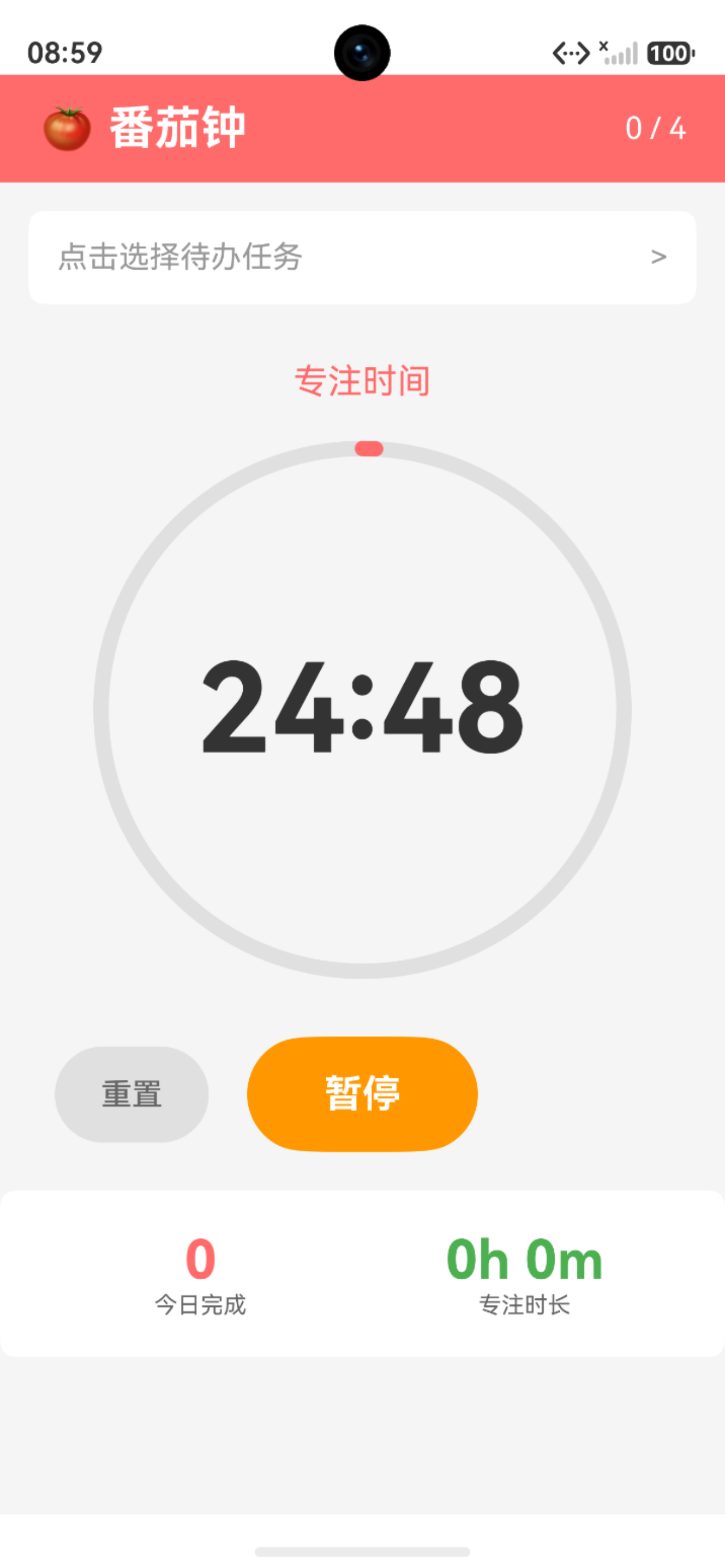
3.1 计时器UI
使用Progress组件实现圆形进度条:
@Builder
TimerSection() {
  Column() {
    // 状态提示
    Text(this.isBreak ? '休息时间' : '专注时间')
      .fontSize(18)
      .fontColor(this.isBreak ? '#4CAF50' : '#FF6B6B')
      .margin({ bottom: 20 })

    // 圆形进度条
    Stack() {
      Progress({ value: this.getProgress(), total: 100, type: ProgressType.Ring })
        .width(280)
        .height(280)
        .color(this.isBreak ? '#4CAF50' : '#FF6B6B')
        .backgroundColor('#E0E0E0')
        .style({ strokeWidth: 8 })

      // 时间显示
      Column() {
        Text(this.formatTime(this.timeLeft))
          .fontSize(64)
          .fontWeight(FontWeight.Bold)
          .fontColor('#333333')

        if (this.isPaused) {
          Text('已暂停')
            .fontSize(14)
            .fontColor('#999999')
            .margin({ top: 10 })
        }
      }
    }
    .width(280)
    .height(280)
  }
  .width('100%')
  .padding({ top: 30, bottom: 30 })
  .justifyContent(FlexAlign.Center)
}
3.2 计时逻辑
使用setInterval实现倒计时:
// 开始计时
startTimer() {
  if (this.timeLeft <= 0) return;

  this.isRunning = true;
  this.isPaused = false;

  this.timerId = setInterval(() => {
    if (this.timeLeft > 0) {
      this.timeLeft--;
    } else {
      this.onTimerComplete();
    }
  }, 1000);
}

// 暂停计时
pauseTimer() {
  this.isPaused = true;
  this.isRunning = false;
  this.stopTimer();
}

// 重置计时器
resetTimer() {
  this.stopTimer();
  this.isRunning = false;
  this.isPaused = false;

  if (this.isBreak) {
    this.timeLeft = 5 * 60;  // 短休息
  } else {
    this.timeLeft = 25 * 60; // 专注时间
  }
}
3.3 完成处理
番茄钟完成后保存记录并进入休息:
async onTimerComplete() {
  this.stopTimer();
  this.isRunning = false;

  if (this.isBreak) {
    // 休息结束,开始新的番茄钟
    this.isBreak = false;
    this.timeLeft = 25 * 60;
  } else {
    // 番茄钟完成
    this.pomodoroCount++;

    // 保存记录
    if (this.currentTodo) {
      await this.pomodoroViewModel.completePomodoro(
        this.currentTodo.id,
        25
      );
    }

    // 判断是否需要长休息
    if (this.pomodoroCount % 4 === 0) {
      this.timeLeft = 15 * 60;  // 长休息
    } else {
      this.timeLeft = 5 * 60;   // 短休息
    }

    this.isBreak = true;
  }
}
四、控制按钮
4.1 按钮组件
根据不同状态显示不同按钮:
@Builder
ControlButtons() {
  Row() {
    // 重置按钮
    Button('重置')
      .width(80)
      .height(50)
      .backgroundColor('#E0E0E0')
      .fontColor('#666666')
      .borderRadius(25)
      .onClick(() => {
        this.resetTimer();
      })

    // 开始/暂停/继续按钮
    if (!this.isRunning && !this.isPaused) {
      Button('开始')
        .width(120)
        .height(60)
        .fontSize(20)
        .fontWeight(FontWeight.Bold)
        .backgroundColor(this.isBreak ? '#4CAF50' : '#FF6B6B')
        .fontColor('#FFFFFF')
        .borderRadius(30)
        .margin({ left: 20, right: 20 })
        .onClick(() => {
          this.startTimer();
        })
    } else if (this.isRunning) {
      Button('暂停')
        .width(120)
        .height(60)
        .fontSize(20)
        .fontWeight(FontWeight.Bold)
        .backgroundColor('#FF9800')
        .fontColor('#FFFFFF')
        .borderRadius(30)
        .margin({ left: 20, right: 20 })
        .onClick(() => {
          this.pauseTimer();
        })
    } else {
      Button('继续')
        .width(120)
        .height(60)
        .fontSize(20)
        .fontWeight(FontWeight.Bold)
        .backgroundColor(this.isBreak ? '#4CAF50' : '#FF6B6B')
        .fontColor('#FFFFFF')
        .borderRadius(30)
        .margin({ left: 20, right: 20 })
        .onClick(() => {
          this.resumeTimer();
        })
    }

    // 跳过休息按钮(仅休息时显示)
    if (this.isBreak) {
      Button('跳过')
        .width(80)
        .height(50)
        .backgroundColor('#E0E0E0')
        .fontColor('#666666')
        .borderRadius(25)
        .onClick(() => {
          this.skipBreak();
        })
    }
  }
  .width('100%')
  .justifyContent(FlexAlign.Center)
}
五、统计与休息机制
5.1 今日统计
显示今日完成的番茄钟数量和专注时长:
@Builder
PomodoroStats() {
  Column() {
    Row() {
      Column() {
        Text(this.pomodoroCount.toString())
          .fontSize(28)
          .fontWeight(FontWeight.Bold)
          .fontColor('#FF6B6B')
        Text('今日完成')
          .fontSize(12)
          .fontColor('#666666')
      }
      .layoutWeight(1)

      Column() {
        Text(`${Math.floor(this.pomodoroCount * 25 / 60)}h ${this.pomodoroCount * 25 % 60}m`)
          .fontSize(28)
          .fontWeight(FontWeight.Bold)
          .fontColor('#4CAF50')
        Text('专注时长')
          .fontSize(12)
          .fontColor('#666666')
      }
      .layoutWeight(1)
    }
    .width('100%')
  }
  .width('100%')
  .padding(20)
  .backgroundColor('#FFFFFF')
  .margin({ top: 20 })
  .borderRadius(8)
}
5.2 休息机制
番茄钟流程:
┌─────────────┐
│ 专注25分钟   │
└──────┬──────┘
       │
┌──────▼──────┐
│ 短休息5分钟  │ ← 每4个番茄钟后
└──────┬──────┘
       │
       └──→ 长休息15分钟
休息时间特点:
- 短休息:每个番茄钟后休息5分钟
- 长休息:每4个番茄钟后休息15分钟
- 颜色区分:休息时界面变为绿色
- 可跳过:提供跳过按钮快速进入下一个番茄钟
六、小结
本文实现了番茄钟计时器页面的完整功能,包括:
- ✅ 待办选择功能
- ✅ 圆形进度条计时器
- ✅ 开始/暂停/继续/重置控制
- ✅ 休息提醒机制
- ✅ 今日统计展示
- ✅ 数据持久化保存
至此,"及时做"应用的核心功能已全部实现。用户可以:
- 在待办列表页管理任务
- 在番茄钟页专注计时
- 自动记录专注数据

讨论HarmonyOS开发技术,专注于API与组件、DevEco Studio、测试、元服务和应用上架分发等。
更多推荐
 6
6 0
0- 0


 已为社区贡献20条内容

所有评论(0)