HarmonyOS7 ArkUI 网速测试工具 - 下载/上传/延迟测速动画实战:把案例真正写懂
文章目录
前言
这篇我不打算空讲概念,直接贴着代码往下拆。页面怎么跑起来、状态怎么变、交互怎么收口,都会在文章里说清楚。
这个案例的主线是 网速测试工具,后面的 下载/上传/延迟测速动画 则把页面做得更像真实业务页。读代码时,建议把交互、状态和列表这三条线一起看。
业务场景先说清
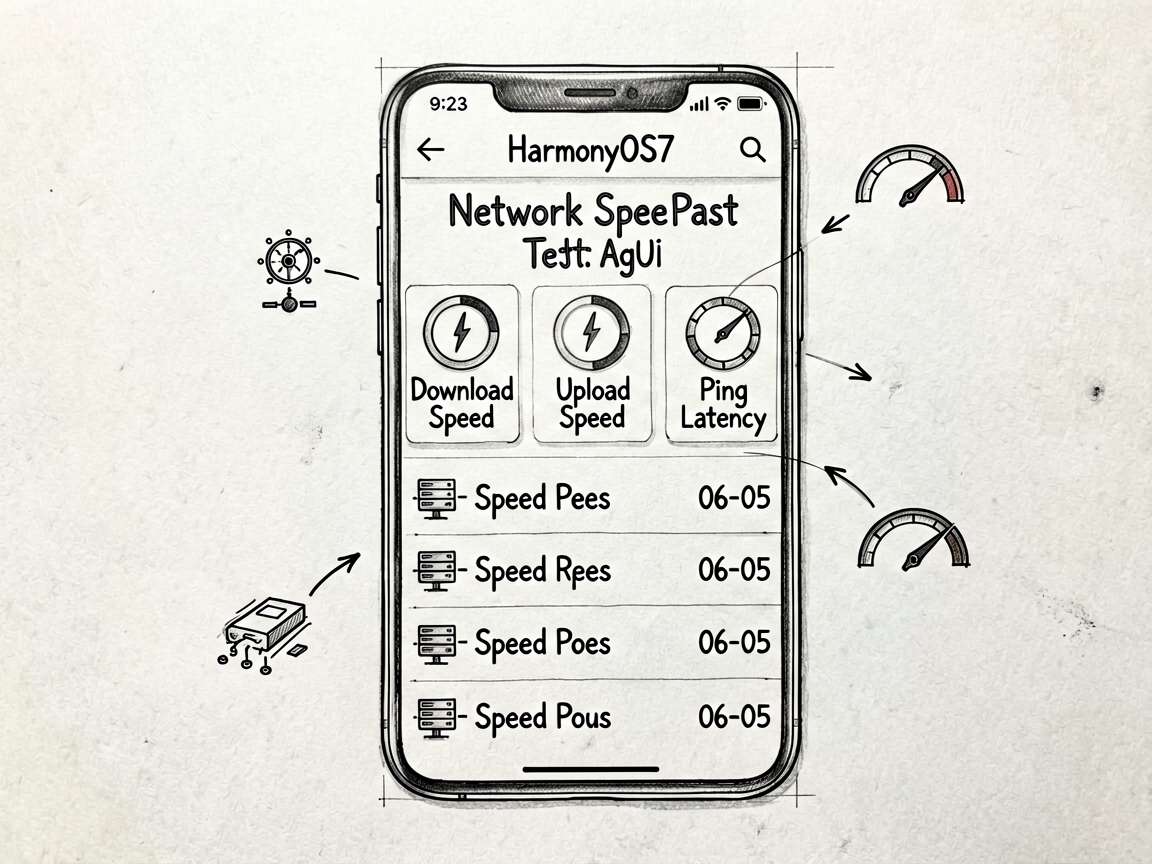
NetworkSpeedTestPage 对应的是 网速测试工具 - 下载/上传/延迟测速动画 这个业务场景。别把它只当成一个 UI 练习页,它真正有价值的地方在于:同一个页面里同时出现了状态切换、列表渲染、条件展示和用户反馈。
| 观察点 | 在这个案例里的表现 |
|---|---|
| 页面主题 | 网速测试工具 |
| 主要文案 | 测试延迟..., 测试下载速度..., 测试上传速度..., 测试完成, 刚刚, 网速测试 |
| 常用组件 | Button, Column, ForEach, Progress, Row, Scroll, Stack, Text |
| 适合练习 | 状态驱动 UI、局部刷新、事件回调、页面结构拆分 |
使用方法
把完整代码放进 ArkTS 页面文件后,就可以直接在预览器里运行。实际使用时,建议先手动点一遍页面里的主要交互,看状态有没有跟着变化;然后再去对照代码,理解每个 @State 字段到底控制了哪一块区域。
如果你想把这个案例改成自己的版本,我建议先做三件事:换掉模拟数据、调整筛选规则、再把重复结构抽成 Builder 或子组件。顺序别反,先改结构往往最容易把自己绕进去。
状态和列表怎么配合
ArkUI 页面写顺手之后,你会发现很多问题其实都不是样式问题,而是状态没放对位置。这个案例里能直接看到哪些数据是输入、哪些是选择、哪些是列表源,读起来会比较顺。
| 状态字段 | 类型 | 说明 |
|---|---|---|
testState |
string |
记录当前展示状态或页面选择 |
downloadSpeed |
number |
记录当前展示状态或页面选择 |
uploadSpeed |
number |
记录当前展示状态或页面选择 |
pingMs |
number |
记录当前展示状态或页面选择 |
progress |
number |
记录当前展示状态或页面选择 |
currentPhase |
string |
当前选中项,决定内容切换、高亮或过滤结果 |
animAngle |
number |
记录当前展示状态或页面选择 |
history |
SpeedRecord_awpp[] |
列表数据源,通常会交给 ForEach 或卡片区域渲染 |
我自己看这类示例时,会先把
@State和事件函数圈出来,再去看布局。这样不会被大段Column、Row搞乱节奏。
核心逻辑拆读
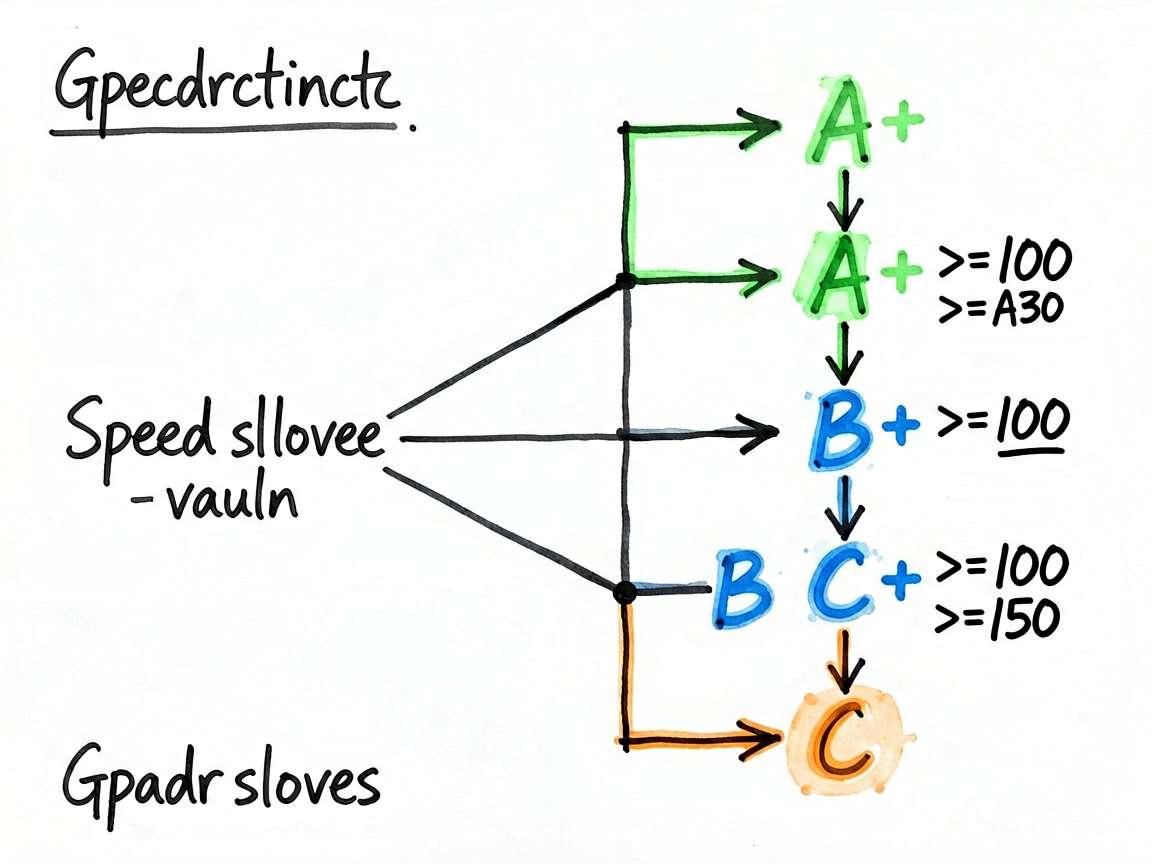
片段 1:getGrade(download: number): string {
这段代码我建议单独看。它通常负责派生数据、交互动作或者局部渲染逻辑,把这部分抽出去之后,页面主结构会干净很多,后续要改规则也更省事。
  getGrade(download: number): string {
    if (download >= 100) return 'A+'
    if (download >= 80) return 'A'
    if (download >= 60) return 'B+'
    if (download >= 40) return 'B'
    if (download >= 20) return 'C+'
    return 'C'
  }
片段 2:getGradeColor(grade: string): string {
这段代码我建议单独看。它通常负责派生数据、交互动作或者局部渲染逻辑,把这部分抽出去之后,页面主结构会干净很多,后续要改规则也更省事。
  getGradeColor(grade: string): string {
    if (grade.startsWith('A')) return '#52c41a'
    if (grade.startsWith('B')) return '#1890ff'
    return '#fa8c16'
  }
必读小结
适合拿来练手的能力:页面拆分、状态联动、条件渲染、交互反馈。
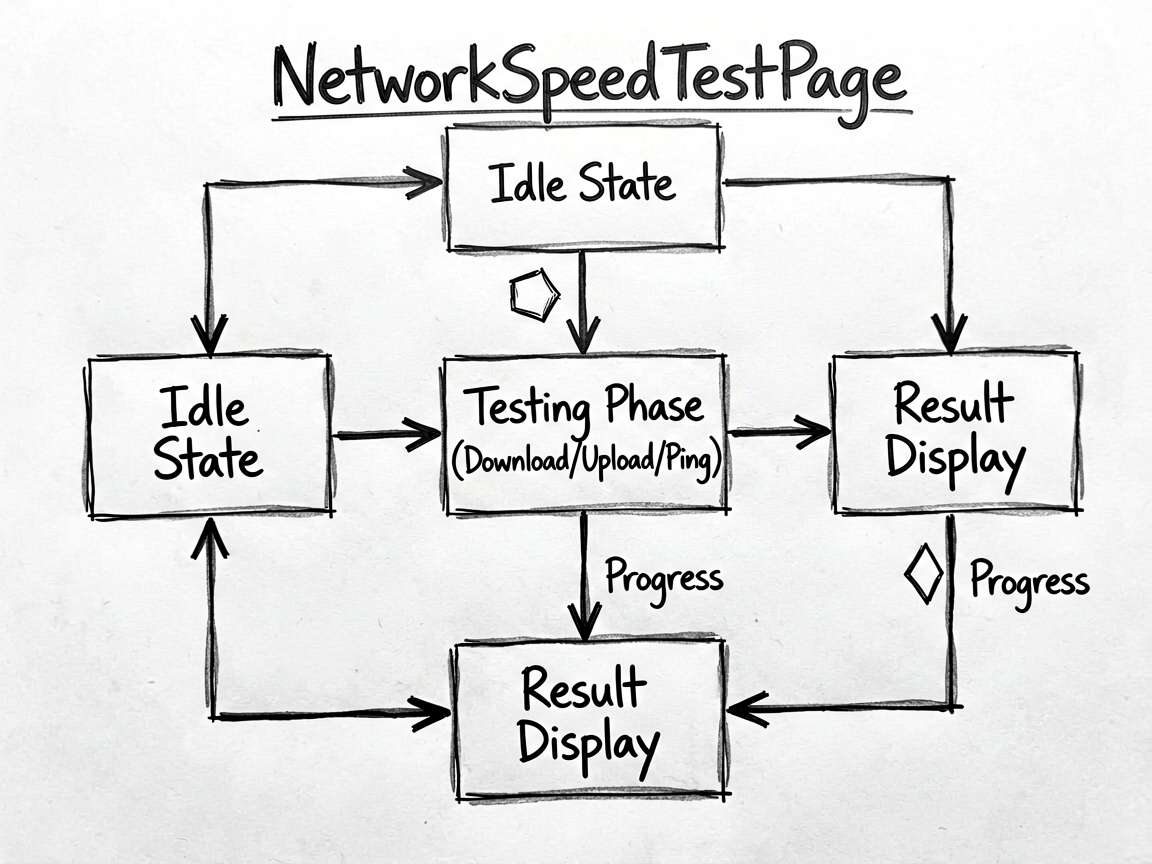
推荐阅读顺序:先看前言 -> 再跑页面 -> 再看状态表 -> 最后啃完整代码
如果只想快速上手,优先改模拟数据和交互函数,收益最高
- 点击或输入之后,界面有没有立即更新
- 列表渲染是否依赖了稳定的数据结构
- 筛选、统计、派生数据是不是单独放进函数里
- 是否还有重复布局可以继续抽出去
- 文案、颜色、间距是不是同一套风格
完整代码
// NetworkSpeedTestPage - 网速测试工具 - 下载/上传/延迟测速动画

interface SpeedRecord_awpp {
  time: string
  download: number
  upload: number
  ping: number
  grade: string
}

@Entry
@Component
struct NetworkSpeedTestPage {
  @State testState: string = 'idle'
  @State downloadSpeed: number = 0
  @State uploadSpeed: number = 0
  @State pingMs: number = 0
  @State progress: number = 0
  @State currentPhase: string = ''
  @State animAngle: number = 0
  @State history: SpeedRecord_awpp[] = [
    { time: '06-05 20:10', download: 98.5, upload: 48.2, ping: 8, grade: 'A' },
    { time: '06-05 10:30', download: 85.3, upload: 42.1, ping: 12, grade: 'B+' },
    { time: '06-04 22:05', download: 102.4, upload: 51.3, ping: 6, grade: 'A+' },
    { time: '06-04 14:20', download: 72.8, upload: 38.5, ping: 18, grade: 'B' },
    { time: '06-03 09:15', download: 56.2, upload: 29.3, ping: 25, grade: 'C+' },
  ]
  private timerHandle: number = -1
  private phaseStep: number = 0

  getGrade(download: number): string {
    if (download >= 100) return 'A+'
    if (download >= 80) return 'A'
    if (download >= 60) return 'B+'
    if (download >= 40) return 'B'
    if (download >= 20) return 'C+'
    return 'C'
  }

  getGradeColor(grade: string): string {
    if (grade.startsWith('A')) return '#52c41a'
    if (grade.startsWith('B')) return '#1890ff'
    return '#fa8c16'
  }

  startTest() {
    if (this.testState === 'testing') return
    this.testState = 'testing'
    this.progress = 0
    this.downloadSpeed = 0
    this.uploadSpeed = 0
    this.pingMs = 0
    this.phaseStep = 0
    this.currentPhase = '测试延迟...'

    this.timerHandle = setInterval(() => {
      this.phaseStep++
      this.progress = Math.min(100, this.phaseStep * 2)

      if (this.phaseStep <= 5) {
        this.currentPhase = '测试延迟...'
        this.pingMs = Math.floor(Math.random() * 20) + 5
      } else if (this.phaseStep <= 30) {
        this.currentPhase = '测试下载速度...'
        this.downloadSpeed = parseFloat(((this.phaseStep - 5) * 4 + Math.random() * 10).toFixed(1))
      } else if (this.phaseStep <= 45) {
        this.currentPhase = '测试上传速度...'
        this.uploadSpeed = parseFloat(((this.phaseStep - 30) * 3 + Math.random() * 8).toFixed(1))
      } else {
        clearInterval(this.timerHandle)
        this.timerHandle = -1
        this.testState = 'done'
        this.currentPhase = '测试完成'
        this.progress = 100

        const record: SpeedRecord_awpp = {
          time: '刚刚',
          download: this.downloadSpeed,
          upload: this.uploadSpeed,
          ping: this.pingMs,
          grade: this.getGrade(this.downloadSpeed),
        }
        this.history = [record].concat(this.history).slice(0, 8)
      }
    }, 100)
  }

  aboutToDisappear() {
    if (this.timerHandle >= 0) clearInterval(this.timerHandle)
  }

  get needleAngle(): number {
    // 下载速度 0~200Mbps 对应 -135 ~ +135 度
    const maxSpeed = 200
    const clamped = Math.min(this.downloadSpeed, maxSpeed)
    return -135 + (clamped / maxSpeed) * 270
  }

  build() {
    Column({ space: 0 }) {
      Row() {
        Text('网速测试').fontSize(20).fontWeight(FontWeight.Bold).fontColor('#1a1a1a')
        Blank()
        Text('📶 WiFi 已连接').fontSize(13).fontColor('#52c41a')
      }
      .width('100%')
      .padding({ left: 16, right: 16, top: 16, bottom: 12 })
      .backgroundColor('#ffffff')

      Scroll() {
        Column({ space: 20 }) {
          // 仪表盘
          Column({ space: 20 }) {
            // 速度仪表
            Stack() {
              // 刻度弧(模拟)
              Row({ space: 4 }) {
                ForEach([0, 1, 2, 3, 4, 5, 6, 7, 8], (i: number) => {
                  Column()
                    .width(10)
                    .height(4)
                    .backgroundColor(
                      this.downloadSpeed / 200 * 8 >= i ? '#1890ff' : '#e0e0e0'
                    )
                    .borderRadius(2)
                    .rotate({ angle: -110 + i * 27 })
                })
              }
              .width(220)
              .height(220)
              .justifyContent(FlexAlign.Center)

              Column({ space: 6 }) {
                Text(`${this.downloadSpeed}`)
                  .fontSize(44)
                  .fontWeight(FontWeight.Bold)
                  .fontColor(this.testState === 'idle' ? '#cccccc' : '#1890ff')
                  .animation({ duration: 200, curve: Curve.EaseOut })
                Text('Mbps')
                  .fontSize(14)
                  .fontColor('#aaaaaa')
                if (this.testState !== 'idle') {
                  Text(this.currentPhase)
                    .fontSize(12)
                    .fontColor('#888888')
                }
              }
              .alignItems(HorizontalAlign.Center)
            }
            .width(220)
            .height(220)

            // 开始/重新测试按钮
            if (this.testState === 'idle' || this.testState === 'done') {
              Button(this.testState === 'done' ? '重新测试' : '开始测试')
                .width(160).height(52).fontSize(18)
                .backgroundColor('#1890ff')
                .borderRadius(26)
                .shadow({ radius: 12, color: '#1890ff40', offsetX: 0, offsetY: 4 })
                .onClick(() => this.startTest())
            } else {
              Column({ space: 8 }) {
                Progress({ value: this.progress, total: 100, type: ProgressType.Linear })
                  .width(200).height(6).color('#1890ff').backgroundColor('#e0e0e0')
                Text(`${this.progress}%`).fontSize(13).fontColor('#888888')
              }
              .alignItems(HorizontalAlign.Center)
            }
          }
          .width('100%')
          .padding({ top: 24, bottom: 24 })
          .backgroundColor('#ffffff')
          .borderRadius(16)
          .alignItems(HorizontalAlign.Center)

          // 指标详情
          Row({ space: 12 }) {
            Column({ space: 8 }) {
              Text('⬇️ 下载').fontSize(13).fontColor('#888888')
              Text(`${this.downloadSpeed}`)
                .fontSize(24).fontWeight(FontWeight.Bold)
                .fontColor(this.downloadSpeed > 0 ? '#1890ff' : '#cccccc')
              Text('Mbps').fontSize(12).fontColor('#aaaaaa')
            }
            .layoutWeight(1)
            .padding(16).backgroundColor('#ffffff').borderRadius(12)
            .alignItems(HorizontalAlign.Center)

            Column({ space: 8 }) {
              Text('⬆️ 上传').fontSize(13).fontColor('#888888')
              Text(`${this.uploadSpeed}`)
                .fontSize(24).fontWeight(FontWeight.Bold)
                .fontColor(this.uploadSpeed > 0 ? '#52c41a' : '#cccccc')
              Text('Mbps').fontSize(12).fontColor('#aaaaaa')
            }
            .layoutWeight(1)
            .padding(16).backgroundColor('#ffffff').borderRadius(12)
            .alignItems(HorizontalAlign.Center)

            Column({ space: 8 }) {
              Text('📡 延迟').fontSize(13).fontColor('#888888')
              Text(`${this.pingMs}`)
                .fontSize(24).fontWeight(FontWeight.Bold)
                .fontColor(this.pingMs > 0 ? (this.pingMs < 20 ? '#52c41a' : '#fa8c16') : '#cccccc')
              Text('ms').fontSize(12).fontColor('#aaaaaa')
            }
            .layoutWeight(1)
            .padding(16).backgroundColor('#ffffff').borderRadius(12)
            .alignItems(HorizontalAlign.Center)
          }
          .width('100%')

          // 历史记录
          Column({ space: 12 }) {
            Text('历史测试记录')
              .fontSize(14).fontWeight(FontWeight.Medium).fontColor('#1a1a1a').width('100%')

            ForEach(this.history, (rec: SpeedRecord_awpp, idx: number) => {
              Row({ space: 12 }) {
                Column({ space: 2 }) {
                  Text(rec.grade)
                    .fontSize(18).fontWeight(FontWeight.Bold)
                    .fontColor(this.getGradeColor(rec.grade))
                  Text('评级').fontSize(10).fontColor('#aaaaaa')
                }
                .width(44).alignItems(HorizontalAlign.Center)

                Column({ space: 3 }) {
                  Row({ space: 12 }) {
                    Text(`⬇️ ${rec.download} Mbps`).fontSize(13).fontColor('#1890ff')
                    Text(`⬆️ ${rec.upload} Mbps`).fontSize(13).fontColor('#52c41a')
                    Text(`📡 ${rec.ping}ms`).fontSize(13).fontColor('#fa8c16')
                  }
                  Text(rec.time).fontSize(11).fontColor('#aaaaaa')
                }
                .layoutWeight(1)
                .alignItems(HorizontalAlign.Start)
              }
              .padding({ top: 12, bottom: 12 })
              .width('100%')
              .border({ width: { bottom: idx < this.history.length - 1 ? 0.5 : 0 }, color: '#f0f0f0' })
            })
          }
          .padding(16)
          .backgroundColor('#ffffff')
          .borderRadius(12)

          Column().height(24)
        }
        .padding({ left: 16, right: 16, top: 12 })
      }
      .layoutWeight(1)
      .backgroundColor('#f5f7fa')
    }
    .width('100%')
    .height('100%')
    .backgroundColor('#f5f7fa')
  }
}
复盘
这类案例最值得学的,其实不是某一个控件怎么写,而是页面组织方式。把状态放对、把交互函数收好、把布局压简单,后面你接正式项目时会轻松很多。

讨论HarmonyOS开发技术,专注于API与组件、DevEco Studio、测试、元服务和应用上架分发等。
更多推荐
 23
23 0
0- 0


 已为社区贡献59条内容

所有评论(0)