HarmonyOS NEXT WiFi 无线管理实战:@ohos.wifiManager 全解析
引言
WiFi 网络状态是移动应用开发中最常用的系统信息之一。无论是即时通讯类应用需要判断网络可达性,还是视频播放器需要根据信号强度自适应码率,都离不开对 WiFi 状态的精确感知。HarmonyOS NEXT 提供了 @ohos.wifiManager 模块,让开发者能够便捷地获取 WiFi 开关状态、当前连接信息、信号强度等关键数据。
本文将以一个完整的"WiFi 管理实验室"Demo 为线索,深入讲解 @ohos.wifiManager 的核心 API 及其在实战中的应用。Demo 涵盖 WiFi 状态检测、信号强度可视化、连接信息展示、操作日志追踪四大交互点,代码完整可运行,适合中级开发者阅读和实践。
@ohos.wifiManager 模块概述
@ohos.wifiManager 是 HarmonyOS NEXT 提供的 WiFi 管理模块,属于 @kit.ArkUI 工具包的一部分。它提供了一系列 API 用于查询和控制设备的 WiFi 功能,包括:
- WiFi 开关状态:同步查询当前 WiFi 是否启用
- 连接信息:异步获取当前连接的 WiFi 网络详情(SSID、BSSID、信号强度、频段、连接速率)
- IP 信息:异步获取设备在当前网络中的 IP 地址
- 扫描、连接、配置:更高级的 WiFi 管理能力(需系统权限)
本文聚焦于开发者最常用的状态查询类 API,它们无需系统级权限即可调用(部分需要 ohos.permission.GET_WIFI_INFO 等普通权限),适用于绝大多数应用场景。
导入方式
import wifiManager from '@ohos.wifiManager';
请注意:wifiManager 是默认导入(default import),不是命名导出。这与 @ohos.window 等其他模块保持一致。
核心 API 详解
1. isWifiActive() — WiFi 开关状态检测
function isWifiActive(): boolean
这是 WiFi 模块中最简单也最常用的 API。它同步返回一个布尔值,表示当前 WiFi 功能是否开启。
关键特性:
- 同步调用,无需 Promise 或回调
- 仅判断 WiFi 开关是否打开,不判断是否已连接网络
- WiFi 开启但未连接任何网络时返回
true - WiFi 关闭时返回
false
典型用法:
try {
  const enabled: boolean = wifiManager.isWifiActive();
  if (enabled) {
    console.log('WiFi 已开启,可进一步获取连接信息');
  } else {
    console.log('WiFi 已关闭,提示用户开启');
  }
} catch (e) {
  console.error('WiFi 状态查询失败,可能缺少权限');
}
为什么需要用 try-catch 包裹?虽然 isWifiActive() 本身不声明会抛出异常,但在某些系统受限场景(如企业级 MDM 策略限制、权限不足等)下,调用仍可能失败。防御性编程是一个好习惯。
2. getLinkedInfo() — 获取已连接 WiFi 信息
function getLinkedInfo(): Promise<WifiLinkedInfo>
这是整个模块中最核心的 API。它异步返回当前连接的 WiFi 网络详细信息。
WifiLinkedInfo 接口定义:
| 属性 | 类型 | 说明 |
|---|---|---|
ssid | string | WiFi 网络名称(SSID) |
bssid | string | 接入点 MAC 地址(BSSID) |
rssi | number | 接收信号强度指示(单位 dBm,典型范围 -100 ~ -30) |
band | number | 频段:1 表示 2.4GHz,2 表示 5GHz |
linkSpeed | number | 当前连接速率(单位 Mbps) |
connState | ConnState | 连接状态枚举 |
macAddress | string | 本机 MAC 地址 |
ConnState 枚举值:
| 值 | 名称 | 含义 |
|---|---|---|
| 0 | DISCONNECTED | 已断开 |
| 1 | CONNECTED | 已连接 |
| 2 | CONNECTING | 连接中 |
| 3 | DISCONNECTING | 断开中 |
| 4 | OBTAINING_IP | 正在获取 IP 地址 |
关键使用要点:
getLinkedInfo() 返回的是 Promise,不是同步值。初学者很容易犯的错误是直接当作同步结果使用:
// 错误写法!getLinkedInfo() 返回 Promise,info 会是 Promise 对象,不是 WifiLinkedInfo
const info = wifiManager.getLinkedInfo();
console.log(info.ssid); // 运行时出错!
正确写法必须通过 .then() 或 async/await 获取结果:
// 正确写法:Promise 链式调用
wifiManager.getLinkedInfo()
  .then((info: wifiManager.WifiLinkedInfo) => {
    if (info.ssid !== '' && info.connState === wifiManager.ConnState.CONNECTED) {
      console.log('已连接到:' + info.ssid);
      console.log('信号强度:' + info.rssi + ' dBm');
      console.log('频段:' + (info.band === 1 ? '2.4GHz' : '5GHz'));
      console.log('连接速率:' + info.linkSpeed + ' Mbps');
    } else {
      console.log('当前未连接任何 WiFi');
    }
  })
  .catch((err: Error) => {
    console.error('获取连接信息失败:' + err.message);
  });
判断连接状态的最佳实践:不要仅依赖 connState,还应同时检查 ssid 是否为空字符串。在某些边缘情况下(如刚断开连接时),connState 可能尚未更新,但 ssid 已经置空。双重判断更稳健:
if (info.ssid !== '' && info.connState === wifiManager.ConnState.CONNECTED) {
  // 确认已连接
}
3. getIpInfo() — 获取本机 IP 地址
function getIpInfo(): Promise<IpInfo>
异步返回当前 WiFi 连接下的 IP 配置信息。
IpInfo 接口定义:
| 属性 | 类型 | 说明 |
|---|---|---|
ipAddress | number | IPv4 地址(大端序 32 位无符号整数) |
gateway | number | 网关地址(同上格式) |
netmask | number | 子网掩码(同上格式) |
dns1 | number | 主 DNS 服务器地址 |
dns2 | number | 备 DNS 服务器地址 |
IP 地址解析 — 这是最容易被忽视的细节。ipAddress 存储的是 32 位大端序无符号整数,而不是人类可读的点分十进制字符串。要转换为可读格式,需要按字节位移解析:
const ip: number = ipInfo.ipAddress;
const ipStr: string = ((ip >>> 24) & 0xFF) + '.' +
                      ((ip >>> 16) & 0xFF) + '.' +
                      ((ip >>> 8) & 0xFF) + '.' +
                      (ip & 0xFF);
解析原理:
>>> 24无符号右移 24 位,取最高 8 位(第 1 段)>>> 16右移 16 位,取次高 8 位(第 2 段)>>> 8右移 8 位,取次低 8 位(第 3 段)- 最低 8 位直接取(第 4 段)
& 0xFF掩码确保只取低 8 位
为什么要用无符号右移 >>> 而不是有符号右移 >>?
当 IP 地址最高位为 1 时(例如 192.168.1.1 中的 192 不触发此情况,但 224.x.x.x 等多播地址会),有符号右移会在高位补符号位(即补 1),导致位移结果错误。使用 >>> 确保高位始终补 0,得到正确的无符号字节值。
4. Promise 链式编排
在实际开发中,通常需要同时获取连接信息和 IP 地址。由于两个 API 都是异步的,且后者不依赖前者的结果(除了 WiFi 已连接这一前提),可以采用 Promise 链式调用来编排:
wifiManager.getLinkedInfo()
  .then((info: wifiManager.WifiLinkedInfo) => {
    // 处理连接信息
    if (info.ssid !== '' && info.connState === wifiManager.ConnState.CONNECTED) {
      this.connected = true;
      this.currentSSID = info.ssid;
      // ... 更新 UI 状态
    }
    this.loading = false;
    return wifiManager.getIpInfo();  // 链式传递:继续获取 IP
  })
  .then((ipInfo: wifiManager.IpInfo) => {
    // 解析 IP 地址
    const ip: number = ipInfo.ipAddress;
    this.currentIP = ((ip >>> 24) & 0xFF) + '.' + ((ip >>> 16) & 0xFF) + '.' +
                     ((ip >>> 8) & 0xFF) + '.' + (ip & 0xFF);
  })
  .catch((err: Error) => {
    // 统一错误处理
    this.connected = false;
    this.loading = false;
    this.addLog('获取信息失败: ' + err.message);
  });
链式编排的优雅之处:
- 第二个
.then()在getIpInfo()完成后才执行——时序有保证 - 一个
.catch()捕获所有异步错误——代码简洁 - 如果
getLinkedInfo()失败,后续getIpInfo()不会执行——自然短路
实战:WiFi 管理实验室
页面结构设计
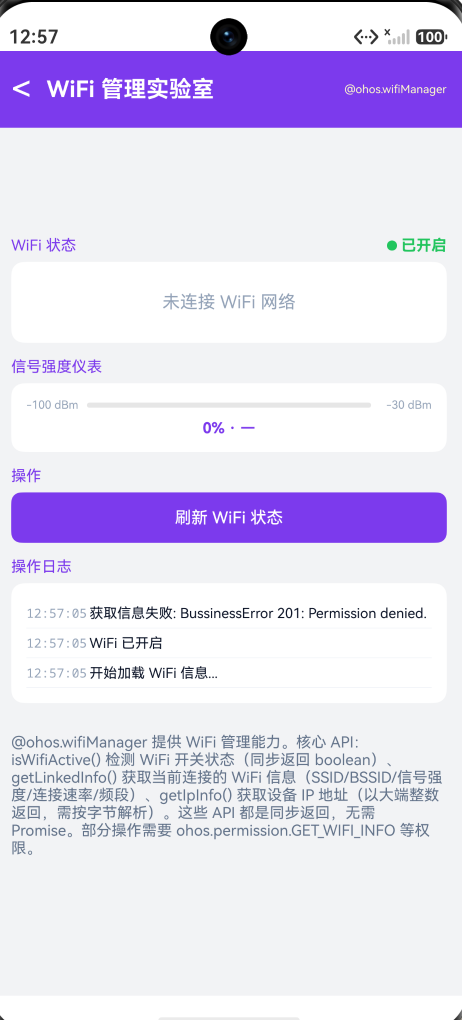
整个页面分为七个区域,从上到下依次为:
┌─────────────────────────────────┐
│  < WiFi 管理实验室        @ohos.wifiManager │  ← 标题栏(#7C3AED 紫色)
├─────────────────────────────────┤
│   WiFi 状态           ● 已开启  │  ← 开关状态指示灯
├─────────────────────────────────┤
│  ┌─────────────────────────┐   │
│  │ SSID          信号 ▃▄▆█  │   │  ← 连接信息卡片
│  │ 优秀 (-42 dBm)           │   │     (SSID + 信号格 + 参数)
│  │ ─────────────────────── │   │
│  │ 频段: 5GHz   速率: 866Mbps│   │
│  │ IP: 192.168.1.100       │   │
│  │ BSSID: aa:bb:cc:dd:ee:ff│   │
│  └─────────────────────────┘   │
├─────────────────────────────────┤
│  信号强度仪表                    │
│  -100 dBm [████████░░] -30 dBm │  ← 进度条 + 百分比
│        78% · 优秀 (-42 dBm)    │
├─────────────────────────────────┤
│  [ 刷新 WiFi 状态 ]             │  ← 操作按钮
├─────────────────────────────────┤
│  操作日志                        │
│  │ 14:32:01 │ 已连接到 WiFi-Lab │  ← 带时间戳的日志列表
│  │ 14:32:01 │ WiFi 已开启       │
│  │ 14:32:00 │ 开始加载 WiFi...  │
└─────────────────────────────────┘
状态管理设计
@State wifiEnabled: boolean = false;    // WiFi 开关状态
@State currentSSID: string = '未连接';   // 当前 SSID
@State currentBSSID: string = '—';      // BSSID
@State currentIP: string = '—';         // IP 地址
@State signalLevel: string = '—';       // 信号等级描述
@State signalPercent: number = 0;       // 信号百分比 0-100
@State linkSpeed: string = '—';         // 连接速率
@State band: string = '—';             // 频段
@State connected: boolean = false;      // 是否已连接
@State eventLogs: EventLog[] = [];     // 操作日志
@State loading: boolean = true;        // 加载状态
12 个状态变量覆盖了 WiFi 信息的所有维度。loading 状态用于显示加载指示器,connected 状态控制连接卡片与"未连接"提示的条件渲染。
信号强度可视化
信号强度是用户最关心的指标之一。Demo 实现了三层可视化:
第一层:文字等级描述
根据 RSSI 值(dBm)映射到五个等级:
private rssiLabel(rssi: number): string {
  if (rssi >= -50) return '优秀 (' + rssi + ' dBm)';
  if (rssi >= -65) return '良好 (' + rssi + ' dBm)';
  if (rssi >= -75) return '一般 (' + rssi + ' dBm)';
  if (rssi >= -85) return '较弱 (' + rssi + ' dBm)';
  return '极弱 (' + rssi + ' dBm)';
}
| RSSI 范围 | 等级 | 用户体验含义 |
|---|---|---|
| ≥ -50 dBm | 优秀 | 视频通话、在线游戏无压力 |
| -65 ~ -50 | 良好 | 高清视频流畅播放 |
| -75 ~ -65 | 一般 | 网页浏览、消息收发正常 |
| -85 ~ -75 | 较弱 | 可能出现延迟和丢包 |
| < -85 dBm | 极弱 | 连接不稳定,建议靠近路由器 |
第二层:信号格图标
WiFi 信号格是最直观的信号指示方式。Demo 用 4 根不同高度的柱子来模拟:
Row({ space: 2 }) {
  ForEach([0, 1, 2, 3], (i: number) => {
    Column()
      .width(5)
      .height(6 + i * 4)     // 递增高度:6, 10, 14, 18
      .backgroundColor(i < this.signalBars() ? '#7C3AED' : '#E2E8F0')
      .borderRadius(1)
  })
}
signalBars() 方法根据信号百分比决定亮几格:
private signalBars(): number {
  if (!this.connected) return 0;
  if (this.signalPercent >= 75) return 4;   // 满格
  if (this.signalPercent >= 50) return 3;
  if (this.signalPercent >= 25) return 2;
  return 1;                                   // 最弱
}
第三层:进度条仪表
使用 Progress 组件展示线性的信号强度仪表:
Progress({
  value: this.connected ? this.signalPercent : 0,
  total: 100,
  type: ProgressType.Linear
})
  .color(this.signalColor())
  .height(8)
颜色根据信号百分比动态变化:
- 绿色
#22C55E:信号 ≥ 70% — 状态良好 - 琥珀色
#F59E0B:信号 40%~70% — 一般,需关注 - 红色
#EF4444:信号 < 40% — 较弱,建议优化
RSSI 到百分比的映射算法
RSSI 值范围为 -100 dBm(最差)到 -30 dBm(最好),需要线性映射到 0~100%:
private rssiPercent(rssi: number): number {
  const pct: number = ((rssi + 100) / 70) * 100;
  return pct < 0 ? 0 : (pct > 100 ? 100 : Math.round(pct));
}
映射原理:
- 输入
rssi = -100:((-100) + 100) / 70 * 100 = 0%— 最差 - 输入
rssi = -30:((-30) + 100) / 70 * 100 = 100%— 最佳 - 输入
rssi = -65:((-65) + 100) / 70 * 100 = 50%— 中等 - 边界保护:
< 0取 0,> 100取 100,防止异常值
频段识别
WiFi 频段是影响网络性能的关键因素。2.4GHz 穿墙能力强但干扰多,5GHz 速率高但覆盖范围小。Demo 通过 info.band 字段识别当前频段:
const bandNum: number = info.band;
if (bandNum === 1) {
  this.band = '2.4 GHz';
} else if (bandNum === 2) {
  this.band = '5 GHz';
} else {
  this.band = '—';
}
HarmonyOS 当前仅定义了 1(2.4GHz)和 2(5GHz)两个频段值。随着 WiFi 6E 和 WiFi 7 的普及,未来可能会引入 6GHz(band=3)等新频段,代码中的 else 分支为这种扩展留有空间。
操作日志系统
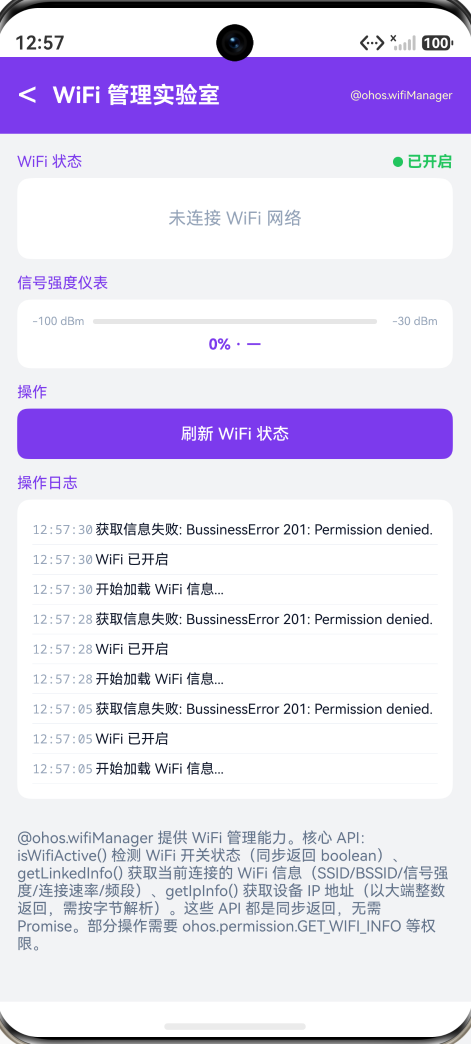
操作日志是调试和问题排查的重要工具。Demo 实现了一个轻量的日志系统,记录每次 API 调用的时间和结果:
interface EventLog {
  time: string;
  msg: string;
}

private addLog(msg: string): void {
  const now: Date = new Date();
  const ts: string = now.getHours().toString().padStart(2, '0') + ':' +
    now.getMinutes().toString().padStart(2, '0') + ':' +
    now.getSeconds().toString().padStart(2, '0');
  const entry: EventLog = { time: ts, msg: msg };
  this.eventLogs = [entry].concat(this.eventLogs).slice(0, 30);
}
设计要点:
- 使用
padStart(2, '0')保证时间格式整齐(如09:05:03而非9:5:3) - 新日志插入到数组头部(
[entry].concat(...)),最新的在最上面 .slice(0, 30)限制日志数量,避免内存无限增长- 界面中用
monospace字体族展示时间戳,与日志消息保持视觉区分
完整代码
以下是"WiFi 管理实验室"页面的完整实现代码。你可以将此代码放入 DevEco Studio 项目中,注册路由后即可运行。
import { router } from '@kit.ArkUI';
import wifiManager from '@ohos.wifiManager';
import { FontSize, Spacing } from '../common/Constants';

interface EventLog {
  time: string;
  msg: string;
}

@Entry
@Component
struct WifiLabPage {
  @State wifiEnabled: boolean = false;
  @State currentSSID: string = '未连接';
  @State currentBSSID: string = '—';
  @State currentIP: string = '—';
  @State signalLevel: string = '—';
  @State signalPercent: number = 0;
  @State linkSpeed: string = '—';
  @State band: string = '—';
  @State connected: boolean = false;
  @State eventLogs: EventLog[] = [];
  @State loading: boolean = true;

  aboutToAppear(): void {
    this.initWifi();
  }

  private initWifi(): void {
    this.addLog('开始加载 WiFi 信息...');
    try {
      this.wifiEnabled = wifiManager.isWifiActive();
      this.addLog('WiFi ' + (this.wifiEnabled ? '已开启' : '已关闭'));
    } catch (e) {
      this.wifiEnabled = false;
      this.addLog('WiFi 状态查询失败(可能需要权限)');
    }

    wifiManager.getLinkedInfo()
      .then((info: wifiManager.WifiLinkedInfo) => {
        if (info.ssid !== '' && info.connState === wifiManager.ConnState.CONNECTED) {
          this.connected = true;
          this.currentSSID = info.ssid;
          this.currentBSSID = info.bssid !== '' ? info.bssid : '—';
          this.linkSpeed = info.linkSpeed > 0 ? info.linkSpeed + ' Mbps' : '—';
          this.signalLevel = this.rssiLabel(info.rssi);
          this.signalPercent = this.rssiPercent(info.rssi);

          const bandNum: number = info.band;
          if (bandNum === 1) {
            this.band = '2.4 GHz';
          } else if (bandNum === 2) {
            this.band = '5 GHz';
          } else {
            this.band = '—';
          }

          this.addLog('已连接到 ' + info.ssid + ' (信号: ' + info.rssi + ' dBm)');
        } else {
          this.connected = false;
          this.currentSSID = '未连接';
          this.addLog('当前未连接任何 WiFi');
        }
        this.loading = false;
        return wifiManager.getIpInfo();
      })
      .then((ipInfo: wifiManager.IpInfo) => {
        const ip: number = ipInfo.ipAddress;
        this.currentIP = ((ip >>> 24) & 0xFF) + '.' + ((ip >>> 16) & 0xFF) + '.' +
          ((ip >>> 8) & 0xFF) + '.' + (ip & 0xFF);
      })
      .catch((err: Error) => {
        this.connected = false;
        this.currentSSID = '查询失败';
        this.currentIP = '—';
        this.loading = false;
        this.addLog('获取信息失败: ' + err.message);
      });
  }

  private rssiLabel(rssi: number): string {
    if (rssi >= -50) return '优秀 (' + rssi + ' dBm)';
    if (rssi >= -65) return '良好 (' + rssi + ' dBm)';
    if (rssi >= -75) return '一般 (' + rssi + ' dBm)';
    if (rssi >= -85) return '较弱 (' + rssi + ' dBm)';
    return '极弱 (' + rssi + ' dBm)';
  }

  private rssiPercent(rssi: number): number {
    const pct: number = ((rssi + 100) / 70) * 100;
    return pct < 0 ? 0 : (pct > 100 ? 100 : Math.round(pct));
  }

  private addLog(msg: string): void {
    const now: Date = new Date();
    const ts: string = now.getHours().toString().padStart(2, '0') + ':' +
      now.getMinutes().toString().padStart(2, '0') + ':' +
      now.getSeconds().toString().padStart(2, '0');
    const entry: EventLog = { time: ts, msg: msg };
    this.eventLogs = [entry].concat(this.eventLogs).slice(0, 30);
  }

  private signalBars(): number {
    if (!this.connected) return 0;
    if (this.signalPercent >= 75) return 4;
    if (this.signalPercent >= 50) return 3;
    if (this.signalPercent >= 25) return 2;
    return 1;
  }

  private signalColor(): string {
    if (this.signalPercent >= 70) return '#22C55E';
    if (this.signalPercent >= 40) return '#F59E0B';
    return '#EF4444';
  }

  @Builder
  connParam(label: string, value: string) {
    Column() {
      Text(label)
        .fontSize(10).fontColor('#94A3B8')
        .margin({ bottom: 2 })
      Text(value)
        .fontSize(13).fontColor('#0F172A')
        .fontWeight(FontWeight.Bold).fontFamily('monospace')
    }
    .layoutWeight(1)
    .alignItems(HorizontalAlign.Start)
  }

  build() {
    Column() {
      // 标题栏
      Row() {
        Text('<')
          .fontSize(28).fontColor('#FFFFFF')
          .onClick(() => { router.back(); })
        Text('WiFi 管理实验室')
          .fontSize(FontSize.TITLE).fontColor('#FFFFFF')
          .fontWeight(FontWeight.Bold).margin({ left: Spacing.MD })
        Blank()
        Text('@ohos.wifiManager')
          .fontSize(9).fontColor('#FFFFFFCC')
      }
      .width('100%')
      .padding({ left: Spacing.LG, right: Spacing.LG, top: 14, bottom: 14 })
      .backgroundColor('#7C3AED')

      Scroll() {
        Column() {
          // WiFi 开关状态指示
          Row() {
            Text('WiFi 状态')
              .fontSize(FontSize.CAPTION).fontColor('#7C3AED')
              .layoutWeight(1)
            Row() {
              Circle({ width: 8, height: 8 })
                .fill(this.wifiEnabled ? '#22C55E' : '#EF4444')
              Text(this.wifiEnabled ? ' 已开启' : ' 已关闭')
                .fontSize(12).fontColor(this.wifiEnabled ? '#22C55E' : '#EF4444')
                .fontWeight(FontWeight.Bold)
            }
          }
          .width('100%').margin({ bottom: 6 })

          // 连接信息卡片
          Column() {
            if (this.loading) {
              LoadingProgress()
                .width(28).height(28).color('#7C3AED')
                .margin({ top: 8, bottom: 8 })
            } else {
              if (this.connected) {
                // 信号格 + SSID
                Row() {
                  Column() {
                    Text(this.currentSSID)
                      .fontSize(16).fontColor('#0F172A')
                      .fontWeight(FontWeight.Bold)
                      .maxLines(1).textOverflow({ overflow: TextOverflow.Ellipsis })
                    Text(this.signalLevel)
                      .fontSize(11).fontColor('#7C3AED').fontWeight(FontWeight.Bold)
                      .margin({ top: 2 })
                  }
                  .alignItems(HorizontalAlign.Start).layoutWeight(1)

                  Column() {
                    Text('信号').fontSize(10).fontColor('#94A3B8')
                  }
                  .alignItems(HorizontalAlign.Center).margin({ right: 8 })

                  Row({ space: 2 }) {
                    ForEach([0, 1, 2, 3], (i: number) => {
                      Column()
                        .width(5)
                        .height(6 + i * 4)
                        .backgroundColor(i < this.signalBars() ? '#7C3AED' : '#E2E8F0')
                        .borderRadius(1)
                    })
                  }
                }
                .width('100%').margin({ bottom: 10 })

                Divider().height(0.5).color('#E2E8F0').margin({ bottom: 10 })

                // 连接参数
                Row() {
                  this.connParam('频段', this.band)
                  this.connParam('速率', this.linkSpeed)
                }
                .width('100%').margin({ bottom: 6 })

                Row() {
                  this.connParam('IP 地址', this.currentIP)
                  this.connParam('信号强度', this.signalPercent + '%')
                }
                .width('100%').margin({ bottom: 6 })

                Row() {
                  this.connParam('BSSID', this.currentBSSID)
                  Blank().layoutWeight(1)
                }
                .width('100%')
              } else {
                Text('未连接 WiFi 网络')
                  .fontSize(14).fontColor('#94A3B8')
                  .width('100%').textAlign(TextAlign.Center)
                  .padding({ top: 12, bottom: 12 })
              }
            }
          }
          .width('100%').padding(Spacing.MD)
          .backgroundColor('#FFFFFF').borderRadius(10)
          .margin({ bottom: Spacing.MD })

          // 信号强度仪表
          Text('信号强度仪表')
            .fontSize(FontSize.CAPTION).fontColor('#7C3AED')
            .width('100%').margin({ bottom: 6 })

          Column() {
            Row() {
              Text('-100 dBm').fontSize(9).fontColor('#94A3B8').width(48)
              Progress({
                value: this.connected ? this.signalPercent : 0,
                total: 100,
                type: ProgressType.Linear
              })
                .layoutWeight(1)
                .color(this.signalColor())
                .height(8)
              Text('-30 dBm').fontSize(9).fontColor('#94A3B8').width(48)
                .textAlign(TextAlign.End)
            }
            .width('100%').margin({ bottom: 6 })

            Text(this.signalPercent + '% · ' + this.signalLevel)
              .fontSize(12).fontColor('#7C3AED')
              .fontWeight(FontWeight.Bold)
              .width('100%').textAlign(TextAlign.Center)
          }
          .width('100%').padding(Spacing.MD)
          .backgroundColor('#FFFFFF').borderRadius(10)
          .margin({ bottom: Spacing.MD })

          // 操作按钮
          Text('操作')
            .fontSize(FontSize.CAPTION).fontColor('#7C3AED')
            .width('100%').margin({ bottom: 6 })

          Button('刷新 WiFi 状态')
            .fontSize(13).fontColor('#FFFFFF')
            .height(40).backgroundColor('#7C3AED').borderRadius(8)
            .width('100%')
            .onClick(() => { this.loading = true; this.initWifi(); })
            .margin({ bottom: Spacing.MD })

          // 操作日志
          Text('操作日志')
            .fontSize(FontSize.CAPTION).fontColor('#7C3AED')
            .width('100%').margin({ bottom: 6 })

          Column() {
            if (this.eventLogs.length === 0) {
              Text('暂无日志')
                .fontSize(12).fontColor('#94A3B8')
                .width('100%').textAlign(TextAlign.Center)
                .padding({ top: 12, bottom: 12 })
            } else {
              ForEach(this.eventLogs, (log: EventLog) => {
                Row() {
                  Text(log.time)
                    .fontSize(10).fontColor('#94A3B8').fontFamily('monospace')
                    .width(50)
                  Text(log.msg)
                    .fontSize(11).fontColor('#0F172A')
                    .layoutWeight(1).maxLines(2)
                    .textOverflow({ overflow: TextOverflow.Ellipsis })
                }
                .width('100%')
                .padding({ top: 5, bottom: 5 })
                .border({ width: { bottom: 0.5 }, color: '#E2E8F0' })
              })
            }
          }
          .width('100%').padding(Spacing.MD)
          .backgroundColor('#FFFFFF').borderRadius(10)
          .margin({ bottom: Spacing.MD })

          // API 说明
          Text('@ohos.wifiManager 提供 WiFi 管理能力。核心 API:isWifiActive() 检测 WiFi 开关状态(同步返回 boolean)、getLinkedInfo() 获取当前连接的 WiFi 信息(SSID/BSSID/信号强度/连接速率/频段)、getIpInfo() 获取设备 IP 地址(以大端整数返回,需按字节解析)。')
            .fontSize(FontSize.CAPTION)
            .fontColor('#64748B')
            .width('100%')
            .margin({ top: Spacing.MD, bottom: Spacing.XXL })
        }
        .width('100%')
        .padding({ left: Spacing.LG, right: Spacing.LG, top: Spacing.MD, bottom: Spacing.MD })
      }
      .layoutWeight(1).scrollBar(BarState.Off)
      .backgroundColor('#F2F3F5')
    }
    .width('100%').height('100%')
    .backgroundColor('#F2F3F5')
  }
}
路由注册
在 main_pages.json 中注册路由:
{
  "src": [
    "pages/Index",
    "pages/WindowLabPage",
    "pages/WifiLabPage"
  ]
}
在 Index 页面添加入口卡片:
this.demoCard('WiFi 管理实验室',
  '@ohos.wifiManager WiFi状态 + 信号强度 + 连接信息',
  '#7C3AED', 'pages/WifiLabPage')
权限说明
@ohos.wifiManager 的 API 分为两类,对应不同的权限要求:
无需权限(可直接调用):
isWifiActive()— 查询 WiFi 开关状态
需要 ohos.permission.GET_WIFI_INFO(普通权限):
getLinkedInfo()— 获取连接信息getIpInfo()— 获取 IP 地址
如需在应用中使用此权限,在 module.json5 中添加:
"requestPermissions": [
  {
    "name": "ohos.permission.GET_WIFI_INFO",
    "reason": "$string:wifi_permission_reason",
    "usedScene": {
      "abilities": ["EntryAbility"],
      "when": "inuse"
    }
  }
]
需要系统权限(普通应用无法使用):
startScan()— 扫描周边 WiFiconnectToNetwork()— 连接到指定 WiFisetDeviceConfig()— 修改 WiFi 配置
常见问题与解决方案
1. getLinkedInfo() 返回的 ssid 为空
原因:设备未连接 WiFi,或 WiFi 连接已断开但 connState 未即时更新。
解决:同时检查 ssid !== '' 和 connState === ConnState.CONNECTED 两个条件。
2. getIpInfo() 的 ipAddress 显示负数
原因:使用了有符号整数解析。ipAddress 是 32 位无符号整数,当最高位为 1 时,有符号解析会得到负数。
解决:使用 >>> 无符号右移运算符,确保高位补 0。
3. band 字段返回未知值
原因:设备连接到了未定义的频段(如 WiFi 6E 的 6GHz)。
解决:在条件判断中保留 else 分支兜底,显示"—"或其他默认文本。
4. 模拟器上 API 返回异常
原因:模拟器的网络行为不同于真实设备,部分 API 可能返回空数据或默认值。
解决:在真机上测试可获得真实数据。模拟器主要用于验证 UI 逻辑和代码编译。
总结
本文深入讲解了 HarmonyOS NEXT 中 @ohos.wifiManager 模块的核心用法,涵盖以下要点:
-
API 设计模式:
isWifiActive()同步返回,getLinkedInfo()和getIpInfo()异步返回 Promise——理解这个区别是正确使用 API 的前提。 -
数据解析细节:IP 地址以 32 位大端整数存储,需通过无符号右移
>>>按字节解析——这是最容易被忽视的坑。 -
信号可视化:RSSI 到百分比的线性映射算法、五个等级的语义划分、三层可视化(文字 + 信号格 + 进度条)的组合运用。
-
Promise 链式编排:
.then().then().catch()的串联模式,兼顾了代码可读性和错误处理的完备性。 -
工程化实践:带时间戳的操作日志、边界保护、加载状态管理、防御性 try-catch——这些都是生产级代码的必备要素。
掌握 @ohos.wifiManager,你就能在鸿蒙应用中精准感知 WiFi 状态,为用户提供更智能的网络体验。无论是开发网络诊断工具、智能家居控制器,还是优化流媒体播放策略,这些 API 都是不可或缺的基础能力。

讨论HarmonyOS开发技术,专注于API与组件、DevEco Studio、测试、元服务和应用上架分发等。
更多推荐

 2
2 0
0- 0


 已为社区贡献242条内容

所有评论(0)