HarmonyOS7 轻提示反馈页实战:别把 Toast 当成万能反馈
文章目录
Toast 很容易写,一行 promptAction.showToast() 就能弹出来。但我在做页面反馈时踩过一个坑:提示越方便,越容易被滥用。什么成功、失败、网络异常、登录结果都往 Toast 里塞,最后用户只看到一堆闪过去的文字,页面本身反而没有状态。
这个案例适合拿来练 promptAction 的边界感:什么时候用轻提示,什么时候必须在页面上留下明确结果。
这个页面真正练的是反馈节奏
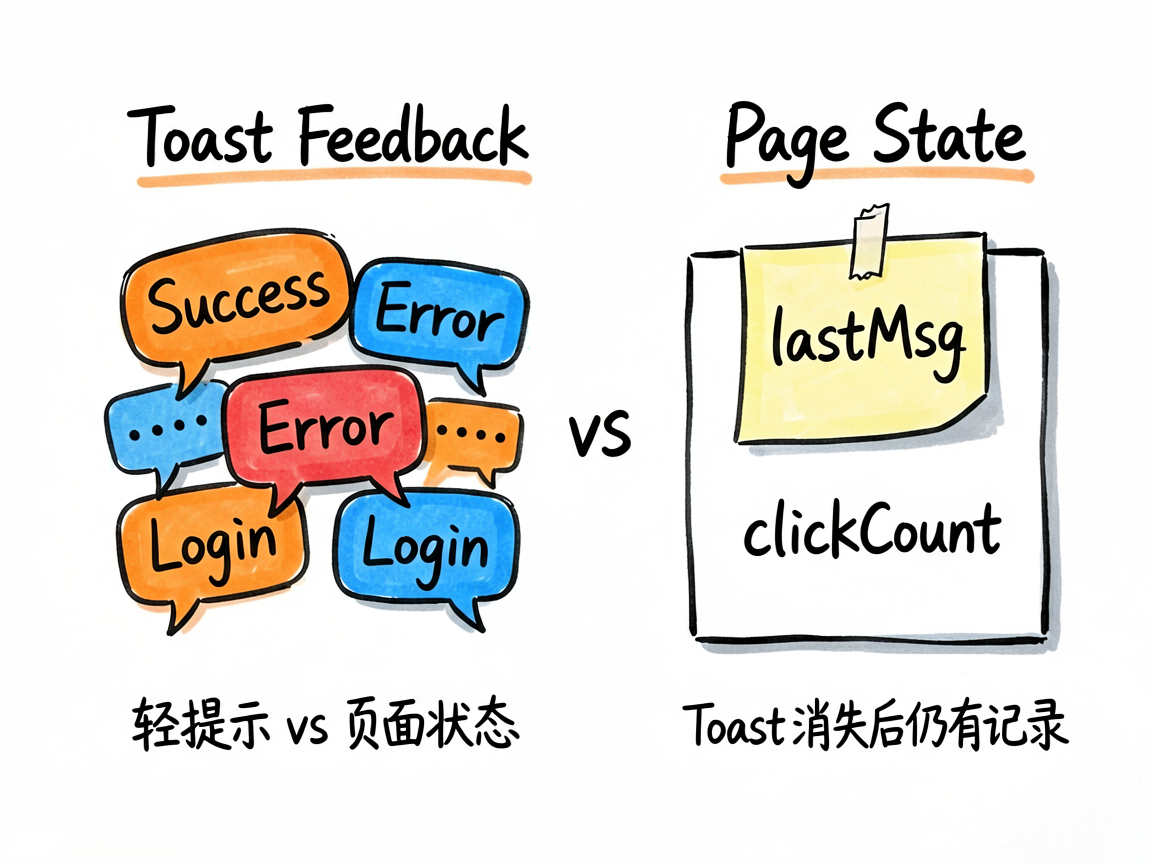
页面把提示拆成三类:状态反馈、位置控制、时长控制。成功、失败、警告、登录这类提示负责告诉用户“刚才的操作有没有被系统收到”;网络切换、复制链接这类提示更像临时确认;不同 duration 和 bottom 则用来观察展示位置与停留时间对体验的影响。
我建议不要只盯着 Toast 弹没弹出来。更值得看的,是页面同时维护了 lastMsg 和 clickCount。Toast 消失后,页面里仍能看到最近一次反馈和触发次数,这就是一个很实用的小兜底。
ToastConfig 让按钮配置更干净
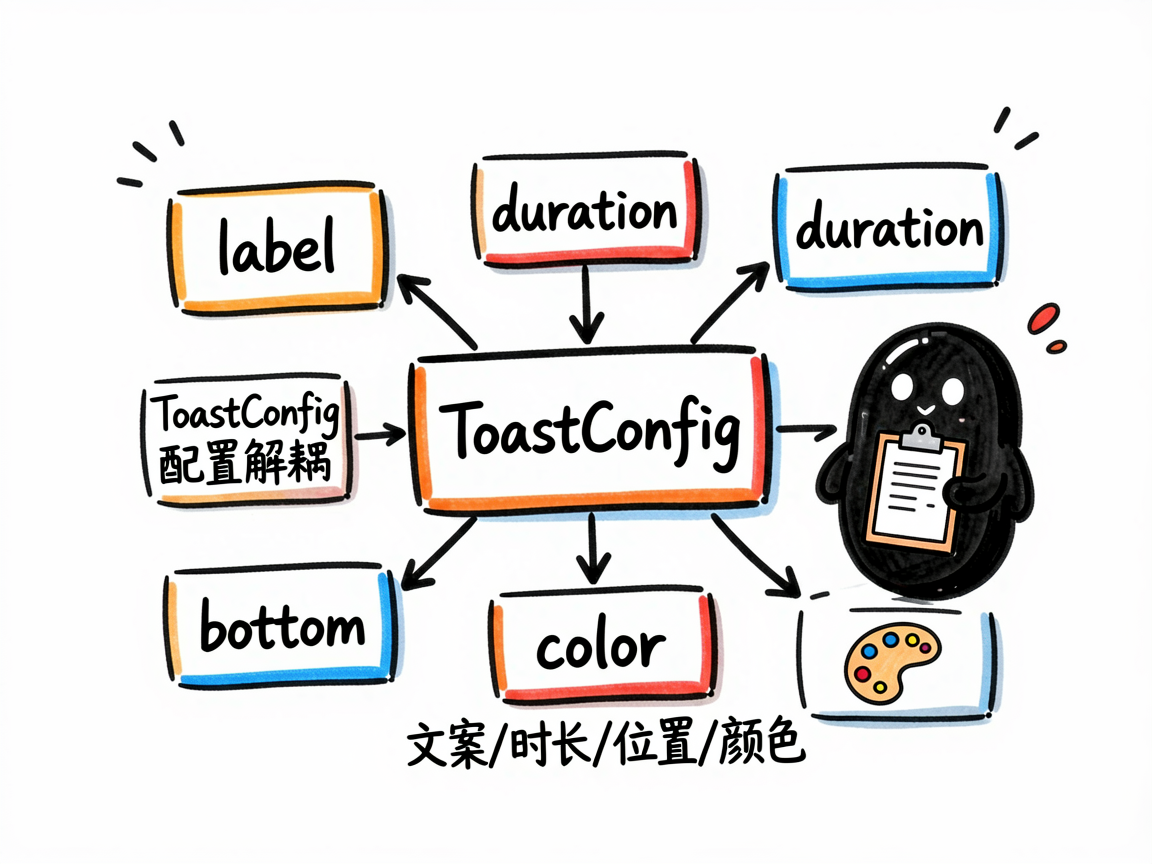
ToastConfig 里放了按钮文案、说明、停留时间、位置和颜色。这样写比在多个按钮里硬编码参数舒服很多,后面要加“顶部提示”“长时提示”,只需要往数组里补一项。
lastMsg 和 clickCount 是两个很直观的 @State:前者记录最近一次提示内容,后者记录触发次数。它们不负责弹 Toast,但负责让页面自己也能反映操作结果。
showBasicToast() 要保持克制
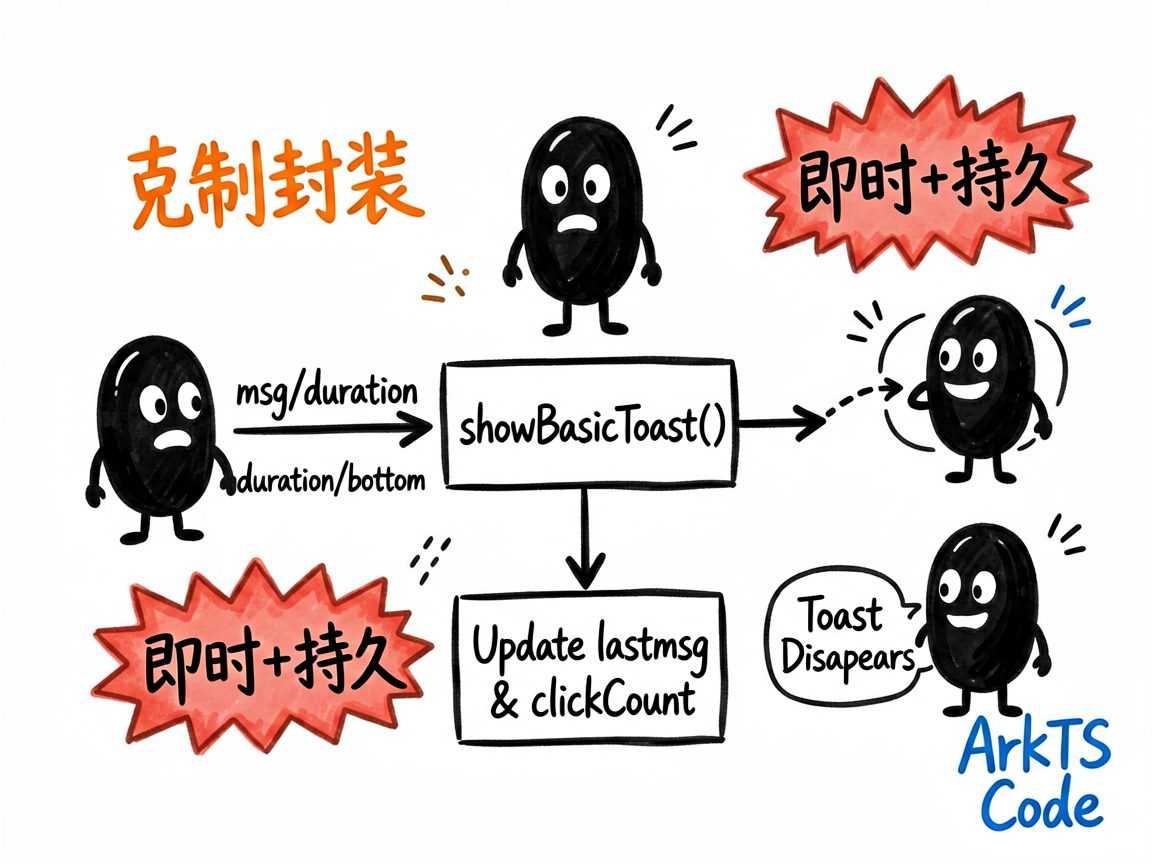
这个方法没有做复杂封装,只接收文案、时长和位置,然后调用 promptAction.showToast()。我觉得这正好,轻提示方法不适合塞太多业务判断,否则后面会变成一个谁都不敢改的工具函数。
  showBasicToast(msg: string, duration: number, bottom: number | string) {
    promptAction.showToast({
      message: msg,
      duration: duration,
      bottom: bottom
    })
    this.lastMsg = msg
    this.clickCount++
  }
这里顺手更新 lastMsg 和 clickCount,是这个案例比普通 Toast 示例更完整的地方。用户看到了即时提示,页面也保存了最后一次交互结果。
页面结构不复杂,但顺序很重要
ToastFeedbackPage 顶部先展示最近提示和触发次数,下面再放不同类型的按钮。这个顺序比直接堆按钮更友好,因为读者点完按钮以后能马上看到页面状态也变了。
三个模块可以按业务理解:状态反馈适合保存、删除、登录这类明确结果;位置控制适合复制、网络切换这种短确认;时长控制适合对比不同提示停留时间。真实项目里照这个思路拆,Toast 不容易乱。
别用 Toast 承担页面状态
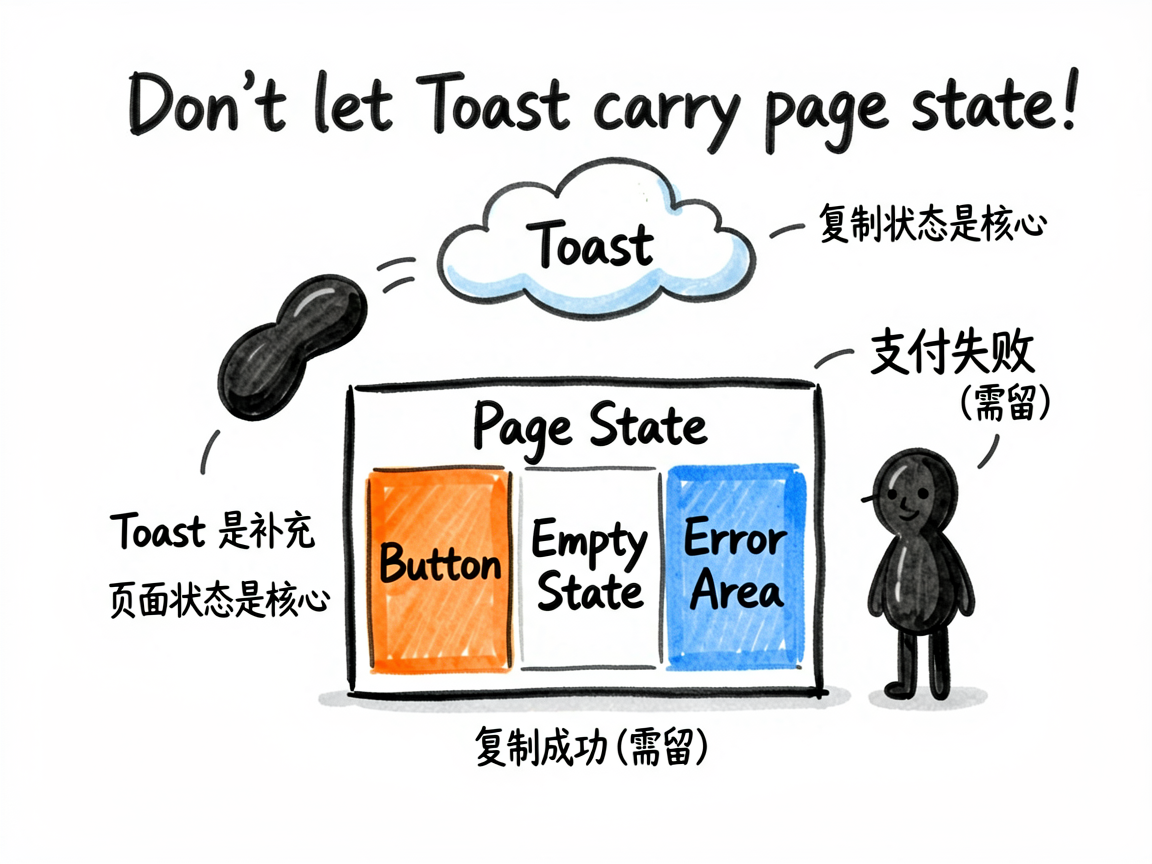
Toast 适合轻量、短句、可丢失的信息。比如“复制成功”可以只弹一下;但“订单支付失败”“登录已过期”“网络不可用”这类状态,最好还要在页面里有按钮、空态或错误区域。Toast 是补充反馈,不是业务状态本身。
完整代码
下面是整理后的完整代码,入口组件名已经换成 ToastFeedbackPage,可以直接按项目路由规则接入。
// promptAction 轻提示全解析

import { promptAction } from '@kit.ArkUI'

interface ToastConfig {
  label: string
  desc: string
  duration: number
  bottom: number | string
  color: string
  bg: string
}

@Entry
@Component
struct ToastFeedbackPage {
  @State lastMsg: string = '点击下方按钮体验不同提示效果'
  @State clickCount: number = 0

  private toastConfigs: ToastConfig[] = [
    { label: '短暂提示 (1.5s)', desc: '默认时长,适合操作反馈', duration: 1500, bottom: '50%', color: '#1D4ED8', bg: '#EFF6FF' },
    { label: '较长提示 (3s)', desc: '适合重要信息告知', duration: 3000, bottom: '50%', color: '#065F46', bg: '#ECFDF5' },
    { label: '底部提示', desc: '底部区域显示,不遮挡内容', duration: 2000, bottom: 80, color: '#92400E', bg: '#FFFBEB' },
    { label: '中部提示', desc: '居中显示,吸引注意力', duration: 2000, bottom: '45%', color: '#6B21A8', bg: '#FAF5FF' },
  ]

  showBasicToast(msg: string, duration: number, bottom: number | string) {
    promptAction.showToast({
      message: msg,
      duration: duration,
      bottom: bottom
    })
    this.lastMsg = msg
    this.clickCount++
  }

  showSuccessToast() {
    promptAction.showToast({
      message: '✅ 操作成功!数据已保存',
      duration: 2000,
      bottom: '50%'
    })
    this.lastMsg = '✅ 操作成功!数据已保存'
  }

  showErrorToast() {
    promptAction.showToast({
      message: '❌ 操作失败,请稍后重试',
      duration: 2500,
      bottom: '50%'
    })
    this.lastMsg = '❌ 操作失败,请稍后重试'
  }

  showWarningToast() {
    promptAction.showToast({
      message: '⚠️ 网络连接不稳定',
      duration: 2000,
      bottom: '50%'
    })
    this.lastMsg = '⚠️ 网络连接不稳定'
  }

  showNetworkToast() {
    promptAction.showToast({
      message: '📶 已切换至 WiFi 网络',
      duration: 1500,
      bottom: 100
    })
    this.lastMsg = '📶 已切换至 WiFi 网络'
  }

  showCopyToast() {
    promptAction.showToast({
      message: '📋 链接已复制到剪贴板',
      duration: 1500,
      bottom: 80
    })
    this.lastMsg = '📋 链接已复制到剪贴板'
  }

  showLoginToast() {
    promptAction.showToast({
      message: '👋 欢迎回来,登录成功',
      duration: 2000,
      bottom: '50%'
    })
    this.lastMsg = '👋 欢迎回来,登录成功'
  }

  build() {
    Column({ space: 0 }) {
      // 顶部标题
      Column() {
        Text('promptAction 轻提示')
          .fontSize(20)
          .fontWeight(FontWeight.Bold)
          .fontColor('#111827')
        Text('Toast 消息提示的各种使用场景')
          .fontSize(13)
          .fontColor('#6B7280')
          .margin({ top: 4 })
      }
      .width('100%')
      .padding({ top: 20, bottom: 16, left: 20, right: 20 })
      .alignItems(HorizontalAlign.Start)

      // 当前提示内容展示
      Row() {
        Column({ space: 4 }) {
          Text('最近提示')
            .fontSize(11)
            .fontColor('#9CA3AF')
          Text(this.lastMsg)
            .fontSize(13)
            .fontColor('#374151')
            .maxLines(2)
            .textOverflow({ overflow: TextOverflow.Ellipsis })
        }
        .alignItems(HorizontalAlign.Start)
        .layoutWeight(1)

        Column({ space: 2 }) {
          Text(this.clickCount.toString())
            .fontSize(22)
            .fontWeight(FontWeight.Bold)
            .fontColor('#2563EB')
          Text('次触发')
            .fontSize(11)
            .fontColor('#9CA3AF')
        }
        .alignItems(HorizontalAlign.Center)
      }
      .width('100%')
      .padding({ left: 20, right: 20, top: 12, bottom: 12 })
      .backgroundColor('#F8FAFF')
      .margin({ bottom: 12 })

      // 状态类型提示
      Column({ space: 10 }) {
        Text('一、状态反馈提示')
          .fontSize(14)
          .fontWeight(FontWeight.Bold)
          .fontColor('#374151')
          .width('100%')
          .padding({ left: 20 })

        Row({ space: 10 }) {
          Button('成功')
            .fontSize(13)
            .fontColor('#065F46')
            .backgroundColor('#D1FAE5')
            .borderRadius(20)
            .padding({ left: 16, right: 16, top: 8, bottom: 8 })
            .onClick(() => this.showSuccessToast())

          Button('失败')
            .fontSize(13)
            .fontColor('#991B1B')
            .backgroundColor('#FEE2E2')
            .borderRadius(20)
            .padding({ left: 16, right: 16, top: 8, bottom: 8 })
            .onClick(() => this.showErrorToast())

          Button('警告')
            .fontSize(13)
            .fontColor('#92400E')
            .backgroundColor('#FEF3C7')
            .borderRadius(20)
            .padding({ left: 16, right: 16, top: 8, bottom: 8 })
            .onClick(() => this.showWarningToast())

          Button('登录')
            .fontSize(13)
            .fontColor('#1E40AF')
            .backgroundColor('#DBEAFE')
            .borderRadius(20)
            .padding({ left: 16, right: 16, top: 8, bottom: 8 })
            .onClick(() => this.showLoginToast())
        }
        .padding({ left: 20, right: 20 })
        .width('100%')
      }
      .alignItems(HorizontalAlign.Start)
      .margin({ bottom: 16 })

      // 位置类提示
      Column({ space: 10 }) {
        Text('二、位置控制提示')
          .fontSize(14)
          .fontWeight(FontWeight.Bold)
          .fontColor('#374151')
          .width('100%')
          .padding({ left: 20 })

        Row({ space: 10 }) {
          Button('网络切换')
            .fontSize(13)
            .fontColor('#065F46')
            .backgroundColor('#D1FAE5')
            .borderRadius(20)
            .padding({ left: 12, right: 12, top: 8, bottom: 8 })
            .onClick(() => this.showNetworkToast())

          Button('复制链接')
            .fontSize(13)
            .fontColor('#7C3AED')
            .backgroundColor('#EDE9FE')
            .borderRadius(20)
            .padding({ left: 12, right: 12, top: 8, bottom: 8 })
            .onClick(() => this.showCopyToast())
        }
        .padding({ left: 20, right: 20 })
        .width('100%')
      }
      .alignItems(HorizontalAlign.Start)
      .margin({ bottom: 16 })

      // 时长控制
      Column({ space: 10 }) {
        Text('三、时长控制提示')
          .fontSize(14)
          .fontWeight(FontWeight.Bold)
          .fontColor('#374151')
          .width('100%')
          .padding({ left: 20 })

        Column({ space: 8 }) {
          ForEach(this.toastConfigs, (cfg: ToastConfig) => {
            Row() {
              Column({ space: 2 }) {
                Text(cfg.label)
                  .fontSize(14)
                  .fontWeight(FontWeight.Medium)
                  .fontColor(cfg.color)
                Text(cfg.desc)
                  .fontSize(12)
                  .fontColor('#9CA3AF')
              }
              .alignItems(HorizontalAlign.Start)
              .layoutWeight(1)

              Button('触发')
                .fontSize(12)
                .fontColor(cfg.color)
                .backgroundColor(cfg.bg)
                .borderRadius(14)
                .padding({ left: 14, right: 14, top: 6, bottom: 6 })
                .onClick(() => {
                  this.showBasicToast(cfg.label, cfg.duration, cfg.bottom)
                })
            }
            .width('100%')
            .padding({ left: 20, right: 20, top: 10, bottom: 10 })
            .backgroundColor('#FAFAFA')
            .borderRadius(8)
            .margin({ left: 16, right: 16 })
            .alignItems(VerticalAlign.Center)
          }, (cfg: ToastConfig) => cfg.label)
        }
      }
      .alignItems(HorizontalAlign.Start)

      // API 说明
      Column({ space: 6 }) {
        Text('API 参数说明')
          .fontSize(13)
          .fontWeight(FontWeight.Bold)
          .fontColor('#374151')
        Text('• message:提示文本内容\n• duration:显示时长(ms),默认1500\n• bottom:距底部距离,支持数值(vp)或百分比字符串')
          .fontSize(12)
          .fontColor('#6B7280')
          .lineHeight(20)
      }
      .width('100%')
      .padding(16)
      .margin({ top: 16, left: 16, right: 16 })
      .backgroundColor('#F9FAFB')
      .borderRadius(12)
    }
    .width('100%')
    .height('100%')
    .backgroundColor('#FFFFFF')
  }
}
写在最后
这个例子不复杂,但很适合反复看。很多 ArkUI 页面写不顺,其实不是组件不会用,而是状态、结构和反馈没有放在一起设计。

讨论HarmonyOS开发技术,专注于API与组件、DevEco Studio、测试、元服务和应用上架分发等。
更多推荐

 8
8 0
0- 0



 已为社区贡献288条内容

所有评论(0)