HarmonyOS技术精讲-Connectivity Kit:实战——构建智能家居控制应用
开篇:一个实际开发中的常见问题
在HarmonyOS开发里,控制智能家居设备时,很多人会纠结一个问题:用Wi-Fi还是蓝牙?
Wi-Fi覆盖远、带宽大,但功耗高、配网复杂。蓝牙功耗低、连接快,但距离短、带宽小。更麻烦的是,很多智能设备同时支持这两种协议——比如一个智能灯泡,近距离时通过蓝牙快速响应,远距离或跨房间时切换到Wi-Fi。
官方提供的Connectivity Kit(短距通信服务) 正是解决这个问题的。它不是Wi-Fi模块,也不是蓝牙模块,而是把两种能力统一管理起来的一个框架。但很多人第一次接触时,会发现官方示例能跑,但真正要在一个页面里同时管理设备发现、Wi-Fi连接、BLE控制、多设备并发时,各种生命周期和状态同步问题就出来了。
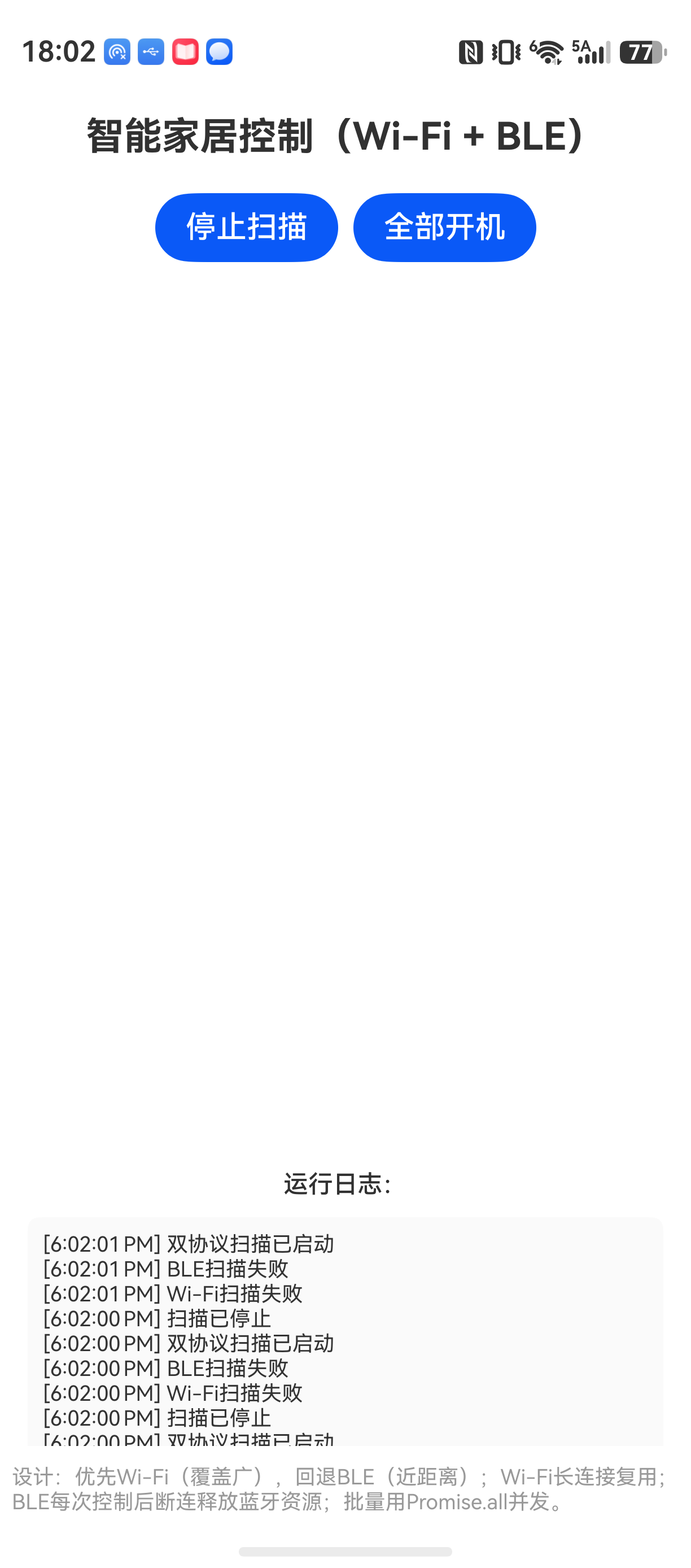
这篇文章直接用代码落地一个具体场景:手机发现智能设备、通过Wi-Fi或蓝牙下发控制指令。代码全部可运行,重点解决实际项目里最头疼的状态管理和并发问题。
先讲清楚它解决什么问题
Connectivity Kit是HarmonyOS NEXT提供的一个统一的短距通信服务框架。它不替代Wi-Fi和蓝牙各自的API,而是提供了一层抽象,让你可以用更一致的方式处理设备发现和通信。
它解决的核心问题:
- 设备发现逻辑碎片化:Wi-Fi用扫描,蓝牙用扫描,两个API完全不同
- 连接管理分散:每个协议有自己的连接状态机,业务层需要分别维护
- 多协议切换成本高:设备同时支持Wi-Fi和蓝牙时,业务层要自己判断用哪个
适用场景: 智能家居控制、设备间文件传输、多设备协同
不适用场景: 需要极致低延迟(如游戏外设)、需要高带宽持续传输(如视频流)
与其他方案的对比:
| 方案 | 设备发现 | 连接管理 | 多协议切换 | 适用场景 |
|---|---|---|---|---|
| 纯Wi-Fi API | 需自己实现扫描 | 需自己维护Socket | 不支持 | 单一Wi-Fi设备 |
| 纯BLE API | 需自己实现扫描 | 需自己维护GATT | 不支持 | 单一蓝牙设备 |
| Connectivity Kit | 统一发现接口 | 统一状态回调 | 支持运行时切换 | 多协议智能设备 |
推荐使用Connectivity Kit的场景,就是设备本身存在两种通信能力,且业务层需要根据实际情况(距离、功耗、网络状态)动态选择。
环境说明
DevEco Studio 版本:DevEco Studio 6.1.0 及以上
HarmonyOS SDK 版本:HarmonyOS 6.1.0(23) 及以上
目标设备:手机(HarmonyOS NEXT 系统)
核心实现
项目结构
SmartHomeControl/
├── AppScope/
│   └── app.json5
├── entry/
│   └── src/
│       ├── main/
│       │   ├── ets/
│       │   │   ├── Application/
│       │   │   │   └── MyAbilityStage.ets
│       │   │   ├── MainAbility/
│       │   │   │   └── MainAbility.ets
│       │   │   ├── pages/
│       │   │   │   ├── Index.ets          # 主页面,显示设备列表
│       │   │   │   ├── DeviceControl.ets  # 设备控制页面
│       │   │   ├── model/
│       │   │   │   ├── DeviceInfo.ets      # 设备数据模型
│       │   │   │   ├── ControlCommand.ets  # 控制指令封装
│       │   │   ├── service/
│       │   │   │   ├── DeviceDiscoveryManager.ets  # 设备发现管理
│       │   │   │   ├── WifiConnector.ets          # Wi-Fi连接管理
│       │   │   │   ├── BleConnector.ets           # 蓝牙BLE连接管理
│       │   │   │   ├── DeviceController.ets        # 统一设备控制器
│       │   │   ├── utils/
│       │   │       └── Constants.ets      # 常量定义
│       │   └── resources/
│       └── module.json5
└── build-profile.json5
数据模型与指令封装
这一段用于定义设备信息结构和控制指令。把协议类型、设备状态等关键信息集中管理,后续业务代码只需操作这些模型。
// model/DeviceInfo.ets
export enum ProtocolType {
  BLE = 0,
  WIFI = 1,
  MIXED = 2   // 同时支持两种协议
}

export enum DeviceStatus {
  OFFLINE = 0,
  ONLINE = 1,
  CONTROLLING = 2  // 正在执行控制指令
}

export class DeviceInfo {
  // 设备唯一标识,对于BLE设备是Mac地址,对于Wi-Fi设备是IP:Port
  public deviceId: string;
  public deviceName: string;
  public protocolType: ProtocolType;
  public status: DeviceStatus;
  // BLE专用
  public bleDeviceId?: string;
  public serviceUuid?: string;
  public characteristicUuid?: string;
  // Wi-Fi专用
  public wifiIp?: string;
  public wifiPort?: number;

  constructor(deviceId: string, deviceName: string, protocolType: ProtocolType) {
    this.deviceId = deviceId;
    this.deviceName = deviceName;
    this.protocolType = protocolType;
    this.status = DeviceStatus.OFFLINE;
  }
}
控制指令使用枚举定义,避免硬编码字符串。
// model/ControlCommand.ets
export enum CommandType {
  POWER_ON = 0x01,
  POWER_OFF = 0x02,
  SET_BRIGHTNESS = 0x03,
  SET_COLOR = 0x04,
  // 可以继续扩展
}

export class ControlCommand {
  public commandType: CommandType;
  // 指令数据负载,比如亮度值0-255,颜色值RGB
  public payload: Map<string, number>;

  constructor(commandType: CommandType, payload?: Map<string, number>) {
    this.commandType = commandType;
    this.payload = payload ?? new Map();
  }

  // 序列化为字节数组,用于通过BLE或TCP发送
  public toBytes(): ArrayBuffer {
    // 这里根据智能家居协议规范封装
    let buffer = new ArrayBuffer(8); // 简化示例
    let dataView = new DataView(buffer);
    dataView.setUint8(0, this.commandType);
    if (this.payload.has("value")) {
      dataView.setUint8(1, this.payload.get("value")!);
    }
    return buffer;
  }
}
设备发现管理
这一段处理设备发现。Connectivity Kit提供了统一的发现接口,但实际使用中需要协调Wi-Fi扫描和BLE扫描的返回结果,合并成统一的设备列表。
// service/DeviceDiscoveryManager.ets
import wifiManager from '@ohos.wifiManager';
import bleManager from '@ohos.bluetooth.ble';
import { DeviceInfo, ProtocolType, DeviceStatus } from '../model/DeviceInfo';
import { Constants } from '../utils/Constants';

export class DeviceDiscoveryManager {
  // 单例模式,多个页面共享同一个发现实例
  private static instance: DeviceDiscoveryManager;
  public static getInstance(): DeviceDiscoveryManager {
    if (this.instance === null) {
      this.instance = new DeviceDiscoveryManager();
    }
    return this.instance!;
  }

  private discoveredDevices: Map<string, DeviceInfo> = new Map();
  // 发现回调,通知UI更新设备列表
  private onDeviceFound: ((device: DeviceInfo) => void) | null = null;

  // 开始扫描
  public startDiscovery(callback: (device: DeviceInfo) => void): void {
    this.onDeviceFound = callback;
    // 启动Wi-Fi扫描,扫描局域网内的设备
    this.startWifiScan();
    // 启动BLE扫描,扫描低功耗蓝牙设备
    this.startBleScan();
  }

  private startWifiScan(): void {
    try {
      wifiManager.scanDevices();
      wifiManager.on('scanResult', (devices: Array<wifiManager.WifiDevice>) => {
        for (let wifiDevice of devices) {
          // 过滤出智能设备,这里假设设备名称包含特定前缀
          if (wifiDevice.ssid.startsWith(Constants.WIFI_DEVICE_PREFIX)) {
            let devId = wifiDevice.bssid;
            if (!this.discoveredDevices.has(devId)) {
              let device = new DeviceInfo(devId, wifiDevice.ssid, ProtocolType.MIXED);
              device.wifiIp = wifiDevice.ipAddress; // 假设扫描结果包含IP
              device.wifiPort = Constants.WIFI_CONTROL_PORT;
              this.discoveredDevices.set(devId, device);
              this.onDeviceFound?.(device);
            }
          }
        }
      });
    } catch (error) {
      console.error('Wi-Fi scan failed: ' + JSON.stringify(error));
    }
  }

  private startBleScan(): void {
    try {
      bleManager.startBLEScan();
      bleManager.on('BLEDeviceFind', (devices: Array<bleManager.ScanResult>) => {
        for (let bleDevice of devices) {
          // 过滤BLE设备名称,同样使用前缀
          if (bleDevice.deviceName?.startsWith(Constants.BLE_DEVICE_PREFIX)) {
            let devId = bleDevice.deviceId;
            if (!this.discoveredDevices.has(devId)) {
              let device = new DeviceInfo(devId, bleDevice.deviceName, ProtocolType.MIXED);
              device.bleDeviceId = bleDevice.deviceId;
              this.discoveredDevices.set(devId, device);
              this.onDeviceFound?.(device);
            } else {
              // 设备已存在,补充BLE信息
              let existing = this.discoveredDevices.get(devId)!;
              existing.bleDeviceId = bleDevice.deviceId;
              existing.protocolType = ProtocolType.MIXED;
              this.onDeviceFound?.(existing);
            }
          }
        }
      });
    } catch (error) {
      console.error('BLE scan failed: ' + JSON.stringify(error));
    }
  }

  public stopDiscovery(): void {
    wifiManager.off('scanResult');
    bleManager.off('BLEDeviceFind');
    try {
      wifiManager.stopScan();
      bleManager.stopBLEScan();
    } catch (error) {
      console.error('Stop scan failed: ' + JSON.stringify(error));
    }
    this.onDeviceFound = null;
  }

  public getDiscoveredDevices(): DeviceInfo[] {
    return Array.from(this.discoveredDevices.values());
  }
}
关键点注意:
- 这里使用单例,因为多个页面可能需要访问同一个发现结果。如果每个页面各自创建实例,会导致重复扫描和状态不一致。
- Wi-Fi扫描结果和BLE扫描结果分别处理,但合并在同一张Map里。设备可能同时出现在两种扫描结果中,这时补充完整信息。
startDiscovery的参数是回调函数,不是返回Promise。设计成回调更灵活,因为扫描是持续进行的,每次发现设备就通知UI更新。
Wi-Fi连接管理
对于Wi-Fi设备,使用TCP/IP Socket通信。这一段封装了Socket的创建、连接、发送指令和断开。
// service/WifiConnector.ets
import socket from '@ohos.net.socket';
import { ControlCommand } from '../model/ControlCommand';

export class WifiConnector {
  private tcpSocket: socket.TcpSocket | null = null;
  private isConnected: boolean = false;

  // 连接到设备Wi-Fi
  public async connect(ip: string, port: number): Promise<boolean> {
    if (this.isConnected) {
      console.warn('Already connected to a wifi device');
      return true;
    }

    this.tcpSocket = socket.constructTCPSocketInstance();
    let connectAddress: socket.NetAddress = {
      address: ip,
      port: port,
      family: 1
    };

    try {
      await this.tcpSocket.connect(connectAddress);
      this.isConnected = true;
      console.info('Wi-Fi connected successfully');
      return true;
    } catch (error) {
      console.error('Wi-Fi connect failed: ' + JSON.stringify(error));
      this.cleanup();
      return false;
    }
  }

  // 发送控制指令
  public async sendCommand(command: ControlCommand): Promise<boolean> {
    if (!this.isConnected || !this.tcpSocket) {
      console.error('Not connected to wifi device');
      return false;
    }

    try {
      let data = command.toBytes();
      await this.tcpSocket.send({
        data: data
      });
      console.info('Wi-Fi command sent successfully');
      return true;
    } catch (error) {
      console.error('Send command failed: ' + JSON.stringify(error));
      return false;
    }
  }

  // 断开连接
  public disconnect(): void {
    if (this.tcpSocket) {
      try {
        this.tcpSocket.close();
      } catch (error) {
        console.error('Disconnect failed: ' + JSON.stringify(error));
      }
    }
    this.cleanup();
  }

  private cleanup(): void {
    this.tcpSocket = null;
    this.isConnected = false;
  }
}
为什么这里使用TCP而不是UDP: 智能家居控制指令需要可靠传输,TCP保证指令一定到达,且顺序一致。UDP虽然延迟更低,但在弱网络下容易丢包,对智能家居场景来说,丢包导致灯光无法关闭是更严重的问题。
蓝牙BLE连接管理
BLE设备通过GATT特征写来控制。注意BLE的连接和指令发送是异步过程,需要处理好状态回调。
// service/BleConnector.ets
import ble from '@ohos.bluetooth.ble';

export class BleConnector {
  private deviceId: string;
  private gattClient: ble.GattClientDevice | null = null;
  private isConnected: boolean = false;

  constructor(deviceId: string) {
    this.deviceId = deviceId;
  }

  // 连接到BLE设备
  public async connect(): Promise<boolean> {
    if (this.isConnected) {
      console.warn('Already connected to BLE device');
      return true;
    }

    try {
      // 获取GattClientDevice实例
      this.gattClient = await ble.connectGattClientDevice(this.deviceId);
      // 连接第二个参数才是关键:这里需要等待连接完成
      await this.gattClient.connect();
      this.isConnected = true;
      console.info('BLE connected successfully');
      return true;
    } catch (error) {
      console.error('BLE connect failed: ' + JSON.stringify(error));
      this.cleanup();
      return false;
    }
  }

  // 发现服务
  public async discoverServices(): Promise<Array<ble.GattService>> {
    if (!this.gattClient || !this.isConnected) {
      console.error('Not connected to BLE device');
      return [];
    }
    try {
      let services = await this.gattClient.discoverServices();
      return services;
    } catch (error) {
      console.error('Discover services failed: ' + JSON.stringify(error));
      return [];
    }
  }

  // 向指定特征写指令
  public async writeCharacteristic(
    serviceUuid: string,
    characteristicUuid: string,
    command: ControlCommand
  ): Promise<boolean> {
    if (!this.gattClient || !this.isConnected) {
      console.error('Not connected to BLE device');
      return false;
    }

    try {
      let data = command.toBytes();
      await this.gattClient.writeCharacteristicValue(
        serviceUuid,
        characteristicUuid,
        data
      );
      console.info('BLE write successfully');
      return true;
    } catch (error) {
      console.error('BLE write failed: ' + JSON.stringify(error));
      return false;
    }
  }

  // 断开连接
  public disconnect(): void {
    if (this.gattClient) {
      try {
        this.gattClient.disconnect();
      } catch (error) {
        console.error('BLE disconnect failed: ' + JSON.stringify(error));
      }
    }
    this.cleanup();
  }

  private cleanup(): void {
    this.gattClient = null;
    this.isConnected = false;
  }
}
注意: 实际开发中,BLE连接的超时处理非常重要。官方connect方法默认没有超时参数,如果设备不在范围或蓝牙关闭,会一直等待。建议在业务层增加超时处理:
// 建议在controller层封装超时
public async connectWithTimeout(timeoutMs: number): Promise<boolean> {
  return Promise.race([
    this.connect(),
    new Promise<boolean>((_, reject) =>
      setTimeout(() => reject(new Error('BLE connect timeout')), timeoutMs)
    )
  ]);
}
统一设备控制器(核心)
这是整个项目的核心。它根据设备支持的协议类型,选择合适的连接方式,并管理不同设备的连接状态。还要处理多设备并发控制。
// service/DeviceController.ets
import { DeviceInfo, ProtocolType, DeviceStatus } from '../model/DeviceInfo';
import { ControlCommand, CommandType } from '../model/ControlCommand';
import { WifiConnector } from './WifiConnector';
import { BleConnector } from './BleConnector';

export class DeviceController {
  // 设备连接器Map,key为deviceId
  private wifiConnectors: Map<string, WifiConnector> = new Map();
  private bleConnectors: Map<string, BleConnector> = new Map();

  // 控制指令执行结果回调
  private onControlResult: ((deviceId: string, success: boolean) => void) | null = null;

  public setOnControlResult(callback: (deviceId: string, success: boolean) => void): void {
    this.onControlResult = callback;
  }

  // 对单个设备下发控制指令
  public async controlDevice(device: DeviceInfo, command: ControlCommand): Promise<boolean> {
    // 根据设备支持的协议选择连接方式
    if (device.protocolType === ProtocolType.WIFI || device.protocolType === ProtocolType.MIXED) {
      // 优先尝试Wi-Fi(距离近时网络稳定)
      if (device.wifiIp && device.wifiPort) {
        return this.controlViaWifi(device, command);
      }
    }

    // 如果没有Wi-Fi信息或Wi-Fi失败,尝试BLE
    if (device.protocolType === ProtocolType.BLE || device.protocolType === ProtocolType.MIXED) {
      if (device.bleDeviceId) {
        return this.controlViaBle(device, command);
      }
    }

    console.error('No available protocol for device: ' + device.deviceId);
    return false;
  }

  private async controlViaWifi(device: DeviceInfo, command: ControlCommand): Promise<boolean> {
    let connector = this.wifiConnectors.get(device.deviceId);
    if (!connector) {
      connector = new WifiConnector();
      this.wifiConnectors.set(device.deviceId, connector);
    }

    // 如果未连接,先连接
    // 注意:这里简化了重连逻辑,实际项目需要判断连接状态是否有效
    let connected = await connector.connect(device.wifiIp!, device.wifiPort!);
    if (!connected) {
      // Wi-Fi连接失败,移除连接器
      this.wifiConnectors.delete(device.deviceId);
      return false;
    }

    let result = await connector.sendCommand(command);
    // 指令发送完后不主动断开,保持TCP长连接以便后续指令
    // 如果确定不再控制,可以调用disconnectRelease
    this.onControlResult?.(device.deviceId, result);
    return result;
  }

  private async controlViaBle(device: DeviceInfo, command: ControlCommand): Promise<boolean> {
    let connector = this.bleConnectors.get(device.deviceId);
    if (!connector) {
      connector = new BleConnector(device.bleDeviceId!);
      this.bleConnectors.set(device.deviceId, connector);
    }

    let connected = await connector.connect();
    let serviceUuid = device.serviceUuid;
    let characteristicUuid = device.characteristicUuid;
    // 如果服务UUID未设置,需要发现
    if (!serviceUuid || !characteristicUuid) {
      let services = await connector.discoverServices();
      if (services.length > 0) {
        // 简化:取第一个服务的第一个特征
        serviceUuid = services[0].uuid;
        let characteristics = await connector.getCharacteristics(serviceUuid);
        if (characteristics.length > 0) {
          characteristicUuid = characteristics[0].uuid;
        }
      }
    }

    if (!serviceUuid || !characteristicUuid) {
      console.error('Failed to get BLE service/characteristic UUID');
      return false;
    }

    let result = await connector.writeCharacteristic(serviceUuid, characteristicUuid, command);
    // BLE连接建议保持,但也可以每次控制后断开
    // 这里选择断开,避免多个BLE设备连接占用资源
    connector.disconnect();
    this.bleConnectors.delete(device.deviceId);
    this.onControlResult?.(device.deviceId, result);
    return result;
  }

  // 批量控制多个设备
  public async controlMultipleDevices(
    devices: DeviceInfo[],
    command: ControlCommand
  ): Promise<Map<string, boolean>> {
    let results = new Map<string, boolean>();
    let promises = devices.map(async (device) => {
      let success = await this.controlDevice(device, command);
      results.set(device.deviceId, success);
    });
    await Promise.all(promises);
    return results;
  }

  // 释放所有连接
  public releaseAll(): void {
    this.wifiConnectors.forEach((connector) => connector.disconnect());
    this.bleConnectors.forEach((connector) => connector.disconnect());
    this.wifiConnectors.clear();
    this.bleConnectors.clear();
  }
}
设计决策说明:
-
优先使用Wi-Fi而不是BLE:Wi-Fi覆盖更广,即使设备在隔壁房间也能控制。BLE只有在近距离时可靠。这个策略可以根据实际场景调整。
-
Wi-Fi连接保持长连接:智能家居控制通常是一连串指令(开灯、调暗、变色),频繁建连断连效率低。但如果设备数量多,所有TCP连接会占用系统资源,需要权衡。
-
BLE每次控制后断连:BLE设备功耗低但数量多,同时保持多个BLE连接会消耗蓝牙资源。大部分智能灯泡不支持多连接,所以每次控制后断开更安全。

讨论HarmonyOS开发技术,专注于API与组件、DevEco Studio、测试、元服务和应用上架分发等。
更多推荐

 1
1 0
0- 0


 已为社区贡献194条内容

所有评论(0)