《视频截取转换为GIF动图》四、@ohos_mp4parser指南
·
HarmonyOS @ohos/mp4parser 使用指南
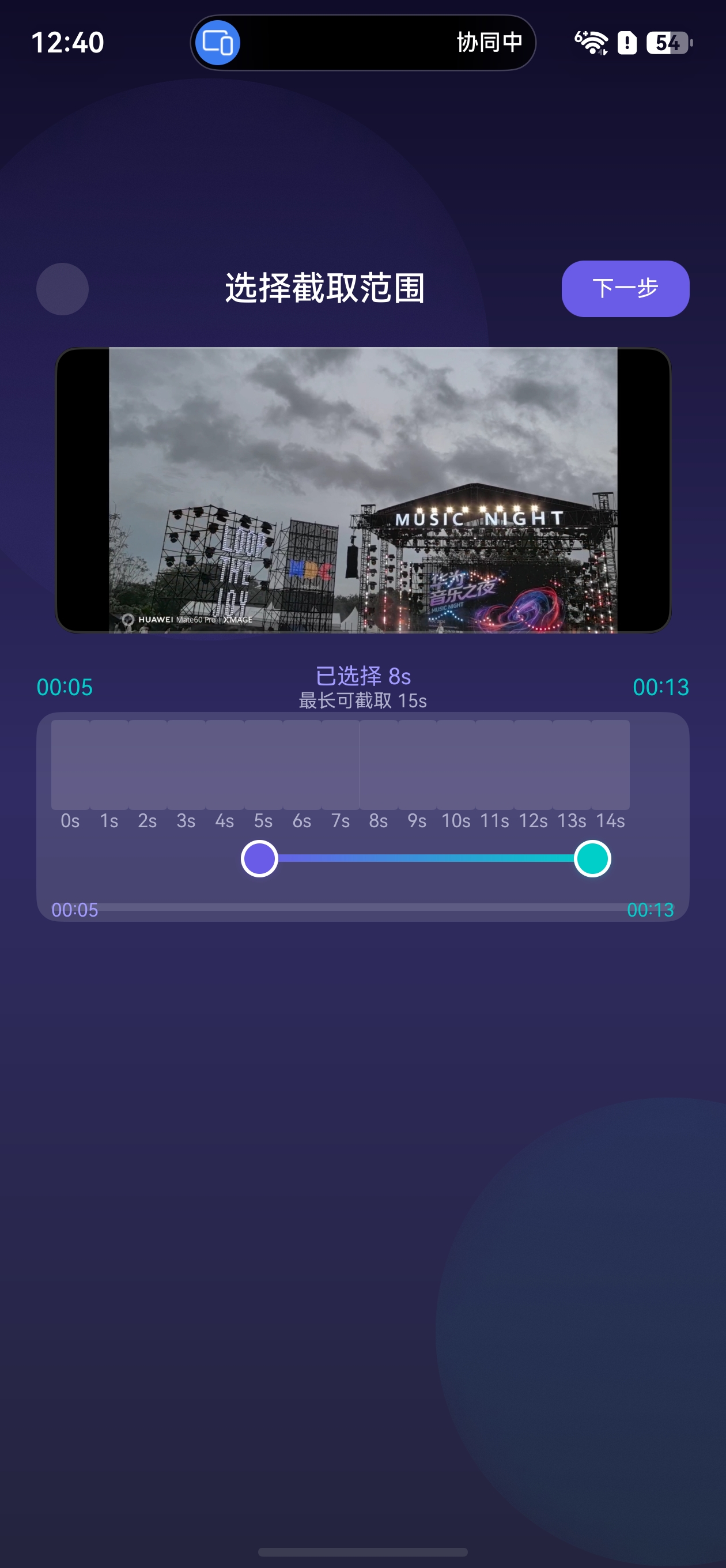
效果
一、概述
@ohos/mp4parser 是 HarmonyOS 生态中的 MP4 视频解析库,基于 FFmpeg 封装,提供了视频帧提取、视频裁剪、视频转 GIF 等能力。它通过简洁的 API 接口,让开发者无需了解底层 FFmpeg 细节,即可完成复杂的视频处理任务。
核心能力
| 能力 | 说明 |
|---|---|
| 数据源设置 | 设置待处理的视频文件路径 |
| 帧提取 | 按时间范围提取视频帧为 PixelMap |
| FFmpeg 命令 | 执行自定义 FFmpeg 命令(如视频转 GIF) |
| 停止操作 | 终止正在进行的异步帧提取任务 |
二、安装与配置
2.1 安装依赖
在项目的 oh-package.json5 中添加依赖:
{
  "dependencies": {
    "@ohos/mp4parser": "^2.0.2"
  }
}
或通过 DevEco Studio 的 File → Project Structure → ohpm 面板搜索安装。
2.2 导入模块
import { MP4Parser, ICallBack, IFrameCallBack } from '@ohos/mp4parser';
三、API 详解
3.1 MP4Parser 类方法
setDataSource —— 设置视频数据源
static setDataSource(src: string, callBack: ICallBack): void;
参数说明:
src:视频文件路径(支持沙箱路径)callBack:回调接口,返回操作结果码
使用示例:
let callBack: ICallBack = {
  callBackResult: (code: number) => {
    if (code === 0) {
      console.info('数据源设置成功');
    } else {
      console.error(`数据源设置失败,错误码: ${code}`);
    }
  }
};

MP4Parser.setDataSource('/data/storage/el2/base/files/video.mp4', callBack);
getFrameAtTimeRang —— 按时间范围提取视频帧
static getFrameAtTimeRang(
  startTimeUs: string,
  endTimeUs: string,
  option: number,
  callBack: IFrameCallBack
): void;
参数说明:
startTimeUs:起始时间(微秒,字符串类型)endTimeUs:结束时间(微秒,字符串类型)option:帧提取选项MP4Parser.OPTION_PREVIOUS_SYNC:提取指定时间之前的最近同步帧MP4Parser.OPTION_NEXT_SYNC:提取指定时间之后的最近同步帧MP4Parser.OPTION_CLOSEST_SYNC:提取指定时间附近的最近同步帧MP4Parser.OPTION_CLOSEST:提取最接近指定时间的帧
callBack:帧数据回调
使用示例:
let frameCallBack: IFrameCallBack = {
  callBackResult: (data: ArrayBuffer, timeUs: number) => {
    // data: 帧图像数据(JPEG 格式的 ArrayBuffer)
    // timeUs: 帧的时间戳(微秒)
    console.info(`获取到帧,时间: ${timeUs}us`);
    // 将 ArrayBuffer 转换为 PixelMap
    let imageSource = image.createImageSource(data);
    imageSource.createPixelMap().then((pixelMap: image.PixelMap) => {
      // 使用 pixelMap 展示帧图像
    });
  }
};

// 提取 0~10 秒的视频帧
MP4Parser.getFrameAtTimeRang('0', '10000000', MP4Parser.OPTION_CLOSEST, frameCallBack);
ffmpegCmd —— 执行 FFmpeg 命令
static ffmpegCmd(cmd: string, callBack: ICallBack): void;
参数说明:
cmd:FFmpeg 命令字符串callBack:命令执行结果回调
使用示例:
// 视频转 GIF
let cmd = 'ffmpeg -i /path/to/video.mp4 -ss 00:00:05 -t 10 /path/to/output.gif';
let callBack: ICallBack = {
  callBackResult: (code: number) => {
    if (code === 0) {
      console.info('GIF 生成成功');
    } else {
      console.error('GIF 生成失败');
    }
  }
};
MP4Parser.ffmpegCmd(cmd, callBack);
stopGetFrame —— 停止帧提取
static stopGetFrame(): void;
在页面销毁或取消操作时调用,终止正在进行的帧提取任务。
3.2 回调接口
ICallBack
interface ICallBack {
  callBackResult: (code: number) => void;
}
code === 0:操作成功code !== 0:操作失败
IFrameCallBack
interface IFrameCallBack {
  callBackResult: (data: ArrayBuffer, timeUs: number) => void;
}
data:帧图像的二进制数据(JPEG 格式)timeUs:帧在视频中的时间戳(微秒)
四、使用场景
4.1 场景一:视频缩略图列表
为视频时间轴生成每秒一帧的缩略图列表:
import { image } from '@kit.ImageKit';
import { MP4Parser, ICallBack, IFrameCallBack } from '@ohos/mp4parser';

@Observed
class VideoThumbnail {
  pixelMap: image.PixelMap | undefined = undefined;
  timeMs: number = 0;
}

// 生成缩略图
function generateThumbnails(
  videoPath: string,
  startMs: number,
  endMs: number,
  onFrameReady: (thumbnail: VideoThumbnail, index: number) => void,
  onComplete: () => void
): void {
  // 1. 设置数据源
  let setCallback: ICallBack = {
    callBackResult: (code: number) => {
      if (code !== 0) return;

      // 2. 提取帧
      let count = 0;
      const totalFrames = Math.ceil((endMs - startMs) / 1000);

      let frameCallback: IFrameCallBack = {
        callBackResult: async (data: ArrayBuffer, timeUs: number) => {
          const imageSource = image.createImageSource(data);
          const pixelMap = await imageSource.createPixelMap({
            sampleSize: 1,
            editable: true,
            desiredPixelFormat: image.PixelMapFormat.RGBA_8888
          });

          const thumbnail = new VideoThumbnail();
          thumbnail.pixelMap = pixelMap;
          thumbnail.timeMs = timeUs / 1000;

          onFrameReady(thumbnail, count);
          count++;

          if (count >= totalFrames) {
            onComplete();
          }

          imageSource.release();
        }
      };

      const startUs = (startMs * 1000).toString();
      const endUs = (endMs * 1000).toString();
      MP4Parser.getFrameAtTimeRang(startUs, endUs, MP4Parser.OPTION_CLOSEST, frameCallback);
    }
  };

  MP4Parser.setDataSource(videoPath, setCallback);
}
4.2 场景二:视频截取并转 GIF
将视频的指定时间段转换为 GIF 动图:
import { fileUri } from '@kit.CoreFileKit';
import { MP4Parser, ICallBack } from '@ohos/mp4parser';

function createGifFromVideo(
  videoPath: string,
  startTimeMs: number,
  endTimeMs: number,
  outputPath: string,
  onSuccess: (gifUri: string) => void,
  onError: (message: string) => void
): void {
  // 构建时间字符串
  const startSec = Math.floor(startTimeMs / 1000);
  const durationSec = Math.floor((endTimeMs - startTimeMs) / 1000);

  const startTimeStr = formatTimeString(startTimeMs);

  // 构建 FFmpeg 命令
  const cmd = `ffmpeg -i ${videoPath} -ss ${startTimeStr} -t ${durationSec} ${outputPath}`;

  let callback: ICallBack = {
    callBackResult: (code: number) => {
      if (code === 0) {
        const gifUri = fileUri.getUriFromPath(outputPath);
        onSuccess(gifUri);
      } else {
        onError('GIF 生成失败,错误码: ' + code);
      }
    }
  };

  MP4Parser.ffmpegCmd(cmd, callback);
}

// 时间格式化工具
function formatTimeString(timeMs: number): string {
  const totalSec = Math.floor(timeMs / 1000);
  const h = Math.floor(totalSec / 3600);
  const m = Math.floor((totalSec % 3600) / 60);
  const s = totalSec % 60;
  return `${pad(h)}:${pad(m)}:${pad(s)}`;
}

function pad(n: number): string {
  return n < 10 ? '0' + n : n.toString();
}
4.3 场景三:提取单帧截图
从视频中提取某一时刻的帧作为截图:
function captureFrame(
  videoPath: string,
  timeMs: number,
  onFrameReady: (pixelMap: image.PixelMap) => void
): void {
  let setCallback: ICallBack = {
    callBackResult: (code: number) => {
      if (code !== 0) return;

      let frameCallback: IFrameCallBack = {
        callBackResult: async (data: ArrayBuffer, timeUs: number) => {
          const imageSource = image.createImageSource(data);
          const pixelMap = await imageSource.createPixelMap();
          onFrameReady(pixelMap);
          imageSource.release();
          MP4Parser.stopGetFrame();
        }
      };

      const timeUs = (timeMs * 1000).toString();
      MP4Parser.getFrameAtTimeRang(timeUs, timeUs, MP4Parser.OPTION_CLOSEST, frameCallback);
    }
  };

  MP4Parser.setDataSource(videoPath, setCallback);
}
五、完整示例 —— 视频帧预览与 GIF 生成
import { media } from '@kit.MediaKit';
import { image } from '@kit.ImageKit';
import { fileUri } from '@kit.CoreFileKit';
import fsUtils from '@ohos.file.fs';
import { MP4Parser, ICallBack, IFrameCallBack } from '@ohos/mp4parser';

@Entry
@Component
struct MP4ParserDemo {
  @State thumbnails: image.PixelMap[] = [];
  @State gifPath: string = '';
  @State isProcessing: boolean = false;
  @State statusText: string = '就绪';

  private videoPath: string = '';

  build() {
    Column({ space: 16 }) {
      Text(this.statusText)
        .fontSize(16)
        .fontWeight(FontWeight.Medium);

      // 帧缩略图列表
      List() {
        ForEach(this.thumbnails, (px: image.PixelMap, index: number) => {
          ListItem() {
            Image(px)
              .width(80)
              .height(45)
              .objectFit(ImageFit.Cover)
              .borderRadius(4);
            Text(`${index}s`)
              .fontSize(10)
              .fontColor(Color.Gray);
          }
        })
      }
      .listDirection(Axis.Horizontal)
      .height(80)
      .width('100%');

      // 操作按钮
      Row({ space: 16 }) {
        Button('提取帧')
          .onClick(() => this.extractFrames());

        Button('生成 GIF')
          .onClick(() => this.createGif());
      }

      // GIF 预览
      if (this.gifPath.length > 0) {
        Image(this.gifPath)
          .width('80%')
          .height(200)
          .borderRadius(8);
      }
    }
    .padding(16)
    .width('100%')
    .height('100%');
  }

  private extractFrames(): void {
    this.isProcessing = true;
    this.statusText = '正在提取帧...';
    this.thumbnails = [];

    let setCallback: ICallBack = {
      callBackResult: (code: number) => {
        if (code !== 0) {
          this.statusText = '设置数据源失败';
          this.isProcessing = false;
          return;
        }

        let frameCallback: IFrameCallBack = {
          callBackResult: async (data: ArrayBuffer, timeUs: number) => {
            const imageSource = image.createImageSource(data);
            const pixelMap = await imageSource.createPixelMap({
              sampleSize: 1,
              desiredPixelFormat: image.PixelMapFormat.RGBA_8888
            });
            this.thumbnails.push(pixelMap);
            imageSource.release();
            this.statusText = `已提取 ${this.thumbnails.length} 帧`;
          }
        };

        MP4Parser.getFrameAtTimeRang('0', '10000000', MP4Parser.OPTION_CLOSEST, frameCallback);
      }
    };

    MP4Parser.setDataSource(this.videoPath, setCallback);
  }

  private createGif(): void {
    this.isProcessing = true;
    this.statusText = '正在生成 GIF...';

    const outputPath = getContext().cacheDir + '/output_' + Date.now() + '.gif';
    const cmd = `ffmpeg -i ${this.videoPath} -ss 00:00:00 -t 5 ${outputPath}`;

    let callback: ICallBack = {
      callBackResult: (code: number) => {
        this.isProcessing = false;
        if (code === 0) {
          this.gifPath = fileUri.getUriFromPath(outputPath);
          this.statusText = 'GIF 生成成功';
        } else {
          this.statusText = 'GIF 生成失败';
        }
      }
    };

    MP4Parser.ffmpegCmd(cmd, callback);
  }
}
六、注意事项
6.1 线程安全
setDataSource和getFrameAtTimeRang是异步操作,通过回调返回结果- 帧提取在子线程执行,UI 更新需通过状态变量触发
- 页面退出时务必调用
stopGetFrame()停止提取
6.2 内存管理
- 帧数据(ArrayBuffer)会占用较大内存,及时释放不需要的
ImageSource - 大量缩略图场景建议限制帧数量或使用
sampleSize降低分辨率
6.3 FFmpeg 命令
ffmpegCmd支持的命令有限,仅支持基本的视频处理和格式转换- 命令参数路径必须使用绝对路径
- 生成 GIF 时可添加参数优化:
-vf fps=10,scale=320:-1
6.4 错误处理
所有回调的 code 值含义:
| Code | 说明 |
|---|---|
| 0 | 操作成功 |
| -1 | 通用错误 |
| -2 | 参数错误 |
| -3 | 数据源错误 |
| -4 | FFmpeg 执行错误 |
七、常见问题
Q1:setDataSource 回调 code 不为 0?
检查文件路径是否正确,文件是否存在且可读。
Q2:提取的帧顺序错乱?
帧提取是异步回调,帧返回顺序可能与时间顺序不一致。建议根据 timeUs 参数排序。
Q3:GIF 文件过大?
在 FFmpeg 命令中添加缩放和帧率参数:
const cmd = `ffmpeg -i ${videoPath} -ss 00:00:05 -t 5 -vf fps=10,scale=320:-1 ${outputPath}`;
八、总结
@ohos/mp4parser 封装了 FFmpeg 的核心能力,为 HarmonyOS 应用提供了便捷的视频处理接口。主要应用场景包括:
- 视频帧提取:用于时间轴缩略图展示、视频截图
- 视频转 GIF:通过 FFmpeg 命令实现视频片段转 GIF 动图
- 视频裁剪:提取视频指定时间段
在使用时注意合理管理内存、及时释放资源、正确处理异步回调。

讨论HarmonyOS开发技术,专注于API与组件、DevEco Studio、测试、元服务和应用上架分发等。
更多推荐

 7
7 0
0- 0



 已为社区贡献42条内容

所有评论(0)