鸿蒙应用开发笔记:RelativeContainer组件
·
在官方文档构建第一个ArkTS应用(Stage模型)-快速入门-基础入门 - 华为HarmonyOS开发者2025-5-16的版本中,页面布局用是的Row和Column组件;但是在DevEco Studio 5.0.5 Release版本中,通过Empty Ability模板创建的工程中,页面布局用的是RelativeContainer组件。这里记录下RelativeContainer组件使用的探索过程。
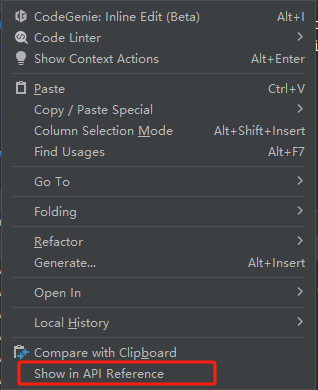
首先右键点击alignRules打开右键菜单,选中Show in API Reference,打开文档窗口,在文档的后半部分可以看到RelativeContainer组件的使用示例。
在RelativeContainer中,每个组件都有left,right,bottom,top,middle,center几个属性来控制显示区域。每个属性都需要指定anchor和align,anchor和align共同指示这个属性的值。例如,
{
          bottom: {anchor: '__container__', align: VerticalAlign.Center},
          middle: {anchor: '__container__', align: HorizontalAlign.Center}
}
这个设置,指示控件的底在容器垂直方向的中心,控件的水平位置在容器水平方向上的正中间。而anchor除了可以是容器外,还可以是容器内的其他组件,例如,
{
            top: { anchor: "text", align: VerticalAlign.Bottom },
            middle: { anchor: "__container__", align: HorizontalAlign.Center },
}
这个设置,指示控件的上边缘在控件text的底部边缘,水平居中。
所以anchor和align指示控件的边缘或中心在anchor的align处。
import { router } from '@kit.ArkUI';
import { BusinessError } from '@kit.BasicServicesKit';

@Entry
@Component
struct Index {
  @State message: string = 'Hello World';

  build() {
    RelativeContainer() {
      Text(this.message)
        .id('HelloWorld')
        .fontSize($r('app.float.page_text_font_size'))
        .fontWeight(FontWeight.Bold)
        .alignRules({
          bottom: {anchor: '__container__', align: VerticalAlign.Center},
          middle: {anchor: '__container__', align: HorizontalAlign.Center}
        })
      //.onClick(() => {
      //  this.message = 'Welcome';
      //})
      Button(){
        Text('Next')
          .fontSize(30)
          .fontWeight(FontWeight.Bold)
      }
      .alignRules({
        top: {anchor: '__container__', align: VerticalAlign.Center},
        middle: {anchor: '__container__', align: HorizontalAlign.Center}
      })
      .type(ButtonType.Capsule)
      .margin({top: 20})
      .backgroundColor('#0D9FFB')
      .width('40%')
      .height('5%')
      .onClick(()=>{
        console.info('Click Next Btn')
        router.pushUrl({url: 'pages/Second'}).then(()=>{
          console.info("jump to Second success");
        }).catch((err: BusinessError)=>{
          console.error(`Failed to jump to the second page. Code is ${err.code}, message is ${err.message}`)
        })
      })
    }
    .height('100%')
    .width('100%')
  }
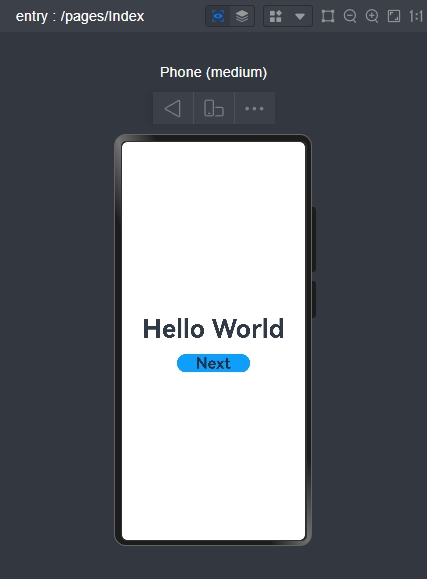
}

讨论HarmonyOS开发技术,专注于API与组件、DevEco Studio、测试、元服务和应用上架分发等。
更多推荐



 7
7 0
0- 0


 已为社区贡献1条内容

所有评论(0)