鸿蒙next教程:手写功能开发(接入报点预测)
·
往期鸿蒙全套实战文章必看:(附带鸿蒙全栈学习资料)
接入报点预测
接入报点预测功能,可以优化应用中手写效果的绘制跟手性,提升应用中手写笔书写场景的跟手体验。
场景介绍
在应用的自定义界面中,获取到界面的触摸事件,通过调用报点预测的接口,可以得到预测的下一个报点的位置信息。
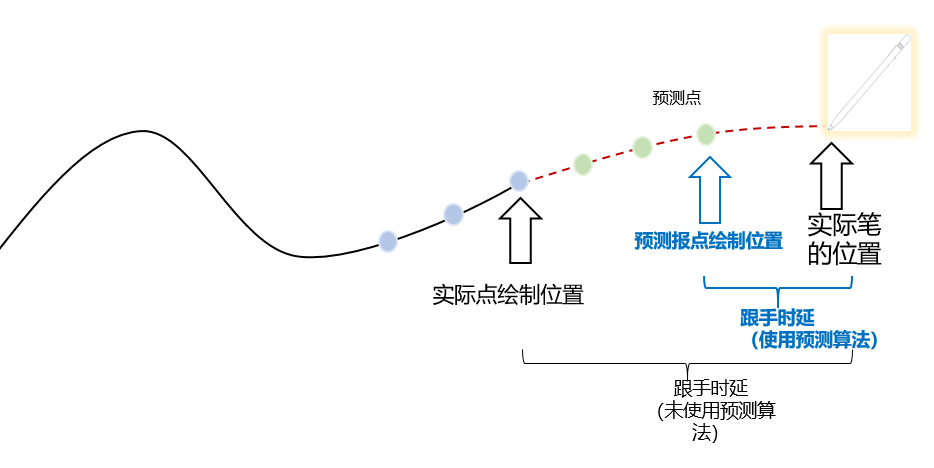
接口说明
| 类名 | 接口名 | 描述 |
|---|---|---|
| getPredictionPoint(event: TouchEvent): TouchPoint | 获取预测点 |
开发步骤
1.导入相关模块。
import { PointPredictor } from '@kit.Penkit';2.获取当前界面的触摸事件信息,调用接口计算预测点信息。
@Entry
@Component
struct PointPredictorDemo {
  @State actualXCoordinate: number = 0
  @State actualYCoordinate: number = 0
  @State predictorXCoordinate: Dimension = 0
  @State predictorYCoordinate: Dimension = 0
  pointPredictor: PointPredictor = new PointPredictor();


  aboutToAppear() {
    console.info('getPredictionPoint aboutToAppear')
  }


  aboutToDisappear() {
    console.info('getPredictionPoint aboutToDisappear')
  }


  build() {
    Stack({ alignContent: Alignment.TopEnd }) {
      this.Canvas() // Canvas.
    }.height('100%').width('100%')
  }


  // 画布
  @Builder
  Canvas() {
    Column() {
      Text("实际点坐标: X: " + this.actualXCoordinate + " Y: " + this.actualYCoordinate).textAlign(TextAlign.Start)
      Text("预测点坐标: X: " + this.predictorXCoordinate + " Y: " + this.predictorYCoordinate)
        .textAlign(TextAlign.Start)
    }.position({ x: 0, y: 0 })
    .alignItems(HorizontalAlign.Start)


    Stack()
      .width('100%')
      .height('100%')
      .onTouch((event: TouchEvent) => {
        switch (event.type) {
          case TouchType.Down: // Create a drawing path when the screen is touched.
            break;
          case TouchType.Move: // Use the prediction algorithm to perform prediction and obtain the prediction point.
            let point = this.pointPredictor?.getPredictionPoint(event)
            this.actualXCoordinate = event.touches[0]?.x
            this.actualYCoordinate = event.touches[0]?.y
            this.predictorXCoordinate = point?.x
            this.predictorYCoordinate = point?.y
            console.info("pointPredictor 实际点坐标 x:" + event.touches[0]?.x + " y:" + event.touches[0]?.y)
            console.info("pointPredictor 预测点坐标 x:" + point?.x + "  y:" + point?.y)
            break;
          case TouchType.Up:
            break;
        }
      })
  }
}

讨论HarmonyOS开发技术,专注于API与组件、DevEco Studio、测试、元服务和应用上架分发等。
更多推荐
 5
5 0
0- 0


 已为社区贡献904条内容

所有评论(0)