鸿蒙中传递图片给在web展示
·
鸿蒙代码
import picker from '@ohos.multimedia.cameraPicker'
import camera from '@ohos.multimedia.camera';
import common from '@ohos.app.ability.common';
import { BusinessError } from '@ohos.base';
import fileuri from '@ohos.file.fileuri';
import fs from '@ohos.file.fs';
import { buffer } from '@kit.ArkTS';
import { image } from '@kit.ImageKit';
import { webview } from '@kit.ArkWeb';

import { fileIo } from '@kit.CoreFileKit';
import { http } from '@kit.NetworkKit';
import { photoAccessHelper } from '@kit.MediaLibraryKit';

let mContext = getContext(this) as common.Context;

class CameraPosition {
  cameraPosition: camera.CameraPosition
  saveUri: string

  constructor(cameraPosition: camera.CameraPosition, saveUri: string) {
    this.cameraPosition = cameraPosition
    this.saveUri = saveUri
  }
}

@Entry
@Component
struct Photopage {
  @State base64Str: string = ''
  controller: webview.WebviewController = new webview.WebviewController();
  // 自定义生成的文件名
  fileName: string = ""
  // 图片类型
  fileType: string = "jpg"

  async loadPixelMap(uri: string) {
    let pixelMap: image.PixelMap
    // const imageSource = image.createImageSource("/data/storage/el2/base/haps/entry/cache/1753932557047.jpg");
    const imageSource = image.createImageSource(uri);
    pixelMap = await imageSource.createPixelMap();
    pixelMap.getImageInfo().then(async (imageInfo: image.ImageInfo) => {
      if (imageInfo != undefined) {
        this.base64Str = await this.getImageBase64WithUri(uri)
        // this.controller.runJavaScript(`myFunction(\`${this.base64Str}\`)`)
        this.controller.runJavaScript(`myFunction("${this.base64Str}","${imageInfo.size.width}","${imageInfo.size.height}")`)
        console.info("Succeeded in obtaining the image pixel map information." + JSON.stringify(imageInfo));
      }
    }).catch((error: BusinessError) => {
      console.error(`Failed to obtain the image pixel map information. code is ${error.code}, message is ${error.message}`);
    })
  }

  async getImageBase64WithUri(uri: string): Promise<string> {
    const file = await fs.open(uri, fs.OpenMode.READ_ONLY);
    const imageSource: image.ImageSource = image.createImageSource(file.fd);
    const imagePackerApi = image.createImagePacker();
    // 设置打包参数
    // format:当前仅支持打包为JPEG、WebP 和 png 格式
    // quality:JPEG 编码输出图片质量
    // bufferSize:图片大小,默认 10M
    const packOpts: image.PackingOption = { format: "image/jpeg", quality: 100 };
    let imageBuffer: ArrayBuffer = new ArrayBuffer(1);
    let resultBase64Str = ''
    try {
      // 图片压缩或重新打包
      imageBuffer = await imagePackerApi.packing(imageSource, packOpts);
      let base64Str = buffer.from(imageBuffer).toString('base64')
      resultBase64Str = "data:image/jpeg;base64," + base64Str

    } catch (err) {
      console.error(`Invoke getImageArrayBufferWithUri failed, err: ${JSON.stringify(err)}`);
    }
    return resultBase64Str;
  }

  build() {
    Row() {
      Column() {
        Button("1 选择图片")
          .onClick(async () => {

            try {
              // 创建一个新的 PhotoSelectOptions 实例来配置图片选择器的行为
              let PhotoSelectOptions = new photoAccessHelper.PhotoSelectOptions();

              // 设置 MIME 类型为图像类型,这样用户只能选择图像文件
              PhotoSelectOptions.MIMEType = photoAccessHelper.PhotoViewMIMETypes.IMAGE_TYPE;

              // 设置用户可以选择的最大图片数量为 1 张
              PhotoSelectOptions.maxSelectNumber = 1;


              // PhotoSelectOptions.isSearchSupported = false

              // 创建一个新的 PhotoViewPicker 实例,用于打开图片选择器
              let photoPicker = new photoAccessHelper.PhotoViewPicker();

              // 使用前面配置好的选项打开图片选择器,并等待用户完成选择
              // 注意这里的 select 方法是一个异步方法,所以需要使用 await 关键字等待其结果
              const PhotoSelectResult = await photoPicker.select(PhotoSelectOptions);
              console.log('vajldjlasd-----' + JSON.stringify(PhotoSelectResult))
              // `file://media/Photo/1/IMG_1725939294_000/screenshot_20240910_113314.jpg`
              // 假设这里只关心用户选择的第一张图片

              // 三.将文件保存到缓存目录(只能上传在缓存目录中的文件)
              const context = getContext(this) // 上下文对象 程序运行过程中

              // 生成一个新的文件名   234342343243.jpg
              this.fileName = Date.now() + '.' + this.fileType


              // 获取这个相册图片文件的权限 读取权限
              const file = fileIo.openSync(PhotoSelectResult.photoUris[0], fileIo.OpenMode.READ_ONLY)


              // 将文件 拷贝到 临时目录
              // 通过缓存路径+文件名 拼接出完整的路径
              // /data/storage/el2/base/haps/entry/cache/    1726038971043.jpg
              const copyFilePath = context.cacheDir + '/' + this.fileName
              console.log('halsdjlasd=====' + copyFilePath)

              // 拷贝文件
              // file.fd  待复制的文件 文件描述符 数字
              // copyFilePath  文件复制到哪去
              fileIo.copyFileSync(file.fd, copyFilePath)
              this.loadPixelMap(copyFilePath)

            } catch (error) {
              // 如果在 try 块中发生了错误,则会在这里捕获到这个错误
              // 将捕获到的错误转换成 BusinessError 类型(假设 error 是一个继承自 Error 的自定义错误类型)


              // 在控制台中打印错误信息,包括错误码和错误消息
              console.error(`PhotoViewPicker failed with err: ${error.code}, ${error.message}`);
            }
          })
        // Button('拉起后置摄像头').margin({ bottom: 20 }).onClick(() => {
        //   demo()
        // })
        // Button('uri转为base64').onClick(async () => {
        //   console.log('dajsldjlaksd----' + uri)
        //   // file://media/Photo/620/IMG_1754362336_613/screenshot_20250805_105036.jpg
        //   this.base64Str = await this.getImageBase64WithUri(uri)
        //   // this.controller.runJavaScript(`showBase64Image("${this.base64Str}")`)
        //   this.controller.runJavaScript(`myFunction(\`${this.base64Str}\`)`)
        // })
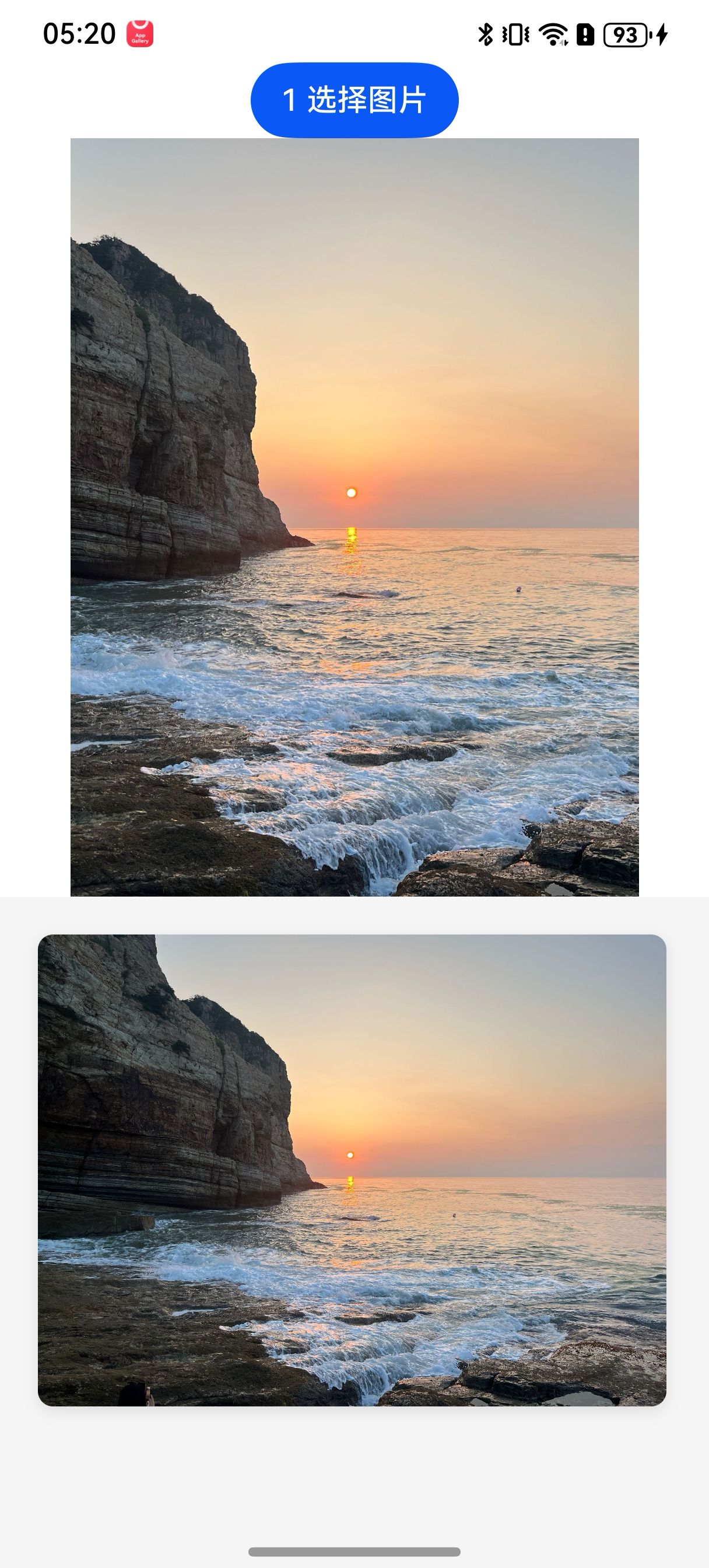
        Image(this.base64Str)
          .width(300)
          .height(400)

        Web({ src: $rawfile('Index.html'), controller: this.controller }).javaScriptProxy({
          object: {
            nativeMethod: (channelName: string, paramsCallback: number) => {
              if (!channelName || !paramsCallback) {
                return
              }
              if (paramsCallback) {
              }
            },
          },
          name: 'JSBridge',
          methodList: ['nativeMethod'],
          controller: this.controller,
        })
          .fileAccess(true)
          .domStorageAccess(true)
          .zoomAccess(false)
      }
    }

  }
}
html代码
<!DOCTYPE html>
<html lang="zh-CN">
<head>
    <meta charset="UTF-8">
    <meta content="width=device-width, initial-scale=1.0" name="viewport">
    <title>图片添加器</title>
    <style>
        * {
            margin: 0;
            padding: 0;
            box-sizing: border-box;
        }

        body {
            font-family: -apple-system, BlinkMacSystemFont, 'Segoe UI', Roboto, sans-serif;
            background-color: #f5f5f5;
            padding: 20px;
        }

    img {
      border-radius: 8px;
      box-shadow: 0 2px 8px rgba(0,0,0,0.1);
    }

    </style>
</head>
<body>


<script>
    function myFunction(base64str,width,height) {
      var img = new Image();

      // 设置图片加载完成后的处理
      img.onload = function() {
        // 获取容器宽度(假设是body或特定容器)
        const containerWidth = document.body.clientWidth || window.innerWidth;

        // 计算缩放比例,让图片宽度适应容器
        const scale = containerWidth / width;

        img.style.width = '99%';
        img.style.height = 'auto';
        img.style.maxWidth = '100%';
        //    img.style.display = 'block';
        //   img.style.marginBottom = '2px';
        img.style.borderRadius = '8px';
        // img.style.boxShadow = '0 1px 4px rgba(0,0,0,0.1)'; // 减小阴影
        img.style.position = 'relative'; // 添加相对定位

        // 设置图片样式
        img.style.borderRadius = '8px';
        img.style.boxShadow = '0 2px 8px rgba(0,0,0,0.1)';
      };

      img.src = base64str;
      document.body.appendChild(img);
    }
</script>
</body>
</html>

讨论HarmonyOS开发技术,专注于API与组件、DevEco Studio、测试、元服务和应用上架分发等。
更多推荐



 3
3 0
0- 0


 已为社区贡献23条内容

所有评论(0)