《鸿蒙倒计时功能:状态变量、定时器逻辑与日期格式化全流程》
·
1. 定义状态变量
声明三个状态变量hh、mm、ss,分别用于存储倒计时的时、分、秒
类型设为number|string,初始值均为10
@State hh:number|string = 10
@State mm:number|string = 10
@State ss:number|string = 10
2. 实现倒计时核心逻辑
(getTime函数)
2.1 获取时间戳:
获取当前时间戳:
let now = Number(new Date())
获取目标时间戳
(设定为2025-8-12 17:00:00)let end = Number(new Date('2025-8-12-17:00:00'))
2.2 计算时间差:
计算两个时间戳的差值:let time = end - now
2.3 转换为时分秒:
计算小时:Math.floor(time/1000/60/60%24)
计算分钟:Math.floor(time/1000/60%60)
计算秒钟:Math.floor(time/1000%60)
2.4 补零处理:
对小于10的数字前面加0:h = h < 10 ? '0' + h : h(时分秒均做相同处理)
2.5 更新状态变量:
将处理后的时分秒分别赋值给this.hh、this.mm、this.ss
3. 启动定时器
在UI组件的onAppear生命周期中启动定时器
每1000毫秒(1秒)调用一次getTime函数更新倒计时
.onAppear(()=>{
  setInterval(()=>{
    this.getTime()
  },1000)
})
4. 展示倒计时
-
在页面中通过
Text组件展示hh、mm、ss的值 -
使用
@Extend扩展Text组件样式,统一设置倒计时数字的展示样式 -
将三个时间数字横向排列,形成完整的倒计时显示
实现要点总结
-
利用时间戳差值计算剩余时间
-
通过定时器每秒更新一次倒计时状态
-
对单个数字进行补零处理,保证显示格式统一
-
使用状态变量实现数据驱动UI更新
-
利用组件生命周期函数在页面加载时启动倒计时
示意代码
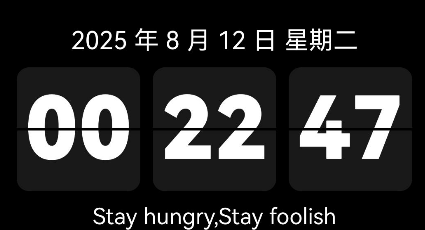
@Entry
@Component
struct Date01 {

  // 需求1: 获取年月日 星期
  getDay(){
    // 实例化日期对象
    const date:Date = new Date()
    // 格式化日期
    const y:number = date.getFullYear()
    const m:number = date.getMonth() + 1
    const d:number = date.getDate()

    // 格式化星期
    const day:number = date.getDay()
    // 将星期的数字转为文字
    let week:string = ''
    switch (day) {
      case 0:
        week = '星期日'
        break
      case 1:
        week = '星期一'
        break
      case 2:
        week = '星期二'
        break
      case 3:
        week = '星期三'
        break
      case 4:
        week = '星期四'
        break
      case 5:
        week = '星期五'
        break
      default:
        week = '星期六'
    }
    return `${y} 年 ${m} 月 ${d} 日 ${week}`
  }

  // 倒计时
  /**
   * 距离时间点的倒计时 - 18:30:00
   * 1. 定义状态变量,存储时分秒
   * 2. 封装成函数, 业务写到函数中
   *   - 获取70年到现在的时间戳
   *   - 获取70年到未来的时间戳
   *   - 获取时间戳的差值
   *   - 将时间戳转为时分秒
   *   - 将时分秒赋值给状态变量
   * 3. 页面加载时,开启定时器,调用函数
   */

  @State hh:number|string = 10
  @State mm:number|string = 10
  @State ss:number|string = 10

  getTime(){
    // 获取现在的时间戳
    let now = Number(new Date())
    // 获取未来的时间戳
    let end = Number(new Date('2025-8-12-17:00:00'))

    // 获取差值
    let time = end  - now

    type IType = string|number
    // 转为时分秒
    let h:IType = Math.floor(time/1000/60/60%24)  // 时
    let m:IType  = Math.floor(time/1000/60%60)     // 分
    let s:IType= Math.floor(time/1000%60)        // 秒

    // 补零操作 -> 数字如果是小于10 在数字的前面加0 例如: 9 -> 0 + 9 -> 09
    h = h < 10 ? '0' + h : h
    m = m < 10 ? '0' + m : m
    s = s < 10 ? '0' + s : s

    // 赋值给状态变量
    this.hh = h
    this.mm = m
    this.ss = s

  }


  build() {
    Column() {
      Column() {
        Text(this.getDay())
          .fontColor(Color.White)
          .fontSize(20)
        Stack() {
          Row({ space: 10 }) {
            Text(this.hh.toString())
              .textStyle()
            Text(this.mm.toString())
              .textStyle()
            Text(this.ss.toString())
              .textStyle()
          }
          .onAppear(()=>{
            // 页面加载时触发事件
            setInterval(()=>{
              this.getTime()
            },1000)
          })

          Divider()
            .strokeWidth(2)
            .color(Color.Black)
        }
        .padding(10)

        Text('Stay hungry,Stay foolish')
          .fontColor(Color.White)
          .fontSize(18)
      }

    }
    .width('100%')
    .height('100%')
    .backgroundColor(Color.Black)
    .justifyContent(FlexAlign.Center)
  }
}


@Extend(Text)
function textStyle() {
  .width(100)
  .height(100)
  .backgroundColor('#191919')
  .borderRadius(10)
  .textAlign(TextAlign.Center)
  .fontColor(Color.White)
  .fontSize(70)
  .fontWeight(900)
}
讨论HarmonyOS开发技术,专注于API与组件、DevEco Studio、测试、元服务和应用上架分发等。
更多推荐

 3
3 0
0- 0


 已为社区贡献8条内容

所有评论(0)