【鸿蒙实战案例】 线稿提取功能实现代码
·
在图片编辑领域,有一个很有趣的功能,叫做“线稿提取”
即把一张图片中的颜色都去掉,仅留下对应的线条,大家可以搜索“线稿提取工具”进行体验哦!
今天我来教大家如何完成这个功能
我们先来看一下效果
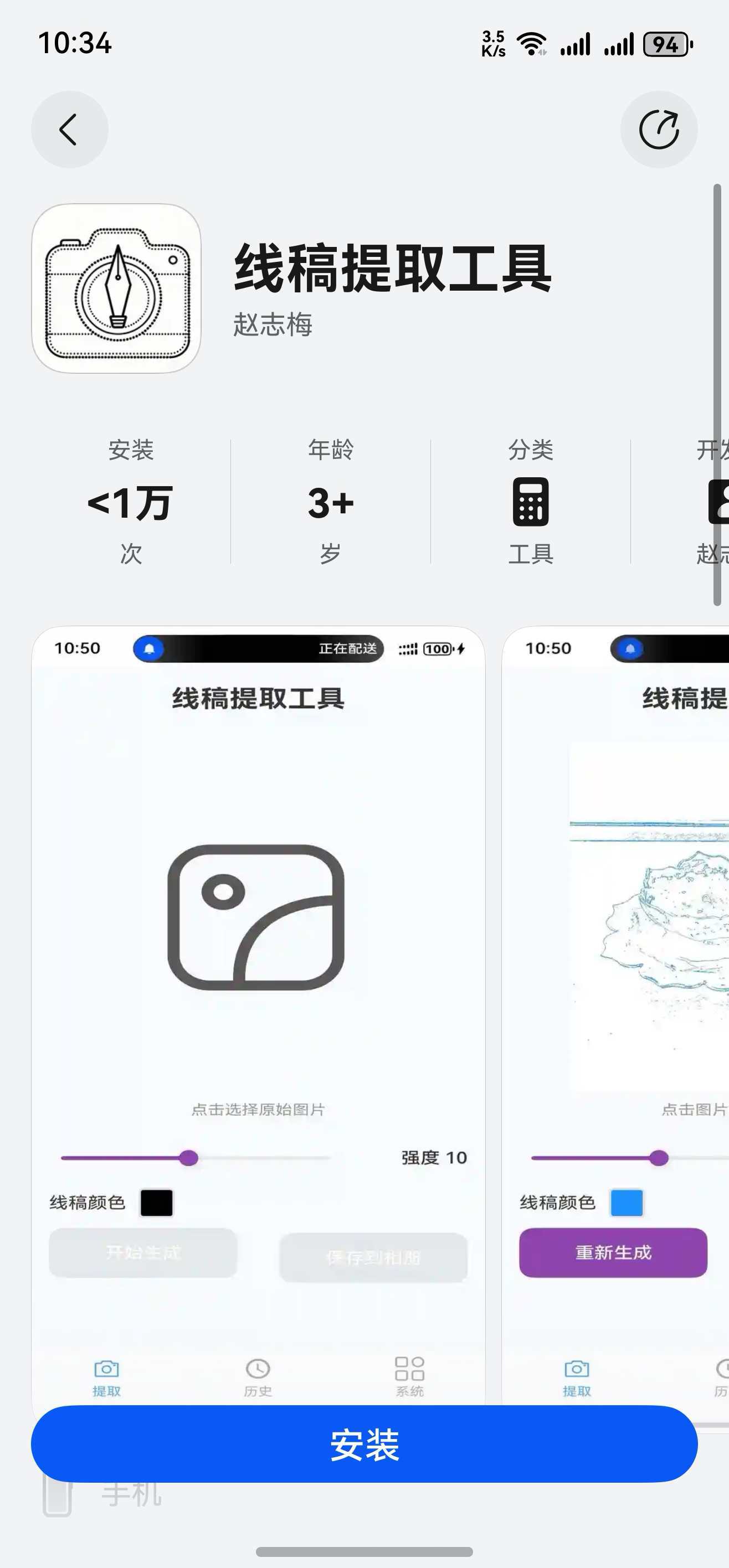
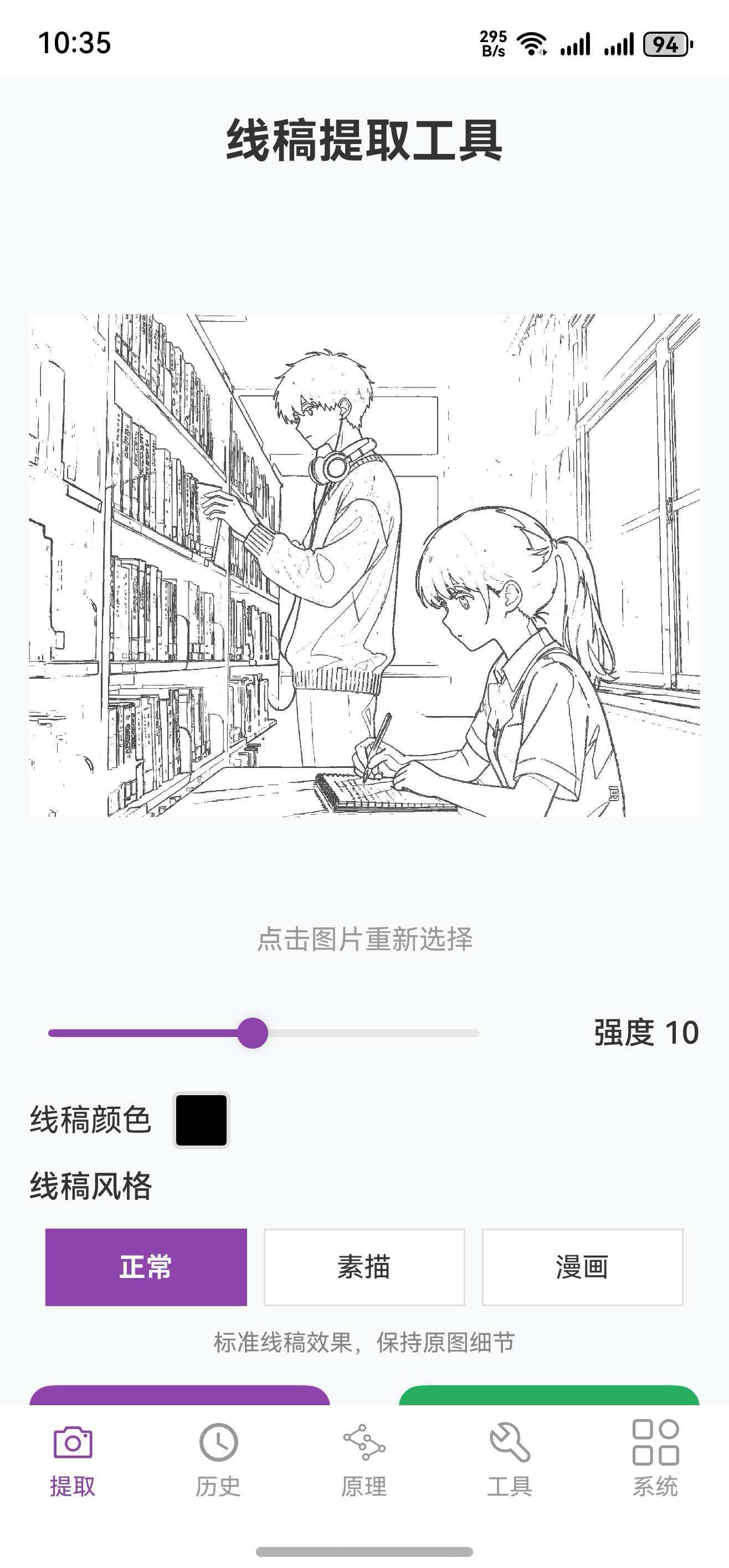
实现代码如下
// 提取线稿
  private async extractLineArt(): Promise<void> {
    if (!this.originalPixelMap) {
      console.error('没有原图')
      return
    }

    try {
      this.isProcessing = true
      this.processProgress = 0
      this.processStatus = '正在提取线稿...'

      // 获取原图信息
      const imageInfo = await this.originalPixelMap.getImageInfo()
      const width = imageInfo.size.width
      const height = imageInfo.size.height

      console.log('applog:开始处理图片,尺寸:', width, 'x', height)

      // 对于大图片,先进行尺寸优化
      let processWidth = width
      let processHeight = height
      let scaledPixelMap = this.originalPixelMap

      // 如果图片过大,先缩放处理
      const maxSize = 2048 // 最大处理尺寸
      if (width > maxSize || height > maxSize) {
        const scale = Math.min(maxSize / width, maxSize / height)
        processWidth = Math.floor(width * scale)
        processHeight = Math.floor(height * scale)

        console.log('applog:图片过大,缩放处理:', processWidth, 'x', processHeight)
        this.processStatus = '正在缩放图片...'

        // 创建缩放后的PixelMap
        await scaledPixelMap.scale(scale, scale)
      }

      // 读取像素数据
      this.processStatus = '正在读取图片数据...'
      const pixelBuffer = new ArrayBuffer(processWidth * processHeight * 4)
      await scaledPixelMap.readPixelsToBuffer(pixelBuffer)
      const pixels = new Uint8ClampedArray(pixelBuffer)

      // 创建线稿像素数据
      const lineArtPixels = new Uint8ClampedArray(processWidth * processHeight * 4)

      // 使用分块异步处理来避免阻塞主线程
      await this.processImageInChunks(pixels, lineArtPixels, processWidth, processHeight)

      // 如果进行了缩放,需要将结果缩放回原尺寸
      let finalPixelMap: image.PixelMap
      if (processWidth !== width || processHeight !== height) {
        this.processStatus = '正在生成最终图片...'

        // 创建处理后的PixelMap
        const createPixelMapOptions: image.InitializationOptions = {
          size: { width: processWidth, height: processHeight },
          pixelFormat: image.PixelMapFormat.RGBA_8888,
          editable: true
        }

        const processedPixelMap = await image.createPixelMap(lineArtPixels.buffer, createPixelMapOptions)

        // 缩放回原尺寸
        const scaleBack = Math.max(width / processWidth, height / processHeight)
        await processedPixelMap.scale(scaleBack, scaleBack)
        finalPixelMap = processedPixelMap;
      } else {
        // 直接创建最终PixelMap
        const createPixelMapOptions: image.InitializationOptions = {
          size: { width: processWidth, height: processHeight },
          pixelFormat: image.PixelMapFormat.RGBA_8888,
          editable: true
        }

        finalPixelMap = await image.createPixelMap(lineArtPixels.buffer, createPixelMapOptions)
      }

      this.lineArtPixelMap = finalPixelMap
      this.choosetype = 1 // 自动切换到线稿图显示

      this.isProcessing = false
      this.processProgress = 0
      this.processStatus = '线稿提取完成'
      console.log('applog:线稿提取完成')

      hm.toast("线稿提取完成");

      const fileName = `xiangao_${Date.now()}.png`;
      const context = this.getUIContext().getHostContext();
      const filePath = context?.filesDir + '/' + fileName;

      await ImageUtil.savePixelMapToFile(finalPixelMap, filePath);

      let list = await mydata.get("list");

      interface t {
        file: string,
        day: string
      }

      let arr: t[] = [];
      if (list && list != "null") {
        arr = JSON.parse(list);
      }

      arr.push({
        file: filePath,
        day: new hm.Day().get()
      } as t);

      mydata.set("list", JSON.stringify(arr));
      dy.set(1);

    } catch (error) {
      console.error('applog:线稿提取失败:', error)
      this.isProcessing = false
      this.processProgress = 0
      this.processStatus = '线稿提取失败: ' + error.message;
      hm.te("线稿提取失败");
    }
  }

  // 分块异步处理图片,避免阻塞主线程
  private async processImageInChunks(
    pixels: Uint8ClampedArray,
    lineArtPixels: Uint8ClampedArray,
    width: number,
    height: number
  ): Promise<void> {
    // 获取当前风格配置
    const currentStyle = this.styleConfigs[this.selectedStyle]
    const baseThreshold = this.qiangdu * 2 // 基础阈值
    const threshold = baseThreshold * currentStyle.threshold // 应用风格阈值调整
    const chunkSize = 50 // 每次处理50行,避免阻塞主线程

    // 初始化进度
    this.processProgress = 0

    for (let startY = 1; startY < height - 1; startY += chunkSize) {
      const endY = Math.min(startY + chunkSize, height - 1)

      // 更新进度
      const progress = Math.round((startY / (height - 2)) * 100)
      this.processProgress = progress
      this.processStatus = `正在提取线稿... ${progress}%`

      // 处理当前块
      await this.processChunk(pixels, lineArtPixels, width, height, startY, endY, threshold, currentStyle)

      // 让出主线程,避免阻塞UI
      await this.delay(1)
    }

    // 完成时设置进度为100%
    this.processProgress = 100
    this.processStatus = '正在生成最终图片...'
  }

  // 处理单个块
  private async processChunk(
    pixels: Uint8ClampedArray,
    lineArtPixels: Uint8ClampedArray,
    width: number,
    height: number,
    startY: number,
    endY: number,
    threshold: number,
    styleConfig: StyleConfig
  ): Promise<void> {
    return new Promise((resolve) => {
      // 使用setTimeout确保异步执行
      setTimeout(() => {
        for (let y = startY; y < endY; y++) {
          for (let x = 1; x < width - 1; x++) {
            const idx = (y * width + x) * 4

            // 获取当前像素的灰度值
            const r = pixels[idx]
            const g = pixels[idx + 1]
            const b = pixels[idx + 2]
            const gray = Math.round(0.299 * r + 0.587 * g + 0.114 * b)

            // 获取周围像素的灰度值
            const topIdx = ((y - 1) * width + x) * 4
            const bottomIdx = ((y + 1) * width + x) * 4
            const leftIdx = (y * width + (x - 1)) * 4
            const rightIdx = (y * width + (x + 1)) * 4

            const topGray = Math.round(0.299 * pixels[topIdx] + 0.587 * pixels[topIdx + 1] + 0.114 * pixels[topIdx + 2])
            const bottomGray =
              Math.round(0.299 * pixels[bottomIdx] + 0.587 * pixels[bottomIdx + 1] + 0.114 * pixels[bottomIdx + 2])
            const leftGray =
              Math.round(0.299 * pixels[leftIdx] + 0.587 * pixels[leftIdx + 1] + 0.114 * pixels[leftIdx + 2])
            const rightGray =
              Math.round(0.299 * pixels[rightIdx] + 0.587 * pixels[rightIdx + 1] + 0.114 * pixels[rightIdx + 2])

            // 计算梯度
            const gradientX = Math.abs(rightGray - leftGray)
            const gradientY = Math.abs(bottomGray - topGray)
            let gradient = Math.sqrt(gradientX * gradientX + gradientY * gradientY)

            // 根据风格调整梯度计算
            if (styleConfig.name === "素描") {
              // 素描风格:增强对比度,使用更敏感的边缘检测
              gradient = gradient * styleConfig.contrast
              // 添加噪点效果
              if (Math.random() < 0.1 && gradient > threshold * 0.3) {
                gradient = threshold + 1
              }
            } else if (styleConfig.name === "漫画") {
              // 漫画风格:简化线条,减少细节
              gradient = gradient * styleConfig.contrast
              // 只保留强边缘
              if (gradient < threshold * 1.5) {
                gradient = 0
              }
            }

            // 设置线稿像素值(边缘为选定颜色,其他为白色)
            if (gradient > threshold) {
              // 边缘像素使用选定的颜色
              const rgb = this.hexToRgb(this.lineColor)
              let lineOpacity = 255

              // 根据风格调整线条透明度
              if (styleConfig.name === "素描") {
                // 素描风格:根据梯度强度调整透明度,创造深浅变化
                lineOpacity = Math.min(255, Math.max(100, gradient * styleConfig.lineWidth))
              } else if (styleConfig.name === "漫画") {
                // 漫画风格:使用固定的高对比度
                lineOpacity = 255
              } else {
                // 正常风格:轻微的透明度变化
                lineOpacity = Math.min(255, Math.max(180, gradient * 0.8))
              }

              lineArtPixels[idx] = rgb.b // B (修改为BGR格式)
              lineArtPixels[idx + 1] = rgb.g // G
              lineArtPixels[idx + 2] = rgb.r // R (修改为BGR格式)
              lineArtPixels[idx + 3] = lineOpacity // A
            } else {
              // 非边缘像素为白色
              lineArtPixels[idx] = 255 // B
              lineArtPixels[idx + 1] = 255 // G
              lineArtPixels[idx + 2] = 255 // R
              lineArtPixels[idx + 3] = 255 // A
            }
          }
        }
        resolve()
      }, 0)
    })
  }

讨论HarmonyOS开发技术,专注于API与组件、DevEco Studio、测试、元服务和应用上架分发等。
更多推荐


 1
1 0
0- 0


 已为社区贡献67条内容

所有评论(0)