Flutter 框架跨平台鸿蒙开发 - 电子书阅读器 - 完整开发教程
Flutter电子书阅读器 - 完整开发教程
项目简介
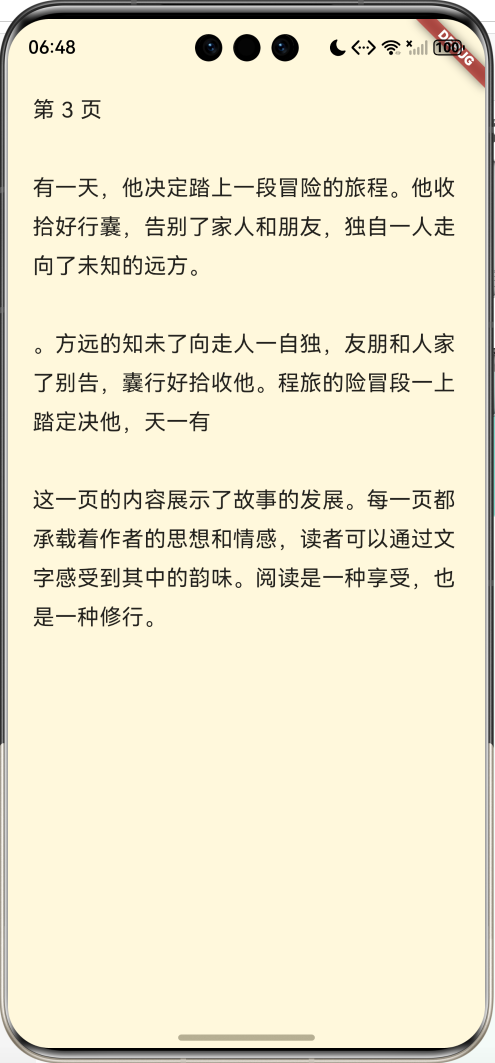
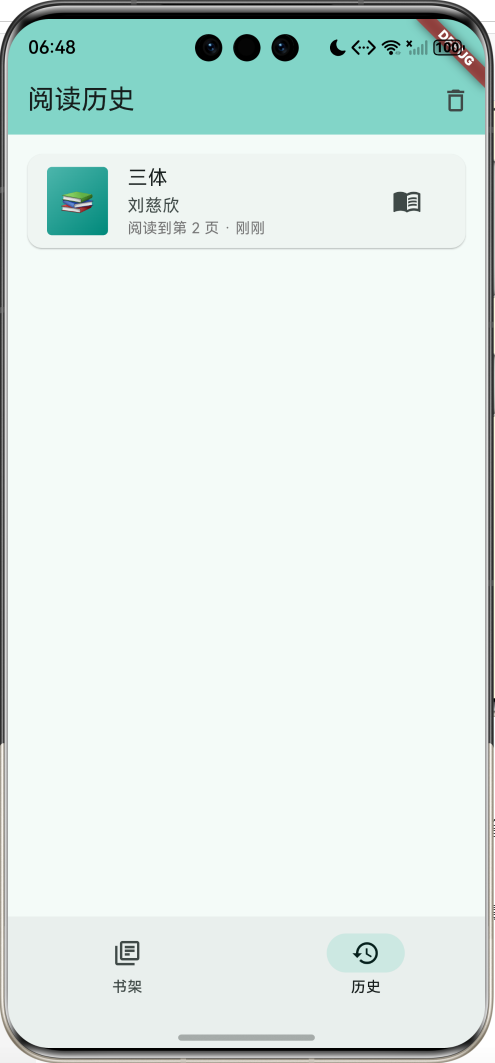
这是一个使用Flutter开发的电子书阅读器应用,支持TXT和EPUB格式,提供流畅的翻页效果和丰富的阅读设置。应用采用模拟内容的方式,无需额外依赖包,适合学习Flutter UI开发和动画实现。
运行效果图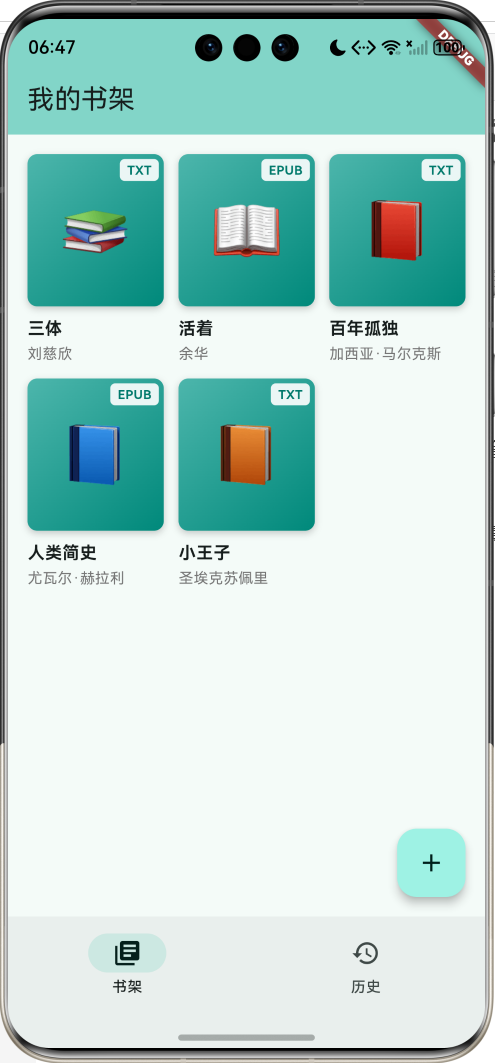
核心特性
- 📚 书架管理:网格展示、添加、删除书籍
- 📖 阅读体验:流畅翻页、点击切换菜单
- 🎨 个性化设置:字体大小、行间距、背景颜色
- 📑 目录导航:快速跳转到指定章节
- 🔖 书签功能:标记重要位置
- 📊 阅读进度:自动保存和恢复
- 📜 阅读历史:记录阅读轨迹
- 🌙 夜间模式:护眼背景色选择
- 💾 数据持久化:使用SharedPreferences
技术栈
- Flutter 3.6+
- Dart 3.0+
- shared_preferences: 数据持久化
- PageView: 翻页效果
- Animation: 菜单动画
项目架构
数据模型设计
BookInfo - 书籍信息模型
class BookInfo {
  final String id;              // 唯一标识
  final String title;           // 书名
  final String author;          // 作者
  final String cover;           // 封面(使用emoji)
  final String format;          // 格式(TXT/EPUB)
  final DateTime addedTime;     // 添加时间
  int currentPage;              // 当前页码
  int totalPages;               // 总页数
  double progress;              // 阅读进度(0-1)
}
关键字段说明:
format: 支持TXT和EPUB两种格式currentPage: 记录用户阅读到的页码progress: 计算公式为currentPage / totalPages
ReadingHistory - 阅读历史模型
class ReadingHistory {
  final String bookId;          // 书籍ID
  final DateTime readTime;      // 阅读时间
  final int page;               // 阅读页码
}
核心功能实现
1. 书架网格布局
使用GridView展示书籍,提供视觉吸引力:
GridView.builder(
  padding: const EdgeInsets.all(16),
  gridDelegate: const SliverGridDelegateWithFixedCrossAxisCount(
    crossAxisCount: 3,           // 每行3本书
    childAspectRatio: 0.65,      // 宽高比
    crossAxisSpacing: 12,        // 横向间距
    mainAxisSpacing: 12,         // 纵向间距
  ),
  itemCount: books.length,
  itemBuilder: (context, index) {
    return _buildBookCard(books[index]);
  },
)
2. 书籍卡片设计
书籍卡片包含封面、格式标签和阅读进度:
Widget _buildBookCard(BookInfo book) {
  return GestureDetector(
    onTap: () => _openBook(book),
    onLongPress: () => _showBookMenu(book),
    child: Column(
      children: [
        // 封面容器
        Expanded(
          child: Container(
            decoration: BoxDecoration(
              gradient: LinearGradient(
                colors: [Colors.teal.shade300, Colors.teal.shade600],
                begin: Alignment.topLeft,
                end: Alignment.bottomRight,
              ),
              borderRadius: BorderRadius.circular(8),
              boxShadow: [
                BoxShadow(
                  color: Colors.black.withValues(alpha: 0.2),
                  blurRadius: 4,
                  offset: const Offset(0, 2),
                ),
              ],
            ),
            child: Stack(
              children: [
                // Emoji封面
                Center(child: Text(book.cover, style: TextStyle(fontSize: 48))),
                // 格式标签
                Positioned(
                  top: 4,
                  right: 4,
                  child: Container(
                    padding: EdgeInsets.symmetric(horizontal: 6, vertical: 2),
                    decoration: BoxDecoration(
                      color: Colors.white.withValues(alpha: 0.9),
                      borderRadius: BorderRadius.circular(4),
                    ),
                    child: Text(book.format),
                  ),
                ),
                // 阅读进度条
                if (book.progress > 0)
                  Positioned(
                    bottom: 0,
                    left: 0,
                    right: 0,
                    child: LinearProgressIndicator(value: book.progress),
                  ),
              ],
            ),
          ),
        ),
        // 书名和作者
        Text(book.title),
        Text(book.author),
      ],
    ),
  );
}
3. PageView翻页实现
使用PageView实现流畅的翻页效果:
class _ReaderPageState extends State<ReaderPage> {
late PageController _pageController;
int _currentPage = 0;
void initState() {
super.initState();
_currentPage = widget.book.currentPage;
_pageController = PageController(initialPage: _currentPage);
}
Widget build(BuildContext context) {
return PageView.builder(
controller: _pageController,
onPageChanged: (page) {
setState(() {
_currentPage = page;
});
widget.onPageUpdate(widget.book.id, page);
},
itemCount: widget.book.totalPages,
itemBuilder: (context, index) {
return _buildPage(index);
},
);
}
}
PageView特性:
- 支持左右滑动翻页
- 自动处理滑动动画
- 提供页面切换回调
- 支持跳转到指定页面
4. 阅读菜单动画
使用SlideTransition实现菜单滑入滑出动画:
class _ReaderPageState extends State<ReaderPage>
with SingleTickerProviderStateMixin {
late AnimationController _animationController;
late Animation<double> _animation;
bool _showMenu = false;
void initState() {
super.initState();
_animationController = AnimationController(
duration: const Duration(milliseconds: 300),
vsync: this,
);
_animation = CurvedAnimation(
parent: _animationController,
curve: Curves.easeInOut,
);
}
void _toggleMenu() {
setState(() {
_showMenu = !_showMenu;
});
if (_showMenu) {
_animationController.forward();
} else {
_animationController.reverse();
}
}
}
顶部菜单动画:
if (_showMenu)
  Positioned(
    top: 0,
    left: 0,
    right: 0,
    child: SlideTransition(
      position: Tween<Offset>(
        begin: const Offset(0, -1),  // 从上方滑入
        end: Offset.zero,
      ).animate(_animation),
      child: Container(
        color: Colors.black87,
        child: AppBar(
          backgroundColor: Colors.transparent,
          title: Text(widget.book.title),
        ),
      ),
    ),
  )
底部菜单动画:
if (_showMenu)
  Positioned(
    bottom: 0,
    left: 0,
    right: 0,
    child: SlideTransition(
      position: Tween<Offset>(
        begin: const Offset(0, 1),   // 从下方滑入
        end: Offset.zero,
      ).animate(_animation),
      child: Container(
        color: Colors.black87,
        child: Column(
          children: [
            // 进度条
            // 功能按钮
          ],
        ),
      ),
    ),
  )
5. 阅读设置功能
提供丰富的个性化设置选项:
字体大小调节:
Row(
  children: [
    const Text('字体大小'),
    const Spacer(),
    IconButton(
      icon: const Icon(Icons.remove),
      onPressed: () {
        if (_fontSize > 12) {
          setState(() => _fontSize -= 2);
          _saveSettings();
        }
      },
    ),
    Text('${_fontSize.toInt()}'),
    IconButton(
      icon: const Icon(Icons.add),
      onPressed: () {
        if (_fontSize < 32) {
          setState(() => _fontSize += 2);
          _saveSettings();
        }
      },
    ),
  ],
)
行间距调节:
Row(
  children: [
    const Text('行间距'),
    Expanded(
      child: Slider(
        value: _lineHeight,
        min: 1.0,
        max: 3.0,
        divisions: 20,
        label: _lineHeight.toStringAsFixed(1),
        onChanged: (value) {
          setState(() => _lineHeight = value);
          _saveSettings();
        },
      ),
    ),
  ],
)
背景颜色选择:
Widget _buildColorOption(Color color, String label, StateSetter setModalState) {
  final isSelected = _backgroundColor == color;
  final isDark = color.computeLuminance() < 0.5;

  return GestureDetector(
    onTap: () {
      setState(() {
        _backgroundColor = color;
        _textColor = isDark ? Colors.white70 : Colors.black87;
      });
      setModalState(() {});
      _saveSettings();
    },
    child: Container(
      width: 70,
      height: 50,
      decoration: BoxDecoration(
        color: color,
        borderRadius: BorderRadius.circular(8),
        border: Border.all(
          color: isSelected ? Colors.teal : Colors.grey.shade300,
          width: isSelected ? 3 : 1,
        ),
      ),
      child: Center(
        child: Text(
          label,
          style: TextStyle(
            fontSize: 12,
            color: isDark ? Colors.white : Colors.black,
          ),
        ),
      ),
    ),
  );
}

// 预设颜色方案
Wrap(
  spacing: 10,
  children: [
    _buildColorOption(const Color(0xFFFFF8DC), '护眼', setModalState),
    _buildColorOption(const Color(0xFFF5F5DC), '米黄', setModalState),
    _buildColorOption(Colors.white, '纯白', setModalState),
    _buildColorOption(const Color(0xFF2C2C2C), '夜间', setModalState),
  ],
)
6. 设置持久化
使用SharedPreferences保存用户设置:
Future<void> _saveSettings() async {
  final prefs = await SharedPreferences.getInstance();
  await prefs.setDouble('reader_font_size', _fontSize);
  await prefs.setDouble('reader_line_height', _lineHeight);
  await prefs.setInt('reader_bg_color', _backgroundColor.value);
  await prefs.setInt('reader_text_color', _textColor.value);
  await prefs.setString('reader_font_family', _fontFamily);
}

Future<void> _loadSettings() async {
  final prefs = await SharedPreferences.getInstance();
  setState(() {
    _fontSize = prefs.getDouble('reader_font_size') ?? 18.0;
    _lineHeight = prefs.getDouble('reader_line_height') ?? 1.8;

    final bgColor = prefs.getInt('reader_bg_color');
    if (bgColor != null) {
      _backgroundColor = Color(bgColor);
    }

    final txtColor = prefs.getInt('reader_text_color');
    if (txtColor != null) {
      _textColor = Color(txtColor);
    }

    _fontFamily = prefs.getString('reader_font_family') ?? 'Default';
  });
}
7. 页面内容渲染
根据设置渲染页面内容:
Widget _buildPage(int index) {
  return Container(
    padding: const EdgeInsets.all(20),
    child: SingleChildScrollView(
      child: Text(
        _sampleContent[index],
        style: TextStyle(
          fontSize: _fontSize,
          color: _textColor,
          height: _lineHeight,
          fontFamily: _fontFamily == 'Default' ? null : _fontFamily,
        ),
      ),
    ),
  );
}
8. 目录导航
实现章节目录快速跳转:
void _showChapterList() {
  showModalBottomSheet(
    context: context,
    builder: (context) => Container(
      padding: const EdgeInsets.all(20),
      child: Column(
        children: [
          const Text('目录', style: TextStyle(fontSize: 20, fontWeight: FontWeight.bold)),
          const SizedBox(height: 16),
          Expanded(
            child: ListView.builder(
              itemCount: (widget.book.totalPages / 10).ceil(),
              itemBuilder: (context, index) {
                final chapterPage = index * 10;
                return ListTile(
                  title: Text('第 ${index + 1} 章'),
                  subtitle: Text('第 ${chapterPage + 1} 页'),
                  trailing: chapterPage == _currentPage
                      ? const Icon(Icons.check, color: Colors.teal)
                      : null,
                  onTap: () {
                    Navigator.pop(context);
                    _goToPage(chapterPage);
                    _toggleMenu();
                  },
                );
              },
            ),
          ),
        ],
      ),
    ),
  );
}

void _goToPage(int page) {
  if (page >= 0 && page < widget.book.totalPages) {
    _pageController.animateToPage(
      page,
      duration: const Duration(milliseconds: 300),
      curve: Curves.easeInOut,
    );
  }
}
9. 进度条控制
底部菜单中的进度条支持拖动跳转:
Padding(
  padding: const EdgeInsets.symmetric(horizontal: 16),
  child: Row(
    children: [
      Text(
        '${_currentPage + 1}',
        style: const TextStyle(color: Colors.white, fontSize: 12),
      ),
      Expanded(
        child: Slider(
          value: _currentPage.toDouble(),
          min: 0,
          max: (widget.book.totalPages - 1).toDouble(),
          onChanged: (value) {
            _goToPage(value.toInt());
          },
          activeColor: Colors.teal,
          inactiveColor: Colors.white30,
        ),
      ),
      Text(
        '${widget.book.totalPages}',
        style: const TextStyle(color: Colors.white, fontSize: 12),
      ),
    ],
  ),
)
10. 阅读历史管理
记录每次阅读行为:
void _addToHistory(String bookId, int page) {
  final history = ReadingHistory(
    bookId: bookId,
    readTime: DateTime.now(),
    page: page,
  );

  setState(() {
    // 移除旧记录
    readingHistory.removeWhere((h) => h.bookId == bookId);
    // 添加到列表开头
    readingHistory.insert(0, history);
    // 限制历史记录数量
    if (readingHistory.length > 50) {
      readingHistory.removeLast();
    }
  });

  _saveData();
}

void _updateBookProgress(String id, int page) {
  final book = books.firstWhere((b) => b.id == id);
  book.currentPage = page;
  book.progress = page / book.totalPages;
  _saveData();
}
UI组件设计
1. 书架网格卡片
2. 阅读器界面层次
3. 菜单按钮设计
Widget _buildMenuButton(IconData icon, String label, VoidCallback onTap) {
  return InkWell(
    onTap: onTap,
    child: Column(
      mainAxisSize: MainAxisSize.min,
      children: [
        Icon(icon, color: Colors.white),
        const SizedBox(height: 4),
        Text(
          label,
          style: const TextStyle(
            color: Colors.white,
            fontSize: 12,
          ),
        ),
      ],
    ),
  );
}

// 使用示例
Row(
  mainAxisAlignment: MainAxisAlignment.spaceAround,
  children: [
    _buildMenuButton(Icons.list, '目录', () => _showChapterList()),
    _buildMenuButton(Icons.brightness_6, '亮度', () => _showBrightnessControl()),
    _buildMenuButton(Icons.text_fields, '设置', () => _showSettings()),
    _buildMenuButton(Icons.more_horiz, '更多', () => _showMoreOptions()),
  ],
)
动画效果详解
1. 菜单滑动动画
使用AnimationController和SlideTransition实现:
// 初始化动画控制器
_animationController = AnimationController(
  duration: const Duration(milliseconds: 300),
  vsync: this,
);

_animation = CurvedAnimation(
  parent: _animationController,
  curve: Curves.easeInOut,
);

// 切换动画
void _toggleMenu() {
  setState(() {
    _showMenu = !_showMenu;
  });

  if (_showMenu) {
    _animationController.forward();   // 播放动画
  } else {
    _animationController.reverse();   // 反向播放
  }
}
2. 翻页动画
PageView自带翻页动画,可以自定义:
void _goToPage(int page) {
  if (page >= 0 && page < widget.book.totalPages) {
    _pageController.animateToPage(
      page,
      duration: const Duration(milliseconds: 300),
      curve: Curves.easeInOut,
    );
  }
}
3. 自定义翻页效果
可以使用PageTransformer实现更复杂的翻页效果:
class PageTransformer extends StatelessWidget {
final int index;
final double pageOffset;
final Widget child;
const PageTransformer({
required this.index,
required this.pageOffset,
required this.child,
});
Widget build(BuildContext context) {
final offset = index - pageOffset;
final scale = 1.0 - (offset.abs() * 0.1).clamp(0.0, 0.1);
final opacity = 1.0 - (offset.abs() * 0.3).clamp(0.0, 0.3);
return Transform.scale(
scale: scale,
child: Opacity(
opacity: opacity,
child: child,
),
);
}
}
功能扩展建议
1. 真实文件解析
集成epub和txt解析库:
dependencies:
  epub_view: ^3.0.0

// EPUB解析
import 'package:epub_view/epub_view.dart';

final epubController = EpubController(
  document: EpubDocument.openFile(File(filePath)),
);

EpubView(
  controller: epubController,
)
2. 文件选择器
使用file_picker选择本地文件:
dependencies:
  file_picker: ^8.0.0+1

final result = await FilePicker.platform.pickFiles(
  type: FileType.custom,
  allowedExtensions: ['txt', 'epub', 'pdf'],
  allowMultiple: true,
);

if (result != null) {
  for (var file in result.files) {
    // 解析并添加书籍
  }
}
3. TXT文件解析
实现TXT文件的分页逻辑:
class TxtParser {
  static Future<List<String>> parseFile(File file) async {
    final content = await file.readAsString();
    return _splitIntoPages(content);
  }

  static List<String> _splitIntoPages(String content) {
    final pages = <String>[];
    const charsPerPage = 1000;  // 每页字符数

    for (int i = 0; i < content.length; i += charsPerPage) {
      final end = (i + charsPerPage < content.length)
          ? i + charsPerPage
          : content.length;
      pages.add(content.substring(i, end));
    }

    return pages;
  }
}
4. 书签功能
实现书签的添加和管理:
class Bookmark {
  final String bookId;
  final int page;
  final String note;
  final DateTime createdTime;
}

class BookmarkManager {
  List<Bookmark> bookmarks = [];

  void addBookmark(String bookId, int page, String note) {
    bookmarks.add(Bookmark(
      bookId: bookId,
      page: page,
      note: note,
      createdTime: DateTime.now(),
    ));
    _save();
  }

  List<Bookmark> getBookmarks(String bookId) {
    return bookmarks.where((b) => b.bookId == bookId).toList();
  }
}
5. 笔记和高亮
添加文本选择和标注功能:
class TextHighlight {
  final String bookId;
  final int page;
  final int startOffset;
  final int endOffset;
  final Color color;
  final String note;
}

SelectableText(
  content,
  onSelectionChanged: (selection, cause) {
    if (selection.baseOffset != selection.extentOffset) {
      _showHighlightMenu(selection);
    }
  },
)
6. 云同步
实现阅读进度云同步:
class CloudSync {
  Future<void> syncProgress(String bookId, int page) async {
    // 上传到云端
    await api.updateProgress(bookId, page);
  }

  Future<int> getProgress(String bookId) async {
    // 从云端获取
    return await api.getProgress(bookId);
  }
}
7. 语音朗读
集成TTS实现语音朗读:
dependencies:
  flutter_tts: ^4.0.0

class TextToSpeech {
  final FlutterTts tts = FlutterTts();

  Future<void> speak(String text) async {
    await tts.setLanguage('zh-CN');
    await tts.setSpeechRate(0.5);
    await tts.speak(text);
  }

  Future<void> stop() async {
    await tts.stop();
  }
}
8. 字典查询
添加划词查询功能:
void _showDictionary(String word) async {
  final definition = await DictionaryApi.lookup(word);

  showDialog(
    context: context,
    builder: (context) => AlertDialog(
      title: Text(word),
      content: Text(definition),
    ),
  );
}
9. 阅读统计
记录阅读时长和习惯:
class ReadingStats {
  int totalReadingTime = 0;  // 秒
  int booksRead = 0;
  int pagesRead = 0;
  Map<String, int> dailyReadingTime = {};

  void startReading() {
    _startTime = DateTime.now();
  }

  void stopReading() {
    final duration = DateTime.now().difference(_startTime!);
    totalReadingTime += duration.inSeconds;
    _updateDailyStats(duration);
  }
}
10. 主题切换
实现多种阅读主题:
class ReadingTheme {
  final String name;
  final Color backgroundColor;
  final Color textColor;
  final Color menuColor;

  static final List<ReadingTheme> themes = [
    ReadingTheme(
      name: '护眼',
      backgroundColor: Color(0xFFFFF8DC),
      textColor: Colors.black87,
      menuColor: Colors.teal,
    ),
    ReadingTheme(
      name: '夜间',
      backgroundColor: Color(0xFF2C2C2C),
      textColor: Colors.white70,
      menuColor: Colors.teal,
    ),
    // 更多主题...
  ];
}
性能优化建议
1. 页面缓存
PageView默认缓存前后页面,可以调整:
PageView.builder(
  controller: _pageController,
  // 缓存前后各1页
  allowImplicitScrolling: true,
  itemBuilder: (context, index) {
    return _buildPage(index);
  },
)
2. 懒加载内容
对于大文件,实现按需加载:
class LazyContentLoader {
  final Map<int, String> _cache = {};

  String getPage(int index) {
    if (!_cache.containsKey(index)) {
      _cache[index] = _loadPage(index);

      // 清理远离当前页的缓存
      _cache.removeWhere((key, value) =>
        (key - index).abs() > 5
      );
    }

    return _cache[index]!;
  }
}
3. 图片优化
对于包含图片的书籍:
dependencies:
  cached_network_image: ^3.3.0

CachedNetworkImage(
  imageUrl: imageUrl,
  placeholder: (context, url) => CircularProgressIndicator(),
  errorWidget: (context, url, error) => Icon(Icons.error),
  memCacheWidth: 800,  // 限制缓存大小
)
4. 内存管理
及时释放资源:
void dispose() {
_pageController.dispose();
_animationController.dispose();
_sampleContent.clear();
super.dispose();
}
测试建议
1. 单元测试
测试核心业务逻辑:
void main() {
  group('BookInfo', () {
    test('progress calculation', () {
      final book = BookInfo(
        id: '1',
        title: 'Test',
        author: 'Author',
        cover: '📚',
        format: 'TXT',
        addedTime: DateTime.now(),
        currentPage: 50,
        totalPages: 100,
      );

      book.progress = book.currentPage / book.totalPages;
      expect(book.progress, 0.5);
    });
  });
}
2. Widget测试
测试UI组件:
void main() {
  testWidgets('Book card displays correctly', (tester) async {
    final book = BookInfo(
      id: '1',
      title: 'Test Book',
      author: 'Test Author',
      cover: '📚',
      format: 'TXT',
      addedTime: DateTime.now(),
      totalPages: 100,
    );

    await tester.pumpWidget(
      MaterialApp(
        home: Scaffold(
          body: BookCard(book: book),
        ),
      ),
    );

    expect(find.text('Test Book'), findsOneWidget);
    expect(find.text('Test Author'), findsOneWidget);
    expect(find.text('TXT'), findsOneWidget);
  });
}
3. 集成测试
测试完整阅读流程:
void main() {
  testWidgets('Reading flow', (tester) async {
    await tester.pumpWidget(MyApp());

    // 点击书籍
    await tester.tap(find.byType(BookCard).first);
    await tester.pumpAndSettle();

    // 验证阅读器页面
    expect(find.byType(ReaderPage), findsOneWidget);

    // 点击显示菜单
    await tester.tap(find.byType(PageView));
    await tester.pump();

    // 验证菜单显示
    expect(find.byIcon(Icons.list), findsOneWidget);

    // 滑动翻页
    await tester.drag(find.byType(PageView), const Offset(-300, 0));
    await tester.pumpAndSettle();
  });
}
部署发布
Android配置
在android/app/src/main/AndroidManifest.xml中添加权限:
<uses-permission android:name="android.permission.READ_EXTERNAL_STORAGE"/>
<uses-permission android:name="android.permission.WRITE_EXTERNAL_STORAGE"/>
iOS配置
在ios/Runner/Info.plist中添加权限:
<key>NSDocumentsFolderUsageDescription</key>
<string>需要访问文件以导入电子书</string>
构建命令
# Android
flutter build apk --release

# iOS
flutter build ios --release

# Web
flutter build web --release
项目总结
本电子书阅读器应用展示了以下Flutter开发技能:
- 复杂布局:GridView网格布局、Stack层叠布局
- 翻页效果:PageView实现流畅翻页
- 动画实现:SlideTransition菜单动画
- 状态管理:多页面状态同步
- 数据持久化:SharedPreferences保存设置和进度
- 手势交互:点击、滑动、长按等手势
- 主题定制:动态切换背景色和字体
- 模态对话框:BottomSheet和Dialog的使用
通过这个项目,你可以学习到Flutter应用开发的高级技巧,包括动画、手势、布局等核心概念。在此基础上,可以继续扩展更多功能,打造功能完善的电子书阅读器应用。
欢迎加入开源鸿蒙跨平台社区:https://openharmonycrossplatform.csdn.net

讨论HarmonyOS开发技术,专注于API与组件、DevEco Studio、测试、元服务和应用上架分发等。
更多推荐


 24
24 0
0- 0



 已为社区贡献66条内容

所有评论(0)