Flutter 框架跨平台鸿蒙开发 - 免费少儿故事播放:陪伴孩子快乐成长
Flutter免费少儿故事播放:陪伴孩子快乐成长
项目简介
免费少儿故事播放是一款专为儿童打造的Flutter音频故事应用,提供丰富的童话故事、寓言故事、成语故事、神话传说等多种类型的儿童故事。通过精美的UI设计和便捷的播放功能,让孩子在听故事中学习知识、培养想象力。
运行效果图
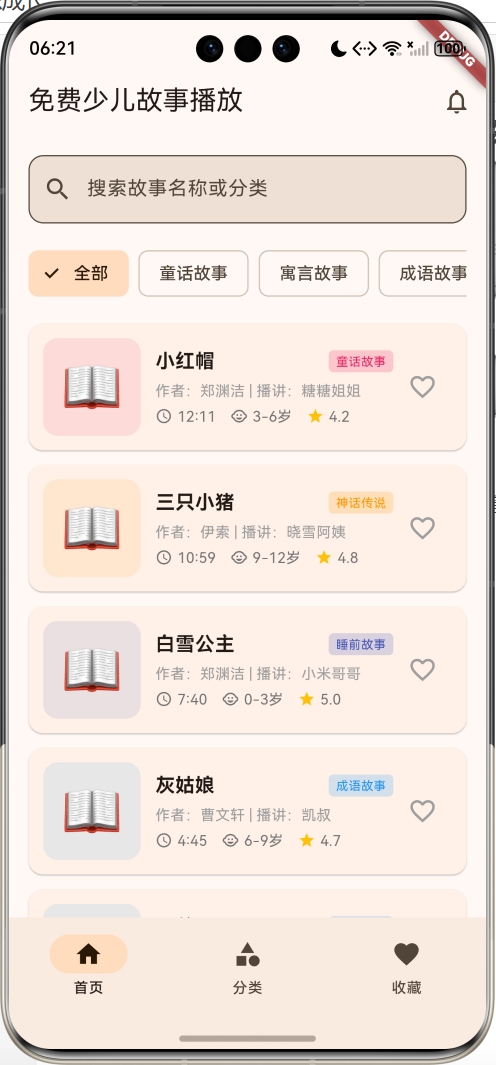
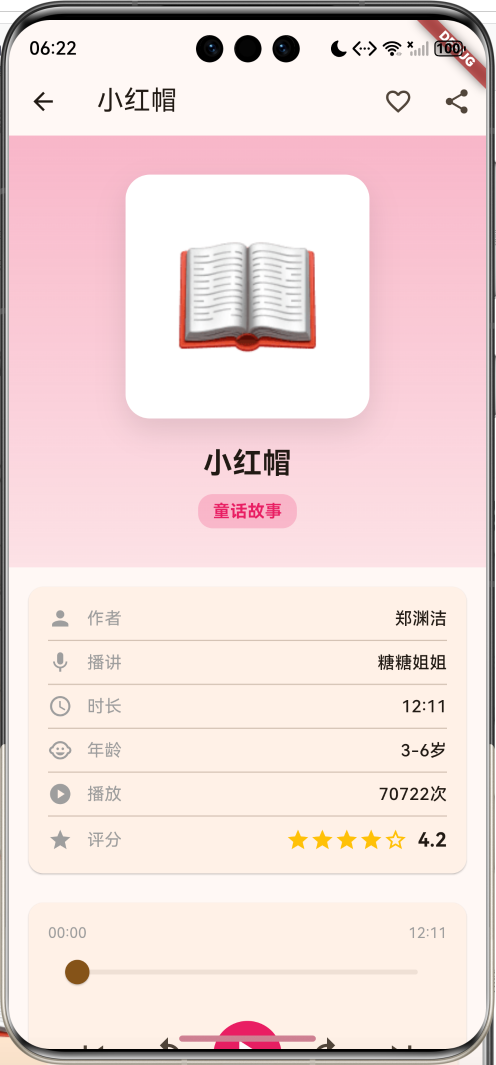
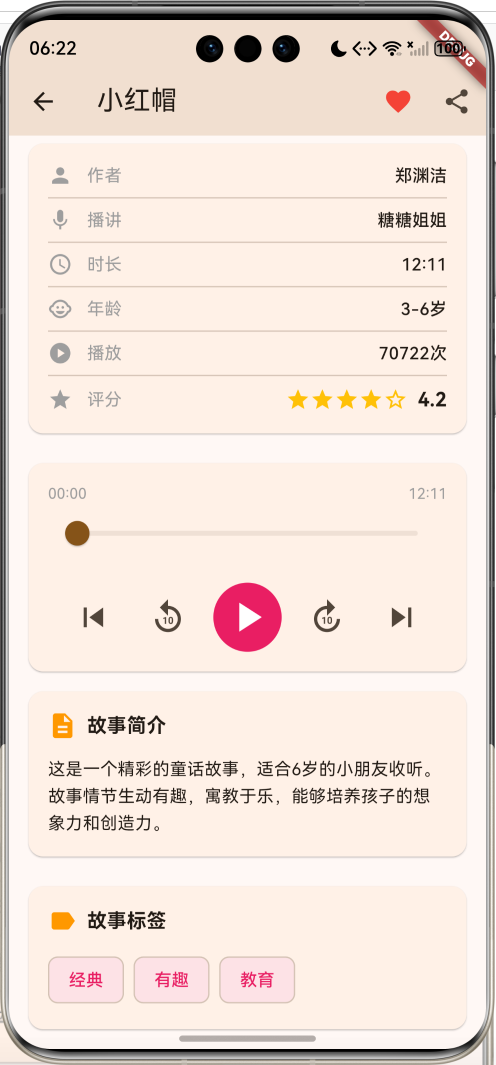
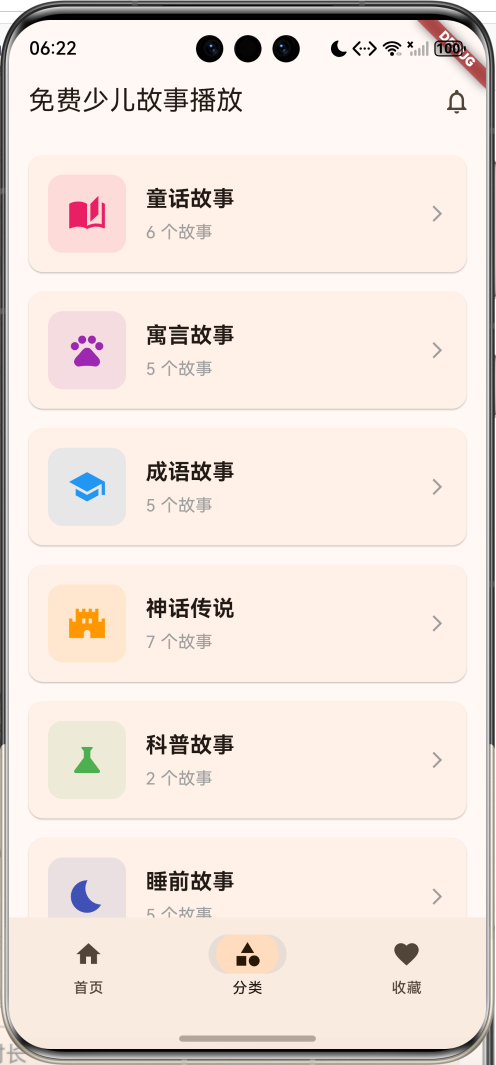
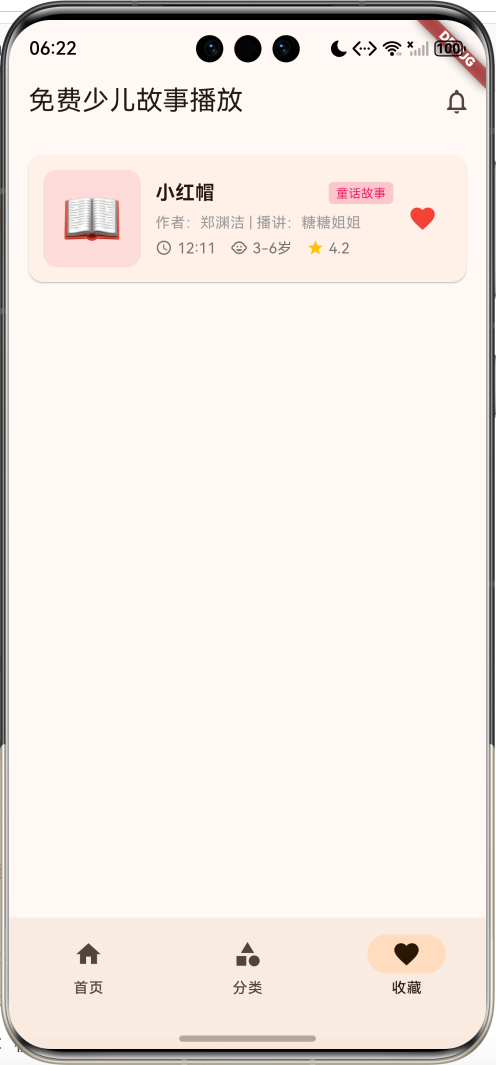
核心功能
- 丰富故事库:40+精选儿童故事
- 8大分类:童话、寓言、成语、神话、科普、睡前、历史、冒险
- 智能搜索:快速查找故事
- 分类筛选:按类别浏览故事
- 音频播放:模拟播放控制
- 进度控制:拖动进度条
- 收藏功能:收藏喜欢的故事
- 故事详情:作者、播讲、时长、评分
- 年龄推荐:适合年龄段标注
- 播放统计:播放次数显示
技术特点
- Material Design 3设计风格
- NavigationBar底部导航
- 三页面架构(首页、分类、收藏)
- ChoiceChip分类筛选
- Slider进度条控制
- 渐变色背景设计
- 响应式卡片布局
- 模拟音频播放
- 无需额外依赖包
核心代码实现
1. 故事数据模型
class Story {
  final String id;              // 故事ID
  final String title;           // 故事标题
  final String category;        // 分类
  final String author;          // 作者
  final String narrator;        // 播讲人
  final int duration;           // 时长(秒)
  final int ageRange;           // 适合年龄
  final String cover;           // 封面(Emoji)
  final String description;     // 故事简介
  final int playCount;          // 播放次数
  final double rating;          // 评分
  final List<String> tags;      // 标签
  bool isFavorite;              // 是否收藏

  Story({
    required this.id,
    required this.title,
    required this.category,
    required this.author,
    required this.narrator,
    required this.duration,
    required this.ageRange,
    required this.cover,
    required this.description,
    required this.playCount,
    required this.rating,
    required this.tags,
    this.isFavorite = false,
  });

  // 时长文本
  String get durationText {
    final minutes = duration ~/ 60;
    final seconds = duration % 60;
    return '$minutes:${seconds.toString().padLeft(2, '0')}';
  }

  // 年龄范围文本
  String get ageRangeText {
    if (ageRange <= 3) return '0-3岁';
    if (ageRange <= 6) return '3-6岁';
    if (ageRange <= 9) return '6-9岁';
    return '9-12岁';
  }

  // 分类颜色
  Color get categoryColor {
    switch (category) {
      case '童话故事': return Colors.pink;
      case '寓言故事': return Colors.purple;
      case '成语故事': return Colors.blue;
      case '神话传说': return Colors.orange;
      case '科普故事': return Colors.green;
      case '睡前故事': return Colors.indigo;
      case '历史故事': return Colors.brown;
      case '冒险故事': return Colors.red;
      default: return Colors.grey;
    }
  }

  // 分类图标
  IconData get categoryIcon {
    switch (category) {
      case '童话故事': return Icons.auto_stories;
      case '寓言故事': return Icons.pets;
      case '成语故事': return Icons.school;
      case '神话传说': return Icons.castle;
      case '科普故事': return Icons.science;
      case '睡前故事': return Icons.bedtime;
      case '历史故事': return Icons.history_edu;
      case '冒险故事': return Icons.explore;
      default: return Icons.book;
    }
  }
}
模型字段说明:
| 字段 | 类型 | 说明 |
|---|---|---|
| id | String | 唯一标识符 |
| title | String | 故事标题 |
| category | String | 故事分类 |
| author | String | 作者名称 |
| narrator | String | 播讲人 |
| duration | int | 时长(秒) |
| ageRange | int | 适合年龄 |
| cover | String | 封面图标 |
| description | String | 故事简介 |
| playCount | int | 播放次数 |
| rating | double | 评分(1-5) |
| tags | List | 标签列表 |
| isFavorite | bool | 是否收藏 |
计算属性:
durationText:格式化时长为"分:秒"ageRangeText:年龄范围文本categoryColor:分类对应颜色categoryIcon:分类对应图标
8大故事分类:
| 分类 | 颜色 | 图标 | 说明 |
|---|---|---|---|
| 童话故事 | 粉色 | auto_stories | 经典童话 |
| 寓言故事 | 紫色 | pets | 动物寓言 |
| 成语故事 | 蓝色 | school | 成语典故 |
| 神话传说 | 橙色 | castle | 神话故事 |
| 科普故事 | 绿色 | science | 科学知识 |
| 睡前故事 | 靛蓝 | bedtime | 睡前哄睡 |
| 历史故事 | 棕色 | history_edu | 历史人物 |
| 冒险故事 | 红色 | explore | 冒险探险 |
2. 故事数据生成
void _generateStories() {
  final random = Random();

  // 故事标题库
  final storyTitles = [
    '小红帽', '三只小猪', '白雪公主', '灰姑娘', '睡美人',
    '龟兔赛跑', '狐狸和乌鸦', '农夫和蛇', '狼来了', '守株待兔',
    '画龙点睛', '刻舟求剑', '掩耳盗铃', '亡羊补牢', '拔苗助长',
    '女娲补天', '后羿射日', '嫦娥奔月', '精卫填海', '夸父追日',
    '恐龙世界', '太空探险', '海底奇遇', '昆虫王国', '植物奇观',
    '月亮的故事', '星星的秘密', '小兔子乖乖', '小熊维尼', '小猪佩奇',
    '孔融让梨', '司马光砸缸', '曹冲称象', '木兰从军', '岳飞精忠报国',
    '爱丽丝梦游仙境', '绿野仙踪', '彼得潘', '小王子', '尼尔斯骑鹅旅行记',
  ];

  final authors = ['安徒生', '格林兄弟', '伊索', '中国民间', '郑渊洁', '杨红樱', '曹文轩'];
  final narrators = ['小雪姐姐', '凯叔', '晓雪阿姨', '小米哥哥', '糖糖姐姐'];

  // 生成40个故事
  for (int i = 0; i < 40; i++) {
    final category = _categories[random.nextInt(_categories.length - 1) + 1];
    _allStories.add(Story(
      id: 'story_$i',
      title: storyTitles[i % storyTitles.length],
      category: category,
      author: authors[random.nextInt(authors.length)],
      narrator: narrators[random.nextInt(narrators.length)],
      duration: 180 + random.nextInt(600),  // 3-13分钟
      ageRange: 3 + random.nextInt(9),      // 3-12岁
      cover: '📖',
      description: '这是一个精彩的${category},适合${3 + random.nextInt(9)}岁的小朋友收听。',
      playCount: random.nextInt(100000),
      rating: 4.0 + random.nextDouble(),    // 4.0-5.0分
      tags: ['经典', '有趣', '教育'],
      isFavorite: false,
    ));
  }
  _applyFilters();
}
数据生成特点:
- 40个精选故事
- 随机分配分类
- 时长:3-13分钟
- 年龄:3-12岁
- 评分:4.0-5.0分
- 播放次数:0-10万次
3. 搜索和筛选功能
void _applyFilters() {
  setState(() {
    _filteredStories = _allStories.where((story) {
      // 搜索关键词筛选
      if (_searchQuery.isNotEmpty) {
        if (!story.title.toLowerCase().contains(_searchQuery.toLowerCase()) &&
            !story.category.toLowerCase().contains(_searchQuery.toLowerCase())) {
          return false;
        }
      }

      // 分类筛选
      if (_selectedCategory != '全部' && story.category != _selectedCategory) {
        return false;
      }

      return true;
    }).toList();
  });
}
筛选条件:
- 搜索关键词:匹配标题或分类
- 分类筛选:按8大分类筛选
- 不区分大小写
4. 故事卡片设计
Widget _buildStoryCard(Story story) {
  return Card(
    margin: const EdgeInsets.only(bottom: 12),
    child: InkWell(
      onTap: () {
        Navigator.push(
          context,
          MaterialPageRoute(
            builder: (_) => StoryDetailPage(story: story),
          ),
        );
      },
      child: Padding(
        padding: const EdgeInsets.all(12),
        child: Row(
          children: [
            // 左侧:封面
            Container(
              width: 80,
              height: 80,
              decoration: BoxDecoration(
                color: story.categoryColor.withValues(alpha: 0.1),
                borderRadius: BorderRadius.circular(12),
              ),
              child: Center(
                child: Text(story.cover, style: const TextStyle(fontSize: 40)),
              ),
            ),
            const SizedBox(width: 12),
            // 中间:信息
            Expanded(
              child: Column(
                crossAxisAlignment: CrossAxisAlignment.start,
                children: [
                  Row(
                    children: [
                      Expanded(
                        child: Text(
                          story.title,
                          style: const TextStyle(
                            fontSize: 16,
                            fontWeight: FontWeight.bold,
                          ),
                          maxLines: 1,
                          overflow: TextOverflow.ellipsis,
                        ),
                      ),
                      Container(
                        padding: const EdgeInsets.symmetric(
                          horizontal: 6,
                          vertical: 2,
                        ),
                        decoration: BoxDecoration(
                          color: story.categoryColor.withValues(alpha: 0.2),
                          borderRadius: BorderRadius.circular(4),
                        ),
                        child: Text(
                          story.category,
                          style: TextStyle(
                            fontSize: 10,
                            color: story.categoryColor,
                          ),
                        ),
                      ),
                    ],
                  ),
                  const SizedBox(height: 4),
                  Text(
                    '作者:${story.author} | 播讲:${story.narrator}',
                    style: const TextStyle(fontSize: 12, color: Colors.grey),
                    maxLines: 1,
                    overflow: TextOverflow.ellipsis,
                  ),
                  const SizedBox(height: 4),
                  Row(
                    children: [
                      Icon(Icons.access_time, size: 14, color: Colors.grey[600]),
                      const SizedBox(width: 4),
                      Text(story.durationText,
                        style: TextStyle(fontSize: 12, color: Colors.grey[600])),
                      const SizedBox(width: 12),
                      Icon(Icons.child_care, size: 14, color: Colors.grey[600]),
                      const SizedBox(width: 4),
                      Text(story.ageRangeText,
                        style: TextStyle(fontSize: 12, color: Colors.grey[600])),
                      const SizedBox(width: 12),
                      Icon(Icons.star, size: 14, color: Colors.amber),
                      const SizedBox(width: 4),
                      Text(story.rating.toStringAsFixed(1),
                        style: TextStyle(fontSize: 12, color: Colors.grey[600])),
                    ],
                  ),
                ],
              ),
            ),
            // 右侧:收藏按钮
            IconButton(
              onPressed: () {
                setState(() {
                  story.isFavorite = !story.isFavorite;
                });
              },
              icon: Icon(
                story.isFavorite ? Icons.favorite : Icons.favorite_border,
                color: story.isFavorite ? Colors.red : Colors.grey,
              ),
            ),
          ],
        ),
      ),
    ),
  );
}
卡片布局结构:
- 左侧:封面图标(80x80,带分类颜色背景)
- 中间:标题、分类标签、作者播讲、时长年龄评分
- 右侧:收藏按钮
信息展示:
- 时长:分:秒格式
- 年龄:年龄段文本
- 评分:1-5星评分
- 分类:彩色标签
5. 分类统计页面
Widget _buildCategoryPage() {
  final categoryStats = <String, Map<String, dynamic>>{};

  // 统计各分类故事数量
  for (var category in _categories.skip(1)) {
    final stories = _allStories.where((s) => s.category == category).toList();
    if (stories.isNotEmpty) {
      categoryStats[category] = {
        'count': stories.length,
        'stories': stories,
      };
    }
  }

  return ListView(
    padding: const EdgeInsets.all(16),
    children: categoryStats.entries.map((entry) {
      final category = entry.key;
      final stats = entry.value;
      final story = (stats['stories'] as List<Story>).first;

      return Card(
        margin: const EdgeInsets.only(bottom: 16),
        child: InkWell(
          onTap: () {
            setState(() {
              _selectedIndex = 0;  // 切换到首页
              _selectedCategory = category;
              _applyFilters();
            });
          },
          child: Padding(
            padding: const EdgeInsets.all(16),
            child: Row(
              children: [
                Container(
                  padding: const EdgeInsets.all(16),
                  decoration: BoxDecoration(
                    color: story.categoryColor.withValues(alpha: 0.1),
                    borderRadius: BorderRadius.circular(12),
                  ),
                  child: Icon(
                    story.categoryIcon,
                    color: story.categoryColor,
                    size: 32,
                  ),
                ),
                const SizedBox(width: 16),
                Expanded(
                  child: Column(
                    crossAxisAlignment: CrossAxisAlignment.start,
                    children: [
                      Text(
                        category,
                        style: const TextStyle(
                          fontSize: 18,
                          fontWeight: FontWeight.bold,
                        ),
                      ),
                      const SizedBox(height: 4),
                      Text(
                        '${stats['count']} 个故事',
                        style: const TextStyle(
                          fontSize: 14,
                          color: Colors.grey,
                        ),
                      ),
                    ],
                  ),
                ),
                const Icon(Icons.arrow_forward_ios, size: 16, color: Colors.grey),
              ],
            ),
          ),
        ),
      );
    }).toList(),
  );
}
分类页面特点:
- 显示8大分类
- 统计每个分类的故事数量
- 点击跳转到首页并应用筛选
- 图标和颜色区分
6. 收藏页面
List<Story> get _favoriteStories {
  return _allStories.where((story) => story.isFavorite).toList();
}

Widget _buildFavoritePage() {
  if (_favoriteStories.isEmpty) {
    return Center(
      child: Column(
        mainAxisAlignment: MainAxisAlignment.center,
        children: [
          Icon(Icons.favorite_border, size: 80, color: Colors.grey[300]),
          const SizedBox(height: 16),
          Text('还没有收藏的故事', style: TextStyle(color: Colors.grey[600])),
          const SizedBox(height: 8),
          Text('快去首页收藏喜欢的故事吧',
            style: TextStyle(color: Colors.grey[400], fontSize: 12)),
        ],
      ),
    );
  }

  return ListView.builder(
    padding: const EdgeInsets.all(16),
    itemCount: _favoriteStories.length,
    itemBuilder: (context, index) {
      return _buildStoryCard(_favoriteStories[index]);
    },
  );
}
收藏功能:
- 计算属性获取收藏列表
- 空状态提示
- 复用故事卡片组件
7. 故事详情页封面
Widget _buildCover() {
  return Container(
    width: double.infinity,
    padding: const EdgeInsets.all(32),
    decoration: BoxDecoration(
      gradient: LinearGradient(
        begin: Alignment.topCenter,
        end: Alignment.bottomCenter,
        colors: [
          widget.story.categoryColor.withValues(alpha: 0.3),
          widget.story.categoryColor.withValues(alpha: 0.1),
        ],
      ),
    ),
    child: Column(
      children: [
        Container(
          width: 200,
          height: 200,
          decoration: BoxDecoration(
            color: Colors.white,
            borderRadius: BorderRadius.circular(20),
            boxShadow: [
              BoxShadow(
                color: Colors.black.withValues(alpha: 0.1),
                blurRadius: 20,
                offset: const Offset(0, 10),
              ),
            ],
          ),
          child: Center(
            child: Text(
              widget.story.cover,
              style: const TextStyle(fontSize: 100),
            ),
          ),
        ),
        const SizedBox(height: 20),
        Text(
          widget.story.title,
          style: const TextStyle(
            fontSize: 24,
            fontWeight: FontWeight.bold,
          ),
          textAlign: TextAlign.center,
        ),
        const SizedBox(height: 8),
        Container(
          padding: const EdgeInsets.symmetric(horizontal: 12, vertical: 4),
          decoration: BoxDecoration(
            color: widget.story.categoryColor.withValues(alpha: 0.2),
            borderRadius: BorderRadius.circular(12),
          ),
          child: Text(
            widget.story.category,
            style: TextStyle(
              color: widget.story.categoryColor,
              fontWeight: FontWeight.bold,
            ),
          ),
        ),
      ],
    ),
  );
}
封面设计:
- 渐变色背景
- 大号封面图标(200x200)
- 白色卡片带阴影
- 故事标题
- 分类标签
8. 故事信息卡片
Widget _buildInfo() {
  return Card(
    margin: const EdgeInsets.all(16),
    child: Padding(
      padding: const EdgeInsets.all(16),
      child: Column(
        children: [
          _buildInfoRow('作者', widget.story.author, Icons.person),
          const Divider(),
          _buildInfoRow('播讲', widget.story.narrator, Icons.mic),
          const Divider(),
          _buildInfoRow('时长', widget.story.durationText, Icons.access_time),
          const Divider(),
          _buildInfoRow('年龄', widget.story.ageRangeText, Icons.child_care),
          const Divider(),
          _buildInfoRow('播放', '${widget.story.playCount}次', Icons.play_circle),
          const Divider(),
          Row(
            children: [
              const Icon(Icons.star, size: 20, color: Colors.grey),
              const SizedBox(width: 12),
              const Text('评分', style: TextStyle(fontSize: 14, color: Colors.grey)),
              const Spacer(),
              Row(
                children: List.generate(5, (index) {
                  return Icon(
                    index < widget.story.rating.floor()
                        ? Icons.star
                        : Icons.star_border,
                    size: 20,
                    color: Colors.amber,
                  );
                }),
              ),
              const SizedBox(width: 8),
              Text(
                widget.story.rating.toStringAsFixed(1),
                style: const TextStyle(
                  fontSize: 16,
                  fontWeight: FontWeight.bold,
                ),
              ),
            ],
          ),
        ],
      ),
    ),
  );
}

Widget _buildInfoRow(String label, String value, IconData icon) {
  return Row(
    children: [
      Icon(icon, size: 20, color: Colors.grey),
      const SizedBox(width: 12),
      Text(label, style: const TextStyle(fontSize: 14, color: Colors.grey)),
      const Spacer(),
      Text(
        value,
        style: const TextStyle(fontSize: 14, fontWeight: FontWeight.w500),
      ),
    ],
  );
}
信息卡片内容:
- 作者信息
- 播讲人
- 故事时长
- 适合年龄
- 播放次数
- 星级评分
9. 音频播放器
Widget _buildPlayer() {
  return Card(
    margin: const EdgeInsets.symmetric(horizontal: 16, vertical: 8),
    child: Padding(
      padding: const EdgeInsets.all(16),
      child: Column(
        children: [
          // 时间显示
          Row(
            mainAxisAlignment: MainAxisAlignment.spaceBetween,
            children: [
              Text(
                _formatTime(_currentTime),
                style: const TextStyle(fontSize: 12, color: Colors.grey),
              ),
              Text(
                _formatTime(widget.story.duration),
                style: const TextStyle(fontSize: 12, color: Colors.grey),
              ),
            ],
          ),
          // 进度条
          Slider(
            value: _progress,
            onChanged: (value) {
              setState(() {
                _progress = value;
                _currentTime = (widget.story.duration * value).toInt();
              });
            },
          ),
          const SizedBox(height: 16),
          // 播放控制按钮
          Row(
            mainAxisAlignment: MainAxisAlignment.spaceEvenly,
            children: [
              IconButton(
                onPressed: () {},
                icon: const Icon(Icons.skip_previous),
                iconSize: 32,
              ),
              IconButton(
                onPressed: () {},
                icon: const Icon(Icons.replay_10),
                iconSize: 32,
              ),
              Container(
                decoration: BoxDecoration(
                  color: widget.story.categoryColor,
                  shape: BoxShape.circle,
                ),
                child: IconButton(
                  onPressed: _togglePlay,
                  icon: Icon(
                    _isPlaying ? Icons.pause : Icons.play_arrow,
                    color: Colors.white,
                  ),
                  iconSize: 40,
                ),
              ),
              IconButton(
                onPressed: () {},
                icon: const Icon(Icons.forward_10),
                iconSize: 32,
              ),
              IconButton(
                onPressed: () {},
                icon: const Icon(Icons.skip_next),
                iconSize: 32,
              ),
            ],
          ),
        ],
      ),
    ),
  );
}

void _togglePlay() {
  setState(() {
    _isPlaying = !_isPlaying;
  });
}

String _formatTime(int seconds) {
  final minutes = seconds ~/ 60;
  final secs = seconds % 60;
  return '${minutes.toString().padLeft(2, '0')}:${secs.toString().padLeft(2, '0')}';
}
播放器功能:
- 当前时间和总时长显示
- Slider进度条拖动
- 上一首/下一首
- 后退10秒/前进10秒
- 播放/暂停按钮
- 时间格式化(MM:SS)
10. 故事简介和标签
Widget _buildDescription() {
  return Card(
    margin: const EdgeInsets.symmetric(horizontal: 16, vertical: 8),
    child: Padding(
      padding: const EdgeInsets.all(16),
      child: Column(
        crossAxisAlignment: CrossAxisAlignment.start,
        children: [
          const Row(
            children: [
              Icon(Icons.description, color: Colors.orange),
              SizedBox(width: 8),
              Text(
                '故事简介',
                style: TextStyle(fontSize: 16, fontWeight: FontWeight.bold),
              ),
            ],
          ),
          const SizedBox(height: 12),
          Text(
            widget.story.description,
            style: const TextStyle(fontSize: 14, height: 1.6),
          ),
        ],
      ),
    ),
  );
}

Widget _buildTags() {
  return Card(
    margin: const EdgeInsets.all(16),
    child: Padding(
      padding: const EdgeInsets.all(16),
      child: Column(
        crossAxisAlignment: CrossAxisAlignment.start,
        children: [
          const Row(
            children: [
              Icon(Icons.label, color: Colors.orange),
              SizedBox(width: 8),
              Text(
                '故事标签',
                style: TextStyle(fontSize: 16, fontWeight: FontWeight.bold),
              ),
            ],
          ),
          const SizedBox(height: 12),
          Wrap(
            spacing: 8,
            runSpacing: 8,
            children: widget.story.tags.map((tag) {
              return Chip(
                label: Text(tag),
                backgroundColor: widget.story.categoryColor.withValues(alpha: 0.1),
                labelStyle: TextStyle(color: widget.story.categoryColor),
              );
            }).toList(),
          ),
        ],
      ),
    ),
  );
}
简介和标签:
- 故事简介文本
- 标签Chip展示
- Wrap自动换行布局
- 分类主题色
技术要点详解
1. Slider滑块组件
Slider用于选择范围内的值,常用于进度条、音量控制等。
基本用法:
Slider(
  value: _progress,  // 当前值(0.0-1.0)
  onChanged: (value) {
    setState(() {
      _progress = value;
    });
  },
)
自定义样式:
Slider(
  value: _progress,
  min: 0.0,                    // 最小值
  max: 1.0,                    // 最大值
  divisions: 100,              // 分段数
  label: '${(_progress * 100).toInt()}%',  // 标签
  activeColor: Colors.blue,    // 激活颜色
  inactiveColor: Colors.grey,  // 未激活颜色
  onChanged: (value) {
    setState(() => _progress = value);
  },
)
SliderTheme自定义:
SliderTheme(
  data: SliderTheme.of(context).copyWith(
    trackHeight: 4.0,                    // 轨道高度
    thumbShape: RoundSliderThumbShape(   // 滑块形状
      enabledThumbRadius: 8.0,
    ),
    overlayShape: RoundSliderOverlayShape(  // 覆盖层形状
      overlayRadius: 16.0,
    ),
  ),
  child: Slider(
    value: _progress,
    onChanged: (value) => setState(() => _progress = value),
  ),
)
使用场景:
- 音频进度条
- 音量控制
- 亮度调节
- 数值选择
2. Chip芯片组件
Chip是Material Design中的芯片组件,用于展示标签、选项等。
基本类型:
Chip(普通芯片):
Chip(
  label: Text('标签'),
  avatar: CircleAvatar(child: Text('A')),
  deleteIcon: Icon(Icons.close),
  onDeleted: () {},
)
ChoiceChip(选择芯片):
ChoiceChip(
  label: Text('选项'),
  selected: isSelected,
  onSelected: (selected) {
    setState(() => isSelected = selected);
  },
)
FilterChip(过滤芯片):
FilterChip(
  label: Text('过滤'),
  selected: isSelected,
  onSelected: (selected) {
    setState(() => isSelected = selected);
  },
)
ActionChip(操作芯片):
ActionChip(
  label: Text('操作'),
  onPressed: () {
    // 执行操作
  },
)
自定义样式:
Chip(
  label: Text('标签'),
  backgroundColor: Colors.blue[100],
  labelStyle: TextStyle(color: Colors.blue),
  padding: EdgeInsets.all(8),
  shape: RoundedRectangleBorder(
    borderRadius: BorderRadius.circular(20),
  ),
)
使用场景:
- 标签展示
- 分类筛选
- 选项选择
- 快捷操作
3. Wrap自动换行布局
Wrap用于创建自动换行的布局。
基本用法:
Wrap(
  children: [
    Chip(label: Text('标签1')),
    Chip(label: Text('标签2')),
    Chip(label: Text('标签3')),
  ],
)
间距控制:
Wrap(
  spacing: 8.0,      // 主轴间距
  runSpacing: 8.0,   // 交叉轴间距
  children: [
    Chip(label: Text('标签1')),
    Chip(label: Text('标签2')),
    Chip(label: Text('标签3')),
  ],
)
对齐方式:
Wrap(
  alignment: WrapAlignment.start,        // 主轴对齐
  runAlignment: WrapAlignment.start,     // 交叉轴对齐
  crossAxisAlignment: WrapCrossAlignment.start,  // 子项对齐
  children: [...],
)
方向控制:
Wrap(
  direction: Axis.horizontal,  // 水平或垂直
  children: [...],
)
使用场景:
- 标签云
- 筛选条件
- 图片网格
- 按钮组
4. IndexedStack页面管理
IndexedStack只显示指定索引的子组件,其他组件保持状态但不显示。
基本用法:
int _selectedIndex = 0;

IndexedStack(
  index: _selectedIndex,
  children: [
    Page1(),
    Page2(),
    Page3(),
  ],
)
与NavigationBar配合:
Scaffold(
  body: IndexedStack(
    index: _selectedIndex,
    children: [
      HomePage(),
      CategoryPage(),
      FavoritePage(),
    ],
  ),
  bottomNavigationBar: NavigationBar(
    selectedIndex: _selectedIndex,
    onDestinationSelected: (index) {
      setState(() => _selectedIndex = index);
    },
    destinations: [...],
  ),
)
优势:
- 保持页面状态
- 切换不重建
- 提升性能
- 改善体验
与PageView对比:
| 特性 | IndexedStack | PageView |
|---|---|---|
| 状态保持 | ✓ | ✓ |
| 滑动切换 | ✗ | ✓ |
| 性能 | 好 | 一般 |
| 适用场景 | 底部导航 | 轮播图 |
5. 时间格式化
时间格式化是音频播放器的重要功能。
秒转分秒:
String formatTime(int seconds) {
  final minutes = seconds ~/ 60;
  final secs = seconds % 60;
  return '$minutes:${secs.toString().padLeft(2, '0')}';
}

// 示例
formatTime(125)  // "2:05"
formatTime(65)   // "1:05"
formatTime(5)    // "0:05"
秒转时分秒:
String formatDuration(int seconds) {
  final hours = seconds ~/ 3600;
  final minutes = (seconds % 3600) ~/ 60;
  final secs = seconds % 60;

  if (hours > 0) {
    return '$hours:${minutes.toString().padLeft(2, '0')}:${secs.toString().padLeft(2, '0')}';
  } else {
    return '$minutes:${secs.toString().padLeft(2, '0')}';
  }
}

// 示例
formatDuration(3665)  // "1:01:05"
formatDuration(125)   // "2:05"
padLeft补零:
// padLeft(长度, 填充字符)
'5'.padLeft(2, '0')   // "05"
'15'.padLeft(2, '0')  // "15"
'5'.padLeft(3, '0')   // "005"
使用场景:
- 音频播放器
- 视频播放器
- 倒计时
- 时长显示
6. 整除和取余运算
整除(~/)和取余(%)是时间计算的基础。
整除运算符(~/):
// 返回整数商
10 ~/ 3   // 3
125 ~/ 60 // 2
7 ~/ 2    // 3
取余运算符(%):
// 返回余数
10 % 3    // 1
125 % 60  // 5
7 % 2     // 1
时间计算示例:
int totalSeconds = 125;

// 计算分钟数
int minutes = totalSeconds ~/ 60;  // 2

// 计算剩余秒数
int seconds = totalSeconds % 60;   // 5

// 结果:2分5秒
小时分钟秒计算:
int totalSeconds = 3665;

int hours = totalSeconds ~/ 3600;           // 1
int minutes = (totalSeconds % 3600) ~/ 60;  // 1
int seconds = totalSeconds % 60;            // 5

// 结果:1小时1分5秒
7. List.generate生成列表
List.generate用于生成指定数量的列表项。
基本用法:
// 生成0-9的列表
List<int> numbers = List.generate(10, (index) => index);
// [0, 1, 2, 3, 4, 5, 6, 7, 8, 9]
生成星星评分:
Row(
  children: List.generate(5, (index) {
    return Icon(
      index < rating.floor() ? Icons.star : Icons.star_border,
      color: Colors.amber,
    );
  }),
)
生成重复组件:
Column(
  children: List.generate(3, (index) {
    return Card(
      child: Text('卡片 ${index + 1}'),
    );
  }),
)
使用场景:
- 星级评分
- 重复组件
- 测试数据
- 分页指示器
8. BoxShadow阴影效果
BoxShadow用于给容器添加阴影效果。
基本用法:
Container(
  decoration: BoxDecoration(
    boxShadow: [
      BoxShadow(
        color: Colors.black.withValues(alpha: 0.1),
        blurRadius: 10,
        offset: Offset(0, 5),
      ),
    ],
  ),
)
参数说明:
color:阴影颜色blurRadius:模糊半径spreadRadius:扩散半径offset:偏移量(x, y)
多层阴影:
boxShadow: [
  BoxShadow(
    color: Colors.black.withValues(alpha: 0.1),
    blurRadius: 20,
    offset: Offset(0, 10),
  ),
  BoxShadow(
    color: Colors.black.withValues(alpha: 0.05),
    blurRadius: 10,
    offset: Offset(0, 5),
  ),
]
使用场景:
- 卡片阴影
- 浮动按钮
- 弹窗效果
- 层次感设计
功能扩展方向
1. 接入真实音频播放
当前应用使用模拟播放,可以接入真实的音频播放功能。
实现步骤:
- 添加audioplayers包
- 加载音频文件
- 实现播放控制
- 监听播放进度
- 处理播放状态
示例代码:
// 添加依赖
dependencies:
  audioplayers: ^5.0.0
// 使用示例
import 'package:audioplayers/audioplayers.dart';
class AudioPlayerWidget extends StatefulWidget {
State<AudioPlayerWidget> createState() => _AudioPlayerWidgetState();
}
class _AudioPlayerWidgetState extends State<AudioPlayerWidget> {
final AudioPlayer _player = AudioPlayer();
bool _isPlaying = false;
Duration _duration = Duration.zero;
Duration _position = Duration.zero;
void initState() {
super.initState();
// 监听播放状态
_player.onPlayerStateChanged.listen((state) {
setState(() {
_isPlaying = state == PlayerState.playing;
});
});
// 监听播放进度
_player.onPositionChanged.listen((position) {
setState(() {
_position = position;
});
});
// 监听总时长
_player.onDurationChanged.listen((duration) {
setState(() {
_duration = duration;
});
});
}
Future<void> _playPause() async {
if (_isPlaying) {
await _player.pause();
} else {
await _player.play(UrlSource('https://example.com/audio.mp3'));
}
}
void dispose() {
_player.dispose();
super.dispose();
}
}
2. 下载离线播放
支持下载故事到本地,离线收听。
功能设计:
- 下载故事音频
- 显示下载进度
- 管理下载文件
- 离线播放
- 删除下载
实现要点:
- 使用dio包下载文件
- 使用path_provider获取存储路径
- 使用sqflite管理下载记录
- 显示下载进度
- 处理下载失败
3. 播放列表功能
创建和管理播放列表。
功能设计:
- 创建播放列表
- 添加故事到列表
- 顺序播放
- 随机播放
- 循环播放
- 列表管理
实现要点:
- 播放列表数据模型
- 播放队列管理
- 播放模式切换
- 持久化存储
4. 睡眠定时器
设置定时停止播放,适合睡前故事。
功能设计:
- 设置定时时长
- 倒计时显示
- 自动停止播放
- 淡出效果
- 取消定时
实现要点:
- 使用Timer定时器
- 倒计时逻辑
- 音量淡出
- 停止播放
5. 播放速度调节
调整播放速度,适应不同需求。
功能设计:
- 0.5x - 2.0x速度
- 预设速度选项
- 实时调节
- 保存偏好设置
实现要点:
- AudioPlayer的setPlaybackRate
- 速度选择器
- SharedPreferences存储
6. 故事评论功能
用户可以评论和评分故事。
功能设计:
- 发表评论
- 评分打星
- 查看评论
- 点赞评论
- 举报评论
实现要点:
- 评论数据模型
- 评论列表展示
- 评分统计
- 后端API对接
7. 家长控制功能
家长可以控制孩子的使用时间和内容。
功能设计:
- 设置使用时长
- 内容分级过滤
- 播放历史查看
- 使用报告
- 密码保护
实现要点:
- 时长统计
- 内容过滤
- 数据统计
- 密码验证
8. 故事推荐算法
根据用户喜好推荐故事。
功能设计:
- 基于收藏推荐
- 基于播放历史
- 相似故事推荐
- 热门故事
- 新故事推荐
实现要点:
- 用户行为分析
- 协同过滤算法
- 内容相似度计算
- 推荐列表生成
常见问题解答
1. 如何接入真实的音频文件?
问题:应用中如何播放真实的音频文件?
解答:
使用audioplayers包可以播放本地和网络音频:
- 添加依赖:
dependencies:
audioplayers: ^5.0.0
- 播放网络音频:
final player = AudioPlayer();
await player.play(UrlSource('https://example.com/story.mp3'));
- 播放本地音频:
await player.play(DeviceFileSource('/path/to/audio.mp3'));
- 播放资源文件:
await player.play(AssetSource('audio/story.mp3'));
2. 如何实现后台播放?
问题:希望应用切换到后台时继续播放故事。
解答:
使用audio_service包实现后台播放:
- 添加依赖:
dependencies:
  audio_service: ^0.18.0
  just_audio: ^0.9.0
- 配置权限:
<!-- Android: AndroidManifest.xml -->
<uses-permission android:name="android.permission.FOREGROUND_SERVICE" />
<uses-permission android:name="android.permission.WAKE_LOCK" />
- 实现后台服务:
class AudioPlayerHandler extends BaseAudioHandler {
  final _player = AudioPlayer();

  Future<void> play() async {
    await _player.play();
    playbackState.add(playbackState.value.copyWith(
      playing: true,
      controls: [MediaControl.pause, MediaControl.stop],
    ));
  }

  Future<void> pause() async {
    await _player.pause();
    playbackState.add(playbackState.value.copyWith(
      playing: false,
      controls: [MediaControl.play, MediaControl.stop],
    ));
  }
}
3. 如何实现播放历史记录?
问题:想记录用户播放过的故事。
解答:
使用sqflite数据库存储播放历史:
- 添加依赖:
dependencies:
  sqflite: ^2.3.0
  path: ^1.8.3
- 创建数据库:
class DatabaseHelper {
  static final DatabaseHelper instance = DatabaseHelper._init();
  static Database? _database;

  DatabaseHelper._init();

  Future<Database> get database async {
    if (_database != null) return _database!;
    _database = await _initDB('history.db');
    return _database!;
  }

  Future<Database> _initDB(String filePath) async {
    final dbPath = await getDatabasesPath();
    final path = join(dbPath, filePath);

    return await openDatabase(
      path,
      version: 1,
      onCreate: _createDB,
    );
  }

  Future _createDB(Database db, int version) async {
    await db.execute('''
      CREATE TABLE history (
        id INTEGER PRIMARY KEY AUTOINCREMENT,
        storyId TEXT NOT NULL,
        playTime INTEGER NOT NULL,
        duration INTEGER NOT NULL
      )
    ''');
  }

  Future<void> insertHistory(String storyId, int duration) async {
    final db = await database;
    await db.insert('history', {
      'storyId': storyId,
      'playTime': DateTime.now().millisecondsSinceEpoch,
      'duration': duration,
    });
  }

  Future<List<Map<String, dynamic>>> getHistory() async {
    final db = await database;
    return await db.query('history', orderBy: 'playTime DESC');
  }
}
4. 如何实现故事搜索功能?
问题:当前搜索功能比较简单,如何增强?
解答:
可以实现更强大的搜索功能:
- 模糊搜索:
List<Story> fuzzySearch(String query) {
  return _allStories.where((story) {
    final titleMatch = story.title.toLowerCase().contains(query.toLowerCase());
    final categoryMatch = story.category.toLowerCase().contains(query.toLowerCase());
    final authorMatch = story.author.toLowerCase().contains(query.toLowerCase());
    return titleMatch || categoryMatch || authorMatch;
  }).toList();
}
- 拼音搜索:
// 添加依赖
dependencies:
  lpinyin: ^2.0.3

// 使用拼音搜索
import 'package:lpinyin/lpinyin.dart';

List<Story> pinyinSearch(String query) {
  return _allStories.where((story) {
    final pinyin = PinyinHelper.getPinyinE(story.title);
    return pinyin.toLowerCase().contains(query.toLowerCase());
  }).toList();
}
- 搜索历史:
class SearchHistory {
  static final List<String> _history = [];

  static void addSearch(String query) {
    _history.remove(query);
    _history.insert(0, query);
    if (_history.length > 10) {
      _history.removeLast();
    }
  }

  static List<String> getHistory() => _history;

  static void clearHistory() => _history.clear();
}
5. 如何实现故事分享功能?
问题:想分享故事给朋友。
解答:
使用share_plus包实现分享:
- 添加依赖:
dependencies:
  share_plus: ^7.0.0
- 分享文本:
import 'package:share_plus/share_plus.dart';

void shareStory(Story story) {
  Share.share(
    '推荐一个好听的故事:${story.title}\n'
    '作者:${story.author}\n'
    '播讲:${story.narrator}\n'
    '快来听听吧!',
    subject: story.title,
  );
}
- 分享文件:
void shareAudioFile(String filePath) async {
  await Share.shareXFiles([XFile(filePath)]);
}
- 分享到指定应用:
void shareToWeChat(Story story) async {
  final result = await Share.shareWithResult(
    '推荐故事:${story.title}',
  );

  if (result.status == ShareResultStatus.success) {
    print('分享成功');
  }
}
项目总结
核心功能流程图
数据流程图
技术架构图
项目特色总结
-
丰富的故事内容
- 40+精选故事
- 8大分类
- 多种题材
- 适合不同年龄
-
完善的功能体系
- 搜索筛选
- 分类浏览
- 收藏管理
- 播放控制
-
精美的UI设计
- 渐变色背景
- 卡片式布局
- 图标和颜色
- 响应式设计
-
良好的用户体验
- 底部导航
- 状态保持
- 流畅切换
- 直观操作
学习收获
通过本项目,你将掌握:
-
Flutter核心组件
- NavigationBar底部导航
- IndexedStack页面管理
- Slider滑块组件
- Chip芯片组件
- Wrap自动换行布局
-
数据处理技巧
- 数据模型设计
- 计算属性应用
- 列表筛选
- 状态管理
-
UI设计技能
- 渐变色背景
- 卡片布局
- 阴影效果
- 颜色搭配
-
实用功能实现
- 搜索功能
- 分类筛选
- 收藏功能
- 播放控制
-
时间处理
- 时间格式化
- 整除取余
- 进度计算
- 时长显示
性能优化建议
-
列表优化
- ListView.builder懒加载
- 避免不必要的重建
- 使用const构造函数
-
状态管理
- 合理使用setState
- 避免全局刷新
- 局部更新组件
-
数据优化
- 缓存筛选结果
- 避免重复计算
- 使用计算属性
-
UI优化
- 减少Widget层级
- 使用RepaintBoundary
- 优化渐变效果
未来优化方向
-
功能增强
- 接入真实音频
- 下载离线播放
- 播放列表
- 睡眠定时器
-
体验提升
- 播放动画
- 加载状态
- 错误处理
- 引导提示
-
内容丰富
- 更多故事
- 多语言支持
- 有声读物
- 儿歌童谣
-
社交功能
- 评论评分
- 分享推荐
- 家长控制
- 使用报告
欢迎加入开源鸿蒙跨平台社区:https://openharmonycrossplatform.csdn.net

讨论HarmonyOS开发技术,专注于API与组件、DevEco Studio、测试、元服务和应用上架分发等。
更多推荐



 13
13 0
0- 0


 已为社区贡献29条内容

所有评论(0)