Flutter 框架跨平台鸿蒙开发——常见表单组件应用详解
常见表单组件应用详解
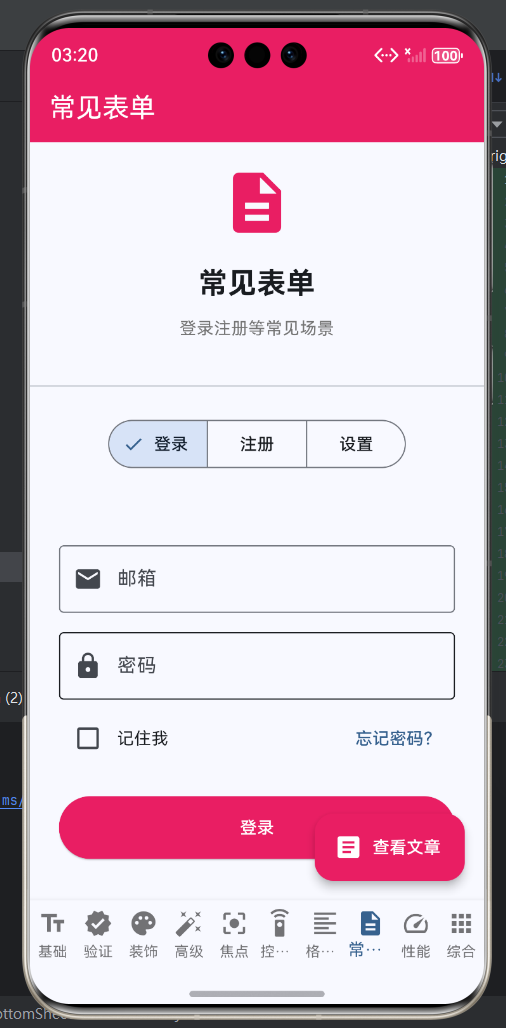
一、表单应用概述
表单是移动应用中最常见的交互组件之一,用于收集用户输入的信息。常见的表单类型包括登录注册表单、设置表单、搜索表单、数据录入表单等。一个好的表单设计不仅要美观,还要易于使用,能够引导用户顺利完成信息填写,减少输入错误和用户挫败感。
1.1 表单的核心要素
表单的核心要素包括清晰的标签、合理的输入控件、即时的验证反馈、明确的提交按钮等。标签应该简洁明了,让用户清楚地知道需要输入什么信息。输入控件应该根据输入类型选择合适的控件,比如邮箱使用邮箱键盘、密码使用密码输入框。验证反馈应该在用户输入时提供即时反馈,而不是等到提交时才显示错误。提交按钮应该醒目明确,让用户知道如何提交表单。
1.2 表单设计原则
好的表单设计应该遵循以下原则:简洁性,只收集必要的信息,避免过多无关字段;一致性,整个应用的表单风格保持一致;可预测性,用户能够预测输入框的行为和验证规则;容错性,提供明确的错误提示和修正建议;可访问性,支持键盘导航和屏幕阅读器等辅助功能。
表单的布局也很重要,应该按照用户的阅读顺序和填写习惯来组织字段。相关字段应该分组显示,使用明确的分隔线和标题。重要的字段应该放在显眼的位置,减少用户的查找时间。对于复杂的表单,可以考虑使用多步骤表单,将填写过程分解为多个简单步骤。
1.3 常见表单类型对比
| 表单类型 | 主要目的 | 字段特点 | 交互特点 | 验证重点 |
|---|---|---|---|---|
| 登录表单 | 用户身份认证 | 少量字段,如邮箱、密码 | 快速完成,记住我选项 | 凭证有效性,格式正确 |
| 注册表单 | 创建新账户 | 多字段,多步骤 | 引导性强,进度指示 | 必填项,唯一性检查 |
| 设置表单 | 用户偏好配置 | 多样化字段,包含开关 | 灵活编辑,实时生效 | 数据有效性,范围限制 |
| 搜索表单 | 内容检索查询 | 关键词+筛选条件 | 即时响应,结果展示 | 查询有效性,格式规范 |
| 数据录入表单 | 信息收集提交 | 复杂字段,可能多行 | 预览确认,批量提交 | 完整性,一致性检查 |
二、登录注册表单
2.1 登录表单设计要点
登录表单是用户进入应用的第一道门槛,其设计直接影响用户的第一印象。一个好的登录表单应该简洁高效,让用户能够快速登录。登录表单通常包含邮箱/手机号、密码两个核心字段,以及记住我、忘记密码等辅助功能。
登录表单的设计要点包括:清晰的标签和占位符,让用户知道需要输入什么信息;合适的键盘类型,比如邮箱字段使用邮箱键盘;密码可见性切换,方便用户确认密码输入;表单验证,确保输入的格式正确;加载状态反馈,让用户知道登录请求正在进行;错误提示,登录失败时提供明确的错误信息。
2.2 登录表单交互流程
2.3 完整的登录表单
import 'package:flutter/material.dart';
void main() {
runApp(const CommonFormsApp());
}
class CommonFormsApp extends StatelessWidget {
const CommonFormsApp({super.key});
Widget build(BuildContext context) {
return MaterialApp(
title: '常见表单',
theme: ThemeData(
colorScheme: ColorScheme.fromSeed(seedColor: Colors.blue),
useMaterial3: true,
),
home: const CommonFormsPage(),
);
}
}
class CommonFormsPage extends StatelessWidget {
const CommonFormsPage({super.key});
Widget build(BuildContext context) {
return Scaffold(
appBar: AppBar(
title: const Text('常见表单组件'),
backgroundColor: Colors.blue,
foregroundColor: Colors.white,
),
body: ListView(
padding: const EdgeInsets.all(16),
children: [
_buildFormCard(
'登录表单',
Icons.login,
Colors.blue,
() => Navigator.push(
context,
MaterialPageRoute(builder: (context) => const LoginFormPage()),
),
),
const SizedBox(height: 16),
_buildFormCard(
'注册表单',
Icons.person_add,
Colors.green,
() => Navigator.push(
context,
MaterialPageRoute(builder: (context) => const RegisterFormPage()),
),
),
const SizedBox(height: 16),
_buildFormCard(
'设置表单',
Icons.settings,
Colors.orange,
() => Navigator.push(
context,
MaterialPageRoute(builder: (context) => const SettingsFormPage()),
),
),
const SizedBox(height: 16),
_buildFormCard(
'搜索表单',
Icons.search,
Colors.purple,
() => Navigator.push(
context,
MaterialPageRoute(builder: (context) => const SearchFormPage()),
),
),
],
),
);
}
Widget _buildFormCard(
String title,
IconData icon,
Color color,
VoidCallback onTap,
) {
return Card(
child: ListTile(
leading: CircleAvatar(
backgroundColor: color.withOpacity(0.1),
child: Icon(icon, color: color),
),
title: Text(title, style: const TextStyle(fontWeight: FontWeight.bold)),
trailing: const Icon(Icons.chevron_right),
onTap: onTap,
),
);
}
}
// ==================== 登录表单 ====================
class LoginFormPage extends StatefulWidget {
const LoginFormPage({super.key});
State<LoginFormPage> createState() => _LoginFormPageState();
}
class _LoginFormPageState extends State<LoginFormPage> {
final _formKey = GlobalKey<FormState>();
final _emailController = TextEditingController();
final _passwordController = TextEditingController();
bool _obscurePassword = true;
bool _isLoading = false;
bool _rememberMe = false;
void dispose() {
_emailController.dispose();
_passwordController.dispose();
super.dispose();
}
Future<void> _handleLogin() async {
if (_formKey.currentState!.validate()) {
setState(() {
_isLoading = true;
});
// 模拟登录请求
await Future.delayed(const Duration(seconds: 2));
setState(() {
_isLoading = false;
});
if (mounted) {
ScaffoldMessenger.of(context).showSnackBar(
const SnackBar(
content: Text('登录成功!'),
backgroundColor: Colors.green,
),
);
}
}
}
Widget build(BuildContext context) {
return Scaffold(
appBar: AppBar(
title: const Text('登录'),
backgroundColor: Colors.blue,
foregroundColor: Colors.white,
),
body: SafeArea(
child: SingleChildScrollView(
padding: const EdgeInsets.all(24),
child: Form(
key: _formKey,
child: Column(
crossAxisAlignment: CrossAxisAlignment.stretch,
children: [
const Icon(
Icons.lock,
size: 80,
color: Colors.blue,
),
const SizedBox(height: 32),
TextFormField(
controller: _emailController,
decoration: const InputDecoration(
labelText: '邮箱',
hintText: '请输入邮箱',
prefixIcon: Icon(Icons.email),
border: OutlineInputBorder(),
),
keyboardType: TextInputType.emailAddress,
textInputAction: TextInputAction.next,
validator: (value) {
if (value == null || value.isEmpty) {
return '请输入邮箱';
}
if (!value.contains('@')) {
return '请输入有效的邮箱地址';
}
return null;
},
),
const SizedBox(height: 20),
TextFormField(
controller: _passwordController,
decoration: InputDecoration(
labelText: '密码',
hintText: '请输入密码',
prefixIcon: const Icon(Icons.lock),
suffixIcon: IconButton(
icon: Icon(
_obscurePassword ? Icons.visibility : Icons.visibility_off,
),
onPressed: () {
setState(() {
_obscurePassword = !_obscurePassword;
});
},
),
border: const OutlineInputBorder(),
),
obscureText: _obscurePassword,
textInputAction: TextInputAction.done,
onFieldSubmitted: (_) => _handleLogin(),
validator: (value) {
if (value == null || value.isEmpty) {
return '请输入密码';
}
if (value.length < 6) {
return '密码至少6个字符';
}
return null;
},
),
const SizedBox(height: 16),
Row(
children: [
Checkbox(
value: _rememberMe,
onChanged: (value) {
setState(() {
_rememberMe = value ?? false;
});
},
),
const Text('记住我'),
const Spacer(),
TextButton(
onPressed: () {},
child: const Text('忘记密码?'),
),
],
),
const SizedBox(height: 24),
ElevatedButton(
onPressed: _isLoading ? null : _handleLogin,
style: ElevatedButton.styleFrom(
backgroundColor: Colors.blue,
foregroundColor: Colors.white,
padding: const EdgeInsets.symmetric(vertical: 16),
disabledBackgroundColor: Colors.grey.shade300,
),
child: _isLoading
? const SizedBox(
width: 20,
height: 20,
child: CircularProgressIndicator(
strokeWidth: 2,
valueColor: AlwaysStoppedAnimation<Color>(Colors.white),
),
)
: const Text('登录', style: TextStyle(fontSize: 18)),
),
const SizedBox(height: 16),
Row(
mainAxisAlignment: MainAxisAlignment.center,
children: [
const Text('还没有账号?'),
TextButton(
onPressed: () {
Navigator.pushReplacement(
context,
MaterialPageRoute(
builder: (context) => const RegisterFormPage(),
),
);
},
child: const Text('立即注册'),
),
],
),
],
),
),
),
),
);
}
}
三、注册表单
3.1 注册表单设计要点
注册表单是用户创建账户的第一步,其设计直接影响用户的注册转化率。注册表单通常比登录表单更复杂,需要收集更多的信息。为了降低用户的心理压力,可以考虑使用多步骤注册,将注册过程分解为多个简单步骤。
注册表单的设计要点包括:字段精简,只收集必要的信息,避免过多无关字段;分步引导,使用进度指示器让用户知道注册进度;实时验证,在用户输入时提供即时反馈;密码强度提示,引导用户设置强密码;用户名唯一性检查,避免用户填写完后才发现用户名已被占用。
3.2 多步骤注册流程
多步骤注册的优势在于降低用户的心理压力,每次只需要完成一个小任务,而不是一次性填写大量信息。进度指示器可以让用户清楚地知道注册进度,避免用户因为不知道还要填写多少而放弃注册。每一步都应该有明确的验证,确保用户在进入下一步之前当前步骤的信息已经正确填写。
3.3 注册表单验证策略
注册表单的验证比登录表单更复杂,需要考虑多个方面:必填项验证,确保所有必填字段都已填写;格式验证,确保邮箱、手机号等字段格式正确;唯一性验证,确保用户名、邮箱未被占用;一致性验证,确保两次输入的密码一致;强度验证,确保密码强度符合安全要求。
验证策略的选择也很重要,可以在每一步结束时验证当前步骤的字段,也可以在最后统一验证所有字段。分步验证可以及时发现错误,但可能会打断用户的填写流程。统一验证可以让用户先填写完所有信息,但可能会在最后发现很多错误。最佳实践是结合两种方式,在每步结束时做基础验证,在最后做完整验证。
3.4 多步骤注册流程
class RegisterFormPage extends StatefulWidget {
const RegisterFormPage({super.key});
State<RegisterFormPage> createState() => _RegisterFormPageState();
}
class _RegisterFormPageState extends State<RegisterFormPage> {
final _formKey = GlobalKey<FormState>();
int _currentStep = 0;
final _usernameController = TextEditingController();
final _emailController = TextEditingController();
final _passwordController = TextEditingController();
final _confirmPasswordController = TextEditingController();
final _phoneController = TextEditingController();
void dispose() {
_usernameController.dispose();
_emailController.dispose();
_passwordController.dispose();
_confirmPasswordController.dispose();
_phoneController.dispose();
super.dispose();
}
Widget build(BuildContext context) {
return Scaffold(
appBar: AppBar(
title: const Text('注册'),
backgroundColor: Colors.green,
foregroundColor: Colors.white,
),
body: Stepper(
currentStep: _currentStep,
onStepContinue: () {
if (_currentStep < 2) {
setState(() {
_currentStep++;
});
} else {
_handleRegister();
}
},
onStepCancel: () {
if (_currentStep > 0) {
setState(() {
_currentStep--;
});
} else {
Navigator.pop(context);
}
},
controlsBuilder: (context, details) {
return Padding(
padding: const EdgeInsets.only(top: 24),
child: Row(
children: [
if (_currentStep > 0)
OutlinedButton(
onPressed: details.onStepCancel,
child: const Text('上一步'),
),
const SizedBox(width: 16),
ElevatedButton(
onPressed: details.onStepContinue,
style: ElevatedButton.styleFrom(
backgroundColor: Colors.green,
foregroundColor: Colors.white,
),
child: Text(_currentStep == 2 ? '完成' : '下一步'),
),
],
),
);
},
steps: [
Step(
title: const Text('账号信息'),
content: _buildAccountStep(),
isActive: _currentStep == 0,
),
Step(
title: const Text('个人信息'),
content: _buildPersonalStep(),
isActive: _currentStep == 1,
),
Step(
title: const Text('完成'),
content: _buildCompleteStep(),
isActive: _currentStep == 2,
),
],
),
);
}
Widget _buildAccountStep() {
return Form(
key: _formKey,
child: Column(
children: [
TextFormField(
controller: _usernameController,
decoration: const InputDecoration(
labelText: '用户名',
hintText: '4-16个字符',
prefixIcon: Icon(Icons.person),
border: OutlineInputBorder(),
),
validator: (value) {
if (value == null || value.isEmpty) {
return '请输入用户名';
}
if (value.length < 4 || value.length > 16) {
return '用户名长度为4-16个字符';
}
return null;
},
),
const SizedBox(height: 16),
TextFormField(
controller: _emailController,
decoration: const InputDecoration(
labelText: '邮箱',
hintText: '用于登录和找回密码',
prefixIcon: Icon(Icons.email),
border: OutlineInputBorder(),
),
keyboardType: TextInputType.emailAddress,
validator: (value) {
if (value == null || value.isEmpty) {
return '请输入邮箱';
}
if (!value.contains('@')) {
return '请输入有效的邮箱地址';
}
return null;
},
),
const SizedBox(height: 16),
TextFormField(
controller: _passwordController,
decoration: const InputDecoration(
labelText: '密码',
hintText: '至少8个字符',
prefixIcon: Icon(Icons.lock),
border: OutlineInputBorder(),
),
obscureText: true,
validator: (value) {
if (value == null || value.isEmpty) {
return '请输入密码';
}
if (value.length < 8) {
return '密码至少8个字符';
}
return null;
},
),
const SizedBox(height: 16),
TextFormField(
controller: _confirmPasswordController,
decoration: const InputDecoration(
labelText: '确认密码',
hintText: '再次输入密码',
prefixIcon: Icon(Icons.lock_outline),
border: OutlineInputBorder(),
),
obscureText: true,
validator: (value) {
if (value == null || value.isEmpty) {
return '请确认密码';
}
if (value != _passwordController.text) {
return '两次输入的密码不一致';
}
return null;
},
),
],
),
);
}
Widget _buildPersonalStep() {
return TextFormField(
controller: _phoneController,
decoration: const InputDecoration(
labelText: '手机号',
hintText: '用于安全验证',
prefixIcon: Icon(Icons.phone),
border: OutlineInputBorder(),
),
keyboardType: TextInputType.phone,
maxLength: 11,
validator: (value) {
if (value == null || value.isEmpty) {
return '请输入手机号';
}
if (value.length != 11) {
return '请输入有效的手机号';
}
return null;
},
);
}
Widget _buildCompleteStep() {
return Column(
children: [
const Icon(Icons.check_circle, size: 80, color: Colors.green),
const SizedBox(height: 24),
const Text(
'准备就绪',
style: TextStyle(fontSize: 24, fontWeight: FontWeight.bold),
),
const SizedBox(height: 16),
Text('用户名:${_usernameController.text}'),
Text('邮箱:${_emailController.text}'),
Text('手机:${_phoneController.text}'),
],
);
}
void _handleRegister() {
if (_formKey.currentState!.validate()) {
ScaffoldMessenger.of(context).showSnackBar(
const SnackBar(
content: Text('注册成功!'),
backgroundColor: Colors.green,
),
);
}
}
}
四、设置表单
4.1 设置表单设计要点
设置表单用于配置应用的各种参数和用户偏好,通常包含多种类型的输入控件,包括文本输入框、开关、滑块、下拉选择等。设置表单的设计重点是清晰的分组、合理的默认值、直观的控件选择、即时的反馈。
设置表单的设计要点包括:逻辑分组,将相关的设置项分组显示,使用明确的分组标题;合理的默认值,根据大多数用户的使用习惯设置默认值;直观的控件,根据设置类型选择最合适的控件;即时生效,设置修改后立即生效,不需要点击保存按钮;设置预览,对于有视觉影响的设置,提供预览功能。
4.2 设置项类型对比
| 设置项类型 | 控件类型 | 应用场景 | 交互特点 | 示例 |
|---|---|---|---|---|
| 文本输入 | TextField/TextFormField | 简短文本信息 | 单行或多行,支持验证 | 昵称、简介 |
| 开关切换 | Switch/SwitchListTile | 二元设置 | 即时切换,视觉明显 | 通知开关、深色模式 |
| 滑块选择 | Slider | 数值范围调整 | 连续值,直观拖动 | 字体大小、音量 |
| 单选选择 | Radio/RadioListTile | 互斥选项 | 清晰互斥,易于选择 | 语言、主题 |
| 多选标签 | FilterChip/ChoiceChip | 多选场景 | 标签式,可切换 | 兴趣标签、分类 |
| 下拉选择 | DropdownButton | 多选项选择 | 节省空间,适合长列表 | 国家、城市 |
| 日期时间 | showDatePicker等 | 日期时间选择 | 系统原生,体验一致 | 生日、预约时间 |
4.3 用户设置页面
class SettingsFormPage extends StatefulWidget {
const SettingsFormPage({super.key});
State<SettingsFormPage> createState() => _SettingsFormPageState();
}
class _SettingsFormPageState extends State<SettingsFormPage> {
final _formKey = GlobalKey<FormState>();
final _nicknameController = TextEditingController();
final _bioController = TextEditingController();
final _emailController = TextEditingController();
final _phoneController = TextEditingController();
bool _notificationsEnabled = true;
bool _darkModeEnabled = false;
String _language = '简体中文';
double _fontSize = 14.0;
void initState() {
super.initState();
_nicknameController.text = '用户昵称';
_bioController.text = '这是个人简介';
_emailController.text = 'user@example.com';
}
void dispose() {
_nicknameController.dispose();
_bioController.dispose();
_emailController.dispose();
_phoneController.dispose();
super.dispose();
}
Widget build(BuildContext context) {
return Scaffold(
appBar: AppBar(
title: const Text('设置'),
backgroundColor: Colors.orange,
foregroundColor: Colors.white,
actions: [
IconButton(
icon: const Icon(Icons.save),
onPressed: _handleSave,
),
],
),
body: Form(
key: _formKey,
child: ListView(
padding: const EdgeInsets.all(16),
children: [
_buildSectionTitle('个人信息'),
TextFormField(
controller: _nicknameController,
decoration: const InputDecoration(
labelText: '昵称',
border: OutlineInputBorder(),
),
),
const SizedBox(height: 16),
TextFormField(
controller: _bioController,
decoration: const InputDecoration(
labelText: '个人简介',
border: OutlineInputBorder(),
),
maxLines: 3,
),
const SizedBox(height: 16),
TextFormField(
controller: _emailController,
decoration: const InputDecoration(
labelText: '邮箱',
border: OutlineInputBorder(),
),
keyboardType: TextInputType.emailAddress,
),
const SizedBox(height: 16),
TextFormField(
controller: _phoneController,
decoration: const InputDecoration(
labelText: '电话',
border: OutlineInputBorder(),
),
keyboardType: TextInputType.phone,
),
const SizedBox(height: 24),
_buildSectionTitle('偏好设置'),
SwitchListTile(
title: const Text('启用通知'),
subtitle: const Text('接收应用通知'),
value: _notificationsEnabled,
onChanged: (value) {
setState(() {
_notificationsEnabled = value;
});
},
),
SwitchListTile(
title: const Text('深色模式'),
subtitle: const Text('使用深色主题'),
value: _darkModeEnabled,
onChanged: (value) {
setState(() {
_darkModeEnabled = value;
});
},
),
ListTile(
title: const Text('语言'),
subtitle: Text(_language),
trailing: const Icon(Icons.chevron_right),
onTap: () => _showLanguageDialog(),
),
Padding(
padding: const EdgeInsets.symmetric(horizontal: 16),
child: Column(
crossAxisAlignment: CrossAxisAlignment.start,
children: [
Text('字体大小:${_fontSize.toInt()}'),
Slider(
value: _fontSize,
min: 12,
max: 24,
divisions: 12,
label: '${_fontSize.toInt()}',
onChanged: (value) {
setState(() {
_fontSize = value;
});
},
),
],
),
),
const SizedBox(height: 24),
ElevatedButton(
onPressed: _handleSave,
style: ElevatedButton.styleFrom(
backgroundColor: Colors.orange,
foregroundColor: Colors.white,
padding: const EdgeInsets.symmetric(vertical: 16),
),
child: const Text('保存设置', style: TextStyle(fontSize: 18)),
),
],
),
),
);
}
Widget _buildSectionTitle(String title) {
return Padding(
padding: const EdgeInsets.only(bottom: 16),
child: Text(
title,
style: const TextStyle(
fontSize: 18,
fontWeight: FontWeight.bold,
color: Colors.orange,
),
),
);
}
void _showLanguageDialog() {
showDialog(
context: context,
builder: (context) => AlertDialog(
title: const Text('选择语言'),
content: Column(
mainAxisSize: MainAxisSize.min,
children: [
RadioListTile<String>(
title: const Text('简体中文'),
value: '简体中文',
groupValue: _language,
onChanged: (value) {
setState(() {
_language = value!;
});
Navigator.pop(context);
},
),
RadioListTile<String>(
title: const Text('English'),
value: 'English',
groupValue: _language,
onChanged: (value) {
setState(() {
_language = value!;
});
Navigator.pop(context);
},
),
],
),
),
);
}
void _handleSave() {
ScaffoldMessenger.of(context).showSnackBar(
const SnackBar(
content: Text('设置已保存'),
backgroundColor: Colors.green,
),
);
}
}
五、搜索表单
5.1 搜索表单设计要点
搜索表单是用户查找内容的主要工具,其设计直接影响用户的查找效率。一个好的搜索表单应该支持快速搜索,同时提供高级筛选功能,让用户能够精确找到想要的内容。搜索表单通常包含搜索框和多个筛选条件,如分类、价格区间、排序方式等。
搜索表单的设计要点包括:即时搜索,用户输入关键词后立即显示搜索结果,不需要点击搜索按钮;智能提示,根据用户输入提供搜索建议,帮助用户快速找到想要的内容;灵活筛选,提供多种筛选条件,支持组合筛选;结果排序,支持多种排序方式,让用户按照自己的偏好查看结果;搜索历史,保存用户的搜索历史,方便用户重复搜索。
5.2 搜索表单交互流程
5.3 搜索性能优化
搜索表单的性能优化非常重要,特别是在数据量大的情况下。优化策略包括:防抖处理,用户停止输入一段时间后才执行搜索,避免频繁的搜索请求;结果缓存,缓存搜索结果,相同的关键词直接返回缓存结果;分页加载,对于大量结果,分页加载,避免一次性加载过多数据;虚拟滚动,使用虚拟滚动技术渲染大量结果,提升渲染性能。
防抖处理是搜索性能优化的关键。用户在输入时,每个字符都会触发一次搜索请求,如果数据量大,这会导致严重的性能问题。防抖的实现是设置一个定时器,每当用户输入时取消之前的定时器并设置新的定时器,只有用户停止输入一定时间后才真正执行搜索。这样可以显著减少搜索请求次数,提升性能。
5.4 高级搜索功能
class SearchFormPage extends StatefulWidget {
const SearchFormPage({super.key});
State<SearchFormPage> createState() => _SearchFormPageState();
}
class _SearchFormPageState extends State<SearchFormPage> {
final _searchController = TextEditingController();
final _categoryController = TextEditingController();
final _minPriceController = TextEditingController();
final _maxPriceController = TextEditingController();
String _sortBy = '最新';
bool _inStockOnly = false;
void dispose() {
_searchController.dispose();
_categoryController.dispose();
_minPriceController.dispose();
_maxPriceController.dispose();
super.dispose();
}
Widget build(BuildContext context) {
return Scaffold(
appBar: AppBar(
title: const Text('搜索'),
backgroundColor: Colors.purple,
foregroundColor: Colors.white,
),
body: Column(
children: [
// 搜索栏
Container(
padding: const EdgeInsets.all(16),
color: Colors.purple.shade50,
child: TextField(
controller: _searchController,
decoration: InputDecoration(
hintText: '搜索商品...',
prefixIcon: const Icon(Icons.search),
suffixIcon: _searchController.text.isNotEmpty
? IconButton(
icon: const Icon(Icons.clear),
onPressed: () {
_searchController.clear();
setState(() {});
},
)
: null,
filled: true,
fillColor: Colors.white,
border: OutlineInputBorder(
borderRadius: BorderRadius.circular(24),
borderSide: BorderSide.none,
),
contentPadding: const EdgeInsets.symmetric(
horizontal: 20,
vertical: 16,
),
),
textInputAction: TextInputAction.search,
onSubmitted: (_) => _performSearch(),
),
),
// 筛选选项
Expanded(
child: ListView(
padding: const EdgeInsets.all(16),
children: [
Card(
child: Padding(
padding: const EdgeInsets.all(16),
child: Column(
crossAxisAlignment: CrossAxisAlignment.start,
children: [
const Text(
'分类',
style: TextStyle(
fontSize: 16,
fontWeight: FontWeight.bold,
),
),
const SizedBox(height: 12),
Wrap(
spacing: 8,
runSpacing: 8,
children: [
_buildFilterChip('全部', true),
_buildFilterChip('电子', false),
_buildFilterChip('服装', false),
_buildFilterChip('食品', false),
_buildFilterChip('家居', false),
],
),
],
),
),
),
const SizedBox(height: 16),
Card(
child: Padding(
padding: const EdgeInsets.all(16),
child: Column(
crossAxisAlignment: CrossAxisAlignment.start,
children: [
const Text(
'价格区间',
style: TextStyle(
fontSize: 16,
fontWeight: FontWeight.bold,
),
),
const SizedBox(height: 12),
Row(
children: [
Expanded(
child: TextField(
controller: _minPriceController,
decoration: const InputDecoration(
labelText: '最低价',
border: OutlineInputBorder(),
),
keyboardType: TextInputType.number,
),
),
const Padding(
padding: EdgeInsets.symmetric(horizontal: 8),
child: Text('-'),
),
Expanded(
child: TextField(
controller: _maxPriceController,
decoration: const InputDecoration(
labelText: '最高价',
border: OutlineInputBorder(),
),
keyboardType: TextInputType.number,
),
),
],
),
],
),
),
),
const SizedBox(height: 16),
Card(
child: Padding(
padding: const EdgeInsets.all(16),
child: Column(
crossAxisAlignment: CrossAxisAlignment.start,
children: [
const Text(
'排序方式',
style: TextStyle(
fontSize: 16,
fontWeight: FontWeight.bold,
),
),
const SizedBox(height: 12),
RadioListTile<String>(
title: const Text('最新'),
value: '最新',
groupValue: _sortBy,
onChanged: (value) {
setState(() {
_sortBy = value!;
});
},
),
RadioListTile<String>(
title: const Text('价格从低到高'),
value: '价格升序',
groupValue: _sortBy,
onChanged: (value) {
setState(() {
_sortBy = value!;
});
},
),
RadioListTile<String>(
title: const Text('价格从高到低'),
value: '价格降序',
groupValue: _sortBy,
onChanged: (value) {
setState(() {
_sortBy = value!;
});
},
),
],
),
),
),
const SizedBox(height: 16),
SwitchListTile(
title: const Text('仅显示有货'),
subtitle: const Text('只显示库存充足的商品'),
value: _inStockOnly,
onChanged: (value) {
setState(() {
_inStockOnly = value ?? false;
});
},
),
const SizedBox(height: 24),
ElevatedButton(
onPressed: _performSearch,
style: ElevatedButton.styleFrom(
backgroundColor: Colors.purple,
foregroundColor: Colors.white,
padding: const EdgeInsets.symmetric(vertical: 16),
),
child: const Text('搜索', style: TextStyle(fontSize: 18)),
),
],
),
),
],
),
);
}
Widget _buildFilterChip(String label, bool selected) {
return FilterChip(
label: Text(label),
selected: selected,
onSelected: (selected) {
setState(() {});
},
selectedColor: Colors.purple.shade100,
checkmarkColor: Colors.purple,
);
}
void _performSearch() {
ScaffoldMessenger.of(context).showSnackBar(
SnackBar(
content: Text('正在搜索:${_searchController.text}'),
backgroundColor: Colors.purple,
),
);
}
}
六、表单最佳实践
6.1 表单设计原则
好的表单设计应该遵循简洁性、一致性、可预测性、容错性和可访问性原则。简洁性是指只收集必要的信息,避免过多无关字段。一致性是指整个应用的表单风格保持一致,包括颜色、字体、间距等视觉元素。可预测性是指用户能够预测输入框的行为和验证规则,比如密码输入框会隐藏内容。容错性是指提供明确的错误提示和修正建议,帮助用户快速纠正错误。可访问性是指支持键盘导航和屏幕阅读器等辅助功能。
表单的布局也应该遵循一定的原则。重要的字段应该放在显眼的位置,相关字段应该分组显示,使用明确的分隔线和标题。字段应该按照用户的阅读顺序和填写习惯来组织。对于复杂的表单,可以考虑使用多步骤表单,将填写过程分解为多个简单步骤。
6.2 用户体验优化
用户体验优化是表单设计的核心。优化策略包括:实时验证反馈,在用户输入时提供即时反馈,而不是等到提交时才显示错误;清晰的标签,标签应该简洁明了,让用户清楚地知道需要输入什么信息;合适的键盘类型,根据输入类型选择合适的键盘,比如邮箱使用邮箱键盘,数字使用数字键盘;即时生效,对于设置类表单,设置修改后立即生效,不需要点击保存按钮;加载状态,在提交表单时显示加载状态,防止重复提交。
6.3 代码组织结构
好的代码组织结构可以提高代码的可读性和可维护性。应该将表单拆分为多个小组件,每个组件负责一个功能区域。状态管理应该清晰明确,避免状态混乱。验证逻辑应该抽取为独立的函数或类,方便复用和测试。
// 推荐的代码组织结构
class MyFormPage extends StatefulWidget {
State<MyFormPage> createState() => _MyFormPageState();
}
class _MyFormPageState extends State<MyFormPage> {
// 1. 表单key和控制器
final _formKey = GlobalKey<FormState>();
final _nameController = TextEditingController();
final _emailController = TextEditingController();
// 2. 状态变量
bool _isLoading = false;
// 3. 生命周期方法
void dispose() {
_nameController.dispose();
_emailController.dispose();
super.dispose();
}
// 4. 验证方法
String? _validateName(String? value) {
if (value == null || value.isEmpty) {
return '请输入姓名';
}
return null;
}
// 5. 表单提交方法
Future<void> _handleSubmit() async {
if (_formKey.currentState!.validate()) {
setState(() => _isLoading = true);
// 提交逻辑
setState(() => _isLoading = false);
}
}
// 6. 构建方法
Widget build(BuildContext context) {
return Scaffold(...);
}
}
6.4 性能优化技巧
表单性能优化对于提升用户体验非常重要。优化技巧包括:懒加载,对于复杂的表单,使用懒加载技术,只渲染可见的部分;防抖处理,对于搜索等场景,使用防抖避免频繁请求;避免过度重建,合理使用const构造函数,避免不必要的重建;资源管理,及时释放控制器等资源,避免内存泄漏。
6.5 实践总结
6.6 关键实践要点
-
清晰的表单结构:将表单分为多个逻辑部分,每个部分有明确的标题。相关的字段应该分组显示,使用明确的分隔线和标题。重要字段应该放在显眼的位置,减少用户的查找时间。
-
实时验证反馈:在用户输入时提供即时反馈,而不是等到提交时才显示错误。实时验证可以让用户及时发现问题并修正,避免提交时才发现多个错误。但也要注意不要过于频繁地验证,以免干扰用户的输入节奏。
-
加载状态管理:在提交表单时显示加载状态,防止重复提交。加载状态应该明确可见,让用户知道请求正在进行。同时应该禁用提交按钮,避免用户重复点击。
-
错误处理:提供友好的错误提示,并给出明确的解决方向。错误提示应该简洁明了,让用户清楚地知道问题所在和如何解决。对于复杂的错误,可以提供详细的说明或帮助链接。
-
统一的视觉风格:整个应用的表单应该保持一致的视觉风格和交互模式。一致的视觉风格可以让用户更快地熟悉应用,减少学习成本。交互模式的一致性也很重要,比如所有表单的验证方式、错误提示位置等都应该保持一致。
-
键盘导航支持:支持Tab键在输入框之间切换焦点,方便键盘用户。合理设置textInputAction,让用户可以通过键盘完成表单提交。这对于桌面应用和无障碍用户非常重要。
-
移动端优化:针对移动端的特点进行优化,比如调整输入框的大小和间距,适配触摸操作;使用合适的键盘类型,减少切换键盘的次数;处理键盘遮挡,确保输入框不会被键盘遮挡;优化表单布局,避免用户需要频繁滚动。
-
可访问性支持:为输入框添加语义标签,支持屏幕阅读器。确保颜色对比度符合标准,方便视障用户。提供足够的点击区域,方便手势操作。
6.7 常见表单问题与解决方案
| 问题 | 原因 | 解决方案 |
|---|---|---|
| 提交按钮不响应 | 验证失败但未显示错误 | 检查验证逻辑,确保错误提示正确显示 |
| 输入框被键盘遮挡 | 未处理键盘遮挡 | 使用SingleChildScrollView或MediaQuery处理键盘 |
| 表单提交慢 | 网络请求或验证耗时 | 显示加载状态,使用异步处理 |
| 用户填写困难 | 表单过长或复杂 | 分为多步骤,添加进度指示 |
| 验证提示不清楚 | 错误提示模糊 | 提供具体的问题描述和解决建议 |
| 焦点切换异常 | FocusNode未正确管理 | 确保FocusNode正确创建和释放 |
| 数据丢失 | 控制器未保存状态 | 使用状态管理保存表单数据 |
| 重复提交 | 未防重复提交 | 提交时禁用按钮或添加防重复逻辑 |
6.8 总结
表单是移动应用中最重要的交互组件之一,其设计直接影响用户体验。一个好的表单设计应该简洁高效,能够引导用户顺利完成信息填写,减少输入错误和用户挫败感。
在设计表单时,应该遵循清晰性、一致性、可预测性、容错性和可访问性的原则。表单的布局应该合理,字段应该按照用户的阅读顺序和填写习惯来组织。验证反馈应该及时明确,错误提示应该友好易懂。交互应该流畅自然,符合用户的心理预期。
通过遵循这些最佳实践,可以创建出既美观又实用的表单界面,为用户提供优秀的交互体验。
欢迎加入开源鸿蒙跨平台社区:https://openharmonycrossplatform.csdn.net

讨论HarmonyOS开发技术,专注于API与组件、DevEco Studio、测试、元服务和应用上架分发等。
更多推荐
 16
16 0
0- 0



 已为社区贡献19条内容

所有评论(0)