鸿蒙flutter第三方库适配 - PDF文档阅读器
PDF文档阅读器应用
欢迎加入开源鸿蒙跨平台社区:
https://openharmonycrossplatform.csdn.net
适配的第三方库地址:
- pdf_render: https://pub.dev/packages/pdf_render
- file_selector: https://pub.dev/packages/file_selector
- shared_preferences: https://pub.dev/packages/shared_preferences
- screen: https://pub.dev/packages/screen
一、项目概述
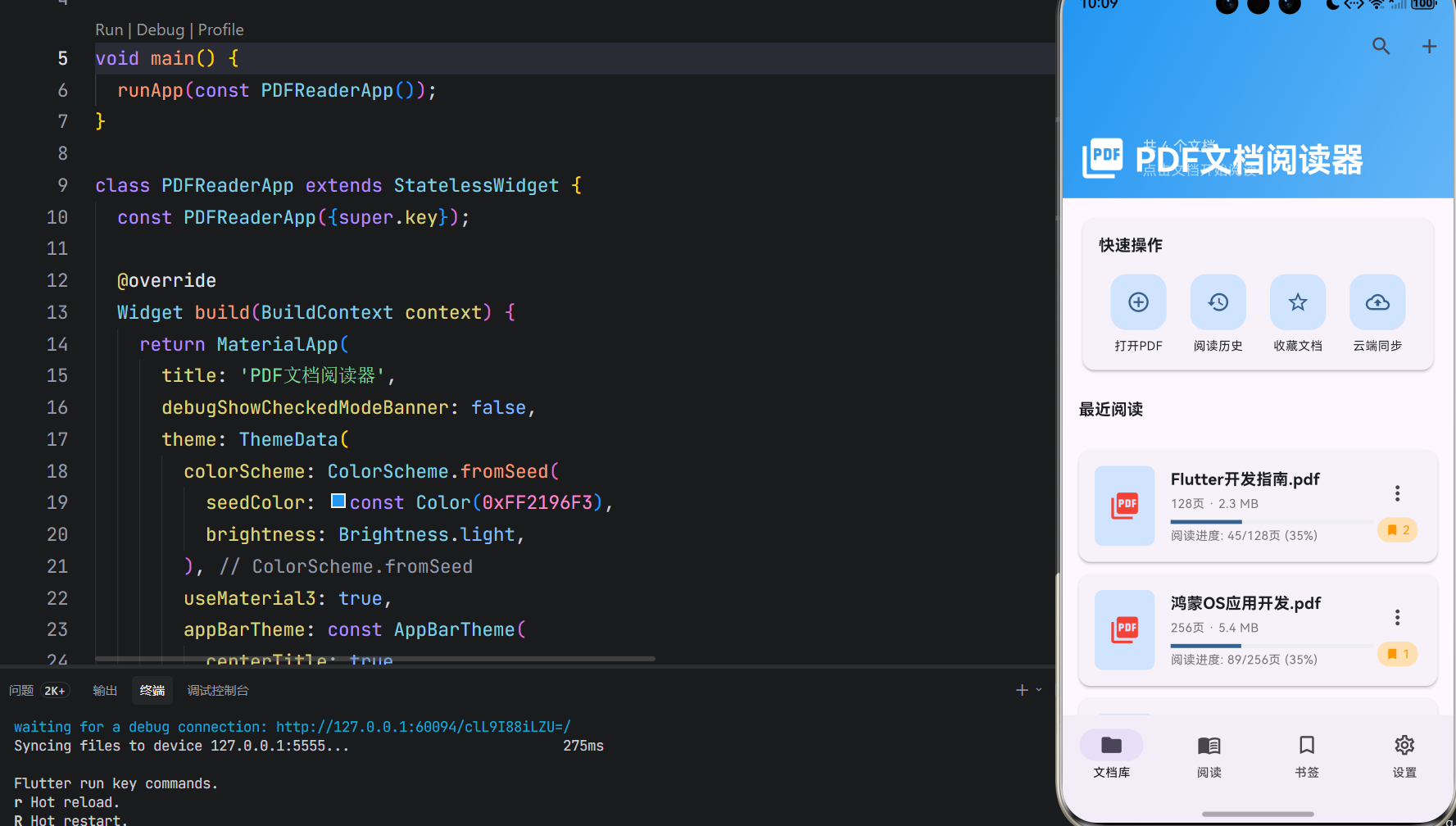
运行效果图
1.1 应用简介
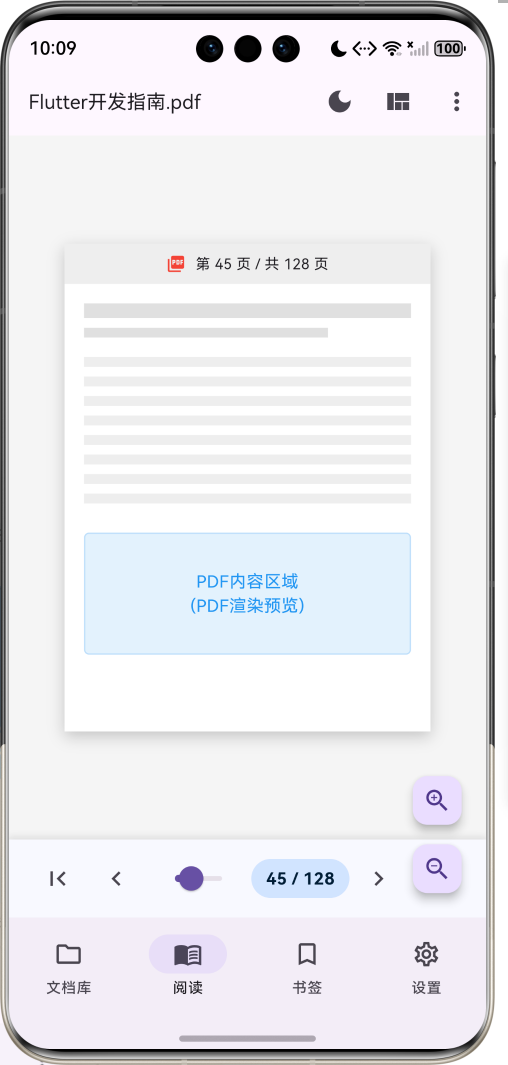
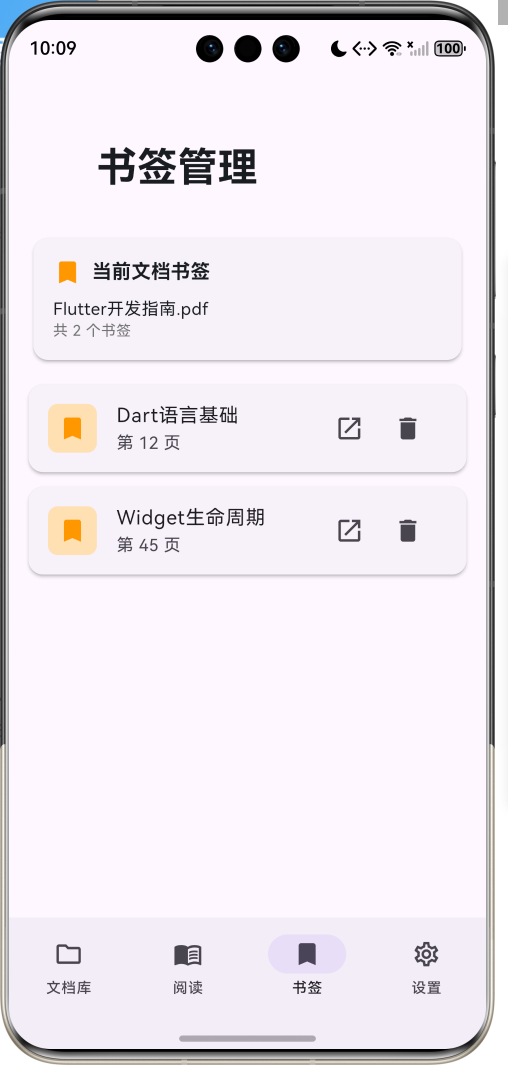
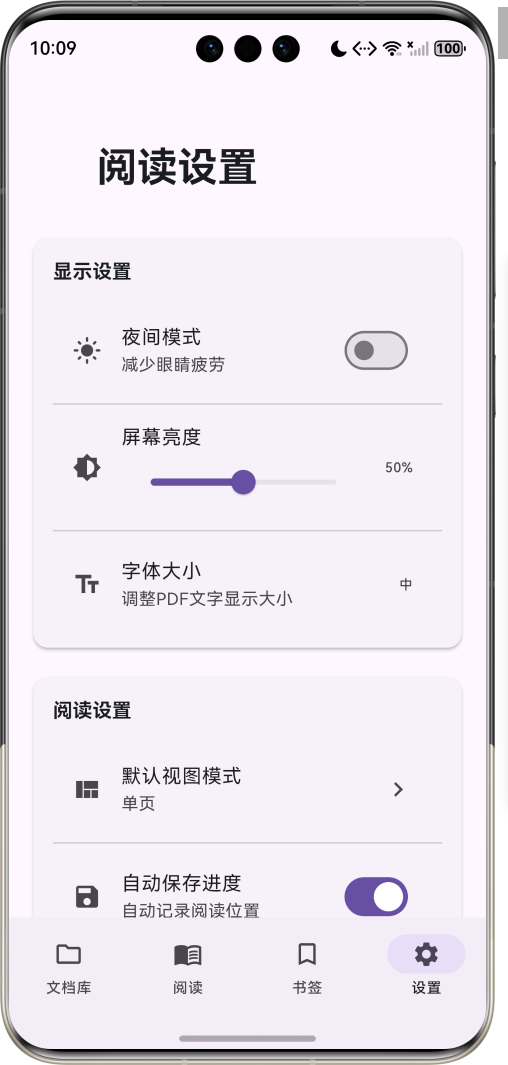
PDF文档阅读器是一款功能完善的文档阅读应用,支持PDF文档打开、阅读、书签管理、批注功能,提供夜间模式和阅读进度同步。应用以清新的蓝色为主色调,象征专业与高效。涵盖文档库、阅读器、书签管理、设置四大模块。用户可以打开本地PDF文件、浏览文档内容、添加书签和批注、调整阅读设置,享受舒适的阅读体验。
1.2 核心功能
| 功能模块 | 功能描述 | 实现方式 |
|---|---|---|
| PDF渲染 | 高质量PDF页面渲染显示 | pdf_render |
| 文件选择 | 从本地选择PDF文件打开 | file_selector |
| 书签管理 | 添加、删除、跳转书签 | 本地存储 |
| 批注功能 | 高亮、下划线、文字批注 | 自定义绘制 |
| 夜间模式 | 深色主题减少眼睛疲劳 | 主题切换 |
| 阅读进度 | 自动保存阅读位置 | shared_preferences |
| 缩放控制 | 放大缩小页面内容 | 手势缩放 |
| 目录导航 | 快速跳转到指定章节 | 目录解析 |
| 屏幕亮度 | 调节屏幕亮度 | screen |
| 文档搜索 | 搜索文档内容 | 全文检索 |
1.3 视图模式定义
| 序号 | 模式名称 | Emoji | 描述 | 适用场景 |
|---|---|---|---|---|
| 1 | 单页模式 | 📄 | 单页连续滚动 | 普通阅读 |
| 2 | 双页模式 | 📖 | 双页对开显示 | 杂志书籍 |
| 3 | 连续模式 | 📜 | 连续垂直滚动 | 快速浏览 |
1.4 批注类型定义
| 序号 | 批注名称 | Emoji | 颜色 | 描述 |
|---|---|---|---|---|
| 1 | 高亮 | 🖍️ | 黄色 | 标记重要内容 |
| 2 | 下划线 | 📝 | 绿色 | 强调关键文字 |
| 3 | 批注 | 💬 | 蓝色 | 添加阅读笔记 |
| 4 | 书签 | 🔖 | 红色 | 标记阅读位置 |
1.5 技术栈
| 技术领域 | 技术选型 | 版本要求 |
|---|---|---|
| 开发框架 | Flutter | >= 3.0.0 |
| 编程语言 | Dart | >= 2.17.0 |
| 设计规范 | Material Design 3 | - |
| PDF渲染 | pdf_render | >= 1.4.0 |
| 文件选择 | file_selector | >= 1.0.0 |
| 数据存储 | shared_preferences | >= 2.0.0 |
| 屏幕控制 | screen | >= 0.0.5 |
| 目标平台 | 鸿蒙OS / Web / Android | API 21+ |
1.6 项目结构
lib/
└── main_pdf_reader.dart
    ├── PDFReaderApp                    # 应用入口
    ├── ViewMode                        # 视图模式枚举
    ├── AnnotationType                  # 批注类型枚举
    ├── PDFDocument                     # PDF文档模型
    ├── Bookmark                        # 书签模型
    ├── Annotation                      # 批注模型
    ├── ReadingProgress                 # 阅读进度模型
    ├── PDFReaderHomePage               # 主页面(底部导航)
    ├── _buildLibraryPage               # 文档库页面
    ├── _buildReaderPage                # 阅读器页面
    ├── _buildBookmarksPage             # 书签页面
    ├── _buildSettingsPage              # 设置页面
    └── PDFSearchDelegate               # 搜索代理
二、系统架构
2.1 整体架构图
2.2 类图设计
2.3 页面导航流程
2.4 阅读流程
三、核心模块设计
3.1 数据模型设计
3.1.1 视图模式枚举 (ViewMode)
enum ViewMode {
  singlePage(label: '单页', emoji: '📄', description: '单页连续滚动'),
  twoPage(label: '双页', emoji: '📖', description: '双页对开显示'),
  continuous(label: '连续', emoji: '📜', description: '连续垂直滚动');

  final String label;
  final String emoji;
  final String description;
  const ViewMode({
    required this.label,
    required this.emoji,
    required this.description,
  });
}
3.1.2 批注类型枚举 (AnnotationType)
enum AnnotationType {
  highlight(label: '高亮', emoji: '🖍️', color: Colors.yellow),
  underline(label: '下划线', emoji: '📝', color: Colors.green),
  note(label: '批注', emoji: '💬', color: Colors.blue),
  bookmark(label: '书签', emoji: '🔖', color: Colors.red);

  final String label;
  final String emoji;
  final Color color;
  const AnnotationType({
    required this.label,
    required this.emoji,
    required this.color,
  });
}
3.1.3 PDF文档模型 (PDFDocument)
class PDFDocument {
  final String id;
  final String name;
  final String path;
  final int totalPages;
  final int currentPage;
  final int fileSize;
  final DateTime lastOpened;
  final List<Bookmark> bookmarks;
  final List<Annotation> annotations;
  final double zoom;

  const PDFDocument({
    required this.id,
    required this.name,
    required this.path,
    required this.totalPages,
    required this.currentPage,
    required this.fileSize,
    required this.lastOpened,
    required this.bookmarks,
    required this.annotations,
    required this.zoom,
  });

  double get progress => totalPages > 0 ? currentPage / totalPages : 0;

  String get fileSizeText {
    if (fileSize < 1024) return '$fileSize B';
    if (fileSize < 1024 * 1024) return '${(fileSize / 1024).toStringAsFixed(1)} KB';
    return '${(fileSize / (1024 * 1024)).toStringAsFixed(1)} MB';
  }
}
3.1.4 文档功能分布
3.2 页面结构设计
3.2.1 主页面布局
3.2.2 文档库页面结构
3.2.3 阅读器页面结构
3.2.4 设置页面结构
3.3 PDF渲染逻辑
3.4 书签管理逻辑
四、UI设计规范
4.1 配色方案
应用以清新的蓝色为主色调,象征专业与高效:
| 颜色类型 | 色值 | 用途 |
|---|---|---|
| 主色 | #2196F3 (Blue) | 导航、主题元素 |
| 辅助色 | #64B5F6 | 次要按钮 |
| 第三色 | #90CAF9 | 高亮显示 |
| 背景色 | #FAFAFA | 页面背景 |
| 卡片背景 | #FFFFFF | 信息卡片 |
| 夜间背景 | #1A1A1A | 夜间模式背景 |
| 强调色 | #FF5722 | 重要操作 |
| 成功色 | #4CAF50 | 完成状态 |
4.2 批注类型配色
| 批注类型 | 色值 | 视觉效果 |
|---|---|---|
| 高亮 | #FFEB3B | 黄色高亮 |
| 下划线 | #4CAF50 | 绿色下划线 |
| 批注 | #2196F3 | 蓝色批注框 |
| 书签 | #F44336 | 红色书签图标 |
4.3 字体规范
| 元素 | 字号 | 字重 | 颜色 |
|---|---|---|---|
| 页面标题 | 24px | Bold | 主色 |
| 文档名称 | 16px | Bold | #000000 |
| 页码显示 | 14px | Bold | 主色 |
| 提示文字 | 12px | Regular | #666666 |
| 进度文字 | 12px | Regular | #888888 |
4.4 组件规范
4.4.1 文档卡片
┌─────────────────────────────────────┐
│  ┌──────┐                           │
│  │ PDF  │  Flutter开发指南.pdf      │
│  │ 图标 │  128页 · 2.4 MB           │
│  └──────┘                           │
│  ═════════════●══════════════      │
│  阅读进度: 45/128页 (35%)     ⋮    │
└─────────────────────────────────────┘
4.4.2 阅读器界面
┌─────────────────────────────────────┐
│  ← Flutter开发指南.pdf    🌙 📋 ⋮  │
├─────────────────────────────────────┤
│                                     │
│  ┌─────────────────────────────┐   │
│  │  第 45 页 / 共 128 页        │   │
│  │                             │   │
│  │  ████████████████████       │   │
│  │  ████████                   │   │
│  │                             │   │
│  │  ████████████████████████   │   │
│  │  ████████████████████████   │   │
│  │                             │   │
│  │  ┌─────────────────────┐   │   │
│  │  │ PDF内容区域          │   │   │
│  │  │ (PDF渲染预览)        │   │   │
│  │  └─────────────────────┘   │   │
│  └─────────────────────────────┘   │
│                                     │
├─────────────────────────────────────┤
│  ◀◀  ◀  ═══════●════════  45/128  ▶  ▶▶  │
└─────────────────────────────────────┘
4.4.3 书签卡片
┌─────────────────────────────────────┐
│  🔖  Widget生命周期                 │
│      第 45 页            📄  🗑️    │
└─────────────────────────────────────┘
4.4.4 设置卡片
┌─────────────────────────────────────┐
│  显示设置                              │
│                                     │
│  🌙 夜间模式              [开关]     │
│  ─────────────────────────────      │
│  🔆 屏幕亮度                         │
│  ──────●────────────────  50%      │
│  ─────────────────────────────      │
│  📝 字体大小              中    ▶   │
└─────────────────────────────────────┘
五、核心功能实现
5.1 PDF文件选择实现
Future<void> _openPDFFile() async {
  try {
    const XTypeGroup typeGroup = XTypeGroup(
      label: 'PDF文档',
      extensions: ['pdf'],
    );
    final XFile? file = await openFile(acceptedTypeGroups: [typeGroup]);
    if (file != null) {
      final newDoc = PDFDocument(
        id: 'doc_${DateTime.now().millisecondsSinceEpoch}',
        name: file.name,
        path: file.path,
        totalPages: 100,
        currentPage: 1,
        fileSize: await file.length(),
        lastOpened: DateTime.now(),
        bookmarks: [],
        annotations: [],
        zoom: 1.0,
      );
      setState(() {
        _currentDocument = newDoc;
        _recentDocuments.insert(0, newDoc);
        _currentIndex = 1;
      });
    }
  } catch (e) {
    ScaffoldMessenger.of(context).showSnackBar(
      SnackBar(content: Text('打开文件失败: $e')),
    );
  }
}
5.2 书签管理实现
void _addBookmark() {
  if (_currentDocument == null) return;
  final page = _currentDocument!.currentPage;
  final hasBookmark = _currentDocument!.bookmarks.any((b) => b.pageNumber == page);
  if (hasBookmark) {
    ScaffoldMessenger.of(context).showSnackBar(
      const SnackBar(content: Text('当前页面已有书签')),
    );
    return;
  }
  showDialog(
    context: context,
    builder: (context) => AlertDialog(
      title: const Text('添加书签'),
      content: TextField(
        controller: _annotationController,
        decoration: const InputDecoration(
          labelText: '书签标题',
          hintText: '请输入书签标题',
        ),
      ),
      actions: [
        TextButton(
          onPressed: () => Navigator.pop(context),
          child: const Text('取消'),
        ),
        ElevatedButton(
          onPressed: () {
            final bookmark = Bookmark(
              id: 'bm_${DateTime.now().millisecondsSinceEpoch}',
              documentId: _currentDocument!.id,
              pageNumber: page,
              title: _annotationController.text.isEmpty
                  ? '第$page页'
                  : _annotationController.text,
              createdAt: DateTime.now(),
            );
            setState(() {
              _currentDocument = _currentDocument!.copyWith(
                bookmarks: [..._currentDocument!.bookmarks, bookmark],
              );
            });
            _annotationController.clear();
            Navigator.pop(context);
          },
          child: const Text('确定'),
        ),
      ],
    ),
  );
}
5.3 批注功能实现
void _addAnnotation(AnnotationType type) {
  if (_currentDocument == null) return;
  showDialog(
    context: context,
    builder: (context) => AlertDialog(
      title: Text('${type.emoji} 添加${type.label}'),
      content: TextField(
        controller: _annotationController,
        decoration: const InputDecoration(
          labelText: '批注内容',
          hintText: '请输入批注内容',
        ),
        maxLines: 3,
      ),
      actions: [
        TextButton(
          onPressed: () => Navigator.pop(context),
          child: const Text('取消'),
        ),
        ElevatedButton(
          onPressed: () {
            final annotation = Annotation(
              id: 'an_${DateTime.now().millisecondsSinceEpoch}',
              documentId: _currentDocument!.id,
              pageNumber: _currentDocument!.currentPage,
              type: type,
              content: _annotationController.text,
              position: const Offset(100, 200),
              createdAt: DateTime.now(),
            );
            setState(() {
              _currentDocument = _currentDocument!.copyWith(
                annotations: [..._currentDocument!.annotations, annotation],
              );
            });
            _annotationController.clear();
            Navigator.pop(context);
          },
          child: const Text('确定'),
        ),
      ],
    ),
  );
}
5.4 夜间模式实现
void _toggleDarkMode() {
  setState(() {
    _isDarkMode = !_isDarkMode;
  });
  _saveSettings();
}

Future<void> _saveSettings() async {
  final prefs = await SharedPreferences.getInstance();
  await prefs.setBool('darkMode', _isDarkMode);
  await prefs.setDouble('brightness', _brightness);
}

Future<void> _loadSettings() async {
  final prefs = await SharedPreferences.getInstance();
  setState(() {
    _isDarkMode = prefs.getBool('darkMode') ?? false;
    _brightness = prefs.getDouble('brightness') ?? 0.5;
  });
}
5.5 页面导航实现
void _goToPage(int page) {
  if (_currentDocument == null) return;
  if (page < 1 || page > _currentDocument!.totalPages) return;
  setState(() {
    _currentDocument = _currentDocument!.copyWith(currentPage: page);
  });
}

Widget _buildPageNavigationBar() {
  return Container(
    padding: const EdgeInsets.symmetric(horizontal: 16, vertical: 8),
    child: Row(
      children: [
        IconButton(
          icon: const Icon(Icons.first_page),
          onPressed: () => _goToPage(1),
        ),
        IconButton(
          icon: const Icon(Icons.chevron_left),
          onPressed: () => _goToPage(_currentDocument!.currentPage - 1),
        ),
        Expanded(
          child: Slider(
            value: _currentDocument!.currentPage.toDouble(),
            min: 1,
            max: _currentDocument!.totalPages.toDouble(),
            onChanged: (value) => _goToPage(value.round()),
          ),
        ),
        Container(
          padding: const EdgeInsets.symmetric(horizontal: 12, vertical: 6),
          child: Text(
            '${_currentDocument!.currentPage} / ${_currentDocument!.totalPages}',
          ),
        ),
        IconButton(
          icon: const Icon(Icons.chevron_right),
          onPressed: () => _goToPage(_currentDocument!.currentPage + 1),
        ),
        IconButton(
          icon: const Icon(Icons.last_page),
          onPressed: () => _goToPage(_currentDocument!.totalPages),
        ),
      ],
    ),
  );
}
六、交互设计
6.1 阅读流程
6.2 书签管理流程
6.3 设置调整流程
七、扩展功能规划
7.1 后续版本规划
7.2 功能扩展建议
7.2.1 高级批注功能
批注功能:
- 手写批注支持
- 语音批注记录
- 批注导出分享
- 批注搜索定位
7.2.2 文档管理功能
文档管理:
- 文件夹分类管理
- 标签系统
- 文档收藏夹
- 最近阅读列表
7.2.3 云端同步功能
云端功能:
- 多设备同步
- 阅读进度云备份
- 书签批注同步
- 文档云端存储
八、注意事项
8.1 开发注意事项
-
PDF性能:大文件PDF需要分页加载,避免内存溢出
-
渲染优化:使用缓存机制优化页面渲染性能
-
存储管理:定期清理临时文件,避免占用过多存储空间
-
权限处理:正确申请文件读取权限
-
兼容性:适配不同版本的PDF格式
8.2 常见问题
| 问题 | 原因 | 解决方案 |
|---|---|---|
| PDF打开失败 | 文件格式不支持 | 提示用户文件格式错误 |
| 渲染卡顿 | 文件过大 | 使用分页加载和缓存 |
| 书签丢失 | 数据未保存 | 确保及时保存到本地 |
| 夜间模式不生效 | 主题未切换 | 检查主题设置逻辑 |
| 进度不同步 | 存储失败 | 添加保存确认机制 |
8.3 使用技巧
📖 PDF阅读器使用技巧 📖
阅读技巧
- 双击页面快速缩放
- 左右滑动翻页
- 点击边缘区域翻页
- 长按文字选择复制
书签管理
- 重要页面及时添加书签
- 使用有意义的书签标题
- 定期整理书签列表
- 利用书签快速定位
阅读设置
- 夜间阅读开启夜间模式
- 调整亮度保护眼睛
- 选择适合的视图模式
- 开启自动保存进度
九、运行说明
9.1 环境要求
| 环境 | 版本要求 |
|---|---|
| Flutter SDK | >= 3.0.0 |
| Dart SDK | >= 2.17.0 |
| 鸿蒙OS | API 21+ |
| Android | API 21+ |
| Web浏览器 | Chrome 90+ |
9.2 依赖配置
在 pubspec.yaml 中添加以下依赖:
dependencies:
  flutter:
    sdk: flutter
  shared_preferences: ^2.5.3
  file_selector: ^1.0.3
  pdf_render: ^1.4.12
  screen: ^0.0.5
9.3 运行命令
# 查看可用设备
flutter devices

# 运行到Web服务器
flutter run -d web-server -t lib/main_pdf_reader.dart --web-port 8145

# 运行到鸿蒙设备
flutter run -d 127.0.0.1:5555 lib/main_pdf_reader.dart

# 代码分析
flutter analyze lib/main_pdf_reader.dart
十、总结
PDF文档阅读器应用是一款功能完善的文档阅读工具,支持PDF文档打开、阅读、书签管理、批注功能,提供夜间模式和阅读进度同步。应用采用 Material Design 3 设计规范,以清新的蓝色为主色调,象征专业与高效。
核心功能涵盖PDF渲染、文件选择、书签管理、批注功能、夜间模式、阅读进度、缩放控制、目录导航、屏幕亮度、文档搜索十大模块。用户可以打开本地PDF文件、浏览文档内容、添加书签和批注、调整阅读设置,享受舒适的阅读体验。
应用支持单页模式、双页模式、连续模式三种视图模式,以及高亮、下划线、批注、书签四种批注类型,满足不同用户的阅读需求。通过本应用,希望能够为用户提供专业、高效的PDF阅读体验。
PDF文档阅读器——专业高效的阅读体验

讨论HarmonyOS开发技术,专注于API与组件、DevEco Studio、测试、元服务和应用上架分发等。
更多推荐


 9
9 0
0- 0


 已为社区贡献15条内容

所有评论(0)