HarmonyOS开发实战:小分享-@State与@Prop状态管理——Tab高亮联动

前言
欢迎加入开源鸿蒙跨平台社区:https://openharmonycrossplatform.csdn.net
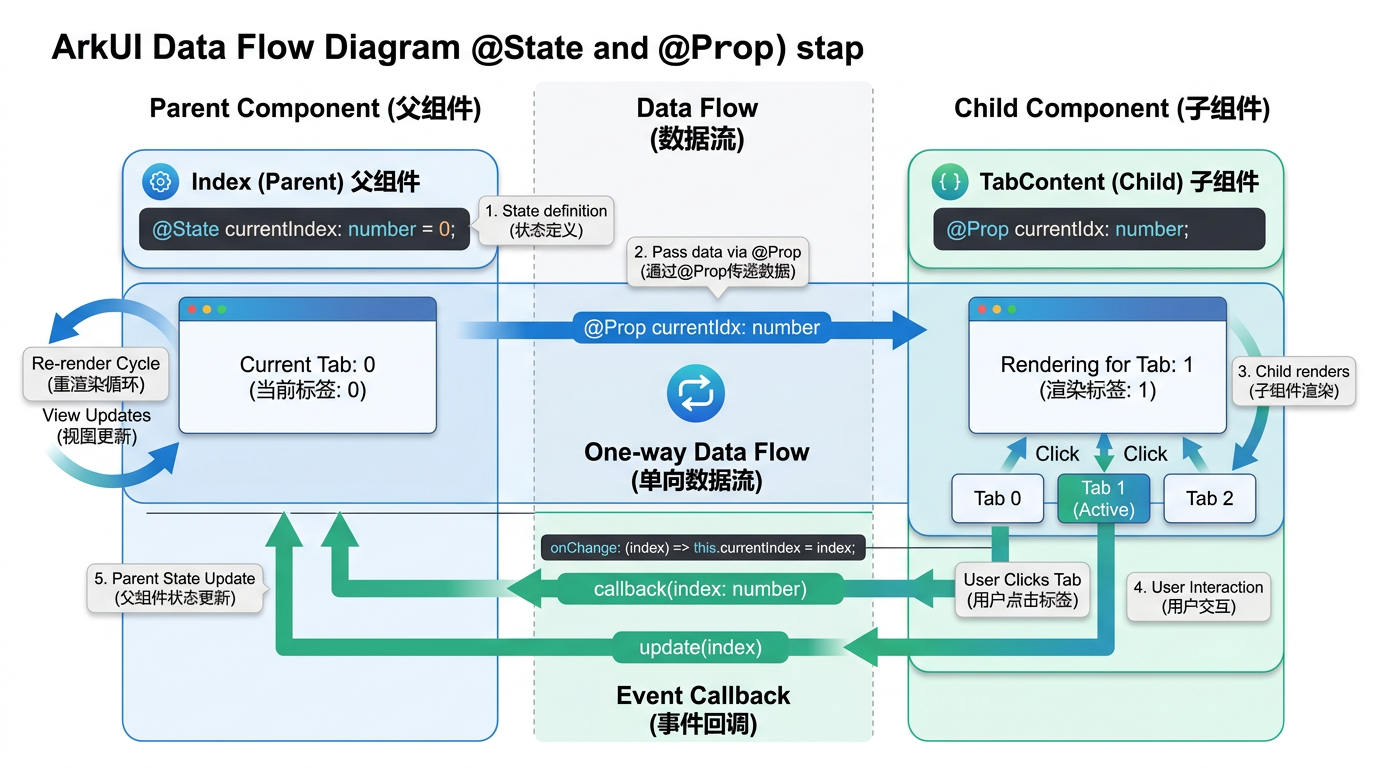
状态管理 是 ArkUI 声明式 UI 范式的核心,@State 和 @Prop 是最基础的两个装饰器。小分享 App 的 BottomTabBar 通过 @State 和 @Prop 实现 Tab 高亮联动,是理解状态管理的经典案例。本篇详细讲解状态的定义、传递和响应式更新。详细 API 可参考 HarmonyOS 状态管理官方文档。
一、@State 装饰器
1.1 基本用法
@State 用于声明组件内部状态,状态变化时自动触发 UI 重建:
@Component
struct HomePage {
  @State currentTab: number = 0

  build() {
    Column() {
      // 内容区域
      Scroll() { /* ... */ }
        .layoutWeight(1)
      // 底部导航栏
      BottomTabBar({ currentIndex: this.currentTab })
    }
  }
}
1.2 @State 特性
| 特性 | 说明 | 示例 |
|---|---|---|
| 响应式 | 值变化时自动触发 UI 更新 | this.currentTab = 1 → UI 刷新 |
| 私有 | 仅当前组件可访问 | 子组件无法直接修改 |
| 初始化 | 必须赋初始值 | @State count: number = 0 |
| 类型 | 支持基本类型、对象、数组 | @State items: Array<string> = [] |
提示:@State 变量变化时,整个组件的
build方法会重新执行,性能敏感场景需谨慎。
二、@Prop 装饰器
2.1 基本用法
@Prop 用于父组件向子组件传递数据,实现单向数据流:
@Component
export struct BottomTabBar {
  @Prop currentIndex: number = 0   // 默认值 0
  @Prop title: string = ''
}
2.2 父子传递
父组件通过属性语法传递数据给子组件:
// 父组件(HomePage)
@State currentTab: number = 0
BottomTabBar({ currentIndex: this.currentTab })

// 子组件(BottomTabBar)
@Prop currentIndex: number = 0
2.3 @Prop 特性
| 特性 | 说明 |
|---|---|
| 单向数据流 | 父→子,子修改不影响父 |
| 默认值 | 可设置默认值,组件独立使用时生效 |
| 响应式 | 父组件变化时子组件自动更新 |
| 类型支持 | 支持基本类型、对象、数组 |
三、Tab 高亮联动实现
3.1 完整数据流
HomePage 组件
  @State currentTab: number = 0
    │
    ├─ onClick → 改变 currentTab
    │
    └─ BottomTabBar({ currentIndex: this.currentTab })
           │
           @Prop currentIndex: number = 0
           │
           └─ Text(item.label)
                .fontColor(index === this.currentIndex ? '#F5A623' : '#999999')
3.2 高亮逻辑
Text(item.label)
  .fontSize(10)
  .fontColor(index === this.currentIndex ? '#F5A623' : '#999999')
3.3 高亮状态对比
| 状态 | 条件 | 文字颜色 | 图标颜色 |
|---|---|---|---|
| 选中 | index === currentIndex |
#F5A623 (橙色) |
正常显示 |
| 未选中 | index !== currentIndex |
#999999 (灰色) |
正常显示 |
四、@State 与 @Prop 对比
4.1 对比表格
| 特性 | @State | @Prop |
|---|---|---|
| 所属 | 当前组件 | 当前组件 |
| 数据来源 | 自身初始化 | 父组件传入 |
| 修改影响 | 触发自身 UI 更新 | 不影响父组件 |
| 默认值 | 必须初始化 | 可选 |
| 生命周期 | 组件生命周期 | 同组件生命周期 |
| 作用域 | 组件内 | 组件内 |
4.2 代码块对比
// @State 示例:组件内私有状态
@Component
struct Counter {
  @State count: number = 0

  build() {
    Button(`Count: ${this.count}`)
      .onClick(() => { this.count++ })
  }
}

// @Prop 示例:父组件传值
@Component
struct Display {
  @Prop value: number = 0

  build() {
    Text(`Value: ${this.value}`)
  }
}
五、@State 在编辑器中的使用
5.1 文字编辑器状态
@Component
struct TextEditPage {
  @State textContent: string = '生活的美好在于分享'
  @State fontSize: number = 16
  @State fontColor: string = '#333333'
  @State isBold: boolean = false
  @State textAlign: TextAlign = TextAlign.Start
}
5.2 双向绑定
TextArea({ text: this.textContent, placeholder: '输入内容...' })
  .onChange((value: string) => {
    this.textContent = value   // 状态变化 → UI 自动更新
  })
六、@State 在筛选器中的使用
6.1 滤镜选中态
@Component
struct ImageEditPage {
  @State selectedFilter: number = 0

  build() {
    ForEach(this.filters, (item: FilterItem, index: number) => {
      Column()
        .border({
          width: this.selectedFilter === index ? 2 : 0,
          color: '#F5A623'
        })
        .onClick(() => {
          this.selectedFilter = index   // 选中态变化
        })
    })
  }
}
6.2 分类 Tab 选中态
@Component
struct TemplateSelectPage {
  @State selectedCategory: number = 0

  build() {
    ForEach(this.categories, (item: string, index: number) => {
      Text(item)
        .fontColor(this.selectedCategory === index ? '#F5A623' : '#666666')
        .fontWeight(this.selectedCategory === index ? FontWeight.Bold : FontWeight.Normal)
        .onClick(() => { this.selectedCategory = index })
    })
  }
}
七、@State 不可变数据原则
7.1 对象类型
// ❌ 直接修改对象属性不会触发 UI 更新
this.item.title = '新标题'

// ✅ 创建新对象
this.item = { ...this.item, title: '新标题' }
7.2 数组类型
// ❌ 直接修改数组元素不会触发更新
this.categories[0].label = '新文字'

// ✅ 创建新数组
this.categories = this.categories.map((item, index) => {
  if (index === 0) { return { ...item, label: '新文字' } }
  return item
})
7.3 代码块示例:不可变操作
// 使用展开运算符实现不可变
const updated = [...this.items, newItem]
this.items = updated

// 使用 filter 删除
this.items = this.items.filter(i => i.id !== removeId)

// 使用 map 更新
this.items = this.items.map(i => {
  if (i.id === targetId) { return { ...i, title: '新标题' } }
  return i
})
八、常见问题
8.1 问题 1:@State 修改后 UI 不更新
原因:对于对象或数组类型,直接修改内部属性不会触发响应式更新。
解决:始终创建新的对象或数组。
8.2 问题 2:@Prop 默认值不生效
原因:父组件未传值时,使用默认值;父组件传 undefined 时,不会回退到默认值。
解决:在父组件中始终提供有效的值。
九、核心知识点
9.1 状态管理要点
@State:组件内私有状态,变化触发 UI 更新@Prop:父→子单向数据传递- 不可变数据原则:创建新对象/数组替代直接修改
@State支持基本类型、对象、数组
9.2 实战建议
- 状态变化遵循不可变原则
@Prop默认值确保组件独立可用- 复杂状态使用
@Observed+@ObjectLink
总结
本文详细讲解了 HarmonyOS 状态管理中 @State 和 @Prop 装饰器的使用,结合小分享 App 的 BottomTabBar 高亮联动、文字编辑器状态、滤镜选中态等实际案例,演示了状态的定义、传递和响应式更新。下一篇我们将深入 TextEditPage 文字编辑器的实现。
附录:状态管理实战对比
不同状态管理方案的适用场景
| 方案 | 适用场景 | 复杂度 | 推荐度 |
|---|---|---|---|
| @State | 组件内私有状态 | 低 | ⭐⭐⭐⭐⭐ |
| @Prop | 父→子单向传参 | 低 | ⭐⭐⭐⭐⭐ |
| @Link | 父子双向同步 | 中 | ⭐⭐⭐⭐ |
| @Provide/@Consume | 跨层级共享 | 中 | ⭐⭐⭐⭐ |
| AppStorage | 应用级全局状态 | 中 | ⭐⭐⭐⭐ |
| LocalStorage | 页面级局部状态 | 中 | ⭐⭐⭐ |
| @Observed/@ObjectLink | 复杂对象监听 | 高 | ⭐⭐⭐ |
小分享 App 中的状态管理实践
| 页面 | 使用的装饰器 | 管理的数据 |
|---|---|---|
| HomePage | @State | currentTab 选中 Tab |
| BottomTabBar | @Prop | currentIndex 高亮索引 |
| TextEditPage | @State | textContent, fontSize |
| ImageEditPage | @State | selectedFilter 滤镜选中 |
| LinkEditPage | @State | linkTitle, showDescription |
| TemplateSelectPage | @State | selectedCategory 分类选中 |
| FavoritesPage | @State | selectedTab 分类选中 |
提示:在小分享 App 中,所有页面级状态均使用 @State 管理,组件间传参使用 @Prop,没有使用全局状态管理。这种方案在页面数量较少时足够简洁高效。
状态管理最佳实践总结
- 状态最小化原则:只在需要驱动 UI 更新的数据上使用 @State,普通变量用常规声明
- 单向数据流:优先使用 @Prop 单向传递,避免 @Link 造成的双向耦合
- 不可变更新:对象和数组始终创建新副本,不要直接修改原数据
- 状态提升:多个子组件需要共享的状态,提升到最近的共同父组件中管理
- 局部优先:能用 @State 解决的问题,不用全局状态方案
代码块示例:完整的状态管理流程
// 1. 父组件定义状态
@Entry
@Component
struct ParentPage {
  @State activeIndex: number = 0

  build() {
    Column() {
      // 2. 通过 @Prop 传递给子组件
      ChildComponent({ index: this.activeIndex })
      // 3. 通过回调修改状态
      Button('切换').onClick(() => {
        this.activeIndex = 1  // 触发 UI 更新
      })
    }
  }
}

// 4. 子组件接收状态
@Component
struct ChildComponent {
  @Prop index: number = 0

  build() {
    Text(`当前索引: ${this.index}`)
  }
}
调试技巧
// 使用 @Watch 监听状态变化
@State @Watch('onStateChange') count: number = 0

onStateChange(): void {
  console.info('count changed to: ' + this.count)
}
性能注意事项
- 避免在 @State 中存储大量数据(如大型数组),会导致每次变化时全量对比
- 频繁变化的状态(如动画帧)建议使用
@State配合animateTo方法 - 对象类型的 @State 变化时,只有引用变化才会触发 UI 更新,内部属性变化不触发
与 Vue/React 状态管理对比
| 特性 | ArkTS @State | Vue ref() | React useState |
|---|---|---|---|
| 响应式 | 自动追踪 | 自动追踪 | 显式 setter |
| 对象变更 | 需创建新引用 | 深层响应式 | 需创建新引用 |
| 数组变更 | 需创建新数组 | 支持索引变更 | 需创建新数组 |
| 装饰器 | @State | ref/reactive | useState |
| 学习成本 | 低 | 低 | 中 |
提示:ArkTS 的 @State 在使用上与 React 的 useState 类似,都需要遵循不可变数据原则。这与 Vue 的响应式系统(支持深层监听)有所不同。 如果这篇文章对你有帮助,欢迎点赞👍、收藏⭐、关注🔔,你的支持是我持续创作的动力!

讨论HarmonyOS开发技术,专注于API与组件、DevEco Studio、测试、元服务和应用上架分发等。
更多推荐

 1
1 0
0- 0


 已为社区贡献24条内容

所有评论(0)