HarmonyOS ArkTS 实战:实现一个颜色拾取器
HarmonyOS ArkTS 实战:实现一个颜色拾取器
项目效果
本文实现的是一个基于 HarmonyOS 和 ArkTS 的颜色拾取器。项目中使用 ArkUI 组件完成页面布局,通过 @State 管理状态数据,实现RGB三原色滑块调节、实时颜色预览、HEX/RGB/HSV格式显示、一键复制颜色值、颜色历史记录和常用颜色面板等功能。
最终运行效果如下: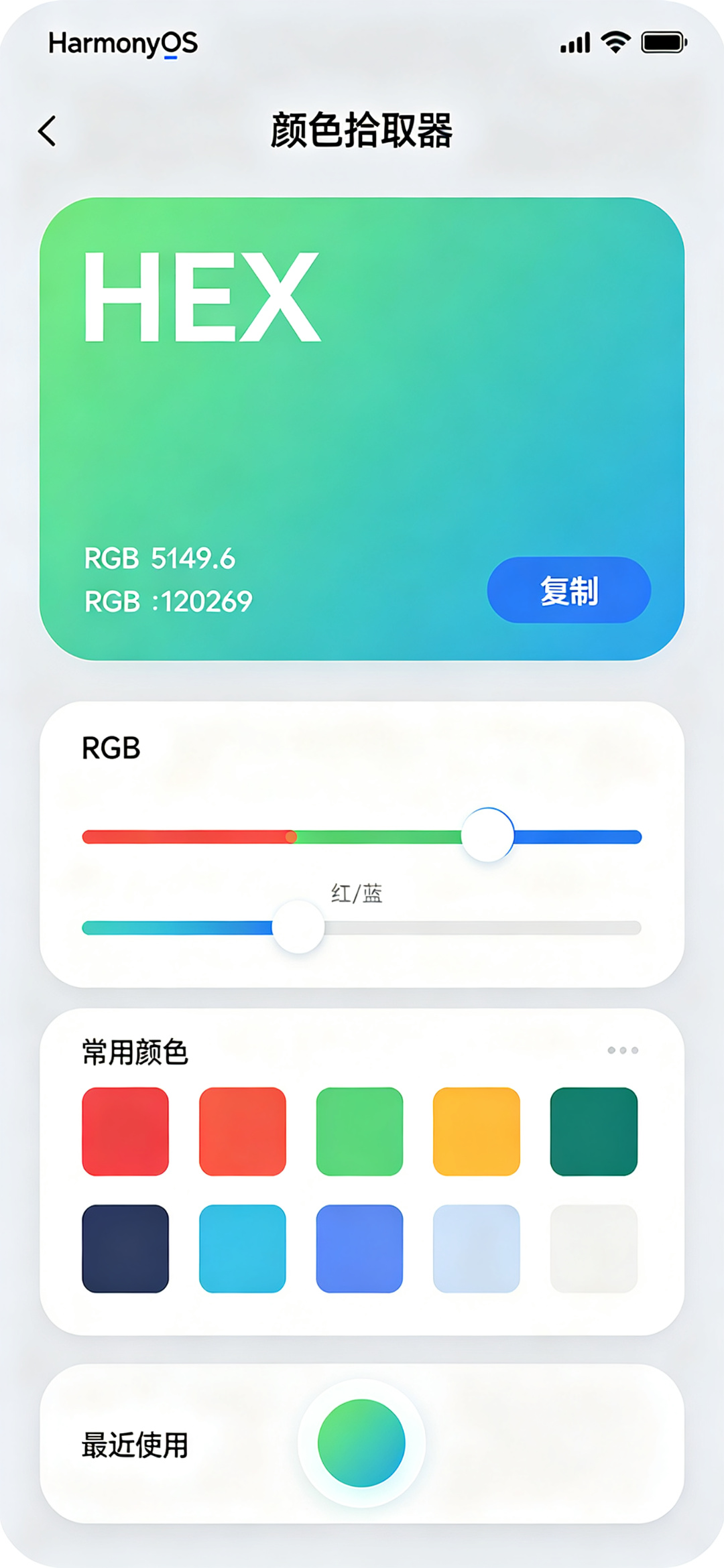
页面主要包含以下内容:
- 顶部应用标题;
- 大色块实时预览当前颜色;
- RGB三个滑块调节颜色;
- HEX十六进制颜色值;
- RGB颜色值;
- 一键复制按钮;
- 常用颜色快捷选择;
- 最近使用颜色历史;
- 页面整体采用 ArkUI 声明式布局。
本文重点是演示如何在 HarmonyOS 项目中使用 ArkTS 和 ArkUI 实现一个设计工具类单页面应用。项目代码主要写在 entry/src/main/ets/pages/Index.ets 文件中,适合作为 HarmonyOS ArkTS 入门到进阶之间的练习案例。
前言
在设计和开发过程中,我们经常需要调整和选择颜色。一个好用的颜色拾取器可以帮助我们直观地调节RGB值,查看不同格式的颜色表示,快速复制颜色代码。无论是UI设计还是前端开发,颜色工具都是必备的。
从应用开发角度来看,这个项目不依赖后端接口,也不需要数据库,但能练习 ArkTS 中的状态管理、滑块组件、颜色转换、剪贴板操作和列表渲染等内容。
本文基于 HarmonyOS 和 ArkTS 实现一个颜色拾取器。用户可以通过滑块调节红、绿、蓝三个通道,实时预览颜色,查看HEX和RGB格式的颜色值,一键复制,选择常用颜色,查看最近使用的颜色。
这个项目的核心不是简单的滑块调节,而是直观的颜色预览和便捷的颜色值获取。每一次滑块拖动,都会实时更新颜色预览和颜色值,这正是 ArkUI 声明式开发的基本思想。
一、项目目标
本次实践主要实现以下目标:
- 创建 HarmonyOS ArkTS 页面;
- 使用
@Entry和@Component定义页面组件; - 使用
@State管理页面状态; - 使用Slider组件调节RGB值;
- 实时预览混合后的颜色;
- 转换并显示HEX十六进制格式;
- 显示RGB格式颜色值;
- 实现一键复制颜色值;
- 提供常用颜色快捷选择;
- 保存最近使用的颜色历史;
- 使用
@Builder封装颜色块和颜色按钮; - 完成一个可以运行的颜色拾取器页面。
这个项目虽然是单页面应用,但它实现了完整的颜色调节、预览和复制功能,比普通静态页面更适合练习 ArkTS。
二、技术栈
| 类型 | 内容 |
|---|---|
| 开发方向 | HarmonyOS 应用开发 |
| 开发语言 | ArkTS |
| UI 框架 | ArkUI |
| SDK 版本 | HarmonyOS API 23 及以上 |
| 工程模型 | Stage 模型 |
| 核心组件 | Text / Button / Slider / Column / Row / Flex |
| 状态管理 | @State |
| 数据处理 | 颜色格式转换 / RGB转HEX / 剪贴板 |
| 项目入口 | entry/src/main/ets/pages/Index.ets |
| 运行平台 | 模拟器或真机 |
本项目是 HarmonyOS 原生 ArkTS 项目。页面主体由 ArkUI 组件构建,核心逻辑写在 Index.ets 文件中,不依赖后端接口,也不需要额外配置数据库。
三、为什么选择颜色拾取器项目
颜色拾取器适合作为 ArkTS 练习项目,主要有以下几个原因。
第一,实用性强。颜色选择是设计和开发中的常见需求,对设计师和开发者都很有用。
第二,视觉效果好。实时变化的颜色预览有很好的视觉反馈,界面美观。
第三,适合练习状态管理。R、G、B三个通道的值都属于页面状态。状态变化后,页面会自动刷新。
第四,适合练习滑块组件。Slider组件是常用的调节控件,掌握它可以应用到很多场景。
第五,适合练习颜色格式转换。RGB转HEX是常见的编程问题,可以练习字符串处理。
第六,扩展空间比较大。基础功能完成后,可以继续增加HSV调节、透明度调节、取色器、颜色收藏、调色板生成和颜色方案推荐。
在本项目中,RGB三个通道的值是核心数据。颜色预览和颜色值都基于这三个值计算。
四、功能规则说明
RGB取值范围:0-255,三个通道组合可以表示1677万种颜色。
颜色格式:
- HEX:#RRGGBB,例如#FF5733
- RGB:rgb(R, G, B),例如rgb(255, 87, 51)
常用预设颜色:红、橙、黄、绿、青、蓝、紫、黑、白、灰等12种常用颜色。
历史记录:最多保存最近使用的12种颜色,最新的在最前面。
复制功能:点击复制按钮将HEX颜色值复制到剪贴板。
五、项目结构
本项目主要修改首页文件:
entry
└── src
    └── main
        └── ets
            └── pages
                └── Index.ets
其中:
| 文件 | 作用 |
|---|---|
| Index.ets | 编写页面结构、状态数据和颜色处理逻辑 |
本文不涉及复杂路由,也不需要额外创建多个页面。对于练习项目来说,把主要逻辑集中在一个 Index.ets 文件中更方便理解。
六、核心实现思路
本项目的核心流程如下:
- 使用
@State保存红、绿、蓝三个通道的值; - 用户拖动滑块调节每个通道的值;
- 根据RGB值实时计算预览颜色;
- 将RGB值转换为HEX格式字符串;
- 显示RGB格式字符串;
- 点击常用颜色快速设置RGB值;
- 点击复制按钮复制HEX值到剪贴板;
- 保存使用过的颜色到历史记录;
- 点击历史颜色可以重新选中。
项目中最重要的状态变量如下:
@State red: number = 10
@State green: number = 89
@State blue: number = 247
@State history: string[] = []
其中:
| 状态变量 | 作用 |
|---|---|
| red | 红色通道(0-255) |
| green | 绿色通道(0-255) |
| blue | 蓝色通道(0-255) |
| history | 最近使用颜色历史 |
RGB三个值是本项目中最重要的数据,所有颜色计算都基于它们。
七、Index.ets 完整代码
打开文件:
entry/src/main/ets/pages/Index.ets
将其中内容替换为下面代码:
@Entry
@Component
struct Index {
  @State red: number = 10
  @State green: number = 89
  @State blue: number = 247
  @State history: string[] = ['#FF6B6B', '#4ECDC4', '#45B7D1', '#96CEB4']

  private presetColors: string[] = [
    '#EF4444', '#F59E0B', '#EAB308', '#22C55E',
    '#14B8A6', '#3B82F6', '#8B5CF6', '#EC4899',
    '#000000', '#6B7280', '#FFFFFF', '#F3F4F6'
  ]

  private getHexColor(): string {
    return '#' +
      this.toHex(this.red) +
      this.toHex(this.green) +
      this.toHex(this.blue)
  }

  private toHex(value: number): string {
    let hex = value.toString(16)
    return hex.length === 1 ? '0' + hex : hex
  }

  private getRgbColor(): string {
    return `rgb(${this.red}, ${this.green}, ${this.blue})`
  }

  private setColor(hex: string): void {
    let r = parseInt(hex.substring(1, 3), 16)
    let g = parseInt(hex.substring(3, 5), 16)
    let b = parseInt(hex.substring(5, 7), 16)

    this.red = r
    this.green = g
    this.blue = b
  }

  private copyColor(): void {
    let context = getContext(this)
    try {
      context.clipboard.setContent(this.getHexColor())
      this.addToHistory(this.getHexColor())
    } catch (e) {
      console.error('复制失败')
    }
  }

  private addToHistory(color: string): void {
    if (this.history.includes(color)) return
    this.history = [color, ...this.history].slice(0, 12)
  }

  private getTextColor(): string {
    let brightness = (this.red * 299 + this.green * 587 + this.blue * 114) / 1000
    return brightness > 128 ? '#000000' : '#FFFFFF'
  }

  @Builder
  ColorSlider(label: string, value: number, color: string, onChange: (v: number) => void) {
    Column() {
      Row() {
        Text(label)
          .fontSize(15)
          .fontWeight(FontWeight.Medium)
          .fontColor(color)
          .width(20)
        Text(`${value}`)
          .fontSize(15)
          .fontColor('#6B7280')
          .width(40)
          .textAlign(TextAlign.End)
      }
      .width('100%')
      .margin({ bottom: 8 })

      Slider({
        value: value,
        min: 0,
        max: 255,
        step: 1,
        style: SliderStyle.OutSet
      })
        .width('100%')
        .selectedColor(color)
        .trackColor(color + '30')
        .blockColor(color)
        .onChange((v: number) => {
          onChange(Math.round(v))
        })
    }
    .width('100%')
    .margin({ bottom: 16 })
  }

  @Builder
  ColorButton(color: string, isHistory: boolean = false) {
    Button()
      .width(isHistory ? 44 : 48)
      .height(isHistory ? 44 : 48)
      .backgroundColor(color)
      .borderRadius(isHistory ? 22 : 8)
      .border({ width: color === '#FFFFFF' ? 1 : 0, color: '#E5E7EB' })
      .onClick(() => {
        this.setColor(color)
      })
  }

  build() {
    Column() {
      Text('颜色拾取器')
        .fontSize(28)
        .fontWeight(FontWeight.Bold)
        .fontColor('#182431')
        .margin({ top: 22 })
      Text('基于 HarmonyOS ArkTS 的颜色工具')
        .fontSize(14)
        .fontColor('#6B7280')
        .margin({ top: 8, bottom: 20 })

      Stack() {
        Column()
          .width('100%')
          .height(180)
          .backgroundColor(this.getHexColor())
          .borderRadius(16)

        Column() {
          Text(this.getHexColor())
            .fontSize(36)
            .fontWeight(FontWeight.Bold)
            .fontColor(this.getTextColor())
          Text(this.getRgbColor())
            .fontSize(16)
            .fontColor(this.getTextColor())
            .opacity(0.8)
            .margin({ top: 8 })
        }
      }
      .width('100%')
      .margin({ bottom: 20 })

      Button('复制 HEX 颜色值')
        .width('100%')
        .height(48)
        .fontSize(16)
        .fontColor(Color.White)
        .backgroundColor('#0A59F7')
        .borderRadius(24)
        .margin({ bottom: 20 })
        .onClick(() => {
          this.copyColor()
        })

      Column() {
        Text('颜色调节')
          .fontSize(16)
          .fontWeight(FontWeight.Medium)
          .fontColor('#182431')
          .width('100%')
          .margin({ bottom: 16 })

        this.ColorSlider('R', this.red, '#EF4444', (v: number) => { this.red = v })
        this.ColorSlider('G', this.green, '#22C55E', (v: number) => { this.green = v })
        this.ColorSlider('B', this.blue, '#3B82F6', (v: number) => { this.blue = v })
      }
      .width('100%')
      .padding(16)
      .backgroundColor(Color.White)
      .borderRadius(16)
      .margin({ bottom: 16 })
      .shadow({
        radius: 8,
        color: '#08000000',
        offsetX: 0,
        offsetY: 2
      })

      Column() {
        Text('常用颜色')
          .fontSize(16)
          .fontWeight(FontWeight.Medium)
          .fontColor('#182431')
          .width('100%')
          .margin({ bottom: 12 })

        Flex({ wrap: FlexWrap.Wrap, justifyContent: FlexAlign.Start }) {
          ForEach(this.presetColors, (color: string) => {
            this.ColorButton(color)
              .margin({ right: 10, bottom: 10 })
          }, (c: string) => c)
        }
        .width('100%')
      }
      .width('100%')
      .padding(16)
      .backgroundColor(Color.White)
      .borderRadius(16)
      .margin({ bottom: 16 })
      .shadow({
        radius: 8,
        color: '#08000000',
        offsetX: 0,
        offsetY: 2
      })

      Column() {
        Text('最近使用')
          .fontSize(16)
          .fontWeight(FontWeight.Medium)
          .fontColor('#182431')
          .width('100%')
          .margin({ bottom: 12 })

        Flex({ wrap: FlexWrap.Wrap, justifyContent: FlexAlign.Start }) {
          ForEach(this.history, (color: string) => {
            this.ColorButton(color, true)
              .margin({ right: 10, bottom: 10 })
          }, (c: string) => c)
        }
        .width('100%')
      }
      .width('100%')
      .padding(16)
      .backgroundColor(Color.White)
      .borderRadius(16)
      .shadow({
        radius: 8,
        color: '#08000000',
        offsetX: 0,
        offsetY: 2
      })
    }
    .width('100%')
    .height('100%')
    .padding({ left: 18, right: 18 })
    .backgroundColor('#F5F7FA')
  }
}
八、代码实现说明
1. RGB转HEX
将0-255的数值转换为两位十六进制字符串,拼接成HEX颜色:
private toHex(value: number): string {
  let hex = value.toString(16)
  return hex.length === 1 ? '0' + hex : hex
}
2. HEX转RGB
点击预设颜色或历史颜色时,将HEX字符串解析为RGB三个值:
let r = parseInt(hex.substring(1, 3), 16)
let g = parseInt(hex.substring(3, 5), 16)
let b = parseInt(hex.substring(5, 7), 16)
3. 自适应文字颜色
根据背景颜色亮度自动选择黑色或白色文字,保证文字可读性:
let brightness = (this.red * 299 + this.green * 587 + this.blue * 114) / 1000
return brightness > 128 ? '#000000' : '#FFFFFF'
4. 滑块样式
每个颜色通道的滑块使用对应颜色作为主题色,视觉上直观区分R/G/B。
5. 复制功能
点击复制按钮将HEX值复制到剪贴板,并自动添加到历史记录。
6. 历史记录
复制颜色时自动保存到历史记录,去重并最多保留12个,点击可以快速重新选中。
九、运行项目
代码编写完成后,在DevEco Studio中运行项目。拖动RGB滑块,检查颜色预览是否实时变化,验证HEX和RGB值是否正确,测试常用颜色选择和复制功能,检查历史记录是否正常。
十、开发中遇到的问题
- 十六进制补零:小于16的数转十六进制只有一位,需要前面补0
- 文字颜色自适应:深色背景用白字,浅色背景用黑字,保证可读性
- 历史记录去重:相同颜色不重复添加
- 滑块颜色:每个滑块使用对应通道的颜色,直观清晰
十一、总结
本文基于HarmonyOS和ArkTS实现了一个颜色拾取器。项目通过@State管理RGB通道值,使用滑块调节颜色,实现了实时预览、格式转换、一键复制和历史记录等功能。这个项目展示了ArkTS中滑块组件、颜色处理和剪贴板操作的基本方法,适合作为入门练习项目。

讨论HarmonyOS开发技术,专注于API与组件、DevEco Studio、测试、元服务和应用上架分发等。
更多推荐


 5
5 0
0- 0


 已为社区贡献53条内容

所有评论(0)