HarmonyOS ArkTS 实战:实现一个简易手绘画板
HarmonyOS ArkTS 实战:实现一个简易手绘画板
项目效果
本文实现的是一个基于 HarmonyOS 和 ArkTS 的简易手绘画板。项目中使用 ArkUI 组件完成页面布局,通过 @State 管理状态数据,使用Canvas组件实现手绘功能,支持多种画笔颜色、画笔粗细调节、橡皮擦、清空画布和撤销功能。
最终运行效果如下:
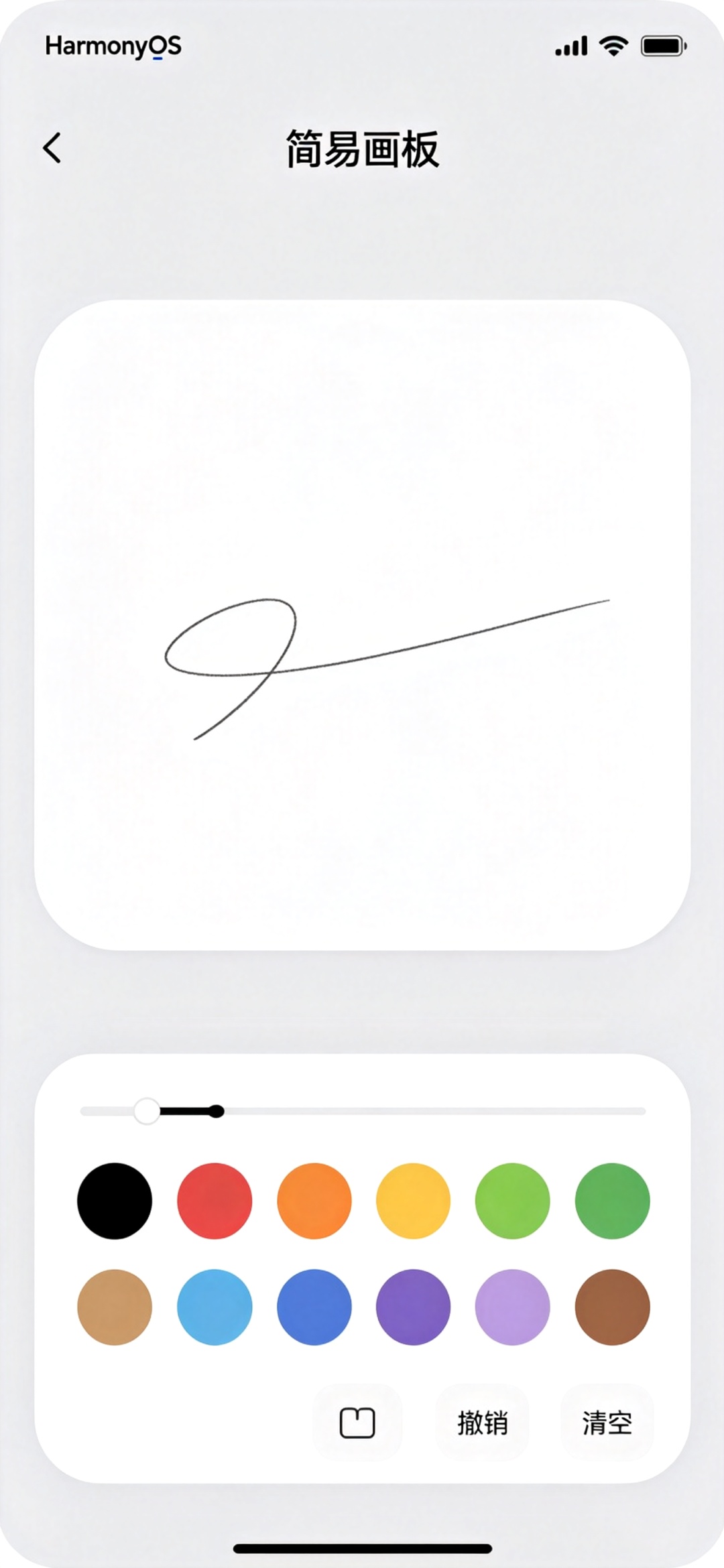
页面主要包含以下内容:
- 顶部应用标题;
- 白色画布区域,支持触摸手绘;
- 底部工具栏;
- 颜色选择器(8种常用颜色);
- 画笔粗细滑块;
- 橡皮擦切换;
- 撤销按钮;
- 清空按钮;
- 页面整体采用 ArkUI 声明式布局。
本文重点是演示如何在 HarmonyOS 项目中使用 ArkTS 和 ArkUI 实现一个手绘交互类单页面应用。项目代码主要写在 entry/src/main/ets/pages/Index.ets 文件中,适合作为 HarmonyOS ArkTS 入门到进阶之间的练习案例。
前言
手机上随手涂鸦是一个很有趣的功能,无论是记笔记、画草图还是随便画画,一个简单易用的画板都很有用。不需要复杂的功能,只要能流畅画线、换颜色、调粗细就足够日常使用了。
从应用开发角度来看,这个项目不依赖后端接口,也不需要数据库,但能练习 ArkTS 中的触摸事件处理、Canvas绘图、路径记录、状态管理和撤销功能等内容。
本文基于 HarmonyOS 和 ArkTS 实现一个简易手绘画板。用户可以在画布上自由绘画,选择不同颜色和粗细,使用橡皮擦,撤销上一笔,清空画布重新开始。
这个项目的核心不是复杂的绘图功能,而是流畅的触摸绘画体验和简单易用的工具栏。每一次触摸移动,都会实时绘制线条,这正是 ArkUI 触摸交互的基本思想。
一、项目目标
本次实践主要实现以下目标:
- 创建 HarmonyOS ArkTS 页面;
- 使用
@Entry和@Component定义页面组件; - 使用
@State管理页面状态; - 使用Canvas组件作为绘图区域;
- 处理触摸开始、移动、结束事件;
- 实现自由手绘线条;
- 支持8种画笔颜色切换;
- 支持画笔粗细调节(1-20px);
- 实现橡皮擦功能;
- 撤销上一笔功能;
- 清空画布功能;
- 使用
@Builder封装颜色按钮; - 完成一个可以运行的简易画板页面。
这个项目虽然是单页面应用,但它实现了完整的手绘交互功能,比普通静态页面更适合练习 ArkTS。
二、技术栈
| 类型 | 内容 |
|---|---|
| 开发方向 | HarmonyOS 应用开发 |
| 开发语言 | ArkTS |
| UI 框架 | ArkUI |
| SDK 版本 | HarmonyOS API 23 及以上 |
| 工程模型 | Stage 模型 |
| 核心组件 | Canvas / Button / Slider / Column / Row / Flex |
| 状态管理 | @State |
| 数据处理 | 触摸事件 / Canvas绘图 / 路径历史 |
| 项目入口 | entry/src/main/ets/pages/Index.ets |
| 运行平台 | 模拟器或真机 |
本项目是 HarmonyOS 原生 ArkTS 项目。页面主体由 ArkUI 组件构建,核心逻辑写在 Index.ets 文件中,不依赖后端接口,也不需要额外配置数据库。
三、为什么选择简易画板项目
简易画板适合作为 ArkTS 练习项目,主要有以下几个原因。
第一,交互性强。触摸绘画是非常直观的交互,有很好的用户体验。
第二,视觉反馈好。画线即时显示,颜色和粗细变化立即可见。
第三,适合练习触摸事件。onTouch事件是移动开发的基础,掌握它可以做很多交互功能。
第四,适合练习Canvas绘图。Canvas是2D绘图的基础,在很多场景都会用到。
第五,适合练习历史栈管理。撤销功能需要维护操作历史,是常见的功能模式。
第六,扩展空间比较大。基础功能完成后,可以继续增加形状绘制、文字添加、图片插入、保存图片、分享和多图层。
在本项目中,画笔颜色、粗细和绘制路径是核心数据。所有绘画操作都基于这些状态。
四、功能规则说明
画笔颜色:黑、红、橙、黄、绿、蓝、紫、棕共8种常用颜色。
画笔粗细:1-20像素,默认3像素。
橡皮擦:使用白色(画布背景色)绘制,宽度是画笔的2倍。
撤销:最多撤销20步,撤销最近的一笔。
清空:清除画布上所有内容,清空历史记录。
画布背景:白色,大小占满屏幕中间区域。
五、项目结构
本项目主要修改首页文件:
entry
└── src
    └── main
        └── ets
            └── pages
                └── Index.ets
其中:
| 文件 | 作用 |
|---|---|
| Index.ets | 编写页面结构、状态数据和Canvas绘图逻辑 |
本文不涉及复杂路由,也不需要额外创建多个页面。对于练习项目来说,把主要逻辑集中在一个 Index.ets 文件中更方便理解。
六、核心实现思路
本项目的核心流程如下:
- 使用
@State保存画笔颜色、粗细、橡皮擦模式; - 使用数组保存绘制历史,用于撤销;
- 触摸开始时,创建新路径,记录起点;
- 触摸移动时,记录路径点,实时绘制;
- 触摸结束时,将完整路径存入历史;
- 选择颜色时更新画笔颜色,自动退出橡皮擦;
- 调节滑块更新画笔粗细;
- 橡皮擦模式使用白色绘制;
- 撤销时删除最后一条路径,重绘所有内容;
- 清空时清空历史和画布。
项目中最重要的状态变量如下:
@State penColor: string = '#000000'
@State penWidth: number = 3
@State isEraser: boolean = false
private paths: PathInfo[] = []
private currentPath: PathInfo | null = null
private canvasContext: CanvasRenderingContext2D | null = null
其中:
| 状态变量 | 作用 |
|---|---|
| penColor | 画笔颜色 |
| penWidth | 画笔粗细 |
| isEraser | 是否橡皮擦模式 |
| paths | 所有绘制路径历史 |
| currentPath | 当前正在绘制的路径 |
| canvasContext | Canvas绘图上下文 |
路径历史是撤销功能的基础,每一笔都是一个独立的路径对象。
七、Index.ets 完整代码
打开文件:
entry/src/main/ets/pages/Index.ets
将其中内容替换为下面代码:
interface Point {
  x: number
  y: number
}

interface PathInfo {
  points: Point[]
  color: string
  width: number
}

@Entry
@Component
struct Index {
  @State penColor: string = '#000000'
  @State penWidth: number = 3
  @State isEraser: boolean = false
  private colors: string[] = ['#000000', '#EF4444', '#F59E0B', '#EAB308', '#22C55E', '#3B82F6', '#8B5CF6', '#92400E']
  private paths: PathInfo[] = []
  private currentPath: PathInfo | null = null
  private canvasContext: CanvasRenderingContext2D | null = null
  private canvasWidth: number = 0
  private canvasHeight: number = 0

  private onCanvasReady(event: CanvasRenderingContext2D): void {
    this.canvasContext = event
    this.redraw()
  }

  private redraw(): void {
    if (!this.canvasContext) return

    this.canvasContext.fillStyle = '#FFFFFF'
    this.canvasContext.fillRect(0, 0, this.canvasWidth, this.canvasHeight)

    this.paths.forEach((path: PathInfo) => {
      this.drawPath(path)
    })
  }

  private drawPath(path: PathInfo): void {
    if (!this.canvasContext || path.points.length < 2) return

    this.canvasContext.beginPath()
    this.canvasContext.strokeStyle = path.color
    this.canvasContext.lineWidth = path.width
    this.canvasContext.lineCap = 'round'
    this.canvasContext.lineJoin = 'round'

    this.canvasContext.moveTo(path.points[0].x, path.points[0].y)
    for (let i = 1; i < path.points.length; i++) {
      this.canvasContext.lineTo(path.points[i].x, path.points[i].y)
    }
    this.canvasContext.stroke()
  }

  private onTouchStart(event: TouchEvent): void {
    let touch = event.touches[0]
    let x = touch.x
    let y = touch.y

    this.currentPath = {
      points: [{ x, y }],
      color: this.isEraser ? '#FFFFFF' : this.penColor,
      width: this.isEraser ? this.penWidth * 3 : this.penWidth
    }
  }

  private onTouchMove(event: TouchEvent): void {
    if (!this.currentPath || !this.canvasContext) return

    let touch = event.touches[0]
    let x = touch.x
    let y = touch.y

    this.currentPath.points.push({ x, y })

    if (this.currentPath.points.length >= 2) {
      let len = this.currentPath.points.length
      let p1 = this.currentPath.points[len - 2]
      let p2 = this.currentPath.points[len - 1]

      this.canvasContext.beginPath()
      this.canvasContext.strokeStyle = this.currentPath.color
      this.canvasContext.lineWidth = this.currentPath.width
      this.canvasContext.lineCap = 'round'
      this.canvasContext.lineJoin = 'round'
      this.canvasContext.moveTo(p1.x, p1.y)
      this.canvasContext.lineTo(p2.x, p2.y)
      this.canvasContext.stroke()
    }
  }

  private onTouchEnd(): void {
    if (this.currentPath && this.currentPath.points.length > 1) {
      this.paths.push(this.currentPath)
      if (this.paths.length > 50) {
        this.paths.shift()
      }
    }
    this.currentPath = null
  }

  private undo(): void {
    if (this.paths.length > 0) {
      this.paths.pop()
      this.redraw()
    }
  }

  private clear(): void {
    this.paths = []
    this.redraw()
  }

  private selectColor(color: string): void {
    this.penColor = color
    this.isEraser = false
  }

  private toggleEraser(): void {
    this.isEraser = !this.isEraser
  }

  @Builder
  ColorButton(color: string) {
    Button()
      .width(36)
      .height(36)
      .backgroundColor(color)
      .borderRadius(18)
      .border({
        width: this.penColor === color && !this.isEraser ? 3 : 1,
        color: this.penColor === color && !this.isEraser ? '#0A59F7' : '#E5E7EB'
      })
      .onClick(() => {
        this.selectColor(color)
      })
  }

  build() {
    Column() {
      Text('简易画板')
        .fontSize(28)
        .fontWeight(FontWeight.Bold)
        .fontColor('#182431')
        .margin({ top: 22 })
      Text('基于 HarmonyOS ArkTS 的手绘工具')
        .fontSize(14)
        .fontColor('#6B7280')
        .margin({ top: 8, bottom: 16 })

      Canvas(this.onCanvasReady.bind(this))
        .width('100%')
        .layoutWeight(1)
        .backgroundColor(Color.White)
        .borderRadius(16)
        .shadow({
          radius: 8,
          color: '#08000000',
          offsetX: 0,
          offsetY: 2
        })
        .onTouch((event: TouchEvent) => {
          if (event.type === TouchType.Down) {
            this.onTouchStart(event)
          } else if (event.type === TouchType.Move) {
            this.onTouchMove(event)
          } else if (event.type === TouchType.Up || event.type === TouchType.Cancel) {
            this.onTouchEnd()
          }
        })
        .onAreaChange((oldValue: Area, newValue: Area) => {
          this.canvasWidth = Number(newValue.width)
          this.canvasHeight = Number(newValue.height)
        })
        .margin({ bottom: 16 })

      Column() {
        Row() {
          Text('画笔粗细')
            .fontSize(14)
            .fontColor('#4B5563')
          Blank()
          Text(`${this.penWidth}px`)
            .fontSize(14)
            .fontColor('#0A59F7')
        }
        .width('100%')
        .margin({ bottom: 8 })

        Slider({
          value: this.penWidth,
          min: 1,
          max: 20,
          step: 1,
          style: SliderStyle.OutSet
        })
          .width('100%')
          .selectedColor('#0A59F7')
          .blockColor('#0A59F7')
          .onChange((v: number) => {
            this.penWidth = Math.round(v)
          })
          .margin({ bottom: 16 })

        Text('画笔颜色')
          .fontSize(14)
          .fontColor('#4B5563')
          .width('100%')
          .margin({ bottom: 12 })

        Flex({ justifyContent: FlexAlign.SpaceBetween }) {
          ForEach(this.colors, (color: string) => {
            this.ColorButton(color)
          }, (c: string) => c)
        }
        .width('100%')
        .margin({ bottom: 16 })

        Row() {
          Button(this.isEraser ? '画笔' : '橡皮擦')
            .layoutWeight(1)
            .height(44)
            .fontSize(15)
            .fontColor(this.isEraser ? Color.White : '#4B5563')
            .backgroundColor(this.isEraser ? '#0A59F7' : '#F3F4F6')
            .borderRadius(22)
            .onClick(() => {
              this.toggleEraser()
            })
          Blank().width(12)
          Button('撤销')
            .layoutWeight(1)
            .height(44)
            .fontSize(15)
            .fontColor('#4B5563')
            .backgroundColor('#F3F4F6')
            .borderRadius(22)
            .onClick(() => {
              this.undo()
            })
          Blank().width(12)
          Button('清空')
            .layoutWeight(1)
            .height(44)
            .fontSize(15)
            .fontColor('#EF4444')
            .backgroundColor('#FEF2F2')
            .borderRadius(22)
            .onClick(() => {
              this.clear()
            })
        }
        .width('100%')
      }
      .width('100%')
      .padding(16)
      .backgroundColor(Color.White)
      .borderRadius(16)
      .shadow({
        radius: 8,
        color: '#08000000',
        offsetX: 0,
        offsetY: 2
      })
    }
    .width('100%')
    .height('100%')
    .padding({ left: 18, right: 18, bottom: 18 })
    .backgroundColor('#F5F7FA')
  }
}
八、代码实现说明
1. 触摸事件处理
处理三个触摸事件:
- Down:创建新路径,记录起点
- Move:添加点到路径,实时绘制线段
- Up:路径完成,存入历史
2. 实时绘制
触摸移动时不重绘所有内容,只绘制最后两个点之间的线段,保证绘画流畅不卡顿。
3. 路径历史
每一笔作为一个独立的PathInfo对象存入数组,包含所有点、颜色和宽度,用于撤销和重绘。
4. 撤销功能
撤销时删除最后一条路径,然后清空画布重绘所有剩余路径。最多保存50步防止内存溢出。
5. 橡皮擦
橡皮擦本质是用白色(画布背景色)绘制,宽度是普通画笔的3倍,这样擦除更高效。
6. 圆角线条
设置lineCap和lineJoin为round,让线条端点和连接处更圆润自然,绘画体验更好。
九、运行项目
代码编写完成后,在DevEco Studio中运行项目。在画布上拖动手指绘画,测试不同颜色和粗细,使用橡皮擦,测试撤销和清空功能,检查线条是否流畅。
十、开发中遇到的问题
- 流畅性:移动时只画最后一段,不重绘全部,保证60fps流畅
- 坐标获取:正确获取触摸点相对于Canvas的坐标
- 橡皮擦效果:用背景色绘制实现擦除,比真正清除像素简单
- 历史限制:限制历史步数防止画太多导致内存问题
十一、总结
本文基于HarmonyOS和ArkTS实现了一个简易手绘画板。项目通过Canvas组件和触摸事件实现自由绘画,支持颜色选择、粗细调节、橡皮擦、撤销和清空功能。这个项目展示了ArkTS中Canvas绘图、触摸事件处理和历史栈管理的基本方法,适合作为入门练习项目。

讨论HarmonyOS开发技术,专注于API与组件、DevEco Studio、测试、元服务和应用上架分发等。
更多推荐
 4
4 0
0- 0


 已为社区贡献53条内容

所有评论(0)