HarmonyOs应用《日记本》开发第18篇 - 日记详情页面 DiaryDetail 详解
·
本篇分析日记详情展示页面的实现,包括数据加载、信息展示、编辑跳转和删除交互。
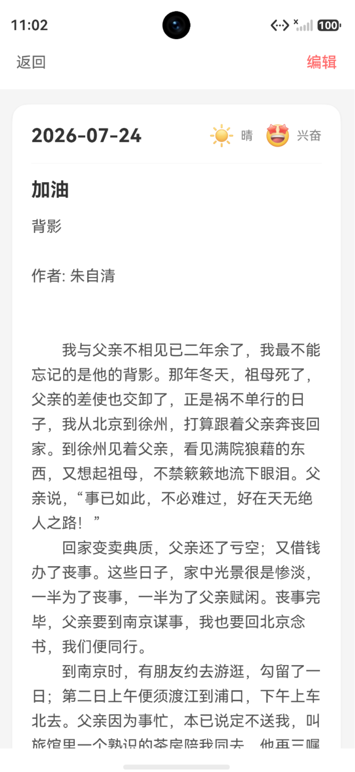
一、页面功能概述
DiaryDetail 页面用于展示单条日记的完整内容,提供以下功能:
- 展示日记的日期、天气、心情、内容
- 支持跳转到编辑页面修改
- 支持删除当前日记
- 返回列表页面
二、页面状态与生命周期
2.1 状态定义
@Entry
@Component
struct DiaryDetail {
  @State diary: DiaryInfo = new DiaryInfo()
  @State isLoading: boolean = true
  @State showDeleteDialog: boolean = false

  private store: DiaryStore = DiaryStore.getInstance()
  private diaryId: string = ''
}
2.2 接收路由参数
aboutToAppear() {
  const params = router.getParams() as Record<string, string>
  if (params && params.id) {
    this.diaryId = params.id
    this.loadDiaryDetail(this.diaryId)
  } else {
    promptAction.showToast({ message: '参数错误', duration: 2000 })
    router.back()
  }
}
参数获取流程:
- 从路由参数中提取
id - 若
id存在,加载对应日记数据 - 若
id缺失,提示错误并返回上一页
三、数据加载
private async loadDiaryDetail(id: string) {
  this.isLoading = true
  try {
    const result = await this.store.getDiaryById(id)
    if (result) {
      this.diary = result
    } else {
      promptAction.showToast({ message: '日记不存在', duration: 2000 })
      setTimeout(() => {
        router.back()
      }, 1500)
    }
  } catch (error) {
    console.error('加载日记详情失败: ' + error)
    promptAction.showToast({ message: '加载失败', duration: 2000 })
  } finally {
    this.isLoading = false
  }
}
加载流程说明:
- 异步从 Preferences 存储中读取
- 数据存在时更新
@State diary - 数据不存在时提示并自动返回
finally确保加载状态重置
四、页面布局
4.1 整体结构
┌──────────────────────────────┐
│  ← 返回     日记详情    编辑 │  导航栏
├──────────────────────────────┤
│                              │
│     📅 2026年7月24日          │  日期
│     星期四                    │
│                              │
│  ┌──────┐ ┌──────┐           │
│  │☀️ 晴天│ │😊 开心│           │  天气与心情
│  └──────┘ └──────┘           │
│                              │
│  ━━━━━━━━━━━━━━━━━━━━━━━━   │  分割线
│                              │
│  今天是一个美好的日子。        │  日记内容
│  早上起床后去公园跑步,        │
│  阳光正好,微风轻拂。         │
│  下午看了一本好书,            │
│  学到了很多新知识...           │
│                              │
│                              │
│           [删除日记]          │  删除按钮
└──────────────────────────────┘
4.2 顶部导航栏
Row() {
  Text('返回')
    .fontSize(16)
    .onClick(() => {
      router.back()
    })

  Text('日记详情')
    .fontSize(18)
    .fontWeight(FontWeight.Bold)
    .layoutWeight(1)
    .textAlign(TextAlign.Center)

  Text('编辑')
    .fontSize(16)
    .fontColor('#007DFF')
    .onClick(() => {
      this.goToEdit()
    })
}
.width('100%')
.height(56)
五、内容展示
5.1 日期信息
Column({ space: 4 }) {
  Text(this.formatDisplayDate(this.diary.date))
    .fontSize(24)
    .fontWeight(FontWeight.Bold)
  Text(this.getWeekday(this.diary.date))
    .fontSize(14)
    .fontColor('#999')
}
.width('100%')
.padding(20)
.alignItems(HorizontalAlign.Start)
5.2 日期格式化展示
private formatDisplayDate(dateStr: string): string {
  const date = new Date(dateStr)
  return `${date.getFullYear()}年${date.getMonth() + 1}月${date.getDate()}日`
}

private getWeekday(dateStr: string): string {
  const date = new Date(dateStr)
  const weekdays = ['星期日', '星期一', '星期二', '星期三', '星期四', '星期五', '星期六']
  return weekdays[date.getDay()]
}
5.3 天气与心情标签
Row({ space: 12 }) {
  // 天气标签
  Row({ space: 6 }) {
    Text(this.diary.weather)
      .fontSize(14)
  }
  .padding({ left: 12, right: 12, top: 6, bottom: 6 })
  .backgroundColor('#E3F2FD')
  .borderRadius(16)

  // 心情标签
  Row({ space: 6 }) {
    Text(this.diary.mood)
      .fontSize(14)
  }
  .padding({ left: 12, right: 12, top: 6, bottom: 6 })
  .backgroundColor('#FFF3E0')
  .borderRadius(16)
}
.padding({ left: 20, right: 20 })
5.4 日记内容
Text(this.diary.content)
  .fontSize(16)
  .lineHeight(28)
  .padding(20)
  .width('100%')
文本展示要点:
lineHeight(28)增加行高,提升阅读体验fontSize(16)适合长文阅读- 全宽展示,充分利用屏幕空间
六、交互功能
6.1 跳转编辑
private goToEdit() {
  router.pushUrl({
    url: 'pages/DiaryEdit',
    params: {
      mode: 'edit',
      id: this.diaryId
    }
  })
}
6.2 页面返回刷新
onPageShow() {
  if (this.diaryId) {
    this.loadDiaryDetail(this.diaryId)
  }
}
当从编辑页面返回时,重新加载数据以确保展示最新内容。
6.3 删除确认
private showDeleteConfirm() {
  AlertDialog.show({
    title: '确认删除',
    message: '确定要删除这篇日记吗?删除后不可恢复。',
    primaryButton: {
      value: '取消',
      action: () => {
        // 取消删除
      }
    },
    secondaryButton: {
      value: '删除',
      fontColor: '#FF3B30',
      action: () => {
        this.deleteDiary()
      }
    }
  })
}
6.4 执行删除
private async deleteDiary() {
  try {
    await this.store.deleteDiary(this.diaryId)
    promptAction.showToast({ message: '删除成功', duration: 1500 })
    setTimeout(() => {
      router.back()
    }, 1000)
  } catch (error) {
    console.error('删除日记失败: ' + error)
    promptAction.showToast({ message: '删除失败', duration: 2000 })
  }
}
删除流程:
点击删除 → AlertDialog确认
    │
    ├──取消──→ 关闭弹窗
    │
    └──确认──→ 调用Store删除 → Toast提示 → 延迟返回列表页
七、加载状态处理
if (this.isLoading) {
  Column() {
    LoadingProgress()
      .width(40)
      .height(40)
    Text('加载中...')
      .fontSize(14)
      .fontColor('#999')
      .margin({ top: 12 })
  }
  .width('100%')
  .height('100%')
  .justifyContent(FlexAlign.Center)
} else {
  // 正常内容展示
  this.DiaryContent()
}
八、完整页面构建
build() {
  Column() {
    // 顶部导航栏
    this.TopBar()

    if (this.isLoading) {
      this.LoadingView()
    } else {
      Scroll() {
        Column() {
          this.DateSection()
          this.TagSection()
          this.ContentSection()
          this.DeleteButton()
        }
        .width('100%')
      }
      .layoutWeight(1)
    }
  }
  .width('100%')
  .height('100%')
  .backgroundColor('#FAFAFA')
}
九、总结
DiaryDetail 页面的核心设计:
- 单一职责:专注展示单条日记详情,编辑功能跳转到独立页面
- 数据安全:删除前必须二次确认,防止误操作
- 状态完整:加载中、数据存在、数据缺失三种状态都有处理
- 返回刷新:从编辑页返回时自动重新加载
- 用户体验:格式化日期、友好标签、行距优化阅读体验
详情页是 CRUD 应用中典型的 “Read” 页面,其设计模式适用于各类信息展示场景。

讨论HarmonyOS开发技术,专注于API与组件、DevEco Studio、测试、元服务和应用上架分发等。
更多推荐


 2
2 0
0- 0


 已为社区贡献102条内容

所有评论(0)