HarmonyOS应用开发实战:猫猫大作战-`Stack` 的 `alignContent` 9 位、`zIndex` 层序、状态遮罩叠层套路

前言
前 8 篇我们拆的主菜单元素都在 Column/Row 里依次排列——标题在上、按钮在中、规则在下。但实战中有一类布局是「叠」而非「排」:游戏页的棋盘 + 棋子 + 顶部 HUD三层叠在一起;暂停时全屏遮罩盖在棋盘上;弹窗居中浮在所有内容之上。这种「Z 轴叠层」就是 Stack 容器的主场。
本篇以「猫猫大作战」游戏页的 Stack 根布局为锚点,把 Stack 的 alignContent 9 位、zIndex 层序、状态遮罩叠层套路讲透。读完本篇你将能独立写出:三层叠游戏页、全屏暂停遮罩、居中浮弹窗三种叠层布局。
提示:本系列不讲 ArkTS 基础语法与环境搭建,假设你已跟完第 1–8 篇。
一、场景拆解:游戏页 Stack 根布局
打开 entry/src/main/ets/pages/Index.ets 的 build():
// 来源:entry/src/main/ets/pages/Index.ets  build()
build() {
  Stack() {
    if (this.gameState === GameState.IDLE) {
      MainMenuView()         // 主菜单
    } else if (this.gameState === GameState.PLAYING || this.gameState === GameState.PAUSED) {
      GameView()             // 游戏页
      if (this.gameState === GameState.PAUSED) {
        PauseOverlay()       // 暂停遮罩
      }
    } else if (this.gameState === GameState.GAME_OVER) {
      GameOverView()         // 结束页
    }
  }
  .width('100%').height('100%')
}
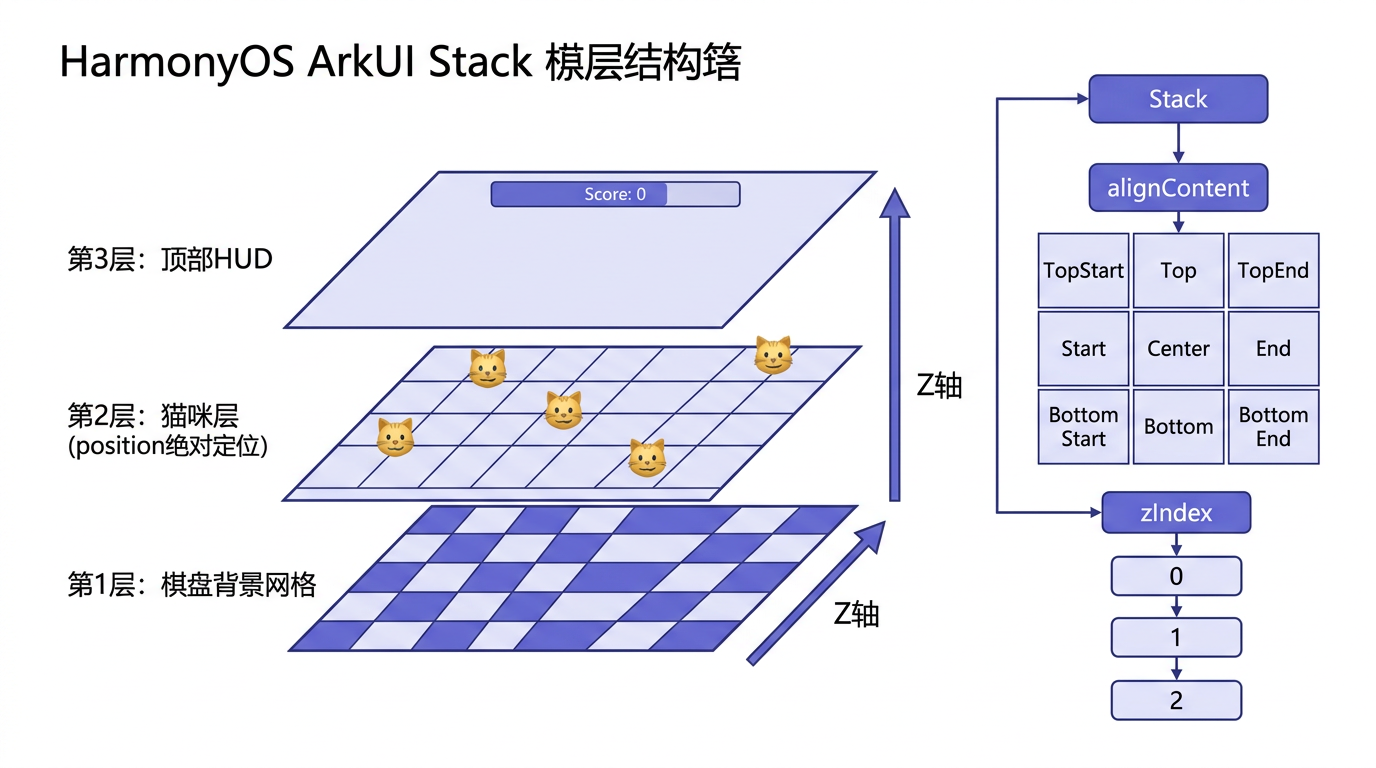
关键观察:Stack 只有一个子元素(当前状态的视图),不是叠层示范。真正展示叠层的在 GameView:
// 来源:entry/src/main/ets/pages/Index.ets  GameView()
Stack() {
  // 第 1 层:棋盘背景网格
  Column() {
    ForEach([0, 1, 2, 3, 4], (row: number) => {
      Row() {
        ForEach([0, 1, 2, 3, 4, 1, 2, 3], (col: number) => {
          Stack() {
            Text('').fontSize(20)
          }
          .width(`${100 / COLS}%`).height(`${100 / ROWS}%`)
          .backgroundColor((row + col) % 2 === 0 ? '#F0F4F8' : '#E6EDF3')
        })
      }.width('100%').height(`${100 / ROWS}%`)
    })
  }.width('100%').height('100%')

  // 第 2 层:猫咪层(绝对定位)
  Column() {
    ForEach(this.cats, (cat: Cat) => {
      Text(this.getCatEmoji(cat.level))
        .fontSize(30)
        .position({ x: `${cat.x * 100 / COLS}%`, y: `${cat.y * 100 / ROWS}%` })
    })
  }.width('100%').height('100%')

  // 第 3 层:顶部 HUD
  GameHUD()
}
.width('100%').height('100%')
三层叠结构:
| 层 | 内容 | Z 序 | 定位方式 |
|---|---|---|---|
| 底 | 棋盘背景网格 | 默认(最下) | 流式铺满 |
| 中 | 猫咪层 | 默认(中间) | position 绝对定位 |
| 上 | 顶部 HUD | 默认(最上) | 流式顶部对齐 |
二、Stack 容器核心属性速览
Stack 是叠层容器,子元素自下而上叠(后写的在上),默认所有子元素居中对齐。
2.1 本篇用到的属性
| 属性 | 类型 | 作用 | 本篇取值 |
|---|---|---|---|
width |
string | number | 容器宽度 | '100%' |
height |
string | number | 容器高度 | '100%' |
alignContent |
Alignment 枚举 | 子元素对齐位 | 默认 Center |
zIndex |
number | 子元素层序 | 0/1/2 控序 |
2.2 Stack vs Row/Column 区别
| 容器 | 子元素排列 | 默认对齐 | 适用 |
|---|---|---|---|
Row |
横排依次 | VerticalAlign.Center |
横排布局 |
Column |
竖排依次 | HorizontalAlign.Center |
竖排布局 |
Stack |
叠层(Z 轴) | Alignment.Center |
叠层、覆盖、绝对定位 |
记忆:Row/Column 是「排」,Stack 是「叠」——排是二维布局,叠是 Z 轴层序。
三、alignContent 9 位对齐
Alignment 枚举 9 值,3×3 网格:
| 枚举 | 水平 | 垂直 | 说明 |
|---|---|---|---|
TopStart |
左 | 顶 | 左上角 |
Top |
中 | 顶 | 顶部居中 |
TopEnd |
右 | 顶 | 右上角 |
Start |
左 | 中 | 左居中 |
Center |
中 | 中 | 居中(默认) |
End |
右 | 中 | 右居中 |
BottomStart |
左 | 底 | 左下角 |
Bottom |
中 | 底 | 底部居中 |
BottomEnd |
右 | 底 | 右下角 |
3.1 游戏页用默认 Center
Stack() {
  Column() { /* 棋盘 */ }.width('100%').height('100%')
  Column() { /* 猫咪 */ }.width('100%').height('100%')
  GameHUD()
}
.width('100%').height('100%')
// alignContent 不写,默认 Center
棋盘和猫咪层都 width('100%').height('100%') 鲺满,alignContent 无所谓——满铺就对齐。HUD 不铺满,默认居中——但 HUD 要顶部对齐,所以实战中要改:
Stack() {
  Column() { /* 棋盘 */ }.width('100%').height('100%')
  Column() { /* 猫咪 */ }.width('100%').height('100%')
  GameHUD()
}
.width('100%').height('100%')
.alignContent(Alignment.Top)    // HUD 顶部居中
3.2 全屏遮罩用 Center
Stack() {
  GameView()                    // 游戏页
  PauseOverlay()               // 暂停遮罩
}
.alignContent(Alignment.Center)  // 遮罩居中盖
PauseOverlay 是个半透明黑色 Column,居中盖在 GameView 上。
四、zIndex 显式控层序
默认 Stack 子元素后写的在上。要打破书写顺序,用 zIndex:
Stack() {
  Column() { /* 棋盘背景 */ }.width('100%').height('100%').zIndex(0)
  Column() { /* 猫咪层 */ }.width('100%').height('100%').zIndex(1)
  GameHUD().zIndex(2)
  PauseOverlay().zIndex(3)     // 暂停遮罩最上
}
zIndex 规则:
- 数值越大越在上:0 最底,3 最顶。
- 不设默认 0:同 0 时后写在上。
- 负值合法:
zIndex(-1)沉到所有默认 0 之下。
何时显式设 zIndex:
- 状态遮罩必须最上:
zIndex(10)。 - HUD 常驻上层:
zIndex(5)。 - 背景层沉底:
zIndex(0)或不设。
提示:别滥用 zIndex。多数场景靠书写顺序(后写在上)就够,显式设 zIndex 是为了「后写但要在下」的反序情况。
五、position 绝对定位
猫咪层的猫咪不靠流式布局,靠 position 绝对定位到棋盘格:
Text(this.getCatEmoji(cat.level))
  .fontSize(30)
  .position({ x: `${cat.x * 100 / COLS}%`, y: `${cat.y * 100 / ROWS}%` })
5.1 position 接受对象
.position({ x: number | string, y: number | string })
- x:距左上角水平偏移,支持 vp 数字或百分比字符串。
- y:距左上角垂直偏移,同上。
关键:position 是相对于父容器左上角,父容器必须是 Stack(或定位容器),Column/Row 里用 position 会脱离流式布局但定位基准仍是父左上角。
5.2 百分比定位的响应式
.position({ x: `${cat.x * 100 / COLS}%`, y: `${cat.y * 100 / ROWS}%` })
猫咪 cat.x = 2,列数 COLS = 5,则 x = '40%'——无论屏宽多少,猫咪都落在第 3 列(40% 处)。百分比定位是响应式绝对定位的甜区。
5.3 vp 定位的固定尺寸
.position({ x: 100, y: 200 }) // 距左 100vp,距顶 200vp
固定 vp 定位不响应屏宽,适合固定尺寸棋盘(如棋盘格子固定 60vp)。
六、实战 1:三层叠游戏页
Stack() {
  // 第 1 层:棋盘背景
  Column() {
    ForEach([0, 1, 2, 3, 4], (row: number) => {
      Row() {
        ForEach([0, 1, 2, 3, 4, 1, 2, 3], (col: number) => {
          Stack() {
            Text('').fontSize(20)
          }
          .width(`${100 / COLS}%`).height(`${100 / ROWS}%`)
          .backgroundColor((row + col) % 2 === 0 ? '#F0F4F8' : '#E6EDF3')
        })
      }.width('100%').height(`${100 / ROWS}%`)
    })
  }.width('100%').height('100%').zIndex(0)

  // 第 2 层:猫咪层(绝对定位)
  Column() {
    ForEach(this.cats, (cat: Cat) => {
      Text(this.getCatEmoji(cat.level))
        .fontSize(30)
        .position({ x: `${cat.x * 100 / COLS}%`, y: `${cat.y * 100 / ROWS}%` })
    })
  }.width('100%').height('100%').zIndex(1)

  // 第 3 层:顶部 HUD
  GameHUD().zIndex(2)
}
.width('100%').height('100%')
.alignContent(Alignment.Top)
七、实战 2:全屏暂停遮罩
@Builder
PauseOverlay() {
  Column() {
    Text('游戏暂停').fontSize(32).fontWeight(FontWeight.Bold).fontColor('#FFFFFF').margin({ bottom: 32 })
    Button('继续游戏')
      .width('70%').height(56).fontSize(18).fontColor('#FFFFFF')
      .backgroundColor('#2ECC71').borderRadius(28)
      .margin({ bottom: 16 })
      .onClick(() => { this.gameState = GameState.PLAYING; })
    Button('重新开始')
      .width('70%').height(56).fontSize(18).fontColor('#FFFFFF')
      .backgroundColor('#E74C3C').borderRadius(28)
      .onClick(() => { this.clearTimers(); this.startGame(); })
  }
  .width('100%').height('100%')
  .backgroundColor('rgba(0,0,0,0.7)')        // 半透明黑遮罩
  .alignItems(HorizontalAlign.Center)
  .justifyContent(FlexAlign.Center)
}

// 使用:叠在 GameView 上
Stack() {
  GameView()
  if (this.gameState === GameState.PAUSED) {
    PauseOverlay()
  }
}
遮罩三要点:
width('100%').height('100%'):齔屏遮盖。rgba(0,0,0,0.7):半透明黑,让下层游戏隐约可见。justifyContent(Center) + alignItems(Center):遮罩内部按钮居中。
八、实战 3:居中浮弹窗
Stack() {
  GameView()

  // 居中浮弹窗(非全屏遮罩)
  Column() {
    Text('确认重新开始?').fontSize(18).fontColor('#2C3E50').margin({ bottom: 24 })
    Row({ space: 12 }) {
      Button('取消').width(100).height(44).backgroundColor('#95A5A6').fontColor('#FFFFFF').borderRadius(22)
      Button('确认').width(100).height(44).backgroundColor('#E74C3C').fontColor('#FFFFFF').borderRadius(22)
    }
  }
  .width('70%').padding(24)
  .backgroundColor('#FFFFFF').borderRadius(16)
  .shadow({ radius: 16, color: 'rgba(0,0,0,0.3)', offsetY: 4 })
}
.alignContent(Alignment.Center)   // 弹窗居中
弹窗 vs 遮罩差异:
| 维度 | 全屏遮罩 | 居中弹窗 |
|---|---|---|
| 宽高 | 100%/100% | 70%/auto |
| 底色 | rgba(0,0,0,0.7) | #FFFFFF |
| 对齐 | 内部居中 | 容器居中(alignContent) |
| 阴影 | 无 | 有,浮起感 |
九、调试技巧:叠层怎么量
- 加临时 border:给每层加不同色 border(红/蓝/绿),看清层叠边界。
zIndex验层序:遮罩没盖住游戏?查 zIndex 是否比游戏大。position验基准:猫咪定位偏?父容器是否Stack,position基准是否父左上角。- 真机看遮罩透明:预览器渲染接近真机,但
rgba透明度可能差异,以真机为准。
十、性能与最佳实践
Stack层数别超 5:每层都是独立子树,超过 5 层布局计算开销显著。zIndex别跳数:用 0/1/2/3 连续,别 0/10/100/1000 跳——视觉无差异还难维护。position配Stack:绝对定位在Stack里最自然,在Column/Row里会脱离流式但基准仍是父。- 遮罩
rgba透明度 0.6–0.8:低于 0.6 下层太清晰不像遮罩,高于 0.8 太黑看不见下层。
总结
本篇我们从游戏页 Stack 根布局切入,掌握 Stack 的 alignContent 9 位、zIndex 层序、position 绝对定位三大要点,并给出了三层游戏页、全屏暂停遮罩、居中浮弹窗三种叠层布局的完整代码。核心要点:Stack 是叠非排,后写在上 zIndex 破序,position 配 Stack 做绝对定位,遮罩 100% + rgba 0.7。
下一篇我们将继续主菜单,拆解 if/else 状态驱动的页面切换机制。
如果这篇文章对你有帮助,欢迎点赞👍、收藏⭐、关注🔔,你的支持是我持续创作的动力!
相关资源:
- 「猫猫大作战」项目源码:本仓库
entry/src/main/ets/pages/Index.ets - Stack 容器官方指南
- Stack API 参考
- Alignment 枚举
- 开源鸿蒙跨平台社区
- HarmonyOS 开发者官方文档首页
- 系列索引:本仓库
articles/INDEX.md

讨论HarmonyOS开发技术,专注于API与组件、DevEco Studio、测试、元服务和应用上架分发等。
更多推荐


 7
7 0
0- 0


 已为社区贡献77条内容

所有评论(0)