HarmonyOS应用开发实战:猫猫大作战-transition 装饰绑定、TransitionType 推/拉/全部、与 if 条件渲染协同、与 H

前言
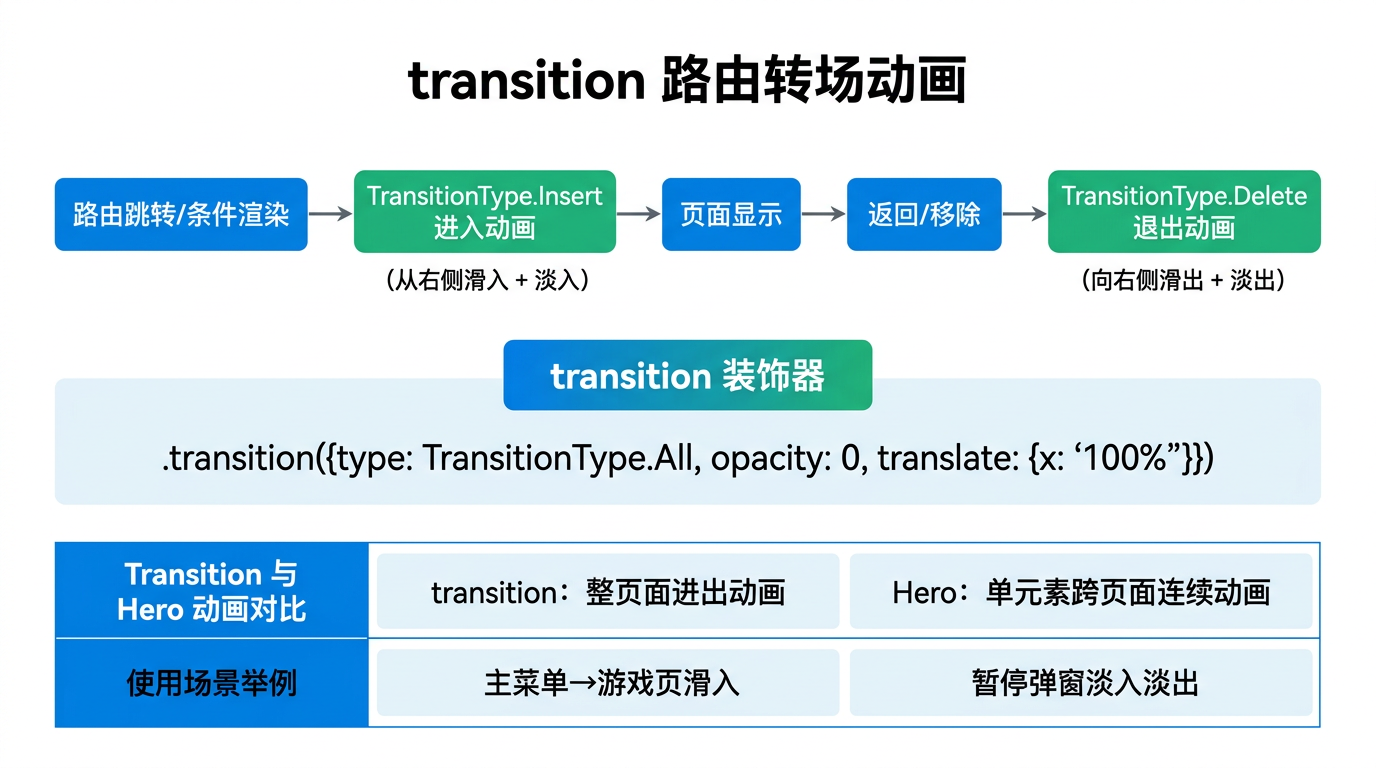
上一篇我们用 Hero 做了「单个元素跨页面」的连续动画——小猫图飞到大猫图。但整个页面的出现/消失怎么动?路由跳到新页面时新页面从右侧滑入、当前页面淡出;返回时反向。这种「整页面进/出」的转场动画用 transition 装饰器配合 if 条件渲染或路由切换触发。
本篇以「猫猫大作战」主菜单→游戏页、暂停弹窗进/出为场景,把 transition 装饰绑定、TransitionType 推/拉/全部、与 if 条件渲染协同、与 Hero 的差异四大要点讲透。
提示:本系列不讲 ArkTS 基础语法与环境搭建,假设你已跟完第 1–57 篇。本篇是阶段三第八篇。
一、场景拆解:主菜单与暂停弹窗的转场
回顾「猫猫大作战」状态切换(第 31、39 篇):
build() {
  Stack() {
    if (this.gameState === GameState.IDLE) {
      this.MainMenuView()        // 主菜单
    } else {
      this.GameView()            // 游戏页
    }
    if (this.gameState === GameState.PAUSED) {
      this.PauseOverlay()        // 暂停弹窗
    }
    if (this.gameState === GameState.GAME_OVER) {
      this.GameOverOverlay()     // 结束弹窗
    }
  }
}
痛点:if 条件渲染的组件出现/消失是瞬间的——主菜单切游戏页瞬切、暂停弹窗瞬现/瞬隐。玩家感觉「弹窗突兀」,缺过渡。
transition 的解法:
@Builder
PauseOverlay() {
  Column() { /* ... 弹窗内容 ... */ }
    .transition({ type: TransitionType.All, opacity: 0, scale: 0.8 }, { duration: 300, curve: Curve.EaseInOut })
}

// 出现:opacity 0→1, scale 0.8→1,300ms 淡入放大
// 消失:opacity 1→0, scale 1→0.8,300ms 淡出缩小
关键经验:transition 让 if 出现/消失的组件有进/出动画——不再瞬切,过渡平滑。
二、transition 装饰绑定
2.1 基本用法
Column() { /* ... */ }
  .transition({ type: TransitionType.All, opacity: 0 }, { duration: 300, curve: Curve.EaseInOut })
拆解:
| 片段 | 含义 |
|---|---|
.transition(translateParam, animationParam) | 转场装饰器 |
{ type: TransitionType.All, opacity: 0 } | TranslateParam:转场类型+起始属性 |
{ duration: 300, curve: Curve.EaseInOut } | AnimationParam:时长+曲线 |
机制:
- 组件出现(
if条件变 true):从opacity: 0补间到当前 opacity(1),300ms 淡入。 - 组件消失(
if条件变 false):从当前 opacity(1)补间到opacity: 0,300ms 淡出,完成后销毁。
2.2 TranslateParam 转场参数
interface TranslateParam {
  type?: TransitionType;       // 转场类型(Push/Pop/All)
  opacity?: number;            // 透明度起始值
  scale?: number;              // 缩放起始值(或 {x, y} 分轴)
  translate?: TranslateParam;  // 平移起始值({x, y})
  rotate?: number;             // 旋转起始值(度)
}
2.3 AnimationParam 动画参数
{
  duration: 300,           // 转场时长
  curve: Curve.EaseInOut,  // 缓动曲线
  delay: 0                 // 延迟
}
三、TransitionType 推/拉/全部
3.1 三种类型
enum TransitionType {
  Push,    // 进:组件出现时动
  Pop,     // 出:组件消失时动
  All      // 全:出现和消失都动
}
3.2 场景对照
| 场景 | type | 效果 |
|---|---|---|
| 暂停弹窗进/出都动 | All | 淡入放大 + 淡出缩小 |
| 新页面只管进 | Push | 滑入,消失瞬切 |
| 旧页面只管出 | Pop | 滑出,出现瞬切 |
关键经验:多数弹窗用 All——进/出都动才协调;只在「单向场景」用 Push/Pop。
3.3 路由 Push/Pop 的语义
transition 的 Push/Pop 与路由跳转语义对应:
router.pushUrl(前进)→ 触发 Push 转场(新页面进)
router.back(返回)→ 触发 Pop 转场(当前页面出)
// 新页面只做 Push 进动画
Column() { /* ... */ }
  .transition({ type: TransitionType.Push, translate: { x: 300 } }, { duration: 300 })

// pushUrl 时新页面从右侧 x=300 滑入到 x=0
// back 时新页面消失瞬切(没 Pop 转场)
四、与 if 条件渲染协同
4.1 transition 依附 if 触发
@State showPause: boolean = false;

build() {
  Stack() {
    this.GameView()

    if (this.showPause) {           // ← if 触发
      this.PauseOverlay()
        .transition({ type: TransitionType.All, opacity: 0, scale: 0.8 }, { duration: 300 })
    }
  }
}

// 出现:showPause=true,PauseOverlay 从 opacity 0/scale 0.8 淡入放大
// 消失:showPause=false,PauseOverlay 淡出缩小到 opacity 0/scale 0.8,完成后销毁
关键经验:transition 必须依附 if 条件渲染——if 控制出现/消失,transition 补间过渡。没 if 的组件 transition 无意义。
4.2 全局 Stack 嵌套弹窗
「猫猫大作战」当前架构(第 31 篇):
build() {
  Stack() {
    if (this.gameState === GameState.IDLE) {
      this.MainMenuView()
    } else {
      this.GameView()
    }
    if (this.gameState === GameState.PAUSED) {
      this.PauseOverlay()        // ← 加 transition
    }
    if (this.gameState === GameState.GAME_OVER) {
      this.GameOverOverlay()     // ← 加 transition
    }
  }
}
机制:全局 Stack 里多个 if 条件渲染,每个弹窗加 transition,切换 gameState 时弹窗淡入/淡出。
4.3 主菜单与游戏页的切换
if (this.gameState === GameState.IDLE) {
  this.MainMenuView()
    .transition({ type: TransitionType.All, opacity: 0, translate: { x: -300 } }, { duration: 300 })
} else {
  this.GameView()
    .transition({ type: TransitionType.All, opacity: 0, translate: { x: 300 } }, { duration: 300 })
}
效果:
- 开始游戏:IDLE→PLAYING,主菜单向左滑出淡出(x: 0→-300, opacity 1→0),游戏页从右滑入淡入(x: 300→0, opacity 0→1)。
- 返回主菜单:PLAYING→IDLE,游戏页向右滑出,主菜单从左滑入。
关键经验:主菜单和游戏页用相反方向的 translate——左出右进,视觉有「推走」感。
五、实战:暂停/结束弹窗转场
5.1 改造 PauseOverlay
// 来源:entry/src/main/ets/pages/Index.ets  PauseOverlay(transition 改造后)
@Builder
PauseOverlay() {
  Column() {
    Column() {
      Text('⏸️').fontSize(48).margin({ bottom: 12 })
      Text('游戏暂停').fontSize(24).fontWeight(FontWeight.Bold).fontColor('#2C3E50').margin({ bottom: 8 })
      Text(`当前得分: ${this.score}`).fontSize(16).fontColor('#7F8C8D').margin({ bottom: 24 })

      Button('继续游戏')
        .width('80%').height(48)
        .fontSize(17).fontWeight(FontWeight.Bold)
        .fontColor('#FFFFFF').backgroundColor('#2ECC71')
        .borderRadius(24).margin({ bottom: 12 })
        .onClick(() => { this.resumeGame(); })

      Button('重新开始')
        .width('80%').height(48)
        .fontSize(17)
        .fontColor('#FFFFFF').backgroundColor('#F39C12')
        .borderRadius(24).margin({ bottom: 12 })
        .onClick(() => { this.clearTimers(); this.startGame(); })

      Button('返回主菜单')
        .width('80%').height(48)
        .fontSize(17)
        .fontColor('#7F8C8D').backgroundColor('#ECF0F1')
        .borderRadius(24)
        .onClick(() => { this.clearTimers(); this.gameState = GameState.IDLE; })
    }
    .width('80%').padding(32)
    .backgroundColor('#FFFFFF').borderRadius(20)
    .shadow({ radius: 20, color: 'rgba(0,0,0,0.15)', offsetY: 8 })
    .alignItems(HorizontalAlign.Center)
  }
  .width('100%').height('100%')
  .backgroundColor('rgba(44, 62, 80, 0.6)')
  .justifyContent(FlexAlign.Center)
  .alignItems(HorizontalAlign.Center)
  // ← 本篇重点:弹窗进/出转场
  .transition(
    { type: TransitionType.All, opacity: 0, scale: 0.8 },
    { duration: 300, curve: Curve.EaseInOut }
  )
}
5.2 改造 GameOverOverlay
@Builder
GameOverOverlay() {
  Column() {
    Column() {
      Text('🏆').fontSize(64).margin({ bottom: 16 })
      Text('游戏结束').fontSize(28).fontWeight(FontWeight.Bold).fontColor('#2C3E50').margin({ bottom: 24 })

      Column() {
        Text('本局得分').fontSize(14).fontColor('#95A5A6')
        Text(this.score.toString()).fontSize(48).fontWeight(FontWeight.Bold).fontColor('#E67E22').margin({ bottom: 16 })
        if (this.score > this.highScore) {
          Text('🎉 新纪录!').fontSize(16).fontWeight(FontWeight.Bold).fontColor('#E74C3C').margin({ bottom: 16 })
        }
      }.margin({ bottom: 24 })

      Row() {
        this.StatItem('最高连击', `x${this.maxCombo}`)
        this.StatItem('合并次数', `${this.mergeCount}次`)
        this.StatItem('最高等级', `${this.highestLevel}`)
      }
      .width('100%')
      .justifyContent(FlexAlign.SpaceEvenly)
      .margin({ bottom: 24 })

      if (this.score >= this.highScore) {
        Text(`历史最高: ${this.score}`).fontSize(14).fontColor('#95A5A6').margin({ bottom: 16 })
      } else {
        Text(`历史最高: ${this.highScore}`).fontSize(14).fontColor('#95A5A6').margin({ bottom: 16 })
      }

      Button('再玩一次')
        .width('80%').height(48)
        .fontSize(17).fontWeight(FontWeight.Bold)
        .fontColor('#FFFFFF').backgroundColor('#3498DB')
        .borderRadius(24).margin({ bottom: 12 })
        .onClick(() => { this.clearTimers(); this.startGame(); })

      Button('返回主菜单')
        .width('80%').height(48)
        .fontSize(17)
        .fontColor('#7F8C8D').backgroundColor('#ECF0F1')
        .borderRadius(24)
        .onClick(() => { this.clearTimers(); this.gameState = GameState.IDLE; })
    }
    .width('85%').padding(32)
    .backgroundColor('#FFFFFF').borderRadius(20)
    .shadow({ radius: 20, color: 'rgba(0,0,0,0.15)', offsetY: 8 })
    .alignItems(HorizontalAlign.Center)
  }
  .width('100%').height('100%')
  .backgroundColor('rgba(44, 62, 80, 0.7)')
  .justifyContent(FlexAlign.Center)
  .alignItems(HorizontalAlign.Center)
  // ← 本篇重点:结束弹窗进/出转场
  .transition(
    { type: TransitionType.All, opacity: 0, scale: 0.85, translate: { y: 50 } },
    { duration: 400, curve: Curve.EaseOut }
  )
}
5.3 改造 MainMenuView 和 GameView
@Builder
MainMenuView() {
  Column() {
    /* ... 主菜单内容 ... */
  }
  .width('100%').height('100%')
  .linearGradient({
    direction: GradientDirection.Bottom,
    colors: [['#E8F4F8', 0.0], ['#D6EEF5', 0.5], ['#C9E8F2', 1.0]]
  })
  .alignItems(HorizontalAlign.Center)
  .justifyContent(FlexAlign.Center)
  // ← 主菜单退出:向左滑出
  .transition(
    { type: TransitionType.All, opacity: 0, translate: { x: -300 } },
    { duration: 300, curve: Curve.EaseInOut }
  )
}

@Builder
GameView() {
  Column() {
    this.GameHUD()
    Column() {
      /* ... 棋盘内容 ... */
    }.alignItems(HorizontalAlign.Center)
    Spacer()
    Row() { /* ... 底部控制栏 ... */ }
      .width('100%').padding({ left: 24, right: 24, bottom: 24, top: 12 })
  }
  .width('100%').height('100%')
  .linearGradient({
    direction: GradientDirection.Bottom,
    colors: [['#E8F4F8', 0.0], ['#D6EEF5', 0.5], ['#C9E8F2', 1.0]]
  })
  .alignItems(HorizontalAlign.Center)
  // ← 游戏页进入:从右滑入
  .transition(
    { type: TransitionType.All, opacity: 0, translate: { x: 300 } },
    { duration: 300, curve: Curve.EaseInOut }
  )
}
5.4 build 整体结构
build() {
  Stack() {
    if (this.gameState === GameState.IDLE) {
      this.MainMenuView()        // 向左滑出 / 从左滑入
    } else {
      this.GameView()            // 从右滑入 / 向右滑出
    }
    if (this.gameState === GameState.PAUSED) {
      this.PauseOverlay()        // 淡入放大 / 淡出缩小
    }
    if (this.gameState === GameState.GAME_OVER) {
      this.GameOverOverlay()     // 淡入放大 + 从下滑入
    }
  }
  .width('100%').height('100%')
}
5.5 触发流程
主菜单 → 游戏页(点开始游戏):
gameState: IDLE → PLAYING。- MainMenuView 的
if变 false,触发 transition:opacity 1→0, translate x: 0→-300,300ms 向左滑出淡出。 - GameView 的
if变 true,触发 transition:opacity 0→1, translate x: 300→0,300ms 从右滑入淡入。 - 300ms 后主菜单销毁,游戏页稳定显示。
游戏页 → 暂停弹窗(点暂停):
gameState: PLAYING → PAUSED。- PauseOverlay 的
if变 true,触发 transition:opacity 0→1, scale 0.8→1,300ms 淡入放大。 - GameView 的
if还在(PAUSED 非 IDLE),不销毁,游戏页保持渲染(被弹窗遮盖)。
暂停弹窗 → 游戏页(点继续):
gameState: PAUSED → PLAYING。- PauseOverlay 的
if变 false,触发 transition:opacity 1→0, scale 1→0.8,300ms 淡出缩小,完成后销毁。 - GameView 露出,继续游戏。
六、transition vs Hero vs animation 对比
6.1 三种动画 API
| API | 范围 | 触发 | 适合 |
|---|---|---|---|
animation | 单组件属性变化 | 改属性自动 | 循环改属性(猫咪下落) |
animateTo | 单组件显式触发 | 主动调 API | 点击触发特效(得分弹跳) |
transition | if 控制的整组件 | if 出现/消失 | 弹窗/页面进/出 |
Hero | 跨页面单元素 | 路由跳转 | 列表→详情图过渡 |
6.2 场景对照
// 场景 A:猫咪下落(循环改 position)→ animation
.position({ x: cat.x, y: cat.y })
.animation({ duration: 100 })

// 场景 B:得分弹跳(点击触发一次)→ animateTo
animateTo({ duration: 300 }, () => { this.scoreScale = 1.5; })

// 场景 C:暂停弹窗进/出(if 控制)→ transition(本篇)
if (this.gameState === GameState.PAUSED) {
  this.PauseOverlay()
    .transition({ type: TransitionType.All, opacity: 0, scale: 0.8 }, { duration: 300 })
}

// 场景 D:点击猫咪跳详情页(跨页面单元素)→ Hero(第 57 篇)
.bindElements(`cat_${cat.id}`, this.heroAnimation)
关键经验:四种动画 API 各管一场景——循环改属性用 animation,点击触发用 animateTo,if 进出用 transition,跨页面单元素用 Hero。
七、踩坑提示
7.1 transition 用在非 if 组件
// ❌ 错误:组件一直存在,transition 无触发时机
Column() { /* ... */ }
  .transition({ opacity: 0 }, { duration: 300 })
// 没进/出时机,transition 无效

// ✅ 正确:配合 if 控制出现/消失
if (this.showPause) {
  Column() { /* ... */ }
    .transition({ opacity: 0 }, { duration: 300 })
}
7.2 忘 AnimationParam 第二参数
// ❌ 错误:只传 TranslateParam,没 AnimationParam,用默认时长(可能太快)
.transition({ opacity: 0 })

// ✅ 正确:两个参数都传
.transition({ opacity: 0 }, { duration: 300, curve: Curve.EaseInOut })
7.3 type 选错
// ❌ 错误:弹窗用 Push,消失时瞬切(没 Pop)
.transition({ type: TransitionType.Push, opacity: 0 }, { duration: 300 })
// 出现淡入,消失瞬切,不协调

// ✅ 正确:弹窗用 All,进/出都动
.transition({ type: TransitionType.All, opacity: 0, scale: 0.8 }, { duration: 300 })
7.4 起始属性值设错
// ❌ 错误:opacity 起始设 1,出现时从 1→1 无补间
.transition({ opacity: 1 }, { duration: 300 })

// ✅ 正确:opacity 起始设 0,出现时从 0→1 淡入
.transition({ opacity: 0 }, { duration: 300 })
关键经验:TranslateParam 的属性值是「起始值」——出现时从起始值补间到当前,消失时从当前补间到起始值。
7.5 忘 scale 分轴
// ⚠️ scale: 0.8 是 {x: 0.8, y: 0.8} 双轴,通常 OK
.transition({ scale: 0.8 }, { duration: 300 })

// 要只缩一轴:用 {x, y} 对象
.transition({ scale: { x: 1, y: 0.8 } }, { duration: 300 })   // 只缩 y
八、调试技巧
console.info在 gameState 切换时:追 if 触发时机,验证 transition。- 瞬切不补间排查:检查是否在 if 内;检查 TranslateParam 起始值是否设对;检查 AnimationParam 是否传。
- 消失没过渡排查:检查 type 是否包含 Pop(All 或 Pop);检查 if 是否真的变 false。
- DevEco Animation Inspector:查看 transition 过程。
九、性能与最佳实践
- transition 必须依附 if 条件渲染——if 控制出现/消失,transition 补间。
- 弹窗用 TransitionType.All——进/出都动才协调;单向场景才用 Push/Pop。
- TranslateParam 属性是「起始值」——出现从起始补间到当前,消失从当前补间到起始。
- 两个参数都传——TranslateParam + AnimationParam,别忘第二个。
- 主菜单和游戏页用相反 translate——左出右进,有「推走」感。
- 四种动画各管一场景——循环改 animation,点击 animateTo,if 进出 transition,跨页面 Hero。
十、阶段三进度(51–58)
本篇是阶段三「交互与动画」第 8 篇:
| 篇 | 主题 | 核心要点 |
|---|---|---|
| 51 | onTouch | 手势三阶段 |
| 52 | onHover | 悬停反馈 |
| 53 | onKeyEvent | 键盘/遥控按键 |
| 54 | bindContextMenu | 上下文菜单 |
| 55 | animateTo | 显式动画触发 |
| 56 | animation | 隐式补间 |
| 57 | Hero | 共享元素跨页面 |
| 58(本篇) | transition | if 进/出转场 |
接下来第 59–60 篇会覆盖:Spring 弹性物理、Hero Style Player。
总结
本篇我们从 transition 转场切入,掌握了装饰绑定与 if 协同、TransitionType 推/拉/全(弹窗用 All)、TranslateParam 起始值(出现从起始补到当前,消失反向)、与 animation/animateTo/Hero 的差异四大要点,并给出了暂停/结束弹窗、主菜单/游戏页切换的完整 transition 改造代码。核心要点:transition 依附 if;弹窗用 All;起始值是过渡起点;四种动画各管一场景。
下一篇我们将拆解 Spring——弹性物理动画。
如果这篇文章对你有帮助,欢迎点赞👍、收藏⭐、关注🔔,你的支持是我持续创作的动力!
相关资源:
- 「猫猫大作战」项目源码:本仓库
entry/src/main/ets/pages/Index.ets - ArkUI transition 转场动画官方指南
- TransitionType 枚举官方文档
- HarmonyOS 页面转场最佳实践
- 开源鸿蒙跨平台社区
- HarmonyOS 开发者官方文档首页
- 系列索引:本仓库
articles/INDEX.md

讨论HarmonyOS开发技术,专注于API与组件、DevEco Studio、测试、元服务和应用上架分发等。
更多推荐



 4
4 0
0- 0


 已为社区贡献98条内容

所有评论(0)