# HarmonyOS ArkTS 实战解析:旅行日记应用的架构设计与逐段实现剖析
一、引言:当旅行遇见鸿蒙原生开发
在移动互联网深度渗透日常生活的今天,旅行类应用早已不再只是简单的行程记录工具,而是承载着用户情感记忆、地理探索轨迹与消费数据统计的综合型数字伴侣。每一次出行都伴随着海量的结构化数据——目的地、日期、花费、天气、心情、同伴、照片数量、精彩亮点……如何将这些多维度的信息以优雅、直观、富有美感的方式呈现给用户,是每一位前端工程师和移动端开发者都需要深思的课题。
HarmonyOS(鸿蒙操作系统)作为华为推出的面向全场景的分布式操作系统,其应用开发框架 ArkUI 提供了一套基于 TypeScript 扩展的声明式 UI 开发语言——ArkTS。ArkTS 在保留 TypeScript 类型安全优势的基础上,通过装饰器系统(如 @Entry、@Component、@State、@Builder、@Observed 等)为开发者提供了一套高度凝练、表达力极强的声明式 UI 编程范式。开发者只需描述界面"是什么",框架便会自动处理状态驱动、差异渲染、属性更新等底层细节,极大提升了开发效率与代码可维护性。
本文将以一款名为"旅行日记"的鸿蒙原生应用为研究对象,对其进行完整的源码级逐段剖析。该应用采用经典的底部 Tab 导航架构,包含游记列表、目的地展示、数据统计、个人中心四大功能模块,涵盖了列表渲染、表单弹窗(新增/编辑/删除)、自定义图表(柱状图、进度条)、卡片式布局、状态管理、数据建模等移动端开发的典型场景。应用整体采用湖蓝青绿色系(#00838F、#00695C、#E0F2F1)作为视觉主调,营造出清新、宁静、贴合旅行主题的视觉氛围。
从技术栈角度来看,本应用充分运用了 ArkTS 的以下核心能力:
- 状态管理:通过
@State装饰器声明组件内部响应式状态,通过@Observed标记可观察数据类,实现数据变化到视图更新的自动驱动。 - 声明式 UI:使用
build()方法以嵌套的组件树描述界面结构,配合链式属性调用设置样式与行为。 - Builder 复用:通过
@Builder装饰器将可复用的 UI 片段封装为独立函数,实现视图层面的组件化拆分。 - 生命周期:利用
aboutToAppear()在组件创建前完成数据初始化。 - 枚举与接口:使用 TypeScript 原生的
interface和enum进行数据结构建模与状态分类。 - 布局系统:综合运用
Row、Column、Stack、Scroll、layoutWeight、FlexAlign等布局能力,实现从流式列表到固定网格的多样化排版。
接下来,我们将按照源码的自然段落顺序,从数据模型定义、状态声明、生命周期、业务方法、UI 构建器到最终 build() 入口,逐段展开深入解析。
二、数据模型层:接口定义与可观察类
2.1 视觉主题与轻量数据接口
// 旅行日记 — 湖蓝 #00838F | 青绿 #00695C | 背景 #E0F2F1

interface SummaryCardItem {
  icon: string
  label: string
  value: string
  bgColor: string
}

interface DistItem {
  label: string
  percent: number
  color: string
  count: number
}

interface MonthBarItem {
  label: string
  value: number
  color: string
}

interface DestGridItem {
  emoji: string
  name: string
  count: number
  color: string
}
源码开篇以一行注释勾勒出整套应用的视觉色彩体系:主色湖蓝 #00838F 用于导航栏、按钮、强调文字;辅助色青绿 #00695C 用于次级标签和深色调装饰;背景色 #E0F2F1 是一种极浅的薄荷青,为整个页面铺设一层清新柔和的底色。这种从 Material Design 青色色板中精心挑选的三色搭配,既保证了视觉一致性,又通过明暗对比形成了层次分明的信息层级。注释式色彩文档是一种值得推崇的工程实践——它让后续维护者一眼便能把握设计语言的全貌,避免在成百上千行代码中反复搜寻散落的色值。
紧接着定义了四个 interface:SummaryCardItem、DistItem、MonthBarItem、DestGridItem。在 ArkTS 中,interface 用于声明纯数据结构(DTO,Data Transfer Object),不包含行为逻辑。这四个接口分别服务于不同的 UI 展示场景:
SummaryCardItem:汇总卡片的数据契约,包含图标(emoji 字符)、标签文字、数值和背景色四个字段,用于顶部那排"已访国家/旅次总计/总花费/最爱"的概览卡片。DistItem:分布条数据契约,包含标签、百分比、颜色、计数四个字段,驱动国家分布和天气分布的水平进度条。MonthBarItem:月度柱状图数据契约,包含月份标签、数值和颜色,用于统计页的月度花费柱状图。DestGridItem:目的地网格卡片数据契约,包含 emoji 图标、名称、次数和卡片背景色,用于目的地页的网格展示。
将数据结构以接口形式集中声明在文件顶部,遵循了"数据先行"的设计哲学。这样做的好处是显而易见的:第一,数据形状一目了然,便于团队协作时统一认知;第二,TypeScript 的类型检查能在编译期捕获字段拼写错误和类型不匹配;第三,当 UI 构建器接收参数时,类型注解能提供精确的智能提示。值得注意的是,这四个接口的字段都设计得极为精简——只包含渲染所需的最小字段集,没有冗余的业务字段混入,体现了"关注点分离"的工程原则。
2.2 可观察实体类 TravelEntry
@Observed
class TravelEntry {
  id: number
  title: string
  destination: string
  country: string
  startDate: string
  endDate: string
  duration: number
  cost: number
  rating: number
  weather: string
  mood: string
  companion: string
  photosCount: number
  highlights: string[]
  description: string
  isFavorite: boolean
  emoji: string

  constructor(id: number, title: string, destination: string, country: string,
    startDate: string, endDate: string, duration: number, cost: number,
    rating: number, weather: string, mood: string, companion: string,
    photosCount: number, highlights: string[], description: string,
    isFavorite: boolean, emoji: string) {
    this.id = id
    this.title = title
    this.destination = destination
    this.country = country
    this.startDate = startDate
    this.endDate = endDate
    this.duration = duration
    this.cost = cost
    this.rating = rating
    this.weather = weather
    this.mood = mood
    this.companion = companion
    this.photosCount = photosCount
    this.highlights = highlights
    this.description = description
    this.isFavorite = isFavorite
    this.emoji = emoji
  }
}
这段代码定义了应用最核心的实体类 TravelEntry,它承载了一条完整旅行记录的全部信息。与前面四个轻量接口不同,TravelEntry 被装饰器 @Observed 标记,这是 ArkUI 状态管理框架中的关键一环。
@Observed 装饰器的作用是将一个普通类标记为"可观察类"。当一个 @Observed 类的实例被 @State、@Prop、@Link、@ObjectLink 等状态变量引用时,框架会对该实例的属性进行深度劫持(基于 ES6 Proxy 或类似机制)。一旦实例的某个属性发生变化,所有依赖该属性的 UI 组件都会自动触发重新渲染。在本应用中,当用户通过编辑弹窗修改某条旅行的标题、目的地或花费时,@Observed 机制确保列表中对应卡片的显示内容实时更新,无需开发者手动调用任何刷新方法。
从字段设计来看,TravelEntry 涵盖了旅行信息的各个维度:
- 标识与标题:
id(唯一标识)、title(旅行标题,如"京都赏枫之旅")、emoji(代表图标,如🍁) - 地理信息:
destination(城市级目的地)、country(国家) - 时间信息:
startDate、endDate(日期字符串)、duration(天数) - 消费与评价:
cost(花费,单位元)、rating(1-5 星评分) - 情境信息:
weather(天气)、mood(心情)、companion(同伴类型:家人/朋友/伴侣/独自) - 媒体与内容:
photosCount(照片数)、highlights(亮点数组,如[‘清水寺’,‘岚山’])、description(文字描述) - 状态标记:
isFavorite(是否收藏)
构造函数采用位置参数列表,按固定顺序接收所有字段值并在函数体内逐一赋值。这种写法虽然参数列表较长(17 个参数),但保证了对象创建时的完整性——调用者必须提供所有字段,不会出现"半初始化"的对象。在实际工程中,如果参数过多,也可以考虑使用对象字面量(Partial<TravelEntry> + 展开)来提升可读性,但本应用选择了位置参数,牺牲些许可读性换取了创建语句的紧凑性。
2.3 Tab 枚举定义
enum TravelTab {
  JOURNAL = 0,
  DEST = 1,
  STATS = 2,
  PROFILE = 3
}
这里定义了一个 TravelTab 枚举,将应用的四个底部导航标签映射为数字常量 0-3。使用枚举而非魔法数字(magic number)是软件工程中的基本功——当代码中出现 if (this.activeTab === TravelTab.JOURNAL) 时,其语义远比 if (this.activeTab === 0) 清晰。枚举还为后续的 switch/if-else 分支提供了编译期类型检查,若传入不合法的值会在开发阶段即被识别。JOURNAL(游记)、DEST(目的地)、STATS(统计)、PROFILE(我的)四个枚举值恰好对应底部导航的四个 Tab,形成了一套清晰的导航状态语义体系。
三、组件状态层:@State 声明与生命周期
3.1 主组件声明与状态变量
@Entry
@Component
struct TravelJournalPage {
  @State activeTab: TravelTab = TravelTab.JOURNAL
  @State travelEntries: TravelEntry[] = []
  @State showAddModal: boolean = false
  @State showEditModal: boolean = false
  @State showDeleteModal: boolean = false
  @State selectedIdx: number = -1
  @State countryDist: DistItem[] = []
  @State weatherDist: DistItem[] = []
  @State monthData: MonthBarItem[] = []
  @State destGrid: DestGridItem[] = []
  @State maxMonth: number = 35000

  @State formTitle: string = ''
  @State formDest: string = ''
  @State formCountry: string = ''
  @State formDate: string = ''
  @State formDuration: number = 0
  @State formCost: number = 0
  @State formRating: number = 5
  @State formWeather: string = '晴'
  @State formMood: string = '愉快'
  @State formDesc: string = ''
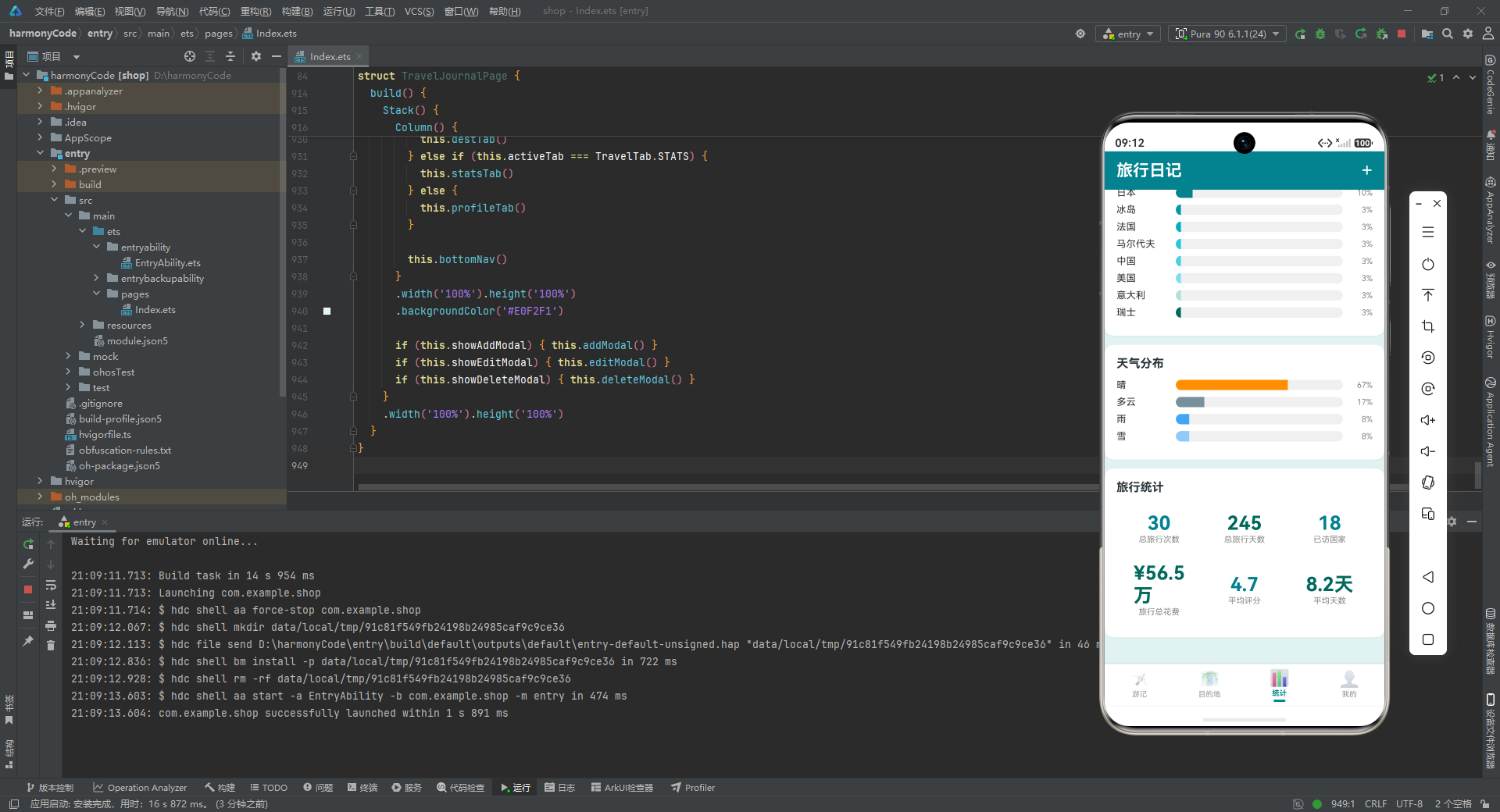
这段代码是整个应用的"状态中枢"。@Entry 装饰器声明 TravelJournalPage 为页面入口组件——它是应用启动后渲染的第一个组件,承载整个页面的根节点。@Component 装饰器则声明该 struct 为一个自定义组件,使其可以被复用、拥有独立的状态和生命周期。
紧接着是一长串 @State 声明。@State 是 ArkUI 中最基础也最常用的状态装饰器,它将一个普通变量转变为"响应式状态变量"。当该变量的值发生变化时(无论是基本类型的赋值还是数组/对象的替换),框架会自动触发依赖该变量的 UI 组件重新渲染。这里声明的状态变量可按职责分为三组:
第一组——全局导航与列表状态:
activeTab:当前激活的 Tab,初始值为JOURNAL(游记页)。这个变量是整个页面切换的核心开关。travelEntries:旅行记录数组,初始为空,将在aboutToAppear中填充 30 条数据。这是应用最核心的数据源。selectedIdx:当前选中的记录索引,用于编辑和删除操作时定位目标记录,初始值 -1 表示未选中。
第二组——弹窗显示控制:
showAddModal、showEditModal、showDeleteModal:三个布尔值分别控制新增、编辑、删除三个弹窗的显示与隐藏。这种"每个弹窗一个独立布尔开关"的设计简单直观,避免了单一变量管理多弹窗时的状态混乱。
第三组——统计数据:
countryDist、weatherDist:国家分布和天气分布数据数组,驱动统计页和目的地页的进度条。monthData:月度花费数据,驱动柱状图。destGrid:目的地网格数据,驱动目的地页的卡片网格。maxMonth:月度最大值,初始 35000,用于柱状图的高度归一化计算(确保最高柱不超过预设高度)。
第四组——表单状态:
formTitle、formDest、formCountry、formDate、formDuration、formCost、formRating、formWeather、formMood、formDesc:这一组状态变量构成一个"虚拟表单模型",用于新增和编辑弹窗中TextInput的双向绑定。每个变量对应表单的一个字段,通过onChange回调实时同步用户输入。将表单字段拆分为独立状态变量而非打包成对象,是因为@State对对象属性的细粒度响应需要配合@Observed,而拆分后每个字段独立响应,更新更精确、性能更好。
3.2 生命周期:aboutToAppear 数据初始化
aboutToAppear(): void {
  this.travelEntries = [
    new TravelEntry(1, '京都赏枫之旅', '京都', '日本', '2024-11-15', '2024-11-22', 8, 12000, 5, '晴', '兴奋', '家人', 245, ['清水寺', '岚山', '金阁寺'], '京都的红叶美不胜收,每一处都是绝美的画卷。清水寺的夜枫更是令人难忘。', true, '🍁'),
    // ...(共30条旅行记录,覆盖日本、冰岛、法国、马尔代夫、中国、美国、瑞士等全球各地目的地)
    new TravelEntry(30, '克罗地亚杜城', '杜布罗夫尼克', '克罗地亚', '2024-10-15', '2024-10-23', 9, 14000, 5, '晴', '惊艳', '朋友', 380, ['古城墙', '蓝洞', '赫瓦尔岛'], '亚得里亚海的明珠,漫步古城墙仿佛走进君临城。', true, '🏰')
  ]

  this.countryDist = [
    { label: '日本', percent: 10, color: '#00838F', count: 2 },
    { label: '冰岛', percent: 3, color: '#0097A7', count: 1 },
    // ...(共8个国家分布项)
  ]

  this.weatherDist = [
    { label: '晴', percent: 67, color: '#FF8F00', count: 20 },
    { label: '多云', percent: 17, color: '#78909C', count: 5 },
    { label: '雨', percent: 8, color: '#42A5F5', count: 2 },
    { label: '雪', percent: 8, color: '#90CAF9', count: 1 }
  ]

  this.monthData = [
    { label: '1月', value: 23000, color: '#00838F' },
    // ...(共12个月份数据)
    { label: '12月', value: 62000, color: '#26A69A' }
  ]

  this.destGrid = [
    { emoji: '🗼', name: '日本·京都', count: 2, color: '#E0F2F1' },
    // ...(共12个目的地网格项)
  ]
}
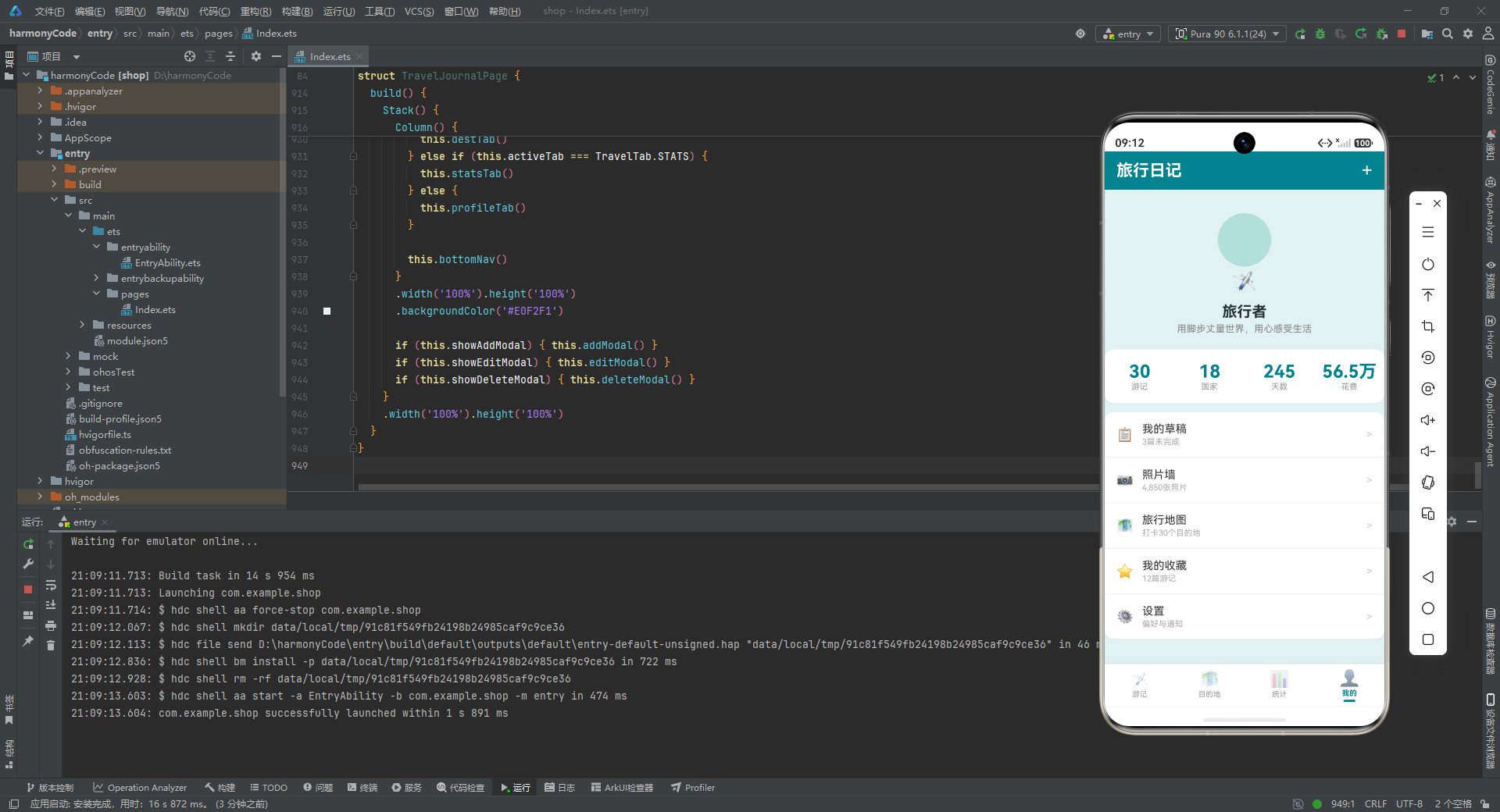
aboutToAppear() 是 ArkUI 组件生命周期的关键回调之一。它在组件实例创建后、build() 方法首次执行前被调用,是执行数据初始化、网络请求、订阅注册等"前置准备"工作的理想位置。与 aboutToDisappear()(组件销毁前回调)配对使用,构成了组件的完整生命周期管理。
在本应用中,aboutToAppear 承担了全部的"种子数据"注入工作。由于这是一个纯前端展示型应用(无后端 API),所有数据都以硬编码方式内联在代码中。从工程角度看,这虽然不是生产环境的最佳实践(真实项目应从网络请求获取),但在技术演示和原型验证场景下,这种方式保证了应用的独立可运行性,让读者无需配置后端即可体验完整功能。
数据初始化涵盖五大块:
-
travelEntries:30 条旅行记录,每条都是一个完整的TravelEntry实例。数据覆盖了全球各大洲的知名目的地——从亚洲的京都、清迈、巴厘岛,到欧洲的巴黎、罗马、圣托里尼,再到非洲的肯尼亚、埃及,以及美洲的纽约、秘鲁、加拿大。每条记录都包含真实可信的日期、天数、花费、评分、天气、心情、同伴、照片数和亮点列表,形成了一个内容丰富、覆盖面广的旅行数据集。30 条记录的数量恰到好处——既足以撑起一个有内容感的列表页面,又不会因为过长而影响演示时的滚动体验。 -
countryDist:8 个国家的分布数据,包含国家名、百分比、颜色和计数。颜色值从#00838F到#B2DFDB,沿用了青色色板的渐变序列,确保分布条之间的视觉区分度。 -
weatherDist:4 种天气类型的分布——晴(67%,橙色#FF8F00)、多云(17%,灰色#78909C)、雨(8%,蓝色#42A5F5)、雪(8%,浅蓝#90CAF9)。这里巧妙地使用了与天气语义相符的色彩:晴天用暖橙色,雨雪用冷蓝色,增强了图表的信息传达力。 -
monthData:12 个月的花费数据,从 1 月的 23000 元到 12 月的 62000 元,每月使用不同的青色系色调。数据呈现明显的季节性波动——7 月、9 月、12 月是花费高峰,对应暑期、秋游和年末假期的出行旺季。 -
destGrid:12 个热门目的地的网格数据,每个目的地配有 emoji 图标、名称、到访次数和卡片背景色。背景色在#E0F2F1、#B2DFDB、#80CBC4、#4DB6AC、#26A69A之间循环,形成渐变效果。
四、业务逻辑层:工具方法与 CRUD 操作
4.1 格式化工具方法
formatCost(cost: number): string {
  if (cost >= 10000) {
    return '¥' + (cost / 10000).toFixed(1) + '万'
  }
  return '¥' + cost.toString()
}

starText(rating: number): string {
  if (rating === 5) { return '★★★★★' }
  if (rating === 4) { return '★★★★☆' }
  if (rating === 3) { return '★★★☆☆' }
  if (rating === 2) { return '★★☆☆☆' }
  return '★☆☆☆☆'
}

highlightText(entry: TravelEntry): string {
  return entry.highlights.join(' · ')
}
这三个方法是纯粹的"工具函数"(utility functions),不涉及状态修改,仅负责数据格式转换。
formatCost 实现了花费金额的智能格式化:当金额达到一万元及以上时,自动转换为"万"为单位并保留一位小数(如 12000 → ¥1.2万),否则直接显示原值(如 8000 → ¥8000)。这种"自适应单位"的格式化策略在财务和数据展示场景中极为常见——它既避免了长串数字的视觉拥挤,又保留了必要的精度信息。toFixed(1) 确保小数位固定为一位,防止出现 ¥1.23万 这样的不规整显示。
starText 将数字评分(1-5)映射为五角星字符串。这里使用 Unicode 字符 ★(实心星)和 ☆(空心星)组合,无需图片资源即可实现星级评分的视觉效果。通过 if 链式判断而非 switch 或查找表,代码简洁直观。虽然五级评分的映射逻辑简单,但这种"用字符代替图标"的技巧在轻量级应用中能有效减少资源体积。
highlightText 将亮点数组(如 ['清水寺', '岚山', '金阁寺'])用中圆点分隔符 · 拼接为单一字符串(清水寺 · 岚山 · 金阁寺)。Array.prototype.join 是 JavaScript/TypeScript 中最常用的数组转字符串方法,选择 · 作为分隔符而非逗号,是因为中圆点在中文排版中更为优雅,也更贴合旅行日记的文艺调性。
4.2 新增记录方法
addNewEntry(): void {
  this.showAddModal = false
  this.formTitle = ''
  this.formDest = ''
  this.formCountry = ''
  this.formDate = ''
  this.formDuration = 0
  this.formCost = 0
  this.formRating = 5
  this.formWeather = '晴'
  this.formMood = '愉快'
  this.formDesc = ''
}
addNewEntry 方法在用户点击"保存"按钮时被调用。它执行两个动作:首先关闭新增弹窗(this.showAddModal = false),然后将所有表单字段重置为初始值。
这里有一个值得注意的设计细节:方法名为 addNewEntry(添加新记录),但函数体内并没有出现 this.travelEntries.push(...) 或类似的数组追加逻辑。这意味着当前版本的"新增"功能实际上只完成了表单清空和弹窗关闭,并未真正将新记录插入到列表中。从教学和演示的角度看,这可能是有意为之——开发者可能希望读者在此基础上自行补充 new TravelEntry(...) 的构造和数组追加逻辑,作为一个练习点。又或者,这是一个待完善的占位实现,预留了完整的新增流程骨架(弹窗 → 表单 → 保存 → 关闭 → 重置),唯独差最后一步的数据持久化。
无论如何,表单重置逻辑本身是完备且正确的——所有 10 个表单字段都被恢复到初始状态,确保下次打开新增弹窗时不会残留上次的输入内容。这种"用后即清"的卫生习惯在表单设计中非常重要,能有效避免"脏数据"导致的用户体验问题。
4.3 删除记录方法
deleteEntry(): void {
  if (this.selectedIdx >= 0 && this.selectedIdx < this.travelEntries.length) {
    this.travelEntries.splice(this.selectedIdx, 1)
  }
  this.showDeleteModal = false
  this.selectedIdx = -1
}
deleteEntry 方法在用户点击删除确认弹窗的"删除"按钮时被调用。它实现了完整的删除流程:
-
边界校验:
if (this.selectedIdx >= 0 && this.selectedIdx < this.travelEntries.length)这是一个防御性编程的典型范式。selectedIdx初始值为 -1,表示"未选中"。在执行splice删除前,必须确保索引处于有效区间[0, length-1]内。这个边界检查至关重要——如果用户通过某种途径(如快速连续点击)在selectedIdx已被重置为 -1 后仍触发了删除逻辑,没有这个检查就会导致splice(-1, 1)误删数组最后一个元素。 -
执行删除:
Array.prototype.splice(start, deleteCount)是 JavaScript 中从数组中删除/替换/插入元素的标准方法。splice(this.selectedIdx, 1)表示从selectedIdx位置开始删除 1 个元素。splice会直接修改原数组(in-place),并且由于travelEntries是@State变量,框架会检测到数组引用的变化(或内部变化),自动触发列表的重新渲染。 -
状态清理:删除完成后,关闭删除弹窗并将
selectedIdx重置为 -1,恢复到"未选中"的初始状态。这种"操作完毕即清理"的模式确保了状态的干净一致。
4.4 编辑保存方法
saveEdit(): void {
  if (this.selectedIdx >= 0 && this.selectedIdx < this.travelEntries.length) {
    this.travelEntries[this.selectedIdx].title = this.formTitle
    this.travelEntries[this.selectedIdx].destination = this.formDest
    this.travelEntries[this.selectedIdx].country = this.formCountry
    this.travelEntries[this.selectedIdx].duration = this.formDuration
    this.travelEntries[this.selectedIdx].cost = this.formCost
  }
  this.showEditModal = false
  this.selectedIdx = -1
}
saveEdit 方法在用户点击编辑弹窗的"更新"按钮时被调用。其逻辑结构与 deleteEntry 类似——先做边界校验,再执行核心操作,最后清理状态。
核心操作部分,将表单字段(formTitle、formDest、formCountry、formDuration、formCost)逐一回写到 travelEntries[selectedIdx] 对应的属性上。这里体现了 @Observed 装饰器的价值:TravelEntry 被标记为 @Observed,所以当其属性被赋新值时,框架会自动检测到变化并触发对应卡片的重新渲染。如果没有 @Observed,直接修改对象属性不会触发 UI 更新,开发者就必须手动替换整个数组元素(如 this.travelEntries[idx] = new TravelEntry(...))或使用 @State 的数组方法(如先 splice 删除再 splice 插入)来强制刷新。
值得注意的是,saveEdit 只回写了 5 个字段(标题、目的地、国家、天数、花费),而编辑弹窗中实际显示了描述(formDesc)字段。这说明当前版本的编辑功能是"部分字段可编辑"的——评分、天气、心情、日期、描述等字段虽然在表单中可见可改,但并未被回写。这可能是开发者有意的简化设计(核心字段可编辑即可),也可能是待扩展的功能点。
4.5 弹窗触发方法
openEdit(entry: TravelEntry, idx: number): void {
  this.selectedIdx = idx
  this.formTitle = entry.title
  this.formDest = entry.destination
  this.formCountry = entry.country
  this.formDate = entry.startDate
  this.formDuration = entry.duration
  this.formCost = entry.cost
  this.formRating = entry.rating
  this.formWeather = entry.weather
  this.formMood = entry.mood
  this.formDesc = entry.description
  this.showEditModal = true
}

openDelete(idx: number): void {
  this.selectedIdx = idx
  this.showDeleteModal = true
}
这两个方法负责"打开弹窗前的数据预填"工作。
openEdit 接收目标记录对象 entry 和索引 idx,先将索引存入 selectedIdx,然后将记录的所有字段值"拷贝"到对应的表单状态变量中。这一步至关重要——它实现了"数据回填",让编辑弹窗打开时即显示当前记录的内容,而非空白表单。用户看到的 TextInput 会通过 text: this.formTitle 等参数绑定显示这些预填值。这种"先读后写"的编辑模式是表单设计的标准实践。
openDelete 相对简单,只需记录索引并打开删除确认弹窗。删除操作不需要预填表单,因为删除确认弹窗只显示一条提示文字,不涉及数据编辑。
两个方法共同遵循一个模式:先设置选中索引,再执行具体操作。selectedIdx 充当了弹窗与列表之间的"桥梁"——列表卡片通过 onClick 调用 openEdit/openDelete 传入索引,弹窗通过 selectedIdx 读取目标记录,操作完成后通过 saveEdit/deleteEntry 利用索引回写或删除。这种以索引为媒介的设计简洁有效,避免了在组件间传递复杂对象引用。
五、UI 构建层:底部导航与弹窗系统
5.1 底部导航栏
@Builder bottomNav() {
  Row() {
    this.bottomTabItem('✈️', '游记', TravelTab.JOURNAL)
    this.bottomTabItem('🗺️', '目的地', TravelTab.DEST)
    this.bottomTabItem('📊', '统计', TravelTab.STATS)
    this.bottomTabItem('👤', '我的', TravelTab.PROFILE)
  }
  .width('100%').height(56)
  .backgroundColor('#FFFFFF')
  .padding({ bottom: 4 })
  .shadow({ radius: 8, color: '#1A000000', offsetY: -2 })
}

@Builder bottomTabItem(icon: string, label: string, tab: TravelTab) {
  Column() {
    Text(icon).fontSize(22)
      .opacity(this.activeTab === tab ? 1.0 : 0.4)
    Text(label).fontSize(10)
      .fontColor(this.activeTab === tab ? '#00838F' : '#999999')
      .fontWeight(this.activeTab === tab ? FontWeight.Bold : FontWeight.Normal)
      .margin({ top: 2 })
    if (this.activeTab === tab) {
      Column().width(16).height(3)
        .backgroundColor('#00838F').borderRadius(2).margin({ top: 3 })
    }
  }
  .layoutWeight(1).alignItems(HorizontalAlign.Center)
  .padding({ top: 6, bottom: 4 })
  .onClick(() => { this.activeTab = tab })
}
底部导航栏是移动端应用的标志性 UI 元素,本应用采用了"图标 + 文字 + 选中指示器"的经典三段式布局。
@Builder bottomNav() 是外层容器,使用 Row 水平排列四个 Tab 项。容器高度固定为 56vp(虚拟像素),背景为白色,底部内边距 4vp。最关键的是 shadow 属性——offsetY: -2 使阴影向上方投射(负值表示向上偏移),配合 radius: 8 的模糊半径和 #1A000000(10% 不透明度的黑色),在导航栏顶部营造出一条若有若无的"悬浮"分界线,使导航栏在视觉上从页面内容中"浮起"。
@Builder bottomTabItem(icon, label, tab) 是单个 Tab 项的构建器,它接收图标、标签文字和对应的枚举值三个参数。这种"参数化 Builder"的设计充分体现了 @Builder 的复用能力——四个 Tab 项的结构完全一致,只是数据不同,通过参数化避免了四份重复代码。
Tab 项内部的视觉状态切换是核心亮点。每个 Tab 项根据 this.activeTab === tab 的判断结果,对图标透明度、文字颜色、文字粗细进行三重联动调整:选中时图标完全不透明(1.0)、文字为湖蓝色粗体;未选中时图标半透明(0.4)、文字为灰色常规体。这种"明暗对比"的视觉反馈让用户一眼便能识别当前所在页面。
选中指示器(if (this.activeTab === tab) 分支内的 Column)是一个 16×3vp 的小色条,位于文字下方,使用主色 #00838F 并带有 2vp 圆角。它的存在进一步强化了选中态的视觉指示。if 条件渲染确保只有当前 Tab 才显示指示器,切换 Tab 时旧指示器消失、新指示器出现,形成动态的"滑动"视觉效果(虽然实际是即时切换,但视觉上传达了"位置移动"的暗示)。
onClick(() => { this.activeTab = tab }) 是 Tab 切换的核心逻辑——点击即将 activeTab 设为对应枚举值,框架检测到 @State 变化后自动重新渲染 build() 中的条件分支,切换显示对应的 Tab 内容。整个导航切换流程从点击到渲染完成,完全由声明式状态驱动,开发者无需手动操作 DOM 或调用 show()/hide() 方法。
5.2 弹窗背景遮罩
@Builder modalBg(onClose: () => void) {
  Column().width('100%').height('100%')
    .backgroundColor('rgba(0,0,0,0.45)').onClick(onClose)
}
modalBg 是一个极简但关键的 Builder,它生成弹窗的半透明背景遮罩。遮罩是一个铺满父容器的 Column,背景色 rgba(0,0,0,0.45) 表示 45% 不透明度的黑色,营造出"暗化背景、聚焦弹窗"的视觉效果。
这个 Builder 接收一个 onClose 回调函数作为参数,绑定到遮罩的 onClick 事件。这意味着用户点击弹窗外部区域(即遮罩部分)即可关闭弹窗——这是移动端弹窗交互的标准模式之一,提供了除"取消"按钮之外另一种快捷退出方式。将 onClose 设计为参数而非硬编码,使得 modalBg 可以被新增弹窗、编辑弹窗、删除弹窗共用,每个弹窗传入自己的关闭逻辑(如 () => { this.showAddModal = false }),体现了良好的函数式设计思维。
5.3 新增弹窗
@Builder addModal() {
  Column() {
    this.modalBg(() => { this.showAddModal = false })
    Column() {
      Scroll() {
        Column() {
          Text('添加旅行日记').fontSize(20).fontWeight(FontWeight.Bold)
            .fontColor('#263238').margin({ bottom: 16 })
          Text('旅行标题').fontSize(13).fontColor('#666666').margin({ bottom: 4 }).alignSelf(ItemAlign.Start)
          TextInput({ placeholder: '请输入旅行标题' })
            .width('100%').height(40).fontSize(14)
            .backgroundColor('#F5F5F5').borderRadius(8)
            .padding({ left: 12 }).margin({ bottom: 12 })
            .onChange((v: string) => { this.formTitle = v })
          // ...(目的地、国家、日期、天数、花费、描述等字段的标签与输入框)
          Row() {
            Text('取消').fontSize(15).fontColor('#999999')
              .padding({ left: 24, right: 24, top: 10, bottom: 10 })
              .onClick(() => { this.showAddModal = false })
            Column().layoutWeight(1)
            Text('保存').fontSize(15).fontColor('#FFFFFF').fontWeight(FontWeight.Bold)
              .backgroundColor('#00838F').borderRadius(20)
              .padding({ left: 32, right: 32, top: 10, bottom: 10 })
              .onClick(() => { this.addNewEntry() })
          }.width('100%')
        }
        .width('100%').padding(20).alignItems(HorizontalAlign.Start)
      }
    }
    .width('90%').backgroundColor('#FFFFFF').borderRadius(18)
    .constraintSize({ maxHeight: '85%' })
    .shadow({ radius: 24, color: '#40000000', offsetY: 8 })
  }
  .width('100%').height('100%')
  .position({ x: 0, y: 0 }).zIndex(999)
  .justifyContent(FlexAlign.Center).alignItems(HorizontalAlign.Center)
}
新增弹窗是应用中结构最复杂的 UI 组件之一。它由外层 Column、遮罩层、内容卡片三部分组成。
外层 Column 通过 position({ x: 0, y: 0 }) 和 zIndex(999) 定位为全屏覆盖层——position 将其固定在页面原点(左上角),width('100%') 和 height('100%') 使其铺满整个屏幕,zIndex(999) 确保它浮于所有常规内容之上。justifyContent(FlexAlign.Center) 和 alignItems(HorizontalAlign.Center) 使内部内容卡片在水平和垂直方向都居中显示。
内容卡片宽度为屏幕的 90%,背景白色,圆角 18vp。最关键的是 constraintSize({ maxHeight: '85%' })——它限制卡片最大高度不超过屏幕的 85%,防止表单内容过多时卡片撑满甚至超出屏幕。配合内部的 Scroll() 组件,当表单字段总高度超过卡片最大高度时,用户可以滚动查看和填写所有字段。这种"限高 + 滚动"的组合是处理长表单弹窗的标准方案。
表单字段的布局遵循统一模式:标签 Text + 输入框 TextInput。标签使用 13vp 字号、灰色 #666666,通过 alignSelf(ItemAlign.Start) 左对齐(因为外层 Column 的 alignItems 设为 Start)。输入框使用浅灰背景 #F5F5F5、8vp 圆角、40vp 固定高度,视觉上呈现出"内嵌凹陷"的输入区域感。
TextInput 的 onChange((v: string) => { this.formTitle = v }) 回调是实现"双向绑定"的关键——用户每次输入一个字符,回调即被触发,将最新值同步到 @State 变量。虽然 TextInput 在此使用的是 placeholder(占位提示文字)而非 text(显示值),但因为 onChange 持续更新状态,所以当表单提交时,this.formTitle 等变量已经持有了用户输入的完整内容。
数字类字段(天数、花费)额外使用了 .type(InputType.Number),这会调起数字键盘并限制输入为数字字符,提升输入体验和数据有效性。描述字段的 TextInput 高度增大到 72vp 并设置了 maxLength(200),为多行文本输入预留空间并防止过长输入。
底部操作区使用 Row 水平排列"取消"和"保存"两个按钮,中间用 Column().layoutWeight(1) 占据剩余空间将两个按钮推向两端。"保存"按钮使用主色 #00838F 背景、白色粗体文字、20vp 圆角的胶囊形状,视觉上比"取消"更突出,引导用户优先选择保存操作。
5.4 编辑弹窗
@Builder editModal() {
  Column() {
    this.modalBg(() => { this.showEditModal = false })
    Column() {
      Scroll() {
        Column() {
          Text('编辑旅行日记').fontSize(20).fontWeight(FontWeight.Bold)
            .fontColor('#263238').margin({ bottom: 16 })
          Text('旅行标题').fontSize(13).fontColor('#666666').margin({ bottom: 4 }).alignSelf(ItemAlign.Start)
          TextInput({ text: this.formTitle })
            .width('100%').height(40).fontSize(14)
            .backgroundColor('#F5F5F5').borderRadius(8)
            .padding({ left: 12 }).margin({ bottom: 12 })
            .onChange((v: string) => { this.formTitle = v })
          // ...(目的地、国家、天数、花费、描述等字段,均使用 text: this.formXxx 预填)
          Row() {
            Text('取消').fontSize(15).fontColor('#999999')
              .padding({ left: 24, right: 24, top: 10, bottom: 10 })
              .onClick(() => { this.showEditModal = false })
            Column().layoutWeight(1)
            Text('更新').fontSize(15).fontColor('#FFFFFF').fontWeight(FontWeight.Bold)
              .backgroundColor('#00838F').borderRadius(20)
              .padding({ left: 32, right: 32, top: 10, bottom: 10 })
              .onClick(() => { this.saveEdit() })
          }.width('100%')
        }
        .width('100%').padding(20).alignItems(HorizontalAlign.Start)
      }
    }
    .width('90%').backgroundColor('#FFFFFF').borderRadius(18)
    .constraintSize({ maxHeight: '85%' })
    .shadow({ radius: 24, color: '#40000000', offsetY: 8 })
  }
  .width('100%').height('100%')
  .position({ x: 0, y: 0 }).zIndex(1000)
  .justifyContent(FlexAlign.Center).alignItems(HorizontalAlign.Center)
}
编辑弹窗在结构上与新增弹窗几乎完全一致,但有两个关键差异:
第一差异——输入框使用 text 而非 placeholder:新增弹窗的 TextInput 使用 placeholder(如 placeholder: '请输入旅行标题'),因为新增时表单应为空白;而编辑弹窗使用 text: this.formTitle,将预填的当前记录值直接显示在输入框中。这个差异是"新增"与"编辑"两种模式在 UI 层面的核心区分点。text 参数使 TextInput 成为"受控组件"——其显示内容由 this.formTitle 状态变量驱动,而 onChange 又持续更新该状态变量,形成了完整的双向绑定闭环。
第二差异——按钮文案与回调:新增弹窗的确认按钮文案为"保存",点击调用 addNewEntry();编辑弹窗的确认按钮文案为"更新",点击调用 saveEdit()。文案的细微差异(“保存” vs “更新”)准确传达了两种操作的语义区别——"保存"是创建新记录,"更新"是修改已有记录。
此外,编辑弹窗的 zIndex(1000) 比新增弹窗的 999 高一级,确保两者同时出现时(虽然实际交互中不太可能),编辑弹窗会覆盖在新增弹窗之上。这种分层 zIndex 策略为多弹窗场景提供了明确的层叠顺序。
5.5 删除确认弹窗
@Builder deleteModal() {
  Column() {
    this.modalBg(() => { this.showDeleteModal = false })
    Column() {
      Text('确认删除').fontSize(20).fontWeight(FontWeight.Bold)
        .fontColor('#263238').margin({ bottom: 8 })
      Text('删除后无法恢复,确认删除该条旅行记录?').fontSize(14)
        .fontColor('#666666').textAlign(TextAlign.Center)
        .padding({ left: 16, right: 16 }).margin({ bottom: 20 })
      Row() {
        Text('取消').fontSize(15).fontColor('#666666')
          .backgroundColor('#F5F5F5').borderRadius(20)
          .padding({ left: 28, right: 28, top: 10, bottom: 10 })
          .onClick(() => { this.showDeleteModal = false })
        Column().width(16)
        Text('删除').fontSize(15).fontColor('#FFFFFF').fontWeight(FontWeight.Bold)
          .backgroundColor('#E53935').borderRadius(20)
          .padding({ left: 28, right: 28, top: 10, bottom: 10 })
          .onClick(() => { this.deleteEntry() })
      }
    }
    .width('80%').backgroundColor('#FFFFFF').borderRadius(18)
    .padding(24).alignItems(HorizontalAlign.Center)
    .shadow({ radius: 24, color: '#40000000', offsetY: 8 })
  }
  .width('100%').height('100%')
  .position({ x: 0, y: 0 }).zIndex(1001)
  .justifyContent(FlexAlign.Center).alignItems(HorizontalAlign.Center)
}
删除确认弹窗在三个弹窗中结构最简洁,因为它只承担"确认"这一个交互目的,不涉及表单输入。
弹窗内容卡片宽度为 80%(比新增/编辑弹窗的 90% 更窄),因为内容简单(一个标题 + 一句提示 + 两个按钮),窄一些的卡片反而显得更聚焦、更"严肃"。卡片无 constraintSize 限高和 Scroll 滚动,因为内容固定且简短,不会出现溢出情况。
标题"确认删除"使用 20vp 粗体深色文字。提示文案"删除后无法恢复,确认删除该条旅行记录?"使用 14vp 灰色文字并居中对齐,明确告知用户删除操作的不可逆性。这种"危险操作前置确认 + 后果提示"的设计模式是交互设计中的最佳实践,能有效防止用户误操作导致数据丢失。
底部两个按钮的设计颇具巧思。“取消"按钮使用浅灰背景 #F5F5F5 和灰色文字,视觉上"弱化”——它不是推荐操作。“删除"按钮使用红色背景 #E53935 和白色粗体文字,视觉上"醒目"但红色暗示"危险”——它虽然是主要操作,但色彩在警示用户"这是一个破坏性操作"。两个按钮之间用 Column().width(16) 作为间距分隔,而非使用 layoutWeight 推开,这样两个按钮紧凑居中,形成一组对称的操作对。zIndex(1001) 使删除弹窗在三个弹窗中层级最高。
六、UI 构建层:汇总卡片与游记列表
6.1 汇总卡片
@Builder summaryCard(item: SummaryCardItem) {
  Column() {
    Text(item.icon).fontSize(28).margin({ bottom: 6 })
    Text(item.value).fontSize(18).fontWeight(FontWeight.Bold).fontColor('#263238')
    Text(item.label).fontSize(10).fontColor('#666666').margin({ top: 2 })
  }
  .layoutWeight(1).alignItems(HorizontalAlign.Center)
  .backgroundColor(item.bgColor).borderRadius(12)
  .padding({ top: 14, bottom: 14 }).margin(4)
}

@Builder summaryCards() {
  Row() {
    this.summaryCard({ icon: '🌍', label: '已访国家', value: '18', bgColor: '#E0F2F1' })
    this.summaryCard({ icon: '✈️', label: '旅次总计', value: '30', bgColor: '#B2DFDB' })
    this.summaryCard({ icon: '💰', label: '总花费', value: '¥56.5万', bgColor: '#80CBC4' })
    this.summaryCard({ icon: '⭐', label: '最爱', value: '京都', bgColor: '#4DB6AC' })
  }
  .width('100%').padding({ left: 8, right: 8, top: 8, bottom: 4 })
}
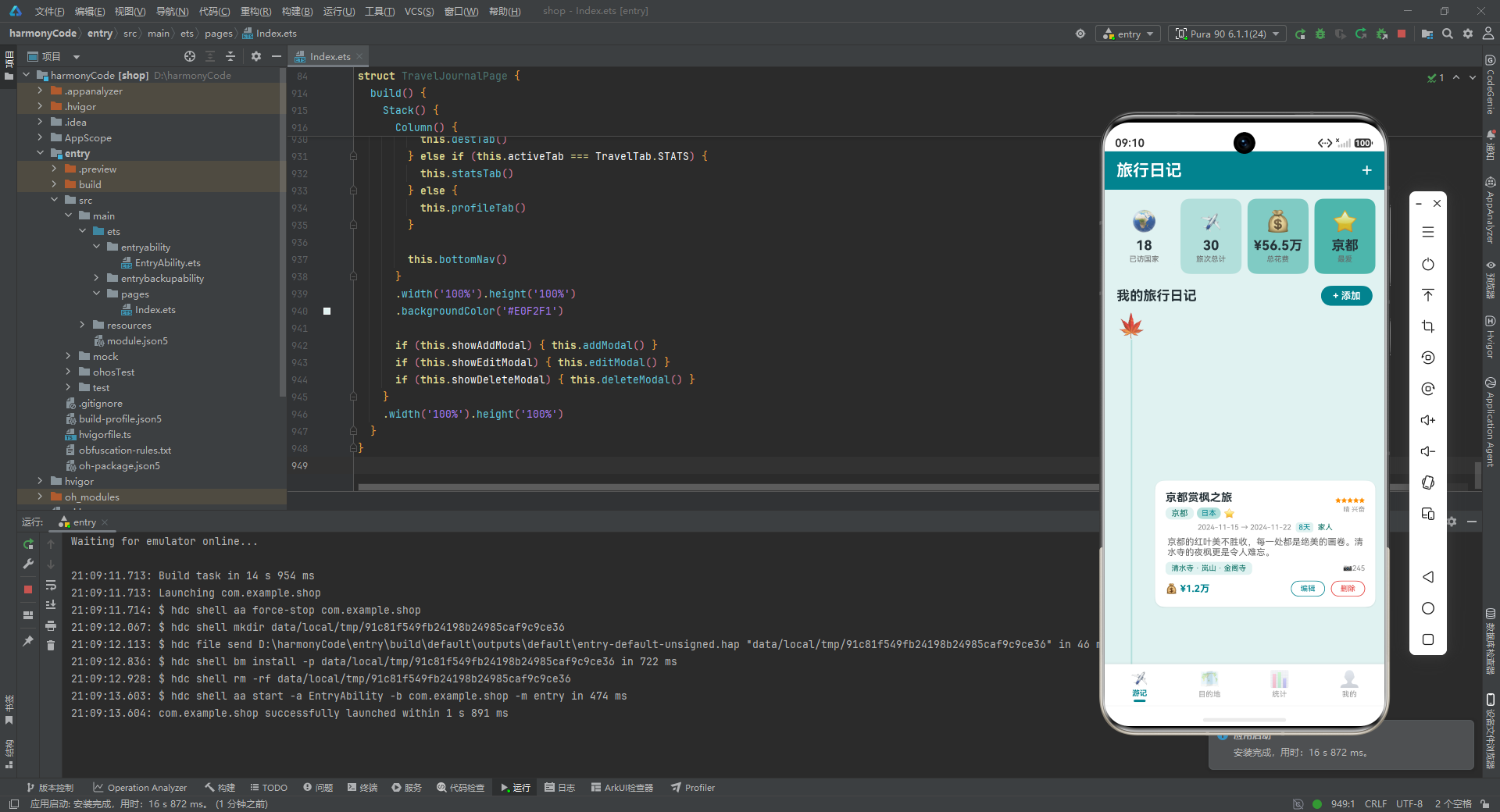
汇总卡片是游记页和统计页顶部的概览信息区,以四列等宽卡片的形式展示"已访国家"“旅次总计”“总花费”"最爱目的地"四项关键指标。
summaryCard 是单个卡片的参数化 Builder,接收一个 SummaryCardItem 对象作为参数。卡片内部使用 Column 垂直排列三层信息:顶部 emoji 图标(28vp)、中间数值(18vp 粗体深色)、底部标签(10vp 灰色)。layoutWeight(1) 使四个卡片在 Row 中等分宽度,alignItems(HorizontalAlign.Center) 使内容水平居中。背景色来自数据对象的 bgColor 字段,四张卡片分别使用从浅到深的青色(#E0F2F1 → #B2DFDB → #80CBC4 → #4DB6AC),形成一条渐变视觉带,既统一又富有层次。
summaryCards 是容器 Builder,通过四行 this.summaryCard({...}) 调用生成四张卡片。每张卡片的数据以对象字面量形式内联传入,结构清晰。这里体现了 @Builder 参数化的强大之处——同一个 Builder 通过不同参数渲染出不同内容但结构一致的 UI 单元,避免了重复编写四份几乎相同的卡片代码。
6.2 游记卡片(核心列表项)
@Builder entryCard(entry: TravelEntry, isLast: boolean) {
  Row() {
    Column() {
      Text(entry.emoji).fontSize(32)
      if (!isLast) {
        Column().width(2).layoutWeight(1).backgroundColor('#B2DFDB')
      }
    }
    .width(48).alignItems(HorizontalAlign.Center)

    Column() {
      Row() {
        Column() {
          Text(entry.title).fontSize(15).fontWeight(FontWeight.Bold).fontColor('#263238').maxLines(1)
          Row() {
            Text(entry.destination).fontSize(11).fontColor('#00695C')
              .backgroundColor('#E0F2F1').borderRadius(8)
              .padding({ left: 8, right: 8, top: 2, bottom: 2 })
            Text(entry.country).fontSize(10).fontColor('#00838F')
              .backgroundColor('#B2DFDB').borderRadius(8)
              .padding({ left: 6, right: 6, top: 2, bottom: 2 })
              .margin({ left: 4 })
            if (entry.isFavorite) {
              Text('⭐').fontSize(12).margin({ left: 4 })
            }
          }.margin({ top: 4 })
        }.layoutWeight(1).alignItems(HorizontalAlign.Start)

        Column() {
          Text(this.starText(entry.rating)).fontSize(8).fontColor('#FF8F00')
          Text(entry.weather + ' ' + entry.mood).fontSize(9).fontColor('#999999').margin({ top: 2 })
        }.alignItems(HorizontalAlign.End)
      }.width('100%')

      Row() {
        Text(entry.startDate + ' → ' + entry.endDate).fontSize(10).fontColor('#888888')
        Text(entry.duration + '天').fontSize(10).fontColor('#00838F')
          .backgroundColor('#E0F2F1').borderRadius(4)
          .padding({ left: 4, right: 4, top: 1, bottom: 1 })
          .margin({ left: 6 })
        Text(entry.companion).fontSize(10).fontColor('#00695C').margin({ left: 6 })
      }.margin({ top: 4 })

      Text(entry.description).fontSize(12).fontColor('#666666')
        .maxLines(2).textOverflow({ overflow: TextOverflow.Ellipsis })
        .margin({ top: 6 })

      Row() {
        Text(this.highlightText(entry)).fontSize(10).fontColor('#00695C')
          .backgroundColor('#E0F2F1').borderRadius(6)
          .padding({ left: 8, right: 8, top: 3, bottom: 3 })
          .maxLines(1).textOverflow({ overflow: TextOverflow.Ellipsis })
        Column().layoutWeight(1)
        Text('📷' + entry.photosCount.toString()).fontSize(10).fontColor('#888888')
      }.width('100%').margin({ top: 6 })

      Row() {
        Text('💰 ' + this.formatCost(entry.cost)).fontSize(13).fontWeight(FontWeight.Bold)
          .fontColor('#00838F')
        Column().layoutWeight(1)
        Text('编辑').fontSize(10).fontColor('#00838F')
          .padding({ left: 12, right: 12, top: 4, bottom: 4 })
          .border({ width: 1, color: '#00838F' }).borderRadius(12)
          .onClick(() => { this.openEdit(entry, this.travelEntries.indexOf(entry)) })
        Text('删除').fontSize(10).fontColor('#E53935')
          .padding({ left: 12, right: 12, top: 4, bottom: 4 })
          .border({ width: 1, color: '#E53935' }).borderRadius(12)
          .margin({ left: 8 })
          .onClick(() => { this.openDelete(this.travelEntries.indexOf(entry)) })
      }.width('100%').margin({ top: 8 })
    }
    .layoutWeight(1).backgroundColor('#FFFFFF').borderRadius(12)
    .padding(14).margin({ left: 8, bottom: 14 })
    .shadow({ radius: 6, color: '#1A000000', offsetY: 2 })
  }
  .width('100%').padding({ left: 12, right: 12 })
}
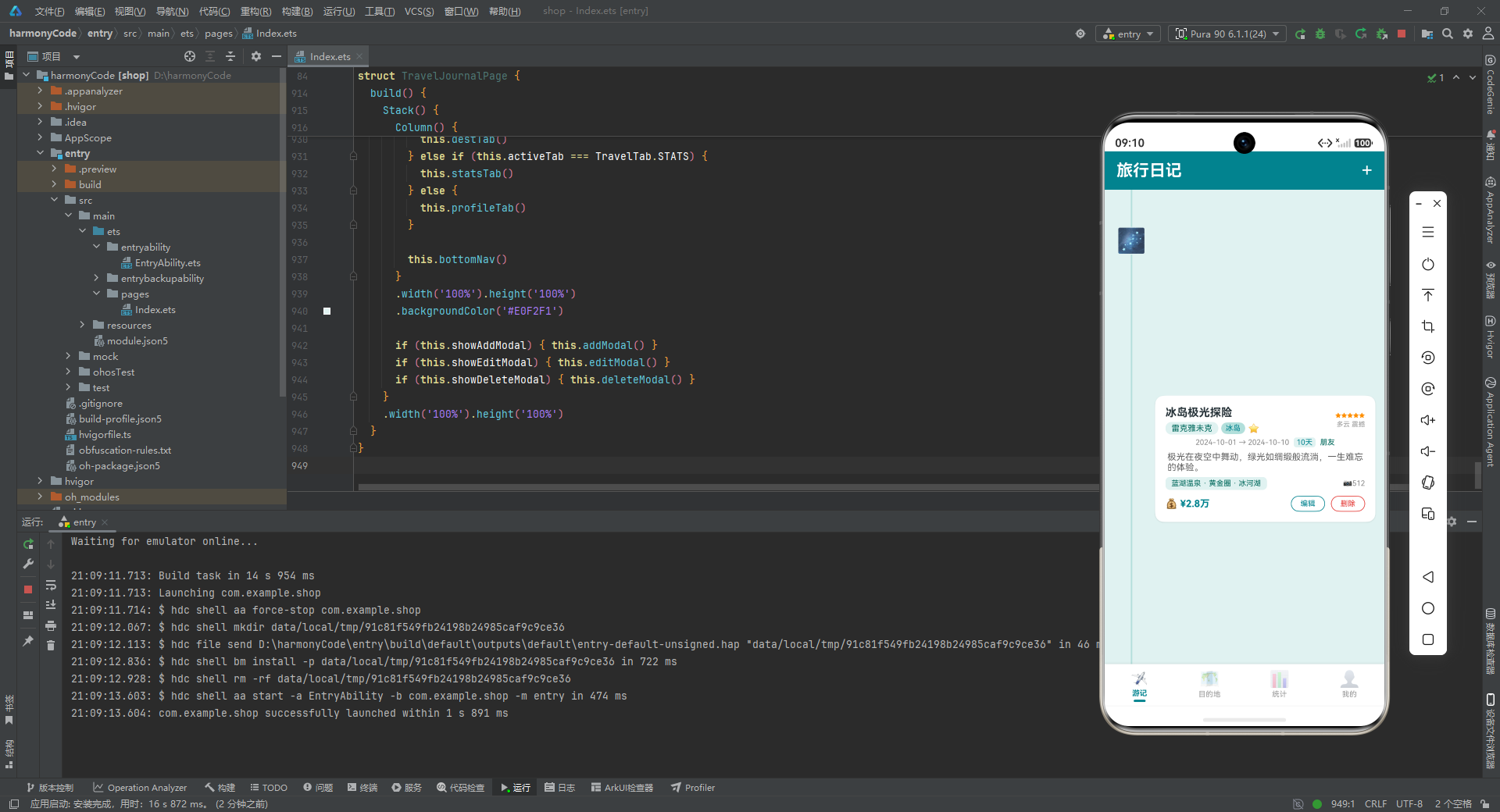
entryCard 是整个应用中最复杂、信息密度最高的 UI 构建器,它将一条旅行记录的全部关键信息压缩在一张卡片中呈现。这张卡片的设计堪称移动端信息卡片布局的教科书级范例,值得逐层拆解。
左侧时间轴装饰区:外层 Row 的第一个子元素是一个宽 48vp 的 Column,内部包含 emoji 图标(32vp)和一条垂直连接线。连接线是一个宽 2vp、layoutWeight(1) 的 Column,颜色为 #B2DFDB(浅青),它会撑满图标下方的剩余高度。if (!isLast) 条件确保最后一张卡片不显示连接线——这是时间轴设计的标准处理,避免在列表末尾出现一条"悬空"的线条。这种"图标 + 竖线"的布局让列表在视觉上形成一条连贯的时间轴,暗示着这些旅行记录是按时间顺序串联的一段段旅程。
右侧内容卡片:layoutWeight(1) 占据剩余宽度,白色背景、12vp 圆角、14vp 内边距,配合 shadow({ radius: 6, color: '#1A000000', offsetY: 2 }) 的轻微阴影,营造出卡片悬浮于背景之上的层次感。卡片内容分为五个层次:
-
标题行:左侧是旅行标题(15vp 粗体深色,
maxLines(1)单行显示防溢出),下方紧接目的地标签(#E0F2F1浅青底色 +#00695C深青文字)和国家标签(#B2DFDB中青底色 +#00838F主色文字),两个标签通过不同深浅的青色底块区分层级。如果记录被收藏(entry.isFavorite为 true),还会显示一个⭐图标。右侧是星级评分(橙色#FF8F00,8vp 极小字号)和"天气 心情"组合文字(9vp 灰色)。左右两列通过layoutWeight(1)和自然宽度分配空间。 -
日期与天数行:日期范围(如
2024-11-15 → 2024-11-22,10vp 灰色),天数标签(#E0F2F1底色 + 主色文字,带圆角和小内边距),同伴类型(10vp 深青文字)。三个元素水平排列,通过margin({ left: 6 })保持适当间距。 -
描述文字:12vp 灰色,
maxLines(2)限制最多两行,textOverflow({ overflow: TextOverflow.Ellipsis })使超出部分以省略号结尾。这是处理不定长文本的标准手段——既保证卡片高度不会因长描述而失控,又通过省略号暗示"还有更多内容"。 -
亮点与照片行:左侧是亮点标签(调用
highlightText方法将数组拼接为字符串,浅青底色 + 深青文字,单行省略),右侧是照片数量(📷 + 数字)。Column().layoutWeight(1)在两者之间占据弹性空间,将照片数推向右端。 -
操作按钮行:左侧是花费金额(调用
formatCost格式化,13vp 粗体主色),右侧是"编辑"和"删除"两个轮廓按钮。两个按钮使用border而非backgroundColor——编辑按钮边框和文字为主色#00838F,删除按钮边框和文字为红色#E53935。轮廓按钮(Outlined Button)相比填充按钮视觉更轻量,适合作为卡片内的次级操作。两个按钮的onClick分别调用openEdit和openDelete,传入this.travelEntries.indexOf(entry)获取记录索引——这里使用indexOf而非直接传递索引,是因为@Builder在某些渲染场景下可能无法正确捕获循环索引,通过对象引用反查索引是一种更安全的做法。
6.3 游记列表页
@Builder journalTab() {
  Scroll() {
    Column() {
      this.summaryCards()
      Row() {
        Text('我的旅行日记').fontSize(18).fontWeight(FontWeight.Bold).fontColor('#263238')
        Column().layoutWeight(1)
        Text('+ 添加').fontSize(13).fontColor('#FFFFFF').fontWeight(FontWeight.Bold)
          .backgroundColor('#00838F').borderRadius(16)
          .padding({ left: 16, right: 16, top: 6, bottom: 6 })
          .onClick(() => { this.showAddModal = true })
      }
      .width('100%').padding({ left: 16, right: 16, top: 8, bottom: 8 })

      this.entryCard(this.travelEntries[0], false)
      this.entryCard(this.travelEntries[1], false)
      // ...(依次渲染30条记录,最后一条传入 true 表示是末尾)
      this.entryCard(this.travelEntries[29], true)

      Column().height(20)
    }
    .width('100%')
  }
  .layoutWeight(1).scrollBar(BarState.Off)
}
游记列表页是应用的默认首页,承担着"展示全部旅行记录"的核心职能。整体结构是一个 Scroll 包裹 Column——Scroll 提供垂直滚动能力,layoutWeight(1) 使其占据导航栏和底部 Tab 之间的全部可用高度,scrollBar(BarState.Off) 隐藏滚动条以保持界面简洁(移动端通常隐藏滚动条,因为触摸滚动本身已提供足够的视觉反馈)。
页面内容自上而下依次为:
- 汇总卡片:调用
summaryCards()渲染四张概览卡片。 - 标题与添加按钮:左侧"我的旅行日记"标题(18vp 粗体),右侧"+ 添加"胶囊按钮(主色背景 + 白色粗体文字)。按钮的
onClick将showAddModal设为 true,触发新增弹窗显示。这种"标题 + 操作按钮"的行布局是列表页头的经典模式。 - 30 条游记卡片:通过 30 次
this.entryCard(this.travelEntries[i], false/true)调用渲染。这里采用的是手动展开而非ForEach循环的方式——每条记录单独一行调用。这种写法虽然代码行数多,但渲染行为确定、无循环 key 管理的复杂性,在数据量固定(30 条)的场景下是完全合理的。前 29 条传入false(显示时间轴连接线),第 30 条传入true(隐藏连接线)。 - 底部留白:
Column().height(20)在列表末尾添加 20vp 的空白高度,避免最后一张卡片紧贴底部导航栏,提供视觉"呼吸空间"。
七、UI 构建层:目的地页与统计图表
7.1 目的地网格卡片
@Builder destGridCard(item: DestGridItem) {
  Column() {
    Text(item.emoji).fontSize(36)
    Text(item.name).fontSize(11).fontColor('#263238').maxLines(1)
      .textOverflow({ overflow: TextOverflow.Ellipsis }).margin({ top: 4 })
    Text(item.count.toString() + '次').fontSize(10).fontColor('#00838F').margin({ top: 2 })
  }
  .width('30%').backgroundColor(item.color).borderRadius(12)
  .padding({ top: 16, bottom: 16 }).alignItems(HorizontalAlign.Center)
  .margin({ left: '1.5%', right: '1.5%', bottom: 10 })
}
destGridCard 构建目的地网格中的单个卡片。卡片宽度为父容器的 30%,配合左右各 1.5% 的 margin,三张卡片总占用 30%×3 + 1.5%×6 = 99%,恰好在一行内排列三张卡片且间距均匀。
卡片内容简洁三层:大号 emoji 图标(36vp)、目的地名称(11vp,单行省略防止长名称溢出)、到访次数(10vp 主色文字)。背景色来自数据对象,在 #E0F2F1、#B2DFDB、#80CBC4、#4DB6AC、#26A69A 之间循环,使网格呈现出青色渐变的马赛克效果。
7.2 目的地页
@Builder destTab() {
  Scroll() {
    Column() {
      Row() {
        Text('热门目的地').fontSize(18).fontWeight(FontWeight.Bold).fontColor('#263238')
      }
      .width('100%').padding({ left: 16, right: 16, top: 16, bottom: 8 })

      Row() {
        Column() { this.destGridCard(this.destGrid[0]) }
        Column() { this.destGridCard(this.destGrid[1]) }
        Column() { this.destGridCard(this.destGrid[2]) }
      }
      // ...(共4行,每行3个网格卡片,共12个)

      Row() {
        Text('国家分布').fontSize(18).fontWeight(FontWeight.Bold).fontColor('#263238')
      }
      .width('100%').padding({ left: 16, right: 16, top: 16, bottom: 8 })

      Column() {
        this.distBar(this.countryDist[0])
        // ...(共8个国家分布条)
        this.distBar(this.countryDist[7])
      }
      .width('100%').padding({ left: 16, right: 16 })
      .backgroundColor('#FFFFFF').borderRadius(12)
      .margin({ left: 12, right: 12, bottom: 16 })
      .padding({ top: 12, bottom: 8 })

      Column().height(20)
    }
    .width('100%')
  }
  .layoutWeight(1).scrollBar(BarState.Off)
}
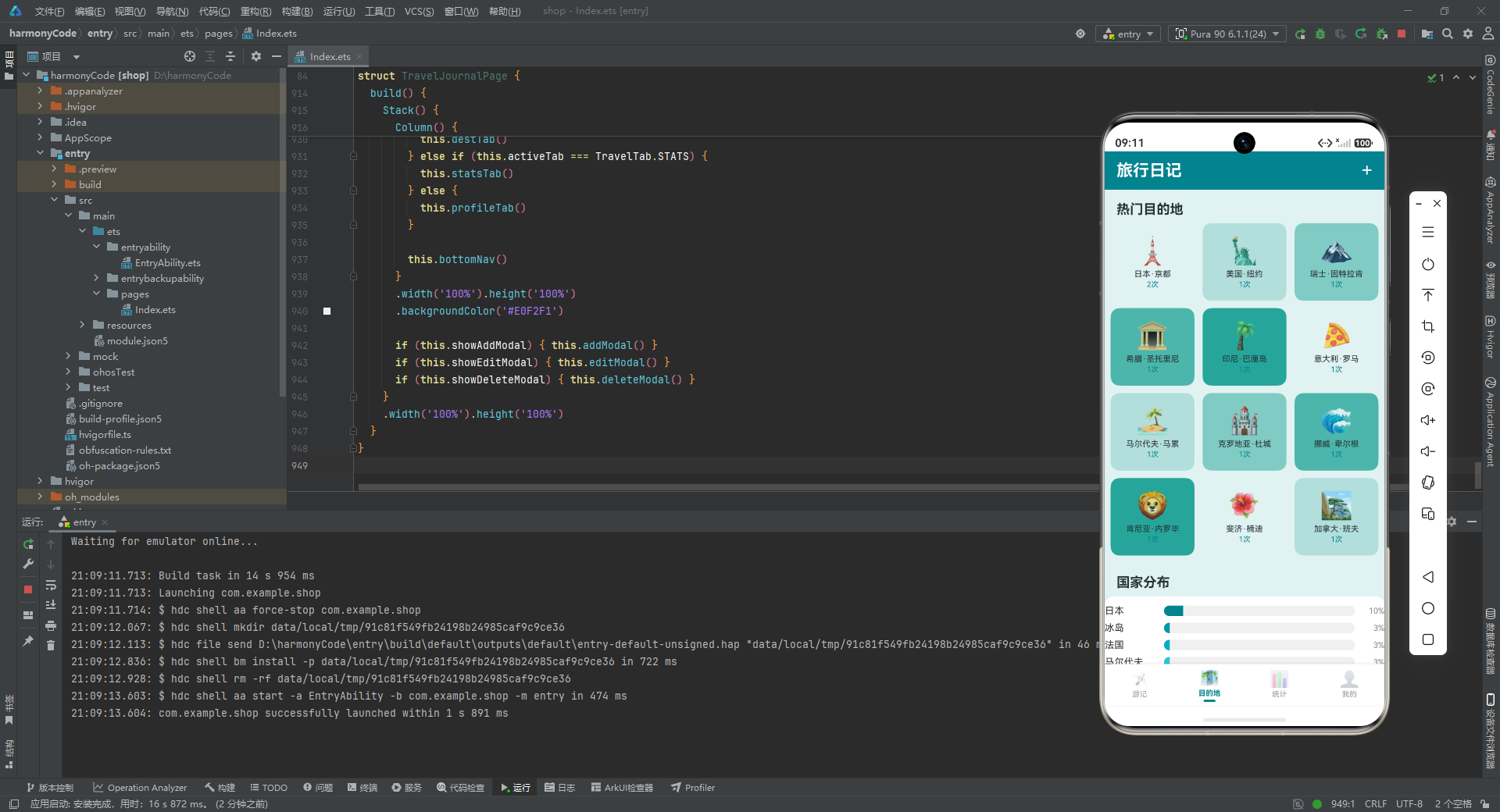
目的地页将页面分为两个主要区块:"热门目的地"网格和"国家分布"条形图。
热门目的地网格:通过 4 个 Row 容器,每个 Row 内嵌 3 个 Column,每个 Column 调用 destGridCard 渲染一个目的地卡片。这种"手动 4×3 网格"的写法直观可控——4 行 3 列共 12 个卡片,与 destGrid 数组的 12 条数据一一对应。每个卡片被包裹在 Column 中而非直接放在 Row 中,是为了利用 Column 的默认布局行为更好地控制卡片尺寸。
国家分布:白色卡片容器内,通过 8 次 this.distBar(this.countryDist[i]) 调用渲染 8 个水平分布条。容器使用 backgroundColor('#FFFFFF')、borderRadius(12) 和 shadow 形成"白卡片"效果,将分布条包裹在一个独立的视觉单元中。标题"国家分布"在卡片外部上方,与卡片形成"标题 + 内容"的层次关系。
7.3 分布条(水平进度条)
@Builder distBar(item: DistItem) {
  Column() {
    Row() {
      Text(item.label).fontSize(13).fontColor('#333333').width(80)
      Row() {
        Column()
          .width(item.percent.toString() + '%')
          .height(14).backgroundColor(item.color)
          .borderRadius({ topLeft: 7, bottomLeft: 7 })
        if (item.percent < 100) {
          Column().layoutWeight(1)
        }
      }
      .layoutWeight(1).height(14).backgroundColor('#F0F0F0').borderRadius(7)
      Text(item.percent.toString() + '%').fontSize(11).fontColor('#888888').width(40).textAlign(TextAlign.End)
    }
    .width('100%').alignItems(VerticalAlign.Center)
  }
  .margin({ bottom: 8 })
}
distBar 是一个精巧的水平进度条组件,用于展示各国家/天气的占比分布。每一行由三部分组成:左侧标签(固定宽度 80vp)、中间进度条(layoutWeight(1) 弹性宽度)、右侧百分比数值(固定宽度 40vp,右对齐)。
进度条的实现采用了"双层叠加"的技巧:外层 Row 作为"轨道",背景色 #F0F0F0(浅灰)、高度 14vp、7vp 圆角;内层 Column 作为"填充",宽度通过 item.percent.toString() + '%' 动态设置为百分比字符串(如 "67%"),高度 14vp,背景色来自数据对象,左上和左下圆角 7vp(与轨道圆角吻合)。
if (item.percent < 100) 条件分支处理了 100% 满进度的情况——当百分比小于 100 时,在填充条后追加一个 Column().layoutWeight(1) 占据剩余空间(虽然外层 Row 的背景已经是灰色轨道,但这个额外占位确保填充条不会因为 layoutWeight 拉伸而超出预定宽度)。当百分比恰好为 100 时,不追加占位,填充条撑满整个轨道。这是一个细节层面的防御性处理,确保进度条在任何百分比下都渲染正确。
填充条只设置了 topLeft 和 bottomLeft 圆角(左侧两角),右侧保持直角。这是因为进度条从左向右填充,左侧是"起点"需要圆角与轨道吻合,右侧是"进度前沿"保持直角更符合进度条的视觉语义。
7.4 月度柱状图
@Builder monthBar(item: MonthBarItem) {
  Column() {
    Text(item.value.toString()).fontSize(8).fontColor('#888888').margin({ bottom: 4 })
    Column()
      .width(22)
      .height(item.value * 160 / this.maxMonth)
      .backgroundColor(item.color)
      .borderRadius({ topLeft: 3, topRight: 3 })
    Text(item.label).fontSize(8).fontColor('#666666').margin({ top: 4 })
  }
  .alignItems(HorizontalAlign.Center)
}

@Builder monthChart() {
  Column() {
    Text('2024年月度旅行花费').fontSize(16).fontWeight(FontWeight.Bold)
      .fontColor('#263238').margin({ bottom: 12 }).alignSelf(ItemAlign.Start)
    Row() {
      this.monthBar(this.monthData[0])
      // ...(共12个月度柱子)
      this.monthBar(this.monthData[11])
    }
    .width('100%').justifyContent(FlexAlign.SpaceAround).alignItems(VerticalAlign.Bottom)
    .padding({ top: 8 })
  }
  .width('100%').backgroundColor('#FFFFFF').borderRadius(12)
  .padding(16).margin({ left: 12, right: 12, bottom: 12 })
  .shadow({ radius: 4, color: '#15000000', offsetY: 1 })
}
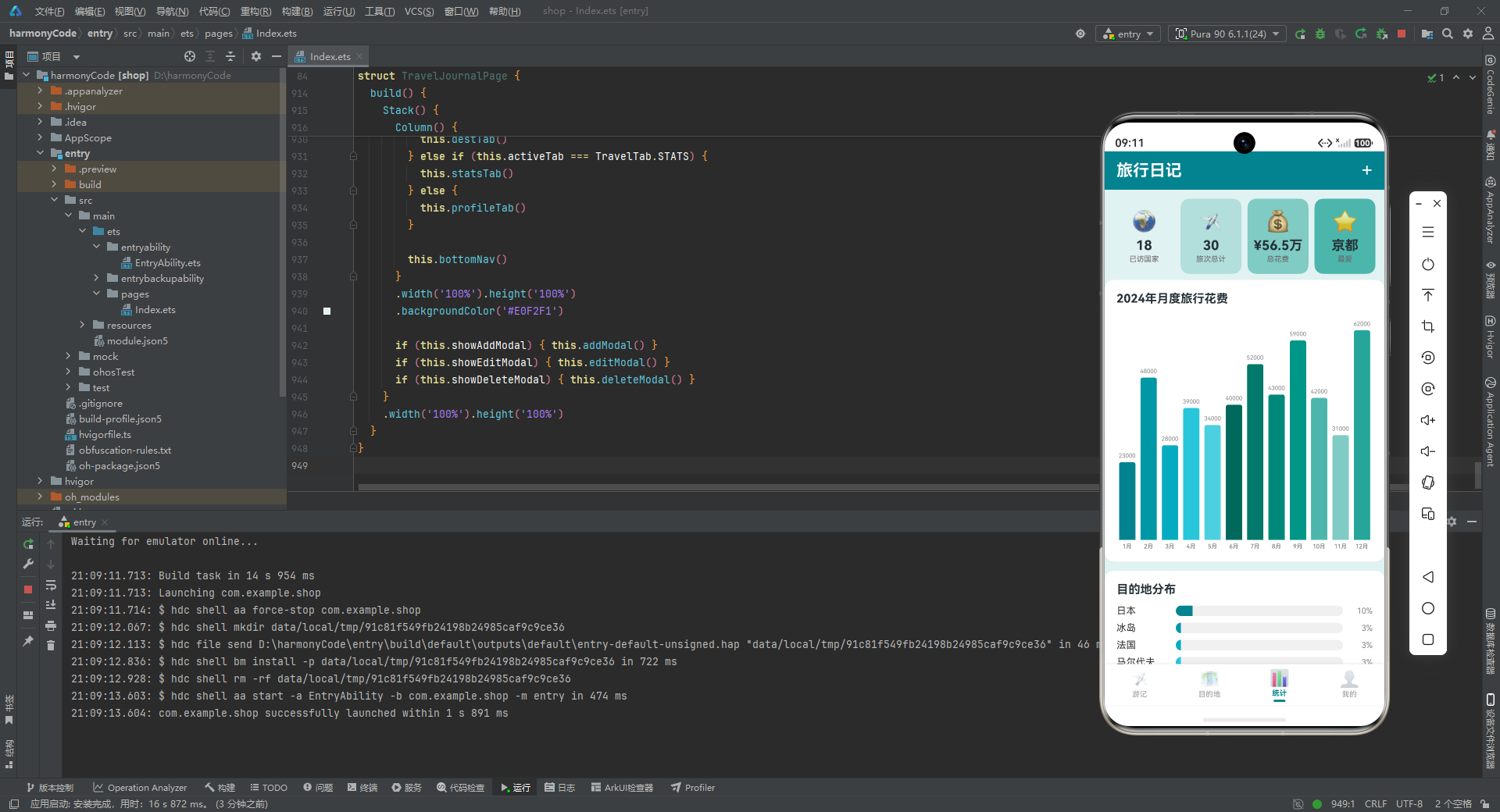
月度柱状图是统计页的核心可视化组件,以 12 根柱子展示全年各月的花费趋势。
单根柱子 monthBar:垂直排列三层——顶部数值标签(8vp 灰色)、中间柱体、底部月份标签(8vp 灰色)。柱体宽度固定 22vp,高度通过 item.value * 160 / this.maxMonth 计算得出。这是一个典型的"归一化"计算公式:item.value 是当月实际花费,this.maxMonth 是 12 个月中的最大值(作为缩放基准),160 是最大柱高(vp)。通过这个公式,最大值月份的柱高恰好为 160vp,其他月份按比例缩短。柱体仅顶部两角圆角(topLeft: 3, topRight: 3),底部直角紧贴基线,符合柱状图的视觉惯例。
柱状图容器 monthChart:外层白色卡片,内部 Row 通过 justifyContent(FlexAlign.SpaceAround) 使 12 根柱子在水平方向均匀分布——每根柱子两侧的间距相等,形成对称的排列。alignItems(VerticalAlign.Bottom) 是关键属性——它使所有柱子的底部对齐到同一条基线,高度差异体现在顶部。如果缺少这个属性,柱子会默认顶部对齐,高度差异会体现在底部,那样就完全失去了柱状图的视觉意义。
八、UI 构建层:统计页与个人中心页
8.1 统计页
@Builder statsTab() {
  Scroll() {
    Column() {
      this.summaryCards()
      this.monthChart()

      Column() {
        Text('目的地分布').fontSize(16).fontWeight(FontWeight.Bold)
          .fontColor('#263238').margin({ bottom: 12 }).alignSelf(ItemAlign.Start)
        this.distBar(this.countryDist[0])
        // ...(8个国家分布条)
      }
      .width('100%').backgroundColor('#FFFFFF').borderRadius(12)
      .padding(16).margin({ left: 12, right: 12, bottom: 12 })
      .shadow({ radius: 4, color: '#15000000', offsetY: 1 })

      Column() {
        Text('天气分布').fontSize(16).fontWeight(FontWeight.Bold)
          .fontColor('#263238').margin({ bottom: 12 }).alignSelf(ItemAlign.Start)
        this.distBar(this.weatherDist[0])
        // ...(4个天气分布条)
      }
      // ...(相同样式容器)

      Column() {
        Text('旅行统计').fontSize(16).fontWeight(FontWeight.Bold)
          .fontColor('#263238').margin({ bottom: 12 }).alignSelf(ItemAlign.Start)
        Row() {
          Column() {
            Text('30').fontSize(26).fontWeight(FontWeight.Bold).fontColor('#00838F')
            Text('总旅行次数').fontSize(11).fontColor('#888888')
          }
          .layoutWeight(1).alignItems(HorizontalAlign.Center).padding(12)
          // ...(共6个统计数字卡片,2行3列)
        }
      }
      // ...(相同样式容器)

      Column().height(20)
    }
    .width('100%')
  }
  .layoutWeight(1).scrollBar(BarState.Off)
}
统计页是应用中信息密度最高的页面,将多种图表和统计数字整合在一个可滚动的页面中。页面自上而下包含四大区块:
- 汇总卡片:复用
summaryCards(),与游记页顶部一致,提供全局概览。 - 月度柱状图:复用
monthChart(),展示 12 个月的花费趋势。 - 目的地分布:白色卡片内包含 8 个国家分布条,复用
distBar组件。 - 天气分布:白色卡片内包含 4 个天气分布条,同样复用
distBar。这里体现了distBar的复用价值——同一个组件既用于国家分布又用于天气分布,只是传入的数据不同(countryDistvsweatherDist)。 - 旅行统计:白色卡片内包含 6 个统计数字,以 2 行 3 列的网格排列。每个数字使用 26vp 粗体主色或深青色,下方配 11vp 灰色说明文字。六个指标分别是:总旅行次数(30)、总旅行天数(245)、已访国家(18)、旅行总花费(¥56.5万)、平均评分(4.7)、平均天数(8.2天)。颜色在主色
#00838F和深青#00695C之间交替,形成视觉节奏。
统计页的设计体现了"数据可视化"的核心原则——通过不同的图表类型(柱状图展示趋势、进度条展示占比、数字卡片展示总量)传达不同维度的信息,让用户在一屏之内(虽然需要滚动)即可全面了解自己的旅行数据全貌。
8.2 个人中心页
@Builder profileTab() {
  Scroll() {
    Column() {
      Column() {
        Column().width(72).height(72).backgroundColor('#B2DFDB').borderRadius(36)
          .justifyContent(FlexAlign.Center).alignItems(HorizontalAlign.Center)
        Text('✈️').fontSize(32)
        Column()
        Text('旅行者').fontSize(20).fontWeight(FontWeight.Bold).fontColor('#263238').margin({ top: 12 })
        Text('用脚步丈量世界,用心感受生活').fontSize(13).fontColor('#888888').margin({ top: 4 })
      }
      .width('100%').alignItems(HorizontalAlign.Center).padding({ top: 30, bottom: 20 })

      Row() {
        Column() {
          Text('30').fontSize(24).fontWeight(FontWeight.Bold).fontColor('#00838F')
          Text('游记').fontSize(11).fontColor('#999999')
        }
        .layoutWeight(1).alignItems(HorizontalAlign.Center)
        // ...(共4列:游记30、国家18、天数245、花费56.5万)
      }
      .width('100%').backgroundColor('#FFFFFF').borderRadius(12)
      .padding({ top: 16, bottom: 16 })
      .margin({ left: 12, right: 12, bottom: 12 })
      .shadow({ radius: 4, color: '#15000000', offsetY: 1 })

      Column() {
        this.profOptionItem('📋', '我的草稿', '3篇未完成')
        Row().width('100%').height(1).backgroundColor('#F0F0F0')
        this.profOptionItem('📷', '照片墙', '4,850张照片')
        Row().width('100%').height(1).backgroundColor('#F0F0F0')
        this.profOptionItem('🗺️', '旅行地图', '打卡30个目的地')
        Row().width('100%').height(1).backgroundColor('#F0F0F0')
        this.profOptionItem('⭐', '我的收藏', '12篇游记')
        Row().width('100%').height(1).backgroundColor('#F0F0F0')
        this.profOptionItem('⚙️', '设置', '偏好与通知')
      }
      .width('100%').backgroundColor('#FFFFFF').borderRadius(12)
      .margin({ left: 12, right: 12, bottom: 12 })
      .shadow({ radius: 4, color: '#15000000', offsetY: 1 })

      Column().height(20)
    }
    .width('100%')
  }
  .layoutWeight(1).scrollBar(BarState.Off)
}
个人中心页是应用的"我的"模块,展示用户身份信息和功能入口。页面分为三大区块:
用户信息头部:居中显示一个 72×72vp 的圆形头像占位符(#B2DFDB 浅青背景 + 36vp 圆角形成圆形),内嵌一个✈️飞机图标。头像下方依次是用户名"旅行者"(20vp 粗体)和个性签名"用脚步丈量世界,用心感受生活"(13vp 灰色)。签名文案富有文艺气息,与旅行日记应用的调性高度契合。这里有一个有趣的细节:头像 Column 内部在 Text('✈️') 之后有一个空的 Column(),这可能是开发者在调试布局时留下的占位符,或者是用于调整图标垂直居中位置的辅助元素。
数据统计行:白色卡片内,四列等宽排列"游记"“国家”“天数”"花费"四项数据。每列包含一个大号数字(24vp 粗体主色)和一个小号标签(11vp 灰色),通过 layoutWeight(1) 等分宽度。这个统计行与游记页和统计页的汇总卡片功能类似,但采用了不同的视觉风格——这里是白底蓝字,而汇总卡片是彩底深字,两种风格在不同页面提供了数据展示的多样性。
功能入口列表:白色卡片内,通过 profOptionItem 和分隔线交替排列,构建出经典的"设置列表"外观。5 个功能入口分别是:我的草稿(3篇未完成)、照片墙(4,850张照片)、旅行地图(打卡30个目的地)、我的收藏(12篇游记)、设置(偏好与通知)。每个入口显示 emoji 图标、标题、副标题(数量或状态描述)和右箭头 >。入口之间的分隔线是 Row().width('100%').height(1).backgroundColor('#F0F0F0')——一条 1vp 高的浅灰线,是列表分隔线的标准实现方式。
8.3 功能入口项
@Builder profOptionItem(icon: string, title: string, subtitle: string) {
  Row() {
    Text(icon).fontSize(18).margin({ right: 12 })
    Column() {
      Text(title).fontSize(15).fontColor('#333333')
      Text(subtitle).fontSize(11).fontColor('#AAAAAA').margin({ top: 2 })
    }.layoutWeight(1).alignItems(HorizontalAlign.Start)
    Text('>').fontSize(14).fontColor('#CCCCCC')
  }
  .width('100%').padding({ left: 16, right: 16, top: 14, bottom: 14 })
}
profOptionItem 是功能入口列表的单项构建器,接收图标、标题、副标题三个参数。布局为水平 Row:左侧 emoji 图标(18vp,右间距 12vp),中间标题 + 副标题的垂直 Column(layoutWeight(1) 占据剩余空间,左对齐),右侧箭头 >(14vp 浅灰 #CCCCCC)。
标题使用 15vp 深灰 #333333,副标题使用 11vp 更浅的灰 #AAAAAA——通过字号和颜色的双重差异区分主次信息。副标题如"3篇未完成""4,850张照片"等提供了具体数量或状态描述,让用户在点击进入前就能了解各功能的概要内容。整行的内边距为 16vp 左右、14vp 上下,提供了舒适的触摸区域(符合移动端 44pt 最小触摸区域的建议)。
九、根构建器:build() 方法与整体布局
9.1 页面入口 build
build() {
  Stack() {
    Column() {
      Row() {
        Text('旅行日记').fontSize(22).fontWeight(FontWeight.Bold)
          .fontColor('#FFFFFF')
        Column().layoutWeight(1)
        Text('+').fontSize(26).fontColor('#FFFFFF')
          .onClick(() => { this.showAddModal = true })
      }
      .width('100%').height(52).backgroundColor('#00838F')
      .padding({ left: 16, right: 16 })

      if (this.activeTab === TravelTab.JOURNAL) {
        this.journalTab()
      } else if (this.activeTab === TravelTab.DEST) {
        this.destTab()
      } else if (this.activeTab === TravelTab.STATS) {
        this.statsTab()
      } else {
        this.profileTab()
      }

      this.bottomNav()
    }
    .width('100%').height('100%')
    .backgroundColor('#E0F2F1')

    if (this.showAddModal) { this.addModal() }
    if (this.showEditModal) { this.editModal() }
    if (this.showDeleteModal) { this.deleteModal() }
  }
  .width('100%').height('100%')
}
build() 方法是每个 @Component 组件的"渲染入口"——框架在每次需要渲染或重新渲染组件时调用此方法,根据当前状态生成组件树。本应用的 build() 方法使用 Stack(层叠布局)作为根容器,将页面主体和弹窗层叠在一起。
Stack 内部包含两大层次:
第一层——页面主体 Column:自上而下排列顶部导航栏、Tab 内容区、底部导航栏。
顶部导航栏是一个高度 52vp 的 Row,背景色为主色 #00838F,内含左侧"旅行日记"标题(22vp 白色粗体)和右侧"+“按钮(26vp 白色)。Column().layoutWeight(1) 在标题和按钮之间占据弹性空间,将按钮推向右端。”+“按钮的 onClick 触发新增弹窗,与游记页内的”+ 添加"按钮功能一致,提供了顶部和列表内两种触发新增的入口。
Tab 内容区通过 if-else if-else 链根据 this.activeTab 的值条件渲染对应的 Tab 页面。当 activeTab 为 JOURNAL 时渲染 journalTab(),为 DEST 时渲染 destTab(),以此类推。这种条件渲染确保了同一时刻只有一个 Tab 页面被渲染到组件树中——切换 Tab 时,旧页面被销毁,新页面被创建。这比"全部渲染但通过 visibility 控制显隐"的方式更节省内存,但代价是切换时需要重新构建组件(对于本应用的数据量来说,这个代价可以忽略)。
底部导航栏调用 bottomNav(),固定在页面底部。
整个主体 Column 的背景色设为 #E0F2F1(浅薄荷青),为所有 Tab 页面提供统一的背景基调。
第二层——弹窗层:三个 if 条件语句分别根据 showAddModal、showEditModal、showDeleteModal 的值决定是否渲染对应的弹窗。由于弹窗使用 position 和 zIndex 定位为全屏覆盖层,它们会层叠在页面主体之上。当某个 show 变量为 false 时,对应的弹窗从组件树中移除,这种"按需渲染"的方式避免了隐藏弹窗占用内存。
Stack 的层叠特性保证了后声明的子元素覆盖在先声明的子元素之上——弹窗声明在主体之后,所以弹窗始终覆盖主体。三个弹窗的 zIndex 值(999、1000、1001)进一步明确了它们之间的层叠顺序。
十、模块对比总结
下表对本应用四大 Tab 页模块的关键技术点进行横向对比,从核心功能、状态管理要点、关键组件、设计模式等维度全面梳理各模块的技术特征。
| 对比维度 | 游记模块(JOURNAL) | 目的地模块(DEST) | 统计模块(STATS) | 个人中心模块(PROFILE) |
|---|---|---|---|---|
| 核心功能 | 展示旅行记录列表,支持新增/编辑/删除操作 | 展示热门目的地网格与国家分布条形图 | 展示月度花费柱状图、目的地分布、天气分布及综合统计数字 | 展示用户身份信息、数据概览及功能入口列表 |
| 数据来源 | travelEntries 数组(30条 TravelEntry 实例) |
destGrid 数组(12项)+ countryDist 数组(8项) |
monthData 数组(12项)+ countryDist + weatherDist(4项) |
硬编码数字与文案,无独立数据源 |
| 状态管理要点 | 依赖 travelEntries(@State + @Observed 双层响应);通过 selectedIdx 联动弹窗;showAddModal/showEditModal/showDeleteModal 三布尔控制弹窗 |
仅读取预填充的 destGrid 和 countryDist,无交互状态变更 |
仅读取预填充的 monthData、countryDist、weatherDist,无交互状态变更 |
纯展示型模块,无状态变更,所有数据静态硬编码 |
| 关键组件 | entryCard(复杂信息卡片)、summaryCards、addModal/editModal/deleteModal(三个弹窗) |
destGridCard(网格卡片)、distBar(水平进度条) |
monthBar+monthChart(柱状图)、distBar(复用)、数字统计卡片 |
profOptionItem(列表项)、圆形头像、数据统计行 |
| 设计模式 | 时间轴布局模式(图标+竖线连接);表单双向绑定模式(onChange→@State→text 预填);CRUD 操作以索引为媒介 | 网格布局模式(手动4×3排列);卡片+图表分区模式 | 多图表混合布局模式(柱状图+进度条+数字卡片);数据归一化模式(value×160/maxMonth) | 头部+统计+列表的经典三段式个人中心模式;分隔线列表模式 |
| 布局技术 | Scroll+Column 垂直滚动列表;Row+layoutWeight 弹性分配;maxLines+textOverflow 文本截断 |
Row 手动网格;width('30%')+margin('1.5%') 百分比布局 |
Row+SpaceAround 均匀分布;alignItems(Bottom) 基线对齐;width+height 固定尺寸柱体 |
Column 居中布局;layoutWeight 等分列;borderRadius(36) 圆形头像 |
| 数据可视化 | 无图表,以信息卡片展示数据 | 水平进度条(分布条) | 垂直柱状图 + 水平进度条 + 数字统计 | 无图表,以数字+标签展示 |
| 交互复杂度 | 高(弹窗增删改 + 表单输入 + 按钮点击) | 低(纯展示,无交互) | 低(纯展示,无交互) | 低(列表项点击,但未实现跳转) |
| 视觉特色 | 时间轴连接线、标签胶囊、轮廓按钮、阴影卡片 | 青色渐变网格、白卡片包裹分布条 | 彩色柱状图、多色进度条、大号统计数字 | 圆形头像、分隔线列表、四列统计行 |
| 复用组件 | summaryCards、entryCard、modalBg |
destGridCard、distBar(与统计页共用) |
summaryCards(与游记页共用)、distBar(与目的地页共用)、monthBar |
profOptionItem |
| 状态变量依赖 | activeTab、travelEntries、showAddModal、showEditModal、showDeleteModal、selectedIdx、全部 form* 变量 |
activeTab、destGrid、countryDist |
activeTab、monthData、maxMonth、countryDist、weatherDist |
activeTab(仅用于条件渲染判断) |
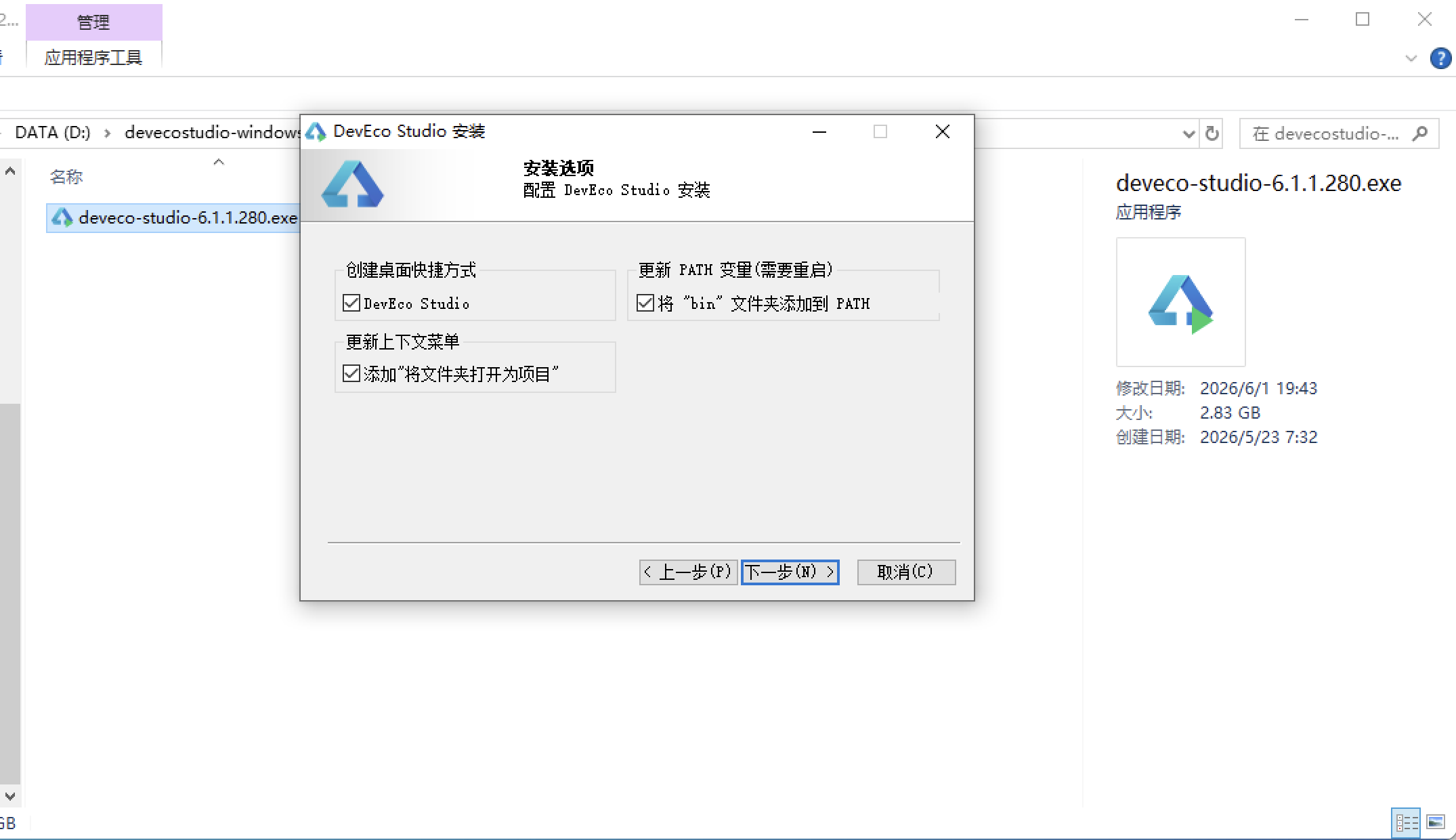
安装DevEco Studio程序
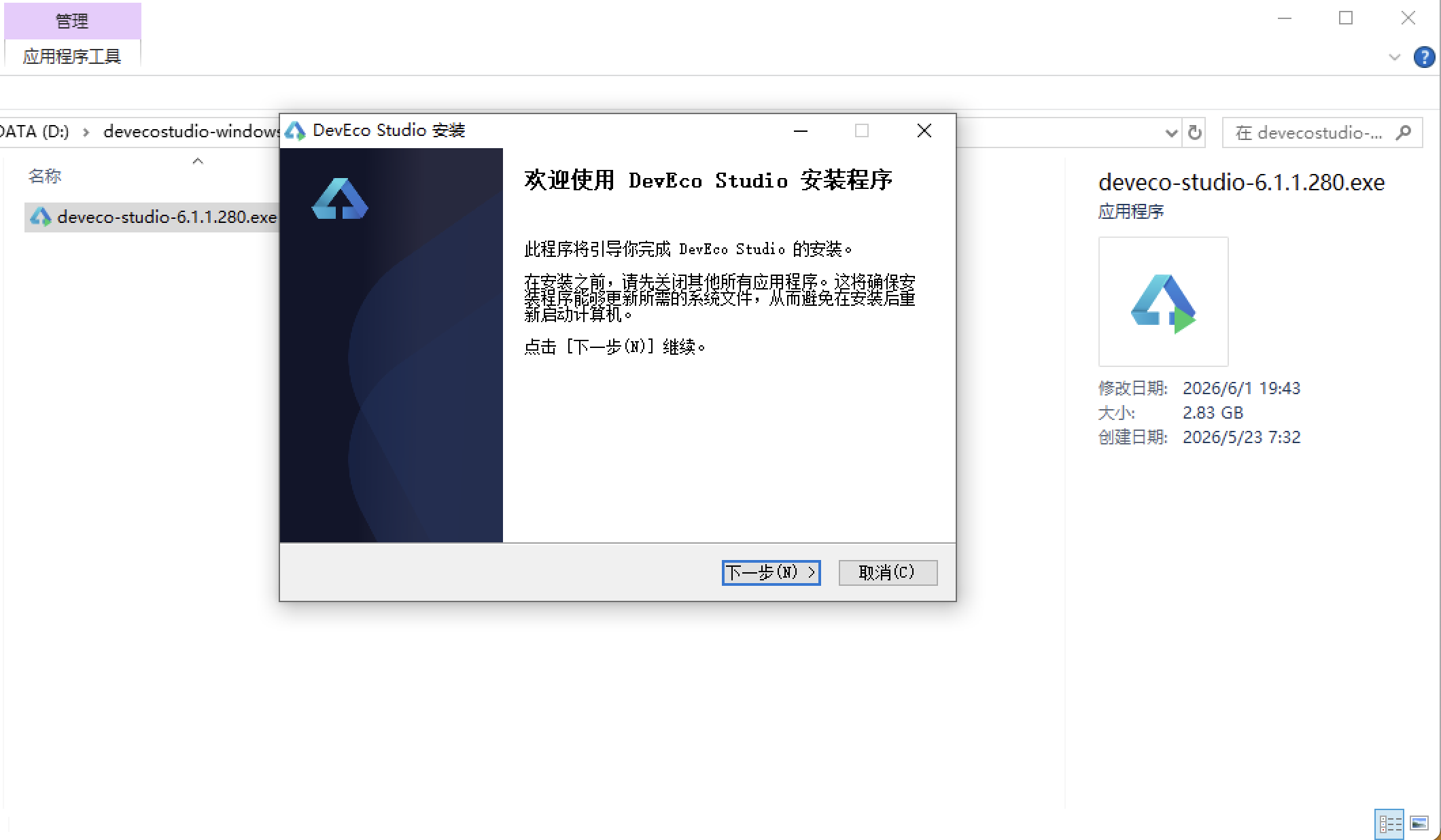
选择目标安装目录:
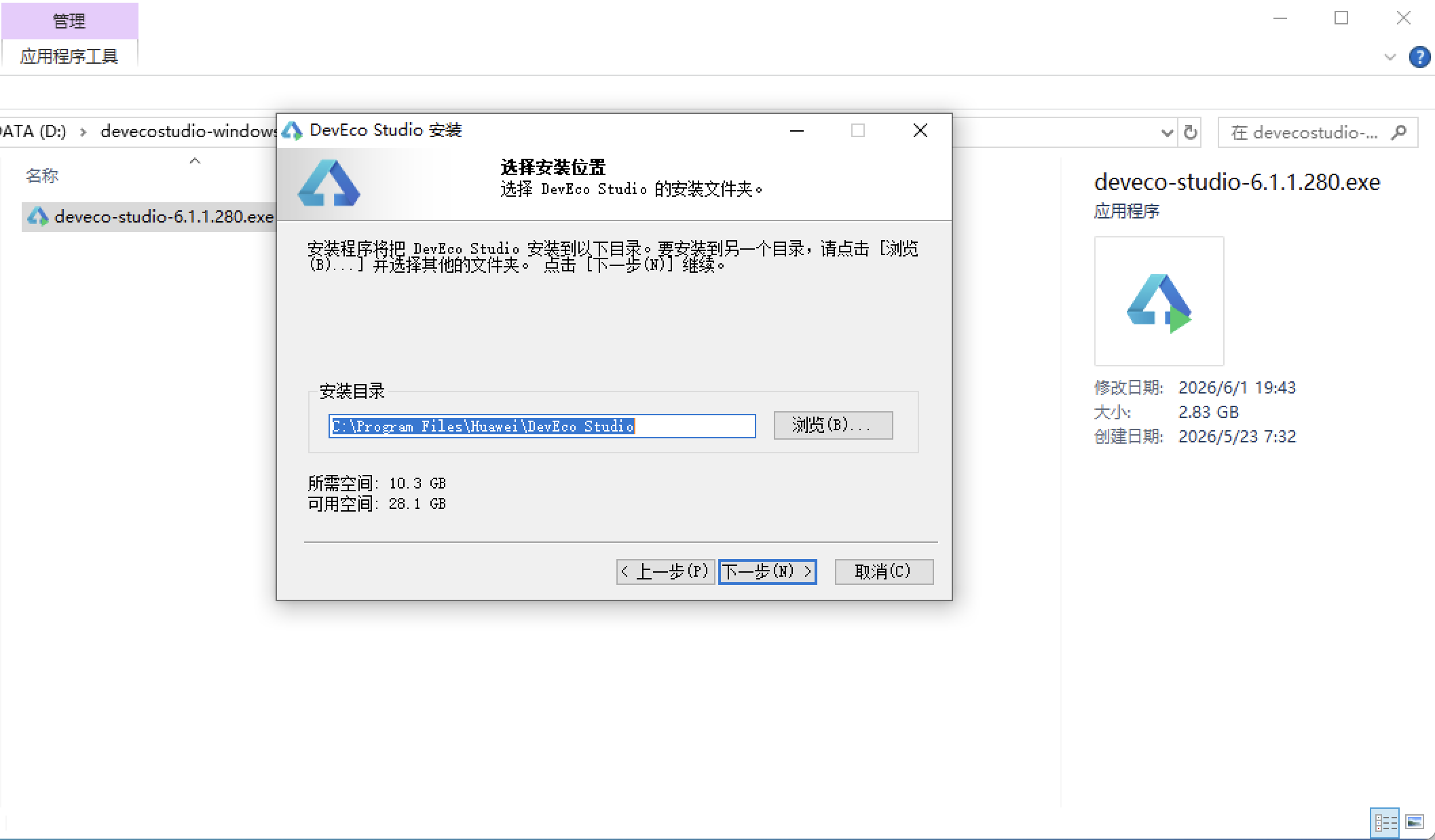
设置环境变量,但是需要重启一下:
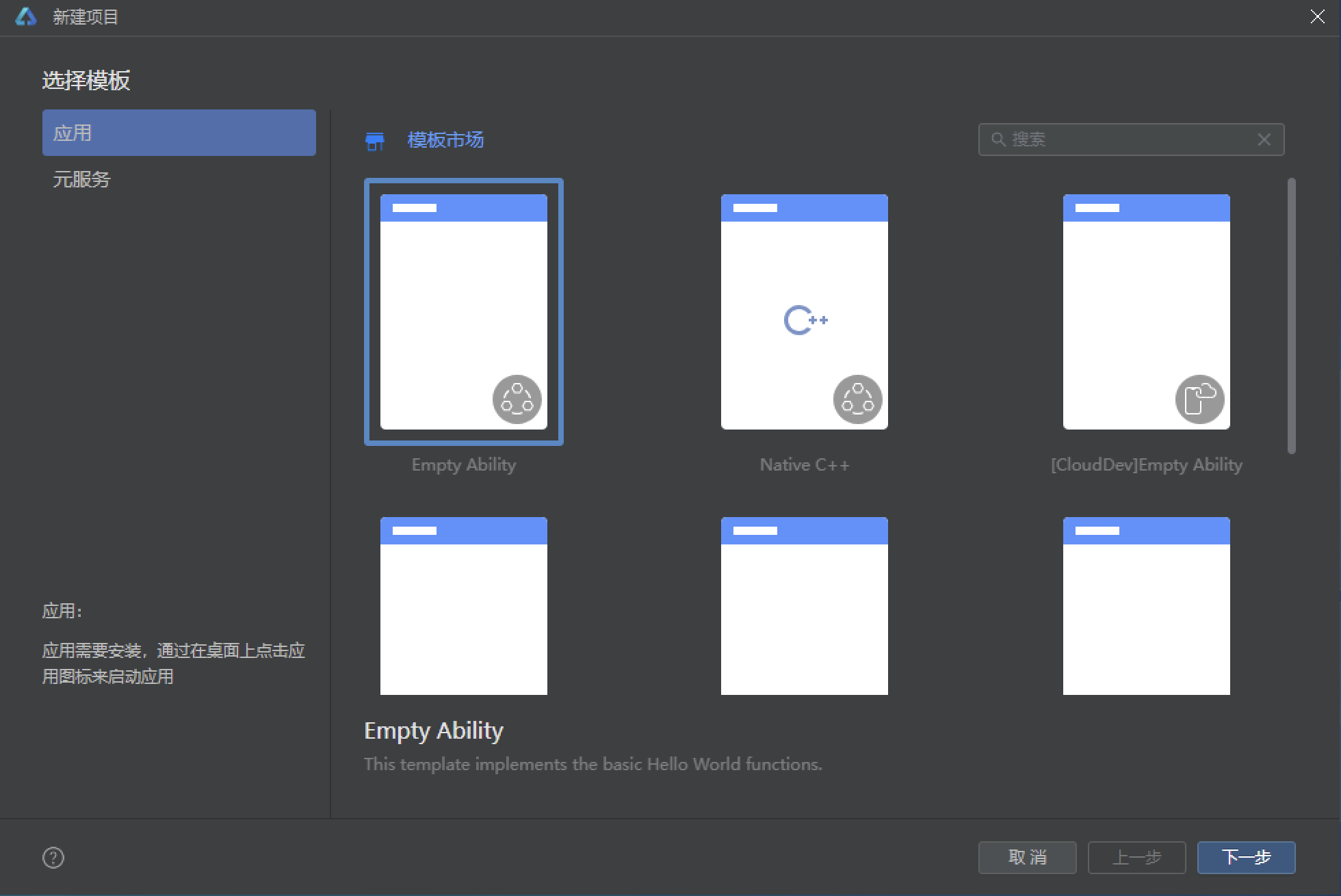
新建一个空白模板:
设置API为24的模板项目: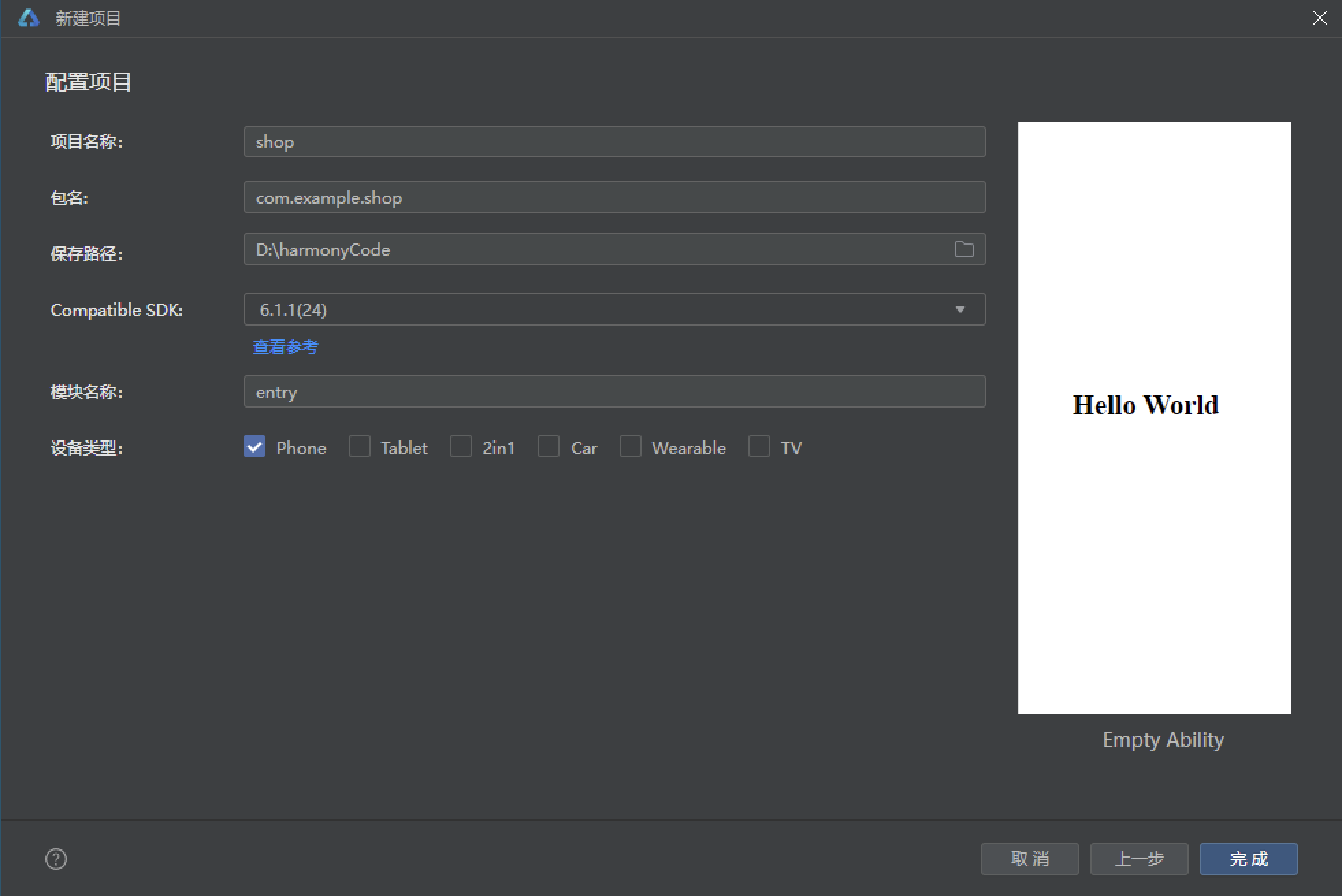
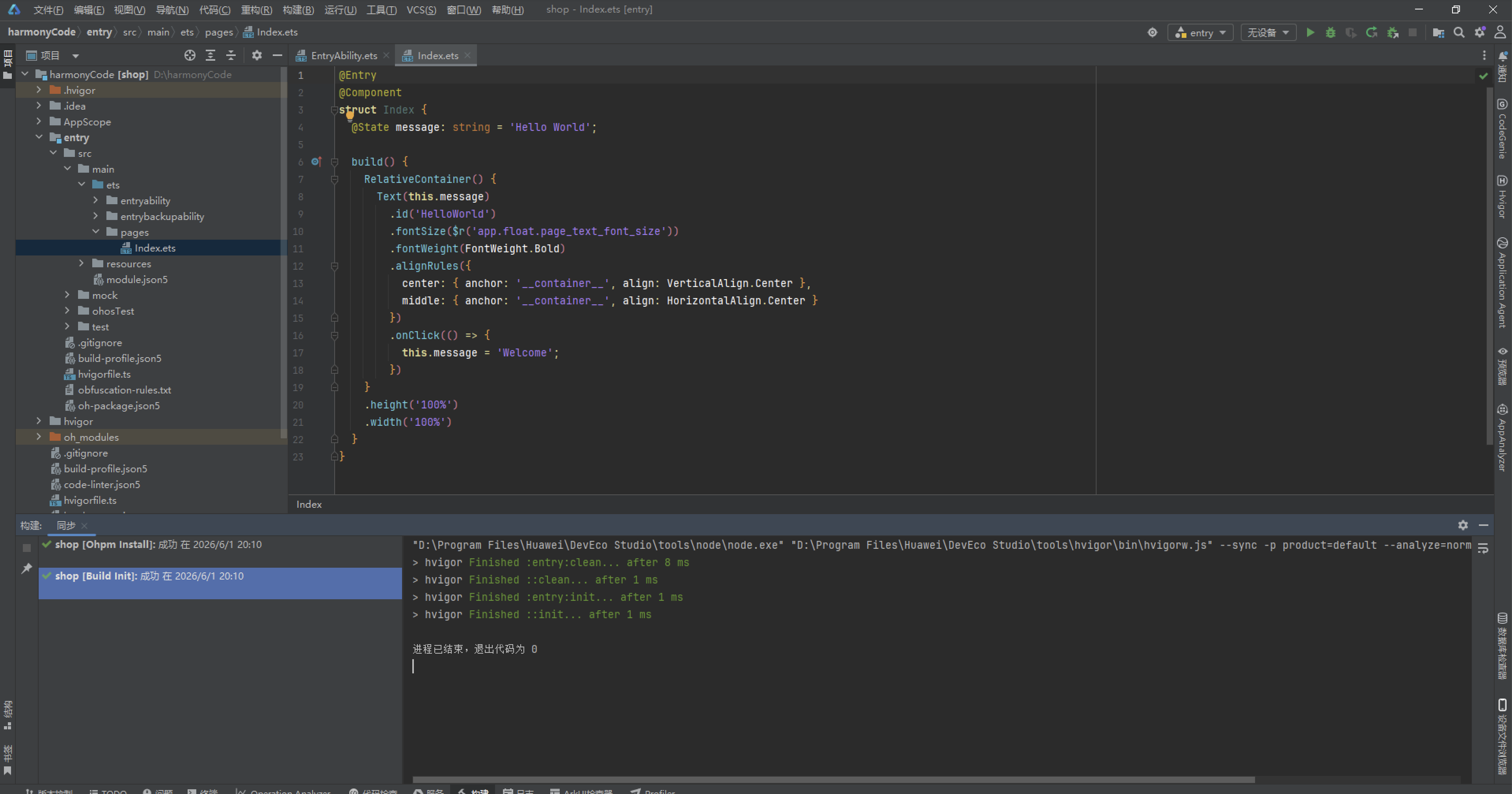
初始化项目,自动下载相关依赖:
完整代码:
// 旅行日记 — 湖蓝 #00838F | 青绿 #00695C | 背景 #E0F2F1
interface SummaryCardItem {
icon: string
label: string
value: string
bgColor: string
}
interface DistItem {
label: string
percent: number
color: string
count: number
}
interface MonthBarItem {
label: string
value: number
color: string
}
interface DestGridItem {
emoji: string
name: string
count: number
color: string
}
@Observed
class TravelEntry {
id: number
title: string
destination: string
country: string
startDate: string
endDate: string
duration: number
cost: number
rating: number
weather: string
mood: string
companion: string
photosCount: number
highlights: string[]
description: string
isFavorite: boolean
emoji: string
constructor(id: number, title: string, destination: string, country: string,
startDate: string, endDate: string, duration: number, cost: number,
rating: number, weather: string, mood: string, companion: string,
photosCount: number, highlights: string[], description: string,
isFavorite: boolean, emoji: string) {
this.id = id
this.title = title
this.destination = destination
this.country = country
this.startDate = startDate
this.endDate = endDate
this.duration = duration
this.cost = cost
this.rating = rating
this.weather = weather
this.mood = mood
this.companion = companion
this.photosCount = photosCount
this.highlights = highlights
this.description = description
this.isFavorite = isFavorite
this.emoji = emoji
}
}
enum TravelTab {
JOURNAL = 0,
DEST = 1,
STATS = 2,
PROFILE = 3
}
@Entry
@Component
struct TravelJournalPage {
@State activeTab: TravelTab = TravelTab.JOURNAL
@State travelEntries: TravelEntry[] = []
@State showAddModal: boolean = false
@State showEditModal: boolean = false
@State showDeleteModal: boolean = false
@State selectedIdx: number = -1
@State countryDist: DistItem[] = []
@State weatherDist: DistItem[] = []
@State monthData: MonthBarItem[] = []
@State destGrid: DestGridItem[] = []
@State maxMonth: number = 35000
@State formTitle: string = ''
@State formDest: string = ''
@State formCountry: string = ''
@State formDate: string = ''
@State formDuration: number = 0
@State formCost: number = 0
@State formRating: number = 5
@State formWeather: string = '晴'
@State formMood: string = '愉快'
@State formDesc: string = ''
aboutToAppear(): void {
this.travelEntries = [
new TravelEntry(1, '京都赏枫之旅', '京都', '日本', '2024-11-15', '2024-11-22', 8, 12000, 5, '晴', '兴奋', '家人', 245, ['清水寺', '岚山', '金阁寺'], '京都的红叶美不胜收,每一处都是绝美的画卷。清水寺的夜枫更是令人难忘。', true, '🍁'),
new TravelEntry(2, '冰岛极光探险', '雷克雅未克', '冰岛', '2024-10-01', '2024-10-10', 10, 28000, 5, '多云', '震撼', '朋友', 512, ['蓝湖温泉', '黄金圈', '冰河湖'], '极光在夜空中舞动,绿光如绸缎般流淌,一生难忘的体验。', true, '🌌'),
new TravelEntry(3, '巴黎浪漫之旅', '巴黎', '法国', '2024-06-10', '2024-06-16', 7, 18000, 4, '晴', '浪漫', '伴侣', 320, ['埃菲尔铁塔', '卢浮宫', '塞纳河'], '巴黎的每一个角落都散发着浪漫气息,塞纳河畔的黄昏最美。', true, '🗼'),
new TravelEntry(4, '马尔代夫海岛度假', '马累', '马尔代夫', '2024-12-20', '2024-12-26', 7, 32000, 5, '晴', '放松', '伴侣', 180, ['浮潜', '水屋', '日落巡航'], '水清沙幼,玻璃海透明如水晶,犹如天堂般的度假体验。', false, '🏝️'),
new TravelEntry(5, '西藏朝圣之旅', '拉萨', '中国', '2024-08-05', '2024-08-15', 11, 8000, 5, '晴', '虔诚', '独自', 450, ['布达拉宫', '纳木错', '大昭寺'], '蓝天白云下的布达拉宫巍峨壮丽,令人心生敬畏。', true, '🏔️'),
new TravelEntry(6, '纽约都市探索', '纽约', '美国', '2024-04-01', '2024-04-10', 10, 25000, 4, '多云', '兴奋', '朋友', 680, ['时代广场', '中央公园', '自由女神'], '不夜城的繁华令人目不暇接,百老汇歌舞剧精彩绝伦。', false, '🗽'),
new TravelEntry(7, '巴厘岛瑜伽之旅', '乌布', '印度尼西亚', '2024-03-15', '2024-03-25', 11, 15000, 4, '晴', '平静', '独自', 290, ['稻田徒步', '海神庙', 'SPA'], '在梯田与寺庙间寻找内心平静,巴厘岛的灵性令人着迷。', true, '🌴'),
new TravelEntry(8, '瑞士阿尔卑斯', '因特拉肯', '瑞士', '2024-07-05', '2024-07-14', 10, 22000, 5, '晴', '惊叹', '家人', 410, ['少女峰', '马特洪峰', '琉森湖'], '瑞士的自然风光如同明信片般完美,少女峰白雪皑皑。', true, '🏔️'),
new TravelEntry(9, '迪拜奢华之旅', '迪拜', '阿联酋', '2024-09-10', '2024-09-17', 8, 35000, 4, '晴', '兴奋', '朋友', 380, ['哈利法塔', '沙漠冲沙', '棕榈岛'], '奢华与现代的完美结合,哈利法塔俯瞰整个沙漠城市。', false, '🏙️'),
new TravelEntry(10, '澳大利亚大洋路', '墨尔本', '澳大利亚', '2024-02-01', '2024-02-12', 12, 26000, 5, '晴', '自由', '伴侣', 560, ['十二门徒', '大洋路', '菲利普岛'], '海风与壮丽海岸线,十二门徒岩在夕阳下金光灿烂。', false, '🦘'),
new TravelEntry(11, '土耳其热气球', '卡帕多奇亚', '土耳其', '2024-05-10', '2024-05-20', 11, 16000, 5, '晴', '梦幻', '伴侣', 430, ['热气球', '洞穴酒店', '棉花堡'], '漫天热气球的日出景象美到窒息,仿佛置身童话世界。', true, '🎈'),
new TravelEntry(12, '肯尼亚野生动物', '内罗毕', '肯尼亚', '2024-07-20', '2024-08-01', 13, 30000, 5, '晴', '震撼', '朋友', 720, ['马赛马拉', '纳库鲁湖', '安博塞利'], '近距离接触非洲五霸,狮子在草原上漫步的震撼。', true, '🦁'),
new TravelEntry(13, '秘鲁印加古道', '库斯科', '秘鲁', '2024-06-01', '2024-06-12', 12, 22000, 5, '多云', '挑战', '朋友', 390, ['马丘比丘', '彩虹山', '的的喀喀湖'], '徒步四天到达马丘比丘,云雾散开时热泪盈眶。', true, '🦙'),
new TravelEntry(14, '意大利美食之旅', '罗马', '意大利', '2024-09-15', '2024-09-25', 11, 20000, 5, '晴', '满足', '伴侣', 480, ['斗兽场', '威尼斯', '五渔村'], '意大利的美食与文化让人流连忘返,冰淇淋吃到停不下来。', true, '🍕'),
new TravelEntry(15, '希腊圣托里尼', '圣托里尼', '希腊', '2024-05-25', '2024-06-02', 9, 18000, 5, '晴', '浪漫', '伴侣', 350, ['蓝顶教堂', '伊亚日落', '红沙滩'], '爱琴海的蓝白世界,伊亚的日落是全世界最美的。', true, '🏛️'),
new TravelEntry(16, '新西兰南岛', '皇后镇', '新西兰', '2024-08-10', '2024-08-22', 13, 28000, 5, '晴', '自由', '朋友', 610, ['米尔福德峡湾', '蹦极', '霍比屯'], '中土世界的壮丽景色,峡湾游船令人永生难忘。', false, '🏔️'),
new TravelEntry(17, '泰国清迈古城', '清迈', '泰国', '2024-11-01', '2024-11-08', 8, 6000, 4, '晴', '悠闲', '独自', 210, ['夜市', '素贴山', '大象营'], '古城寺庙与夜市美食完美融合,泰北的慢生活。', false, '🛕'),
new TravelEntry(18, '埃及金字塔', '开罗', '埃及', '2024-03-01', '2024-03-10', 10, 15000, 4, '晴', '敬畏', '朋友', 440, ['金字塔', '卢克索神庙', '红海潜水'], '七千年文明史,金字塔前的骆驼之旅穿越时空。', false, '🏛️'),
new TravelEntry(19, '挪威峡湾', '卑尔根', '挪威', '2024-06-20', '2024-06-30', 11, 25000, 5, '多云', '宁静', '家人', 330, ['松恩峡湾', '布道石', '卑尔根鱼市'], '峡湾的壮美与北欧的宁静,布道石上的俯瞰一生难忘。', true, '🌊'),
new TravelEntry(20, '日本北海道滑雪', '札幌', '日本', '2024-12-20', '2024-12-28', 9, 15000, 5, '雪', '刺激', '朋友', 280, ['二世谷', '小樽运河', '札幌雪祭'], '粉雪天堂的滑雪体验无与伦比,小樽的雪灯之路浪漫。', true, '⛄'),
new TravelEntry(21, '墨西哥亡灵节', '墨西哥城', '墨西哥', '2024-10-25', '2024-11-03', 10, 13000, 5, '晴', '惊喜', '朋友', 370, ['日月金字塔', '亡灵节游行', '坎昆'], '亡灵节的色彩与欢乐颠覆了对死亡的认知,震撼心灵。', true, '💀'),
new TravelEntry(22, '摩洛哥撒哈拉', '马拉喀什', '摩洛哥', '2024-04-15', '2024-04-25', 11, 14000, 4, '晴', '奇妙', '朋友', 420, ['撒哈拉沙漠', '蓝色小镇', '菲斯古城'], '撒哈拉的星空下篝火夜谈,如一千零一夜般奇幻。', false, '🐪'),
new TravelEntry(23, '新加坡美食之旅', '新加坡', '新加坡', '2024-08-15', '2024-08-20', 6, 9000, 4, '雨', '满足', '家人', 195, ['滨海湾', '圣淘沙', '小印度'], '狮城的美食从早吃到晚,辣椒螃蟹令人回味无穷。', false, '🦁'),
new TravelEntry(24, '斯里兰卡茶园', '康提', '斯里兰卡', '2024-01-05', '2024-01-14', 10, 11000, 4, '晴', '宁静', '独自', 340, ['茶园火车', '狮子岩', '加勒古堡'], '高山火车穿过翠绿茶园,仿佛时光倒流到殖民时代。', false, '🍵'),
new TravelEntry(25, '越南下龙湾', '河内', '越南', '2024-12-01', '2024-12-08', 8, 5500, 4, '多云', '惬意', '朋友', 260, ['下龙湾游船', '河内老城', '会安古镇'], '海上桂林的喀斯特地貌令人叹为观止,越南咖啡难忘。', false, '⛰️'),
new TravelEntry(26, '斐济海岛天堂', '楠迪', '斐济', '2024-02-14', '2024-02-22', 9, 22000, 5, '晴', '放松', '伴侣', 280, ['玛玛努卡岛', '鲨鱼潜水', '火山泥浴'], '南太平洋的纯净天堂,Bula精神感染每一个人。', true, '🌺'),
new TravelEntry(27, '加拿大班夫', '班夫', '加拿大', '2024-09-01', '2024-09-12', 12, 24000, 5, '晴', '惊叹', '家人', 490, ['路易斯湖', '冰原大道', '贾斯珀'], '落基山脉的湖光山色如诗如画,路易斯湖如翡翠。', true, '🏞️'),
new TravelEntry(28, '柬埔寨吴哥窟', '暹粒', '柬埔寨', '2024-07-01', '2024-07-07', 7, 5500, 4, '雨', '敬畏', '独自', 310, ['吴哥窟日出', '巴戎寺', '塔普伦寺'], '吴哥窟的日出是此生最美的日出之一,高棉的微笑。', false, '🏛️'),
new TravelEntry(29, '葡萄牙里斯本', '里斯本', '葡萄牙', '2024-03-20', '2024-03-28', 9, 13000, 4, '晴', '惬意', '伴侣', 350, ['贝伦塔', '辛特拉', '波尔图'], '彩色的瓷砖与蛋挞,有轨电车穿过古老街区的浪漫。', false, '🚋'),
new TravelEntry(30, '克罗地亚杜城', '杜布罗夫尼克', '克罗地亚', '2024-10-15', '2024-10-23', 9, 14000, 5, '晴', '惊艳', '朋友', 380, ['古城墙', '蓝洞', '赫瓦尔岛'], '亚得里亚海的明珠,漫步古城墙仿佛走进君临城。', true, '🏰')
]
this.countryDist = [
{ label: '日本', percent: 10, color: '#00838F', count: 2 },
{ label: '冰岛', percent: 3, color: '#0097A7', count: 1 },
{ label: '法国', percent: 3, color: '#00ACC1', count: 1 },
{ label: '马尔代夫', percent: 3, color: '#26C6DA', count: 1 },
{ label: '中国', percent: 3, color: '#4DD0E1', count: 1 },
{ label: '美国', percent: 3, color: '#80DEEA', count: 1 },
{ label: '意大利', percent: 3, color: '#B2DFDB', count: 1 },
{ label: '瑞士', percent: 3, color: '#00695C', count: 1 }
]
this.weatherDist = [
{ label: '晴', percent: 67, color: '#FF8F00', count: 20 },
{ label: '多云', percent: 17, color: '#78909C', count: 5 },
{ label: '雨', percent: 8, color: '#42A5F5', count: 2 },
{ label: '雪', percent: 8, color: '#90CAF9', count: 1 }
]
this.monthData = [
{ label: '1月', value: 23000, color: '#00838F' },
{ label: '2月', value: 48000, color: '#0097A7' },
{ label: '3月', value: 28000, color: '#00ACC1' },
{ label: '4月', value: 39000, color: '#26C6DA' },
{ label: '5月', value: 34000, color: '#4DD0E1' },
{ label: '6月', value: 40000, color: '#00695C' },
{ label: '7月', value: 52000, color: '#00796B' },
{ label: '8月', value: 43000, color: '#00897B' },
{ label: '9月', value: 59000, color: '#009688' },
{ label: '10月', value: 42000, color: '#4DB6AC' },
{ label: '11月', value: 31000, color: '#80CBC4' },
{ label: '12月', value: 62000, color: '#26A69A' }
]
this.destGrid = [
{ emoji: '🗼', name: '日本·京都', count: 2, color: '#E0F2F1' },
{ emoji: '🗽', name: '美国·纽约', count: 1, color: '#B2DFDB' },
{ emoji: '🏔️', name: '瑞士·因特拉肯', count: 1, color: '#80CBC4' },
{ emoji: '🏛️', name: '希腊·圣托里尼', count: 1, color: '#4DB6AC' },
{ emoji: '🌴', name: '印尼·巴厘岛', count: 1, color: '#26A69A' },
{ emoji: '🍕', name: '意大利·罗马', count: 1, color: '#E0F2F1' },
{ emoji: '🏝️', name: '马尔代夫·马累', count: 1, color: '#B2DFDB' },
{ emoji: '🏰', name: '克罗地亚·杜城', count: 1, color: '#80CBC4' },
{ emoji: '🌊', name: '挪威·卑尔根', count: 1, color: '#4DB6AC' },
{ emoji: '🦁', name: '肯尼亚·内罗毕', count: 1, color: '#26A69A' },
{ emoji: '🌺', name: '斐济·楠迪', count: 1, color: '#E0F2F1' },
{ emoji: '🏞️', name: '加拿大·班夫', count: 1, color: '#B2DFDB' }
]
}
formatCost(cost: number): string {
if (cost >= 10000) {
return '¥' + (cost / 10000).toFixed(1) + '万'
}
return '¥' + cost.toString()
}
starText(rating: number): string {
if (rating === 5) { return '★★★★★' }
if (rating === 4) { return '★★★★☆' }
if (rating === 3) { return '★★★☆☆' }
if (rating === 2) { return '★★☆☆☆' }
return '★☆☆☆☆'
}
highlightText(entry: TravelEntry): string {
return entry.highlights.join(' · ')
}
addNewEntry(): void {
this.showAddModal = false
this.formTitle = ''
this.formDest = ''
this.formCountry = ''
this.formDate = ''
this.formDuration = 0
this.formCost = 0
this.formRating = 5
this.formWeather = '晴'
this.formMood = '愉快'
this.formDesc = ''
}
deleteEntry(): void {
if (this.selectedIdx >= 0 && this.selectedIdx < this.travelEntries.length) {
this.travelEntries.splice(this.selectedIdx, 1)
}
this.showDeleteModal = false
this.selectedIdx = -1
}
saveEdit(): void {
if (this.selectedIdx >= 0 && this.selectedIdx < this.travelEntries.length) {
this.travelEntries[this.selectedIdx].title = this.formTitle
this.travelEntries[this.selectedIdx].destination = this.formDest
this.travelEntries[this.selectedIdx].country = this.formCountry
this.travelEntries[this.selectedIdx].duration = this.formDuration
this.travelEntries[this.selectedIdx].cost = this.formCost
}
this.showEditModal = false
this.selectedIdx = -1
}
openEdit(entry: TravelEntry, idx: number): void {
this.selectedIdx = idx
this.formTitle = entry.title
this.formDest = entry.destination
this.formCountry = entry.country
this.formDate = entry.startDate
this.formDuration = entry.duration
this.formCost = entry.cost
this.formRating = entry.rating
this.formWeather = entry.weather
this.formMood = entry.mood
this.formDesc = entry.description
this.showEditModal = true
}
openDelete(idx: number): void {
this.selectedIdx = idx
this.showDeleteModal = true
}
@Builder bottomNav() {
Row() {
this.bottomTabItem('✈️', '游记', TravelTab.JOURNAL)
this.bottomTabItem('🗺️', '目的地', TravelTab.DEST)
this.bottomTabItem('📊', '统计', TravelTab.STATS)
this.bottomTabItem('👤', '我的', TravelTab.PROFILE)
}
.width('100%').height(56)
.backgroundColor('#FFFFFF')
.padding({ bottom: 4 })
.shadow({ radius: 8, color: '#1A000000', offsetY: -2 })
}
@Builder bottomTabItem(icon: string, label: string, tab: TravelTab) {
Column() {
Text(icon).fontSize(22)
.opacity(this.activeTab === tab ? 1.0 : 0.4)
Text(label).fontSize(10)
.fontColor(this.activeTab === tab ? '#00838F' : '#999999')
.fontWeight(this.activeTab === tab ? FontWeight.Bold : FontWeight.Normal)
.margin({ top: 2 })
if (this.activeTab === tab) {
Column().width(16).height(3)
.backgroundColor('#00838F').borderRadius(2).margin({ top: 3 })
}
}
.layoutWeight(1).alignItems(HorizontalAlign.Center)
.padding({ top: 6, bottom: 4 })
.onClick(() => { this.activeTab = tab })
}
@Builder modalBg(onClose: () => void) {
Column().width('100%').height('100%')
.backgroundColor('rgba(0,0,0,0.45)').onClick(onClose)
}
@Builder addModal() {
Column() {
this.modalBg(() => { this.showAddModal = false })
Column() {
Scroll() {
Column() {
Text('添加旅行日记').fontSize(20).fontWeight(FontWeight.Bold)
.fontColor('#263238').margin({ bottom: 16 })
Text('旅行标题').fontSize(13).fontColor('#666666').margin({ bottom: 4 }).alignSelf(ItemAlign.Start)
TextInput({ placeholder: '请输入旅行标题' })
.width('100%').height(40).fontSize(14)
.backgroundColor('#F5F5F5').borderRadius(8)
.padding({ left: 12 }).margin({ bottom: 12 })
.onChange((v: string) => { this.formTitle = v })
Text('目的地').fontSize(13).fontColor('#666666').margin({ bottom: 4 }).alignSelf(ItemAlign.Start)
TextInput({ placeholder: '请输入目的地' })
.width('100%').height(40).fontSize(14)
.backgroundColor('#F5F5F5').borderRadius(8)
.padding({ left: 12 }).margin({ bottom: 12 })
.onChange((v: string) => { this.formDest = v })
Text('国家').fontSize(13).fontColor('#666666').margin({ bottom: 4 }).alignSelf(ItemAlign.Start)
TextInput({ placeholder: '请输入国家' })
.width('100%').height(40).fontSize(14)
.backgroundColor('#F5F5F5').borderRadius(8)
.padding({ left: 12 }).margin({ bottom: 12 })
.onChange((v: string) => { this.formCountry = v })
Text('日期').fontSize(13).fontColor('#666666').margin({ bottom: 4 }).alignSelf(ItemAlign.Start)
TextInput({ placeholder: '日期,如 2024-05-01' })
.width('100%').height(40).fontSize(14)
.backgroundColor('#F5F5F5').borderRadius(8)
.padding({ left: 12 }).margin({ bottom: 12 })
.onChange((v: string) => { this.formDate = v })
Text('天数').fontSize(13).fontColor('#666666').margin({ bottom: 4 }).alignSelf(ItemAlign.Start)
TextInput({ placeholder: '旅行天数' })
.width('100%').height(40).fontSize(14)
.backgroundColor('#F5F5F5').borderRadius(8).type(InputType.Number)
.padding({ left: 12 }).margin({ bottom: 12 })
.onChange((v: string) => { this.formDuration = parseInt(v) })
Text('花费 (元)').fontSize(13).fontColor('#666666').margin({ bottom: 4 }).alignSelf(ItemAlign.Start)
TextInput({ placeholder: '旅行花费金额' })
.width('100%').height(40).fontSize(14)
.backgroundColor('#F5F5F5').borderRadius(8).type(InputType.Number)
.padding({ left: 12 }).margin({ bottom: 12 })
.onChange((v: string) => { this.formCost = parseInt(v) })
Text('描述').fontSize(13).fontColor('#666666').margin({ bottom: 4 }).alignSelf(ItemAlign.Start)
TextInput({ placeholder: '旅行感想与描述...' })
.width('100%').height(72).fontSize(14).maxLength(200)
.backgroundColor('#F5F5F5').borderRadius(8)
.padding({ left: 12, top: 8 }).margin({ bottom: 16 })
.onChange((v: string) => { this.formDesc = v })
Row() {
Text('取消').fontSize(15).fontColor('#999999')
.padding({ left: 24, right: 24, top: 10, bottom: 10 })
.onClick(() => { this.showAddModal = false })
Column().layoutWeight(1)
Text('保存').fontSize(15).fontColor('#FFFFFF').fontWeight(FontWeight.Bold)
.backgroundColor('#00838F').borderRadius(20)
.padding({ left: 32, right: 32, top: 10, bottom: 10 })
.onClick(() => { this.addNewEntry() })
}.width('100%')
}
.width('100%').padding(20).alignItems(HorizontalAlign.Start)
}
}
.width('90%').backgroundColor('#FFFFFF').borderRadius(18)
.constraintSize({ maxHeight: '85%' })
.shadow({ radius: 24, color: '#40000000', offsetY: 8 })
}
.width('100%').height('100%')
.position({ x: 0, y: 0 }).zIndex(999)
.justifyContent(FlexAlign.Center).alignItems(HorizontalAlign.Center)
}
@Builder editModal() {
Column() {
this.modalBg(() => { this.showEditModal = false })
Column() {
Scroll() {
Column() {
Text('编辑旅行日记').fontSize(20).fontWeight(FontWeight.Bold)
.fontColor('#263238').margin({ bottom: 16 })
Text('旅行标题').fontSize(13).fontColor('#666666').margin({ bottom: 4 }).alignSelf(ItemAlign.Start)
TextInput({ text: this.formTitle })
.width('100%').height(40).fontSize(14)
.backgroundColor('#F5F5F5').borderRadius(8)
.padding({ left: 12 }).margin({ bottom: 12 })
.onChange((v: string) => { this.formTitle = v })
Text('目的地').fontSize(13).fontColor('#666666').margin({ bottom: 4 }).alignSelf(ItemAlign.Start)
TextInput({ text: this.formDest })
.width('100%').height(40).fontSize(14)
.backgroundColor('#F5F5F5').borderRadius(8)
.padding({ left: 12 }).margin({ bottom: 12 })
.onChange((v: string) => { this.formDest = v })
Text('国家').fontSize(13).fontColor('#666666').margin({ bottom: 4 }).alignSelf(ItemAlign.Start)
TextInput({ text: this.formCountry })
.width('100%').height(40).fontSize(14)
.backgroundColor('#F5F5F5').borderRadius(8)
.padding({ left: 12 }).margin({ bottom: 12 })
.onChange((v: string) => { this.formCountry = v })
Text('天数').fontSize(13).fontColor('#666666').margin({ bottom: 4 }).alignSelf(ItemAlign.Start)
TextInput({ text: this.formDuration.toString() })
.width('100%').height(40).fontSize(14)
.backgroundColor('#F5F5F5').borderRadius(8).type(InputType.Number)
.padding({ left: 12 }).margin({ bottom: 12 })
.onChange((v: string) => { this.formDuration = parseInt(v) })
Text('花费 (元)').fontSize(13).fontColor('#666666').margin({ bottom: 4 }).alignSelf(ItemAlign.Start)
TextInput({ text: this.formCost.toString() })
.width('100%').height(40).fontSize(14)
.backgroundColor('#F5F5F5').borderRadius(8).type(InputType.Number)
.padding({ left: 12 }).margin({ bottom: 12 })
.onChange((v: string) => { this.formCost = parseInt(v) })
Text('描述').fontSize(13).fontColor('#666666').margin({ bottom: 4 }).alignSelf(ItemAlign.Start)
TextInput({ text: this.formDesc })
.width('100%').height(72).fontSize(14).maxLength(200)
.backgroundColor('#F5F5F5').borderRadius(8)
.padding({ left: 12, top: 8 }).margin({ bottom: 16 })
.onChange((v: string) => { this.formDesc = v })
Row() {
Text('取消').fontSize(15).fontColor('#999999')
.padding({ left: 24, right: 24, top: 10, bottom: 10 })
.onClick(() => { this.showEditModal = false })
Column().layoutWeight(1)
Text('更新').fontSize(15).fontColor('#FFFFFF').fontWeight(FontWeight.Bold)
.backgroundColor('#00838F').borderRadius(20)
.padding({ left: 32, right: 32, top: 10, bottom: 10 })
.onClick(() => { this.saveEdit() })
}.width('100%')
}
.width('100%').padding(20).alignItems(HorizontalAlign.Start)
}
}
.width('90%').backgroundColor('#FFFFFF').borderRadius(18)
.constraintSize({ maxHeight: '85%' })
.shadow({ radius: 24, color: '#40000000', offsetY: 8 })
}
.width('100%').height('100%')
.position({ x: 0, y: 0 }).zIndex(1000)
.justifyContent(FlexAlign.Center).alignItems(HorizontalAlign.Center)
}
@Builder deleteModal() {
Column() {
this.modalBg(() => { this.showDeleteModal = false })
Column() {
Text('确认删除').fontSize(20).fontWeight(FontWeight.Bold)
.fontColor('#263238').margin({ bottom: 8 })
Text('删除后无法恢复,确认删除该条旅行记录?').fontSize(14)
.fontColor('#666666').textAlign(TextAlign.Center)
.padding({ left: 16, right: 16 }).margin({ bottom: 20 })
Row() {
Text('取消').fontSize(15).fontColor('#666666')
.backgroundColor('#F5F5F5').borderRadius(20)
.padding({ left: 28, right: 28, top: 10, bottom: 10 })
.onClick(() => { this.showDeleteModal = false })
Column().width(16)
Text('删除').fontSize(15).fontColor('#FFFFFF').fontWeight(FontWeight.Bold)
.backgroundColor('#E53935').borderRadius(20)
.padding({ left: 28, right: 28, top: 10, bottom: 10 })
.onClick(() => { this.deleteEntry() })
}
}
.width('80%').backgroundColor('#FFFFFF').borderRadius(18)
.padding(24).alignItems(HorizontalAlign.Center)
.shadow({ radius: 24, color: '#40000000', offsetY: 8 })
}
.width('100%').height('100%')
.position({ x: 0, y: 0 }).zIndex(1001)
.justifyContent(FlexAlign.Center).alignItems(HorizontalAlign.Center)
}
@Builder summaryCard(item: SummaryCardItem) {
Column() {
Text(item.icon).fontSize(28).margin({ bottom: 6 })
Text(item.value).fontSize(18).fontWeight(FontWeight.Bold).fontColor('#263238')
Text(item.label).fontSize(10).fontColor('#666666').margin({ top: 2 })
}
.layoutWeight(1).alignItems(HorizontalAlign.Center)
.backgroundColor(item.bgColor).borderRadius(12)
.padding({ top: 14, bottom: 14 }).margin(4)
}
@Builder summaryCards() {
Row() {
this.summaryCard({ icon: '🌍', label: '已访国家', value: '18', bgColor: '#E0F2F1' })
this.summaryCard({ icon: '✈️', label: '旅次总计', value: '30', bgColor: '#B2DFDB' })
this.summaryCard({ icon: '💰', label: '总花费', value: '¥56.5万', bgColor: '#80CBC4' })
this.summaryCard({ icon: '⭐', label: '最爱', value: '京都', bgColor: '#4DB6AC' })
}
.width('100%').padding({ left: 8, right: 8, top: 8, bottom: 4 })
}
@Builder entryCard(entry: TravelEntry, isLast: boolean) {
Row() {
Column() {
Text(entry.emoji).fontSize(32)
if (!isLast) {
Column().width(2).layoutWeight(1).backgroundColor('#B2DFDB')
}
}
.width(48).alignItems(HorizontalAlign.Center)
Column() {
Row() {
Column() {
Text(entry.title).fontSize(15).fontWeight(FontWeight.Bold).fontColor('#263238').maxLines(1)
Row() {
Text(entry.destination).fontSize(11).fontColor('#00695C')
.backgroundColor('#E0F2F1').borderRadius(8)
.padding({ left: 8, right: 8, top: 2, bottom: 2 })
Text(entry.country).fontSize(10).fontColor('#00838F')
.backgroundColor('#B2DFDB').borderRadius(8)
.padding({ left: 6, right: 6, top: 2, bottom: 2 })
.margin({ left: 4 })
if (entry.isFavorite) {
Text('⭐').fontSize(12).margin({ left: 4 })
}
}.margin({ top: 4 })
}.layoutWeight(1).alignItems(HorizontalAlign.Start)
Column() {
Text(this.starText(entry.rating)).fontSize(8).fontColor('#FF8F00')
Text(entry.weather + ' ' + entry.mood).fontSize(9).fontColor('#999999').margin({ top: 2 })
}.alignItems(HorizontalAlign.End)
}.width('100%')
Row() {
Text(entry.startDate + ' → ' + entry.endDate).fontSize(10).fontColor('#888888')
Text(entry.duration + '天').fontSize(10).fontColor('#00838F')
.backgroundColor('#E0F2F1').borderRadius(4)
.padding({ left: 4, right: 4, top: 1, bottom: 1 })
.margin({ left: 6 })
Text(entry.companion).fontSize(10).fontColor('#00695C').margin({ left: 6 })
}.margin({ top: 4 })
Text(entry.description).fontSize(12).fontColor('#666666')
.maxLines(2).textOverflow({ overflow: TextOverflow.Ellipsis })
.margin({ top: 6 })
Row() {
Text(this.highlightText(entry)).fontSize(10).fontColor('#00695C')
.backgroundColor('#E0F2F1').borderRadius(6)
.padding({ left: 8, right: 8, top: 3, bottom: 3 })
.maxLines(1).textOverflow({ overflow: TextOverflow.Ellipsis })
Column().layoutWeight(1)
Text('📷' + entry.photosCount.toString()).fontSize(10).fontColor('#888888')
}.width('100%').margin({ top: 6 })
Row() {
Text('💰 ' + this.formatCost(entry.cost)).fontSize(13).fontWeight(FontWeight.Bold)
.fontColor('#00838F')
Column().layoutWeight(1)
Text('编辑').fontSize(10).fontColor('#00838F')
.padding({ left: 12, right: 12, top: 4, bottom: 4 })
.border({ width: 1, color: '#00838F' }).borderRadius(12)
.onClick(() => { this.openEdit(entry, this.travelEntries.indexOf(entry)) })
Text('删除').fontSize(10).fontColor('#E53935')
.padding({ left: 12, right: 12, top: 4, bottom: 4 })
.border({ width: 1, color: '#E53935' }).borderRadius(12)
.margin({ left: 8 })
.onClick(() => { this.openDelete(this.travelEntries.indexOf(entry)) })
}.width('100%').margin({ top: 8 })
}
.layoutWeight(1).backgroundColor('#FFFFFF').borderRadius(12)
.padding(14).margin({ left: 8, bottom: 14 })
.shadow({ radius: 6, color: '#1A000000', offsetY: 2 })
}
.width('100%').padding({ left: 12, right: 12 })
}
@Builder journalTab() {
Scroll() {
Column() {
this.summaryCards()
Row() {
Text('我的旅行日记').fontSize(18).fontWeight(FontWeight.Bold).fontColor('#263238')
Column().layoutWeight(1)
Text('+ 添加').fontSize(13).fontColor('#FFFFFF').fontWeight(FontWeight.Bold)
.backgroundColor('#00838F').borderRadius(16)
.padding({ left: 16, right: 16, top: 6, bottom: 6 })
.onClick(() => { this.showAddModal = true })
}
.width('100%').padding({ left: 16, right: 16, top: 8, bottom: 8 })
this.entryCard(this.travelEntries[0], false)
this.entryCard(this.travelEntries[1], false)
this.entryCard(this.travelEntries[2], false)
this.entryCard(this.travelEntries[3], false)
this.entryCard(this.travelEntries[4], false)
this.entryCard(this.travelEntries[5], false)
this.entryCard(this.travelEntries[6], false)
this.entryCard(this.travelEntries[7], false)
this.entryCard(this.travelEntries[8], false)
this.entryCard(this.travelEntries[9], false)
this.entryCard(this.travelEntries[10], false)
this.entryCard(this.travelEntries[11], false)
this.entryCard(this.travelEntries[12], false)
this.entryCard(this.travelEntries[13], false)
this.entryCard(this.travelEntries[14], false)
this.entryCard(this.travelEntries[15], false)
this.entryCard(this.travelEntries[16], false)
this.entryCard(this.travelEntries[17], false)
this.entryCard(this.travelEntries[18], false)
this.entryCard(this.travelEntries[19], false)
this.entryCard(this.travelEntries[20], false)
this.entryCard(this.travelEntries[21], false)
this.entryCard(this.travelEntries[22], false)
this.entryCard(this.travelEntries[23], false)
this.entryCard(this.travelEntries[24], false)
this.entryCard(this.travelEntries[25], false)
this.entryCard(this.travelEntries[26], false)
this.entryCard(this.travelEntries[27], false)
this.entryCard(this.travelEntries[28], false)
this.entryCard(this.travelEntries[29], true)
Column().height(20)
}
.width('100%')
}
.layoutWeight(1).scrollBar(BarState.Off)
}
@Builder destGridCard(item: DestGridItem) {
Column() {
Text(item.emoji).fontSize(36)
Text(item.name).fontSize(11).fontColor('#263238').maxLines(1)
.textOverflow({ overflow: TextOverflow.Ellipsis }).margin({ top: 4 })
Text(item.count.toString() + '次').fontSize(10).fontColor('#00838F').margin({ top: 2 })
}
.width('30%').backgroundColor(item.color).borderRadius(12)
.padding({ top: 16, bottom: 16 }).alignItems(HorizontalAlign.Center)
.margin({ left: '1.5%', right: '1.5%', bottom: 10 })
}
@Builder destTab() {
Scroll() {
Column() {
Row() {
Text('热门目的地').fontSize(18).fontWeight(FontWeight.Bold).fontColor('#263238')
}
.width('100%').padding({ left: 16, right: 16, top: 16, bottom: 8 })
Row() {
Column() { this.destGridCard(this.destGrid[0]) }
Column() { this.destGridCard(this.destGrid[1]) }
Column() { this.destGridCard(this.destGrid[2]) }
}
Row() {
Column() { this.destGridCard(this.destGrid[3]) }
Column() { this.destGridCard(this.destGrid[4]) }
Column() { this.destGridCard(this.destGrid[5]) }
}
Row() {
Column() { this.destGridCard(this.destGrid[6]) }
Column() { this.destGridCard(this.destGrid[7]) }
Column() { this.destGridCard(this.destGrid[8]) }
}
Row() {
Column() { this.destGridCard(this.destGrid[9]) }
Column() { this.destGridCard(this.destGrid[10]) }
Column() { this.destGridCard(this.destGrid[11]) }
}
Row() {
Text('国家分布').fontSize(18).fontWeight(FontWeight.Bold).fontColor('#263238')
}
.width('100%').padding({ left: 16, right: 16, top: 16, bottom: 8 })
Column() {
this.distBar(this.countryDist[0])
this.distBar(this.countryDist[1])
this.distBar(this.countryDist[2])
this.distBar(this.countryDist[3])
this.distBar(this.countryDist[4])
this.distBar(this.countryDist[5])
this.distBar(this.countryDist[6])
this.distBar(this.countryDist[7])
}
.width('100%').padding({ left: 16, right: 16 })
.backgroundColor('#FFFFFF').borderRadius(12)
.margin({ left: 12, right: 12, bottom: 16 })
.padding({ top: 12, bottom: 8 })
Column().height(20)
}
.width('100%')
}
.layoutWeight(1).scrollBar(BarState.Off)
}
@Builder distBar(item: DistItem) {
Column() {
Row() {
Text(item.label).fontSize(13).fontColor('#333333').width(80)
Row() {
Column()
.width(item.percent.toString() + '%')
.height(14).backgroundColor(item.color)
.borderRadius({ topLeft: 7, bottomLeft: 7 })
if (item.percent < 100) {
Column().layoutWeight(1)
}
}
.layoutWeight(1).height(14).backgroundColor('#F0F0F0').borderRadius(7)
Text(item.percent.toString() + '%').fontSize(11).fontColor('#888888').width(40).textAlign(TextAlign.End)
}
.width('100%').alignItems(VerticalAlign.Center)
}
.margin({ bottom: 8 })
}
@Builder monthBar(item: MonthBarItem) {
Column() {
Text(item.value.toString()).fontSize(8).fontColor('#888888').margin({ bottom: 4 })
Column()
.width(22)
.height(item.value * 160 / this.maxMonth)
.backgroundColor(item.color)
.borderRadius({ topLeft: 3, topRight: 3 })
Text(item.label).fontSize(8).fontColor('#666666').margin({ top: 4 })
}
.alignItems(HorizontalAlign.Center)
}
@Builder monthChart() {
Column() {
Text('2024年月度旅行花费').fontSize(16).fontWeight(FontWeight.Bold)
.fontColor('#263238').margin({ bottom: 12 }).alignSelf(ItemAlign.Start)
Row() {
this.monthBar(this.monthData[0])
this.monthBar(this.monthData[1])
this.monthBar(this.monthData[2])
this.monthBar(this.monthData[3])
this.monthBar(this.monthData[4])
this.monthBar(this.monthData[5])
this.monthBar(this.monthData[6])
this.monthBar(this.monthData[7])
this.monthBar(this.monthData[8])
this.monthBar(this.monthData[9])
this.monthBar(this.monthData[10])
this.monthBar(this.monthData[11])
}
.width('100%').justifyContent(FlexAlign.SpaceAround).alignItems(VerticalAlign.Bottom)
.padding({ top: 8 })
}
.width('100%').backgroundColor('#FFFFFF').borderRadius(12)
.padding(16).margin({ left: 12, right: 12, bottom: 12 })
.shadow({ radius: 4, color: '#15000000', offsetY: 1 })
}
@Builder statsTab() {
Scroll() {
Column() {
this.summaryCards()
this.monthChart()
Column() {
Text('目的地分布').fontSize(16).fontWeight(FontWeight.Bold)
.fontColor('#263238').margin({ bottom: 12 }).alignSelf(ItemAlign.Start)
this.distBar(this.countryDist[0])
this.distBar(this.countryDist[1])
this.distBar(this.countryDist[2])
this.distBar(this.countryDist[3])
this.distBar(this.countryDist[4])
this.distBar(this.countryDist[5])
this.distBar(this.countryDist[6])
this.distBar(this.countryDist[7])
}
.width('100%').backgroundColor('#FFFFFF').borderRadius(12)
.padding(16).margin({ left: 12, right: 12, bottom: 12 })
.shadow({ radius: 4, color: '#15000000', offsetY: 1 })
Column() {
Text('天气分布').fontSize(16).fontWeight(FontWeight.Bold)
.fontColor('#263238').margin({ bottom: 12 }).alignSelf(ItemAlign.Start)
this.distBar(this.weatherDist[0])
this.distBar(this.weatherDist[1])
this.distBar(this.weatherDist[2])
this.distBar(this.weatherDist[3])
}
.width('100%').backgroundColor('#FFFFFF').borderRadius(12)
.padding(16).margin({ left: 12, right: 12, bottom: 12 })
.shadow({ radius: 4, color: '#15000000', offsetY: 1 })
Column() {
Text('旅行统计').fontSize(16).fontWeight(FontWeight.Bold)
.fontColor('#263238').margin({ bottom: 12 }).alignSelf(ItemAlign.Start)
Row() {
Column() {
Text('30').fontSize(26).fontWeight(FontWeight.Bold).fontColor('#00838F')
Text('总旅行次数').fontSize(11).fontColor('#888888')
}
.layoutWeight(1).alignItems(HorizontalAlign.Center).padding(12)
Column() {
Text('245').fontSize(26).fontWeight(FontWeight.Bold).fontColor('#00695C')
Text('总旅行天数').fontSize(11).fontColor('#888888')
}
.layoutWeight(1).alignItems(HorizontalAlign.Center).padding(12)
Column() {
Text('18').fontSize(26).fontWeight(FontWeight.Bold).fontColor('#00838F')
Text('已访国家').fontSize(11).fontColor('#888888')
}
.layoutWeight(1).alignItems(HorizontalAlign.Center).padding(12)
}
.width('100%')
Row() {
Column() {
Text('¥56.5万').fontSize(26).fontWeight(FontWeight.Bold).fontColor('#00695C')
Text('旅行总花费').fontSize(11).fontColor('#888888')
}
.layoutWeight(1).alignItems(HorizontalAlign.Center).padding(12)
Column() {
Text('4.7').fontSize(26).fontWeight(FontWeight.Bold).fontColor('#00838F')
Text('平均评分').fontSize(11).fontColor('#888888')
}
.layoutWeight(1).alignItems(HorizontalAlign.Center).padding(12)
Column() {
Text('8.2天').fontSize(26).fontWeight(FontWeight.Bold).fontColor('#00695C')
Text('平均天数').fontSize(11).fontColor('#888888')
}
.layoutWeight(1).alignItems(HorizontalAlign.Center).padding(12)
}
.width('100%')
}
.width('100%').backgroundColor('#FFFFFF').borderRadius(12)
.padding(16).margin({ left: 12, right: 12, bottom: 16 })
.shadow({ radius: 4, color: '#15000000', offsetY: 1 })
Column().height(20)
}
.width('100%')
}
.layoutWeight(1).scrollBar(BarState.Off)
}
@Builder profileTab() {
Scroll() {
Column() {
Column() {
Column().width(72).height(72).backgroundColor('#B2DFDB').borderRadius(36)
.justifyContent(FlexAlign.Center).alignItems(HorizontalAlign.Center)
Text('✈️').fontSize(32)
Column()
Text('旅行者').fontSize(20).fontWeight(FontWeight.Bold).fontColor('#263238').margin({ top: 12 })
Text('用脚步丈量世界,用心感受生活').fontSize(13).fontColor('#888888').margin({ top: 4 })
}
.width('100%').alignItems(HorizontalAlign.Center).padding({ top: 30, bottom: 20 })
Row() {
Column() {
Text('30').fontSize(24).fontWeight(FontWeight.Bold).fontColor('#00838F')
Text('游记').fontSize(11).fontColor('#999999')
}
.layoutWeight(1).alignItems(HorizontalAlign.Center)
Column() {
Text('18').fontSize(24).fontWeight(FontWeight.Bold).fontColor('#00838F')
Text('国家').fontSize(11).fontColor('#999999')
}
.layoutWeight(1).alignItems(HorizontalAlign.Center)
Column() {
Text('245').fontSize(24).fontWeight(FontWeight.Bold).fontColor('#00838F')
Text('天数').fontSize(11).fontColor('#999999')
}
.layoutWeight(1).alignItems(HorizontalAlign.Center)
Column() {
Text('56.5万').fontSize(24).fontWeight(FontWeight.Bold).fontColor('#00838F')
Text('花费').fontSize(11).fontColor('#999999')
}
.layoutWeight(1).alignItems(HorizontalAlign.Center)
}
.width('100%').backgroundColor('#FFFFFF').borderRadius(12)
.padding({ top: 16, bottom: 16 })
.margin({ left: 12, right: 12, bottom: 12 })
.shadow({ radius: 4, color: '#15000000', offsetY: 1 })
Column() {
this.profOptionItem('📋', '我的草稿', '3篇未完成')
Row().width('100%').height(1).backgroundColor('#F0F0F0')
this.profOptionItem('📷', '照片墙', '4,850张照片')
Row().width('100%').height(1).backgroundColor('#F0F0F0')
this.profOptionItem('🗺️', '旅行地图', '打卡30个目的地')
Row().width('100%').height(1).backgroundColor('#F0F0F0')
this.profOptionItem('⭐', '我的收藏', '12篇游记')
Row().width('100%').height(1).backgroundColor('#F0F0F0')
this.profOptionItem('⚙️', '设置', '偏好与通知')
}
.width('100%').backgroundColor('#FFFFFF').borderRadius(12)
.margin({ left: 12, right: 12, bottom: 12 })
.shadow({ radius: 4, color: '#15000000', offsetY: 1 })
Column().height(20)
}
.width('100%')
}
.layoutWeight(1).scrollBar(BarState.Off)
}
@Builder profOptionItem(icon: string, title: string, subtitle: string) {
Row() {
Text(icon).fontSize(18).margin({ right: 12 })
Column() {
Text(title).fontSize(15).fontColor('#333333')
Text(subtitle).fontSize(11).fontColor('#AAAAAA').margin({ top: 2 })
}.layoutWeight(1).alignItems(HorizontalAlign.Start)
Text('>').fontSize(14).fontColor('#CCCCCC')
}
.width('100%').padding({ left: 16, right: 16, top: 14, bottom: 14 })
}
build() {
Stack() {
Column() {
Row() {
Text('旅行日记').fontSize(22).fontWeight(FontWeight.Bold)
.fontColor('#FFFFFF')
Column().layoutWeight(1)
Text('+').fontSize(26).fontColor('#FFFFFF')
.onClick(() => { this.showAddModal = true })
}
.width('100%').height(52).backgroundColor('#00838F')
.padding({ left: 16, right: 16 })
if (this.activeTab === TravelTab.JOURNAL) {
this.journalTab()
} else if (this.activeTab === TravelTab.DEST) {
this.destTab()
} else if (this.activeTab === TravelTab.STATS) {
this.statsTab()
} else {
this.profileTab()
}
this.bottomNav()
}
.width('100%').height('100%')
.backgroundColor('#E0F2F1')
if (this.showAddModal) { this.addModal() }
if (this.showEditModal) { this.editModal() }
if (this.showDeleteModal) { this.deleteModal() }
}
.width('100%').height('100%')
}
}
技术要点全景回顾
纵观整个应用,以下技术要点值得开发者重点关注:
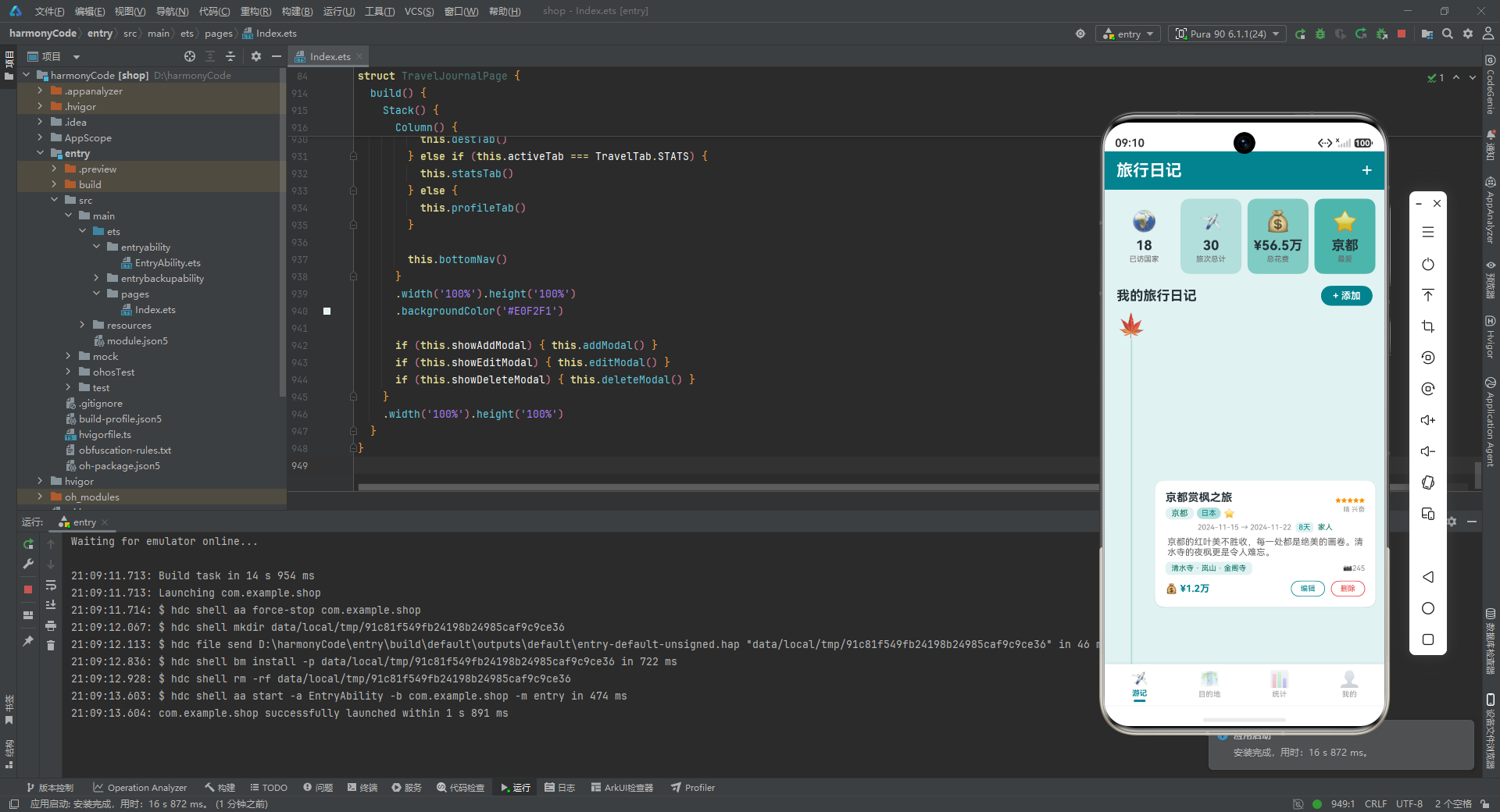
-
@Observed+@State的双层响应式机制:TravelEntry类被@Observed标记后,其属性变更能被框架自动捕获并触发 UI 更新,而@State变量则管理数组级别的增删和替换。两层配合实现了从"对象属性"到"数组元素"的完整响应式覆盖。 -
@Builder的参数化复用:summaryCard、distBar、monthBar、entryCard、profOptionItem等 Builder 均接收参数,同一 Builder 通过不同参数渲染出结构一致、数据不同的 UI 单元,大幅减少了重复代码。 -
条件渲染控制 Tab 切换与弹窗显隐:
if-else链根据activeTab切换四个 Tab 页面,三个if根据布尔状态控制三个弹窗的渲染。这种"按需渲染"既节省内存又保证了状态清晰。 -
Scroll+layoutWeight(1)的滚动区域分配:所有 Tab 页面都采用Scroll包裹内容,配合layoutWeight(1)使滚动区域占据导航栏和底部 Tab 之间的可用空间,scrollBar(BarState.Off)隐藏滚动条保持界面整洁。 -
百分比字符串宽度的灵活运用:
distBar中width(item.percent.toString() + '%')将数字百分比直接转为 CSS 风格的百分比宽度字符串,这是 ArkUI 布局系统中一个简洁而强大的特性。 -
zIndex分层管理弹窗叠放:新增弹窗(999)、编辑弹窗(1000)、删除弹窗(1001)通过递增的zIndex值确保层叠顺序明确,配合Stack的层叠布局实现弹窗覆盖页面的效果。 -
emoji 作为轻量图标方案:整个应用大量使用 emoji 字符(✈️🗺️📊👤🍁🌌🗼等)作为图标,无需引入图片资源或图标字体,既减小了应用体积,又通过 emoji 的丰富表现力为界面增添了生动感和情感色彩。
-
防御性边界校验:
deleteEntry和saveEdit方法在操作数组前都执行selectedIdx >= 0 && selectedIdx < this.travelEntries.length边界检查,防止索引越界导致的运行时错误,体现了严谨的防御性编程思维。

讨论HarmonyOS开发技术,专注于API与组件、DevEco Studio、测试、元服务和应用上架分发等。
更多推荐


 7
7 0
0- 0


 已为社区贡献95条内容

所有评论(0)