HarmonyOS NEXT 企业级记账APP:账单编辑与删除
·
账单编辑与删除
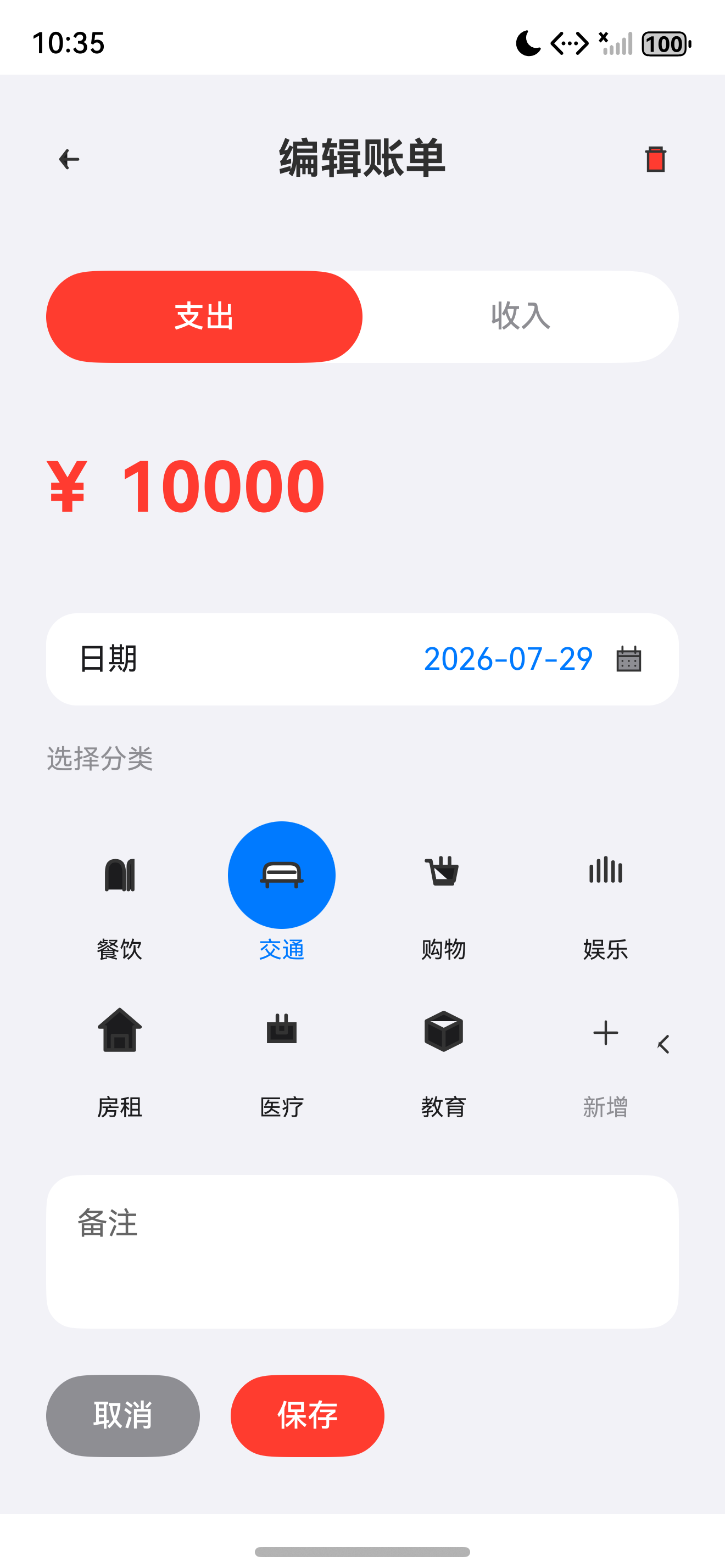
本文是《HarmonyOS NEXT 企业级开发实战:30篇打造智能记账APP》系列的第 14 篇,对应 Git Tag v0.1.4。承接第 13 篇的 PersistenceV2,本篇开发 EditBillView 编辑页面,支持长按列表项弹删除菜单、滑动删除手势、二次确认对话框。
前言
账单的 编辑与删除 是记账应用的基础功能。删除是不可逆的敏感操作,必须有 二次确认 + 滑动手势 + 长按菜单 多重入口,避免误触。本章开发 EditBillView 完整编辑页,并封装 ConfirmDialog 删除确认对话框。
本文将带你:
- 开发 EditBillView 完整编辑页面(复用 AddBillView 组件)
- 实现长按列表项弹删除菜单
- 实现左滑删除手势 + 红色删除按钮揭示
- 封装 ConfirmDialog 二次确认对话框
- 集成 BillRepository 完成删除与更新
企业级核心原则:删除操作必须 二次确认、可撤销提示、手势入口。参考 ArkUI 手势文档 了解官方约定。
一、EditBillView 页面规划
1.1 页面结构树
EditBillView(编辑账单)
├─ TitleBar(顶栏:返回 + 标题"编辑账单" + 删除按钮)
├─ TypeSwitch(收入/支出切换)
├─ MoneyInput(金额输入)
├─ CategorySelector(分类选择)
├─ DateSelector + TimeSelector(日期时间)
├─ RemarkInput(备注)
└─ ActionBar(取消 + 保存)
1.2 与 AddBillView 的区别
| 项 | AddBillView | EditBillView |
|---|---|---|
| 入口 | FAB 新增 | 列表项点击 |
| 标题 | “新增账单” | “编辑账单” |
| 顶栏 | 仅返回 | 返回 + 删除 |
| 初始数据 | 默认空 | 路由参数传入 billId 加载 |
| 保存 | create | update |
| 删除 | 无 | 有(红色按钮 + 二次确认) |
二、EditBillViewModel 业务层
// viewmodel/EditBillViewModel.ets
import { Bill } from '../model/Bill';
import { BillType } from '../constants/BillType';
import { BillRepository } from '../repository/BillRepository';
import { CategoryRepository } from '../repository/CategoryRepository';
import { Category } from '../model/Category';
import { MoneyUtil } from '../utils/MoneyUtil';
import { ToastUtil } from '../utils/ToastUtil';
import { UUIDUtil } from '../utils/UUIDUtil';

export class EditBillViewModel {
  billId: string = '';
  currentType: BillType = BillType.EXPENSE;
  money: string = '';
  selectedCategory: Category | null = null;
  date: number = Date.now();
  remark: string = '';
  availableCategories: Category[] = [];

  private billRepo = BillRepository.getInstance();
  private categoryRepo = CategoryRepository.getInstance();
  private originalBill: Bill | null = null;

  /** 加载账单数据 */
  async loadBill(billId: string): Promise<void> {
    this.billId = billId;
    const bill = await this.billRepo.findById(billId);
    if (!bill) {
      ToastUtil.show('账单不存在');
      return;
    }
    this.originalBill = bill;
    this.currentType = bill.type;
    this.money = MoneyUtil.format(bill.money);
    this.date = bill.date;
    this.remark = bill.remark;
    await this.loadCategories();
    // 反查分类
    this.selectedCategory = this.availableCategories.find(c => c.id === bill.categoryId) ?? null;
  }

  async loadCategories(): Promise<void> {
    this.availableCategories = await this.categoryRepo.findByType(this.currentType);
  }

  async switchType(type: BillType): Promise<void> {
    this.currentType = type;
    this.selectedCategory = null;
    await this.loadCategories();
  }

  canSave(): boolean {
    if (this.money.length === 0) return false;
    const cents = MoneyUtil.parseToCents(this.money);
    if (cents <= 0) return false;
    if (!this.selectedCategory) return false;
    return true;
  }

  /** 更新账单 */
  async save(): Promise<boolean> {
    if (!this.canSave() || !this.originalBill) return false;
    const cents = MoneyUtil.parseToCents(this.money);
    this.originalBill.money = cents;
    this.originalBill.type = this.currentType;
    this.originalBill.categoryId = this.selectedCategory!.id;
    this.originalBill.remark = this.remark;
    this.originalBill.date = this.date;
    await this.billRepo.update(this.originalBill);
    ToastUtil.show('账单已更新');
    return true;
  }

  /** 删除账单 */
  async delete(): Promise<boolean> {
    if (!this.billId) return false;
    const ok = await this.billRepo.delete(this.billId);
    if (ok) ToastUtil.show('账单已删除');
    return ok;
  }
}
三、EditBillView 页面实现
// pages/EditBillView.ets
import { EditBillViewModel } from '../viewmodel/EditBillViewModel';
import { TypeSwitch } from '../components/form/TypeSwitch';
import { MoneyInput } from '../components/form/MoneyInput';
import { CategorySelector } from '../components/selector/CategorySelector';
import { DateSelector } from '../components/selector/DateSelector';
import { TimeSelector } from '../components/selector/TimeSelector';
import { AppButton } from '../components/form/AppButton';
import { ConfirmDialog } from '../components/dialog/ConfirmDialog';
import { AppColors } from '../theme/Colors';
import { AppFontSize } from '../theme/Typography';
import { AppSpace } from '../../theme/Spacing';
import { BillType } from '../constants/BillType';
import { router } from '@kit.ArkUI';

@Entry
@Component
struct EditBillView {
  @State viewModel: EditBillViewModel = new EditBillViewModel();
  @State isLoading: boolean = true;
  @State showDeleteConfirm: boolean = false;

  aboutToAppear() {
    const params = router.getParams() as Record<string, string>;
    this.loadData(params['id']);
  }

  private async loadData(billId: string): Promise<void> {
    this.isLoading = true;
    await this.viewModel.loadBill(billId);
    this.isLoading = false;
  }

  build() {
    Stack() {
      Column() {
        // 顶栏:返回 + 标题 + 删除
        Row() {
          Image($r('app.media.icon_back'))
            .width(24).height(24).fillColor(AppColors.PrimaryText)
            .onClick(() => { router.back(); })

          Text('编辑账单')
            .fontSize(AppFontSize.XL).fontWeight(FontWeight.Bold)
            .layoutWeight(1).textAlign(TextAlign.Center)

          Image($r('app.media.icon_delete'))
            .width(24).height(24).fillColor(AppColors.Expense)
            .onClick(() => { this.showDeleteConfirm = true; })
        }
        .width('100%').height(56).alignItems(HorizontalAlign.Center)

        // ... 同 AddBillView 的 TypeSwitch / MoneyInput / CategorySelector / DateSelector / TimeSelector / Remark ...

        // 底栏:取消 + 保存
        Row({ space: AppSpace.MD }) {
          AppButton({
            label: '取消', color: AppColors.SecondaryText,
            onClick: () => { router.back(); }
          })
          AppButton({
            label: '保存', color: this.viewModel.currentType === BillType.INCOME ? AppColors.Income : AppColors.Expense,
            enabled: this.viewModel.canSave(),
            onClick: async () => {
              const ok = await this.viewModel.save();
              if (ok) router.back();
            }
          })
        }
        .margin({ top: AppSpace.XL })
      }
      .height('100%')
      .padding({ left: AppSpace.XL, right: AppSpace.XL })
      .backgroundColor(AppColors.Background)

      // 删除确认对话框
      if (this.showDeleteConfirm) {
        ConfirmDialog({
          title: '确认删除',
          message: '删除后无法恢复,是否确认删除该账单?',
          confirmText: '删除',
          confirmColor: AppColors.Expense,
          onConfirm: async () => {
            const ok = await this.viewModel.delete();
            this.showDeleteConfirm = false;
            if (ok) router.back();
          },
          onCancel: () => { this.showDeleteConfirm = false; }
        })
      }
    }
  }
}
四、ConfirmDialog 二次确认对话框
// components/dialog/ConfirmDialog.ets
import { AppColors } from '../../theme/Colors';
import { AppFontSize, AppFontWeight } from '../../theme/Typography';
import { AppSpace } from '../../theme/Spacing';

@Component
export struct ConfirmDialog {
  @Prop title: string = '确认';
  @Prop message: string = '';
  @Prop confirmText: string = '确认';
  @Prop cancelText: string = '取消';
  @Prop confirmColor: string = AppColors.Budget;
  @BuilderParam onConfirm: () => void;
  @BuilderParam onCancel: () => void;

  build() {
    Stack() {
      // 蒙层
      Column()
        .width('100%').height('100%')
        .backgroundColor('#80000000')
        .onClick(() => { this.onCancel(); })

      // Dialog 卡片
      Column() {
        Text(this.title)
          .fontSize(AppFontSize.LG).fontWeight(AppFontWeight.Bold)
          .margin({ bottom: AppSpace.MD })

        Text(this.message)
          .fontSize(AppFontSize.MD).fontColor(AppColors.SecondaryText)
          .textAlign(TextAlign.Center)
          .margin({ bottom: AppSpace.LG })

        Row({ space: AppSpace.MD }) {
          Text(this.cancelText)
            .layoutWeight(1)
            .textAlign(TextAlign.Center)
            .padding({ top: 12, bottom: 12 })
            .backgroundColor(AppColors.Background)
            .borderRadius(24)
            .onClick(() => { this.onCancel(); })

          Text(this.confirmText)
            .layoutWeight(1)
            .textAlign(TextAlign.Center)
            .fontColor('#FFFFFF')
            .padding({ top: 12, bottom: 12 })
            .backgroundColor(this.confirmColor)
            .borderRadius(24)
            .onClick(() => { this.onConfirm(); })
        }
        .width('100%')
      }
      .width('80%')
      .padding(AppSpace.LG)
      .backgroundColor(AppColors.CardBackground)
      .borderRadius(16)
    }
    .width('100%').height('100%')
    .justifyContent(FlexAlign.Center)
    .alignItems(HorizontalAlign.Center)
  }
}
五、首页列表项长按与滑动删除
5.1 长按弹菜单
// pages/HomeView.ets(BillCard 部分升级)
import { ConfirmDialog } from '../components/dialog/ConfirmDialog';

@State longPressedBillId: string = '';

build() {
  // ...
  ForEach(this.viewModel.recentBills, (bill: Bill) => {
    ListItem() {
      BillCard({
        billId: bill.id, money: bill.money, type: bill.type,
        categoryName: bill.categoryName, categoryIcon: bill.categoryIcon,
        remark: bill.remark, date: DateUtil.formatTime(bill.date),
        onClick: () => { this.viewModel.goBillDetail(bill.id); },
        onLongPress: () => { this.longPressedBillId = bill.id; }
      })
    }
    .gesture(
      PanGesture({ distance: 80, direction: PanDirection.Horizontal })
        .onActionStart(() => { this.swipeBillId = bill.id; })
        .onActionUpdate((e: GestureEvent) => { this.swipeOffset = e.offset.x; })
        .onActionEnd(() => { this.handleSwipeEnd(bill.id); })
    )
  }, (bill: Bill) => bill.id)

  // 长按菜单蒙层
  if (this.longPressedBillId.length > 0) {
    this.buildLongPressMenu()
  }
}

@Builder
buildLongPressMenu() {
  Stack() {
    Column().width('100%').height('100%').backgroundColor('#80000000')
      .onClick(() => { this.longPressedBillId = ''; })

    Column() {
      Text('编辑').padding(16).onClick(() => {
        this.viewModel.goEditBill(this.longPressedBillId);
        this.longPressedBillId = '';
      })
      Divider().color(AppColors.Separator)
      Text('删除').padding(16).fontColor(AppColors.Expense).onClick(() => {
        this.deleteBillId = this.longPressedBillId;
        this.showDeleteConfirm = true;
        this.longPressedBillId = '';
      })
    }
    .backgroundColor(AppColors.CardBackground).borderRadius(12).padding({ left: 16, right: 16 })
  }
}
5.2 左滑删除手势
@State swipeBillId: string = '';
@State swipeOffset: number = 0;

private handleSwipeEnd(billId: string): void {
  // 滑动距离 < -80 触发删除确认
  if (this.swipeOffset < -80) {
    this.deleteBillId = billId;
    this.showDeleteConfirm = true;
  }
  this.swipeOffset = 0;
  this.swipeBillId = '';
}

// ListItem 内套用 Stack:
Stack() {
  // 底层红色删除按钮
  Row() {
    Image($r('app.media.icon_delete')).width(20).height(20).fillColor('#FFFFFF')
  }
  .width(80).height('100%').backgroundColor(AppColors.Expense)
  .justifyContent(FlexAlign.Center)

  // 上层 BillCard,偏移随滑动
  BillCard({ ... })
    .offset({ x: this.swipeBillId === bill.id ? this.swipeOffset : 0 })
}
六、路由更新与返回刷新
6.1 路由配置
// main_pages.json
{
  "src": [
    "pages/MainView", "pages/HomeView", "pages/StatisticsView",
    "pages/BudgetView", "pages/ProfileView", "pages/AddBillView",
    "pages/EditBillView", "pages/BillDetailView"  // 新增
  ]
}
6.2 返回首页刷新
// pages/HomeView.ets
onPageShow() {
  // 从编辑/新增返回时重新加载列表
  this.loadData();
}

private async loadData(): Promise<void> {
  this.isLoading = true;
  await this.viewModel.loadData();
  this.isLoading = false;
}
关键技术:
onPageShow在页面显示时触发,从子页面返回会重新拉数据保持列表新鲜。
七、最佳实践
7.1 删除二次确认
// 删除是不可逆操作,必须二次确认
if (!this.showDeleteConfirm) {
  // 首次点击不直接删,先弹 ConfirmDialog
  this.showDeleteConfirm = true;
}
// 用户在 ConfirmDialog 点确认后才真正调用 Repository.delete
7.3 手势类型对比
| 手势 | 触发距离 | 时长 | 用途 |
|---|---|---|---|
| TapGesture | 无 | 短按 | 点击 |
| LongPressGesture | 无 | 500ms | 长按菜单 |
| PanGesture | 80dp | 无 | 滑动删除 |
合理使用不同手势类型可以显著提升用户操作效率。
7.1 删除操作对比
| 操作 | 触发方式 | 确认机制 | 反馈 |
|---|---|---|---|
| 顶栏删除按钮 | 点击图标 | ConfirmDialog 二次确认 | Toast 提示 |
| 长按菜单删除 | LongPress 500ms | 弹菜单后选删除 | ConfirmDialog |
| 左滑删除 | PanGesture 80dp | 松开即触发 ConfirmDialog | 红色按钮揭示 |
三种删除入口覆盖不同使用习惯,但均经过二次确认保护。
7.2 手势与点击冲突
// ArkUI 自动处理:短按触发 onClick,长按触发 LongPress,滑动触发 Pan
// 距离阈值 distance: 80 避免误触
.gesture(PanGesture({ distance: 80, direction: PanDirection.Horizontal }))
7.3 编辑页复用新增页组件
AddBillView 与 EditBillView 共用:
- TypeSwitch
- MoneyInput
- CategorySelector
- DateSelector / TimeSelector
- AppButton
- ConfirmDialog(仅 Edit 用)

差异仅:顶栏删除按钮 + 标题文字 + 初始数据加载
八、运行验证
8.1 编译检查
hvigorw assembleHap --mode module -p product=default
8.2 功能验证
- 点击首页账单项跳转 EditBillView,预填数据
- 修改金额、分类、备注后保存,返回首页列表刷新
- 顶栏点击删除按钮,弹 ConfirmDialog,确认后删除并返回
- 长按列表项,弹长按菜单含"编辑/删除"
- 左滑列表项 80dp,弹删除确认对话框
九、常见问题
9.1 路由参数丢失
// EditBillView 通过 router.getParams() 获取 billId
const params = router.getParams() as Record<string, string>;
const billId = params['id'];  // 必须与跳转时传入的 key 一致
9.2 滑动距离判断不准
// PanGesture distance 是触发阈值,offset 是实际偏移
// 负值代表左滑,需根据 direction 配置
direction: PanDirection.Horizontal  // 仅水平滑动
9.3 ConfirmDialog 蒙层穿透
// 蒙层必须 onClick 关闭,否则点击空白无反应
Column().backgroundColor('#80000000').onClick(() => { this.onCancel(); })
十、Git 提交
git add .
git commit -m "feat(bill): 开发账单编辑与删除功能

- 新增 EditBillView 完整编辑页面
- 新增 EditBillViewModel 处理加载/更新/删除
- 封装 ConfirmDialog 二次确认对话框
- 首页列表项支持长按弹菜单(编辑/删除)
- 首页列表项支持左滑 80dp 触发删除
- 集成 BillRepository.update 与 delete"
总结
本文完整介绍了 账单编辑与删除,涵盖 EditBillView、EditBillViewModel、ConfirmDialog、长按菜单、滑动删除。通过本篇你可以:
- 复用 AddBillView 组件快速搭编辑页
- 用 ConfirmDialog 实现删除二次确认
- 用 LongPressGesture + PanGesture 添加列表交互
- 通过路由参数传递 billId 加载编辑数据
- 从子页面返回时刷新首页列表
下一篇预告:《账单搜索与筛选》将开发 SearchView 搜索页,支持关键字、分类、日期范围、金额范围多维筛选。
如果这篇文章对你有帮助,欢迎点赞👍、收藏⭐、关注🔔,你的支持是我持续创作的动力!
相关资源
- 本篇源码:GitHub Tag v0.1.4
- ArkUI 手势文档:gesture
- PanGesture API:pan-gesture
- LongPressGesture:long-press-gesture
- ArkUI Dialog 系统:dialog
- 鸿蒙手势最佳实践:gesture-best-practice
- ArkUI 路由跳转:router

讨论HarmonyOS开发技术,专注于API与组件、DevEco Studio、测试、元服务和应用上架分发等。
更多推荐
 7
7 0
0- 0


 已为社区贡献100条内容

所有评论(0)