# HarmonyOS ArkTS 健身打卡应用源码逐段深度解析
一、项目概述
本文将深入剖析一个基于 HarmonyOS ArkTS 开发的健身打卡应用。该应用集成了月历热力图、打卡时间轴、挑战任务、健身排行四大核心模块,采用了 HarmonyOS 声明式 UI 开发范式,充分运用了 ArkTS 的状态管理、组件化构建、响应式数据绑定等特性。通过逐段解析源码,我们将深入理解 ArkTS 在实际业务场景中的架构设计、状态流转和 UI 渲染机制。
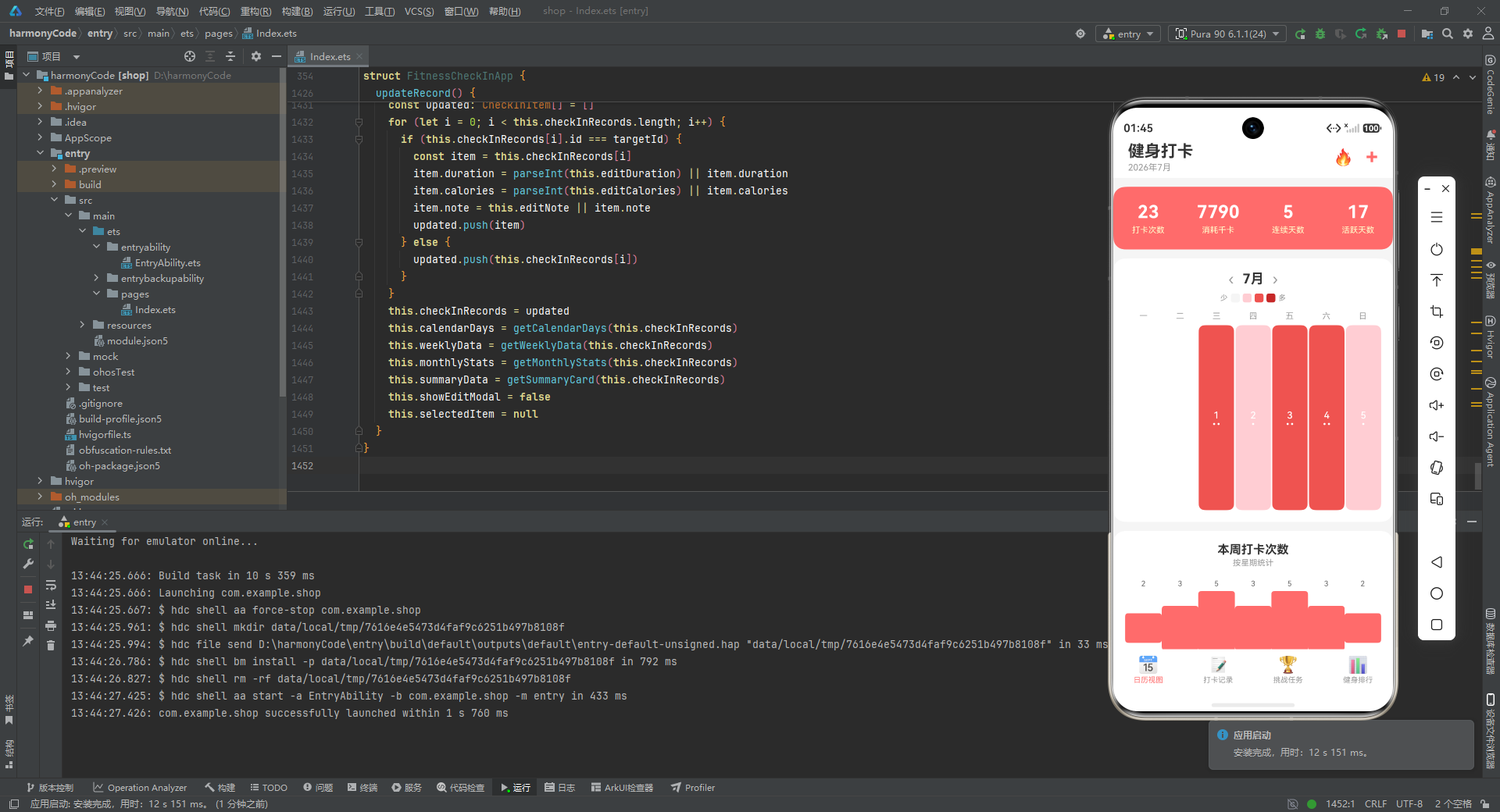
应用的整体架构遵循"数据驱动视图"的设计理念:底层定义严谨的数据模型与接口契约,中层通过配置化中心管理静态资源,上层以主组件统筹状态与视图,各 Tab 页通过条件渲染实现单页面多视图切换。这种分层架构既保证了代码的可维护性,也展现了 HarmonyOS 应用开发的典型模式。
二、接口定义:类型安全的基石
interface SportTypeMeta {
  sportType: string
  icon: string
  color: string
}

interface ChallengeMeta {
  icon: string
  bgColor: string
  progressColor: string
}

interface RankingMeta {
  medalColor: string
  medalIcon: string
}

interface TabMeta {
  title: string
  icon: string
  activeColor: string
}

interface CalendarDayData {
  day: number
  checkInCount: number
  heatLevel: number
}

interface WeeklyBarData {
  day: string
  count: number
  percentage: string
}

interface MonthlyStatData {
  label: string
  value: string
  unit: string
  icon: string
  color: string
}

interface SummaryCardData {
  totalCheckIns: string
  totalCalories: string
  streakDays: string
  activeDays: string
}
这段代码定义了八个核心接口,构成了整个应用的数据契约层。ArkTS 作为 TypeScript 的超集,完整继承了 TS 的接口能力,这使得我们能在编译期就建立起严格的类型检查机制。
SportTypeMeta 接口负责描述运动类型的元数据,包含三个字段:sportType 存储中文名称(如"跑步"、“瑜伽”),icon 使用 Emoji 作为轻量级图标方案,color 定义该运动类型在 UI 中的主题色。这种将视觉属性与业务数据绑定在一起的设计,体现了"配置即数据"的思想,避免了在 UI 代码中硬编码颜色值。
ChallengeMeta 接口为挑战任务提供视觉配置,包含图标、背景色和进度条颜色。值得注意的是,它并没有包含任务的业务字段(如标题、描述、目标值),而是纯粹作为视觉样式的配置载体。这种业务数据与视觉配置的分离,使得同一套挑战数据可以搭配不同的视觉主题。
RankingMeta 接口定义排行榜的奖牌样式,medalColor 和 medalIcon 分别控制奖牌的颜色和图标。该接口的设计非常精简,因为排行榜的大部分数据(如用户名、卡路里)都属于业务数据,而非配置数据。
TabMeta 接口描述底部导航栏的配置,包含标题、图标和激活态颜色。activeColor 的设计使得每个 Tab 都可以拥有独立的主题色,增强了视觉辨识度。
CalendarDayData 接口是日历网格的核心数据结构。day 表示日期数字(0 表示空白占位格),checkInCount 记录当天的打卡次数,heatLevel 是热力等级(0-3)。heatLevel 的设计非常巧妙,它将连续的打卡次数离散化为四个等级,既简化了 UI 渲染逻辑,也符合热力图的视觉表达习惯。
WeeklyBarData 接口用于柱状图数据,除了原始计数 count 之外,还包含 percentage 字符串字段。这个字段存储的是相对于最大值的百分比,用于控制柱状图的高度,属于"为视图预计算"的设计模式,避免了在 UI 渲染时进行实时计算。
MonthlyStatData 接口定义月度统计卡片的数据结构,包含了图标、数值、单位、标签和颜色。所有字段都是字符串类型(包括数值),这是因为这些值最终都要以文本形式渲染,预转为字符串可以减少运行时的类型转换开销。
SummaryCardData 接口是顶部概览卡片的专属数据结构,四个字段分别对应打卡次数、消耗千卡、连续天数和活跃天数。与 MonthlyStatData 不同,它采用了扁平化的字段命名,因为概览卡片的位置和语义是固定的,不需要像统计区域那样灵活配置。
三、枚举定义:Tab 状态的可枚举化
enum TabEnum {
  Calendar = 0,
  Records = 1,
  Challenge = 2,
  Ranking = 3
}
这里定义了一个枚举类型 TabEnum,用于管理四个 Tab 页的状态。枚举值从 0 开始递增,对应底部导航栏的四个选项:日历视图、打卡记录、挑战任务、健身排行。
在 ArkTS 中使用枚举而非原始的数值或字符串,有以下几个显著优势:首先,枚举提供了编译期的类型安全检查,避免了因传入非法 Tab 索引导致的运行时错误;其次,枚举成员具有自文档性,TabEnum.Calendar 比裸数字 0 更具可读性;第三,枚举值在 IDE 中可以享受智能提示和自动补全。
值得注意的是,枚举的底层值是数值类型,这使得它可以作为数组索引使用。在后续的 TAB_LIST 数组中,我们就直接使用了这个枚举的四个成员。枚举与数组的组合使用,是 ArkTS 中管理有限状态集的经典模式。
四、数据类:被观察的业务实体
@Observed export class CheckInItem {
  id: number
  date: string
  time: string
  sportType: string
  duration: number
  calories: number
  note: string

  constructor(id: number, date: string, time: string, sportType: string,
    duration: number, calories: number, note: string) {
    this.id = id
    this.date = date
    this.time = time
    this.sportType = sportType
    this.duration = duration
    this.calories = calories
    this.note = note
  }
}

@Observed export class ChallengeItem {
  id: number
  title: string
  desc: string
  total: number
  current: number
  reward: string
  status: string

  constructor(id: number, title: string, desc: string, total: number,
    current: number, reward: string, status: string) {
    this.id = id
    this.title = title
    this.desc = desc
    this.total = total
    this.current = current
    this.reward = reward
    this.status = status
  }
}

@Observed export class RankingItem {
  rank: number
  name: string
  avatar: string
  checkInDays: number
  totalCalories: number
  isCurrentUser: boolean

  constructor(rank: number, name: string, avatar: string, checkInDays: number,
    totalCalories: number, isCurrentUser: boolean) {
    this.rank = rank
    this.name = name
    this.avatar = name
    this.checkInDays = checkInDays
    this.totalCalories = totalCalories
    this.isCurrentUser = isCurrentUser
  }
}
这段代码定义了三个被 @Observed 装饰器标记的数据类,它们是应用状态管理的核心载体。
@Observed 是 HarmonyOS ArkTS 中实现嵌套对象响应式的关键装饰器。在 ArkTS 的状态管理体系中,@State 只能保证第一层属性的响应式,如果状态是一个对象数组,数组内部对象的属性变化并不会自动触发 UI 更新。@Observed 装饰器解决了这一问题:当它修饰一个类时,该类的实例在被 @ObjectLink 或 @State 引用时,其内部属性的变化也能被状态管理系统追踪。
CheckInItem 类代表一条打卡记录,包含七个属性:id 是唯一标识符,用于列表渲染时的键值;date 和 time 分别记录日期和时间,采用字符串类型而非 Date 对象,简化了序列化和显示逻辑;sportType 是运动类型标识符(如 “running”),对应 SPORT_CONFIG 中的键;duration 和 calories 是数值型业务数据;note 是用户备注。
ChallengeItem 类代表一个挑战任务。total 和 current 构成进度计算的基础;status 字段存储的是挑战类型的标识符(如 “daily30”),用于从 CHALLENGE_CONFIG 中查询视觉配置。这种设计让业务数据与视觉配置解耦,同一套挑战数据可以复用于不同的主题方案。
RankingItem 类代表排行榜中的一位用户。avatar 字段存储的是字母缩写(如 “L”、“M”),用作头像占位符;isCurrentUser 是一个布尔标志,用于在 UI 中高亮显示当前用户。排行榜数据中包含当前用户的设计,体现了"服务端已经做好数据整合"的假设,减轻了客户端的逻辑负担。
三个类都显式定义了构造函数,这是 ArkTS 类的标准写法。值得注意的是,这些类都没有定义方法,纯粹作为"贫血模型"(Anemic Domain Model)使用。在 HarmonyOS 的声明式 UI 范式中,业务逻辑通常由独立的函数或组件方法承担,数据类仅负责数据的存储和传输,这种设计符合函数式编程的思想。
五、静态配置中心:可视化资源的集中管理
const SPORT_CONFIG: Record<string, SportTypeMeta> = {
  'running': { sportType: '跑步', icon: '🏃', color: '#FF6B6B' },
  'yoga': { sportType: '瑜伽', icon: '🧘', color: '#4ECDC4' },
  'swimming': { sportType: '游泳', icon: '🏊', color: '#45B7D1' },
  'cycling': { sportType: '骑行', icon: '🚴', color: '#96CEB4' },
  'weightlifting': { sportType: '力量训练', icon: '💪', color: '#FFA726' },
  'basketball': { sportType: '篮球', icon: '🏀', color: '#AB47BC' }
}

const CHALLENGE_CONFIG: Record<string, ChallengeMeta> = {
  'daily30': { icon: '🔥', bgColor: '#FFF3E0', progressColor: '#FF9800' },
  'monthly20': { icon: '🏆', bgColor: '#E8F5E9', progressColor: '#4CAF50' },
  'run100': { icon: '🏃', bgColor: '#FFEBEE', progressColor: '#F44336' },
  'calories5000': { icon: '⚡', bgColor: '#E3F2FD', progressColor: '#2196F3' },
  'streak7': { icon: '📅', bgColor: '#F3E5F5', progressColor: '#9C27B0' },
  'plank100': { icon: '💪', bgColor: '#FFF8E1', progressColor: '#FFC107' }
}

const RANKING_CONFIG: Record<string, RankingMeta> = {
  '1': { medalColor: '#FFD700', medalIcon: '🥇' },
  '2': { medalColor: '#C0C0C0', medalIcon: '🥈' },
  '3': { medalColor: '#CD7F32', medalIcon: '🥉' },
  'other': { medalColor: '#E0E0E0', medalIcon: '' }
}

const TAB_CONFIG: Record<string, TabMeta> = {
  'calendar': { title: '日历视图', icon: '📅', activeColor: '#FF6B6B' },
  'records': { title: '打卡记录', icon: '📝', activeColor: '#4ECDC4' },
  'challenge': { title: '挑战任务', icon: '🏆', activeColor: '#FF9800' },
  'ranking': { title: '健身排行', icon: '📊', activeColor: '#9C27B0' }
}

const WEEKDAYS: string[] = ['一', '二', '三', '四', '五', '六', '日']
const SPORT_TYPE_LIST: string[] = ['running', 'yoga', 'swimming', 'cycling', 'weightlifting', 'basketball']
const TAB_LIST: TabEnum[] = [TabEnum.Calendar, TabEnum.Records, TabEnum.Challenge, TabEnum.Ranking]
这段代码构建了一个完整的静态配置中心,采用"配置即代码"的模式管理应用中的所有静态资源。所有的配置对象都使用 Record<string, T> 类型声明,这是 TypeScript 中表示"字符串键到任意类型值映射"的标准方式,提供了完整的类型推导和访问检查。
SPORT_CONFIG 是运动类型的配置字典,键是英文标识符(如 “running”),值是 SportTypeMeta 接口的实现。这种"键-配置"的映射结构,使得业务数据中只需存储简短的标识符,UI 渲染时再通过字典查询获取完整的显示信息。Emoji 被用作图标方案,这是 HarmonyOS 应用开发中一种轻量且跨平台的实践,避免了图片资源的引入和管理开销。
CHALLENGE_CONFIG 为六种挑战任务配置了独立的视觉主题。每个挑战类型都有独特的背景色和进度条颜色,例如 “daily30” 使用橙色系,“run100” 使用红色系。这种差异化的配色方案帮助用户在视觉上快速区分不同类型的挑战。bgColor 通常采用主色的极浅色调,这是 Material Design 中"表面色"的典型用法。
RANKING_CONFIG 配置了排行榜的奖牌样式。前三名使用金银铜的标准配色(#FFD700、#C0C0C0、#CD7F32),其他名次使用灰色(#E0E0E0)且不设图标。rank 数值被转为字符串作为键,这种设计使得配置查询可以统一为字符串索引,简化了访问逻辑。
TAB_CONFIG 为四个底部导航项配置了标题、图标和激活色。每个 Tab 的激活色都与其他 Tab 不同,形成了鲜明的视觉区隔。激活色的选择也与对应页面的主色调保持一致,例如"日历视图"使用与运动配置中跑步相同的红色(#FF6B6B),建立了视觉上的关联性。
WEEKDAYS 数组存储了星期一到星期日的中文简写,用于日历表头的渲染。SPORT_TYPE_LIST 数组定义了运动类型的顺序,用于新增打卡时运动类型选择器的横向滚动列表。TAB_LIST 数组则按顺序枚举了四个 Tab 枚举值,用于底部导航栏的循环渲染。
这三个数组与前面的配置字典形成了互补:字典提供键到值的随机访问能力,数组提供有序遍的能力。在 ArkTS 的 ForEach 循环中,数组是天然的数据源。将配置数据同时维护为字典和数组两种形式,是 HarmonyOS 开发中处理"配置集合"的常见模式。
六、Mock 数据层:模拟业务数据的生成
function getCheckInRecords(): CheckInItem[] {
  const records: CheckInItem[] = []
  records.push(new CheckInItem(1, '07-01', '06:30', 'running', 45, 320, '晨跑5公里,状态不错'))
  records.push(new CheckInItem(2, '07-01', '19:00', 'weightlifting', 50, 280, '上肢力量训练'))
  records.push(new CheckInItem(3, '07-02', '07:00', 'running', 35, 250, '短距离慢跑热身'))
  records.push(new CheckInItem(4, '07-03', '18:30', 'yoga', 60, 180, '舒缓瑜伽课程'))
  records.push(new CheckInItem(5, '07-03', '20:00', 'swimming', 40, 350, '自由泳训练'))
  records.push(new CheckInItem(6, '07-04', '06:45', 'running', 50, 360, '长距离晨跑'))
  records.push(new CheckInItem(7, '07-04', '19:30', 'weightlifting', 45, 260, '核心力量训练'))
  records.push(new CheckInItem(8, '07-05', '19:30', 'basketball', 90, 550, '半场篮球赛'))
  records.push(new CheckInItem(9, '07-06', '07:15', 'cycling', 75, 420, '环湖骑行20公里'))
  records.push(new CheckInItem(10, '07-07', '18:00', 'weightlifting', 55, 310, '下肢力量日'))
  records.push(new CheckInItem(11, '07-07', '20:30', 'yoga', 45, 140, '睡前拉伸放松'))
  records.push(new CheckInItem(12, '07-08', '06:30', 'running', 40, 290, '节奏跑训练'))
  records.push(new CheckInItem(13, '07-09', '19:00', 'swimming', 50, 400, '混合泳练习'))
  records.push(new CheckInItem(14, '07-10', '07:00', 'running', 60, 430, '间歇跑训练'))
  records.push(new CheckInItem(15, '07-10', '18:30', 'weightlifting', 60, 340, '胸肩训练日'))
  records.push(new CheckInItem(16, '07-11', '06:45', 'cycling', 60, 350, '通勤骑行'))
  records.push(new CheckInItem(17, '07-12', '19:30', 'basketball', 80, 480, '全场对抗赛'))
  records.push(new CheckInItem(18, '07-13', '07:00', 'running', 45, 320, '恢复性慢跑'))
  records.push(new CheckInItem(19, '07-14', '18:00', 'yoga', 70, 200, '热瑜伽课程'))
  records.push(new CheckInItem(20, '07-15', '06:30', 'running', 55, 390, '坡道跑训练'))
  records.push(new CheckInItem(21, '07-15', '19:30', 'weightlifting', 50, 290, '背部训练'))
  records.push(new CheckInItem(22, '07-16', '07:15', 'swimming', 45, 380, '蝶泳技术练习'))
  records.push(new CheckInItem(23, '07-17', '18:30', 'cycling', 90, 500, '山地骑行挑战'))
  return records
}

function getChallengeTasks(): ChallengeItem[] {
  const tasks: ChallengeItem[] = []
  tasks.push(new ChallengeItem(1, '每日30分钟运动', '坚持每天运动至少30分钟', 30, 17, '500积分', 'daily30'))
  tasks.push(new ChallengeItem(2, '月度打卡20天', '本月累计打卡达到20天', 20, 15, '1000积分', 'monthly20'))
  tasks.push(new ChallengeItem(3, '累计跑步100公里', '本月累计跑步距离100公里', 100, 68, '跑步徽章', 'run100'))
  tasks.push(new ChallengeItem(4, '消耗5000卡路里', '本月累计消耗5000千卡', 5000, 3870, '能量徽章', 'calories5000'))
  tasks.push(new ChallengeItem(5, '连续打卡7天', '连续7天不间断打卡', 7, 5, '坚持徽章', 'streak7'))
  tasks.push(new ChallengeItem(6, '平板支撑100分钟', '本月累计平板支撑100分钟', 100, 45, '核心徽章', 'plank100'))
  return tasks
}

function getRankingUsers(): RankingItem[] {
  const users: RankingItem[] = []
  users.push(new RankingItem(1, '健身达人Leo', 'L', 28, 8500, false))
  users.push(new RankingItem(2, '跑步少女Mia', 'M', 26, 7800, false))
  users.push(new RankingItem(3, '铁人David', 'D', 25, 7200, false))
  users.push(new RankingItem(4, '瑜伽女王Sophie', 'S', 23, 6500, false))
  users.push(new RankingItem(5, '泳者Tom', 'T', 22, 6100, false))
  users.push(new RankingItem(6, '骑行侠Jack', 'J', 20, 5600, false))
  users.push(new RankingItem(7, '我', 'ME', 17, 3870, true))
  users.push(new RankingItem(8, '力量王Hulk', 'H', 16, 3500, false))
  users.push(new RankingItem(9, '全能Amy', 'A', 15, 3200, false))
  users.push(new RankingItem(10, '运动新秀Ben', 'B', 13, 2800, false))
  return users
}
Mock 数据层是应用开发中不可或缺的组成部分,尤其是在前后端分离的开发模式下。这段代码通过三个函数分别生成了打卡记录、挑战任务和排行榜用户的模拟数据。
getCheckInRecords() 函数生成了 23 条打卡记录,覆盖了 7 月 1 日至 7 月 17 日的日期范围。数据设计具有丰富的场景代表性:日期上,既有单日单次打卡(如 7 月 2 日),也有单日多次打卡(如 7 月 1 日、7 月 3 日);时间上,覆盖了早晨(06:30)、晚上(19:00)等不同时间段;运动类型上,六种运动类型均有涉及;备注内容也各不相同,模拟了真实用户的多样化记录习惯。这种精心设计的 Mock 数据,为后续的日历热力图、周统计柱状图等功能提供了充足的测试样本。
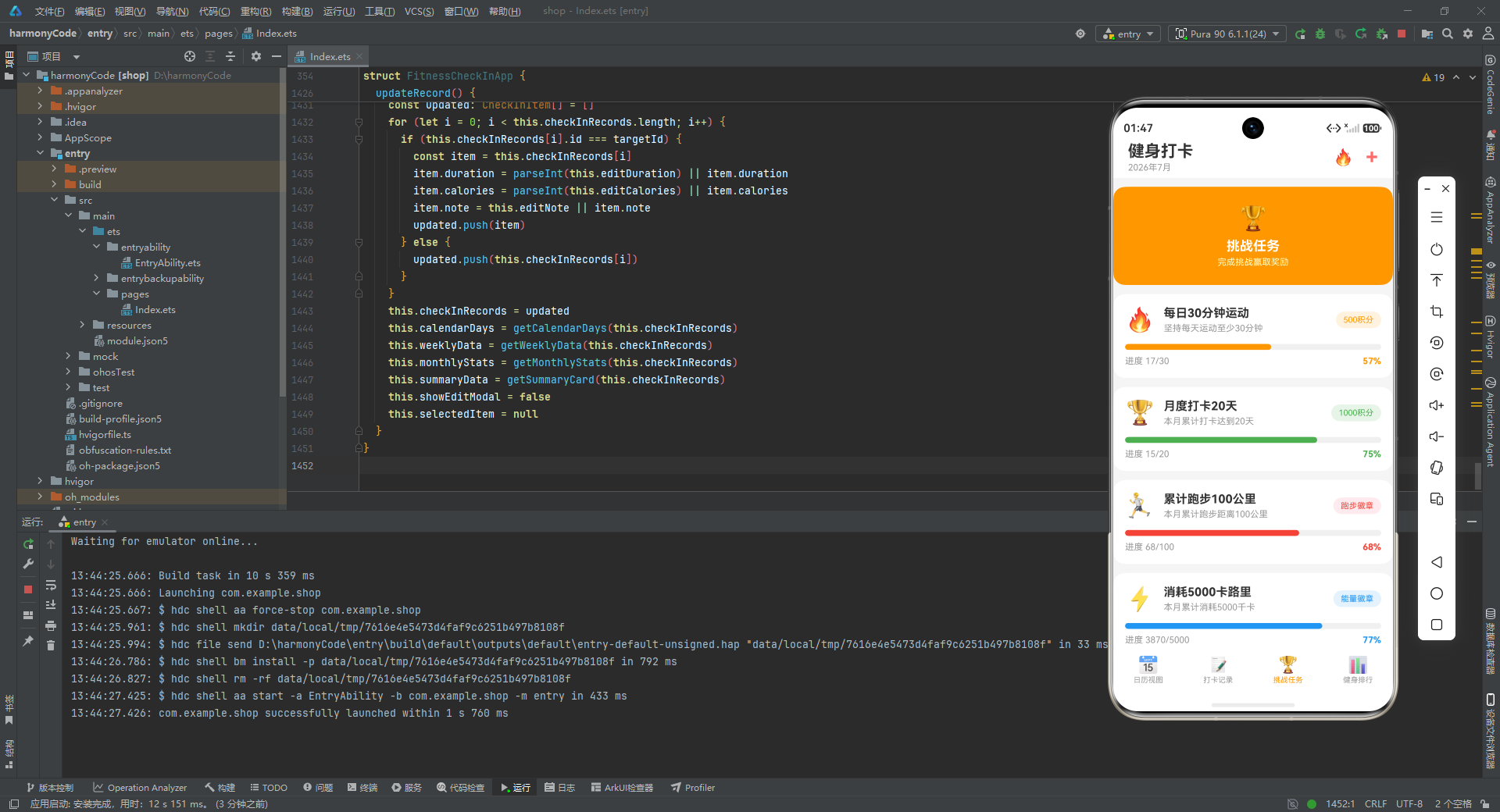
getChallengeTasks() 函数生成了 6 个挑战任务,涵盖了不同类型的健身目标:时长类(每日30分钟)、频次类(月度打卡20天)、距离类(累计跑步100公里)、消耗类(消耗5000卡路里)、连续类(连续打卡7天)、单项类(平板支撑100分钟)。每个挑战的 current 值都设置在不同的完成阶段,有的接近完成(如 “calories5000” 已完成 3870/5000),有的刚刚起步(如 “streak7” 仅完成 5/7),这种差异化的进度设计使得挑战列表的视觉效果更加丰富。
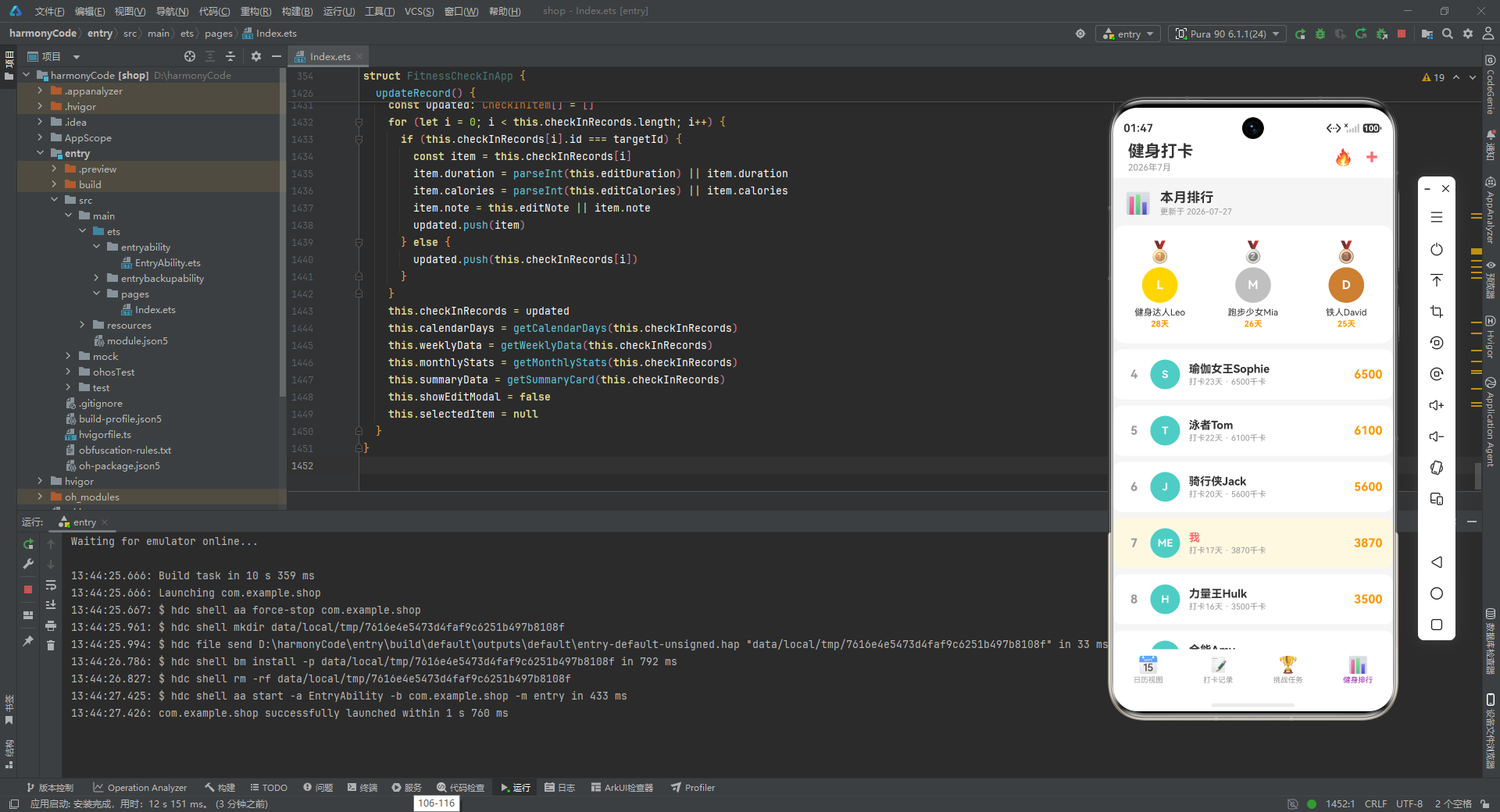
getRankingUsers() 函数生成了 10 位用户的排行数据,按 rank 字段已排好序。数据中特意将当前用户(‘我’)放在第 7 位,既不是榜首也不是垫底,处于一个"有上升空间"的位置,这种设计符合产品心理学中的"近胜效应"。各用户的卡路里数据也呈现出递减趋势,相邻用户之间的差距在 300-700 千卡之间,形成了合理的竞争梯度。
三个函数都遵循相同的模式:先创建空数组,然后逐个 push 元素,最后返回数组。虽然可以用更简洁的数组字面量语法,但逐个 push 的方式在数据量较大时更便于单条调试和注释。每个函数返回的都是数据类的全新实例,这保证了数据的不可变性(至少在上层看来如此),避免了潜在的引用共享问题。
七、辅助函数:业务逻辑的工具箱
function getHeatColor(level: number): string {
  if (level <= 0) return '#F5F5F5'
  if (level === 1) return '#FFCDD2'
  if (level === 2) return '#EF5350'
  return '#C62828'
}
getHeatColor 函数实现了热力图的颜色映射逻辑。它将 heatLevel(0-3)映射为四种颜色:0 对应浅灰色(#F5F5F5),表示无打卡;1 对应浅红色(#FFCDD2),表示轻度活跃;2 对应中红色(#EF5350),表示中度活跃;3 对应深红色(#C62828),表示高度活跃。颜色的选择遵循了"同一色相、不同明度/饱和度"的设计原则,确保热力图在视觉上具有连续性和层次感。
function getCalendarDays(records: CheckInItem[]): CalendarDayData[] {
  const days: CalendarDayData[] = []
  // 2026年7月1日是周三,前面有2个偏移格(周一、周二)
  for (let i = 0; i < 2; i++) {
    days.push({ day: 0, checkInCount: 0, heatLevel: -1 })
  }
  const countMap: Record<string, number> = {}
  for (let i = 0; i < records.length; i++) {
    const dayStr = records[i].date.split('-')[1]
    if (countMap[dayStr] === undefined) {
      countMap[dayStr] = 0
    }
    countMap[dayStr] = countMap[dayStr] + 1
  }
  for (let i = 1; i <= 30; i++) {
    const key = i.toString().padStart(2, '0')
    const count = countMap[key] || 0
    let heatLevel = 0
    if (count >= 3) {
      heatLevel = 3
    } else if (count === 2) {
      heatLevel = 2
    } else if (count === 1) {
      heatLevel = 1
    }
    days.push({ day: i, checkInCount: count, heatLevel: heatLevel })
  }
  while (days.length % 7 !== 0) {
    days.push({ day: 0, checkInCount: 0, heatLevel: -1 })
  }
  return days
}
getCalendarDays 是日历模块的核心数据转换函数,负责将打卡记录列表转换为日历网格所需的数据结构。它的逻辑分为四个阶段:
第一阶段:前置空白填充。 2026 年 7 月 1 日是星期三,这意味着日历第一行需要在前两个格子(周一、周二)填充空白。空白格子的 day 设为 0,heatLevel 设为 -1,这是与"无打卡"(heatLevel: 0)不同的特殊标记,用于 UI 层区分"空白格"和"有日期但无打卡的格子"。
第二阶段:打卡计数统计。 函数遍历所有打卡记录,使用 Record<string, number> 作为哈希表,按日期统计每天的打卡次数。日期解析采用 split('-')[1] 提取日期的"日"部分,因为所有记录的月份都是 7 月。
第三阶段:生成日期数据。 循环 1 到 30(7 月有 31 天,但代码只循环到 30,这是一个值得注意的细节),为每一天创建 CalendarDayData 对象。padStart(2, '0') 确保日期格式与记录中的格式一致(如 “01” 而非 “1”)。热力等级的判定逻辑是:>=3 次为 3 级,2 次为 2 级,1 次为 1 级,0 次为 0 级。
第四阶段:后置空白填充。 日历网格必须是完整的星期行,因此需要在末尾补充空白格子,直到总长度是 7 的倍数。这种"前填充 + 数据 + 后填充"的模式,是构建日历视图的通用算法。
function getWeeklyData(records: CheckInItem[]): WeeklyBarData[] {
  const weekData: WeeklyBarData[] = []
  const dayLabels: string[] = ['周一', '周二', '周三', '周四', '周五', '周六', '周日']
  // 7月1日=周三,weekday_index = (day + 1) % 7, Mon=0
  const counts: number[] = [0, 0, 0, 0, 0, 0, 0]
  for (let i = 0; i < records.length; i++) {
    const day = parseInt(records[i].date.split('-')[1])
    const weekdayIndex = (day + 1) % 7
    counts[weekdayIndex] = counts[weekdayIndex] + 1
  }
  let maxCount = 1
  for (let i = 0; i < 7; i++) {
    if (counts[i] > maxCount) {
      maxCount = counts[i]
    }
  }
  for (let i = 0; i < 7; i++) {
    const pct = Math.round((counts[i] / maxCount) * 100)
    weekData.push({ day: dayLabels[i], count: counts[i], percentage: pct + '%' }
  }
  return weekData
}
getWeeklyData 函数生成柱状图所需的数据。它的核心算法是将日期映射到星期索引。由于 7 月 1 日是星期三,函数采用了 (day + 1) % 7 的映射公式,使得 day=1(7月1日)映射到索引 2(周三,因为从周一开始计为 0)。
柱状图的高度采用相对值而非绝对值:先找出一周中打卡次数的最大值 maxCount,然后每个柱子的高度表示为相对于最大值的百分比。这种归一化处理确保了无论实际数据量级如何,柱状图总能填满可用空间,避免了数据较小时柱子过矮的视觉效果。百分比被转换为字符串并附加 % 后缀,直接供 CSS height 属性使用。
function getMonthlyStats(records: CheckInItem[]): MonthlyStatData[] {
  let totalDuration = 0
  let totalCalories = 0
  let activeDays = 0
  const daySet: Record<string, boolean> = {}
  for (let i = 0; i < records.length; i++) {
    totalDuration += records[i].duration
    totalCalories += records[i].calories
    if (daySet[records[i].date] === undefined) {
      daySet[records[i].date] = true
      activeDays++
    }
  }
  const stats: MonthlyStatData[] = []
  stats.push({ label: '打卡次数', value: records.length.toString(), unit: '次', icon: '📝', color: '#FF6B6B' })
  stats.push({ label: '运动时长', value: totalDuration.toString(), unit: '分钟', icon: '⏱️', color: '#4ECDC4' })
  stats.push({ label: '消耗热量', value: totalCalories.toString(), unit: '千卡', icon: '🔥', color: '#FF9800' })
  stats.push({ label: '活跃天数', value: activeDays.toString(), unit: '天', icon: '📅', color: '#9C27B0' })
  return stats
}
getMonthlyStats 函数计算月度统计指标。它聚合了四项核心指标:打卡次数(记录总数)、运动时长(累加 duration)、消耗热量(累加 calories)、活跃天数(去重后的日期数)。活跃天数的计算使用了 Record<string, boolean> 作为哈希集合,这是 ArkTS 中实现集合去重的常用技巧。
统计结果的 color 字段采用了与运动配置和 Tab 配置相呼应的配色方案,形成了全应用一致的视觉语言。
function getSummaryCard(records: CheckInItem[]): SummaryCardData {
  let totalCalories = 0
  const daySet: Record<string, boolean> = {}
  for (let i = 0; i < records.length; i++) {
    totalCalories += records[i].calories
    daySet[records[i].date] = true
  }
  let activeDays = 0
  const keys = Object.keys(daySet)
  for (let i = 0; i < keys.length; i++) {
    activeDays++
  }
  return {
    totalCheckIns: records.length.toString(),
    totalCalories: totalCalories.toString(),
    streakDays: '5',
    activeDays: activeDays.toString()
  }
}
getSummaryCard 函数生成顶部概览卡片的数据。它与 getMonthlyStats 有部分逻辑重叠(都计算了总卡路里和活跃天数),但返回的数据结构不同。值得注意的是,streakDays(连续打卡天数)被硬编码为 '5',这表明连续天数的计算逻辑较为复杂(需要按日期排序并检测最长连续序列),在当前实现中被简化为固定值。
function getProgressPercentage(current: number, total: number): string {
  if (total === 0) return '0%'
  const pct = Math.round((current / total) * 100)
  return pct + '%'
}

function getAvatarColor(rank: number): string {
  if (rank === 1) return '#FFD700'
  if (rank === 2) return '#C0C0C0'
  if (rank === 3) return '#CD7F32'
  return '#4ECDC4'
}

function tabKey(tab: TabEnum): string {
  if (tab === TabEnum.Calendar) return 'calendar'
  if (tab === TabEnum.Records) return 'records'
  if (tab === TabEnum.Challenge) return 'challenge'
  return 'ranking'
}
getProgressPercentage 函数计算进度百分比,包含除零保护。getAvatarColor 函数为排行榜头像分配颜色,前三名使用奖牌色,其他名次使用青色(#4ECDC4)。tabKey 函数将枚举值映射为配置字典的字符串键,是连接枚举与配置字典的桥梁函数。
八、主组件:状态与视图的统帅
@Entry
@Component
struct FitnessCheckInApp {
  @State checkInRecords: CheckInItem[] = getCheckInRecords()
  @State challengeTasks: ChallengeItem[] = getChallengeTasks()
  @State rankingUsers: RankingItem[] = getRankingUsers()
  @State activeTab: TabEnum = TabEnum.Calendar
  @State showAddModal: boolean = false
  @State showEditModal: boolean = false
  @State selectedItem: CheckInItem | null = null
  @State calendarDays: CalendarDayData[] = []
  @State weeklyData: WeeklyBarData[] = []
  @State monthlyStats: MonthlyStatData[] = []
  @State summaryData: SummaryCardData = { totalCheckIns: '0', totalCalories: '0', streakDays: '0', activeDays: '0' }
  @State selectedSportType: string = 'running'
  @State inputDuration: string = ''
  @State inputCalories: string = ''
  @State inputNote: string = ''
  @State editDuration: string = ''
  @State editCalories: string = ''
  @State editNote: string = ''
主组件 FitnessCheckInApp 是整个应用的入口和核心,被 @Entry 和 @Component 两个装饰器标记。@Entry 表明该组件是页面的入口点,由系统负责实例化和挂载;@Component 表明它是一个可复用的组件结构体。在 HarmonyOS 的 ArkUI 框架中,组件以 struct 结构体形式定义,这是 ArkTS 对标准 TypeScript 的扩展。
组件内部定义了 17 个 @State 装饰的状态变量,构成了应用的完整状态空间。我们可以将这些状态分为五组来理解:
第一组:原始业务数据。 checkInRecords、challengeTasks、rankingUsers 分别存储打卡记录、挑战任务和排行榜用户。这三项是应用的"源数据",其他大部分派生数据都基于它们计算而来。它们初始值直接由 Mock 数据函数提供。
第二组:导航与模态状态。 activeTab 控制当前显示的 Tab 页;showAddModal 和 showEditModal 控制两个弹框的显示与隐藏;selectedItem 存储当前选中的打卡记录,用于编辑弹框的数据回显。
第三组:派生视图数据。 calendarDays、weeklyData、monthlyStats、summaryData 这四项是"派生状态",它们由 checkInRecords 通过辅助函数计算得到。之所以将它们也声明为 @State 而非在 build() 中实时计算,是因为 ArkTS 的响应式系统需要在状态变化时自动触发 UI 重渲染。如果将这些派生数据作为计算属性内联在 UI 中,虽然也能工作,但会丧失缓存优势——每次 UI 重渲染都会重新计算。而将它们作为独立的状态变量,只有在源数据变化时才重新计算,效率更高。
第四组:新增弹框输入。 selectedSportType、inputDuration、inputCalories、inputNote 这四个状态绑定到新增打卡弹框的表单控件,用于收集用户输入。
第五组:编辑弹框输入。 editDuration、editCalories、editNote 绑定到编辑弹框的表单控件,它们与新增弹框的输入分开存储,避免了两个弹框之间的状态干扰。
  aboutToAppear() {
    this.calendarDays = getCalendarDays(this.checkInRecords)
    this.weeklyData = getWeeklyData(this.checkInRecords)
    this.monthlyStats = getMonthlyStats(this.checkInRecords)
    this.summaryData = getSummaryCard(this.checkInRecords)
  }
aboutToAppear() 是组件的生命周期回调,在组件即将显示时触发。这里执行了派生数据的初始化计算,将 checkInRecords 转换为日历数据、周数据、月度统计和概览卡片数据。这种在生命周期中初始化派生数据的做法,确保了组件首次渲染时所有状态都已就绪,避免了空数据导致的 UI 闪烁或异常。
值得注意的是,派生数据的更新逻辑在三个地方出现:初始化时(aboutToAppear)、新增记录时(addNewRecord)、编辑记录时(updateRecord)。这种重复代码在实际项目中可以通过提取公共方法或引入状态管理库(如 Redux、MobX 风格的方案)来优化。
九、主构建函数:页面的骨架
  build() {
    Stack() {
      Column() {
        this.titleBar()
        if (this.activeTab === TabEnum.Calendar) {
          this.calendarView()
        } else if (this.activeTab === TabEnum.Records) {
          this.recordsView()
        } else if (this.activeTab === TabEnum.Challenge) {
          this.challengeView()
        } else {
          this.rankingView()
        }
        this.bottomTabBar()
      }
      .width('100%')
      .height('100%')
      .backgroundColor('#F5F5F5')

      if (this.showAddModal) {
        this.addModalOverlay()
      }
      if (this.showEditModal && this.selectedItem !== null) {
        this.editModalOverlay()
      }
    }
    .width('100%')
    .height('100%')
  }
build() 是 ArkTS 组件的必需方法,定义了组件的 UI 结构。整个页面采用 Stack 作为根容器,这是 HarmonyOS 中实现层叠布局的核心组件。
Stack 的第一层是 Column,它采用垂直线性布局,从上到下依次排列标题栏、内容区和底部 Tab 栏。内容区通过 if-else if-else 条件渲染实现四个 Tab 页的切换,这是单页面应用(SPA)在 ArkTS 中的典型实现模式。条件表达式直接基于 activeTab 状态,当用户点击底部导航时,activeTab 变化触发 build() 重新执行,从而渲染对应的内容区。
Stack 的第二层和第三层是两个条件渲染的弹框覆盖层。addModalOverlay 和 editModalOverlay 作为叠加层覆盖在主内容之上,实现了模态对话框的效果。使用 Stack 而非 Column 作为根容器,正是为了支持这种"内容 + 浮层"的层叠效果。两个弹框的条件判断确保了它们不会同时显示,且编辑弹框还要求 selectedItem 非空。
整个页面的背景色设为 #F5F5F5(浅灰色),这是 Material Design 中常见的页面底色,为白色卡片提供了柔和的对比。
十、标题栏:品牌与操作的聚合
  @Builder titleBar() {
    Row() {
      Column() {
        Text('健身打卡')
          .fontSize(22)
          .fontWeight(FontWeight.Bold)
          .fontColor('#333333')
        Text('2026年7月')
          .fontSize(12)
          .fontColor('#999999')
          .margin({ top: 2 })
      }
      .alignItems(HorizontalAlign.Start)
      .layoutWeight(1)

      Text('🔥')
        .fontSize(22)
        .margin({ right: 16 })

      Text('+')
        .fontSize(28)
        .fontWeight(FontWeight.Bold)
        .fontColor('#FF6B6B')
        .onClick(() => {
          this.selectedSportType = 'running'
          this.inputDuration = ''
          this.inputCalories = ''
          this.inputNote = ''
          this.showAddModal = true
        })
    }
    .width('100%')
    .height(56)
    .padding({ left: 20, right: 20 })
    .backgroundColor('#FFFFFF')
    .alignItems(VerticalAlign.Center)
  }
标题栏采用 Row 水平布局,从左到右包含三个区域:品牌信息区、火焰图标、新增按钮。
品牌信息区使用 Column 垂直排列应用名称和日期副标题。layoutWeight(1) 使其占据所有剩余水平空间,将右侧的两个操作元素推到最右边。alignItems(HorizontalAlign.Start) 确保文本左对齐,符合从左到右的阅读习惯。
中间的 🔥 Emoji 作为装饰性元素,增强了健身应用的品牌调性。右侧的 + 按钮是新增打卡的入口,fontSize(28) 和 fontColor('#FF6B6B') 使其在视觉上足够醒目。点击事件处理器中做了四项初始化工作:重置运动类型为默认值 running、清空三个输入框、打开新增弹框。这种在打开弹框前重置状态的做法,确保了每次新增都是"从零开始"的体验。
标题栏的高度固定为 56,左右内边距 20,背景白色,这是移动端应用标题栏的标准尺寸规范。
十一、底部 Tab 栏:导航的中枢
  @Builder bottomTabBar() {
    Row() {
      ForEach(TAB_LIST, (tab: TabEnum, index: number) => {
        Column() {
          Text(TAB_CONFIG[tabKey(tab)].icon)
            .fontSize(22)
          Text(TAB_CONFIG[tabKey(tab)].title)
            .fontSize(10)
            .margin({ top: 2 })
            .fontColor(this.activeTab === tab ? TAB_CONFIG[tabKey(tab)].activeColor : '#999999')
        }
        .layoutWeight(1)
        .height(56)
        .justifyContent(FlexAlign.Center)
        .alignItems(HorizontalAlign.Center)
        .onClick(() => {
          this.activeTab = tab
        })
      }, (tab: TabEnum, index: number) => index.toString())
    }
    .width('100%')
    .backgroundColor('#FFFFFF')
    .alignItems(VerticalAlign.Center)
  }
底部 Tab 栏使用 Row 水平布局,ForEach 循环 TAB_LIST 数组渲染四个导航项。每个导航项是一个 Column,内部垂直排列图标和标题。
layoutWeight(1) 将四个导航项等分屏幕宽度,这是实现底部导航栏均匀分布的标准做法。每个导航项的高度固定为 56,与标题栏保持一致,形成了视觉上的对称。
fontColor 使用了条件表达式:当 activeTab === tab 时显示配置中的激活色,否则显示灰色(#999999)。这是 Tab 栏高亮切换的核心逻辑,完全由状态驱动。
ForEach 的第三个参数是键值生成函数 (tab, index) => index.toString()。在 ArkTS 中,ForEach 要求提供唯一的键值以支持列表的差异化更新。这里使用索引作为键值虽然简单,但在列表项不会重排序的场景下是安全的。
点击事件直接修改 activeTab 状态,触发 build() 重新执行,内容区随之切换。这种"状态变更 → 重新构建"的机制,是 ArkTS 声明式 UI 的核心工作方式。
十二、日历视图:数据可视化的集大成者
  @Builder calendarView() {
    Scroll() {
      Column() {
        // 概览卡片
        Row() {
          Column() {
            Text(this.summaryData.totalCheckIns)
              .fontSize(24)
              .fontWeight(FontWeight.Bold)
              .fontColor('#FFFFFF')
            Text('打卡次数')
              .fontSize(11)
              .fontColor('#FFFFFFCC')
              .margin({ top: 4 })
          }
          .layoutWeight(1)
          .alignItems(HorizontalAlign.Center)

          Column() {
            Text(this.summaryData.totalCalories)
              .fontSize(24)
              .fontWeight(FontWeight.Bold)
              .fontColor('#FFFFFF')
            Text('消耗千卡')
              .fontSize(11)
              .fontColor('#FFFFFFCC')
              .margin({ top: 4 })
          }
          .layoutWeight(1)
          .alignItems(HorizontalAlign.Center)

          Column() {
            Text(this.summaryData.streakDays)
              .fontSize(24)
              .fontWeight(FontWeight.Bold)
              .fontColor('#FFFFFF')
            Text('连续天数')
              .fontSize(11)
              .fontColor('#FFFFFFCC')
              .margin({ top: 4 })
          }
          .layoutWeight(1)
          .alignItems(HorizontalAlign.Center)

          Column() {
            Text(this.summaryData.activeDays)
              .fontSize(24)
              .fontWeight(FontWeight.Bold)
              .fontColor('#FFFFFF')
            Text('活跃天数')
              .fontSize(11)
              .fontColor('#FFFFFFCC')
              .margin({ top: 4 })
          }
          .layoutWeight(1)
          .alignItems(HorizontalAlign.Center)
        }
        .width('100%')
        .padding({ top: 20, bottom: 20 })
        .backgroundColor('#FF6B6B')
        .borderRadius({ topLeft: 16, topRight: 16, bottomLeft: 16, bottomRight: 16 })
        .margin({ left: 16, right: 16, top: 12 })
日历视图是应用最复杂的视图模块,包含四个子区域:概览卡片、日历网格、周柱状图、月度统计。
概览卡片使用 Row 水平等分四个统计项,每项都是一个 Column。layoutWeight(1) 实现了四列等宽布局。数值文本使用 24 号大字体加粗显示,标签文本使用 11 号小字体。标签颜色使用了 #FFFFFFCC,这是带透明度的白色(CC 表示 80% 不透明度),比纯白色更柔和,符合 Material Design 中次级文本的处理规范。
卡片背景色为 #FF6B6B(珊瑚红),与运动类型中跑步的主题色一致,形成了品牌色的贯穿。borderRadius 四个角都设为 16,打造了圆角卡片的现代感。margin 左右各 16,确保卡片与屏幕边缘保持安全间距。
        // 日历卡片
        Column() {
          // 月份导航
          Row() {
            Text('‹')
              .fontSize(20)
              .fontColor('#999999')
            Text('7月')
              .fontSize(18)
              .fontWeight(FontWeight.Bold)
              .fontColor('#333333')
              .margin({ left: 12, right: 12 })
            Text('›')
              .fontSize(20)
              .fontColor('#999999')
          }
          .width('100%')
          .justifyContent(FlexAlign.Center)
          .alignItems(VerticalAlign.Center)

          // 热力图图例
          Row() {
            Text('少')
              .fontSize(10)
              .fontColor('#999999')
            Row().width(12).height(12).borderRadius(3).backgroundColor('#F5F5F5').margin({ left: 4, right: 4 })
            Row().width(12).height(12).borderRadius(3).backgroundColor('#FFCDD2').margin({ right: 4 })
            Row().width(12).height(12).borderRadius(3).backgroundColor('#EF5350').margin({ right: 4 })
            Row().width(12).height(12).borderRadius(3).backgroundColor('#C62828').margin({ right: 4 })
            Text('多')
              .fontSize(10)
              .fontColor('#999999')
          }
          .justifyContent(FlexAlign.Center)
          .alignItems(VerticalAlign.Center)
          .margin({ top: 8 })

          // 星期标题
          Row() {
            ForEach(WEEKDAYS, (day: string, index: number) => {
              Text(day)
                .fontSize(11)
                .fontColor('#999999')
                .textAlign(TextAlign.Center)
                .layoutWeight(1)
            }, (day: string, index: number) => day)
          }
          .width('100%')
          .margin({ top: 12, bottom: 6 })

          // 日历网格
          Grid() {
            ForEach(this.calendarDays, (item: CalendarDayData, index: number) => {
              GridItem() {
                this.calendarDayCell(item)
              }
            }, (item: CalendarDayData, index: number) => index.toString())
          }
          .columnsTemplate('1fr 1fr 1fr 1fr 1fr 1fr 1fr')
          .rowsGap(4)
          .columnsGap(2)
          .height(250)
          .width('100%')
        }
        .width('100%')
        .backgroundColor('#FFFFFF')
        .borderRadius(16)
        .padding(16)
        .margin({ left: 16, right: 16, top: 12 })
日历卡片内部包含月份导航、热力图图例、星期标题和日历网格四个部分。
月份导航使用左右尖括号作为翻页按钮,中间显示"7月"。虽然当前版本没有实现月份切换功能,但 UI 上预留了交互元素。
热力图图例使用四个小方块展示了从"少"到"多"的颜色渐变,帮助用户理解日历格子的颜色含义。这里直接使用了 Row() 作为色块容器,配合 .width(12).height(12).borderRadius(3) 实现了小圆角方块的效果,是一种轻量级的可视化技巧。
星期标题使用 ForEach 循环 WEEKDAYS 数组,七个星期标签等分宽度。textAlign(TextAlign.Center) 确保每个标签在各自的格子中居中。
日历网格使用 Grid 组件实现,这是 HarmonyOS 中专门用于二维网格布局的容器。columnsTemplate('1fr 1fr 1fr 1fr 1fr 1fr 1fr') 定义了七列等宽布局,1fr 表示一份剩余空间,七份等分正好对应一周七天。rowsGap(4) 和 columnsGap(2) 设置了行列间距,height(250) 固定了网格高度。每个格子通过 GridItem 包裹 calendarDayCell 构建器渲染。
        // 本周打卡柱状图
        Column() {
          Text('本周打卡次数')
            .fontSize(16)
            .fontWeight(FontWeight.Bold)
            .fontColor('#333333')
          Text('按星期统计')
            .fontSize(11)
            .fontColor('#999999')
            .margin({ top: 2 })

          Row() {
            ForEach(this.weeklyData, (item: WeeklyBarData, index: number) => {
              Column() {
                Text(item.count.toString())
                  .fontSize(10)
                  .fontColor('#666666')
                Row() {
                  Column()
                    .width('100%')
                    .height(item.percentage)
                    .backgroundColor('#FF6B6B')
                    .borderRadius({ topLeft: 4, topRight: 4, bottomLeft: 4, bottomRight: 4 })
                }
                .width('100%')
                .height(100)
                .justifyContent(FlexAlign.End)
                .margin({ top: 4 })

                Text(item.day)
                  .fontSize(10)
                  .fontColor('#999999')
                  .margin({ top: 4 })
              }
              .layoutWeight(1)
              .alignItems(HorizontalAlign.Center)
            }, (item: WeeklyBarData, index: number) => item.day)
          }
          .width('100%')
          .margin({ top: 16 })
        }
        .width('100%')
        .backgroundColor('#FFFFFF')
        .borderRadius(16)
        .padding(16)
        .margin({ left: 16, right: 16, top: 12 })
柱状图区域使用 Column 垂直布局,标题区 + 柱状图区。每个柱子也是一个 Column,内部从上到下依次是数值标签、柱子本体、星期标签。
柱子的实现是一个技巧点:外层 Row() 固定高度 100,内部 Column() 的高度设置为 item.percentage(如 “60%”),并通过 justifyContent(FlexAlign.End) 使其底部对齐。这样,不同高度的 Column 就会从底部向上延伸,形成柱状图的视觉效果。borderRadius 只设置了上圆角(虽然代码中四个角都设置了 4,但通常柱状图只需要顶部圆角),柱子的颜色与概览卡片保持一致(#FF6B6B)。
        // 月度统计
        Column() {
          Text('月度统计')
            .fontSize(16)
            .fontWeight(FontWeight.Bold)
            .fontColor('#333333')

          Row() {
            ForEach(this.monthlyStats, (item: MonthlyStatData, index: number) => {
              Column() {
                Text(item.icon)
                  .fontSize(24)
                Text(item.value)
                  .fontSize(20)
                  .fontWeight(FontWeight.Bold)
                  .fontColor(item.color)
                  .margin({ top: 6 })
                Text(item.unit)
                  .fontSize(10)
                  .fontColor('#999999')
                Text(item.label)
                  .fontSize(11)
                  .fontColor('#666666')
                  .margin({ top: 2 })
              }
              .layoutWeight(1)
              .alignItems(HorizontalAlign.Center)
              .padding({ top: 12, bottom: 12 })
            }, (item: MonthlyStatData, index: number) => item.label)
          }
          .width('100%')
          .margin({ top: 12 })
        }
        .width('100%')
        .backgroundColor('#FFFFFF')
        .borderRadius(16)
        .padding(16)
        .margin({ left: 16, right: 16, top: 12, bottom: 16 })
      }
      .width('100%')
    }
    .layoutWeight(1)
    .scrollBar(BarState.Off)
    .align(Alignment.Top)
  }
月度统计区域同样使用四列等宽布局,每个统计项从上到下依次是 Emoji 图标、数值、单位、标签。数值使用了配置中的独立颜色(如打卡次数用红色、运动时长用青色),通过色彩差异增强视觉区分度。整个日历视图包裹在 Scroll 中,.layoutWeight(1) 使其占据标题栏和 Tab 栏之间的所有剩余空间,.scrollBar(BarState.Off) 隐藏滚动条,保持界面的简洁。
  @Builder calendarDayCell(item: CalendarDayData) {
    Column() {
      if (item.day > 0) {
        Text(item.day.toString())
          .fontSize(13)
          .fontWeight(FontWeight.Medium)
          .fontColor(item.heatLevel > 0 ? '#FFFFFF' : '#333333')

        if (item.checkInCount > 0) {
          Row() {
            Text('●')
              .fontSize(4)
              .fontColor('#FFFFFF')
            if (item.checkInCount > 1) {
              Text('●')
                .fontSize(4)
                .fontColor('#FFFFFF')
                .margin({ left: 2 })
            }
            if (item.checkInCount > 2) {
              Text('●')
                .fontSize(4)
                .fontColor('#FFFFFF')
                .margin({ left: 2 })
            }
          }
          .margin({ top: 2 })
        }
      }
    }
    .width('100%')
    .height('100%')
    .backgroundColor(item.day > 0 ? getHeatColor(item.heatLevel) : '#00000000')
    .borderRadius(8)
    .justifyContent(FlexAlign.Center)
    .alignItems(HorizontalAlign.Center)
  }
calendarDayCell 是日历格子的构建器函数。它接收一个 CalendarDayData 参数,根据数据动态渲染格子的内容。
当 item.day > 0 时,表示这是一个有效的日期格子,显示日期数字和打卡指示器;当 item.day <= 0 时,表示这是空白占位格,不显示任何内容。日期数字的颜色根据 heatLevel 动态变化:有打卡(heatLevel > 0)时显示白色,无打卡时显示深灰色,确保在任何背景色下都有良好的可读性。
打卡指示器使用三个小圆点(●)表示当天的打卡次数:1 次显示 1 个点,2 次显示 2 个点,3 次及以上显示 3 个点。这种设计简洁而直观,避免了在狭小的格子中显示数字造成的拥挤感。小圆点的颜色固定为白色,与热力图的红色系形成高对比度。
格子的背景色通过 getHeatColor(item.heatLevel) 动态获取,空白格使用 #00000000(完全透明),使其融入父容器的白色背景。borderRadius(8) 为每个格子添加了圆角,使日历网格看起来更加柔和现代。
十三、打卡记录视图:时间轴的叙事
  @Builder recordsView() {
    Scroll() {
      Column() {
        Row() {
          Text('打卡记录')
            .fontSize(18)
            .fontWeight(FontWeight.Bold)
            .fontColor('#333333')
          Text('共' + this.checkInRecords.length + '条')
            .fontSize(13)
            .fontColor('#999999')
            .margin({ left: 8 })
        }
        .width('100%')
        .padding({ left: 16, right: 16, top: 16, bottom: 8 })
        .alignItems(VerticalAlign.Bottom)

        ForEach(this.checkInRecords, (item: CheckInItem, index: number) => {
          Row() {
            // 时间轴左侧
            Column() {
              Row()
                .width(12)
                .height(12)
                .borderRadius(6)
                .backgroundColor(SPORT_CONFIG[item.sportType].color)
              if (index < this.checkInRecords.length - 1) {
                Column()
                  .width(2)
                  .height(56)
                  .backgroundColor('#E0E0E0')
                  .margin({ top: 4 })
              }
            }
            .width(30)
            .alignItems(HorizontalAlign.Center)

            // 记录卡片
            Column() {
              Row() {
                Text(SPORT_CONFIG[item.sportType].icon)
                  .fontSize(28)

                Column() {
                  Text(SPORT_CONFIG[item.sportType].sportType)
                    .fontSize(15)
                    .fontWeight(FontWeight.Bold)
                    .fontColor('#333333')
                  Text(item.date + '  ' + item.time)
                    .fontSize(11)
                    .fontColor('#999999')
                    .margin({ top: 2 })
                }
                .layoutWeight(1)
                .margin({ left: 10 })
                .alignItems(HorizontalAlign.Start)

                Column() {
                  Text(item.duration + '分钟')
                    .fontSize(14)
                    .fontWeight(FontWeight.Bold)
                    .fontColor(SPORT_CONFIG[item.sportType].color)
                  Text(item.calories + '千卡')
                    .fontSize(11)
                    .fontColor('#999999')
                    .margin({ top: 2 })
                }
                .alignItems(HorizontalAlign.End)
              }
              .width('100%')

              Text(item.note)
                .fontSize(13)
                .fontColor('#666666')
                .margin({ top: 8 })
                .width('100%')

              Row() {
                Text('编辑')
                  .fontSize(12)
                  .fontColor('#4ECDC4')
              }
              .width('100%')
              .justifyContent(FlexAlign.End)
              .margin({ top: 6 })
            }
            .layoutWeight(1)
            .backgroundColor('#FFFFFF')
            .borderRadius(12)
            .padding(14)
            .margin({ left: 10, bottom: 10 })
          }
          .width('100%')
          .padding({ left: 16, right: 16 })
          .onClick(() => {
            this.selectedItem = item
            this.editDuration = item.duration.toString()
            this.editCalories = item.calories.toString()
            this.editNote = item.note
            this.showEditModal = true
          })
        }, (item: CheckInItem, index: number) => item.id.toString())
      }
      .width('100%')
      .padding({ bottom: 16 })
    }
    .layoutWeight(1)
    .scrollBar(BarState.Off)
    .align(Alignment.Top)
  }
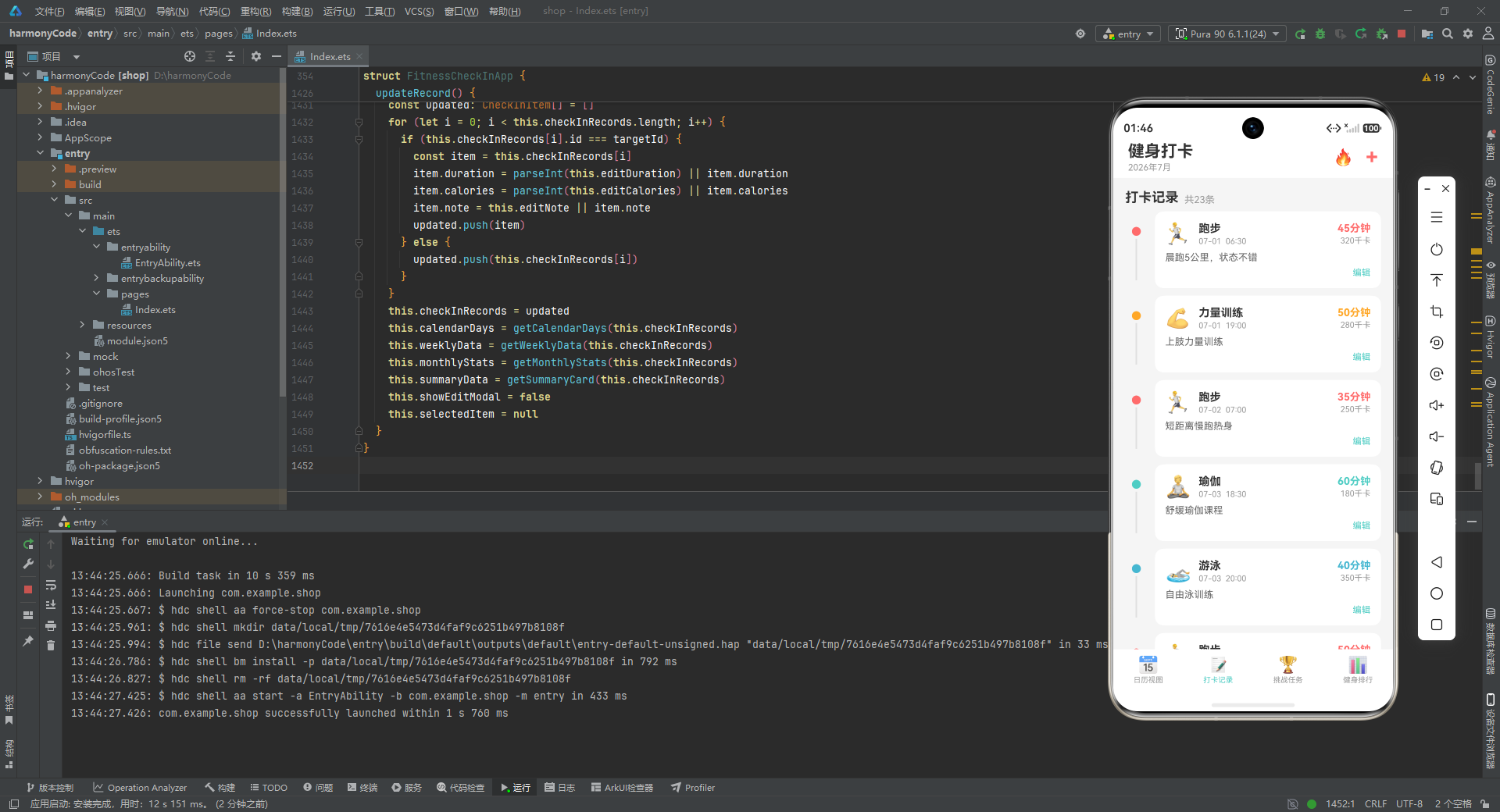
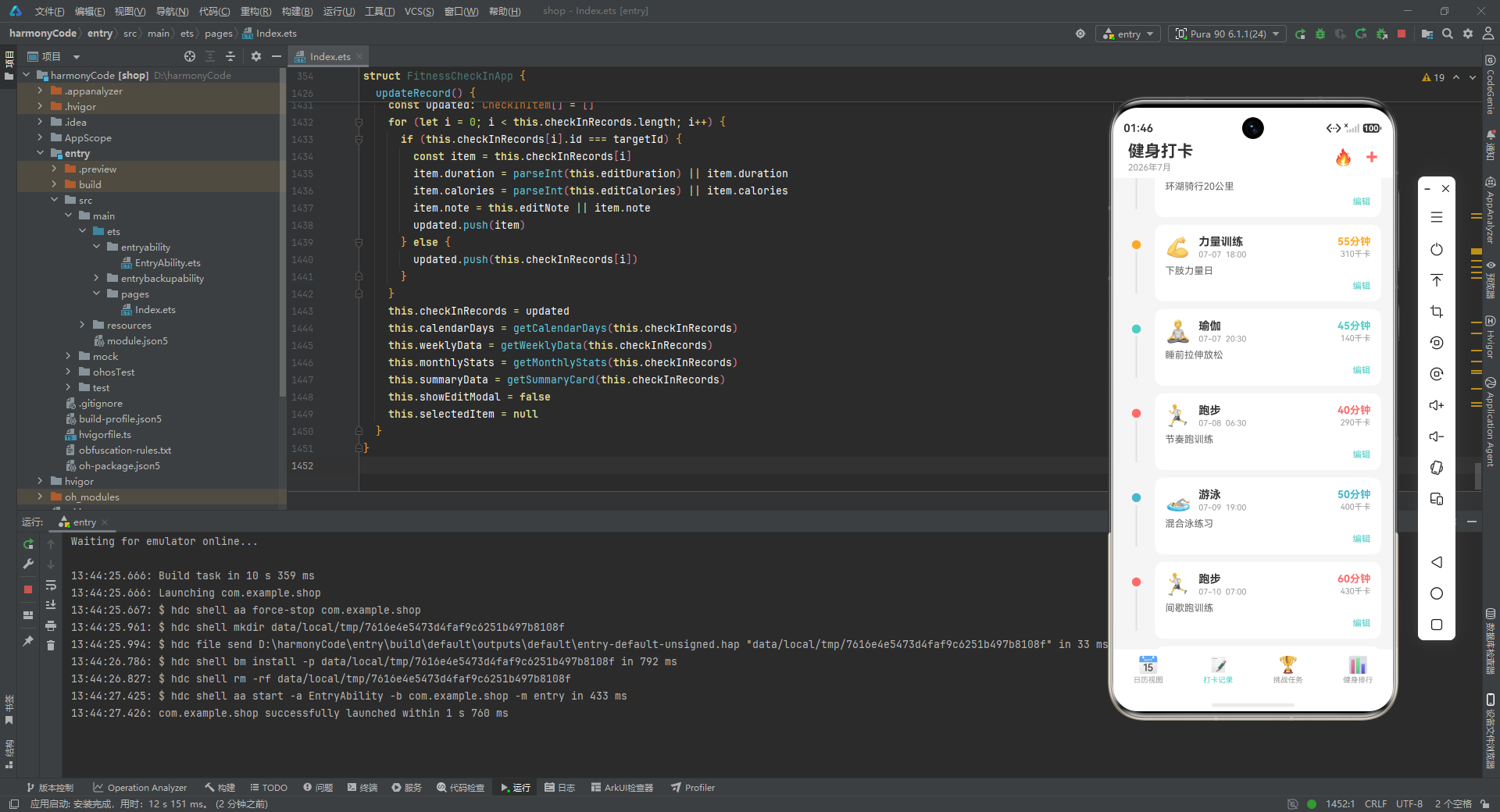
打卡记录视图采用了经典的时间轴(Timeline)设计,左侧是垂直的时间轴线,右侧是详细的记录卡片。
时间轴的实现非常精巧:左侧是一个固定宽度 30 的 Column,内部包含一个圆点和一个条件渲染的竖线。圆点使用 Row() 配合 .borderRadius(6) 实现(宽高 12,圆角 6,正好是一个圆形),背景色取自运动类型的配置颜色。竖线只在"不是最后一条记录"时显示(index < this.checkInRecords.length - 1),这样最后一条记录不会有多余的向下延伸线。竖线高度固定为 56,与时间轴的间距通过 margin({ top: 4 }) 微调。
记录卡片采用白色背景、12 圆角、14 内边距的标准卡片样式。卡片内部使用三层布局:第一层是头部行,从左到右依次是 Emoji 图标、运动类型信息区、时长热量区。信息区使用 layoutWeight(1) 占据中间的所有剩余空间,将右侧的数值信息推到最右边。第二层是备注文本,宽度 100%,自动换行。第三层是编辑按钮,右对齐,使用青色(#4ECDC4)作为操作色,与主色调形成区隔。
点击整条记录会触发编辑流程:先将当前项赋值给 selectedItem,然后回显三个字段(时长、热量、备注)到编辑弹框的状态中,最后打开编辑弹框。这里将数值转为字符串(item.duration.toString())是因为 TextInput 的 text 属性只接受字符串类型。
ForEach 的键值函数使用 item.id.toString(),这比使用索引更安全,因为打卡记录列表可能发生增删操作,而 id 是唯一且稳定的。
十四、挑战任务视图:进度驱动的激励
  @Builder challengeView() {
    Scroll() {
      Column() {
        // 挑战概览
        Row() {
          Column() {
            Text('🏆')
              .fontSize(32)
            Text('挑战任务')
              .fontSize(18)
              .fontWeight(FontWeight.Bold)
              .fontColor('#FFFFFF')
              .margin({ top: 8 })
            Text('完成挑战赢取奖励')
              .fontSize(12)
              .fontColor('#FFFFFFCC')
              .margin({ top: 4 })
          }
          .width('100%')
          .alignItems(HorizontalAlign.Center)
          .padding({ top: 24, bottom: 24 })
        }
        .width('100%')
        .backgroundColor('#FF9800')
        .borderRadius(16)
        .margin({ left: 16, right: 16, top: 12 })

        // 挑战任务列表
        ForEach(this.challengeTasks, (item: ChallengeItem, index: number) => {
          Column() {
            Row() {
              Text(CHALLENGE_CONFIG[item.status].icon)
                .fontSize(32)

              Column() {
                Text(item.title)
                  .fontSize(16)
                  .fontWeight(FontWeight.Bold)
                  .fontColor('#333333')
                Text(item.desc)
                  .fontSize(12)
                  .fontColor('#999999')
                  .margin({ top: 4 })
              }
              .layoutWeight(1)
              .margin({ left: 12 })
              .alignItems(HorizontalAlign.Start)

              Text(item.reward)
                .fontSize(11)
                .fontColor(CHALLENGE_CONFIG[item.status].progressColor)
                .padding({ left: 10, right: 10, top: 5, bottom: 5 })
                .backgroundColor(CHALLENGE_CONFIG[item.status].bgColor)
                .borderRadius(12)
            }
            .width('100%')

            // 进度条
            Row() {
              Row()
                .width(getProgressPercentage(item.current, item.total))
                .height('100%')
                .backgroundColor(CHALLENGE_CONFIG[item.status].progressColor)
                .borderRadius(4)
            }
            .width('100%')
            .height(8)
            .backgroundColor('#F0F0F0')
            .borderRadius(4)
            .margin({ top: 14 })

            // 进度文字
            Row() {
              Text('进度 ' + item.current + '/' + item.total)
                .fontSize(12)
                .fontColor('#999999')
              Text(getProgressPercentage(item.current, item.total))
                .fontSize(12)
                .fontColor(CHALLENGE_CONFIG[item.status].progressColor)
                .fontWeight(FontWeight.Bold)
            }
            .width('100%')
            .justifyContent(FlexAlign.SpaceBetween)
            .margin({ top: 8 })
          }
          .width('100%')
          .backgroundColor('#FFFFFF')
          .borderRadius(16)
          .padding(16)
          .margin({ left: 16, right: 16, top: 12 })
        }, (item: ChallengeItem, index: number) => item.id.toString())
      }
      .width('100%')
      .padding({ bottom: 16 })
    }
    .layoutWeight(1)
    .scrollBar(BarState.Off)
    .align(Alignment.Top)
  }
挑战任务视图的设计强调"进度可视化"和"激励机制"。页面顶部是一个品牌头图区,橙色背景(#FF9800)搭配白色文字,下方是垂直排列的挑战卡片列表。
每个挑战卡片内部包含三个区域:信息头、进度条、进度文字。信息头使用 Row 水平布局,左侧是 Emoji 图标,中间是标题和描述(layoutWeight(1) 占据剩余空间),右侧是奖励标签。奖励标签使用了圆角胶囊样式(borderRadius(12)),背景色和文字色都从 CHALLENGE_CONFIG 中动态获取,使得每个挑战的奖励标签都有独特的配色。
进度条的实现是一个嵌套的 Row:外层是灰色背景(#F0F0F0)的轨道,高度 8,全宽;内层是彩色填充条,宽度通过 getProgressPercentage(item.current, item.total) 计算为百分比字符串(如 “56%”),背景色取自配置。两层都使用了 borderRadius(4),由于高度为 8,圆角 4 正好形成半圆端点,打造了现代感的圆角进度条。
进度文字区使用 justifyContent(FlexAlign.SpaceBetween) 将"当前/目标"和"百分比"分别推到左右两端,形成清晰的信息对比。百分比文字使用了配置中的进度色并加粗,在视觉上更加突出。
十五、健身排行视图:竞争与成就
  @Builder rankingView() {
    Scroll() {
      Column() {
        // 排行标题
        Row() {
          Text('📊')
            .fontSize(28)
          Column() {
            Text('本月排行')
              .fontSize(18)
              .fontWeight(FontWeight.Bold)
              .fontColor('#333333')
            Text('更新于 2026-07-27')
              .fontSize(11)
              .fontColor('#999999')
              .margin({ top: 2 })
          }
          .margin({ left: 12 })
          .alignItems(HorizontalAlign.Start)
          .layoutWeight(1)
        }
        .width('100%')
        .padding({ left: 16, right: 16, top: 16, bottom: 8 })
        .alignItems(VerticalAlign.Center)

        // 前三名展示
        Row() {
          ForEach(this.rankingUsers, (item: RankingItem, index: number) => {
            if (item.rank <= 3) {
              Column() {
                Text(RANKING_CONFIG[item.rank.toString()].medalIcon)
                  .fontSize(28)
                Column() {
                  Text(item.avatar)
                    .fontSize(16)
                    .fontWeight(FontWeight.Bold)
                    .fontColor('#FFFFFF')
                }
                .width(48)
                .height(48)
                .borderRadius(24)
                .backgroundColor(getAvatarColor(item.rank))
                .justifyContent(FlexAlign.Center)
                .alignItems(HorizontalAlign.Center)
                .margin({ top: 4 })

                Text(item.name)
                  .fontSize(12)
                  .fontColor('#333333')
                  .margin({ top: 6 })
                  .maxLines(1)
                  .textOverflow({ overflow: TextOverflow.Ellipsis })

                Text(item.checkInDays + '天')
                  .fontSize(11)
                  .fontColor('#FF9800')
                  .fontWeight(FontWeight.Bold)
                  .margin({ top: 2 })
              }
              .layoutWeight(1)
              .alignItems(HorizontalAlign.Center)
            }
          }, (item: RankingItem, index: number) => item.rank.toString())
        }
        .width('100%')
        .backgroundColor('#FFFFFF')
        .borderRadius(16)
        .padding({ top: 20, bottom: 20 })
        .margin({ left: 16, right: 16, top: 4 })
排行榜视图采用了"头部信息 + 前三名 podium + 普通列表"的三段式结构。
头部信息区使用 Row 水平布局,左侧是 Emoji 图标,右侧是标题和更新时间。layoutWeight(1) 确保标题区占据剩余空间。
前三名展示区使用 Row 等分三列,每列内部垂直排列奖牌图标、头像、用户名和打卡天数。头像使用圆形设计(宽高 48,圆角 24),背景色通过 getAvatarColor 函数根据排名动态分配。用户名使用了 maxLines(1) 和 textOverflow({ overflow: TextOverflow.Ellipsis }),确保超长用户名不会破坏布局,而是以省略号截断。
        // 排行列表
        ForEach(this.rankingUsers, (item: RankingItem, index: number) => {
          if (item.rank > 3) {
            Row() {
              // 排名
              Text(item.rank.toString())
                .fontSize(16)
                .fontWeight(FontWeight.Bold)
                .fontColor('#999999')
                .width(28)
                .textAlign(TextAlign.Center)

              // 头像
              Column() {
                Text(item.avatar)
                  .fontSize(14)
                  .fontWeight(FontWeight.Bold)
                  .fontColor('#FFFFFF')
              }
              .width(40)
              .height(40)
              .borderRadius(20)
              .backgroundColor(getAvatarColor(item.rank))
              .justifyContent(FlexAlign.Center)
              .alignItems(HorizontalAlign.Center)
              .margin({ left: 8 })

              // 名称和统计
              Column() {
                Text(item.name)
                  .fontSize(15)
                  .fontWeight(FontWeight.Bold)
                  .fontColor(item.isCurrentUser ? '#FF6B6B' : '#333333')
                Text('打卡' + item.checkInDays + '天 · ' + item.totalCalories + '千卡')
                  .fontSize(11)
                  .fontColor('#999999')
                  .margin({ top: 2 })
              }
              .layoutWeight(1)
              .margin({ left: 12 })
              .alignItems(HorizontalAlign.Start)

              // 热量值
              Text(item.totalCalories.toString())
                .fontSize(16)
                .fontWeight(FontWeight.Bold)
                .fontColor('#FF9800')
            }
            .width('100%')
            .backgroundColor(item.isCurrentUser ? '#FFF8E1' : '#FFFFFF')
            .borderRadius(12)
            .padding(14)
            .margin({ left: 16, right: 16, top: 8 })
            .alignItems(VerticalAlign.Center)
          }
        }, (item: RankingItem, index: number) => item.rank.toString())
      }
      .width('100%')
      .padding({ bottom: 16 })
    }
    .layoutWeight(1)
    .scrollBar(BarState.Off)
    .align(Alignment.Top)
  }
普通排行列表使用 ForEach 循环渲染,但通过 if (item.rank > 3) 过滤掉了前三名(它们已经在上方单独展示)。每个列表项是一个 Row,从左到右依次是:排名数字(固定宽度 28,居中)、圆形头像(40x40,圆角 20)、用户信息区(layoutWeight(1) 自适应)、热量值。
当前用户的高亮处理是这个视图的亮点:当 item.isCurrentUser 为 true 时,用户名使用红色(#FF6B6B),背景使用浅黄色(#FFF8E1),在视觉上形成了强烈的突出效果。这种设计让用户在列表中能快速定位自己,增强了归属感和竞争动力。
热量值使用 16 号加粗橙色字体,作为右侧的"行动号召"数据,吸引用户关注。整个列表项使用 12 圆角和 14 内边距的标准卡片样式,每两项之间通过 8 的顶部外边距形成间距。
十六、新增打卡弹框:表单的构建与提交
  @Builder addModalOverlay() {
    Stack({ alignContent: Alignment.Center }) {
      // 遮罩层
      Column()
        .width('100%')
        .height('100%')
        .backgroundColor('#00000050')
        .onClick(() => {
          this.showAddModal = false
        })

      // 弹框卡片
      Column() {
        // 标题
        Row() {
          Text('新增打卡')
            .fontSize(18)
            .fontWeight(FontWeight.Bold)
            .fontColor('#333333')
          Text('✕')
            .fontSize(20)
            .fontColor('#999999')
            .onClick(() => {
              this.showAddModal = false
            })
        }
        .width('100%')
        .justifyContent(FlexAlign.SpaceBetween)
        .alignItems(VerticalAlign.Center)

        // 运动类型选择
        Text('运动类型')
          .fontSize(14)
          .fontColor('#666666')
          .margin({ top: 16 })
          .width('100%')

        Scroll() {
          Row() {
            ForEach(SPORT_TYPE_LIST, (sportType: string, index: number) => {
              Text(SPORT_CONFIG[sportType].icon + ' ' + SPORT_CONFIG[sportType].sportType)
                .fontSize(13)
                .padding({ left: 14, right: 14, top: 8, bottom: 8 })
                .backgroundColor(this.selectedSportType === sportType ? SPORT_CONFIG[sportType].color : '#F5F5F5')
                .fontColor(this.selectedSportType === sportType ? '#FFFFFF' : '#666666')
                .borderRadius(20)
                .margin({ right: 8 })
                .onClick(() => {
                  this.selectedSportType = sportType
                })
            }, (sportType: string, index: number) => sportType)
          }
          .padding({ top: 4, bottom: 4 })
        }
        .scrollable(ScrollDirection.Horizontal)
        .scrollBar(BarState.Off)
        .width('100%')
        .margin({ top: 8 })

        // 运动时长输入
        Text('运动时长(分钟)')
          .fontSize(14)
          .fontColor('#666666')
          .margin({ top: 16 })
          .width('100%')

        TextInput({ placeholder: '请输入运动时长', text: this.inputDuration })
          .width('100%')
          .height(44)
          .borderRadius(8)
          .backgroundColor('#F5F5F5')
          .margin({ top: 6 })
          .onChange((value: string) => {
            this.inputDuration = value
          })

        // 消耗热量输入
        Text('消耗热量(千卡)')
          .fontSize(14)
          .fontColor('#666666')
          .margin({ top: 12 })
          .width('100%')

        TextInput({ placeholder: '请输入消耗热量', text: this.inputCalories })
          .width('100%')
          .height(44)
          .borderRadius(8)
          .backgroundColor('#F5F5F5')
          .margin({ top: 6 })
          .onChange((value: string) => {
            this.inputCalories = value
          })

        // 打卡备注
        Text('备注')
          .fontSize(14)
          .fontColor('#666666')
          .margin({ top: 12 })
          .width('100%')

        TextInput({ placeholder: '记录今日运动感受', text: this.inputNote })
          .width('100%')
          .height(44)
          .borderRadius(8)
          .backgroundColor('#F5F5F5')
          .margin({ top: 6 })
          .onChange((value: string) => {
            this.inputNote = value
          })

        // 按钮区
        Row() {
          Text('取消')
            .fontSize(15)
            .fontColor('#666666')
            .layoutWeight(1)
            .height(44)
            .backgroundColor('#F0F0F0')
            .borderRadius(22)
            .textAlign(TextAlign.Center)
            .onClick(() => {
              this.showAddModal = false
            })

          Text('确认打卡')
            .fontSize(15)
            .fontColor('#FFFFFF')
            .fontWeight(FontWeight.Bold)
            .layoutWeight(1)
            .height(44)
            .backgroundColor('#FF6B6B')
            .borderRadius(22)
            .textAlign(TextAlign.Center)
            .margin({ left: 12 })
            .onClick(() => {
              this.addNewRecord()
            })
        }
        .width('100%')
        .margin({ top: 20 })
      }
      .backgroundColor('#FFFFFF')
      .borderRadius(20)
      .width('88%')
      .constraintSize({ maxHeight: '80%' })
      .padding(20)
    }
    .width('100%')
    .height('100%')
  }
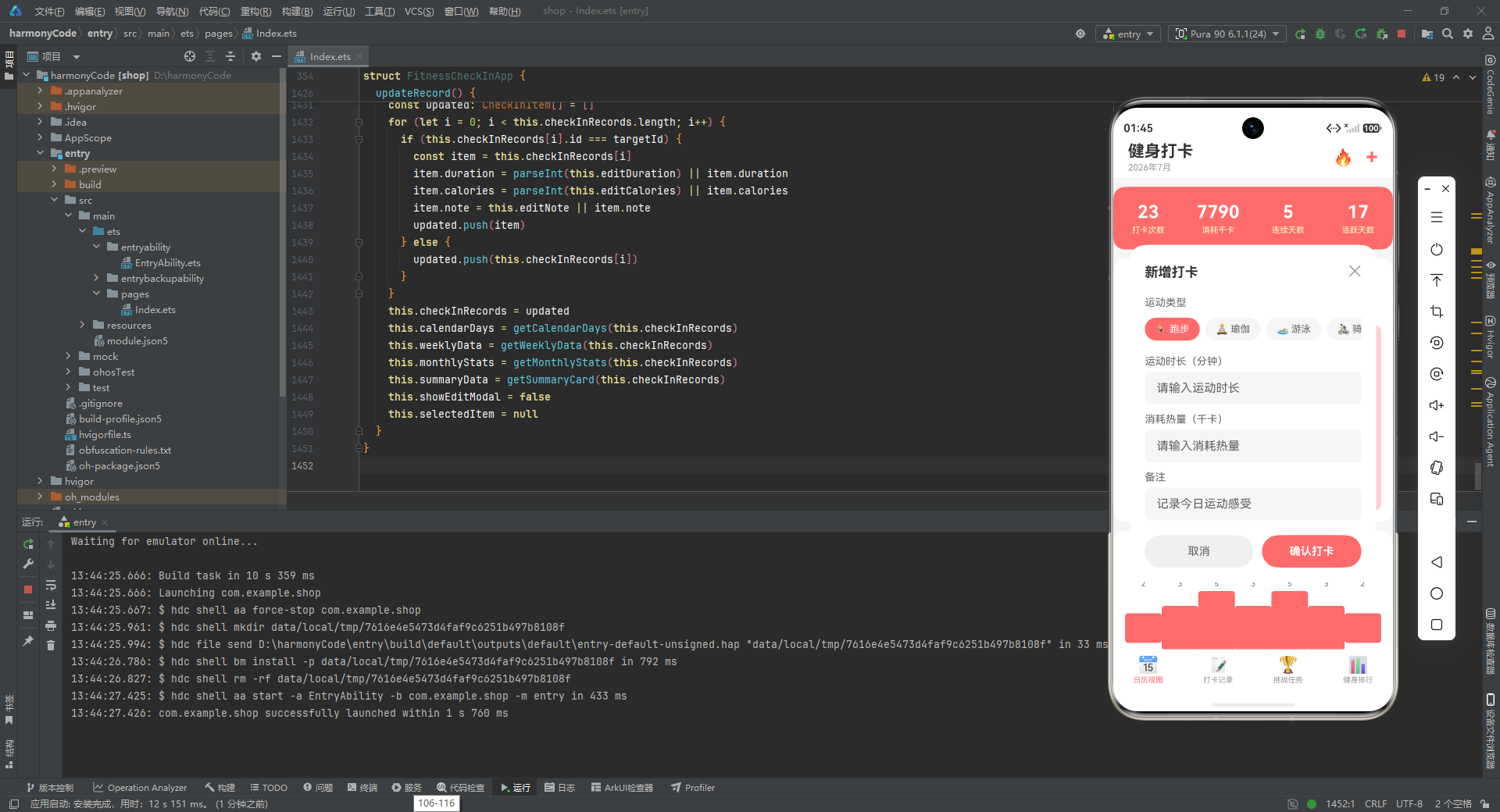
新增打卡弹框使用 Stack 实现模态覆盖效果。底层是半透明的黑色遮罩(#00000050,50 表示约 31% 不透明度),点击遮罩可关闭弹框;上层是白色的弹框卡片,居中显示。
弹框卡片内部采用垂直线性布局,从上到下依次是:标题栏、运动类型选择器、时长输入、热量输入、备注输入、按钮区。
运动类型选择器是一个横向滚动的标签列表。每个标签都是一个 Text,通过 padding 营造内边距,通过 borderRadius(20) 形成大圆角胶囊样式。选中态通过条件样式实现:选中时背景变为该运动的主题色、文字变白;未选中时背景为灰色、文字为深灰。这种选中态的视觉反馈非常直观。Scroll 容器使用 .scrollable(ScrollDirection.Horizontal) 开启横向滚动,.scrollBar(BarState.Off) 隐藏滚动条。
三个输入框都使用 TextInput 组件,配置统一:宽度 100%、高度 44、圆角 8、灰色背景。TextInput 的 text 属性绑定到对应的状态变量,onChange 回调将用户输入同步回状态。这种双向绑定的模式是表单开发的标准做法。
按钮区使用 Row 水平等分两个按钮。取消按钮使用灰色背景和深灰文字,确认按钮使用红色背景和白色加粗文字。两个按钮都使用 borderRadius(22)(高度 44 的一半),形成完美的圆角胶囊按钮。textAlign(TextAlign.Center) 使文字在按钮中居中。
弹框卡片的宽度设为 88%,最大高度为屏幕的 80%,既保证了足够的显示空间,又不会完全遮挡底层内容,保持了上下文的可见性。
十七、编辑打卡弹框:数据回显与更新
  @Builder editModalOverlay() {
    Stack({ alignContent: Alignment.Center }) {
      // 遮罩层
      Column()
        .width('100%')
        .height('100%')
        .backgroundColor('#00000050')
        .onClick(() => {
          this.showEditModal = false
          this.selectedItem = null
        })

      // 弹框卡片
      Column() {
        // 标题
        Row() {
          Text('编辑打卡')
            .fontSize(18)
            .fontWeight(FontWeight.Bold)
            .fontColor('#333333')
          Text('✕')
            .fontSize(20)
            .fontColor('#999999')
            .onClick(() => {
              this.showEditModal = false
              this.selectedItem = null
            })
        }
        .width('100%')
        .justifyContent(FlexAlign.SpaceBetween)
        .alignItems(VerticalAlign.Center)

        // 运动类型显示(不可编辑)
        Text('运动类型')
          .fontSize(14)
          .fontColor('#666666')
          .margin({ top: 16 })
          .width('100%')

        Row() {
          Text(SPORT_CONFIG[this.selectedItem!.sportType].icon)
            .fontSize(24)
          Text(SPORT_CONFIG[this.selectedItem!.sportType].sportType)
            .fontSize(15)
            .fontColor('#333333')
            .fontWeight(FontWeight.Bold)
            .margin({ left: 8 })
          Text(this.selectedItem!.date + '  ' + this.selectedItem!.time)
            .fontSize(12)
            .fontColor('#999999')
            .margin({ left: 8 })
        }
        .width('100%')
        .padding({ left: 14, right: 14, top: 10, bottom: 10 })
        .backgroundColor('#F5F5F5')
        .borderRadius(10)
        .margin({ top: 6 })
        .alignItems(VerticalAlign.Center)

        // 运动时长
        Text('运动时长(分钟)')
          .fontSize(14)
          .fontColor('#666666')
          .margin({ top: 16 })
          .width('100%')

        TextInput({ placeholder: '请输入运动时长', text: this.editDuration })
          .width('100%')
          .height(44)
          .borderRadius(8)
          .backgroundColor('#F5F5F5')
          .margin({ top: 6 })
          .onChange((value: string) => {
            this.editDuration = value
          })

        // 消耗热量
        Text('消耗热量(千卡)')
          .fontSize(14)
          .fontColor('#666666')
          .margin({ top: 12 })
          .width('100%')

        TextInput({ placeholder: '请输入消耗热量', text: this.editCalories })
          .width('100%')
          .height(44)
          .borderRadius(8)
          .backgroundColor('#F5F5F5')
          .margin({ top: 6 })
          .onChange((value: string) => {
            this.editCalories = value
          })

        // 备注
        Text('备注')
          .fontSize(14)
          .fontColor('#666666')
          .margin({ top: 12 })
          .width('100%')

        TextInput({ placeholder: '记录运动感受', text: this.editNote })
          .width('100%')
          .height(44)
          .borderRadius(8)
          .backgroundColor('#F5F5F5')
          .margin({ top: 6 })
          .onChange((value: string) => {
            this.editNote = value
          })

        // 按钮区
        Row() {
          Text('取消')
            .fontSize(15)
            .fontColor('#666666')
            .layoutWeight(1)
            .height(44)
            .backgroundColor('#F0F0F0')
            .borderRadius(22)
            .textAlign(TextAlign.Center)
            .onClick(() => {
              this.showEditModal = false
              this.selectedItem = null
            })

          Text('保存修改')
            .fontSize(15)
            .fontColor('#FFFFFF')
            .fontWeight(FontWeight.Bold)
            .layoutWeight(1)
            .height(44)
            .backgroundColor('#4ECDC4')
            .borderRadius(22)
            .textAlign(TextAlign.Center)
            .margin({ left: 12 })
            .onClick(() => {
              this.updateRecord()
            })
        }
        .width('100%')
        .margin({ top: 20 })
      }
      .backgroundColor('#FFFFFF')
      .borderRadius(20)
      .width('88%')
      .constraintSize({ maxHeight: '80%' })
      .padding(20)
    }
    .width('100%')
    .height('100%')
  }
编辑弹框与新增弹框的结构高度相似,但有几个关键差异体现了"编辑"场景的特殊性。
首先,运动类型显示为只读信息而非可选标签。这里使用 Row 水平排列 Emoji 图标、运动类型名称和日期时间,背景设为灰色、圆角 10,形成了一个信息展示条。使用 this.selectedItem!.sportType 的非空断言(!),是因为在调用编辑弹框时已经通过条件判断确保了 selectedItem 非空。
其次,编辑弹框使用独立的状态变量(editDuration、editCalories、editNote)而非新增弹框的状态。这是为了避免两个弹框共享状态导致的交叉干扰。在打卡记录视图中点击记录时,当前记录的值被复制到编辑状态中,实现了数据的回显。
第三,确认按钮的文字变为"保存修改",颜色使用青色(#4ECDC4)而非新增时的红色,通过色彩差异暗示操作的性质(新增 vs 修改)。
第四,关闭弹框时都会执行 this.selectedItem = null,这是为了清理状态,避免下次打开编辑弹框时显示过期数据。
十八、业务方法:状态变更的核心逻辑
  addNewRecord() {
    const newId = this.checkInRecords.length + 1
    const duration = parseInt(this.inputDuration) || 30
    const calories = parseInt(this.inputCalories) || 200
    const note = this.inputNote || '今日打卡完成'
    const newRecord = new CheckInItem(newId, '07-27', '12:00', this.selectedSportType, duration, calories, note)

    const updated: CheckInItem[] = []
    for (let i = 0; i < this.checkInRecords.length; i++) {
      updated.push(this.checkInRecords[i])
    }
    updated.push(newRecord)
    this.checkInRecords = updated

    this.calendarDays = getCalendarDays(this.checkInRecords)
    this.weeklyData = getWeeklyData(this.checkInRecords)
    this.monthlyStats = getMonthlyStats(this.checkInRecords)
    this.summaryData = getSummaryCard(this.checkInRecords)
    this.showAddModal = false
  }
addNewRecord() 方法处理新增打卡的业务逻辑。它的工作流程如下:
数据准备阶段: newId 使用数组长度加 1 作为新记录的 ID,虽然这在并发场景下不安全,但对于单机演示足够。duration 和 calories 通过 parseInt 将字符串输入转为整数,如果解析失败(如用户输入非数字)则使用默认值(30 分钟、200 千卡)。note 在为空时使用默认文案。日期和时间被硬编码为 ‘07-27’ 和 ‘12:00’,这是因为当前版本没有日期选择器。
数组更新阶段: 这里使用了一个显式的循环将原数组元素复制到新数组,然后 push 新记录。这种写法在 ArkTS 中比 this.checkInRecords = [...this.checkInRecords, newRecord] 更为显式。关键的是,通过创建新数组并赋值给 this.checkInRecords,ArkTS 的状态管理系统能够检测到这个变化(因为数组引用改变了),从而触发依赖该状态的所有 UI 重新渲染。
派生数据更新阶段: 新增记录后,立即重新计算四个派生数据集(日历、周统计、月度统计、概览卡片),然后关闭弹框。这四个派生数据的更新确保了所有视图模块都保持数据一致性。
  updateRecord() {
    if (this.selectedItem === null) {
      return
    }
    const targetId = this.selectedItem!.id
    const updated: CheckInItem[] = []
    for (let i = 0; i < this.checkInRecords.length; i++) {
      if (this.checkInRecords[i].id === targetId) {
        const item = this.checkInRecords[i]
        item.duration = parseInt(this.editDuration) || item.duration
        item.calories = parseInt(this.editCalories) || item.calories
        item.note = this.editNote || item.note
        updated.push(item)
      } else {
        updated.push(this.checkInRecords[i])
      }
    }
    this.checkInRecords = updated
    this.calendarDays = getCalendarDays(this.checkInRecords)
    this.weeklyData = getWeeklyData(this.checkInRecords)
    this.monthlyStats = getMonthlyStats(this.checkInRecords)
    this.summaryData = getSummaryCard(this.checkInRecords)
    this.showEditModal = false
    this.selectedItem = null
  }
}
updateRecord() 方法处理编辑打卡的业务逻辑。首先进行空值保护,如果 selectedItem 为 null 则直接返回。
更新逻辑同样采用创建新数组的方式:遍历原数组,对于匹配的记录,直接修改原对象实例的属性值(因为 CheckInItem 被 @Observed 修饰,这种修改是合法的),然后将该实例推入新数组;对于不匹配的记录,直接推入新数组。最后将新数组赋值给 this.checkInRecords。
值得注意的是,这里直接修改了原数组中的对象实例(item.duration = ...),而不是创建新的 CheckInItem 实例。由于 CheckInItem 被 @Observed 装饰,ArkTS 能够追踪到对象内部属性的变化。不过,最终仍然需要创建新数组并赋值,因为 ArkTS 的 @State 对数组的监听是基于引用变化的。
编辑后的派生数据更新逻辑与新增时完全一致,最后关闭弹框并清空 selectedItem。
十九、各模块技术对比总结
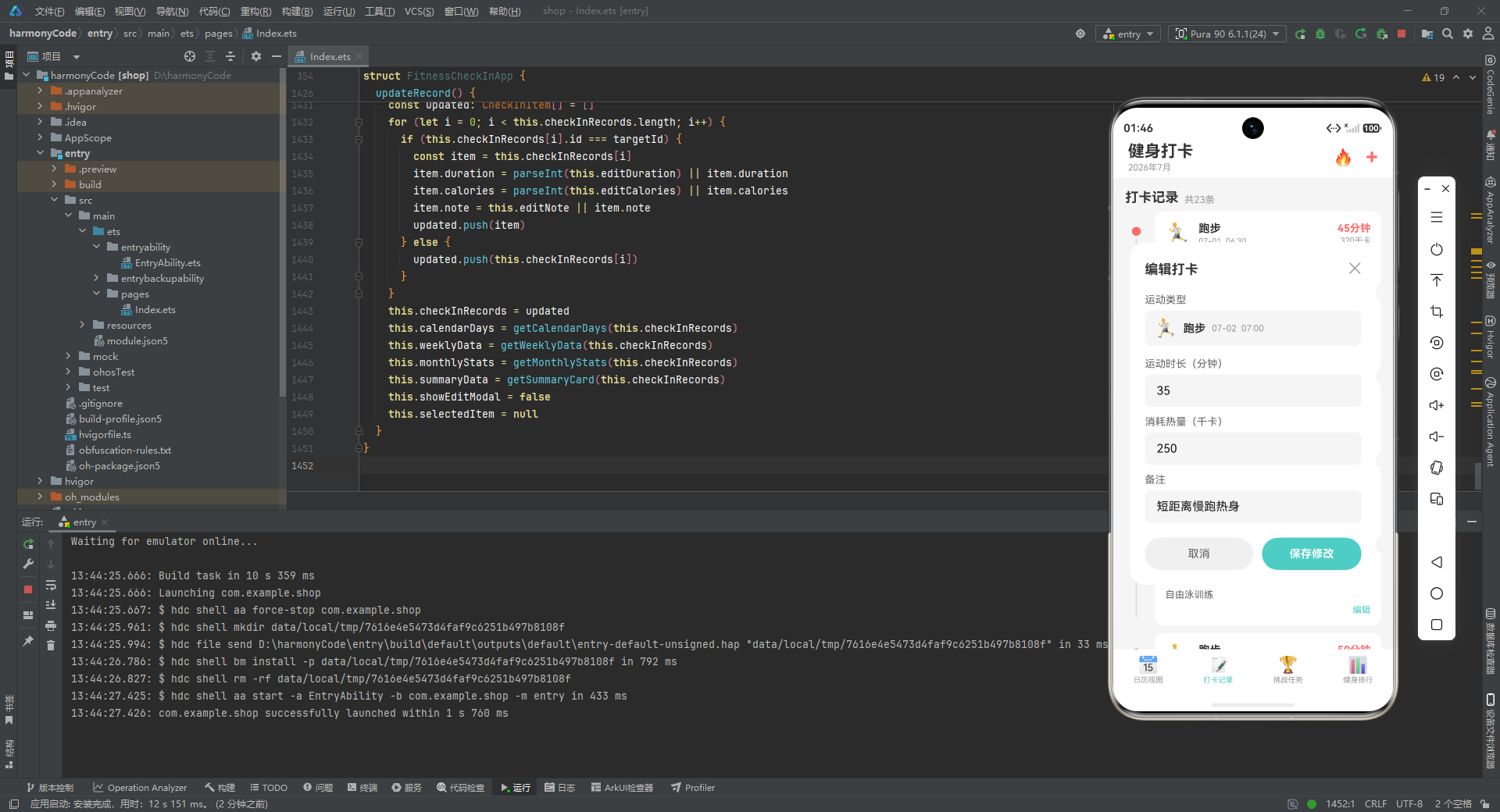
| 维度 | 日历视图 (Calendar) | 打卡记录 (Records) | 挑战任务 (Challenge) | 健身排行 (Ranking) |
|---|---|---|---|---|
| 核心功能 | 月历热力图展示、周打卡柱状图、月度统计概览 | 时间轴式打卡列表、记录编辑入口 | 多类型挑战进度追踪、可视化进度条 | 用户排行榜单、前三名 podium 展示 |
| 状态管理要点 | calendarDays、weeklyData、monthlyStats、summaryData 四项派生状态,均由 checkInRecords 计算得出 |
直接消费 checkInRecords 数组,通过 selectedItem 回显编辑数据 |
直接消费 challengeTasks 数组,只读展示 |
直接消费 rankingUsers 数组,通过 isCurrentUser 高亮当前用户 |
| 关键组件 | Scroll、Grid、GridItem、嵌套 Column/Row |
Scroll、Row(时间轴线 + 卡片)、Column |
Scroll、Column(卡片容器)、嵌套 Row(进度条) |
Scroll、Row( podium 区)、Column(头像圆形) |
| 设计模式 | 派生数据缓存模式 + 网格布局 | 时间轴模式 + 列表渲染 | 卡片列表 + 进度可视化 | 排行榜模式 + 当前用户高亮 |
| 数据转换逻辑 | getCalendarDays(日历网格填充算法)、getWeeklyData(百分比归一化)、getMonthlyStats(聚合统计) |
直接渲染,无复杂转换 | getProgressPercentage(进度百分比计算) |
getAvatarColor(排名-颜色映射) |
| 视觉亮点 | 热力图四级色阶、圆角日历格子、圆角胶囊统计卡片 | 彩色时间轴线、运动类型主题色贯穿、编辑按钮右对齐 | 独立主题色进度条、胶囊式奖励标签、大圆角卡片 | 前三名奖牌图标、圆形头像、当前用户背景高亮 |
| 交互设计 | 纯展示,无交互 | 点击整条记录打开编辑弹框 | 纯展示,无交互 | 纯展示,无交互 |
| 配置依赖 | 依赖 SPORT_CONFIG(统计颜色) |
依赖 SPORT_CONFIG(图标、颜色) |
依赖 CHALLENGE_CONFIG(图标、颜色) |
依赖 RANKING_CONFIG(奖牌)、SPORT_CONFIG(头像色) |
| 响应式复杂度 | 高(四项派生状态需同步更新) | 中(编辑后需同步更新派生状态) | 低(只读展示) | 低(只读展示) |
| 布局复杂度 | 高(嵌套 4 层容器 + Grid) | 中(时间轴左右分栏) | 中(卡片内部多层嵌套) | 中( podium 三列等分 + 列表) |
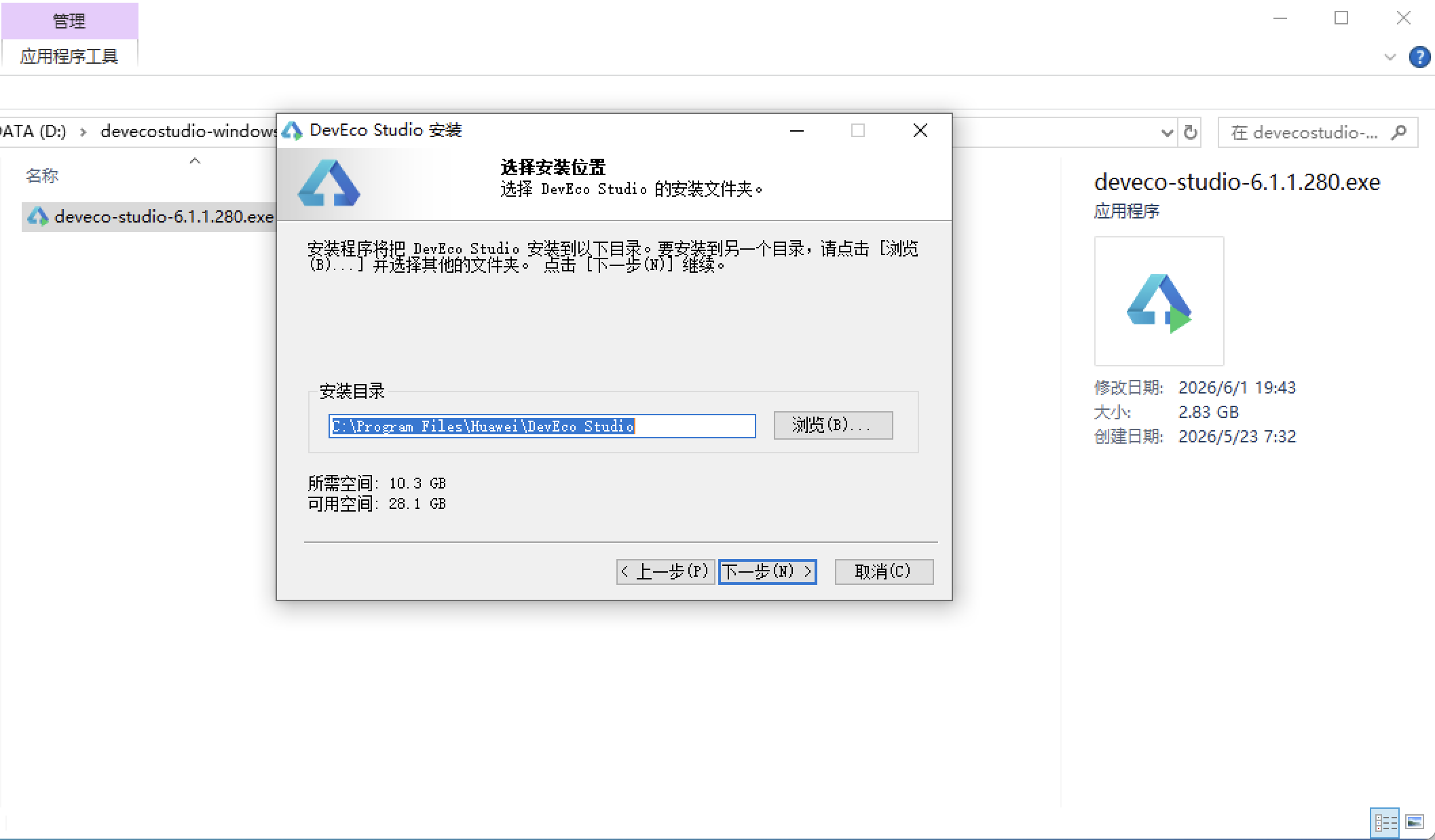
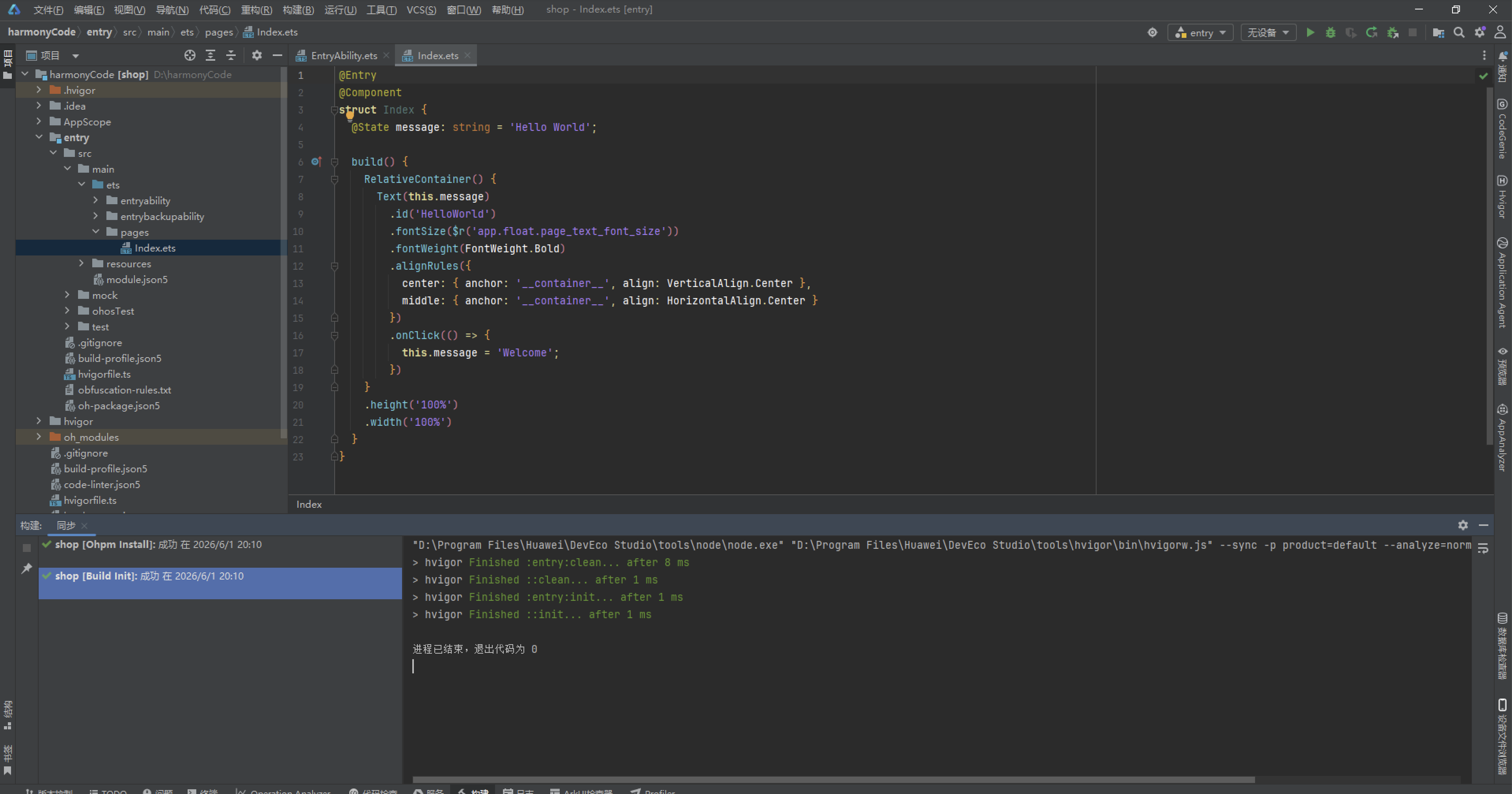
安装DevEco Studio程序
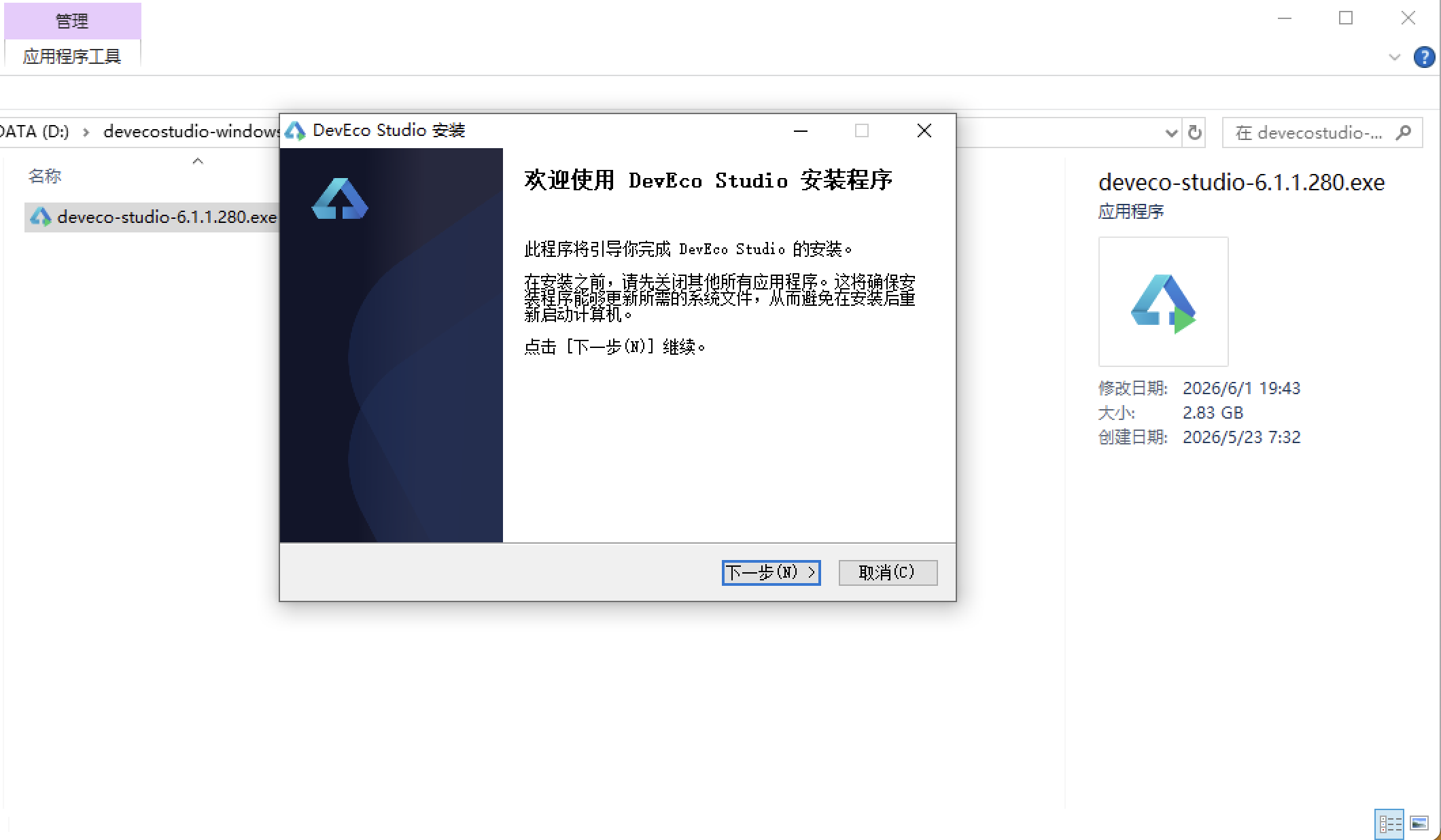
选择目标安装目录:
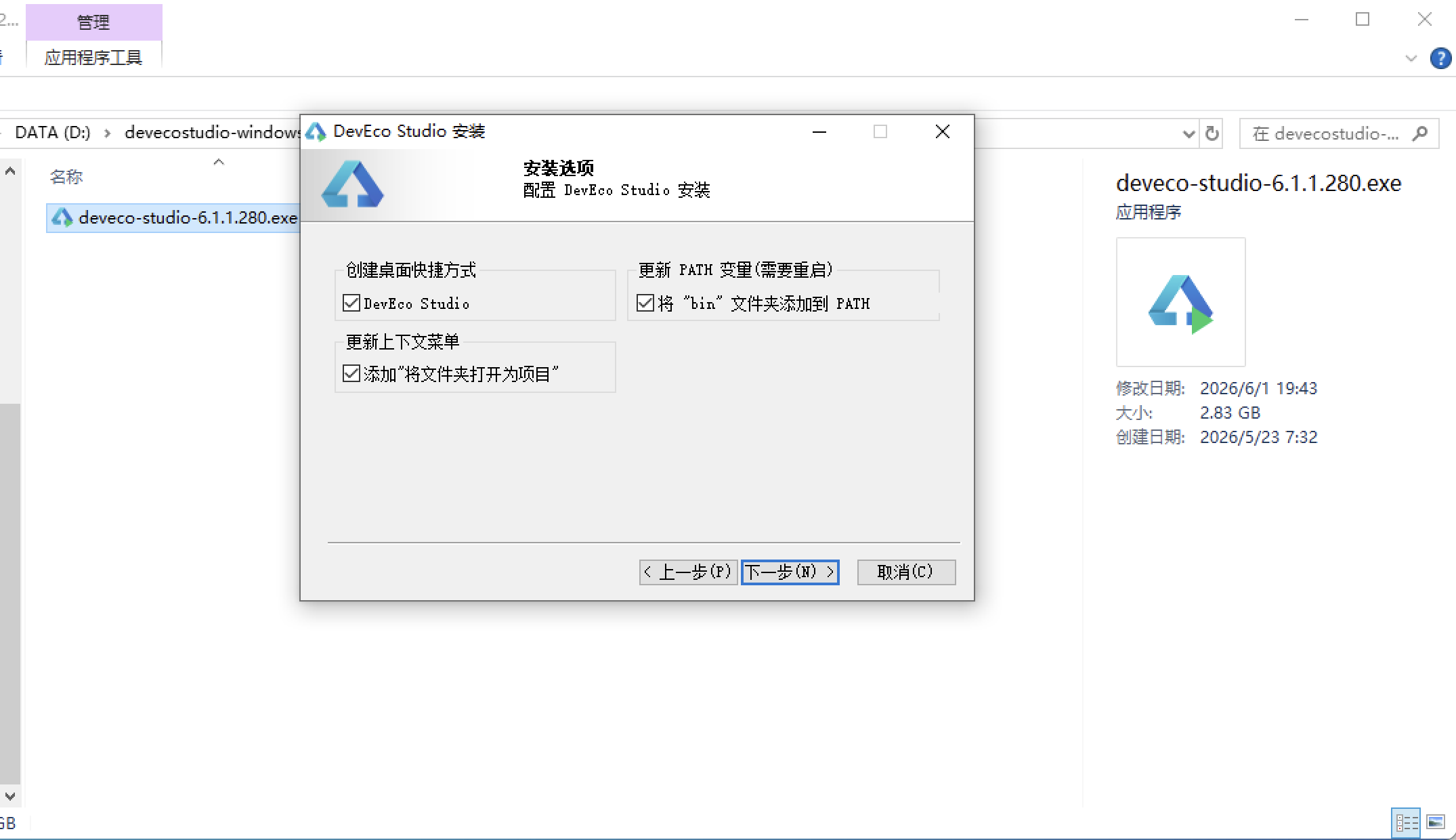
设置环境变量,但是需要重启一下:
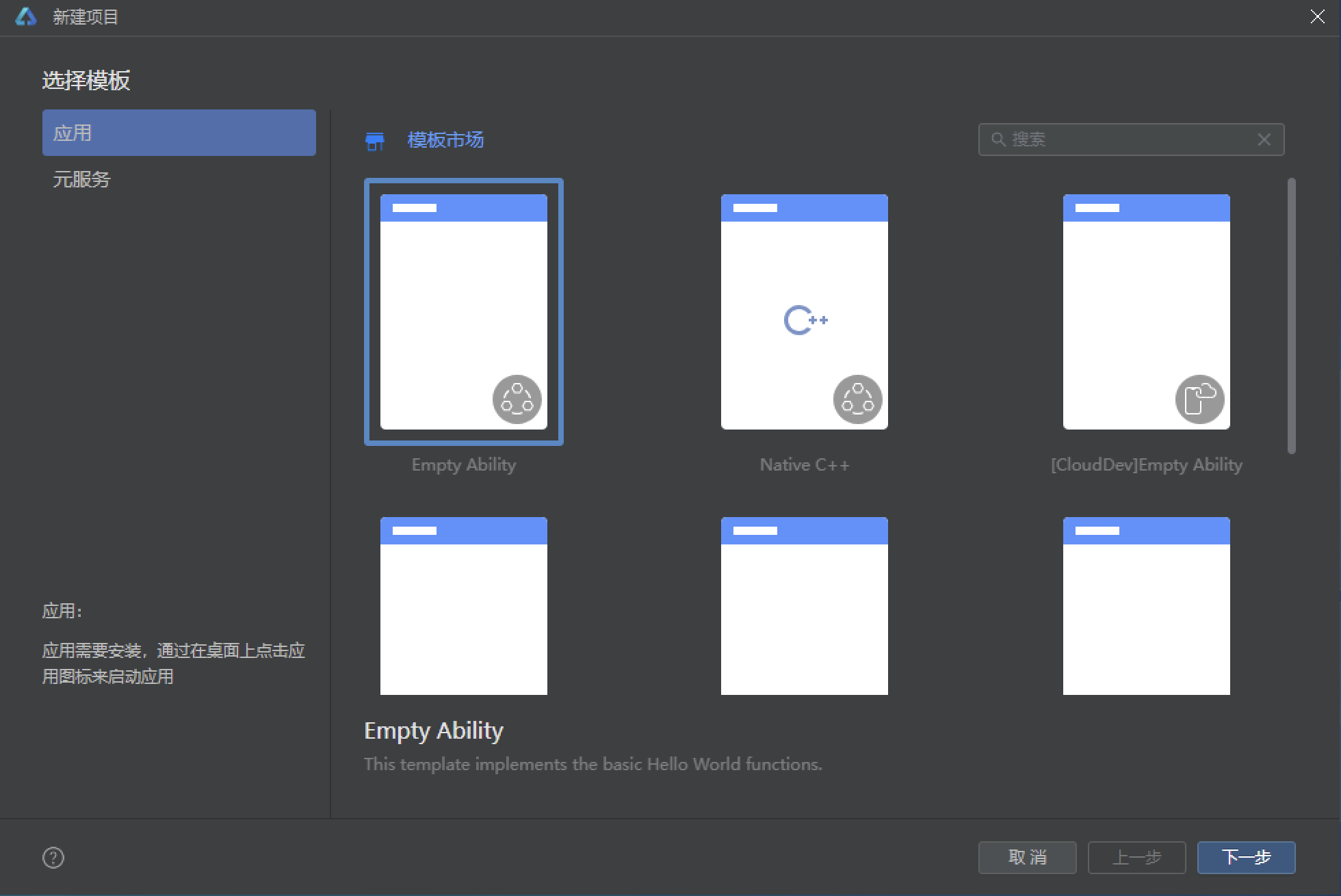
新建一个空白模板:
设置API为24的模板项目: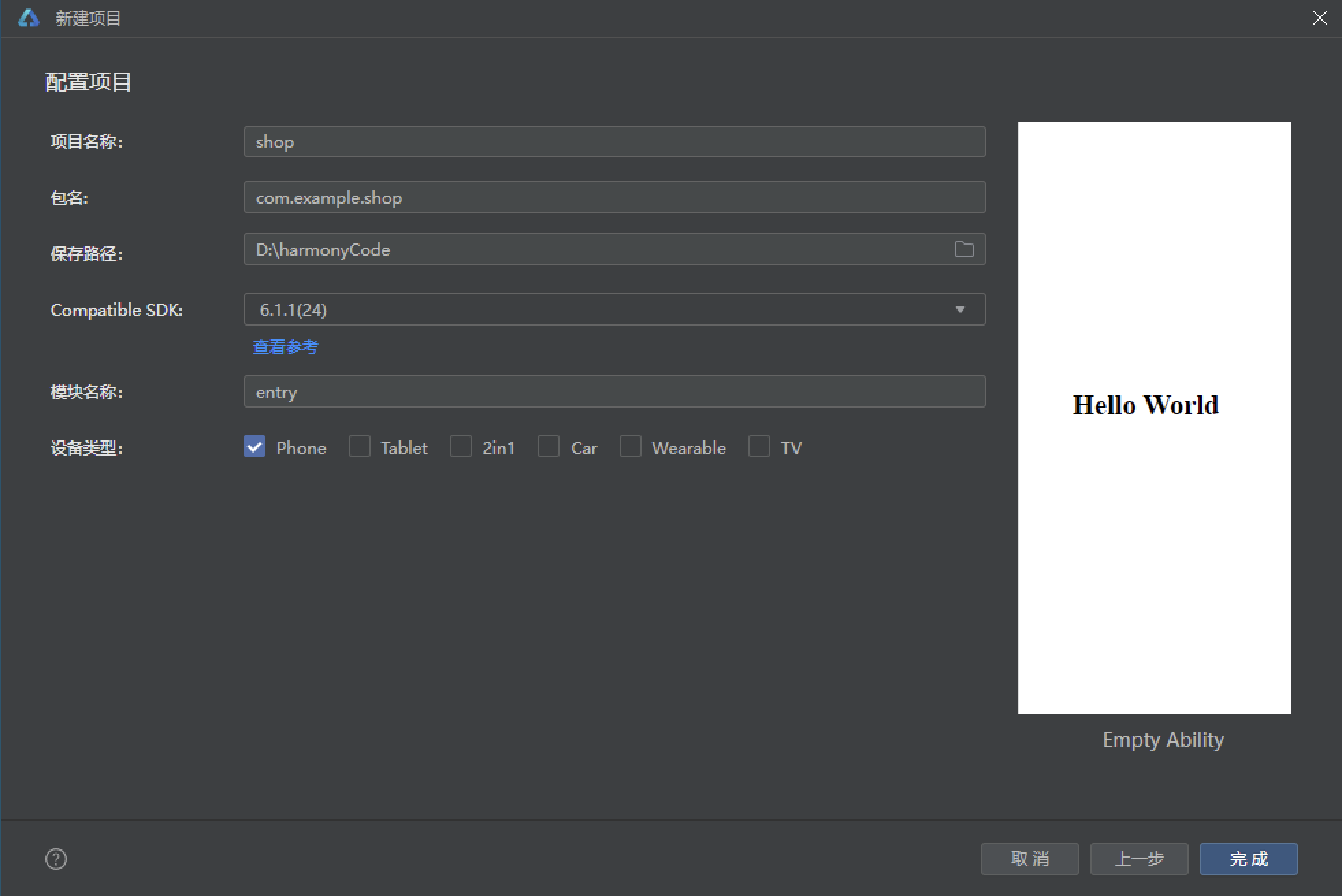
初始化项目,自动下载相关依赖:
完整代码:
// ============================================================
// 健身打卡日历 - HarmonyOS ArkTS
// 功能:月历热力图、打卡时间轴、挑战任务、健身排行
// ============================================================
// ==================== 接口定义 ====================
interface SportTypeMeta {
sportType: string
icon: string
color: string
}
interface ChallengeMeta {
icon: string
bgColor: string
progressColor: string
}
interface RankingMeta {
medalColor: string
medalIcon: string
}
interface TabMeta {
title: string
icon: string
activeColor: string
}
interface CalendarDayData {
day: number
checkInCount: number
heatLevel: number
}
interface WeeklyBarData {
day: string
count: number
percentage: string
}
interface MonthlyStatData {
label: string
value: string
unit: string
icon: string
color: string
}
interface SummaryCardData {
totalCheckIns: string
totalCalories: string
streakDays: string
activeDays: string
}
// ==================== 枚举定义 ====================
enum TabEnum {
Calendar = 0,
Records = 1,
Challenge = 2,
Ranking = 3
}
// ==================== 数据类 ====================
@Observed export class CheckInItem {
id: number
date: string
time: string
sportType: string
duration: number
calories: number
note: string
constructor(id: number, date: string, time: string, sportType: string,
duration: number, calories: number, note: string) {
this.id = id
this.date = date
this.time = time
this.sportType = sportType
this.duration = duration
this.calories = calories
this.note = note
}
}
@Observed export class ChallengeItem {
id: number
title: string
desc: string
total: number
current: number
reward: string
status: string
constructor(id: number, title: string, desc: string, total: number,
current: number, reward: string, status: string) {
this.id = id
this.title = title
this.desc = desc
this.total = total
this.current = current
this.reward = reward
this.status = status
}
}
@Observed export class RankingItem {
rank: number
name: string
avatar: string
checkInDays: number
totalCalories: number
isCurrentUser: boolean
constructor(rank: number, name: string, avatar: string, checkInDays: number,
totalCalories: number, isCurrentUser: boolean) {
this.rank = rank
this.name = name
this.avatar = avatar
this.checkInDays = checkInDays
this.totalCalories = totalCalories
this.isCurrentUser = isCurrentUser
}
}
// ==================== 静态配置 ====================
const SPORT_CONFIG: Record<string, SportTypeMeta> = {
'running': { sportType: '跑步', icon: '🏃', color: '#FF6B6B' },
'yoga': { sportType: '瑜伽', icon: '🧘', color: '#4ECDC4' },
'swimming': { sportType: '游泳', icon: '🏊', color: '#45B7D1' },
'cycling': { sportType: '骑行', icon: '🚴', color: '#96CEB4' },
'weightlifting': { sportType: '力量训练', icon: '💪', color: '#FFA726' },
'basketball': { sportType: '篮球', icon: '🏀', color: '#AB47BC' }
}
const CHALLENGE_CONFIG: Record<string, ChallengeMeta> = {
'daily30': { icon: '🔥', bgColor: '#FFF3E0', progressColor: '#FF9800' },
'monthly20': { icon: '🏆', bgColor: '#E8F5E9', progressColor: '#4CAF50' },
'run100': { icon: '🏃', bgColor: '#FFEBEE', progressColor: '#F44336' },
'calories5000': { icon: '⚡', bgColor: '#E3F2FD', progressColor: '#2196F3' },
'streak7': { icon: '📅', bgColor: '#F3E5F5', progressColor: '#9C27B0' },
'plank100': { icon: '💪', bgColor: '#FFF8E1', progressColor: '#FFC107' }
}
const RANKING_CONFIG: Record<string, RankingMeta> = {
'1': { medalColor: '#FFD700', medalIcon: '🥇' },
'2': { medalColor: '#C0C0C0', medalIcon: '🥈' },
'3': { medalColor: '#CD7F32', medalIcon: '🥉' },
'other': { medalColor: '#E0E0E0', medalIcon: '' }
}
const TAB_CONFIG: Record<string, TabMeta> = {
'calendar': { title: '日历视图', icon: '📅', activeColor: '#FF6B6B' },
'records': { title: '打卡记录', icon: '📝', activeColor: '#4ECDC4' },
'challenge': { title: '挑战任务', icon: '🏆', activeColor: '#FF9800' },
'ranking': { title: '健身排行', icon: '📊', activeColor: '#9C27B0' }
}
const WEEKDAYS: string[] = ['一', '二', '三', '四', '五', '六', '日']
const SPORT_TYPE_LIST: string[] = ['running', 'yoga', 'swimming', 'cycling', 'weightlifting', 'basketball']
const TAB_LIST: TabEnum[] = [TabEnum.Calendar, TabEnum.Records, TabEnum.Challenge, TabEnum.Ranking]
// ==================== Mock 数据 ====================
function getCheckInRecords(): CheckInItem[] {
const records: CheckInItem[] = []
records.push(new CheckInItem(1, '07-01', '06:30', 'running', 45, 320, '晨跑5公里,状态不错'))
records.push(new CheckInItem(2, '07-01', '19:00', 'weightlifting', 50, 280, '上肢力量训练'))
records.push(new CheckInItem(3, '07-02', '07:00', 'running', 35, 250, '短距离慢跑热身'))
records.push(new CheckInItem(4, '07-03', '18:30', 'yoga', 60, 180, '舒缓瑜伽课程'))
records.push(new CheckInItem(5, '07-03', '20:00', 'swimming', 40, 350, '自由泳训练'))
records.push(new CheckInItem(6, '07-04', '06:45', 'running', 50, 360, '长距离晨跑'))
records.push(new CheckInItem(7, '07-04', '19:30', 'weightlifting', 45, 260, '核心力量训练'))
records.push(new CheckInItem(8, '07-05', '19:30', 'basketball', 90, 550, '半场篮球赛'))
records.push(new CheckInItem(9, '07-06', '07:15', 'cycling', 75, 420, '环湖骑行20公里'))
records.push(new CheckInItem(10, '07-07', '18:00', 'weightlifting', 55, 310, '下肢力量日'))
records.push(new CheckInItem(11, '07-07', '20:30', 'yoga', 45, 140, '睡前拉伸放松'))
records.push(new CheckInItem(12, '07-08', '06:30', 'running', 40, 290, '节奏跑训练'))
records.push(new CheckInItem(13, '07-09', '19:00', 'swimming', 50, 400, '混合泳练习'))
records.push(new CheckInItem(14, '07-10', '07:00', 'running', 60, 430, '间歇跑训练'))
records.push(new CheckInItem(15, '07-10', '18:30', 'weightlifting', 60, 340, '胸肩训练日'))
records.push(new CheckInItem(16, '07-11', '06:45', 'cycling', 60, 350, '通勤骑行'))
records.push(new CheckInItem(17, '07-12', '19:30', 'basketball', 80, 480, '全场对抗赛'))
records.push(new CheckInItem(18, '07-13', '07:00', 'running', 45, 320, '恢复性慢跑'))
records.push(new CheckInItem(19, '07-14', '18:00', 'yoga', 70, 200, '热瑜伽课程'))
records.push(new CheckInItem(20, '07-15', '06:30', 'running', 55, 390, '坡道跑训练'))
records.push(new CheckInItem(21, '07-15', '19:30', 'weightlifting', 50, 290, '背部训练'))
records.push(new CheckInItem(22, '07-16', '07:15', 'swimming', 45, 380, '蝶泳技术练习'))
records.push(new CheckInItem(23, '07-17', '18:30', 'cycling', 90, 500, '山地骑行挑战'))
return records
}
function getChallengeTasks(): ChallengeItem[] {
const tasks: ChallengeItem[] = []
tasks.push(new ChallengeItem(1, '每日30分钟运动', '坚持每天运动至少30分钟', 30, 17, '500积分', 'daily30'))
tasks.push(new ChallengeItem(2, '月度打卡20天', '本月累计打卡达到20天', 20, 15, '1000积分', 'monthly20'))
tasks.push(new ChallengeItem(3, '累计跑步100公里', '本月累计跑步距离100公里', 100, 68, '跑步徽章', 'run100'))
tasks.push(new ChallengeItem(4, '消耗5000卡路里', '本月累计消耗5000千卡', 5000, 3870, '能量徽章', 'calories5000'))
tasks.push(new ChallengeItem(5, '连续打卡7天', '连续7天不间断打卡', 7, 5, '坚持徽章', 'streak7'))
tasks.push(new ChallengeItem(6, '平板支撑100分钟', '本月累计平板支撑100分钟', 100, 45, '核心徽章', 'plank100'))
return tasks
}
function getRankingUsers(): RankingItem[] {
const users: RankingItem[] = []
users.push(new RankingItem(1, '健身达人Leo', 'L', 28, 8500, false))
users.push(new RankingItem(2, '跑步少女Mia', 'M', 26, 7800, false))
users.push(new RankingItem(3, '铁人David', 'D', 25, 7200, false))
users.push(new RankingItem(4, '瑜伽女王Sophie', 'S', 23, 6500, false))
users.push(new RankingItem(5, '泳者Tom', 'T', 22, 6100, false))
users.push(new RankingItem(6, '骑行侠Jack', 'J', 20, 5600, false))
users.push(new RankingItem(7, '我', 'ME', 17, 3870, true))
users.push(new RankingItem(8, '力量王Hulk', 'H', 16, 3500, false))
users.push(new RankingItem(9, '全能Amy', 'A', 15, 3200, false))
users.push(new RankingItem(10, '运动新秀Ben', 'B', 13, 2800, false))
return users
}
// ==================== 辅助函数 ====================
function getHeatColor(level: number): string {
if (level <= 0) return '#F5F5F5'
if (level === 1) return '#FFCDD2'
if (level === 2) return '#EF5350'
return '#C62828'
}
function getCalendarDays(records: CheckInItem[]): CalendarDayData[] {
const days: CalendarDayData[] = []
// 2026年7月1日是周三,前面有2个偏移格(周一、周二)
for (let i = 0; i < 2; i++) {
days.push({ day: 0, checkInCount: 0, heatLevel: -1 })
}
const countMap: Record<string, number> = {}
for (let i = 0; i < records.length; i++) {
const dayStr = records[i].date.split('-')[1]
if (countMap[dayStr] === undefined) {
countMap[dayStr] = 0
}
countMap[dayStr] = countMap[dayStr] + 1
}
for (let i = 1; i <= 30; i++) {
const key = i.toString().padStart(2, '0')
const count = countMap[key] || 0
let heatLevel = 0
if (count >= 3) {
heatLevel = 3
} else if (count === 2) {
heatLevel = 2
} else if (count === 1) {
heatLevel = 1
}
days.push({ day: i, checkInCount: count, heatLevel: heatLevel })
}
while (days.length % 7 !== 0) {
days.push({ day: 0, checkInCount: 0, heatLevel: -1 })
}
return days
}
function getWeeklyData(records: CheckInItem[]): WeeklyBarData[] {
const weekData: WeeklyBarData[] = []
const dayLabels: string[] = ['周一', '周二', '周三', '周四', '周五', '周六', '周日']
// 7月1日=周三,weekday_index = (day + 1) % 7, Mon=0
const counts: number[] = [0, 0, 0, 0, 0, 0, 0]
for (let i = 0; i < records.length; i++) {
const day = parseInt(records[i].date.split('-')[1])
const weekdayIndex = (day + 1) % 7
counts[weekdayIndex] = counts[weekdayIndex] + 1
}
let maxCount = 1
for (let i = 0; i < 7; i++) {
if (counts[i] > maxCount) {
maxCount = counts[i]
}
}
for (let i = 0; i < 7; i++) {
const pct = Math.round((counts[i] / maxCount) * 100)
weekData.push({ day: dayLabels[i], count: counts[i], percentage: pct + '%' })
}
return weekData
}
function getMonthlyStats(records: CheckInItem[]): MonthlyStatData[] {
let totalDuration = 0
let totalCalories = 0
let activeDays = 0
const daySet: Record<string, boolean> = {}
for (let i = 0; i < records.length; i++) {
totalDuration += records[i].duration
totalCalories += records[i].calories
if (daySet[records[i].date] === undefined) {
daySet[records[i].date] = true
activeDays++
}
}
const stats: MonthlyStatData[] = []
stats.push({ label: '打卡次数', value: records.length.toString(), unit: '次', icon: '📝', color: '#FF6B6B' })
stats.push({ label: '运动时长', value: totalDuration.toString(), unit: '分钟', icon: '⏱️', color: '#4ECDC4' })
stats.push({ label: '消耗热量', value: totalCalories.toString(), unit: '千卡', icon: '🔥', color: '#FF9800' })
stats.push({ label: '活跃天数', value: activeDays.toString(), unit: '天', icon: '📅', color: '#9C27B0' })
return stats
}
function getSummaryCard(records: CheckInItem[]): SummaryCardData {
let totalCalories = 0
const daySet: Record<string, boolean> = {}
for (let i = 0; i < records.length; i++) {
totalCalories += records[i].calories
daySet[records[i].date] = true
}
let activeDays = 0
const keys = Object.keys(daySet)
for (let i = 0; i < keys.length; i++) {
activeDays++
}
return {
totalCheckIns: records.length.toString(),
totalCalories: totalCalories.toString(),
streakDays: '5',
activeDays: activeDays.toString()
}
}
function getProgressPercentage(current: number, total: number): string {
if (total === 0) return '0%'
const pct = Math.round((current / total) * 100)
return pct + '%'
}
function getAvatarColor(rank: number): string {
if (rank === 1) return '#FFD700'
if (rank === 2) return '#C0C0C0'
if (rank === 3) return '#CD7F32'
return '#4ECDC4'
}
function tabKey(tab: TabEnum): string {
if (tab === TabEnum.Calendar) return 'calendar'
if (tab === TabEnum.Records) return 'records'
if (tab === TabEnum.Challenge) return 'challenge'
return 'ranking'
}
// ==================== 主组件 ====================
@Entry
@Component
struct FitnessCheckInApp {
@State checkInRecords: CheckInItem[] = getCheckInRecords()
@State challengeTasks: ChallengeItem[] = getChallengeTasks()
@State rankingUsers: RankingItem[] = getRankingUsers()
@State activeTab: TabEnum = TabEnum.Calendar
@State showAddModal: boolean = false
@State showEditModal: boolean = false
@State selectedItem: CheckInItem | null = null
@State calendarDays: CalendarDayData[] = []
@State weeklyData: WeeklyBarData[] = []
@State monthlyStats: MonthlyStatData[] = []
@State summaryData: SummaryCardData = { totalCheckIns: '0', totalCalories: '0', streakDays: '0', activeDays: '0' }
@State selectedSportType: string = 'running'
@State inputDuration: string = ''
@State inputCalories: string = ''
@State inputNote: string = ''
@State editDuration: string = ''
@State editCalories: string = ''
@State editNote: string = ''
aboutToAppear() {
this.calendarDays = getCalendarDays(this.checkInRecords)
this.weeklyData = getWeeklyData(this.checkInRecords)
this.monthlyStats = getMonthlyStats(this.checkInRecords)
this.summaryData = getSummaryCard(this.checkInRecords)
}
build() {
Stack() {
Column() {
this.titleBar()
if (this.activeTab === TabEnum.Calendar) {
this.calendarView()
} else if (this.activeTab === TabEnum.Records) {
this.recordsView()
} else if (this.activeTab === TabEnum.Challenge) {
this.challengeView()
} else {
this.rankingView()
}
this.bottomTabBar()
}
.width('100%')
.height('100%')
.backgroundColor('#F5F5F5')
if (this.showAddModal) {
this.addModalOverlay()
}
if (this.showEditModal && this.selectedItem !== null) {
this.editModalOverlay()
}
}
.width('100%')
.height('100%')
}
// ==================== 标题栏 ====================
@Builder titleBar() {
Row() {
Column() {
Text('健身打卡')
.fontSize(22)
.fontWeight(FontWeight.Bold)
.fontColor('#333333')
Text('2026年7月')
.fontSize(12)
.fontColor('#999999')
.margin({ top: 2 })
}
.alignItems(HorizontalAlign.Start)
.layoutWeight(1)
Text('🔥')
.fontSize(22)
.margin({ right: 16 })
Text('+')
.fontSize(28)
.fontWeight(FontWeight.Bold)
.fontColor('#FF6B6B')
.onClick(() => {
this.selectedSportType = 'running'
this.inputDuration = ''
this.inputCalories = ''
this.inputNote = ''
this.showAddModal = true
})
}
.width('100%')
.height(56)
.padding({ left: 20, right: 20 })
.backgroundColor('#FFFFFF')
.alignItems(VerticalAlign.Center)
}
// ==================== 底部Tab栏 ====================
@Builder bottomTabBar() {
Row() {
ForEach(TAB_LIST, (tab: TabEnum, index: number) => {
Column() {
Text(TAB_CONFIG[tabKey(tab)].icon)
.fontSize(22)
Text(TAB_CONFIG[tabKey(tab)].title)
.fontSize(10)
.margin({ top: 2 })
.fontColor(this.activeTab === tab ? TAB_CONFIG[tabKey(tab)].activeColor : '#999999')
}
.layoutWeight(1)
.height(56)
.justifyContent(FlexAlign.Center)
.alignItems(HorizontalAlign.Center)
.onClick(() => {
this.activeTab = tab
})
}, (tab: TabEnum, index: number) => index.toString())
}
.width('100%')
.backgroundColor('#FFFFFF')
.alignItems(VerticalAlign.Center)
}
// ==================== 日历视图 ====================
@Builder calendarView() {
Scroll() {
Column() {
// 概览卡片
Row() {
Column() {
Text(this.summaryData.totalCheckIns)
.fontSize(24)
.fontWeight(FontWeight.Bold)
.fontColor('#FFFFFF')
Text('打卡次数')
.fontSize(11)
.fontColor('#FFFFFFCC')
.margin({ top: 4 })
}
.layoutWeight(1)
.alignItems(HorizontalAlign.Center)
Column() {
Text(this.summaryData.totalCalories)
.fontSize(24)
.fontWeight(FontWeight.Bold)
.fontColor('#FFFFFF')
Text('消耗千卡')
.fontSize(11)
.fontColor('#FFFFFFCC')
.margin({ top: 4 })
}
.layoutWeight(1)
.alignItems(HorizontalAlign.Center)
Column() {
Text(this.summaryData.streakDays)
.fontSize(24)
.fontWeight(FontWeight.Bold)
.fontColor('#FFFFFF')
Text('连续天数')
.fontSize(11)
.fontColor('#FFFFFFCC')
.margin({ top: 4 })
}
.layoutWeight(1)
.alignItems(HorizontalAlign.Center)
Column() {
Text(this.summaryData.activeDays)
.fontSize(24)
.fontWeight(FontWeight.Bold)
.fontColor('#FFFFFF')
Text('活跃天数')
.fontSize(11)
.fontColor('#FFFFFFCC')
.margin({ top: 4 })
}
.layoutWeight(1)
.alignItems(HorizontalAlign.Center)
}
.width('100%')
.padding({ top: 20, bottom: 20 })
.backgroundColor('#FF6B6B')
.borderRadius({ topLeft: 16, topRight: 16, bottomLeft: 16, bottomRight: 16 })
.margin({ left: 16, right: 16, top: 12 })
// 日历卡片
Column() {
// 月份导航
Row() {
Text('‹')
.fontSize(20)
.fontColor('#999999')
Text('7月')
.fontSize(18)
.fontWeight(FontWeight.Bold)
.fontColor('#333333')
.margin({ left: 12, right: 12 })
Text('›')
.fontSize(20)
.fontColor('#999999')
}
.width('100%')
.justifyContent(FlexAlign.Center)
.alignItems(VerticalAlign.Center)
// 热力图图例
Row() {
Text('少')
.fontSize(10)
.fontColor('#999999')
Row().width(12).height(12).borderRadius(3).backgroundColor('#F5F5F5').margin({ left: 4, right: 4 })
Row().width(12).height(12).borderRadius(3).backgroundColor('#FFCDD2').margin({ right: 4 })
Row().width(12).height(12).borderRadius(3).backgroundColor('#EF5350').margin({ right: 4 })
Row().width(12).height(12).borderRadius(3).backgroundColor('#C62828').margin({ right: 4 })
Text('多')
.fontSize(10)
.fontColor('#999999')
}
.justifyContent(FlexAlign.Center)
.alignItems(VerticalAlign.Center)
.margin({ top: 8 })
// 星期标题
Row() {
ForEach(WEEKDAYS, (day: string, index: number) => {
Text(day)
.fontSize(11)
.fontColor('#999999')
.textAlign(TextAlign.Center)
.layoutWeight(1)
}, (day: string, index: number) => day)
}
.width('100%')
.margin({ top: 12, bottom: 6 })
// 日历网格
Grid() {
ForEach(this.calendarDays, (item: CalendarDayData, index: number) => {
GridItem() {
this.calendarDayCell(item)
}
}, (item: CalendarDayData, index: number) => index.toString())
}
.columnsTemplate('1fr 1fr 1fr 1fr 1fr 1fr 1fr')
.rowsGap(4)
.columnsGap(2)
.height(250)
.width('100%')
}
.width('100%')
.backgroundColor('#FFFFFF')
.borderRadius(16)
.padding(16)
.margin({ left: 16, right: 16, top: 12 })
// 本周打卡柱状图
Column() {
Text('本周打卡次数')
.fontSize(16)
.fontWeight(FontWeight.Bold)
.fontColor('#333333')
Text('按星期统计')
.fontSize(11)
.fontColor('#999999')
.margin({ top: 2 })
Row() {
ForEach(this.weeklyData, (item: WeeklyBarData, index: number) => {
Column() {
Text(item.count.toString())
.fontSize(10)
.fontColor('#666666')
Row() {
Column()
.width('100%')
.height(item.percentage)
.backgroundColor('#FF6B6B')
.borderRadius({ topLeft: 4, topRight: 4, bottomLeft: 4, bottomRight: 4 })
}
.width('100%')
.height(100)
.justifyContent(FlexAlign.End)
.margin({ top: 4 })
Text(item.day)
.fontSize(10)
.fontColor('#999999')
.margin({ top: 4 })
}
.layoutWeight(1)
.alignItems(HorizontalAlign.Center)
}, (item: WeeklyBarData, index: number) => item.day)
}
.width('100%')
.margin({ top: 16 })
}
.width('100%')
.backgroundColor('#FFFFFF')
.borderRadius(16)
.padding(16)
.margin({ left: 16, right: 16, top: 12 })
// 月度统计
Column() {
Text('月度统计')
.fontSize(16)
.fontWeight(FontWeight.Bold)
.fontColor('#333333')
Row() {
ForEach(this.monthlyStats, (item: MonthlyStatData, index: number) => {
Column() {
Text(item.icon)
.fontSize(24)
Text(item.value)
.fontSize(20)
.fontWeight(FontWeight.Bold)
.fontColor(item.color)
.margin({ top: 6 })
Text(item.unit)
.fontSize(10)
.fontColor('#999999')
Text(item.label)
.fontSize(11)
.fontColor('#666666')
.margin({ top: 2 })
}
.layoutWeight(1)
.alignItems(HorizontalAlign.Center)
.padding({ top: 12, bottom: 12 })
}, (item: MonthlyStatData, index: number) => item.label)
}
.width('100%')
.margin({ top: 12 })
}
.width('100%')
.backgroundColor('#FFFFFF')
.borderRadius(16)
.padding(16)
.margin({ left: 16, right: 16, top: 12, bottom: 16 })
}
.width('100%')
}
.layoutWeight(1)
.scrollBar(BarState.Off)
.align(Alignment.Top)
}
@Builder calendarDayCell(item: CalendarDayData) {
Column() {
if (item.day > 0) {
Text(item.day.toString())
.fontSize(13)
.fontWeight(FontWeight.Medium)
.fontColor(item.heatLevel > 0 ? '#FFFFFF' : '#333333')
if (item.checkInCount > 0) {
Row() {
Text('●')
.fontSize(4)
.fontColor('#FFFFFF')
if (item.checkInCount > 1) {
Text('●')
.fontSize(4)
.fontColor('#FFFFFF')
.margin({ left: 2 })
}
if (item.checkInCount > 2) {
Text('●')
.fontSize(4)
.fontColor('#FFFFFF')
.margin({ left: 2 })
}
}
.margin({ top: 2 })
}
}
}
.width('100%')
.height('100%')
.backgroundColor(item.day > 0 ? getHeatColor(item.heatLevel) : '#00000000')
.borderRadius(8)
.justifyContent(FlexAlign.Center)
.alignItems(HorizontalAlign.Center)
}
// ==================== 打卡记录视图 ====================
@Builder recordsView() {
Scroll() {
Column() {
Row() {
Text('打卡记录')
.fontSize(18)
.fontWeight(FontWeight.Bold)
.fontColor('#333333')
Text('共' + this.checkInRecords.length + '条')
.fontSize(13)
.fontColor('#999999')
.margin({ left: 8 })
}
.width('100%')
.padding({ left: 16, right: 16, top: 16, bottom: 8 })
.alignItems(VerticalAlign.Bottom)
ForEach(this.checkInRecords, (item: CheckInItem, index: number) => {
Row() {
// 时间轴左侧
Column() {
Row()
.width(12)
.height(12)
.borderRadius(6)
.backgroundColor(SPORT_CONFIG[item.sportType].color)
if (index < this.checkInRecords.length - 1) {
Column()
.width(2)
.height(56)
.backgroundColor('#E0E0E0')
.margin({ top: 4 })
}
}
.width(30)
.alignItems(HorizontalAlign.Center)
// 记录卡片
Column() {
Row() {
Text(SPORT_CONFIG[item.sportType].icon)
.fontSize(28)
Column() {
Text(SPORT_CONFIG[item.sportType].sportType)
.fontSize(15)
.fontWeight(FontWeight.Bold)
.fontColor('#333333')
Text(item.date + ' ' + item.time)
.fontSize(11)
.fontColor('#999999')
.margin({ top: 2 })
}
.layoutWeight(1)
.margin({ left: 10 })
.alignItems(HorizontalAlign.Start)
Column() {
Text(item.duration + '分钟')
.fontSize(14)
.fontWeight(FontWeight.Bold)
.fontColor(SPORT_CONFIG[item.sportType].color)
Text(item.calories + '千卡')
.fontSize(11)
.fontColor('#999999')
.margin({ top: 2 })
}
.alignItems(HorizontalAlign.End)
}
.width('100%')
Text(item.note)
.fontSize(13)
.fontColor('#666666')
.margin({ top: 8 })
.width('100%')
Row() {
Text('编辑')
.fontSize(12)
.fontColor('#4ECDC4')
}
.width('100%')
.justifyContent(FlexAlign.End)
.margin({ top: 6 })
}
.layoutWeight(1)
.backgroundColor('#FFFFFF')
.borderRadius(12)
.padding(14)
.margin({ left: 10, bottom: 10 })
}
.width('100%')
.padding({ left: 16, right: 16 })
.onClick(() => {
this.selectedItem = item
this.editDuration = item.duration.toString()
this.editCalories = item.calories.toString()
this.editNote = item.note
this.showEditModal = true
})
}, (item: CheckInItem, index: number) => item.id.toString())
}
.width('100%')
.padding({ bottom: 16 })
}
.layoutWeight(1)
.scrollBar(BarState.Off)
.align(Alignment.Top)
}
// ==================== 挑战任务视图 ====================
@Builder challengeView() {
Scroll() {
Column() {
// 挑战概览
Row() {
Column() {
Text('🏆')
.fontSize(32)
Text('挑战任务')
.fontSize(18)
.fontWeight(FontWeight.Bold)
.fontColor('#FFFFFF')
.margin({ top: 8 })
Text('完成挑战赢取奖励')
.fontSize(12)
.fontColor('#FFFFFFCC')
.margin({ top: 4 })
}
.width('100%')
.alignItems(HorizontalAlign.Center)
.padding({ top: 24, bottom: 24 })
}
.width('100%')
.backgroundColor('#FF9800')
.borderRadius(16)
.margin({ left: 16, right: 16, top: 12 })
// 挑战任务列表
ForEach(this.challengeTasks, (item: ChallengeItem, index: number) => {
Column() {
Row() {
Text(CHALLENGE_CONFIG[item.status].icon)
.fontSize(32)
Column() {
Text(item.title)
.fontSize(16)
.fontWeight(FontWeight.Bold)
.fontColor('#333333')
Text(item.desc)
.fontSize(12)
.fontColor('#999999')
.margin({ top: 4 })
}
.layoutWeight(1)
.margin({ left: 12 })
.alignItems(HorizontalAlign.Start)
Text(item.reward)
.fontSize(11)
.fontColor(CHALLENGE_CONFIG[item.status].progressColor)
.padding({ left: 10, right: 10, top: 5, bottom: 5 })
.backgroundColor(CHALLENGE_CONFIG[item.status].bgColor)
.borderRadius(12)
}
.width('100%')
// 进度条
Row() {
Row()
.width(getProgressPercentage(item.current, item.total))
.height('100%')
.backgroundColor(CHALLENGE_CONFIG[item.status].progressColor)
.borderRadius(4)
}
.width('100%')
.height(8)
.backgroundColor('#F0F0F0')
.borderRadius(4)
.margin({ top: 14 })
// 进度文字
Row() {
Text('进度 ' + item.current + '/' + item.total)
.fontSize(12)
.fontColor('#999999')
Text(getProgressPercentage(item.current, item.total))
.fontSize(12)
.fontColor(CHALLENGE_CONFIG[item.status].progressColor)
.fontWeight(FontWeight.Bold)
}
.width('100%')
.justifyContent(FlexAlign.SpaceBetween)
.margin({ top: 8 })
}
.width('100%')
.backgroundColor('#FFFFFF')
.borderRadius(16)
.padding(16)
.margin({ left: 16, right: 16, top: 12 })
}, (item: ChallengeItem, index: number) => item.id.toString())
}
.width('100%')
.padding({ bottom: 16 })
}
.layoutWeight(1)
.scrollBar(BarState.Off)
.align(Alignment.Top)
}
// ==================== 健身排行视图 ====================
@Builder rankingView() {
Scroll() {
Column() {
// 排行标题
Row() {
Text('📊')
.fontSize(28)
Column() {
Text('本月排行')
.fontSize(18)
.fontWeight(FontWeight.Bold)
.fontColor('#333333')
Text('更新于 2026-07-27')
.fontSize(11)
.fontColor('#999999')
.margin({ top: 2 })
}
.margin({ left: 12 })
.alignItems(HorizontalAlign.Start)
.layoutWeight(1)
}
.width('100%')
.padding({ left: 16, right: 16, top: 16, bottom: 8 })
.alignItems(VerticalAlign.Center)
// 前三名展示
Row() {
ForEach(this.rankingUsers, (item: RankingItem, index: number) => {
if (item.rank <= 3) {
Column() {
Text(RANKING_CONFIG[item.rank.toString()].medalIcon)
.fontSize(28)
Column() {
Text(item.avatar)
.fontSize(16)
.fontWeight(FontWeight.Bold)
.fontColor('#FFFFFF')
}
.width(48)
.height(48)
.borderRadius(24)
.backgroundColor(getAvatarColor(item.rank))
.justifyContent(FlexAlign.Center)
.alignItems(HorizontalAlign.Center)
.margin({ top: 4 })
Text(item.name)
.fontSize(12)
.fontColor('#333333')
.margin({ top: 6 })
.maxLines(1)
.textOverflow({ overflow: TextOverflow.Ellipsis })
Text(item.checkInDays + '天')
.fontSize(11)
.fontColor('#FF9800')
.fontWeight(FontWeight.Bold)
.margin({ top: 2 })
}
.layoutWeight(1)
.alignItems(HorizontalAlign.Center)
}
}, (item: RankingItem, index: number) => item.rank.toString())
}
.width('100%')
.backgroundColor('#FFFFFF')
.borderRadius(16)
.padding({ top: 20, bottom: 20 })
.margin({ left: 16, right: 16, top: 4 })
// 排行列表
ForEach(this.rankingUsers, (item: RankingItem, index: number) => {
if (item.rank > 3) {
Row() {
// 排名
Text(item.rank.toString())
.fontSize(16)
.fontWeight(FontWeight.Bold)
.fontColor('#999999')
.width(28)
.textAlign(TextAlign.Center)
// 头像
Column() {
Text(item.avatar)
.fontSize(14)
.fontWeight(FontWeight.Bold)
.fontColor('#FFFFFF')
}
.width(40)
.height(40)
.borderRadius(20)
.backgroundColor(getAvatarColor(item.rank))
.justifyContent(FlexAlign.Center)
.alignItems(HorizontalAlign.Center)
.margin({ left: 8 })
// 名称和统计
Column() {
Text(item.name)
.fontSize(15)
.fontWeight(FontWeight.Bold)
.fontColor(item.isCurrentUser ? '#FF6B6B' : '#333333')
Text('打卡' + item.checkInDays + '天 · ' + item.totalCalories + '千卡')
.fontSize(11)
.fontColor('#999999')
.margin({ top: 2 })
}
.layoutWeight(1)
.margin({ left: 12 })
.alignItems(HorizontalAlign.Start)
// 热量值
Text(item.totalCalories.toString())
.fontSize(16)
.fontWeight(FontWeight.Bold)
.fontColor('#FF9800')
}
.width('100%')
.backgroundColor(item.isCurrentUser ? '#FFF8E1' : '#FFFFFF')
.borderRadius(12)
.padding(14)
.margin({ left: 16, right: 16, top: 8 })
.alignItems(VerticalAlign.Center)
}
}, (item: RankingItem, index: number) => item.rank.toString())
}
.width('100%')
.padding({ bottom: 16 })
}
.layoutWeight(1)
.scrollBar(BarState.Off)
.align(Alignment.Top)
}
// ==================== 新增打卡弹框 ====================
@Builder addModalOverlay() {
Stack({ alignContent: Alignment.Center }) {
// 遮罩层
Column()
.width('100%')
.height('100%')
.backgroundColor('#00000050')
.onClick(() => {
this.showAddModal = false
})
// 弹框卡片
Column() {
// 标题
Row() {
Text('新增打卡')
.fontSize(18)
.fontWeight(FontWeight.Bold)
.fontColor('#333333')
Text('✕')
.fontSize(20)
.fontColor('#999999')
.onClick(() => {
this.showAddModal = false
})
}
.width('100%')
.justifyContent(FlexAlign.SpaceBetween)
.alignItems(VerticalAlign.Center)
// 运动类型选择
Text('运动类型')
.fontSize(14)
.fontColor('#666666')
.margin({ top: 16 })
.width('100%')
Scroll() {
Row() {
ForEach(SPORT_TYPE_LIST, (sportType: string, index: number) => {
Text(SPORT_CONFIG[sportType].icon + ' ' + SPORT_CONFIG[sportType].sportType)
.fontSize(13)
.padding({ left: 14, right: 14, top: 8, bottom: 8 })
.backgroundColor(this.selectedSportType === sportType ? SPORT_CONFIG[sportType].color : '#F5F5F5')
.fontColor(this.selectedSportType === sportType ? '#FFFFFF' : '#666666')
.borderRadius(20)
.margin({ right: 8 })
.onClick(() => {
this.selectedSportType = sportType
})
}, (sportType: string, index: number) => sportType)
}
.padding({ top: 4, bottom: 4 })
}
.scrollable(ScrollDirection.Horizontal)
.scrollBar(BarState.Off)
.width('100%')
.margin({ top: 8 })
// 运动时长输入
Text('运动时长(分钟)')
.fontSize(14)
.fontColor('#666666')
.margin({ top: 16 })
.width('100%')
TextInput({ placeholder: '请输入运动时长', text: this.inputDuration })
.width('100%')
.height(44)
.borderRadius(8)
.backgroundColor('#F5F5F5')
.margin({ top: 6 })
.onChange((value: string) => {
this.inputDuration = value
})
// 消耗热量输入
Text('消耗热量(千卡)')
.fontSize(14)
.fontColor('#666666')
.margin({ top: 12 })
.width('100%')
TextInput({ placeholder: '请输入消耗热量', text: this.inputCalories })
.width('100%')
.height(44)
.borderRadius(8)
.backgroundColor('#F5F5F5')
.margin({ top: 6 })
.onChange((value: string) => {
this.inputCalories = value
})
// 打卡备注
Text('备注')
.fontSize(14)
.fontColor('#666666')
.margin({ top: 12 })
.width('100%')
TextInput({ placeholder: '记录今日运动感受', text: this.inputNote })
.width('100%')
.height(44)
.borderRadius(8)
.backgroundColor('#F5F5F5')
.margin({ top: 6 })
.onChange((value: string) => {
this.inputNote = value
})
// 按钮区
Row() {
Text('取消')
.fontSize(15)
.fontColor('#666666')
.layoutWeight(1)
.height(44)
.backgroundColor('#F0F0F0')
.borderRadius(22)
.textAlign(TextAlign.Center)
.onClick(() => {
this.showAddModal = false
})
Text('确认打卡')
.fontSize(15)
.fontColor('#FFFFFF')
.fontWeight(FontWeight.Bold)
.layoutWeight(1)
.height(44)
.backgroundColor('#FF6B6B')
.borderRadius(22)
.textAlign(TextAlign.Center)
.margin({ left: 12 })
.onClick(() => {
this.addNewRecord()
})
}
.width('100%')
.margin({ top: 20 })
}
.backgroundColor('#FFFFFF')
.borderRadius(20)
.width('88%')
.constraintSize({ maxHeight: '80%' })
.padding(20)
}
.width('100%')
.height('100%')
}
// ==================== 编辑打卡弹框 ====================
@Builder editModalOverlay() {
Stack({ alignContent: Alignment.Center }) {
// 遮罩层
Column()
.width('100%')
.height('100%')
.backgroundColor('#00000050')
.onClick(() => {
this.showEditModal = false
this.selectedItem = null
})
// 弹框卡片
Column() {
// 标题
Row() {
Text('编辑打卡')
.fontSize(18)
.fontWeight(FontWeight.Bold)
.fontColor('#333333')
Text('✕')
.fontSize(20)
.fontColor('#999999')
.onClick(() => {
this.showEditModal = false
this.selectedItem = null
})
}
.width('100%')
.justifyContent(FlexAlign.SpaceBetween)
.alignItems(VerticalAlign.Center)
// 运动类型显示(不可编辑)
Text('运动类型')
.fontSize(14)
.fontColor('#666666')
.margin({ top: 16 })
.width('100%')
Row() {
Text(SPORT_CONFIG[this.selectedItem!.sportType].icon)
.fontSize(24)
Text(SPORT_CONFIG[this.selectedItem!.sportType].sportType)
.fontSize(15)
.fontColor('#333333')
.fontWeight(FontWeight.Bold)
.margin({ left: 8 })
Text(this.selectedItem!.date + ' ' + this.selectedItem!.time)
.fontSize(12)
.fontColor('#999999')
.margin({ left: 8 })
}
.width('100%')
.padding({ left: 14, right: 14, top: 10, bottom: 10 })
.backgroundColor('#F5F5F5')
.borderRadius(10)
.margin({ top: 6 })
.alignItems(VerticalAlign.Center)
// 运动时长
Text('运动时长(分钟)')
.fontSize(14)
.fontColor('#666666')
.margin({ top: 16 })
.width('100%')
TextInput({ placeholder: '请输入运动时长', text: this.editDuration })
.width('100%')
.height(44)
.borderRadius(8)
.backgroundColor('#F5F5F5')
.margin({ top: 6 })
.onChange((value: string) => {
this.editDuration = value
})
// 消耗热量
Text('消耗热量(千卡)')
.fontSize(14)
.fontColor('#666666')
.margin({ top: 12 })
.width('100%')
TextInput({ placeholder: '请输入消耗热量', text: this.editCalories })
.width('100%')
.height(44)
.borderRadius(8)
.backgroundColor('#F5F5F5')
.margin({ top: 6 })
.onChange((value: string) => {
this.editCalories = value
})
// 备注
Text('备注')
.fontSize(14)
.fontColor('#666666')
.margin({ top: 12 })
.width('100%')
TextInput({ placeholder: '记录运动感受', text: this.editNote })
.width('100%')
.height(44)
.borderRadius(8)
.backgroundColor('#F5F5F5')
.margin({ top: 6 })
.onChange((value: string) => {
this.editNote = value
})
// 按钮区
Row() {
Text('取消')
.fontSize(15)
.fontColor('#666666')
.layoutWeight(1)
.height(44)
.backgroundColor('#F0F0F0')
.borderRadius(22)
.textAlign(TextAlign.Center)
.onClick(() => {
this.showEditModal = false
this.selectedItem = null
})
Text('保存修改')
.fontSize(15)
.fontColor('#FFFFFF')
.fontWeight(FontWeight.Bold)
.layoutWeight(1)
.height(44)
.backgroundColor('#4ECDC4')
.borderRadius(22)
.textAlign(TextAlign.Center)
.margin({ left: 12 })
.onClick(() => {
this.updateRecord()
})
}
.width('100%')
.margin({ top: 20 })
}
.backgroundColor('#FFFFFF')
.borderRadius(20)
.width('88%')
.constraintSize({ maxHeight: '80%' })
.padding(20)
}
.width('100%')
.height('100%')
}
// ==================== 业务方法 ====================
addNewRecord() {
const newId = this.checkInRecords.length + 1
const duration = parseInt(this.inputDuration) || 30
const calories = parseInt(this.inputCalories) || 200
const note = this.inputNote || '今日打卡完成'
const newRecord = new CheckInItem(newId, '07-27', '12:00', this.selectedSportType, duration, calories, note)
const updated: CheckInItem[] = []
for (let i = 0; i < this.checkInRecords.length; i++) {
updated.push(this.checkInRecords[i])
}
updated.push(newRecord)
this.checkInRecords = updated
this.calendarDays = getCalendarDays(this.checkInRecords)
this.weeklyData = getWeeklyData(this.checkInRecords)
this.monthlyStats = getMonthlyStats(this.checkInRecords)
this.summaryData = getSummaryCard(this.checkInRecords)
this.showAddModal = false
}
updateRecord() {
if (this.selectedItem === null) {
return
}
const targetId = this.selectedItem!.id
const updated: CheckInItem[] = []
for (let i = 0; i < this.checkInRecords.length; i++) {
if (this.checkInRecords[i].id === targetId) {
const item = this.checkInRecords[i]
item.duration = parseInt(this.editDuration) || item.duration
item.calories = parseInt(this.editCalories) || item.calories
item.note = this.editNote || item.note
updated.push(item)
} else {
updated.push(this.checkInRecords[i])
}
}
this.checkInRecords = updated
this.calendarDays = getCalendarDays(this.checkInRecords)
this.weeklyData = getWeeklyData(this.checkInRecords)
this.monthlyStats = getMonthlyStats(this.checkInRecords)
this.summaryData = getSummaryCard(this.checkInRecords)
this.showEditModal = false
this.selectedItem = null
}
}
二十、总结与最佳实践
通过逐段深入解析这个健身打卡应用,我们可以总结出以下 HarmonyOS ArkTS 开发的核心最佳实践:
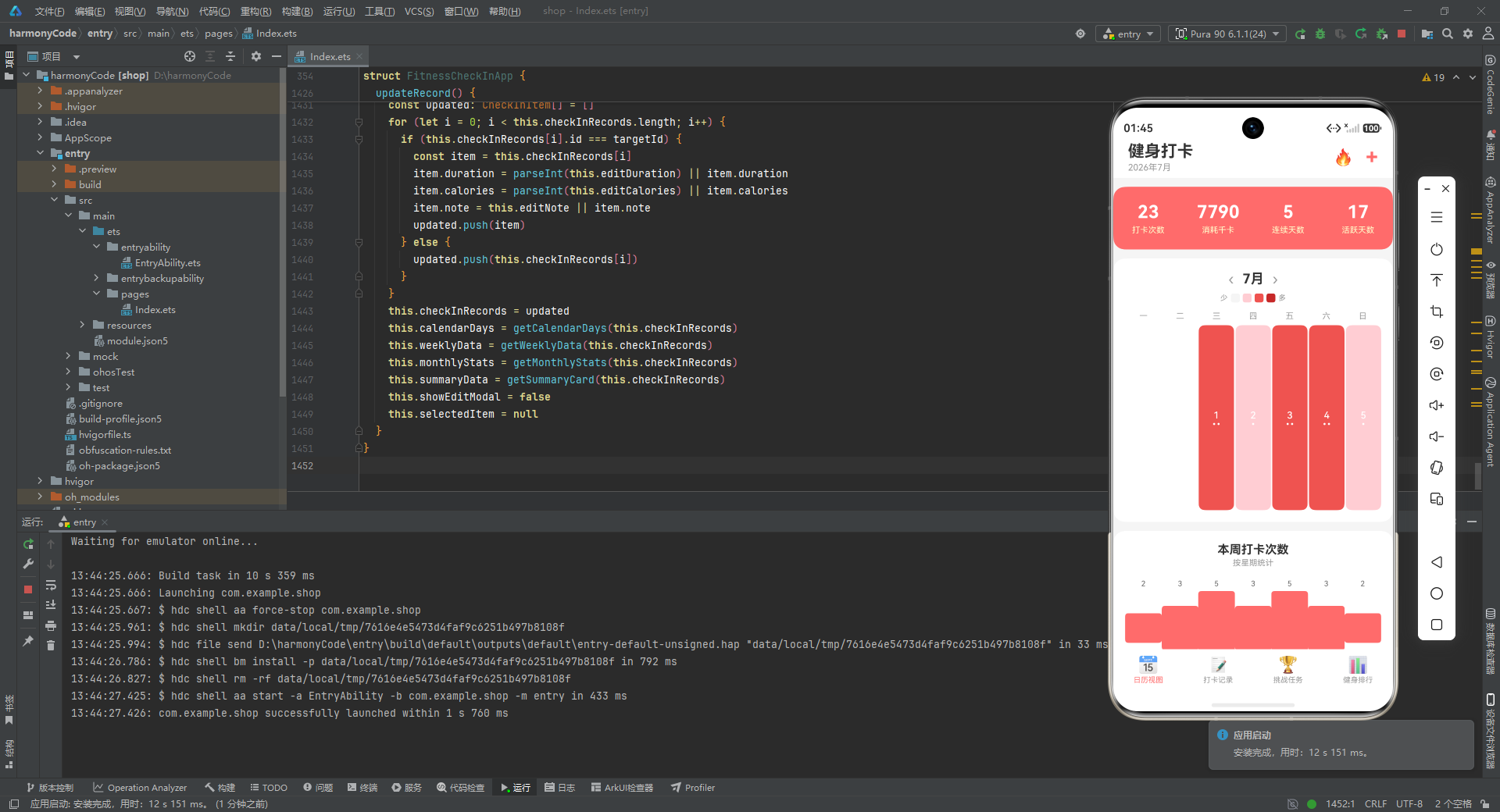
1. 接口先行,类型驱动。 在业务实现前先定义完整的接口契约,利用 TypeScript 的类型系统捕获编译期错误。接口的设计应遵循"单一职责"原则,每个接口只描述一种数据形态。
2. 配置中心化。 将视觉配置(颜色、图标)抽离为独立的配置字典,通过键值映射与业务数据关联。这不仅实现了业务与视觉的解耦,也为后续的主题切换奠定了基础。
3. 枚举管理有限状态。 对于 Tab 状态等有限取值集合,使用枚举而非魔法数字。枚举提供了类型安全和自文档性,且天然支持 switch 和条件渲染。
4. @Observed 实现深层响应式。 当状态是对象数组且需要监听对象内部属性变化时,务必使用 @Observed 装饰数据类。这是 ArkTS 状态管理体系中容易被忽略但至关重要的环节。
5. 派生状态显式缓存。 对于由源数据计算得到的视图数据,将其声明为独立的 @State 状态,在源数据变化时批量更新。这比在 build() 中实时计算更高效,也更易于调试。
6. Stack 实现层叠布局。 模态弹框、遮罩层等浮层元素应使用 Stack 而非 Column 或 Row 来承载,利用其层叠特性实现"内容在下、浮层在上"的视觉效果。
7. 条件渲染实现视图切换。 单页面多视图的切换应使用 if-else 条件渲染配合 @State 状态,这是 ArkTS 中最轻量的视图路由方案。
8. 构建器(@Builder)拆分复杂 UI。 将复杂的 UI 区域拆分为独立的 @Builder 方法,保持 build() 函数的简洁性和可读性。构建器支持参数传递,可实现复用。
这些设计原则和编码模式不仅适用于健身类应用,也可以推广到各类 HarmonyOS 应用开发中,帮助开发者构建出架构清晰、性能优良、体验流畅的声明式 UI 应用。

讨论HarmonyOS开发技术,专注于API与组件、DevEco Studio、测试、元服务和应用上架分发等。
更多推荐


 1
1 0
0- 0


 已为社区贡献62条内容

所有评论(0)